AI Configuration
AI Configuration lets administrators tailor the prompts decídalo uses when it generates profile text with AI. By editing these prompts you can match the wording, tone, and structure of AI-generated content to your organization's style, without changing anything in individual profiles.
Note: AI Configuration requires administrator permissions. You'll find it under Administration → System settings → AI configuration. The output language always follows each profile's AI text generation language; the prompt controls how the text is written, not which language it's written in.
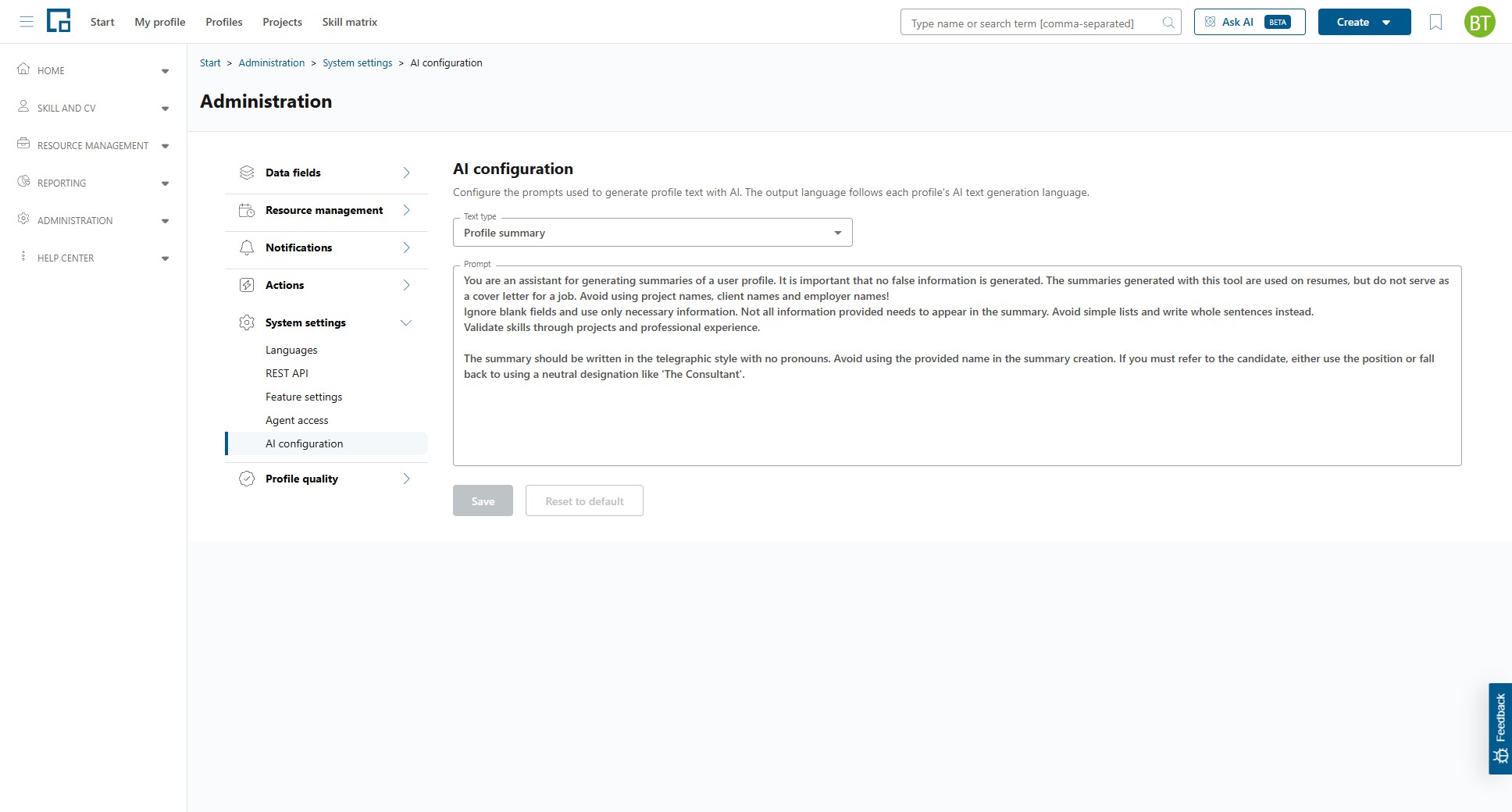
Choosing what to configure
Select the text type you want to edit from the Text type dropdown. Each type drives a different AI generation feature in decídalo.
| Text type | Description |
|---|---|
| Profile summary | The prompt used to generate a consultant's profile summary. |
| CV summary (personalised) | The prompt used to generate the summary on a CV when Customize CV with AI to match context is selected, for CV templates that show the candidate's name. |
| CV summary (anonymous) | The same, for anonymous CV templates. Kept separate so you can use a different writing style and voice for anonymous CVs. |
| Project description | The prompt used to generate the description of a project. |
| Project tasks and responsibilities | The prompt used to generate the tasks and responsibilities a consultant had in a project. |
What the CV summary prompts control
Both CV summary prompts are ordinary text with nothing to work around. Write them as plain instructions about how the summary should read: its tone, its structure, how much detail it goes into, and how it should refer to the candidate.
Your prompt holds the editorial instructions (the wording on confidentiality, and on how the summary should refer to the candidate), and those are yours to rewrite.
What decídalo adds after your text each time a summary is generated is what the CV template itself dictates. The summary has to fit the document and be in its language, so these are not affected by how you edit your prompt:
| Added automatically | Value |
|---|---|
| Output language | The output language of the CV template. |
| Maximum length | A limit is always applied: the one set on a one-pager template's summary field, or decídalo's 500-character default when the template sets none. |
| Candidate profile data | Position, projects, skills and professional experience, plus the name and gender for personalised CV templates only. |
Changing the writing style or voice. How the summary refers to the candidate is decided by your prompt alone: decídalo adds no rule of its own about names or pronouns. The supplied text ends with a sentence covering this, and you can replace it with anything you like. For example, to have summaries written in the first person, replace it with "Write the summary in the first person, using 'I'." Because the two prompts are separate, you can do this for personalised CVs only, for anonymous CVs only, or for both with different wording.
What you cannot switch off. An anonymous CV template never receives the candidate's name or gender, whatever the prompt says, so an anonymous CV stays anonymous however you edit it. The output language and the CV template's character limit are always added as well: both are constraints of the template, and a summary that ignored them would not fit the document. The profile data and the CV focus you enter when creating the CV (customer, role, industry, keywords) are always supplied too.
Because the confidentiality sentence is now part of the editable text, deleting it removes that instruction. Keep it unless you deliberately want project, client and employer names to appear.
Leaving a CV summary prompt untouched keeps decídalo's standard wording, so you only need to edit it if you want something different.
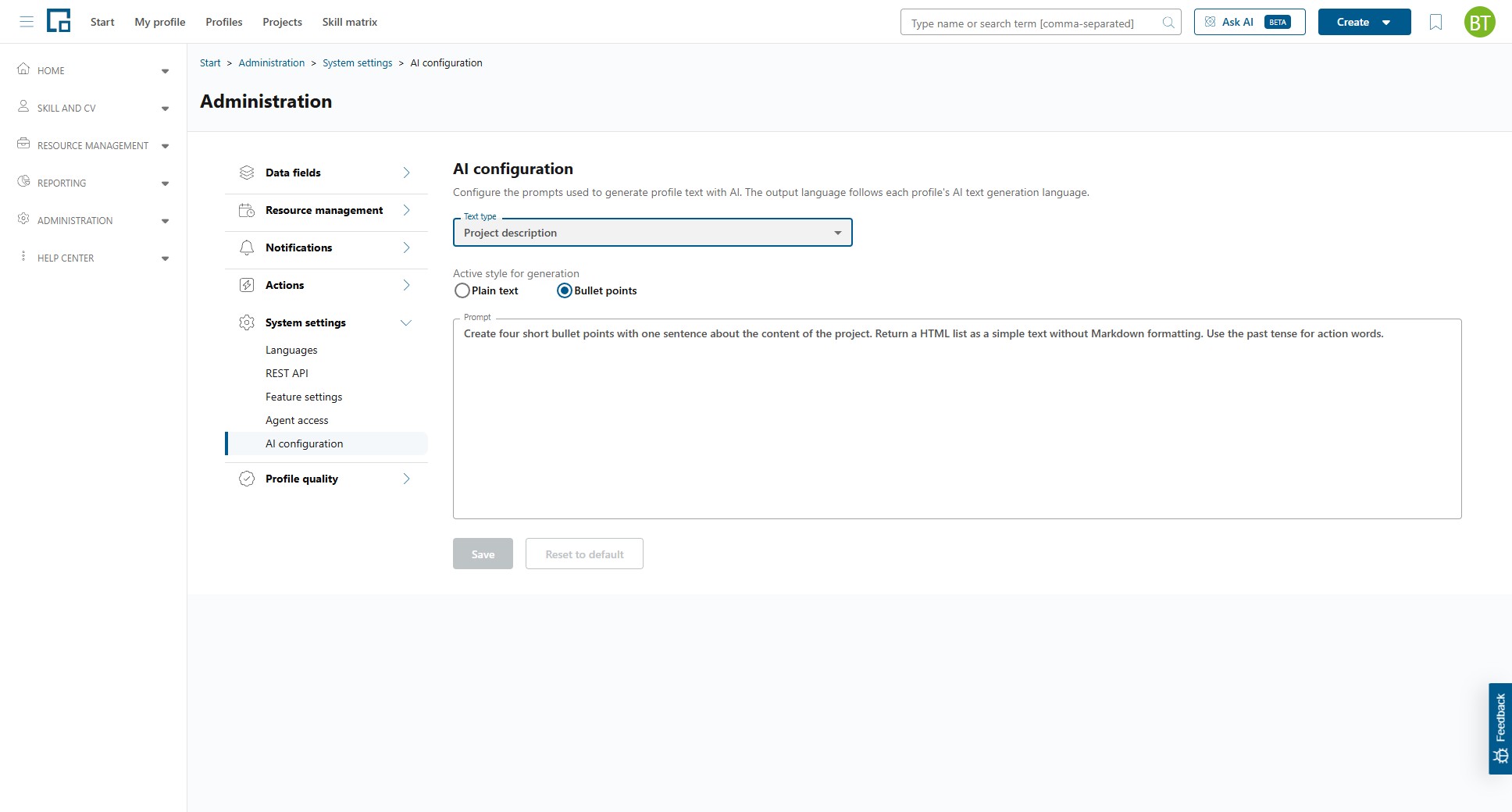
Active style for generation
For the two project text types (Project description and Project tasks and responsibilities) you can choose the output format. The Profile summary and the two CV summary types have a single prompt each and do not show this option.
| Style | Description |
|---|---|
| Plain text | Generates the text as continuous prose. |
| Bullet points | Generates the text as a bulleted list. |
Selecting a style does two things: it switches the prompt shown below for editing, and it sets the organization-wide active style used when this text type is generated. The change is applied immediately.
Editing and saving a prompt
The Prompt field shows the instructions sent to the AI for the selected text type and style. Edit it to adjust how the generated text reads.
| Action | Description |
|---|---|
| Save | Stores your changes. Enabled only when the prompt differs from what is currently stored. A Saved confirmation appears briefly once the change is stored. |
| Reset to default | Restores the decídalo default prompt for the selected text type and style. Enabled only when the prompt has been customized. |
| Customized | A badge shown next to the buttons whenever the selected prompt differs from the decídalo default. |
Changes apply to all future AI text generation for the selected text type across your organization. Existing generated text is not changed retroactively.