Administrating Industries in decídalo
This document provides an overview of managing the industries list within decídalo. Users with appropriate permissions can edit, translate, create, and merge industries.
Editing industries
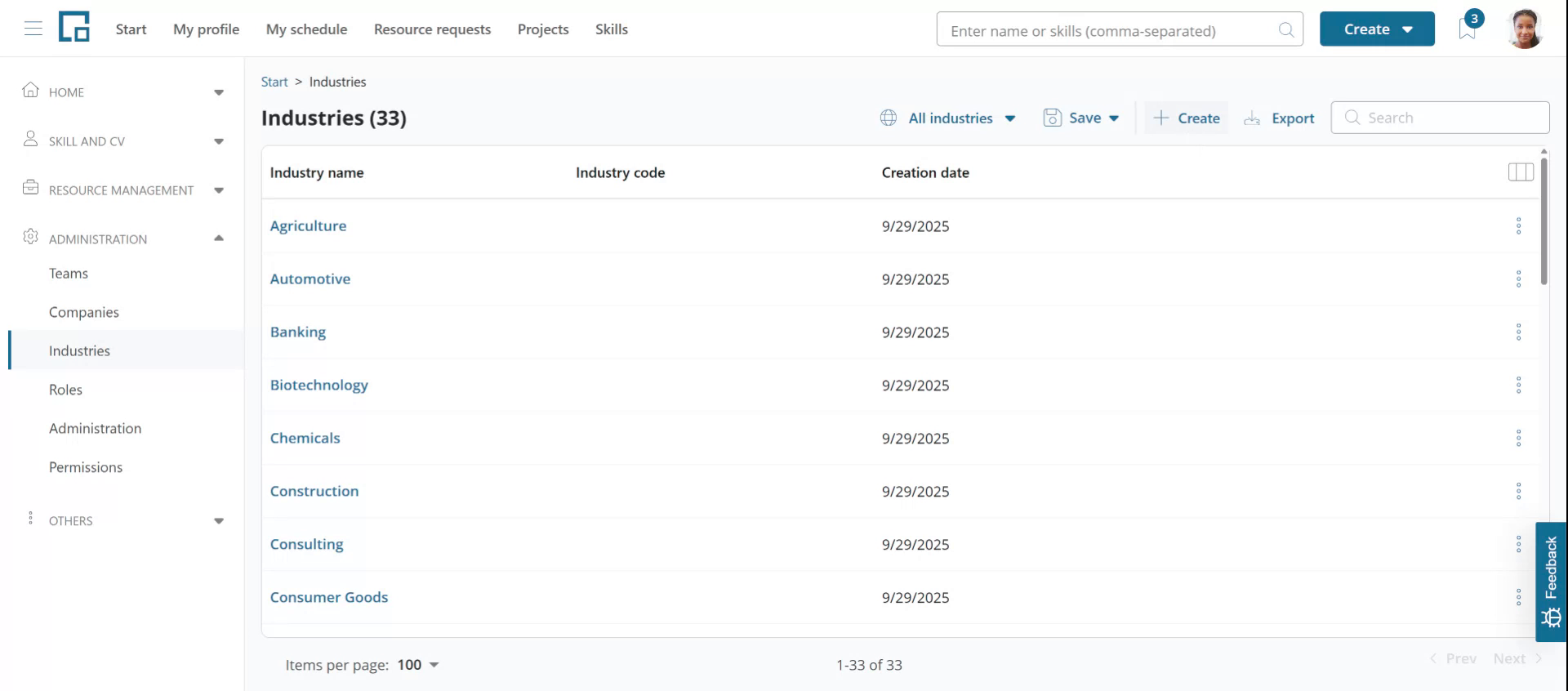
To manage industries within decídalo, begin by ensuring you have the necessary permissions. If you do, an industries menu item will be visible under the Administration section. Select this menu item to see the industries list.
The first column shows each industry's logo and its name in your account's main language. To rename an industry, click the name and enter the new one. The field turns into an input and saves when you click away.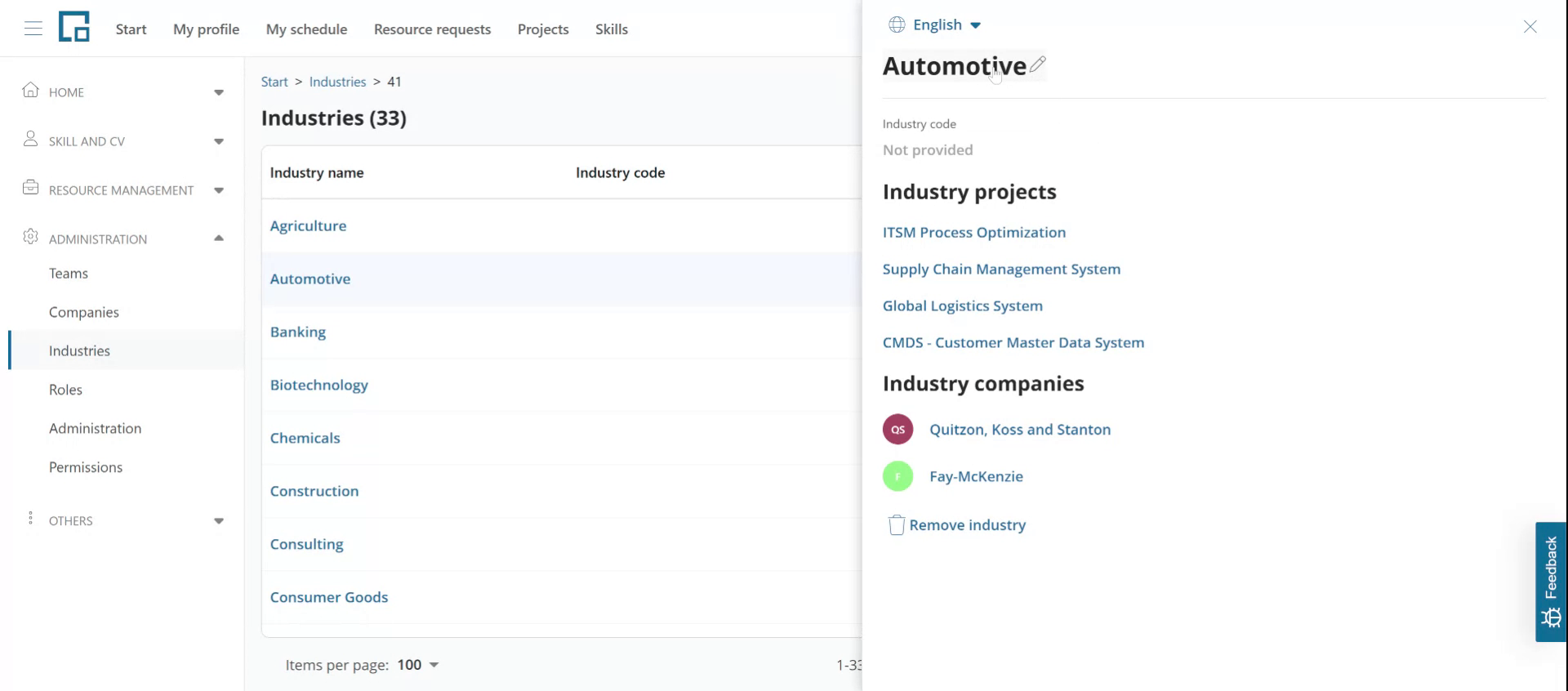
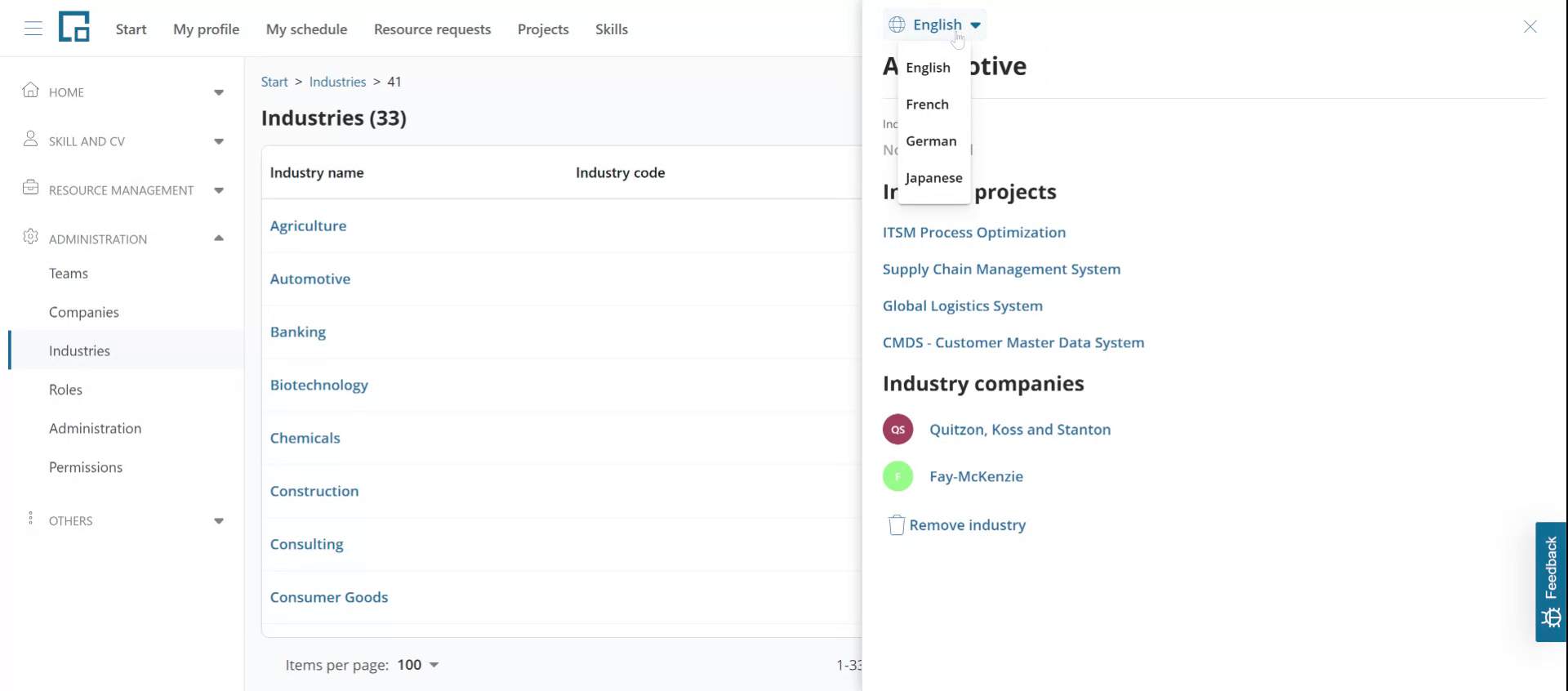
Industries in decídalo are translated into your account's translation languages. The list shows one column per language, so you can see all translations side by side: the main language leads the list, the remaining languages follow at the end. To edit a translation, click the industry name in that language's column and enter the new name.
Industry logos
Click the logo at the start of the first column to change it. Choose "Change image" to upload a new file, or "Remove image" to delete the current one. Remove is only offered while a logo is set, and asks for confirmation first.
Projects and companies
The "Projects" and "Companies" columns show how many projects and how many companies use each industry. Click a number to open a side drawer listing them, and follow any entry to the project or company itself.
You can also rename an industry from the side drawer. Its header carries a language selector: pick a language, then click the name to edit the translation for that language.
Adding industries
To create a new industry, click the "Create" button located at the top of the industry table.
 An input form opens in a pop-up. The industry name is required. Optionally, an industry code can be provided for unique identification across different systems. If an industry list exists in your CRM or ERP, these codes can be used as references.
Note that industries can be imported via the decídalo API. The industry code is used as the unique ID to synchronize industries across systems.
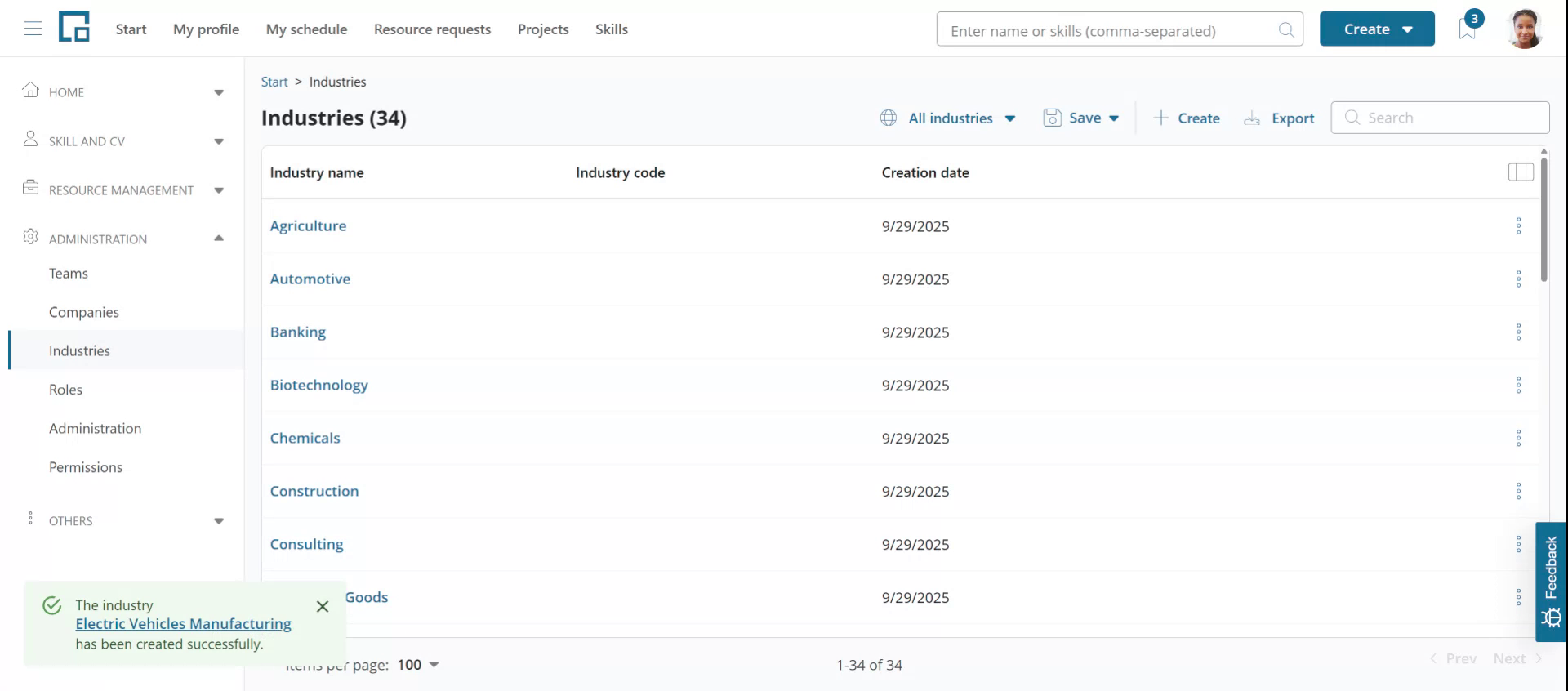
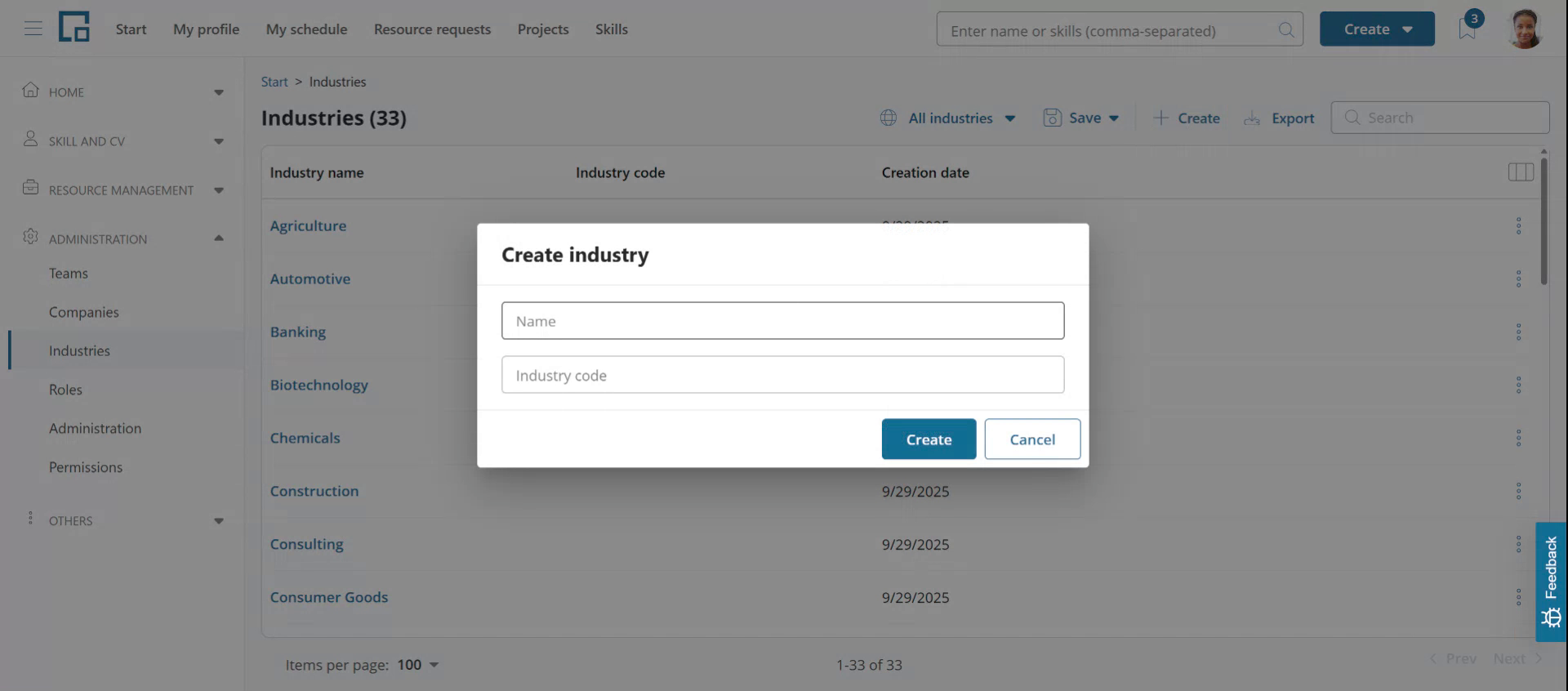 Click "Create" to add the industry, which will then be sorted alphabetically into the list.
After creation, a toaster pop-up provides a direct link for verification. Click this link if you want to check the automatically created translations.
Merging industries
To merge industries, decide which industry should be integrated into another. For example, to merge "Electric vehicles manufacturing" into "Automotive" click the three dots on the right side of the "Electric vehicles manufacturing" row, and select "Merge,". A pop-up opens. Chose the target industry, in our example "Automotive".
The Name and Industry code fields will be pre-filled with the selected industry. They can be overwritten if the resulting industry should get a different name. The industry code behaves slightly differently: you can replace it with a different code, but leaving it empty keeps the code the surviving industry already had rather than clearing it.
Finalize the process by clicking "Merge."
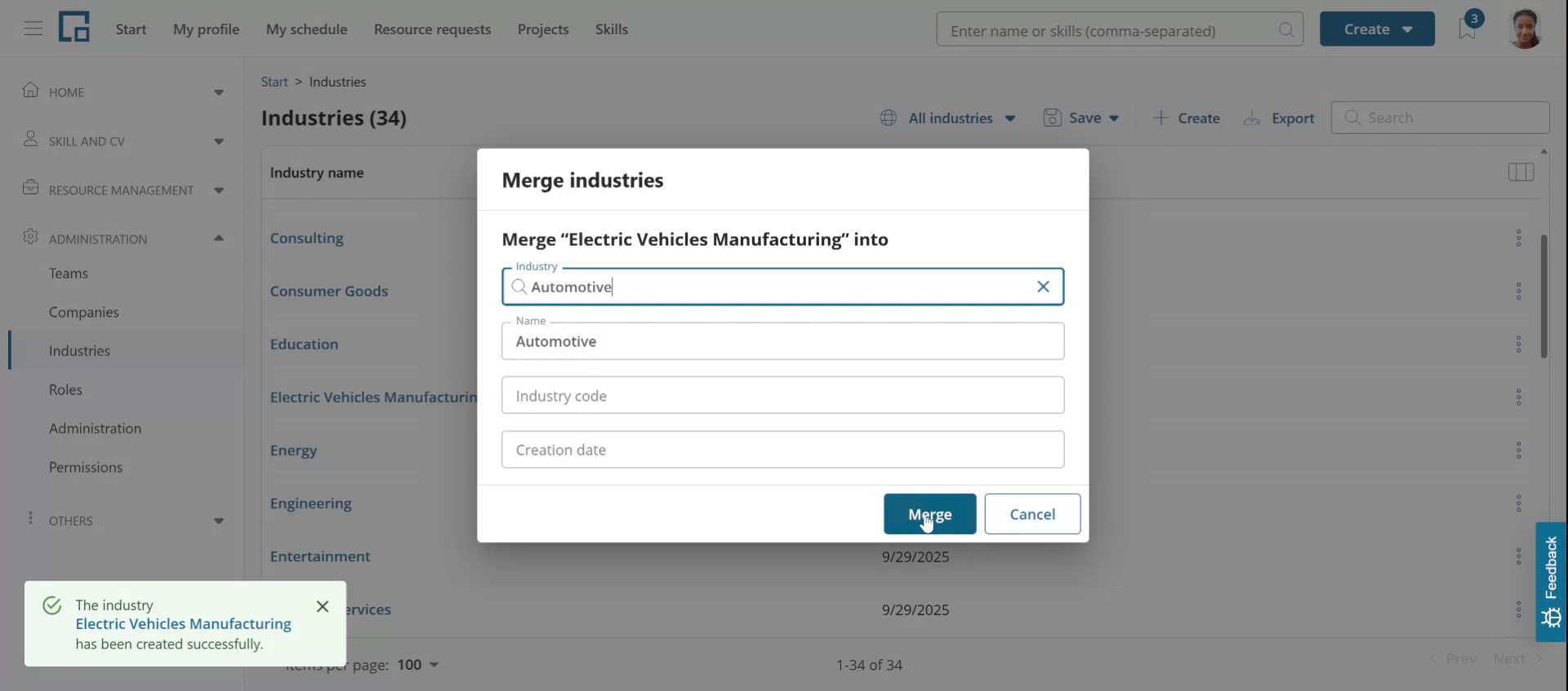 Upon merging, the former industry (e.g., Electric Vehicles Manufacturing) will be removed and replaced with the target industry (e.g., Automotive) across all instances in decídalo.
An industry that has an industry code cannot be merged away, because the merge deletes it and the code is what other systems use to identify it. The "Merge" action is greyed out on such an industry and explains why when you hover it. You can still merge other industries into a coded industry, which keeps the code where it is. To merge a coded industry anyway, remove its code first.