Language Configuration
This guide walks you through how to set up languages in decídalo. You'll learn how to manage the languages used in the user interface and for CV templates. This functionality is only available to administrators.
Configuring languages
decídalo distinguishes screen languages and CV template languages. Screen languages are the languages that the user interface (UI) can be displayed in. Users can set their screen language on the Account tab of their profile. decídalo currently supports the following screen languages. English, German, French, Japanese, and Spanish.
CV template languages are the languages for which CV templates can be uploaded and CVs generated. By default all screen languages are also CV template languages.
You cannot add new screen languages. You can deselect screen languages that are not relevant for your company. decídalo automatically translates skills, roles, and all custom data fields added to the user interface into all selected screen languages. Hiding unused screen languages simplifies the administration of these entities.
As an administrator you can add new CV template languages.
To configure languages go to the Administration menu, then choose System Settings, and click on Languages.
Here you'll see the languages that are currently set up. Every decídalo client has a default language that is set when the client is created. The default language is indicated by the Default label above the name.
There are two columns with checkboxes: Screen language and CV template languages. To hide screen languages, uncheck the corresponding checkbox. The default language cannot be deselected.
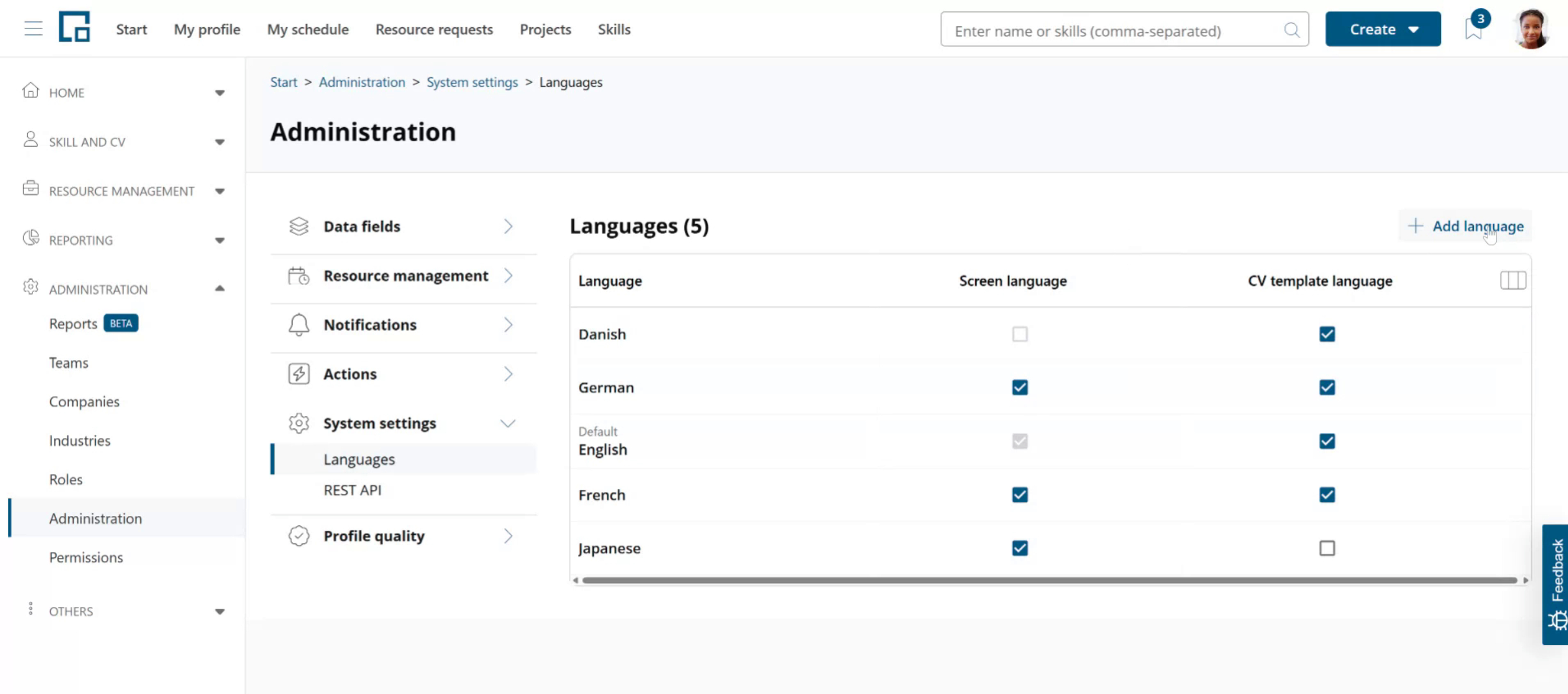
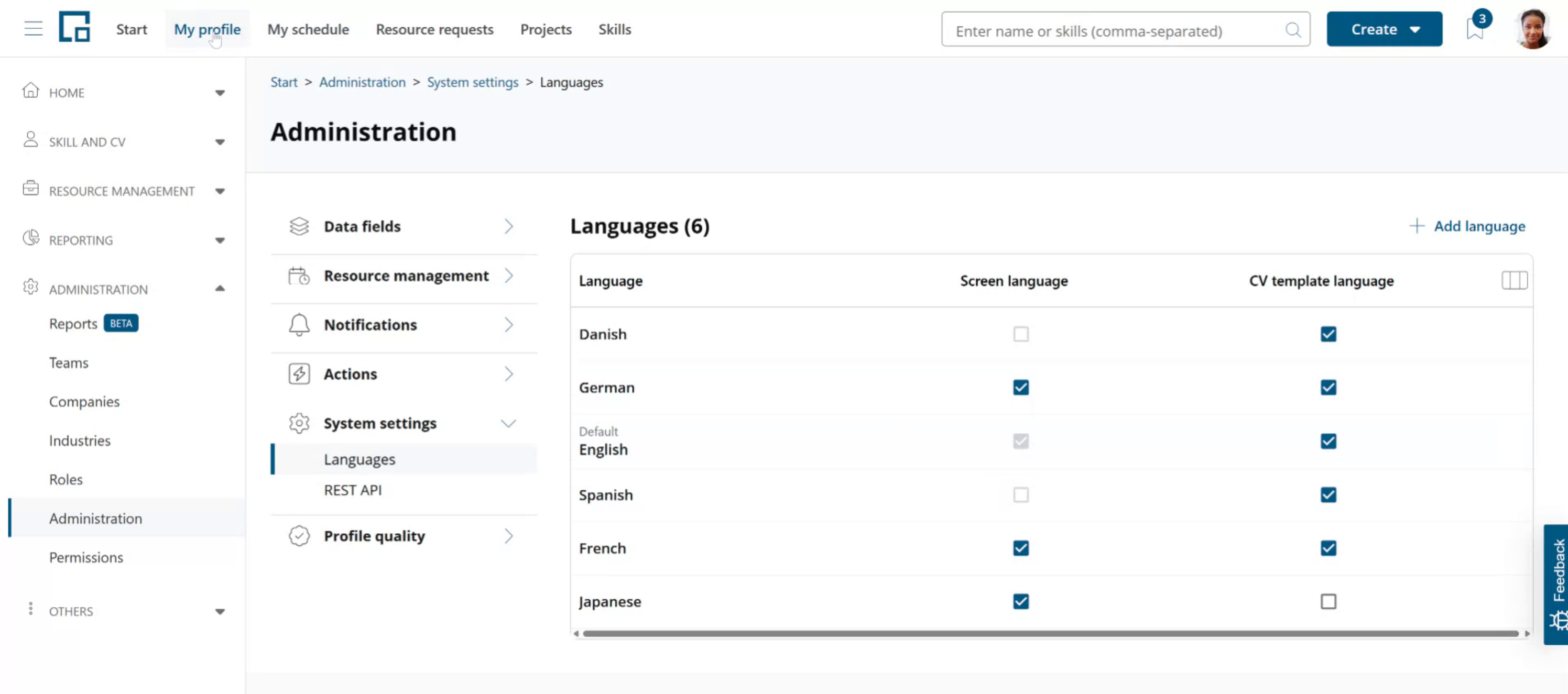
The built-in screen languages (English, German, French, Japanese, and Spanish) already appear as rows in the table. To use one of them for CVs, Spanish for example, tick its "CV template language" checkbox on that row; tick "Screen language" as well if you also want the user interface available in that language.
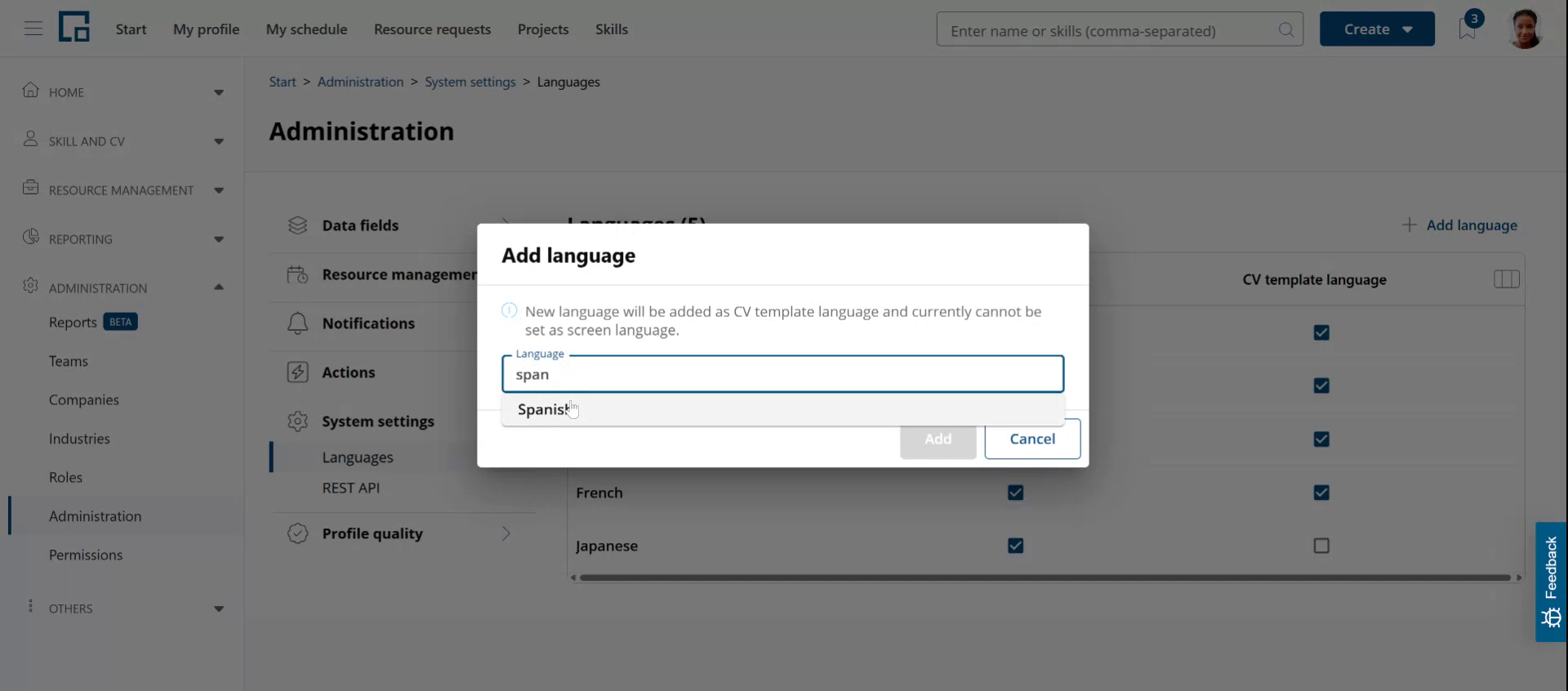
To add a CV template language that is not one of the built-in screen languages, click "Add language", pick a language from the list, and click "Add". It shows up in the configured languages table with the "CV template language" option checked, but not as a screen language, because the Screen language option stays disabled.
Using new languages for CV generation
Spanish can now be used for CV generation.
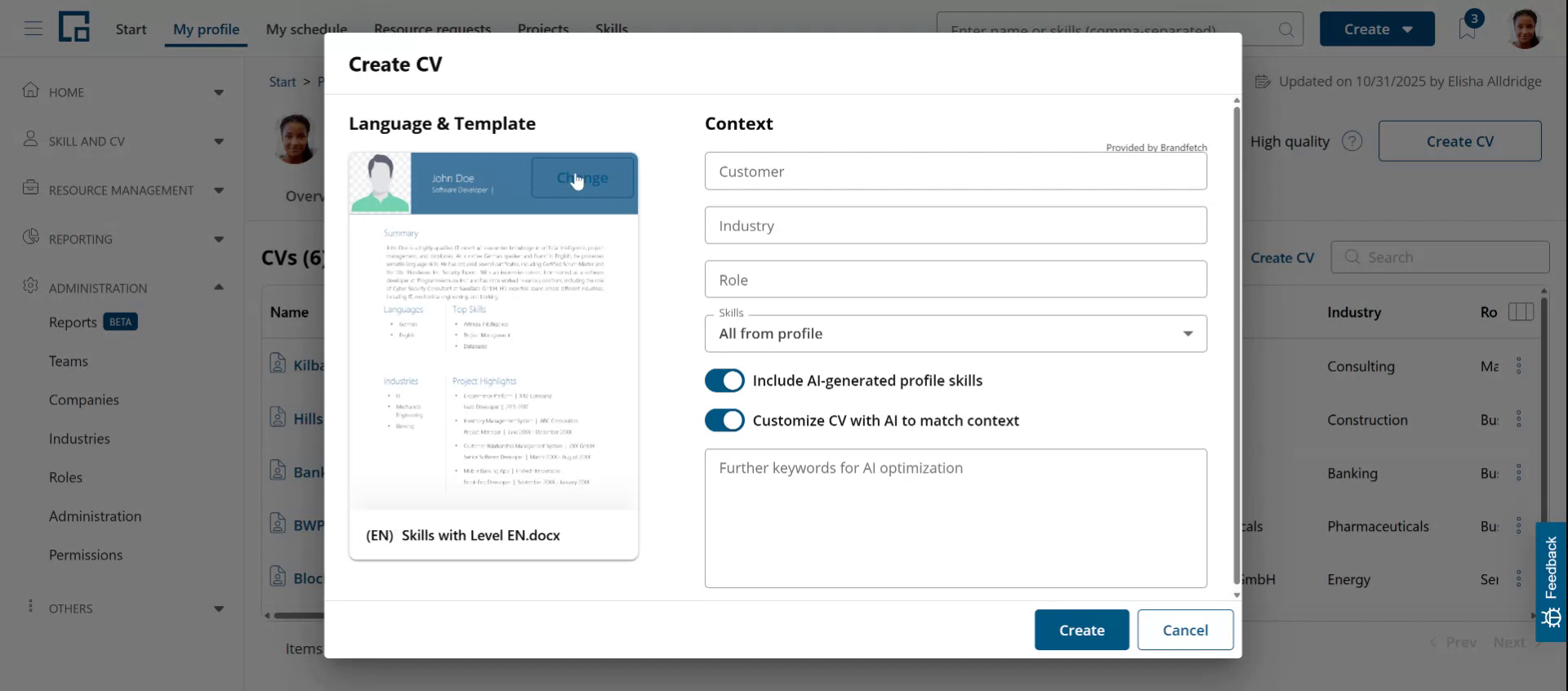
To check this, go to your profile, head to CVs, and click "Create CV" to add a new one.
You'll see the default template for your screen language. Click "Change" on the template to open the template library.
 Expand the language dropdown in the top-right corner of the template library.
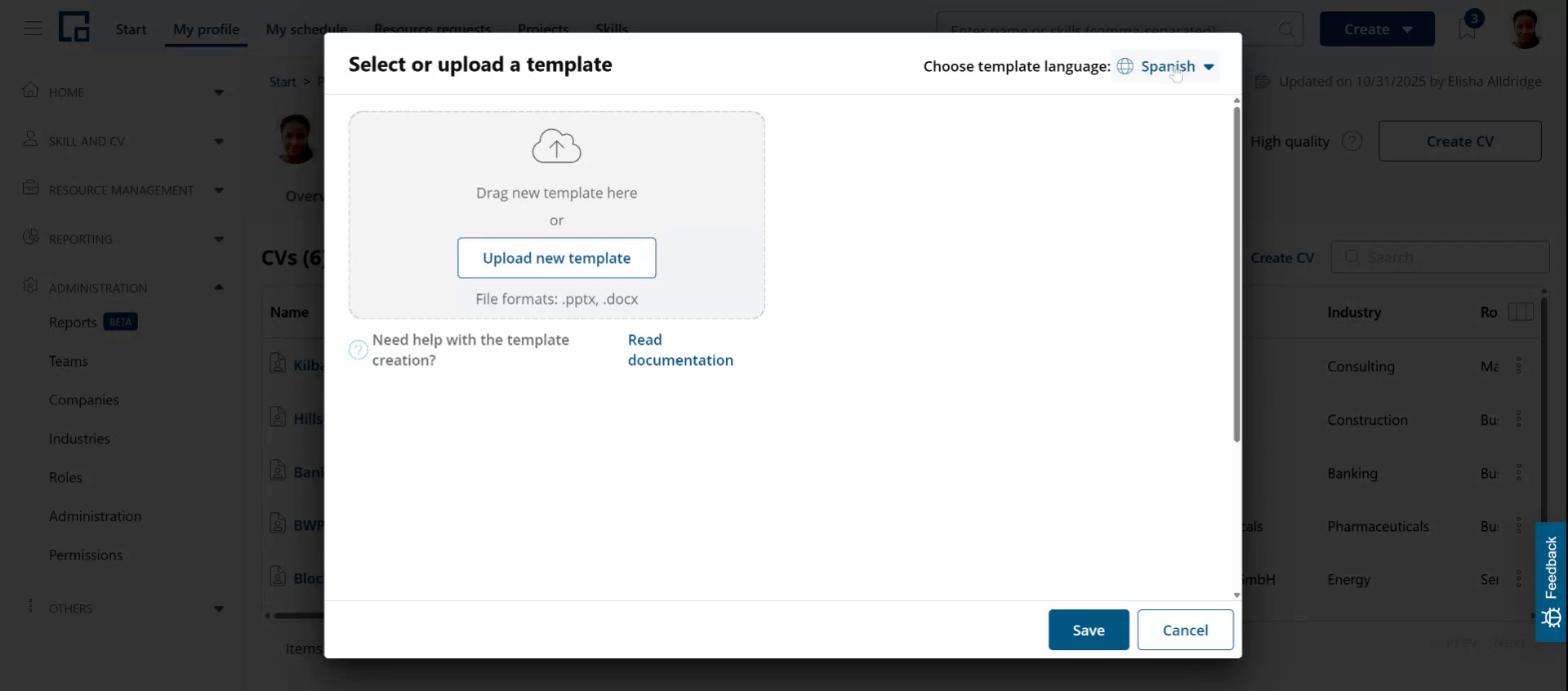
Spanish now appears as an option. If you select it, you'll notice there isn’t a template in Spanish yet.
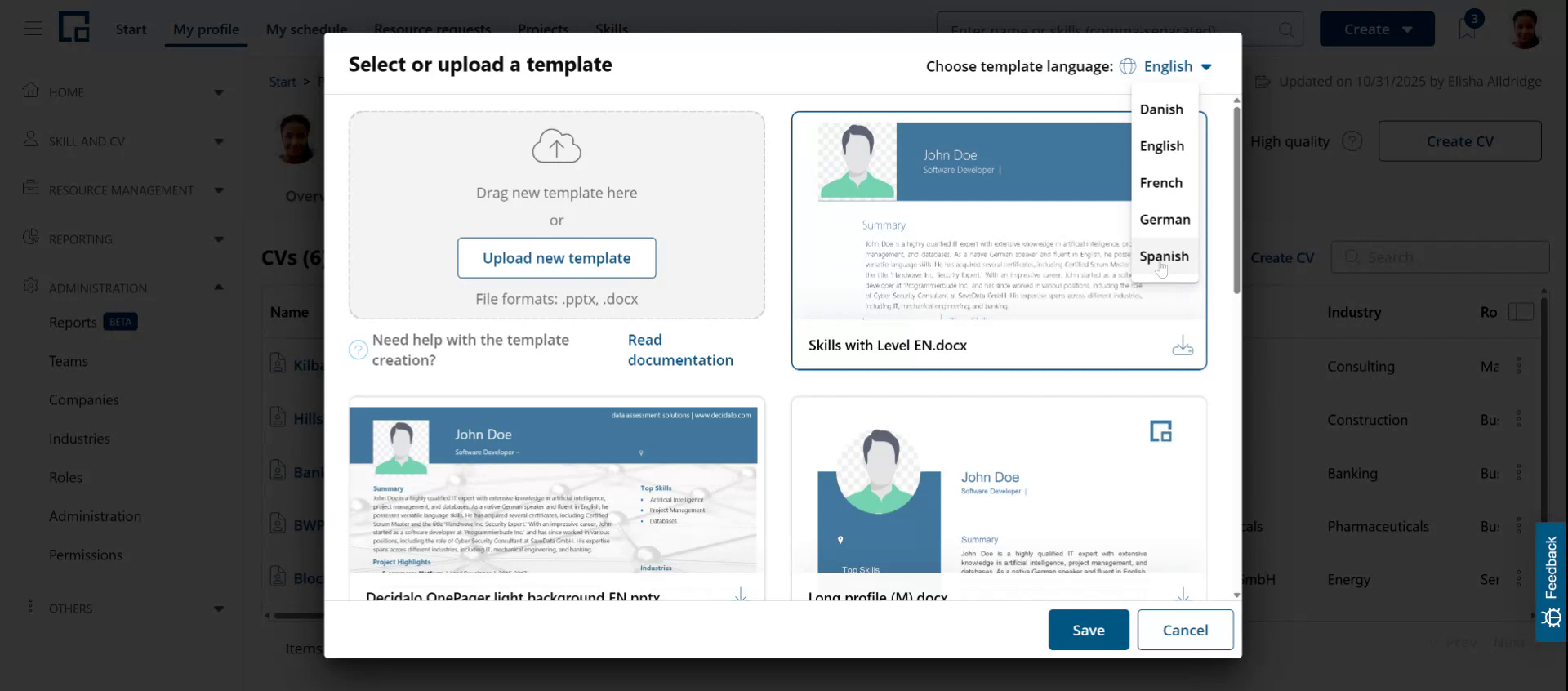 To generate Spanish CVs we still need to add at least one Spanish CV template.
The easiest way to create a template in a new language is to download one that's already available in another language, translate it and upload it again.
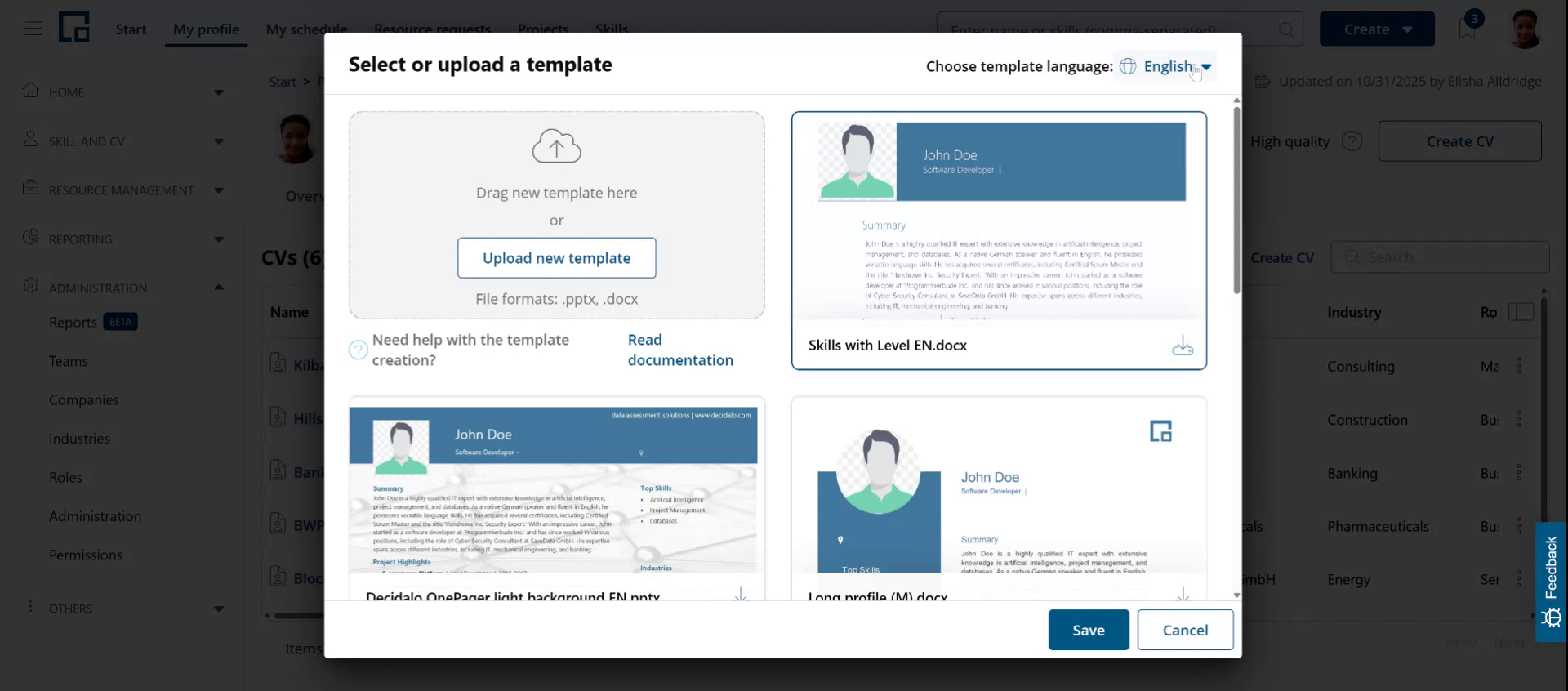
 For this, change the language to your screen language (or any language that has templates).
Click the download icon in the bottom-right corner of the template you want to translate. Depending on the template, this will download a Microsoft Word or PowerPoint file. Translate that file to the new language, in our example Spanish, and save it under a new name.
In the template library switch to Spanish again and upload your new template.
 To generate a Spanish CV, select your Spanish template and click Save. This closes the template library. Follow the usual steps to generate a CV. decídalo now automatically translates all content of the profile to generate a Spanish CV.