Navigating Team Structures in decídalo
This document provides an overview for viewing and navigating the team structure within decídalo. It shows how users can browse and access detailed information about team members and managers.
Understanding the team structure
Teams represent the organizational structure of your company in decídalo. Teams are organizational units with a hierarchical structure. Most companies import the team structure from their HR system, as part of the user import.
In decídalo, every user can view the team structure. Access the team structures from the "Teams" menu item under the "Administration" menu section.
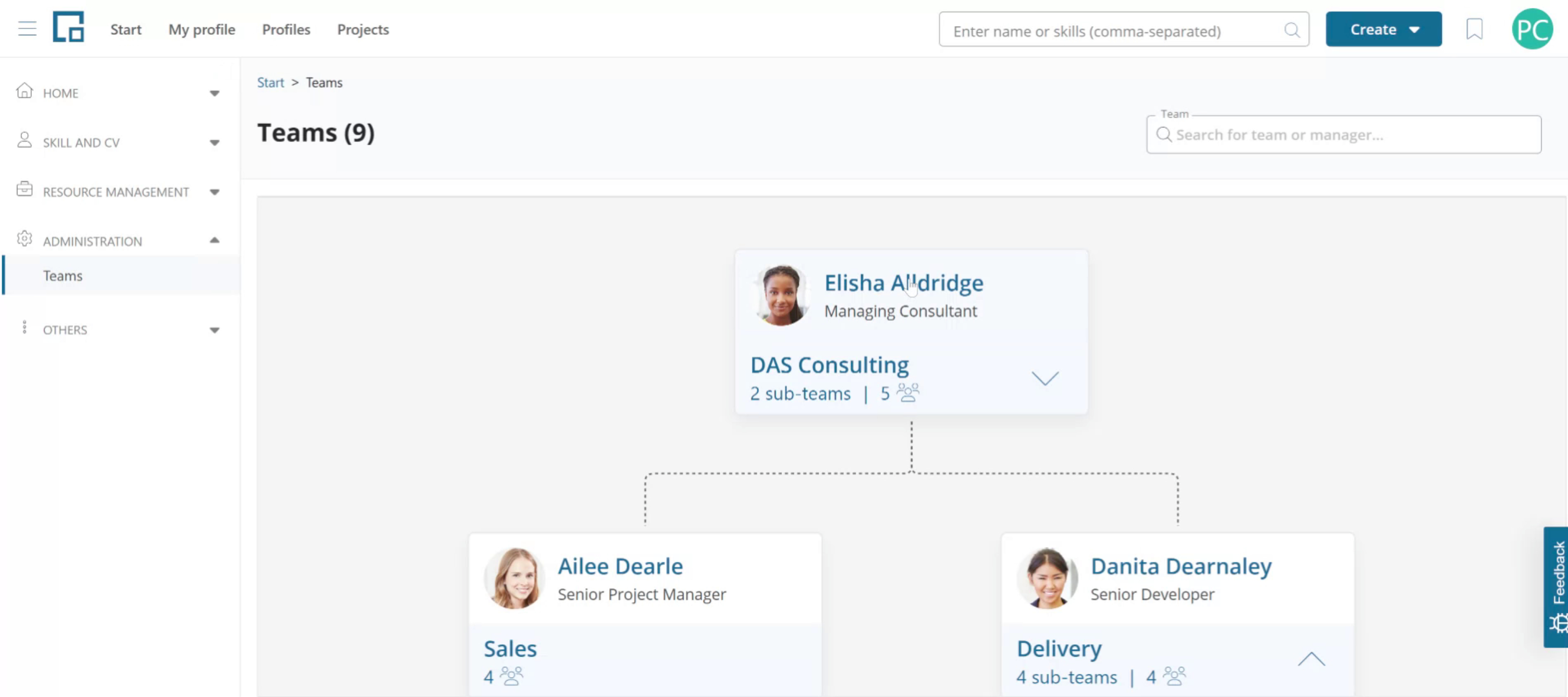
Teams in decídalo are organized hierarchically, beginning with the root node, followed by the sub-teams beneath. Each team is represented by a tile in a graphical representation on Teams page. A team tile displays the manager's information, the number of direct sub-teams, and the count of team members.
Click on a tile to view additional details about the team. The team manager, any additional managers and the team members will be displayed in a side drawer.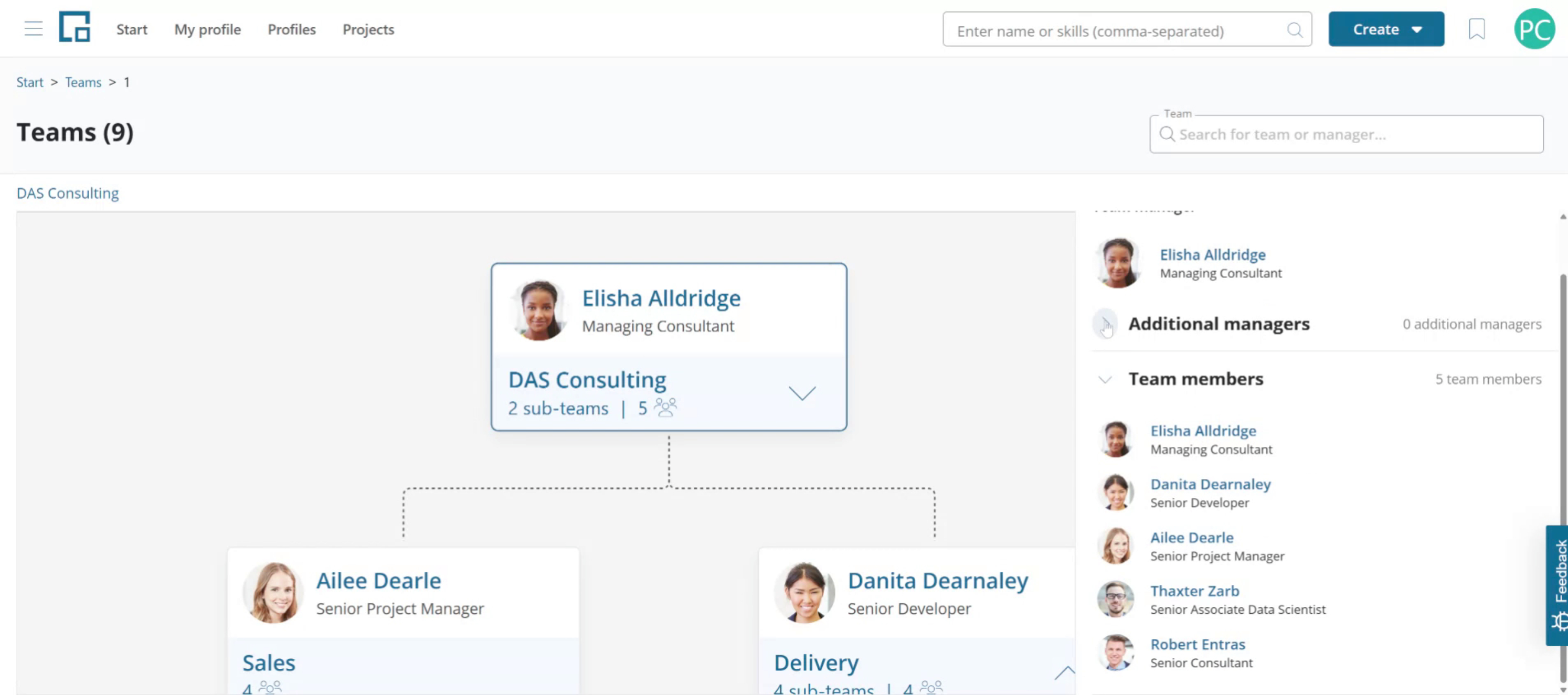
A team has one primary manager. It can have multiple additional deputy managers. One person (profile) can be a manager or additional manager of multiple teams.
Teams and managers play an important role in the permission concept of decídalo. Team managers can get specific permissions for the members of their team.
Each person in decídalo can only be a member in one team.
Navigating the team structure
If a team contains sub-teams, you can expand or collapse them by clicking the arrow icon on the team tile.
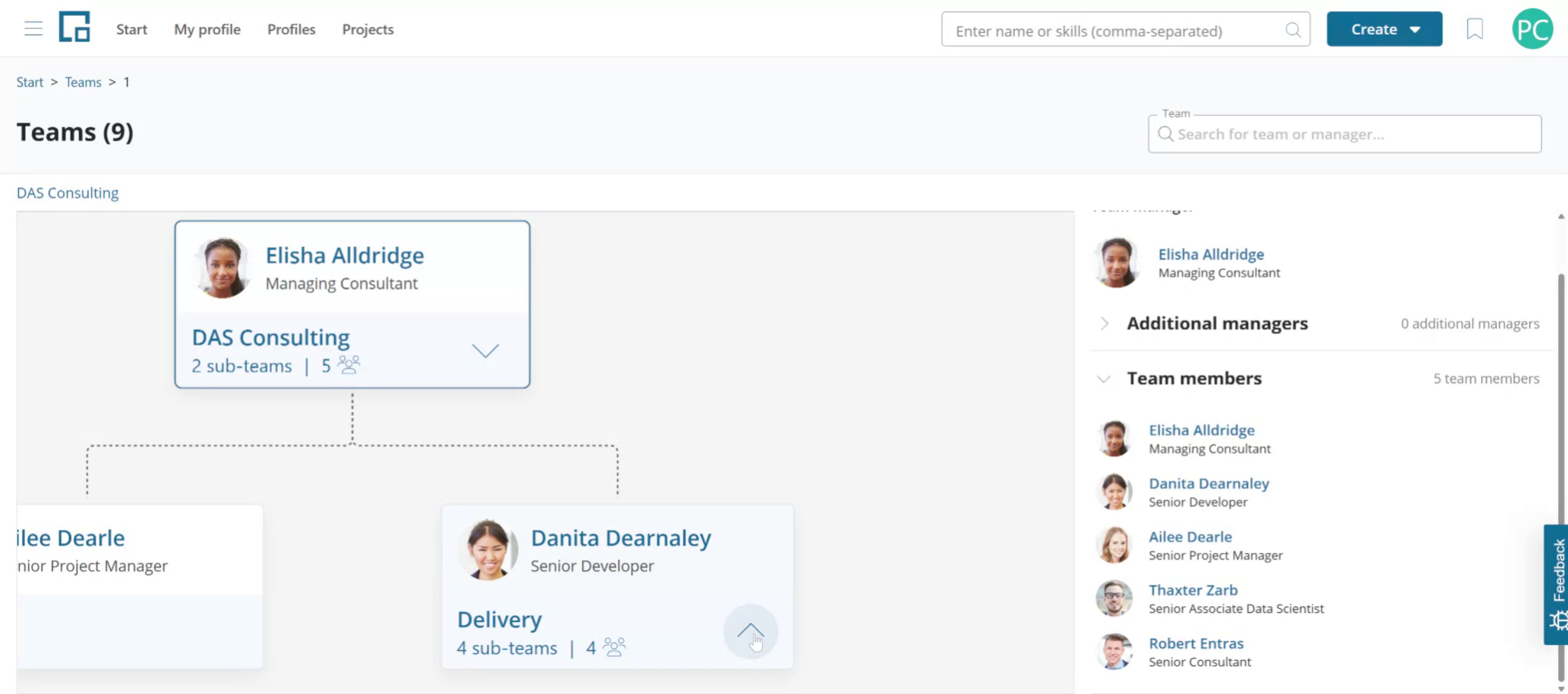
To adjust the visible area zoom in or out with your mouse scroll wheel and move the diagram around by clicking on the canvas and holding down the left mouse button.
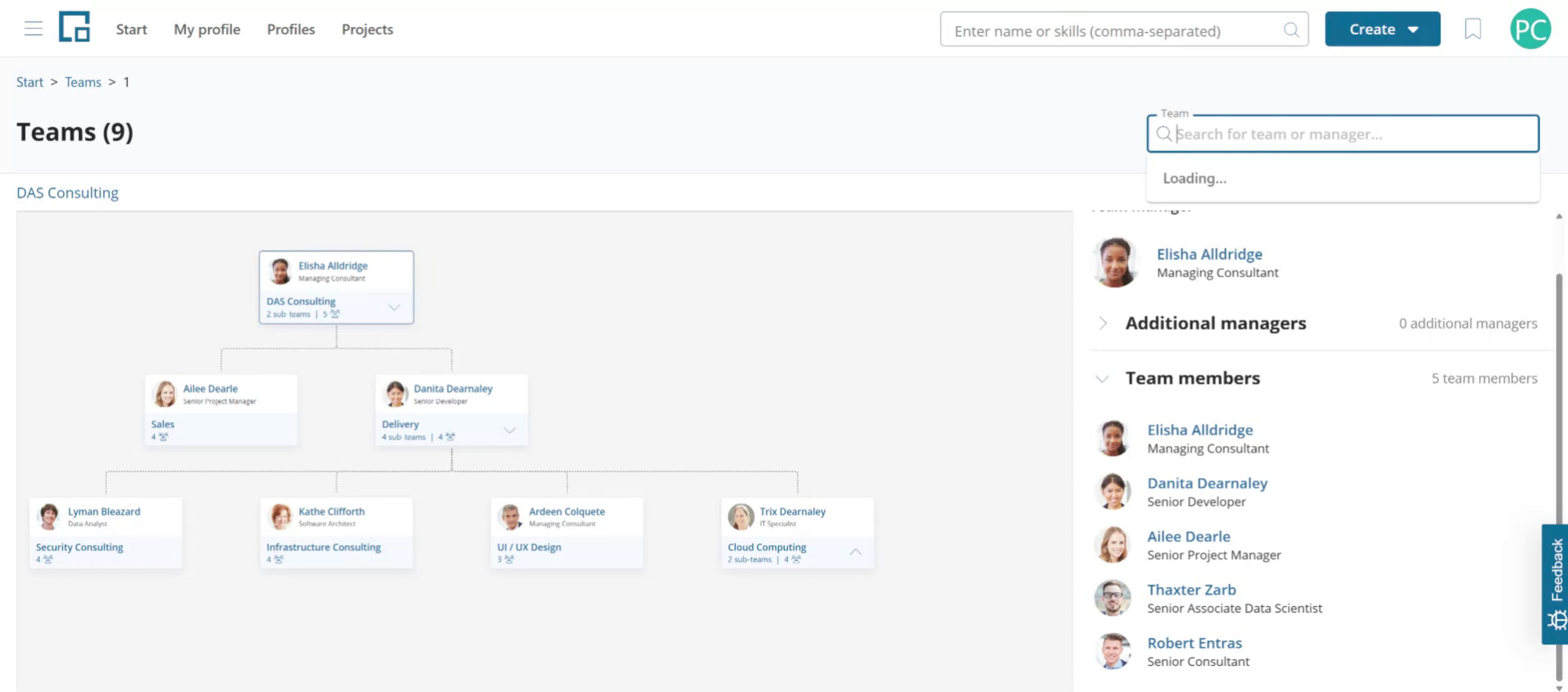
Locating a team
You can directly access teams using the search box above the canvas. Enter the team name or the manager's name. Select the team from the autocomplete dropdown in the search box.
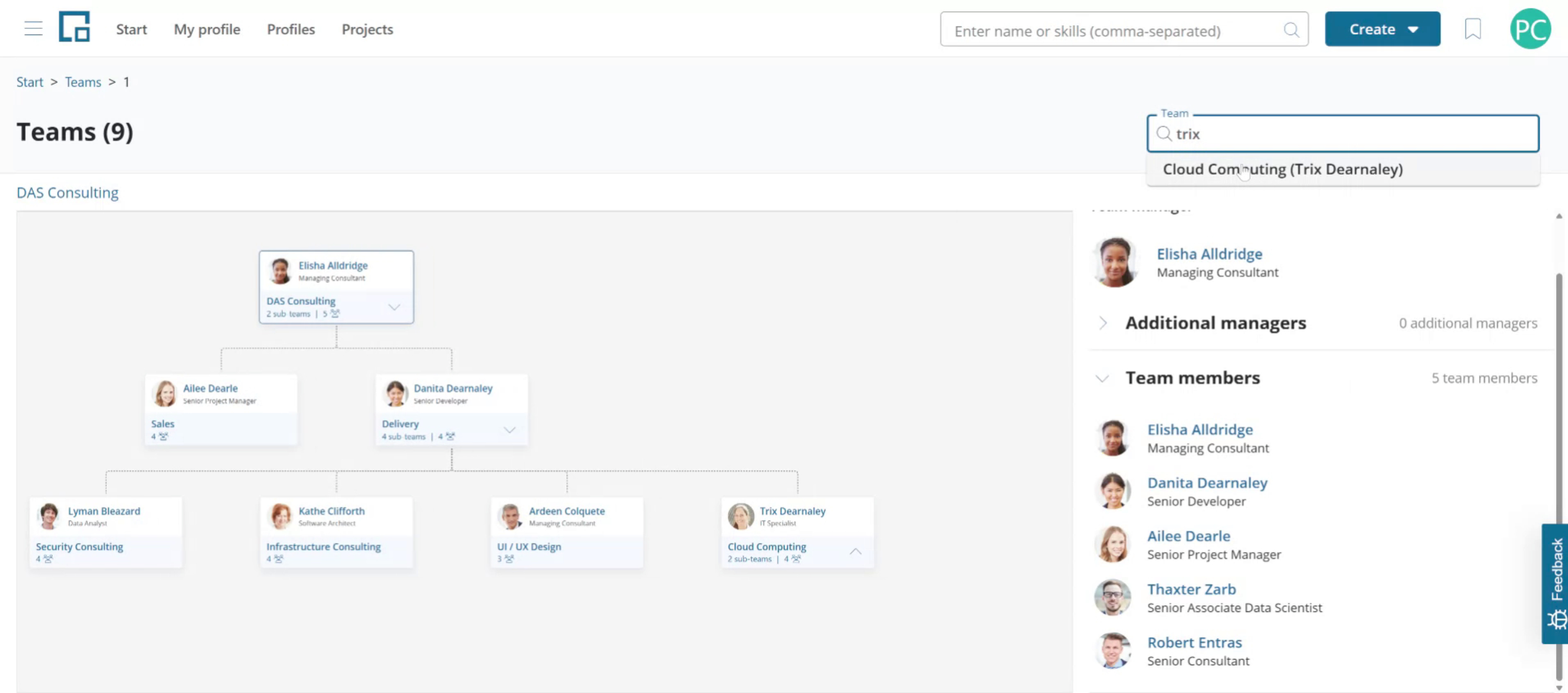
The selected team's time is shown as the top node. If it has sub-nodes, the first level is expanded.
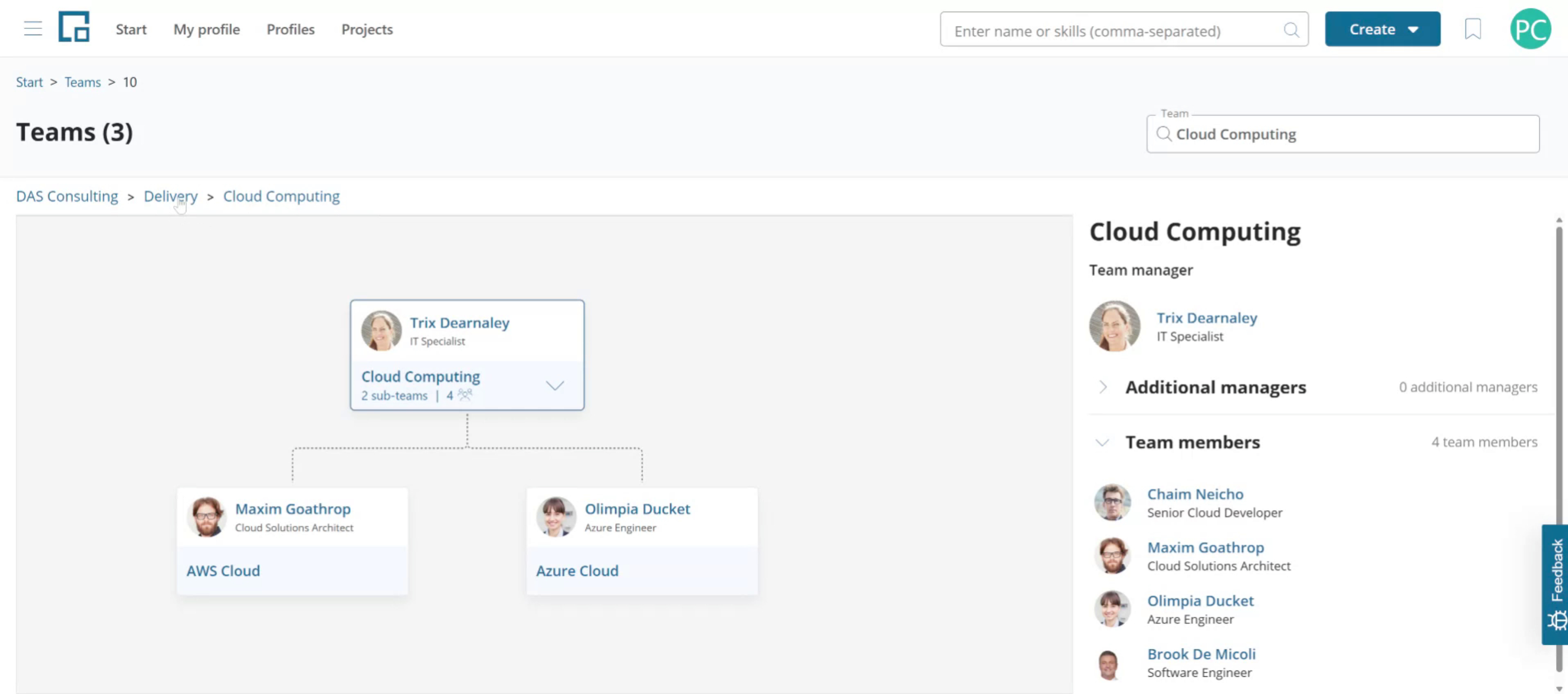
The path above the diagram indicates the location of the team within the organizational tree. Click on a parent team name in the path to navigate up in the team structure.