Using the Search in decídalo: How to Find the Right Candidate
In decídalo, you have two options to help you search for the right candidates. Whether you already have specific requirements or just want an overview, decídalo supports you in finding the best match.
1. The Global Search: Fast and Straight to the Point
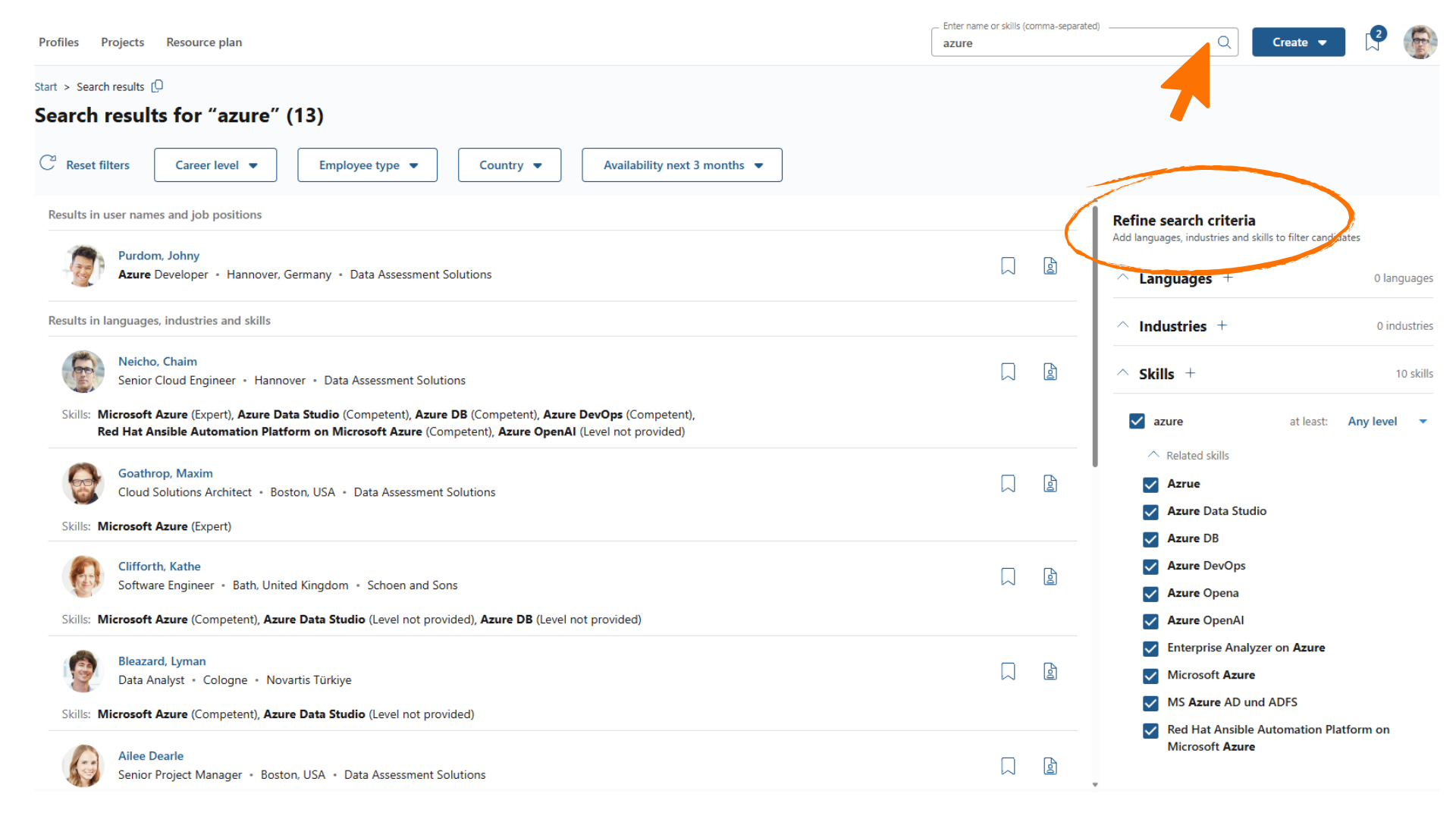
The global search is perfect if you already have a name or specific skills in mind. Here are some highlights:
- Direct search by names, skills, or positions, and multiple terms separated by commas are also possible.
- All available data at one glance: Quickly get an overview of all candidates in the system.
- Filtering options: Refine your search by criteria such as career level, language skills, or specific competencies. Mark skills or certificates as mandatory to have by your candidates.
- Shortlist and CV creation: Once you've found suitable candidates, save them for later or directly generate a matching CV.
This search function is ideal when you want to search across the entire system for individuals and their skills.
Full-text search
In addition to the skill- and keyword-based search, you can activate full-text search using the toggle in the search results header. When enabled, it searches across all profile data, including CV content, project descriptions, and other free-text fields, not just structured fields like skills or certificates.
- When to use it: Full-text search is useful when you are looking for candidates based on specific terms, technologies, or phrases that may not be captured as a dedicated skill or certificate (e.g. a methodology described in a project description).
- Combining both modes: Skill-based and full-text results are combined, giving you the broadest possible set of matches.
- Match quality: Results are split into full matches (all keywords found) and partial matches (some keywords found), regardless of which search mode is active.
- Your choice is remembered: The toggle keeps the state you last set it to, so your next search starts in the same mode, even after you sign in again.
Revenue related availability
If your organization uses bench management, the Revenue related availability toggle beside the full-text search toggle lets you choose which bookings count towards a candidate’s availability.
- Off (the default): availability counts every booking, whatever its accounting type.
- On: availability counts only bookings whose accounting type is marked as revenue related in the administration. A candidate whose bookings are all of other types then shows as available, because that work can be displaced for a revenue-related request.
- It re-runs the search: the availability shown on each result and the required capacity availability filter both follow the toggle, so switching it reloads the results with the new reading.
- Your choice is remembered: like the full-text toggle, it keeps the state you last set it to.
The toggle only appears when bench management is active. Without it, both readings are the same number. It is also hidden when your company feeds availability into decídalo from an external system, because the search then shows and filters on that system’s figures.
2. Resource Requests
A new project is coming up and you need suitable candidates? The demand-based search guides you step by step to the best-fit:
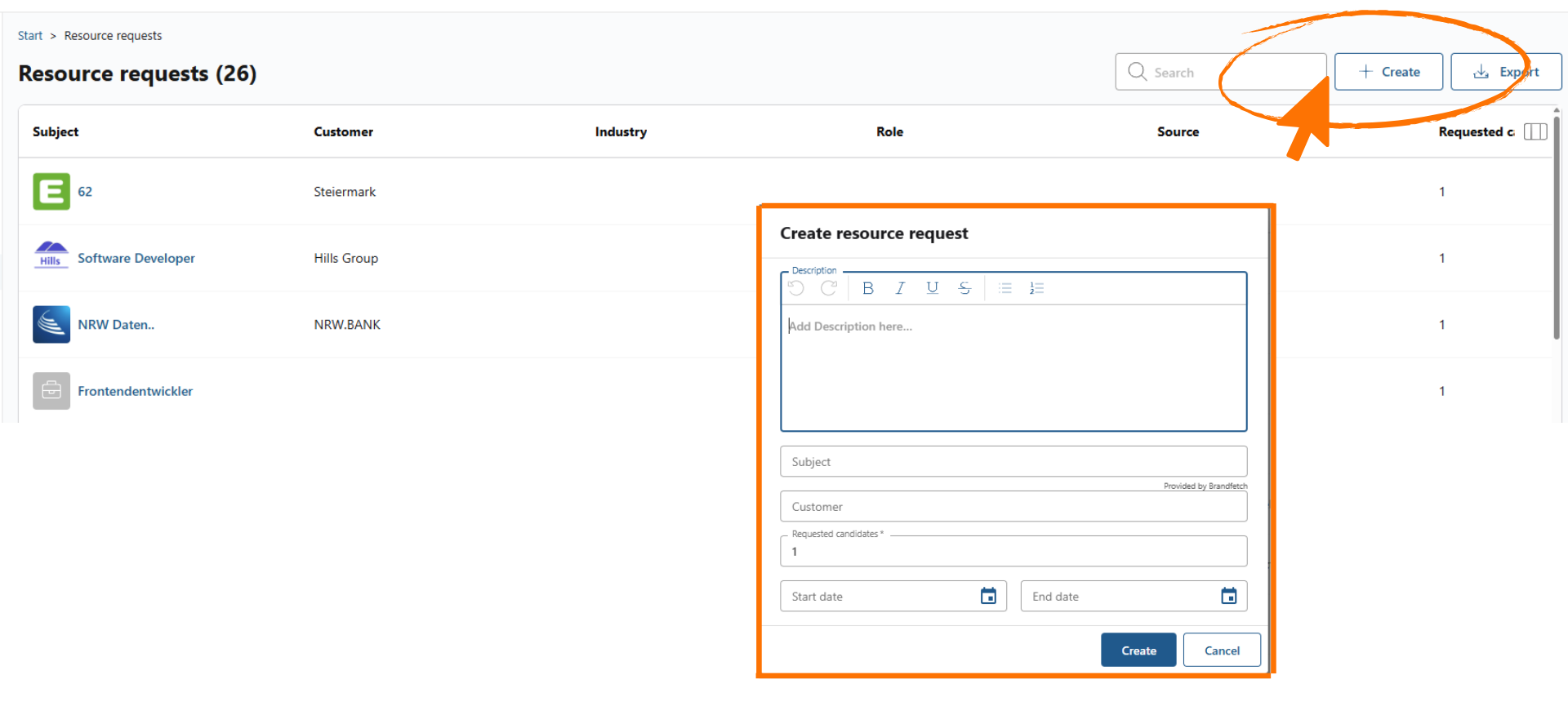
- Create a resource request: Set up a new resource request based on a project description or job posting. Who do you want to propose?
Quick Search Based on Keywords
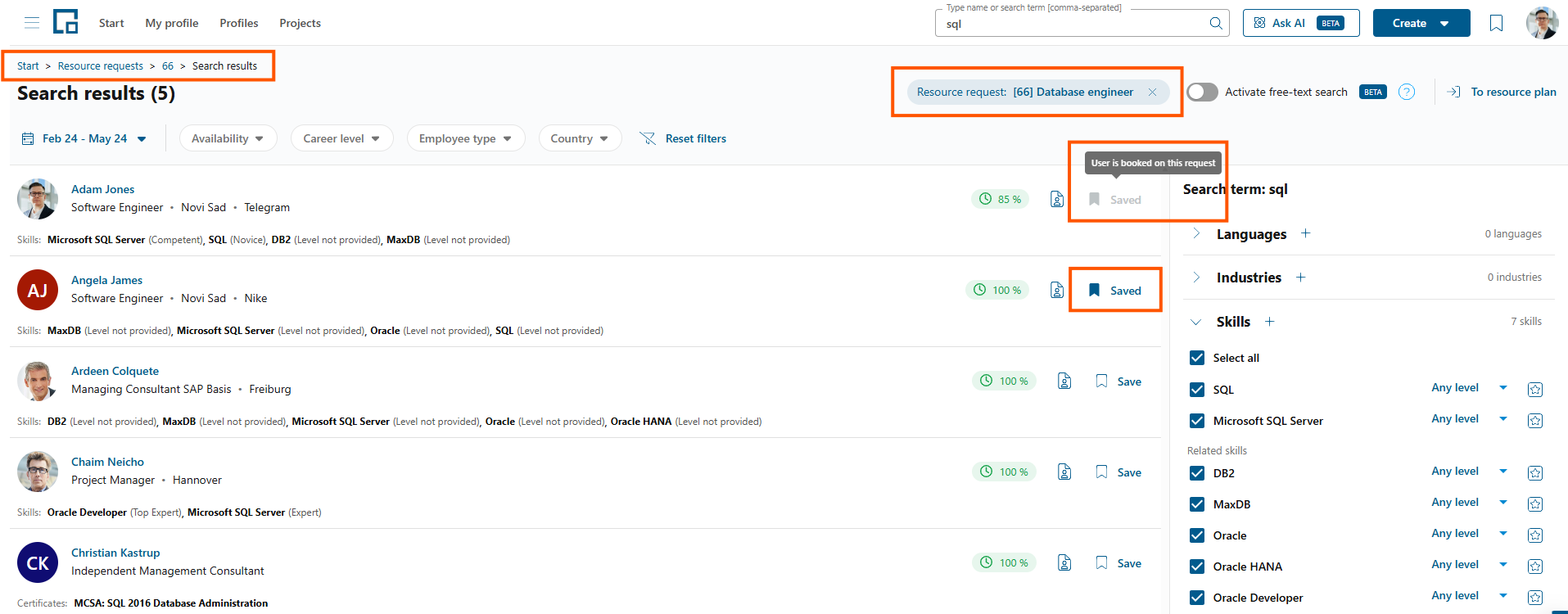
- Quick Search: Available on the right-hand side of the resource request, quick search supports global search with a context of a resource request
- Directly Save Candidates: When global search is triggered from a resource request, you can select candidates directly from the search results with the Save button Note: Candidates that are already saved to the resource request will be marked as such, and candidates booked to the resource request are disabled from editing

Advanced Search Based on Project Requirements
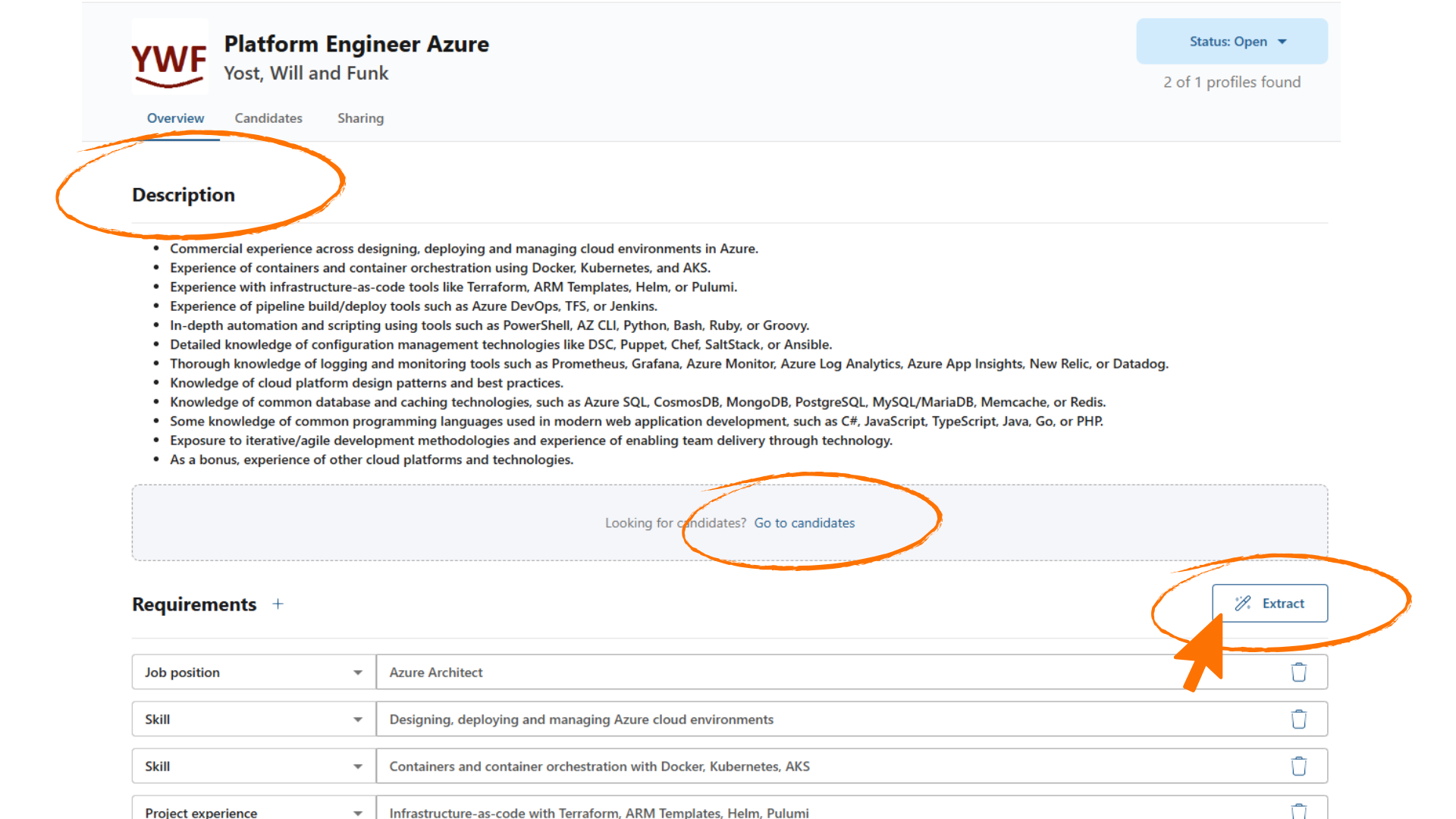
- AI-supported analysis: Paste a list of requirements or a job posting, and the integrated AI automatically detects and extracts relevant requirements.
- Fine-tuning: Manually adjust the extracted content if necessary. This allows you to optimize the foundation for your candidate search. Note: The AI only interprets the data you provide. Occasional misinterpretation may occur, so be sure to check your content independently.
- Accurate results: decídalo suggests suitable candidates, and the best-fit appears at the top of your list. Use filters to find exactly the person you need. You can further refine and customize your search as needed.
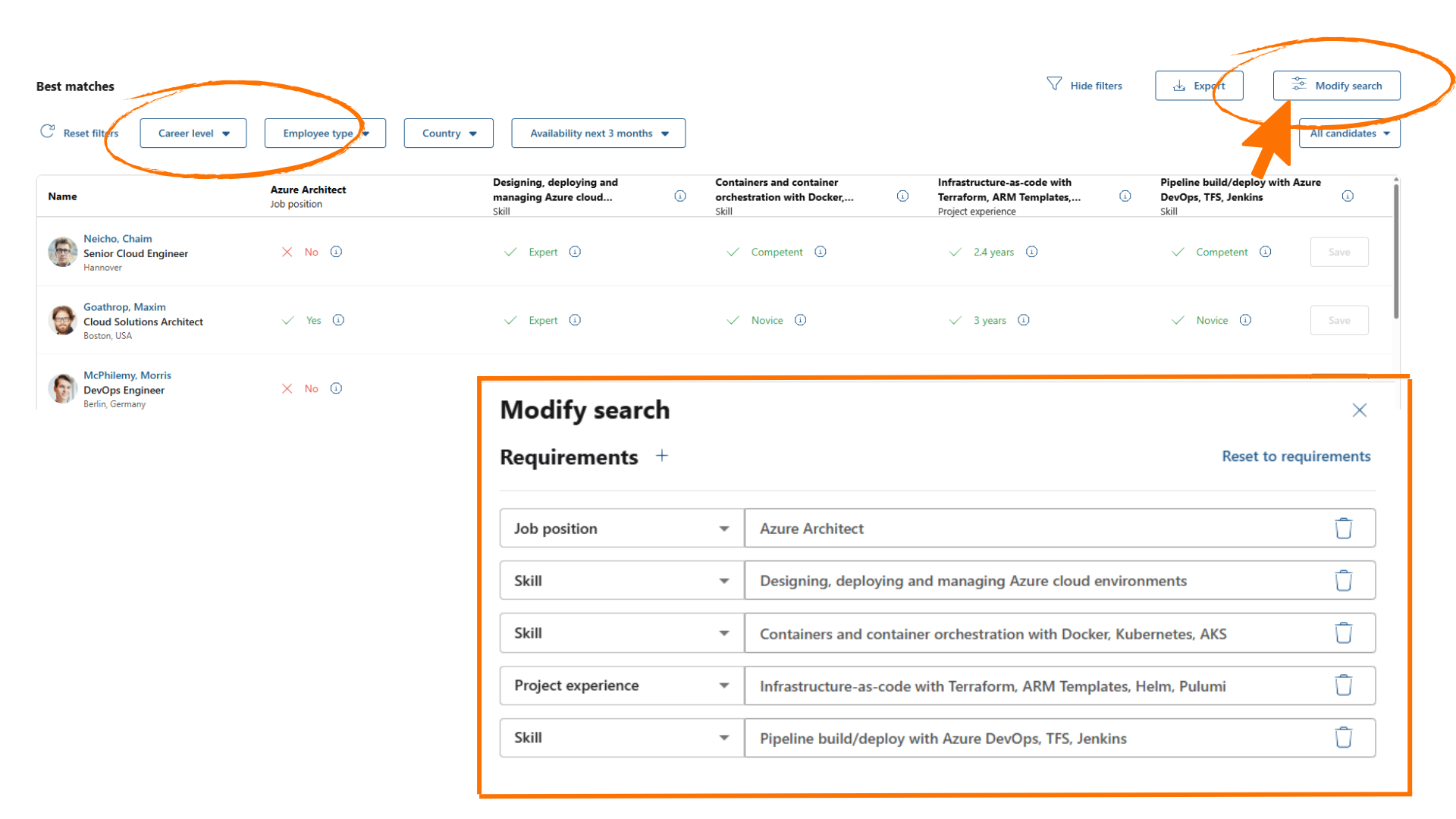
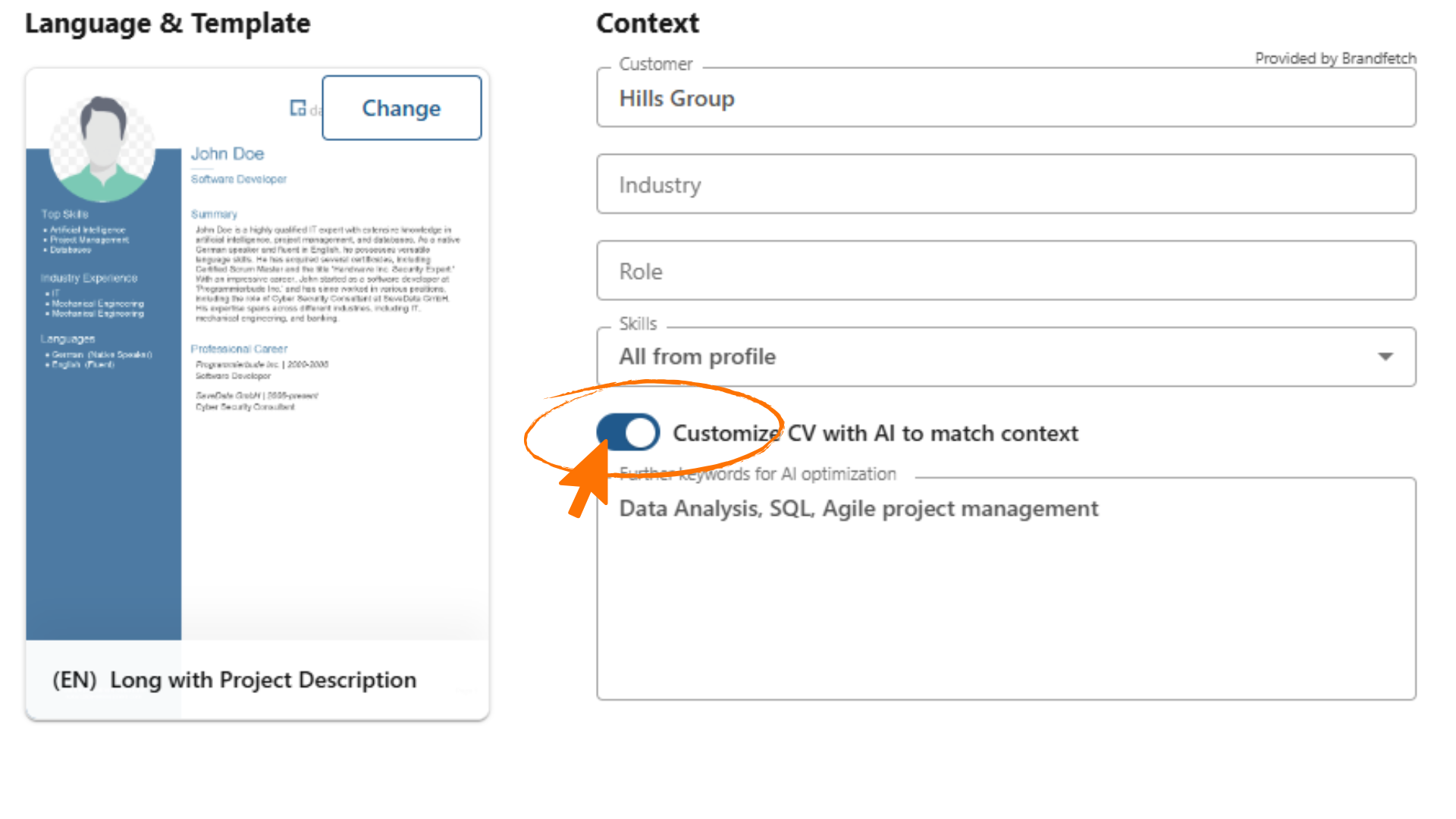
- Direct processing: Save relevant candidates, create a CV directly, or finalize your planning with the assignment schedule. Tip: When generating the CV, activate the toggle "Optimize CV content with AI for context", and the AI will help you generate a tailored CV matching the resource request to impress the client.
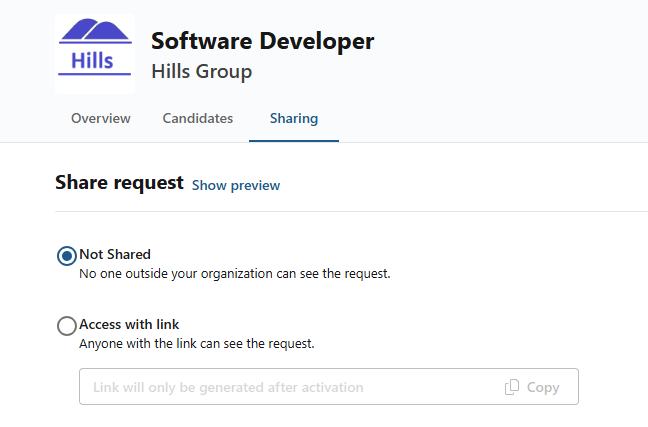
- The final touch: Book your selected candidates or share the resource request if you haven’t found the right person yet.
On the Bookings Page, you’ll find an overview of your current bookings. Filter the content by start and end dates or by candidate for a focused view.
With both the global search and resource request search, decídalo gives you all the tools you need to find the perfect talents for your projects: fast, focused, and efficient.