Customize Menu
This document provides a step-by-step process on how to customize your menu by pinning frequently accessed items to your header bar for improved accessibility.
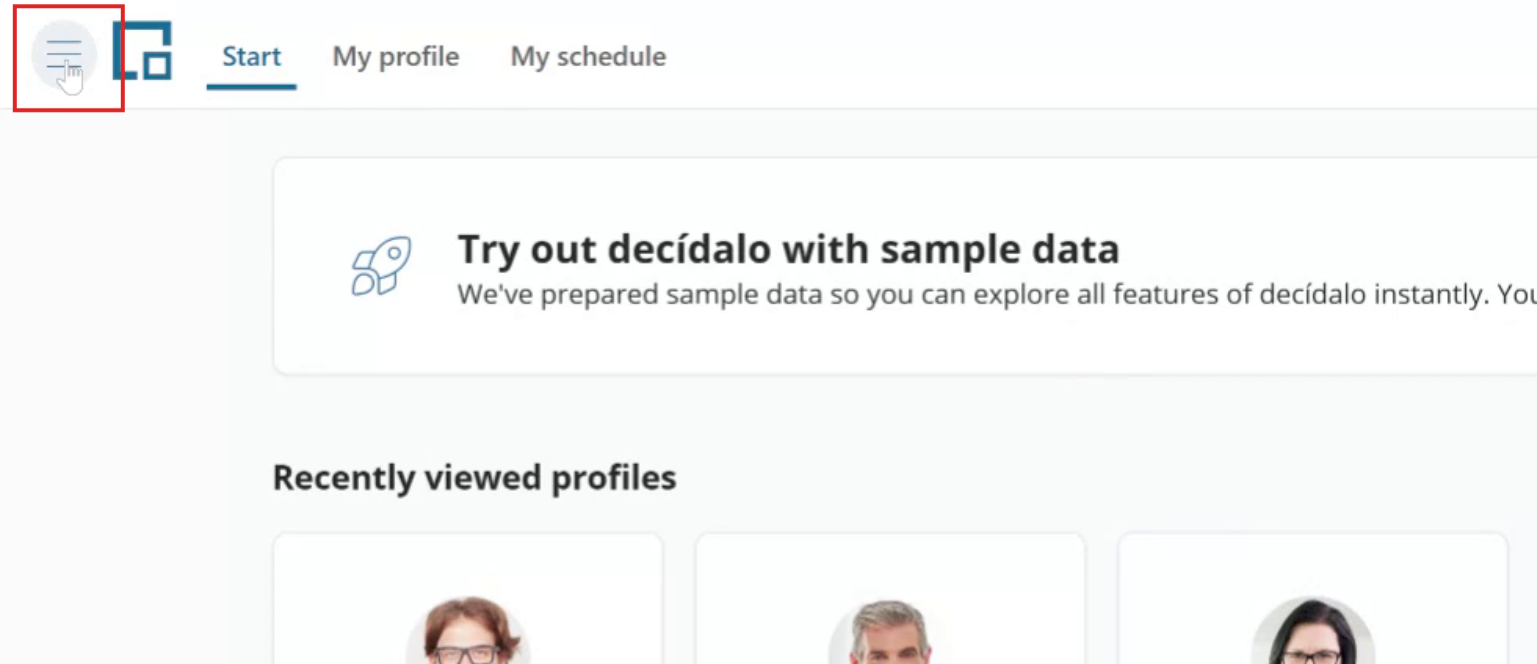
Step 1: Open the main menu
Begin by opening the main menu. Click on the menu icon, then navigate to the desired menu item you wish to pin to your header bar.
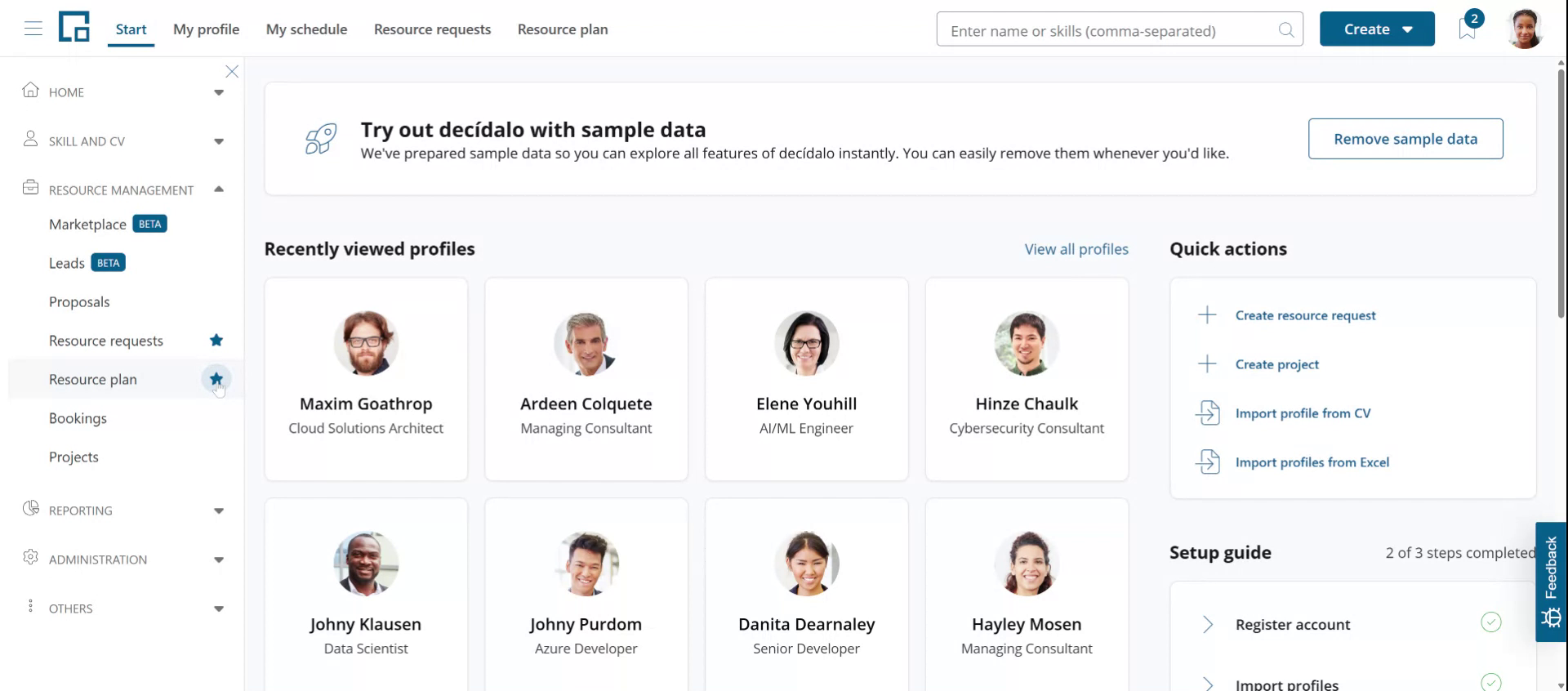
Step 2: Pin or unpin menu items
Click the star icon next to the menu item to pin it to the header for quick access. To remove a pinned menu item, simply click the star icon again to unpin it from the header bar.
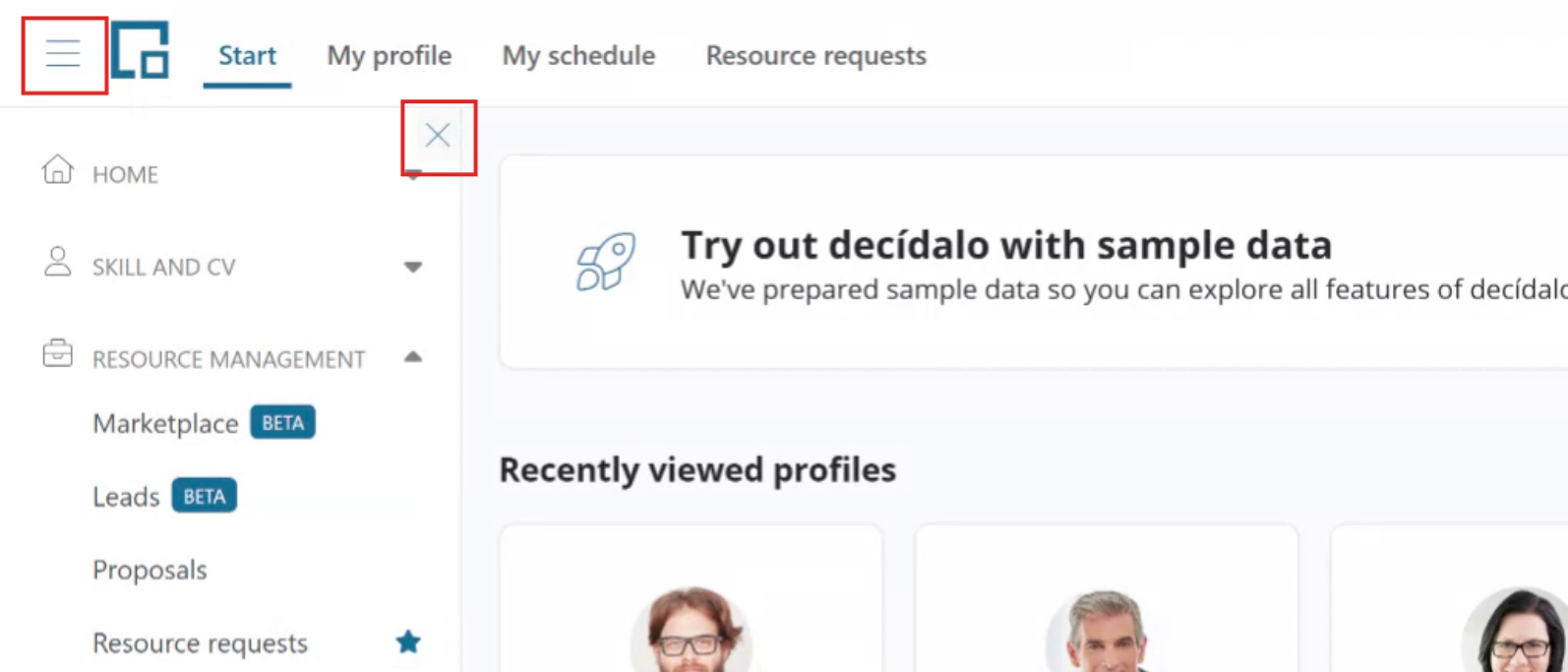
Step 3: Close the main menu
Close the main menu by clicking the "X" located in the top right corner or by clicking the menu icon again.
For more information about administrative tasks, see Administration.