Best Practices in Template Creation
The Mail Merge feature requires very specific syntax, which can cause a great series of unforeseen problems hard to identify. To prevent that, there are some best practices on how to create/adjust a template in decídalo, which are described below.
Test Your Template
While experimenting with your template, it is the best practice to regularly upload it to decídalo after you changed something. Since the feedback from the application, in case something went wrong, is very limited, you will have a way easier time debugging if you only made one or a few changes compared to the latest working version.
How to Add Merge Fields
Instead of straight up typing curly brackets and content by hand, there are ways to insert merge fields (also date fields, image fields, number fields, etc.) directly to the document. These will be explained below. That prevents any obscure Word interactions and simple typos.
Ctrl+F9
To ensure, the system correctly identifies the merge fields, instead of typing curly brackets, you can press Ctrl+F9. This inserts a field (curly brackets) with no content, which the system will interpret correctly. Still, typos might happen. That's why we should consider Quick Parts as an alternative.
Quick Parts
The safest way to insert a (merge) field, is to use the Quick Parts: In the Insert tab, select "Quick Parts" and then "Field":

Here you can enter the name of the merge field. Usually, you want to make sure that the checkbox to preserve formatting is checked. This will add the MERGEFORMAT attribute to your merge field and ensures that the text format of the merged content matches the format of the merge field.
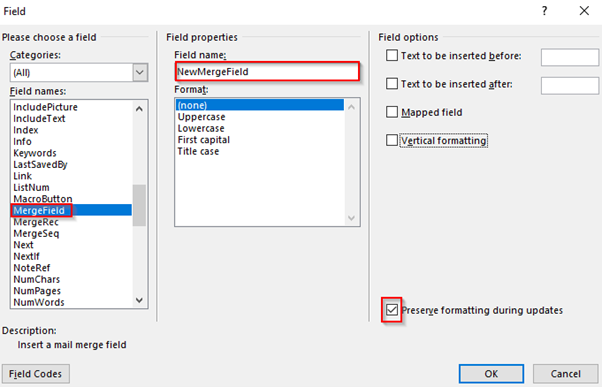
This way, we ensure, that the system will interpret the field correctly and there are no typos inside the field.