Administrating Companies in decídalo
This document provides an overview of how to manage companies within the decídalo. The steps cover accessing and editing company details, adding new companies, and managing duplicates.
Edit companies
Administrating companies requires specific permission. If you have that permission, you will see the 'Companies' menu item under the 'Administration' menu section. Click on that menu item to view the list of companies used in your decídalo client.
The list includes companies linked to projects, providers of training, or employers of external employees.
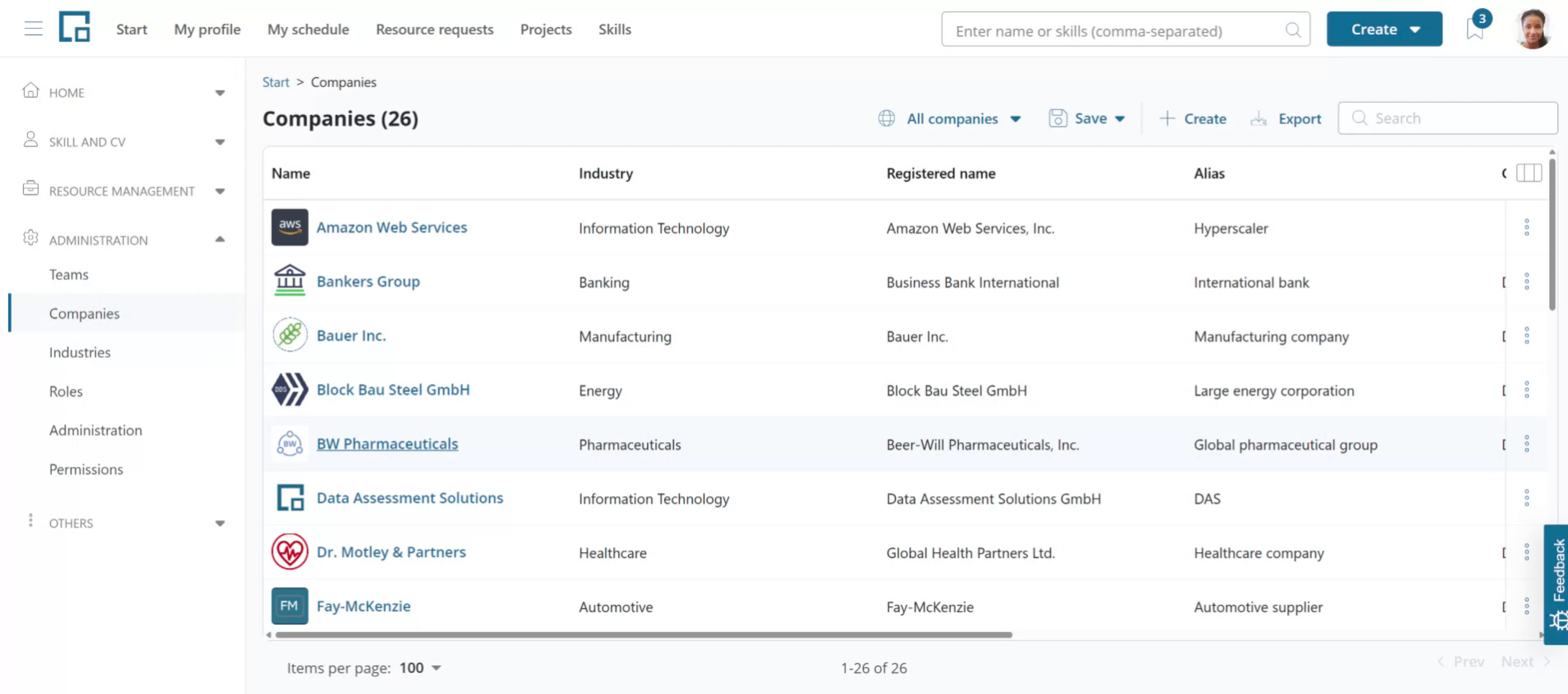
To edit company details or to see their projects, click on the company name. This opens a side drawer displaying the projects related to the company. It provides the option to edit company fields, or remove the company. To edit company details, click any field to enter edit mode. This also applies to the logo and company name in the header.
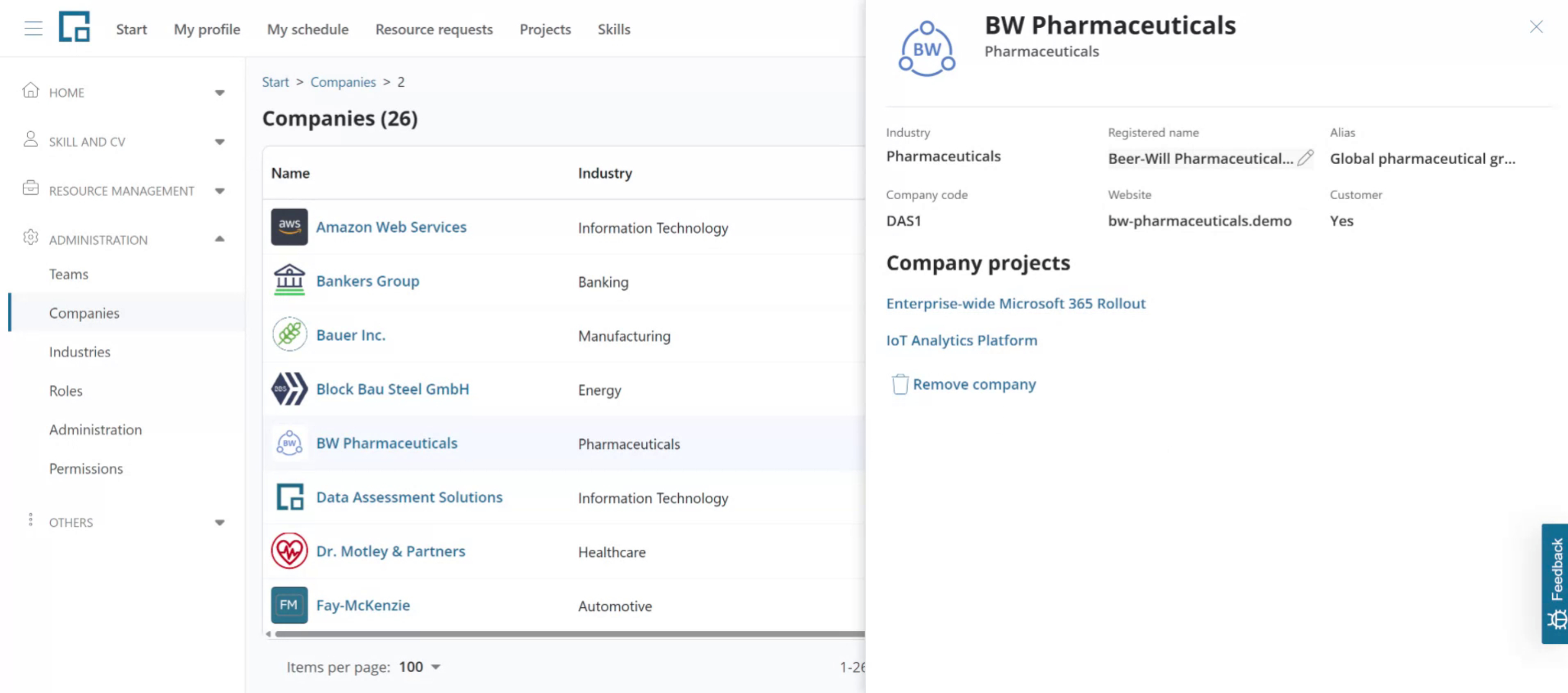
A company that a framework agreement, servicesheet or order still references cannot be removed, because deleting it would leave that record without a customer. Merge the company into another one instead; the merge moves those records to the surviving company.
The header contains the primary (commonly used) name of the company. This is shown wherever the company is referenced in decídalo, including CVs and project references.
The officially registered name of the company can be provided optionally. For example, IBM would be the primary company name, while International Business Machines Corporation is the registered name.
A distinction is made between customers and non-customers. Customers are the clients of your company, while non-customers may be training providers or companies referenced in the project history of employees that were done at a previous employer.
An alias can be provided. The alias is used on CVs or project reference presentations if the actual company name cannot be used.
To uniquely identify companies across systems, use the company code. If you maintain a company list in your CRM or ERP the code can be used as a reference.
Companies can be imported via decídalo's API. The company code is used by the API to identify companies.
Adding companies
To add a company to the list, click on the 'Create' button above the companies table.
decídalo utilizes the Brandfetch service, which offers a list of all companies with additional information, such as the company logo and website.
To add a company, type its name, and the service will check for its presence. If found, you can select and add it. You can also add companies not listed by entering their name.
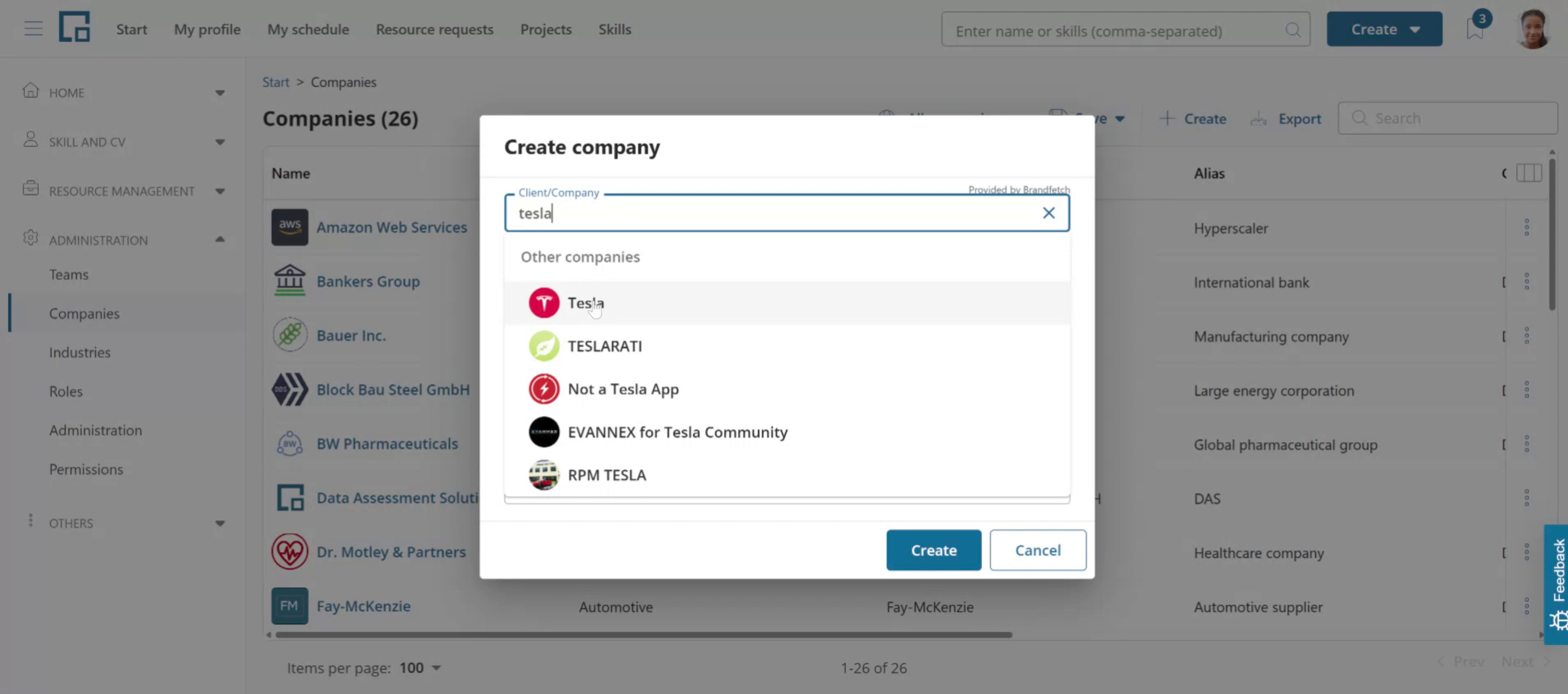
If you select a company from the list, the website field is automatically filled. The logo will also imported once the company is created.
Fill out the additional fields (registered name, alias, company code, industry) as needed. They are all optional. Click 'Create'.
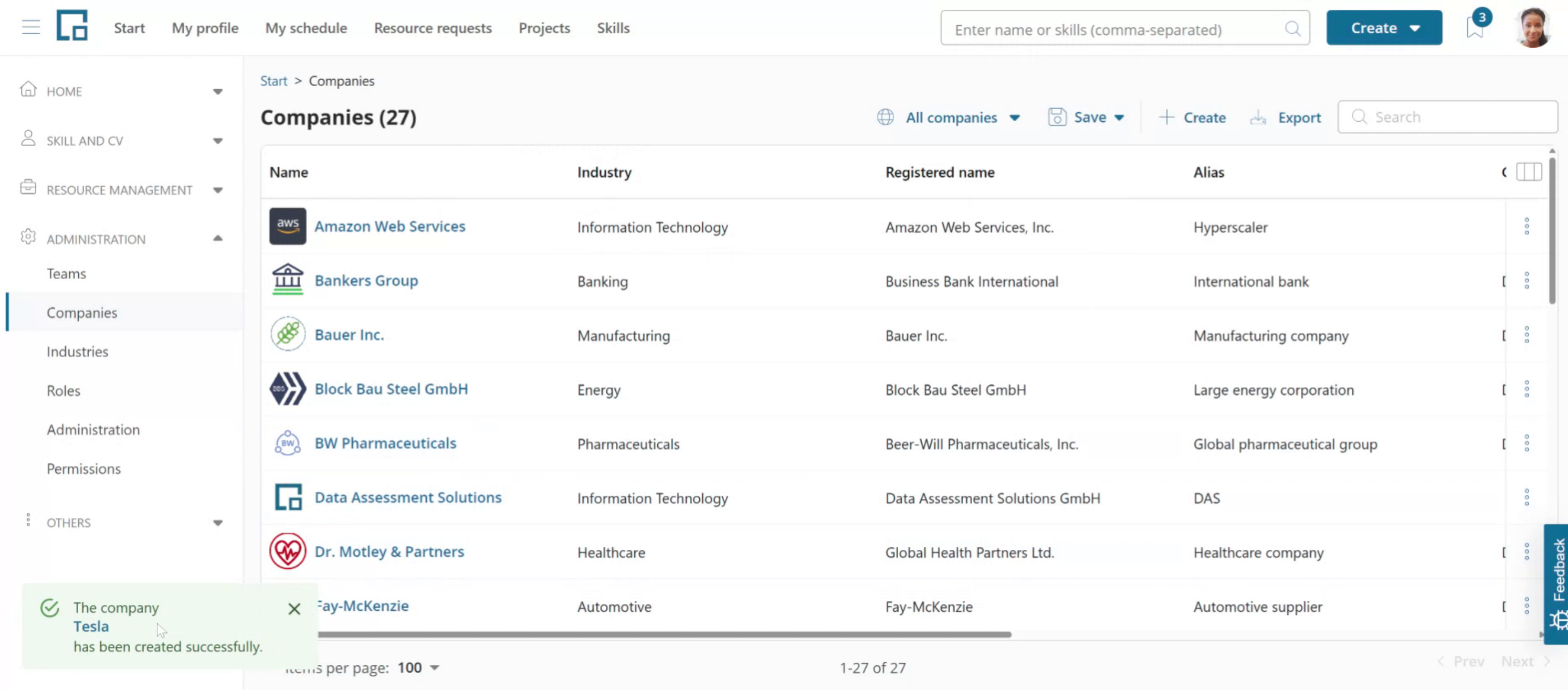
The company will be sorted into the list. A toaster pop-up with a link to the company is shown. Click the link to open the company in the side drawer.
Users can select companies from the Brandfetch service for projects and wherever companies can be set in decídalo. These companies will be added to the companies list. Selecting Brandfetch companies does not require a specific permission. These companies are also identified and set by the CV Parser when importing CVs. Users that have permissions to manage companies can also create new companies (not in Brandfetch) when selecting companies in the application.
Merging companies
In cases of duplicates, companies can be merged. For example, if "International Business Machines" and "IBM" were both added, you can merge them. Click on the three dots on the right of a company you want to replace (here "International Business Machines"), select 'Merge'. The merge dialog opens. In the first field choose the company to merge to, here IBM.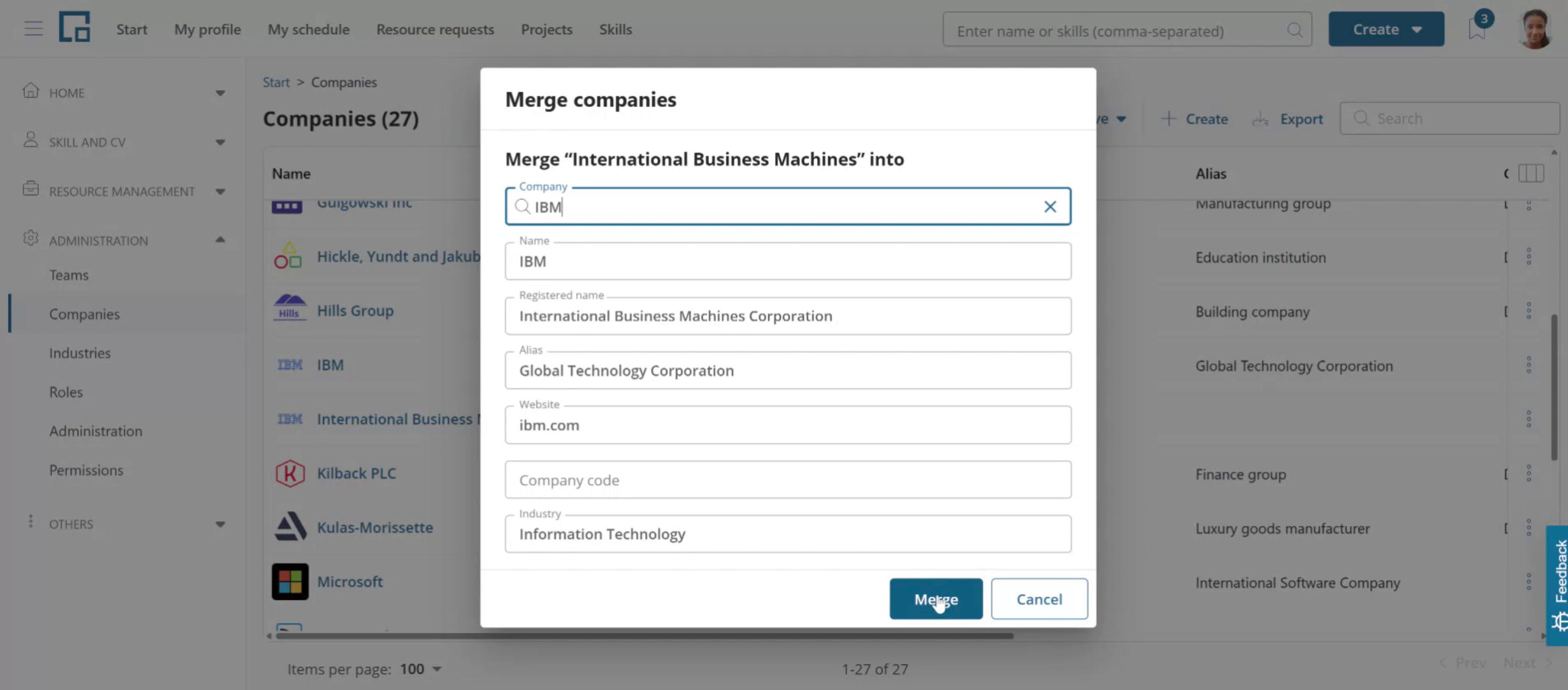
The other fields in the dialog will be pre-filled with the selected company. You can edit them manually. These field values will be used for the company resulting from the merge operation. The one exception is the company code: you can replace it with a different code, but leaving it empty keeps the code the surviving company already had rather than clearing it.
Click 'Merge' to replace the initial company with the target company everywhere in the application. In our example "International Business Machines" will be replaced with "IBM" everywhere it was used.
A company that has a company code cannot be merged away, because the merge deletes it and the code is what other systems use to identify it. The 'Merge' action is greyed out on such a company and explains why when you hover it. You can still merge other companies into a coded company, which keeps the code where it is. To merge a coded company anyway, remove its code first.
To find duplicates, misspelled names and unused placeholder entries across the whole company list at once instead of one pair at a time, use AI cleanup suggestions.