AI tool permissions in decídalo
decídalo can be connected to AI assistants through the decídalo MCP server, letting an assistant act in the application on your behalf using the tools it exposes (searching the catalog, viewing profiles, creating entries, and so on). The AI tool based permission matrix lets administrators control, per permission profile, which of these tools an assistant is allowed to use.
This complements the tenant-wide agent switch under Agent Access: Agent Access decides whether assistants may connect at all, while the AI tool based matrix decides which tools each profile may use once connected.
Note: The AI tool based tab is only shown when external agent access is enabled for your organisation. Configuring it requires the Manage Users, Teams and Permissions permission (or the Admin profile).
Opening the matrix
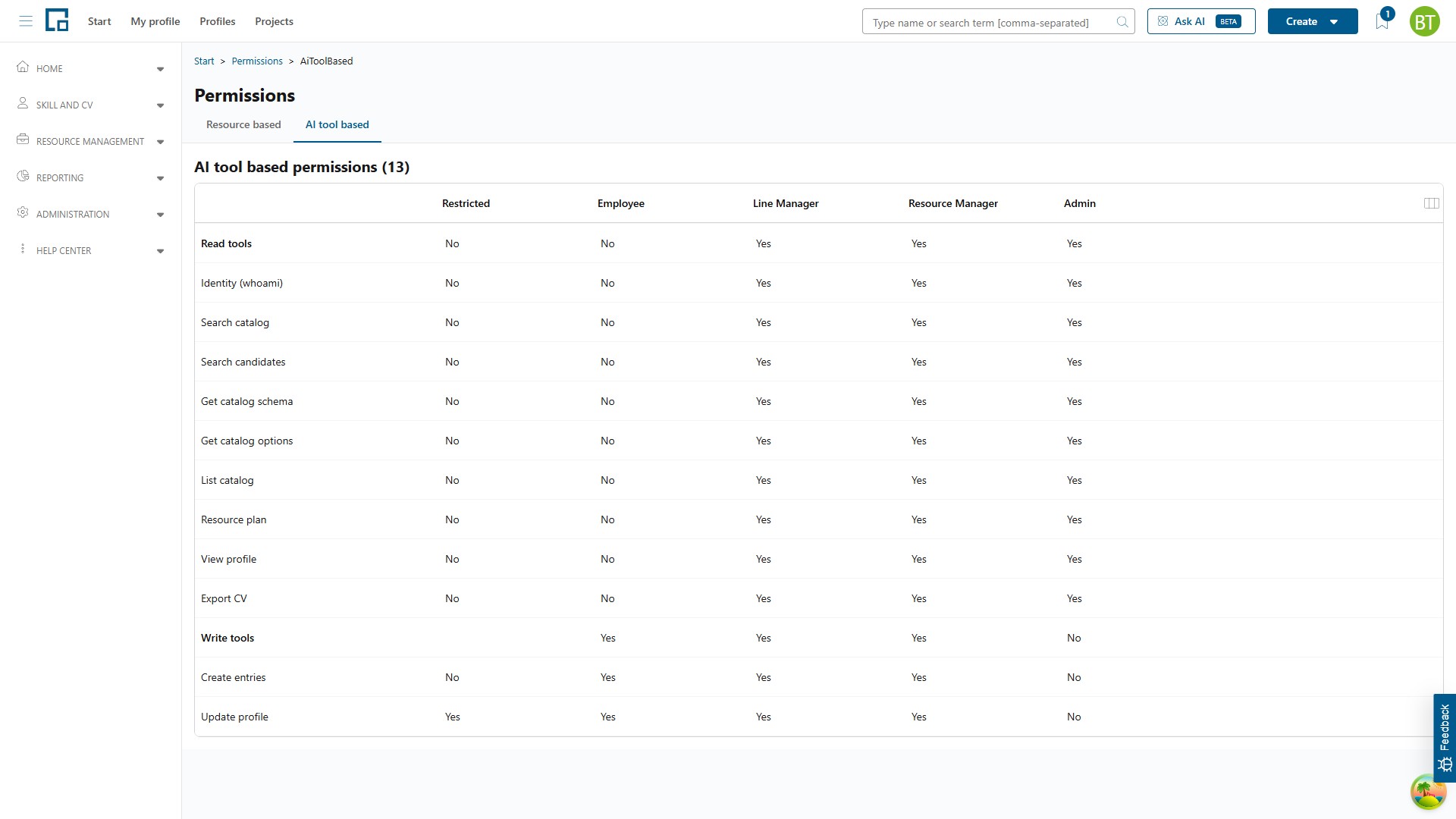
Go to the Permissions section under Administration and open the AI tool based tab. The page mirrors the permission matrix: the AI tools are listed in the rows, grouped into Read tools and Write tools, and your permission profiles form the columns. Each cell is a simple Yes / No decision.
Read and write tools
The tools are grouped by what they do, so you can reason about access at a glance:
| Group | What it covers |
|---|---|
| Read tools | Tools that only retrieve information: confirming the connected account, searching the catalog and candidates, reading catalog structure and options, listing catalog entries, viewing the resource plan, viewing a profile, and exporting a CV. |
| Write tools | Tools that change data: creating entries and updating a profile. |
Tip: A common setup is to leave read tools enabled and disable write tools for profiles that should only let their assistant look things up, never change data.
Changing a tool permission
To allow or deny a single tool for a profile, click the cell where the tool's row meets the profile's column and select Yes or No. The change is saved immediately.
| Field | Description |
|---|---|
| Tool row | One AI tool, shown under its Read tools or Write tools group heading. |
| Profile column | One permission profile. The cell value decides whether that profile's assistants may use the tool. |
| Yes / No | Yes allows the tool, No denies it. Every tool is allowed (Yes) by default. |
Setting a whole group at once
Each group heading row (Read tools, Write tools) has its own Yes / No cell per profile. Use it to allow or deny every tool in that group for a profile in a single step, for example to switch off all write tools for the Employee profile at once. When the tools in a group are partly allowed and partly denied for a profile, the group cell is shown empty.
When changes take effect
Tool permissions are evaluated when an assistant connects (when the access token is issued). A change you make here applies the next time the affected user's assistant signs in or its session is refreshed. It does not interrupt a session that is already running.
Once applied, an assistant connected on behalf of a user only sees the tools allowed for that user's profile; denied tools are neither listed nor callable.
Note: New tools added to decídalo in future releases are allowed by default and appear in the matrix automatically, so you can review and restrict them whenever you choose.