Managing Resource Groups
This document explains how to define and use resource groups in decídalo. Resource groups let you assign permissions independently from your organizational structure, for example, for different countries or business units.
General concept
Resource groups help you assign permissions without being tied to the company's organizational structure. If you have different resource managers for specific countries or business areas, you can set these up using resource groups. For this, we need to identify different groups of employees (resources), like everyone in a certain country or business unit.
To explain the concept, let's look at the profile table on the Profiles page. Every employee in decídalo has a profile containing their information. In the profile table, you can set filters. For example, to get all employees in the Consulting business unit in the USA, set two filters, one for Country and one for Business Unit. You’ll then see all employees in that group.
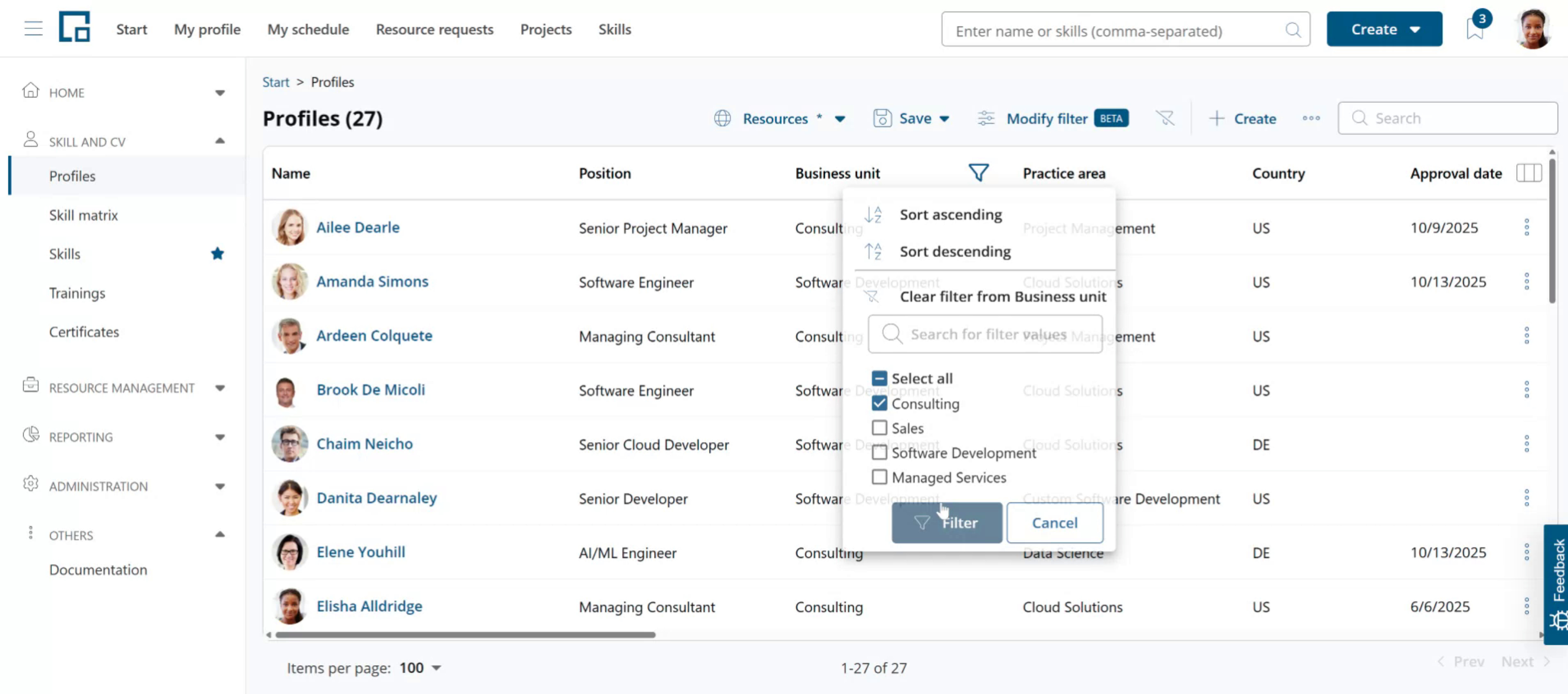
Resource groups use the same filter logic to define employee groups. Managers are defined for these groups, who are given permissions and responsibilities for the corresponding employees.
Administrating resource groups
Only administrators can create and edit resource groups.
You can manage resource groups from the Administration menu item in the Administration menu section. In the Resource management section, select Resource groups.
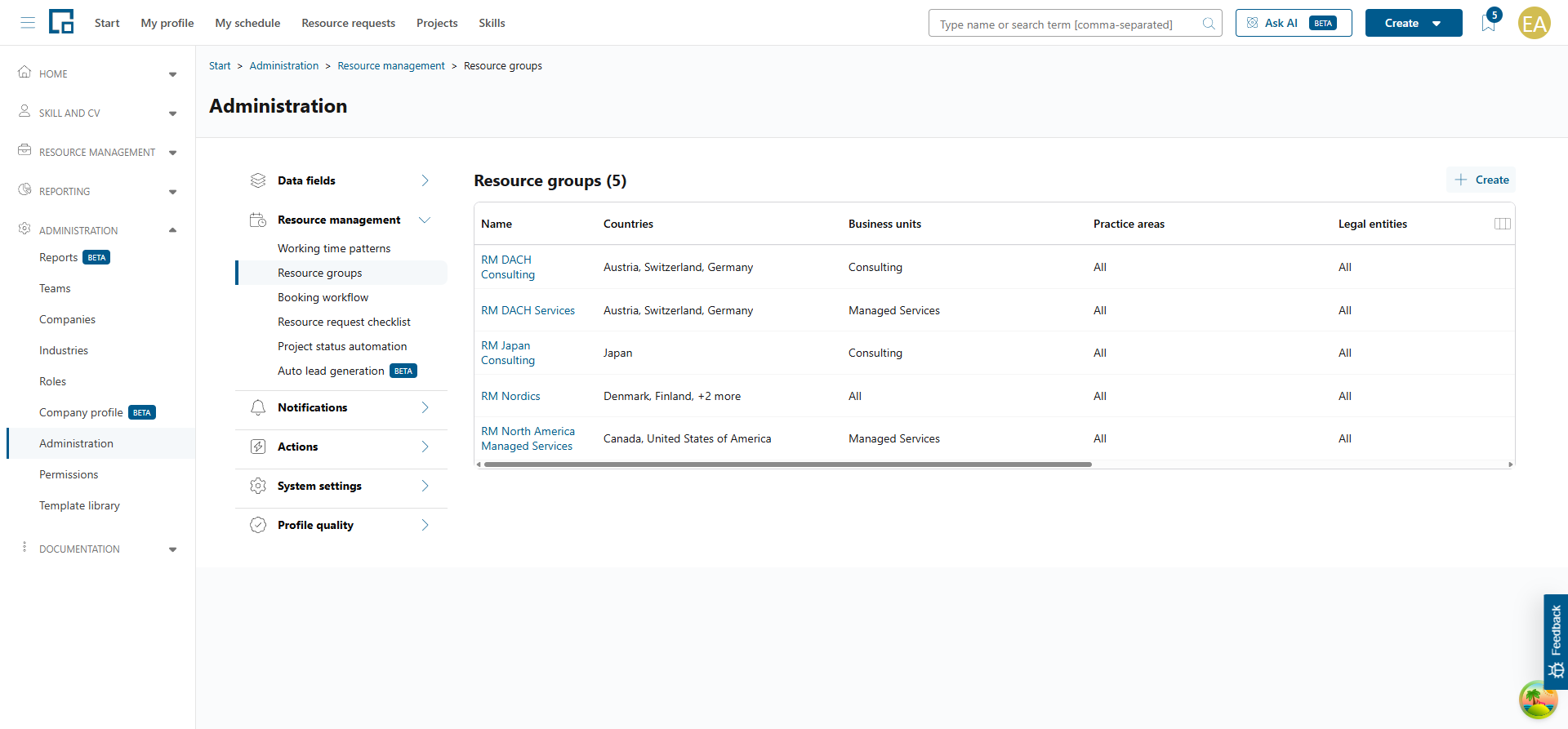
You’ll see the resource groups that are already set up (if any) and the different filter options you can use. These options match up with the fields in the employee profile. The available filters for resource groups are: Country, business unit, practice area, legal entity, service line, and delivery model.
If you don't see some of these fields on the profile, they are hidden (disabled) for your client. Legal entity and service line are hidden by default for newly created clients. Go to Data fields on the Administration page, select Profile to check this and enable fields if needed.
Creating resource groups
As an example, assume we want to set up resource management for a global IT services company with different business units. Let's create a resource group for all employees from the Consulting business unit in North America.
To create a new group, click the Create button above the resource group table. A pop-up form opens. Enter a name for the new resource field in the first input field.
The sections below contain the filter criteria. To expand a section, click the arrow icon in front of it.
Ignoring a criterion
Each criterion has an “Ignore” toggle. When enabled, the criterion is completely skipped and all values are automatically included regardless of selection. This is useful when a criterion is not relevant for a particular resource group. For example, if a resource group should include employees from all countries, enable the “Ignore” toggle on the countries section instead of manually selecting every country.
When you turn “Ignore” off again, your previous selection is restored.
Ignore vs. Select all: “Ignore” and manually selecting all values both result in the same set of employees today, but they behave differently when new values are added later. With “Ignore” enabled, newly added values (e.g. a new country or business unit) are automatically included without any manual update. If you instead select all values manually, new values will not be included until you edit the resource group and select them. Use “Ignore” when the criterion should always include everything, and “Select all” only when you intentionally want to lock the group to the current set of values.
Selecting specific values
For our example group we expand the countries section. We only want to include USA and Canada for our North America Consulting resource group. Make sure the “Ignore” toggle is off, then uncheck all countries by unchecking the “select all” option. Then select the countries to include. Use the search box above the countries list to quickly find entries in the list. You can successively search for and select multiple countries. The selections will be remembered. Select United States and Canada for our sample resource group.
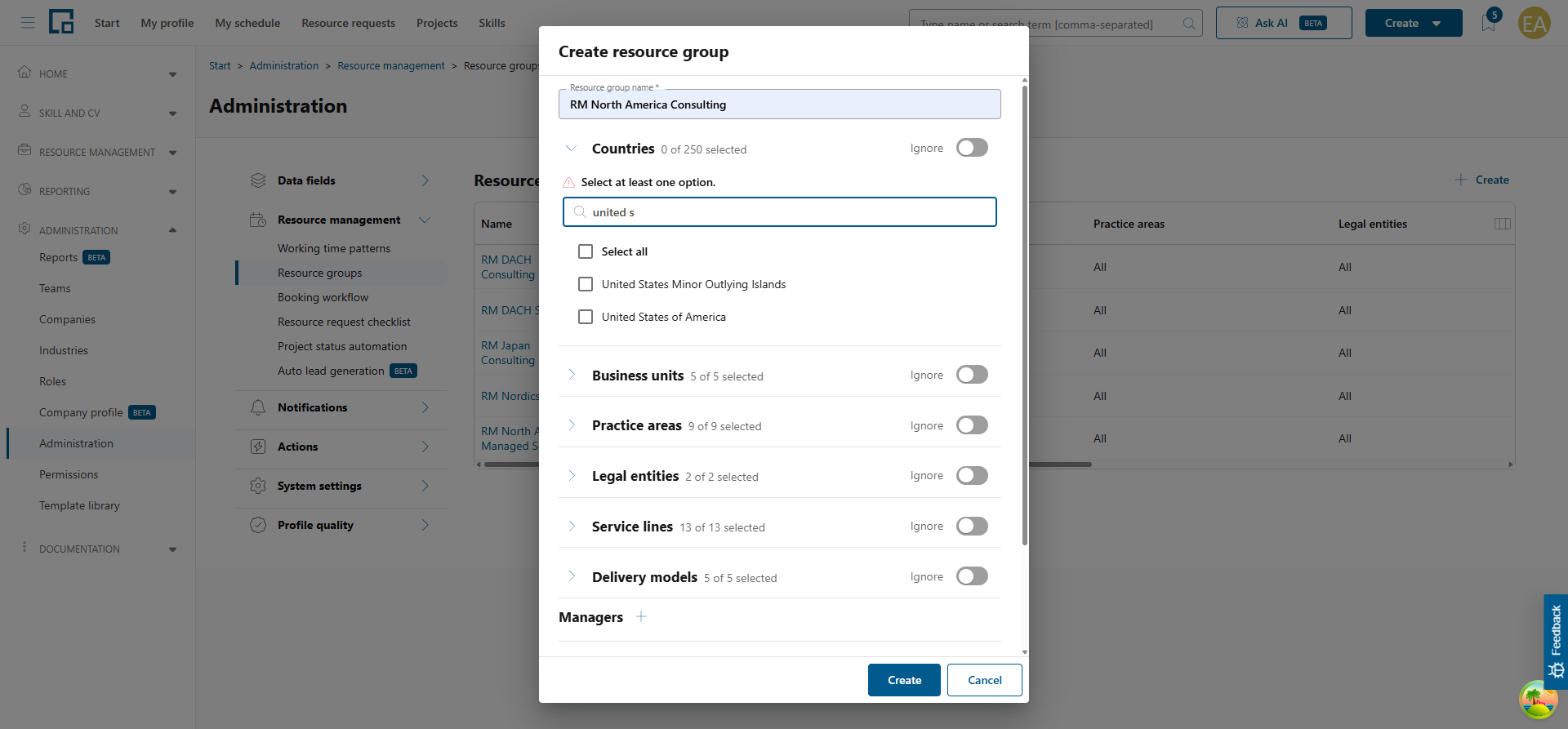
To add more filter criteria, expand the corresponding sections and select the values to include. For criteria where you want to include all values, simply enable the “Ignore” toggle. For our sample we select Consulting under business units and leave all other criteria set to “Ignore”. Note that the option lists for business units and all other filter criteria, except countries, can be customized. Your company may not have a Consulting business unit. We use sample data for illustration purposes.
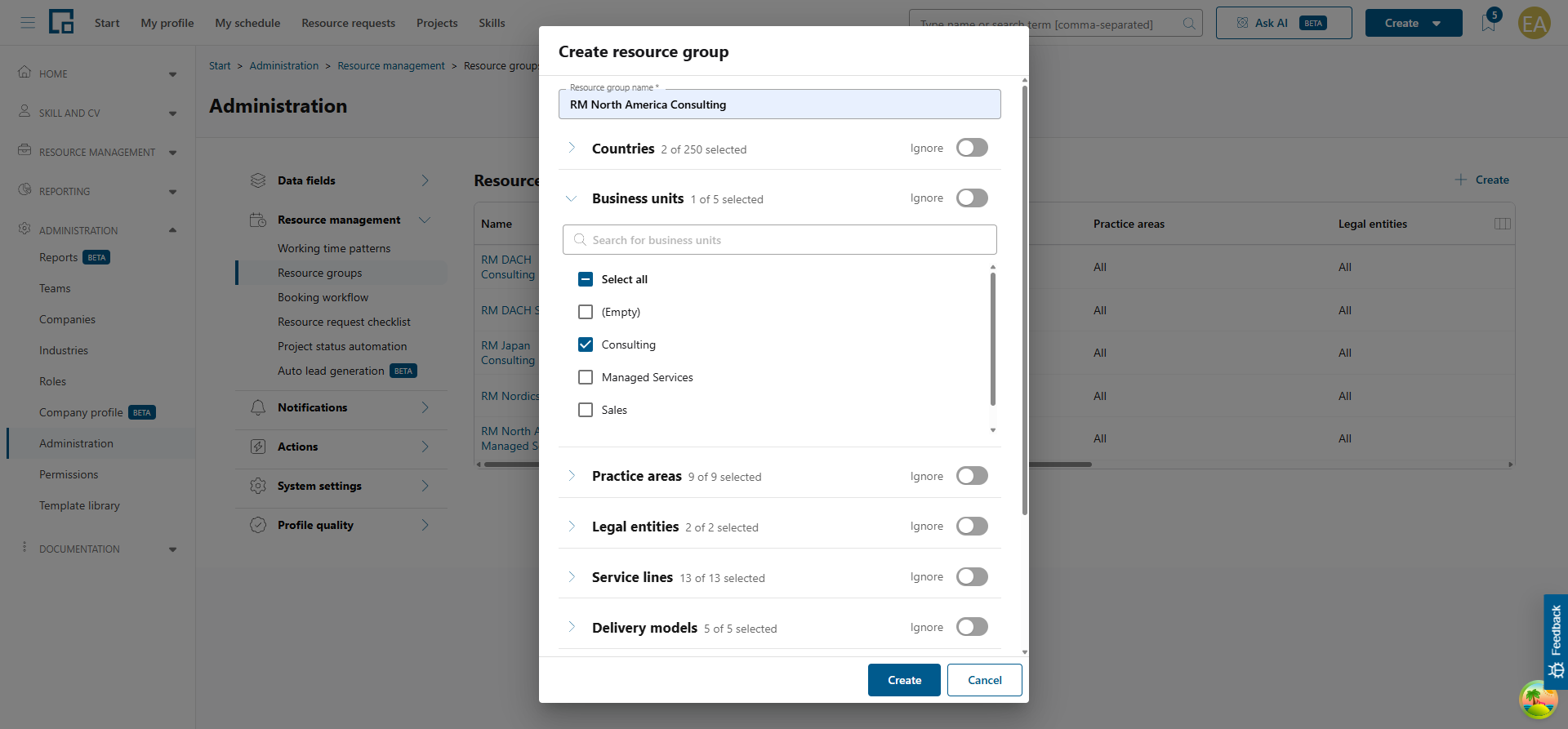 Once you've set the filter criteria that determines which group of employees is managed by means of this resource group, assign the managers. Click the plus icon next the header of the managers section. A searchable list of all profiles opens in a popover. Click on a name to add the person as a manager.
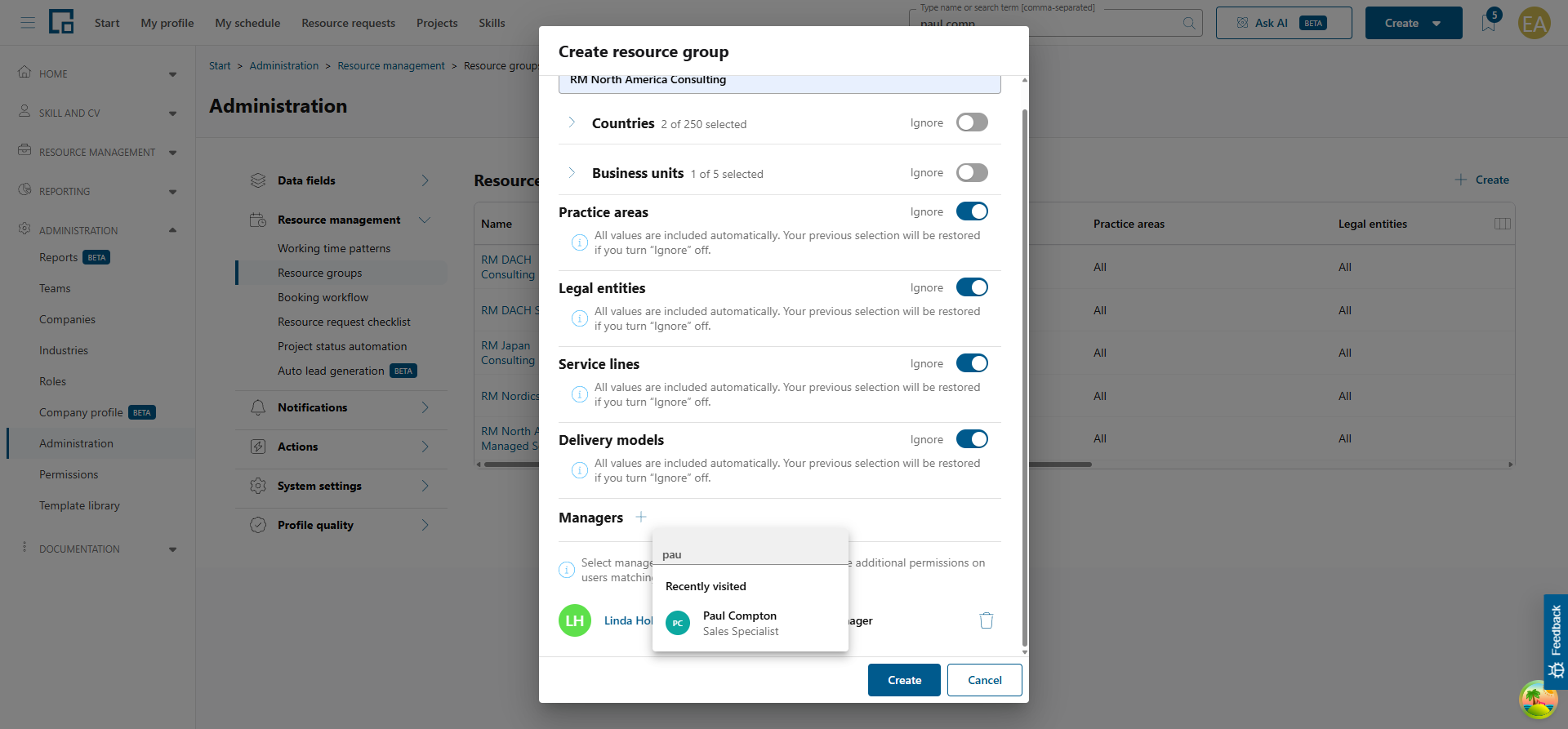 Managing a resource group requires an eligible permissions, typically a Resource Manager permissions. If the selected person is a user in decídalo and does not have the required permissions, the system will show a warning, that the default resource manager permissions will be automatically given to the user.
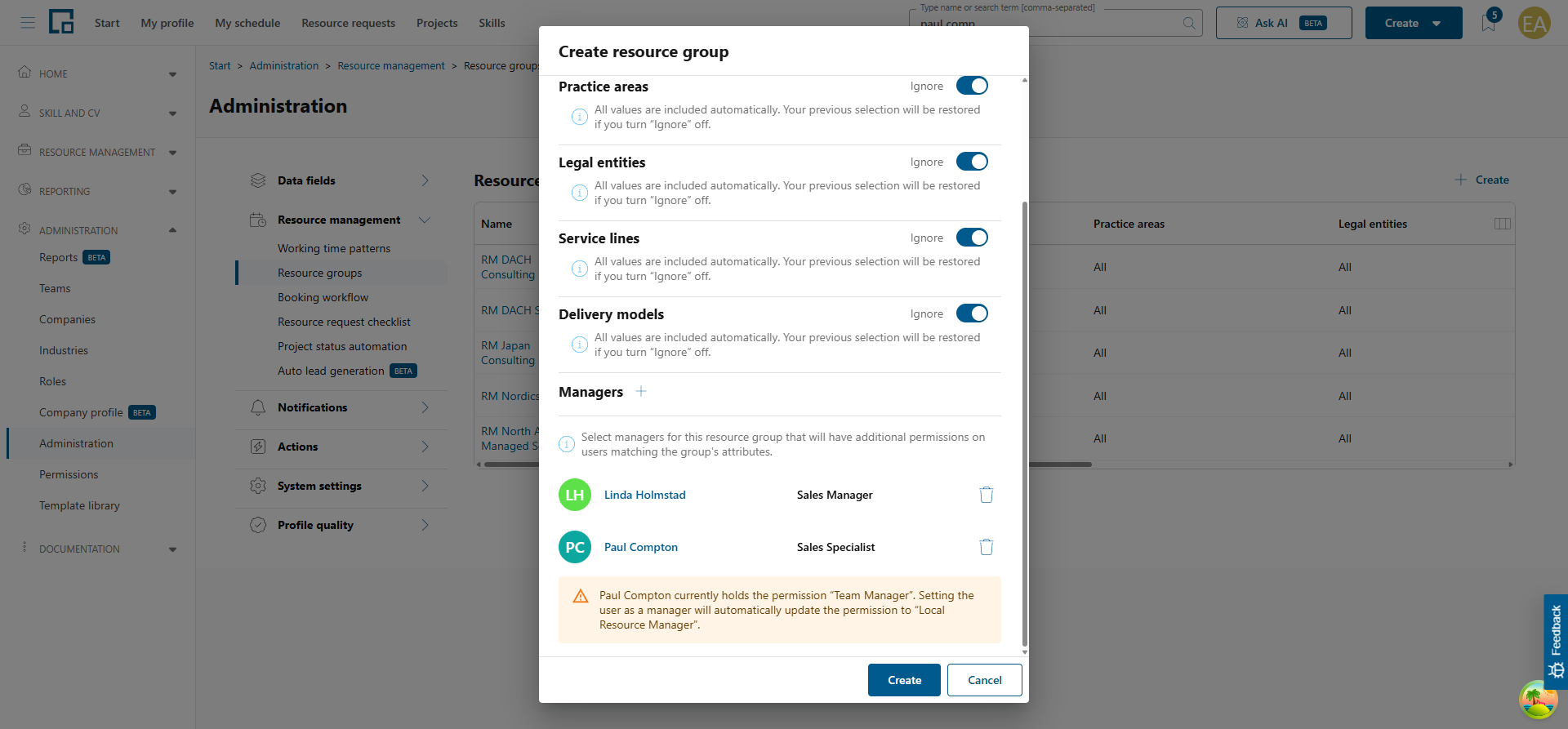 Click Create to add the new resource group.
To edit an existing group, click on the group name. A side-drawer opens where the group can be edited following the same steps as described above. 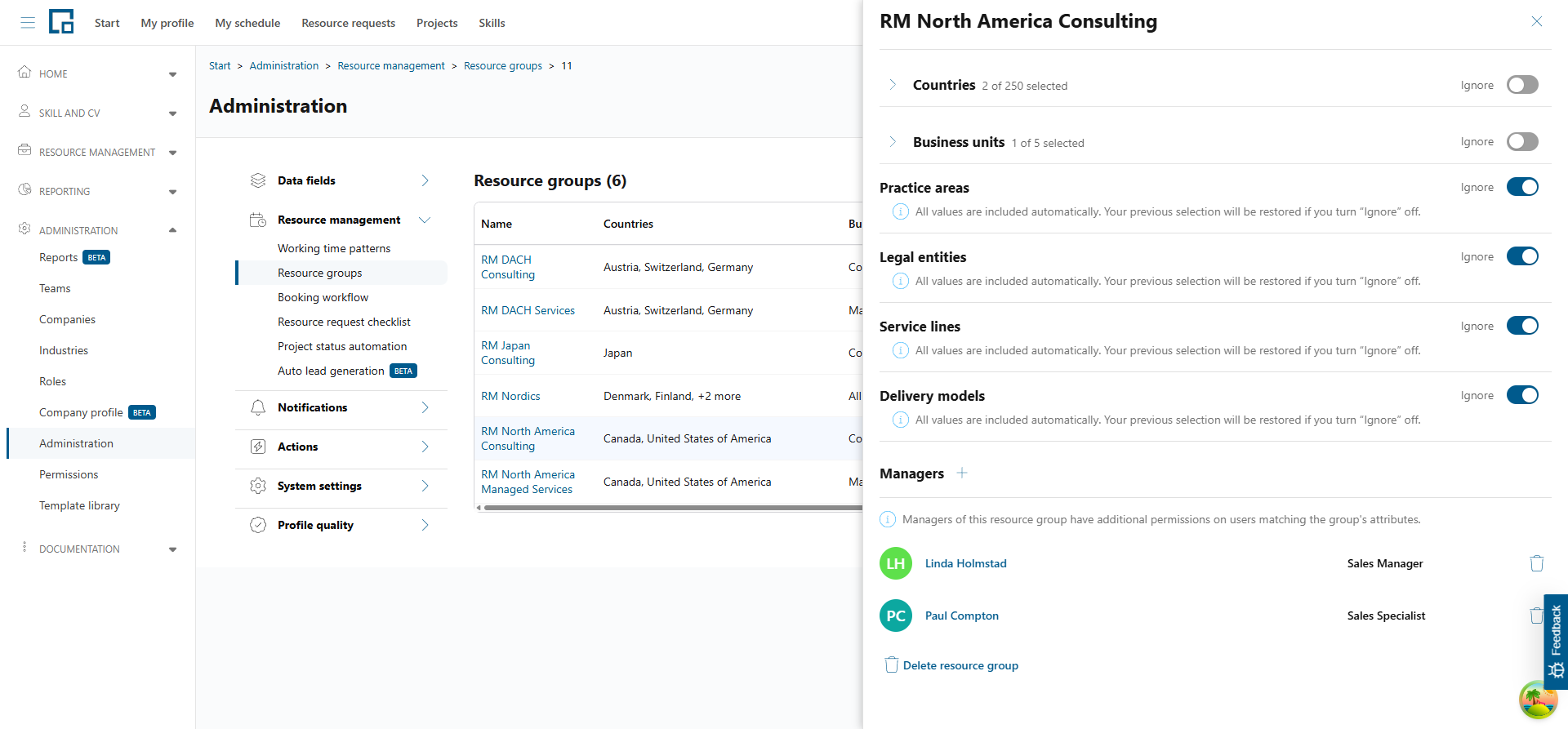
Using resource groups for permissions
To configure permissions based on resource groups, go to the Permissions section under Administration.
For our above example we defined a “Local Resource Manager” permission profile and a “Global Resource Manager” for comparison. Local resource managers will get permissions only on their resource group.
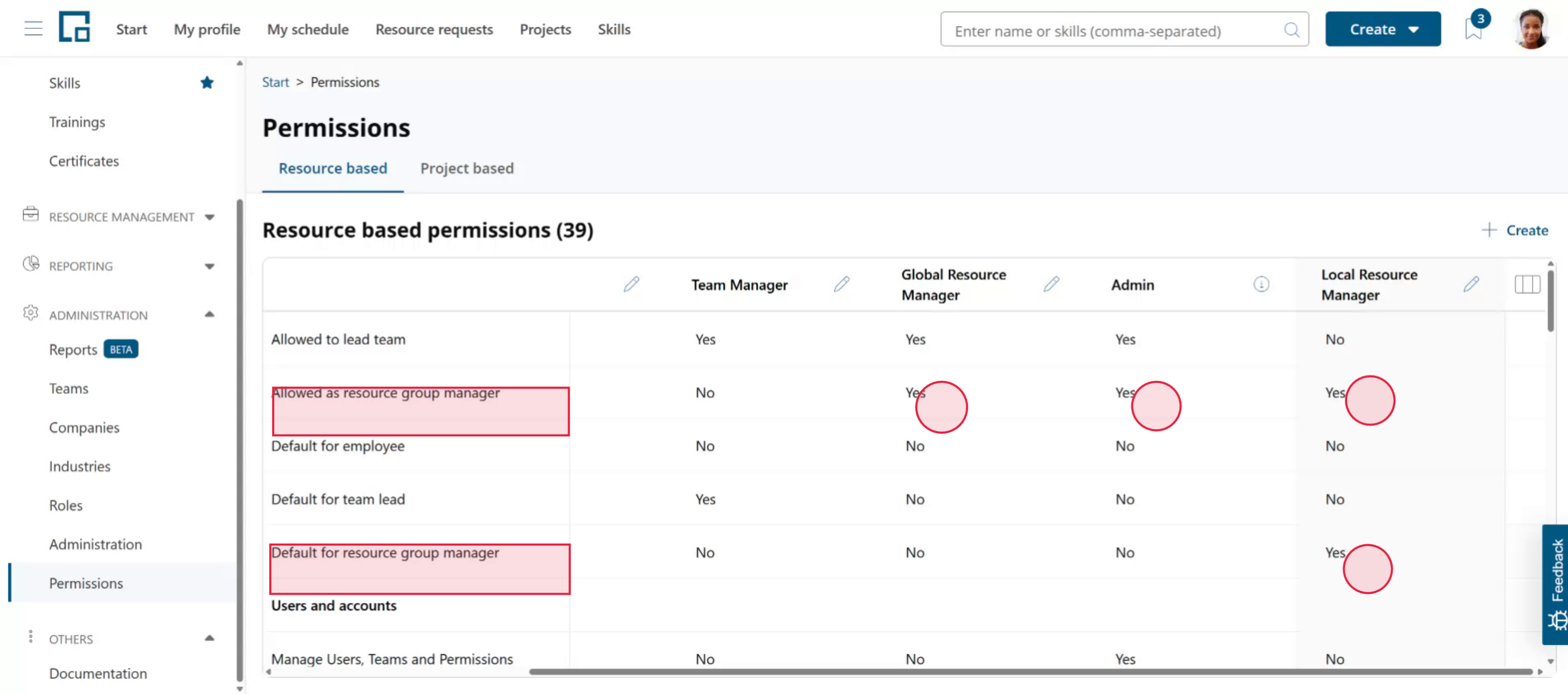
As explained in the previous section users need appropriate permission to be a manager of a resource group. This is the “allow as resource group manager” permission setting. Users with a permission profile that has a “Yes” here can manage resource groups. Multiple permission profiles can have this set to “Yes”. In our example users that are either a Global Resource Manager, Admin or Local Resource Manager can lead resource groups. Keep in mind that a user has just one permission profile.
As stated above, if users without this permission are set as a resource group manager, decídalo will automatically set an eligible permission profile for them. To define which one is set in this case, use the “Default for resource group manager” setting. This can be “Yes” only for one column, in our example for the Local Resource Manager. So if e.g. a user with the Employee permission profile is set as a manager on a resource group, his permissions will automatically be changed to Local Resource Manager.
Permission settings related to profiles, CVs or bookings have a “Resource Group” and “Team & Resource Group” option. The latter is introduced to handle the case where a user is a team manager and a resource group manager. Set either of these permissions to grant access to profiles, CVs or bookings of employees in that resource group.
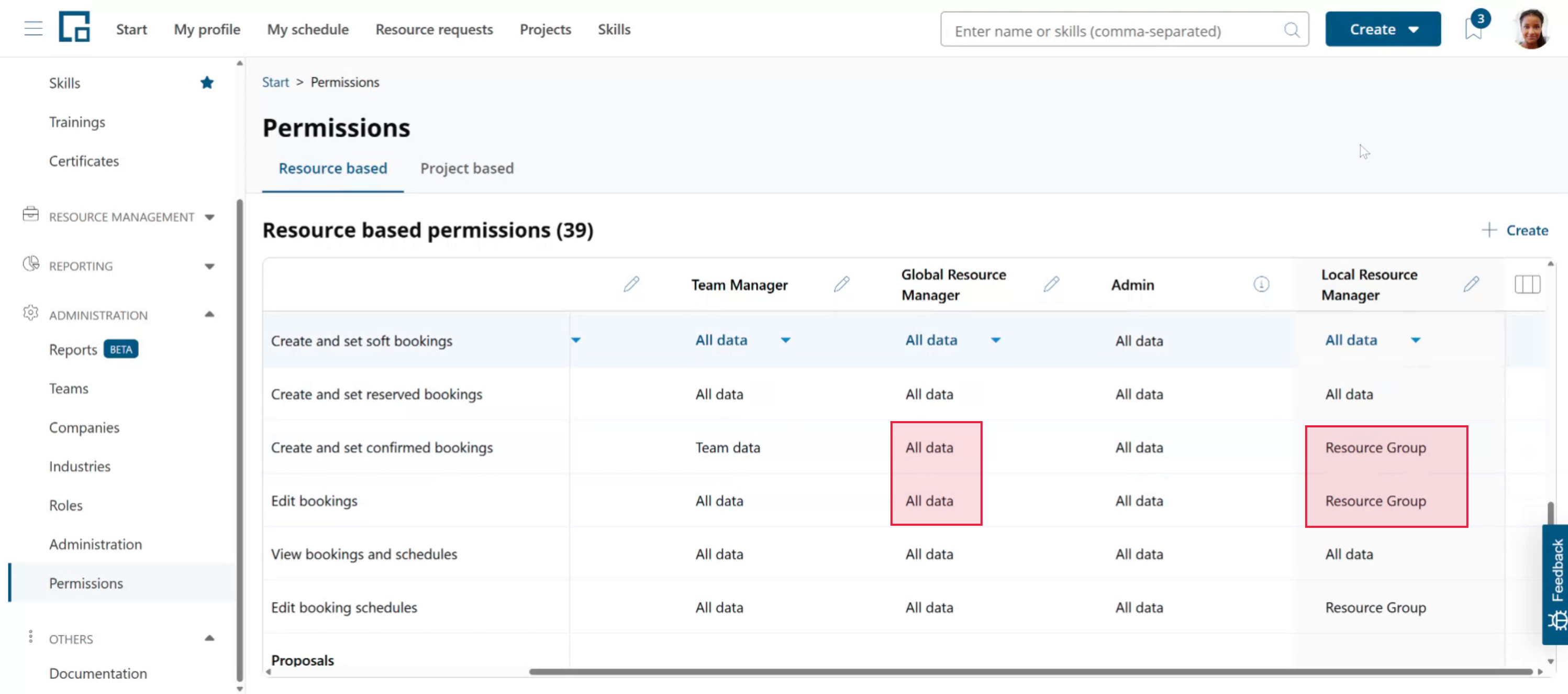
In our example, we grant Local Resource Managers permissions to confirm and edit bookings for employees from their resource group. Global Resource Managers get permissions to do this for all employees.
The same logic applies to all permissions related to employee data, like profile or CVs. You can e.g. allow Local Resource Managers to edit profiles of employees from their resource group.
In our example, users with Global Resource Manager permissions don't need to be managing any resource group since they always have the “All data” permission setting instead of the “Resource Group” setting. They have full access. Local Resource Managers must be set as manager in at least one resource group.
Resource groups and resource requests
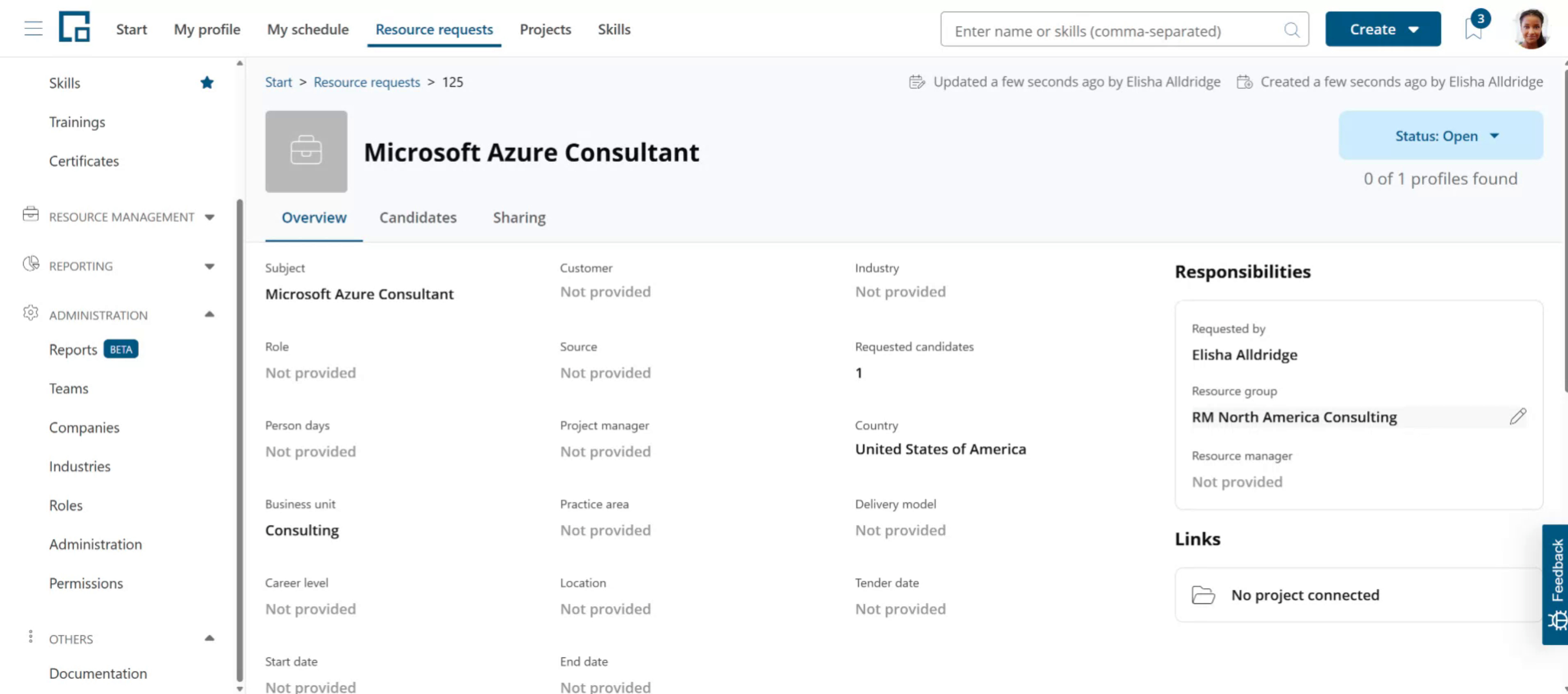
Resource groups are also used to define responsibilities for resource requests. Let's assume a resource request for a consultant is created in our sample companies US region. The resource managers responsible for North America Consulting are responsible for fulfilling this requests. That's the managers of or North America Consulting resource group. decídalo will automatically set the appropriate resource group on the request, based on the country, business unit or other criteria used to define the groups.
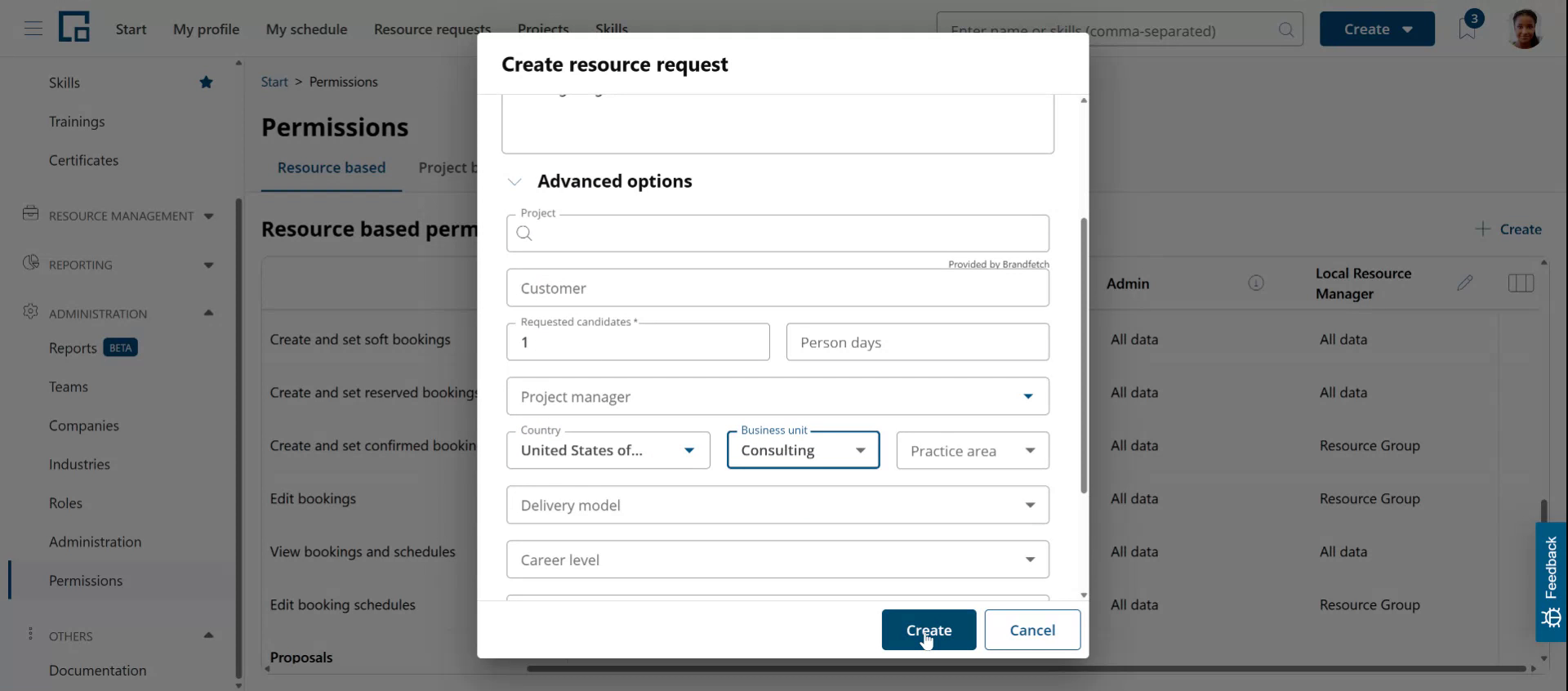
For our sample company, let's add a resource request and set United States as the country and Consulting as the business unit in the advanced options of the create dialog.
The system will automatically map the request to our North America Consulting resource group.
 The assigned resource group is shown on the Overview tab of the resource request in the Responsibilities section on the right side of the page. It can be manually changed afterwards, e.g. to forward the request to another resource management team, if it cannot be fulfilled from the own resource group.