Setting Up Time Recording on an Order
Note: Time recording is currently a beta feature and is being rolled out with pilot customers. If you would like to take part, please get in touch with us.
Time is usually recorded on a project: on the project itself, on its work packages or on the positions of its orders (see Setting Up Time Recording on a Project). Some work belongs to no project at all, for example a support or maintenance order that a customer places on its own. For that work, people record time directly on the order: on its positions, with no project in between.
This is set up on the order itself, on its Recordable activities tab. As on a project, two questions need an answer before anyone can record: what may be recorded on each position, and who may record it. Until both are answered, nobody can record directly on the order. A subject is what a timesheet entry is recorded against; time recorded directly on an order shows as Order · Position · Activity type (see What you record time on).
You need the Manage project billing and orders permission for the order, the same permission that opens the order itself (see Orders & Positions).
How it relates to the order's projects
An order position has one list of activity types. It applies to the order's projects and to the order itself, wherever you edit it: on this tab, in the position's drawer on the Positions tab, or on a project's Recordable activities tab in its way On order positions. Only who records, and where the time counts, differ:
| Recorded on the order's projects | Recorded directly on the order | |
|---|---|---|
| Who records | The project's setting for its order positions | The order's own setting (see Who can record) |
| Subject in the timesheet | Project · Order · Position · Activity type |
Order · Position · Activity type |
| Counts on | The project, its Delivery tab and its figures | The order alone |
Someone who may record both ways sees both subjects in the timesheet, and only time on the subject with the project counts on that project. Connecting a position to work packages changes how it is recorded on the projects, not directly on the order.
Linking a project to the order gives that project the positions' activity types. Removing a project from the order leaves what is set up here unchanged.
Setting it up
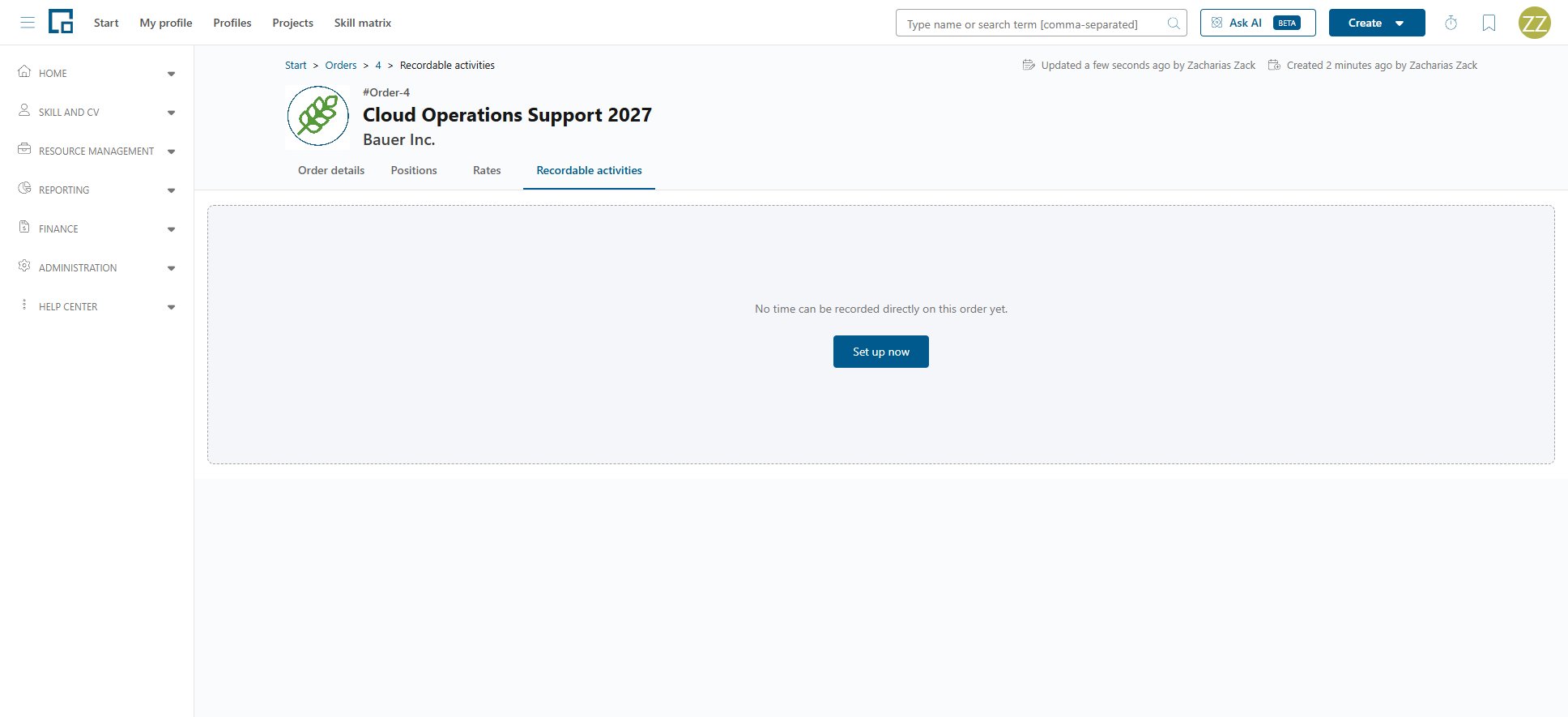
Open the order and switch to its Recordable activities tab. While no position has an activity type, it shows “No time can be recorded directly on this order yet.”, or “This order has no positions yet. Add positions to set up time recording.” on an order without positions. Click Set up now to open the setup, which starts with the positions. If the positions already have activity types, for example from a project, the tab lists them right away, and only who can record directly on the order may still need setting.
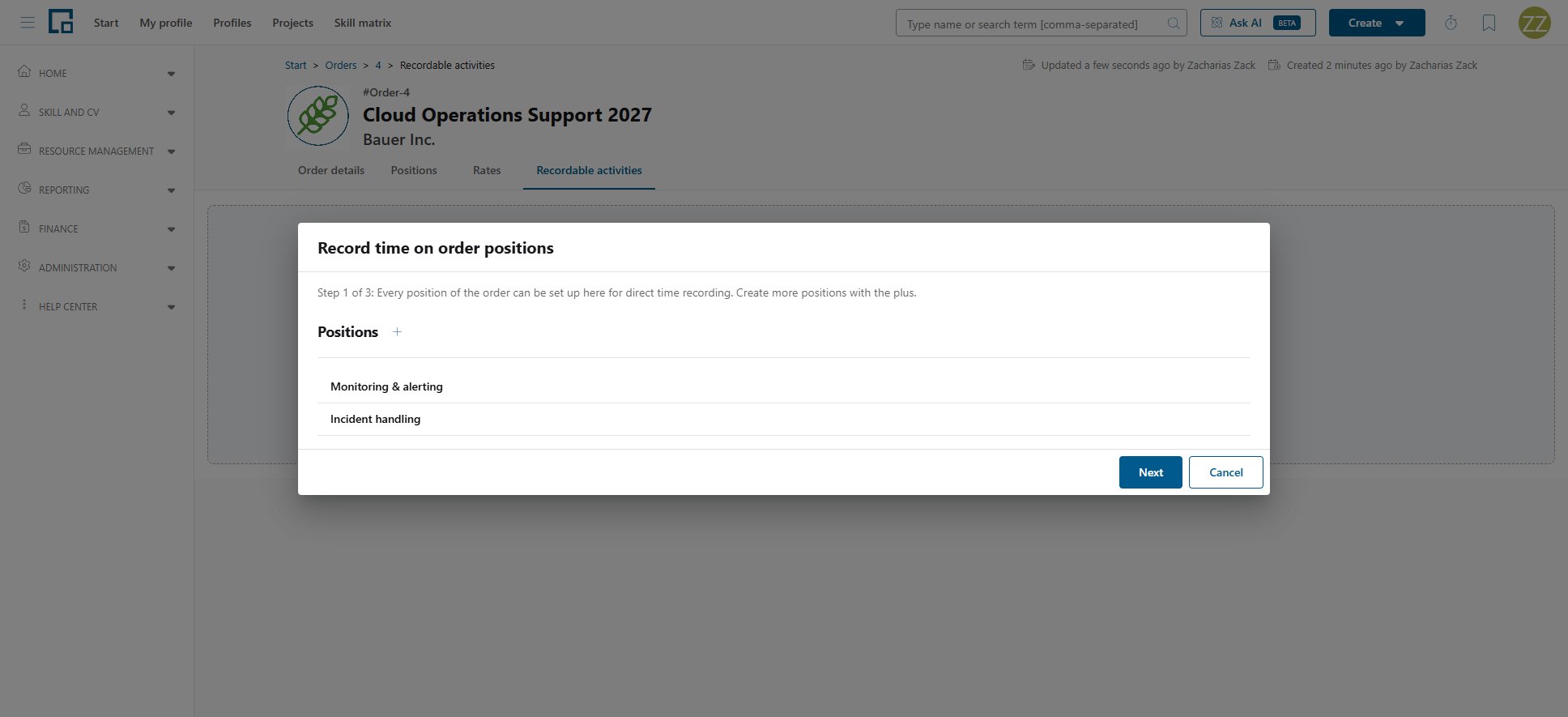
The setup has three steps, as a project's setup has for each of its ways, and the line above each says where you are, for example “Step 1 of 3: Every position of the order can be set up here for direct time recording. Create more positions with the plus.”
- Positions. Every position of the order is listed. To add one, click the plus, or Add position on an order without positions: the order's Positions tab opens with the dialog for a new position, without its activity types, which the next step adds. Create another keeps the dialog open for the next position, and Back to time recording returns to the setup at this step, with everything it had collected. A new position keeps the recording types chosen in its dialog. Next stays disabled while the order has no positions.
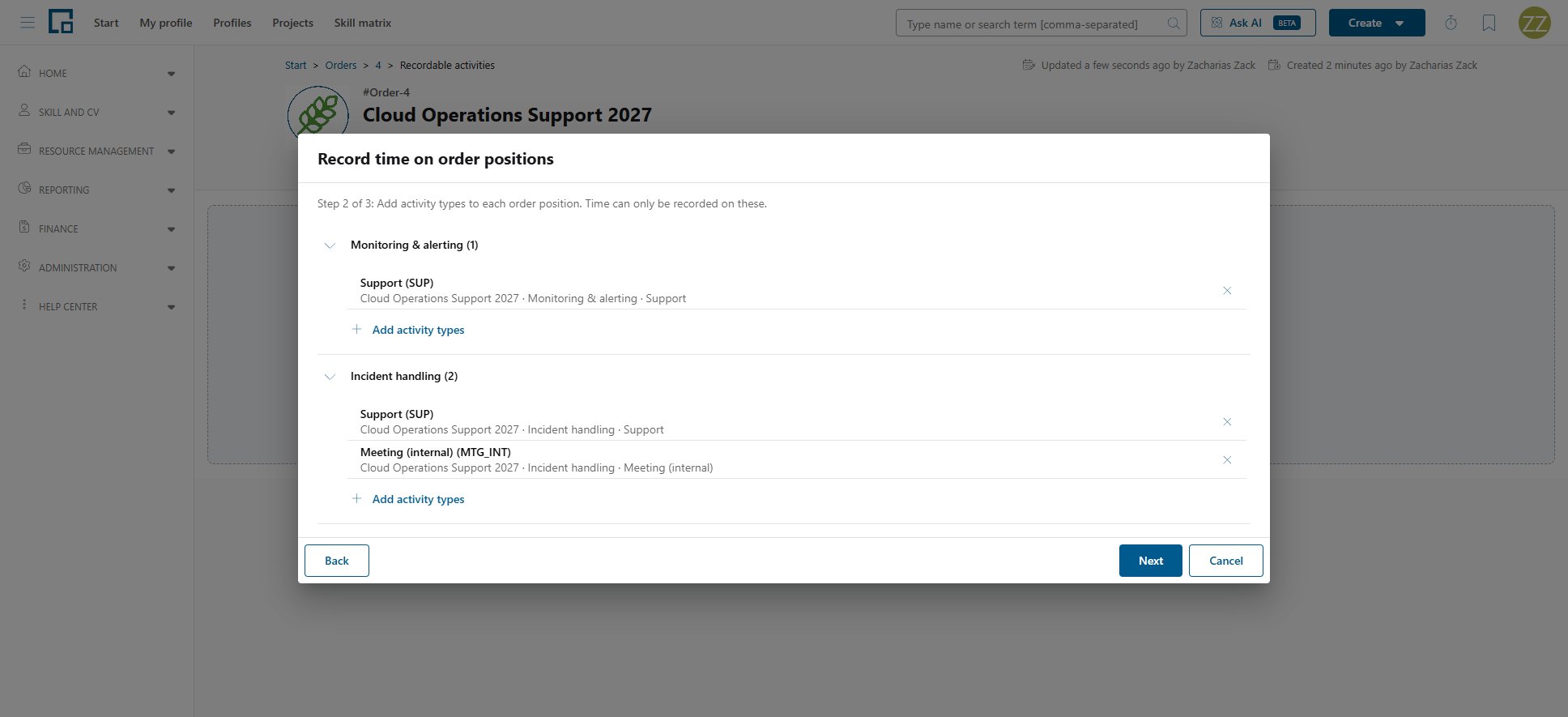
- Activity types. Every position of the order is listed. Use Add activity types to pick from the central catalogue and the X to take one out again. Under each activity type you see, in grey, the timesheet subject it will produce. Next stays disabled until at least one position has an activity type. What you add here applies to the order's projects too.
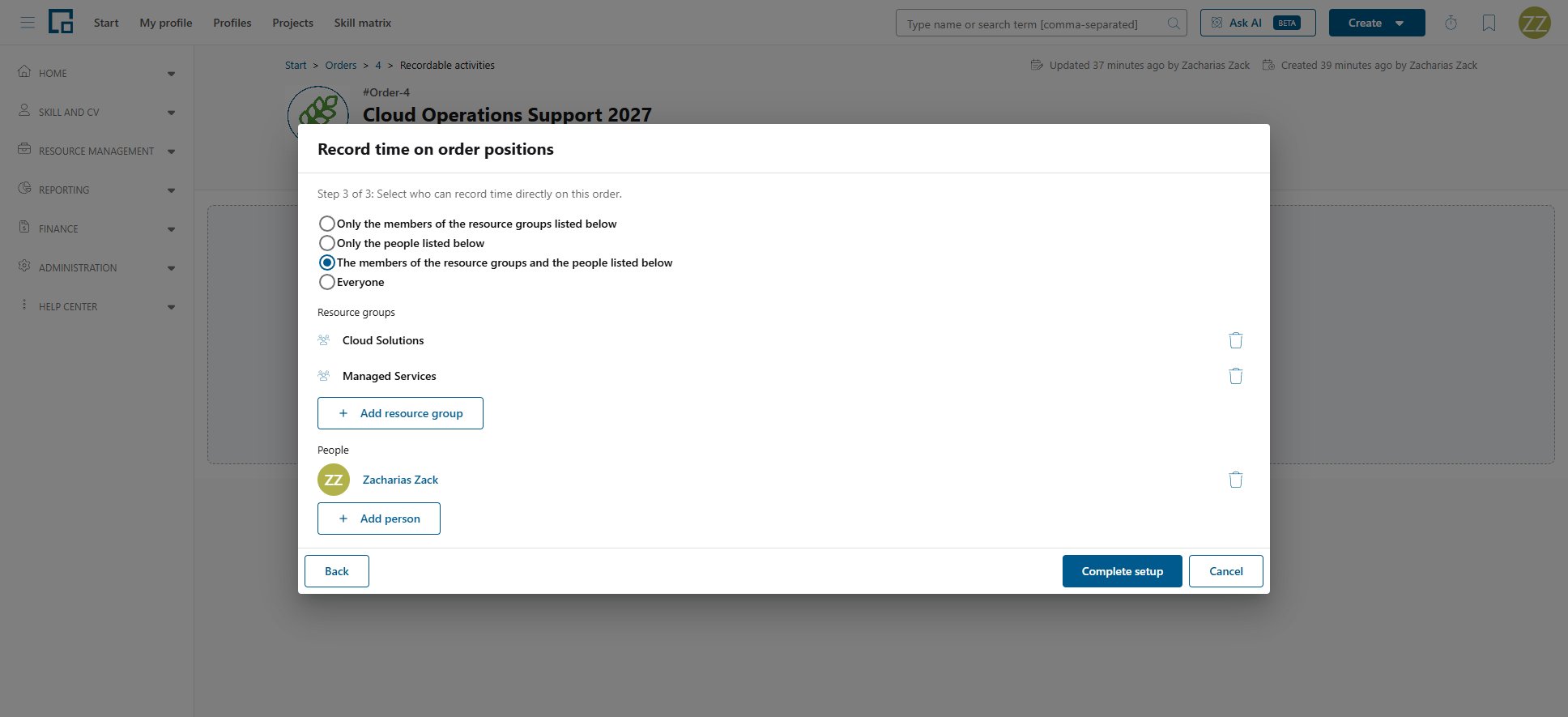
- Who can record time directly on this order. Choose one of the four options described below, and add resource groups or people to its lists.
Complete setup saves all of it at once. Back returns to the previous step, and Cancel discards everything the setup collected. Unlike a project's setup, this one has no switch for expired subjects: the order's expiry date applies to all its positions alike.
Who can record
| Option | Who may record |
|---|---|
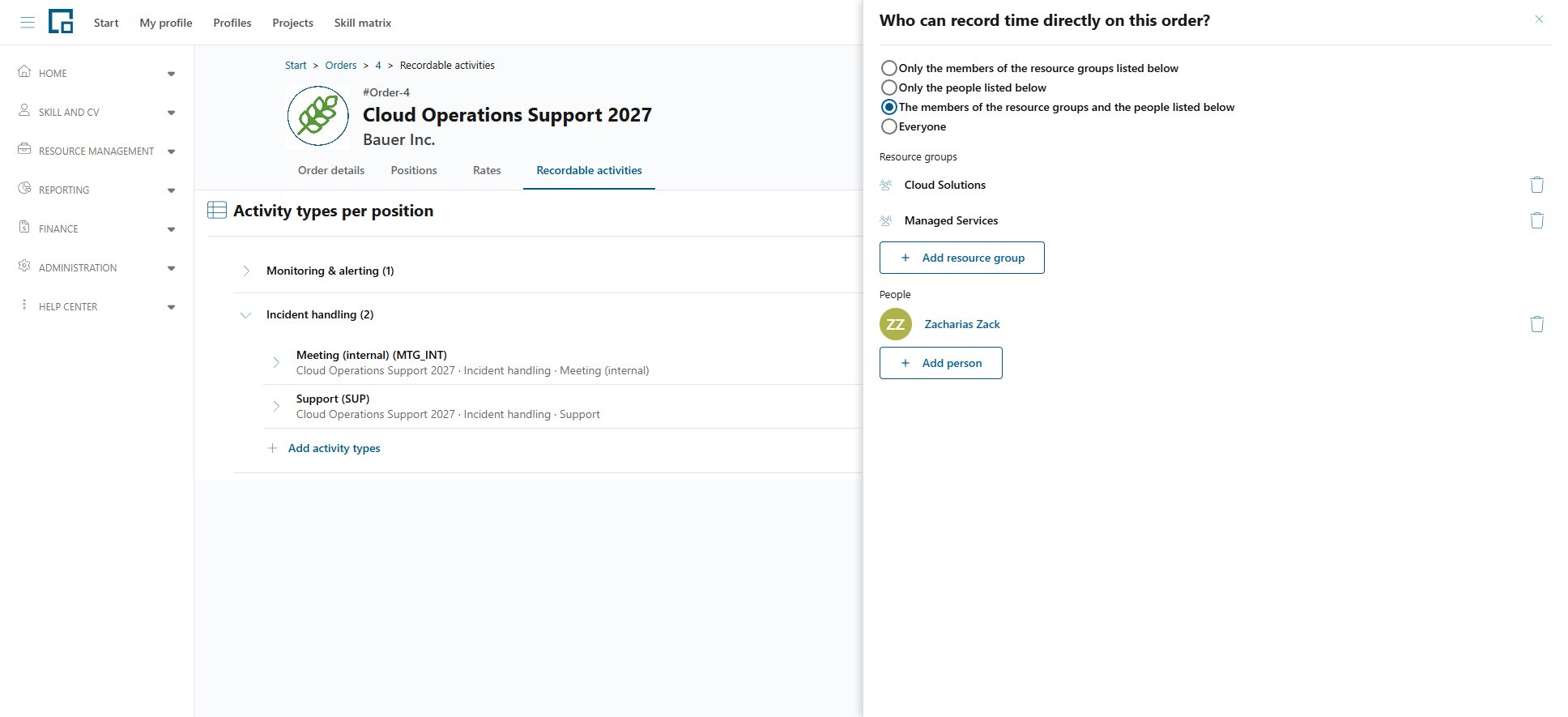
| Only the members of the resource groups listed below | The members of the resource groups added to the order. |
| Only the people listed below | Only the people you add by hand. |
| The members of the resource groups and the people listed below | Both together. |
| Everyone | Anybody in the company. |
Add a group with Add resource group and pick it in Search resource groups; add a person with Add person. The trash icon takes a group or a person off the list again.
A resource group's members are decided by the group's criteria, such as country or business unit, at the moment someone records. A person whose profile stops matching the group can no longer record from then on, and a person who starts matching it can. The group's managers record only if they are members themselves. Entries recorded earlier are kept either way.
A new order starts with the option your administrator chose as the default and with empty lists (see Defaults for New Projects and Orders). With any option but Everyone, nobody can record until a group or a person is added. The same applies to an order that was created before this tab existed.
The tab once it is set up
Under Activity types per position, every position of the order is listed with the number of activity types it records. Open a position to see them, with the same Billable setting and recording types as on a project (see Overriding whether an activity type is billable), and use Add activity types to add more. Changes here are saved at once.
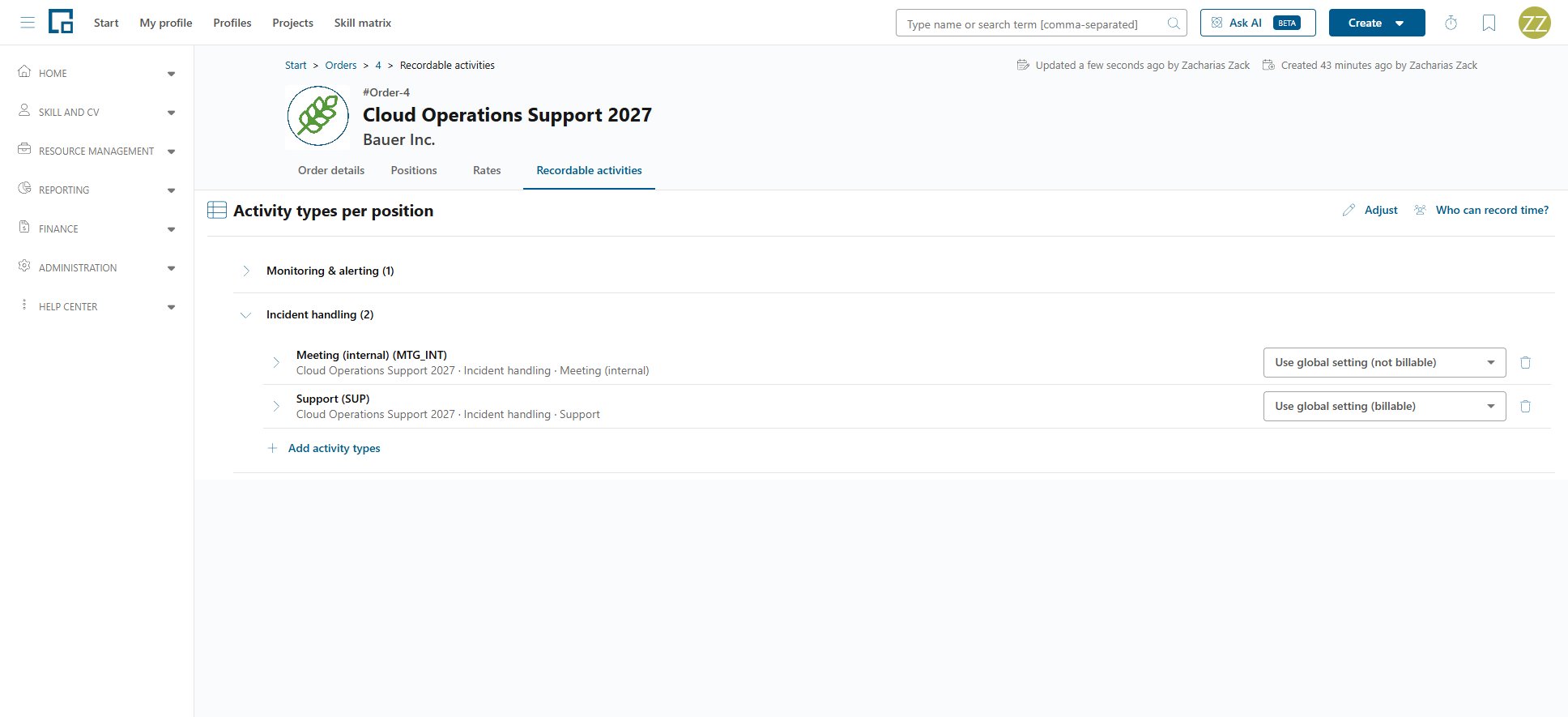
Adjust in the heading opens the setup again, at its first step and with what the order already has, for example to add positions. Who can record time? opens a panel with the order's option and its lists. Changes there are saved at once.
Billing the time
Time recorded directly on an order counts on that order alone:
- It is part of the order's Delivery figures and of Billable work, and it is billed on the order's servicesheets like any other time on the order (see the Billing concept). A servicesheet always names a customer, and this time has no project to take one from: it appears under Billable work once the order has a customer, set on its Order details tab. While it has none, the Customer field there shows a warning sign that says so. Time recorded on the order's projects is not held back meanwhile: it appears with the project's customer.
- It is not part of the Delivery tab, the figures or the Issued amount of the projects the order serves, and it is not offered for confirmation there. An order serving several projects therefore never counts it more than once.
- A servicesheet line that combines a project's time with time recorded directly on the order is marked Shared on that project's Delivery tab, because its amount is more than the project's own work.
Confirmation is switched on per project (see When confirmation is needed), and this time belongs to no project. It is therefore treated like time on a project without approval: confirmed as soon as its owner hands it in, and available for billing from then on.
Changing the setup later
The setup can be changed at any time, and only affects what happens next:
- Removing an activity type stops new entries being recorded against it, on the order's projects and directly on the order alike. Entries that already exist are untouched.
- Narrowing who may record, or a person leaving a resource group, does not remove anyone's existing entries.
- Deleting a resource group takes it off every order that lists it.
- An order or a position with recorded time cannot be deleted (see Deleting).
In the position's drawer
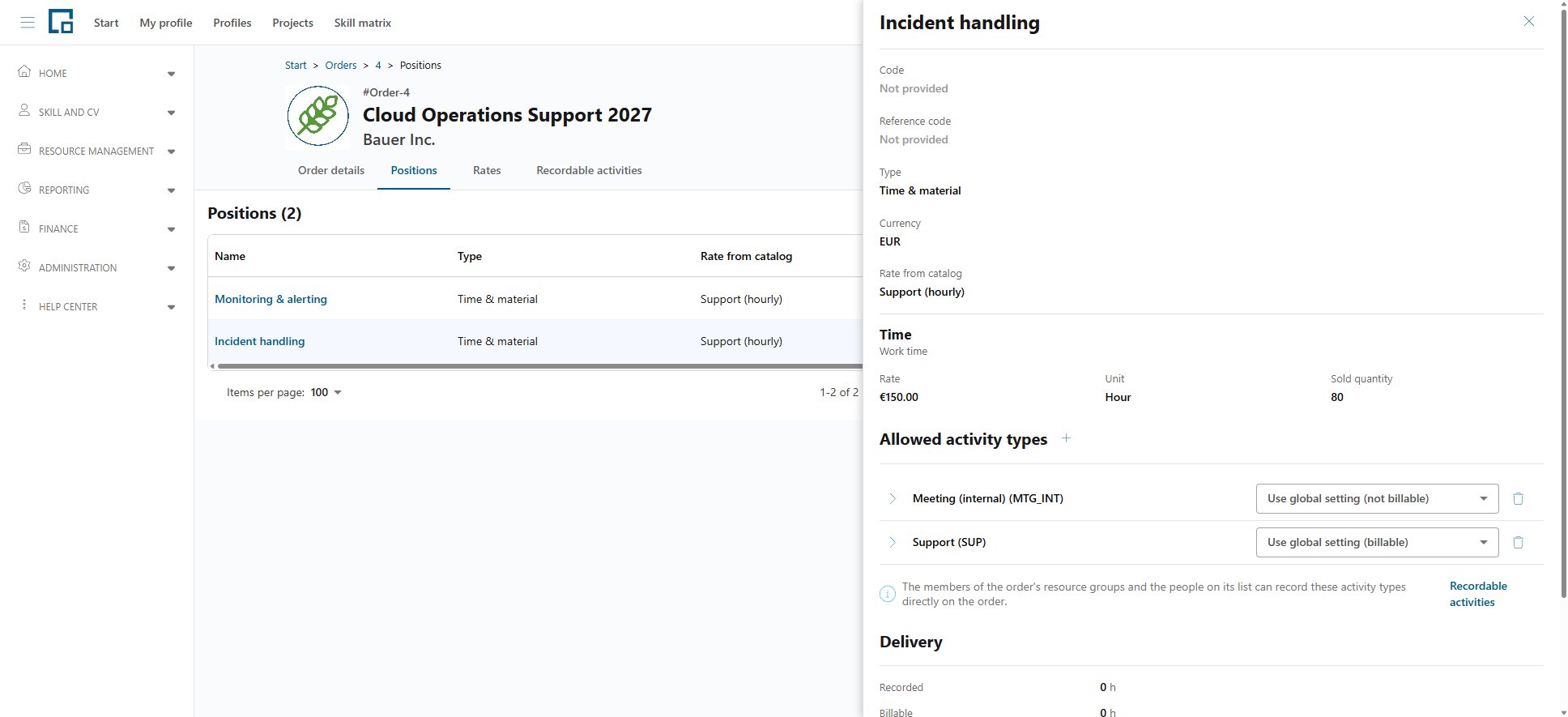
The drawer of a position on the Positions tab lists the same activity types under Allowed activity types. Below them it says who can record them directly on the order, for example “Nobody can record these activity types directly on the order yet.”, with a link to the order's Recordable activities tab.
Related
- Setting Up Time Recording on a Project: the four ways time is recorded on a project
- Orders & Positions: the order, its positions and their prices
- Time recording concept: who may record against which subject
- Defaults for New Projects and Orders: what a new order starts with
- Resource Groups: how a group's members are decided