Orders & Positions
Note: Billing is currently a beta feature and is being rolled out with pilot customers. If you would like to take part, please get in touch with us.
An order represents what the customer actually ordered, and its positions are the lines of that order. The position is where the price lives, and it is where recorded time and the commercial structure meet, so setting orders up correctly is what makes billing work later.
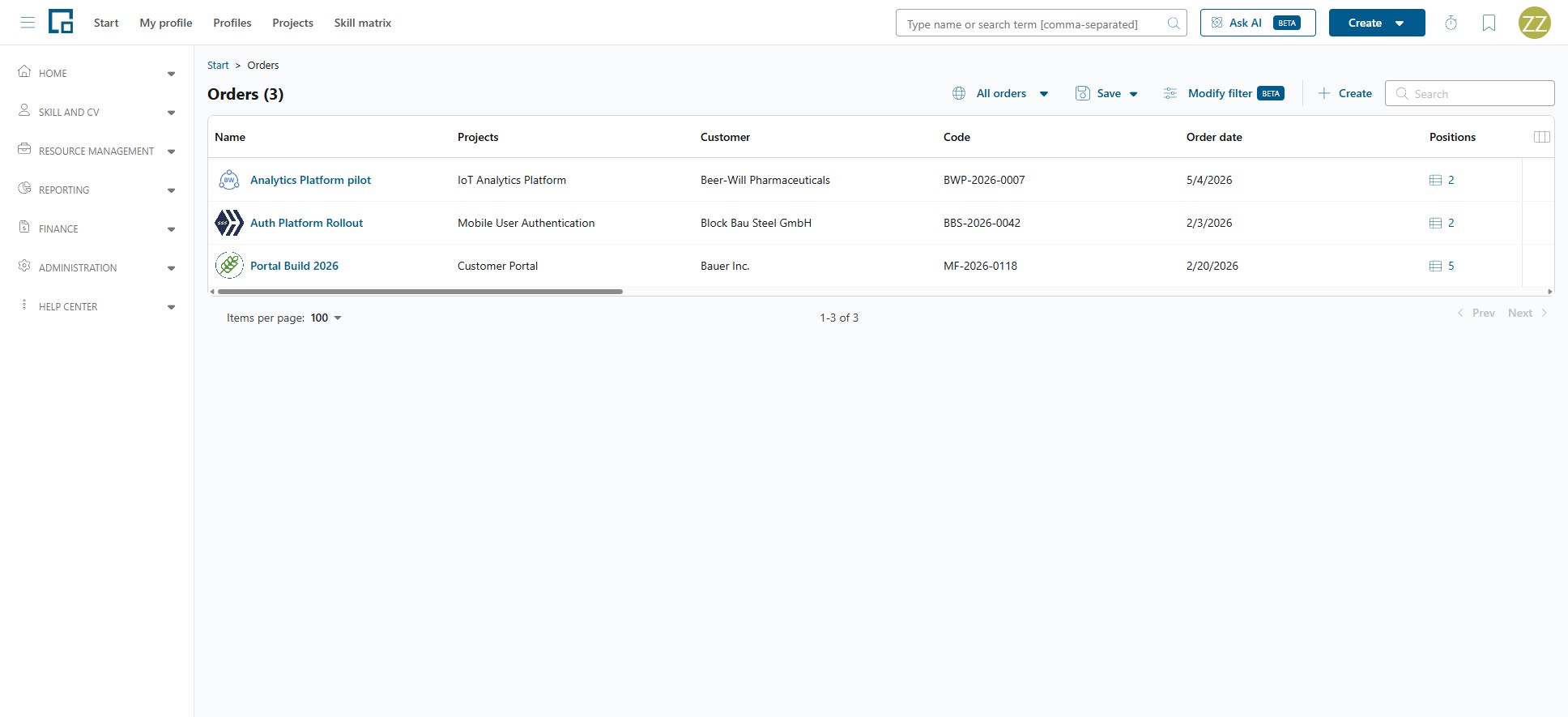
There are two ways in: Finance → Orders lists every order across all projects, and a project's Accounting tab lists the orders on that one project. Both open the same order detail page.
Working with orders needs Manage project billing and orders; the framework agreement and servicesheet rules sections additionally need broad billing responsibility. See the Billing concept.
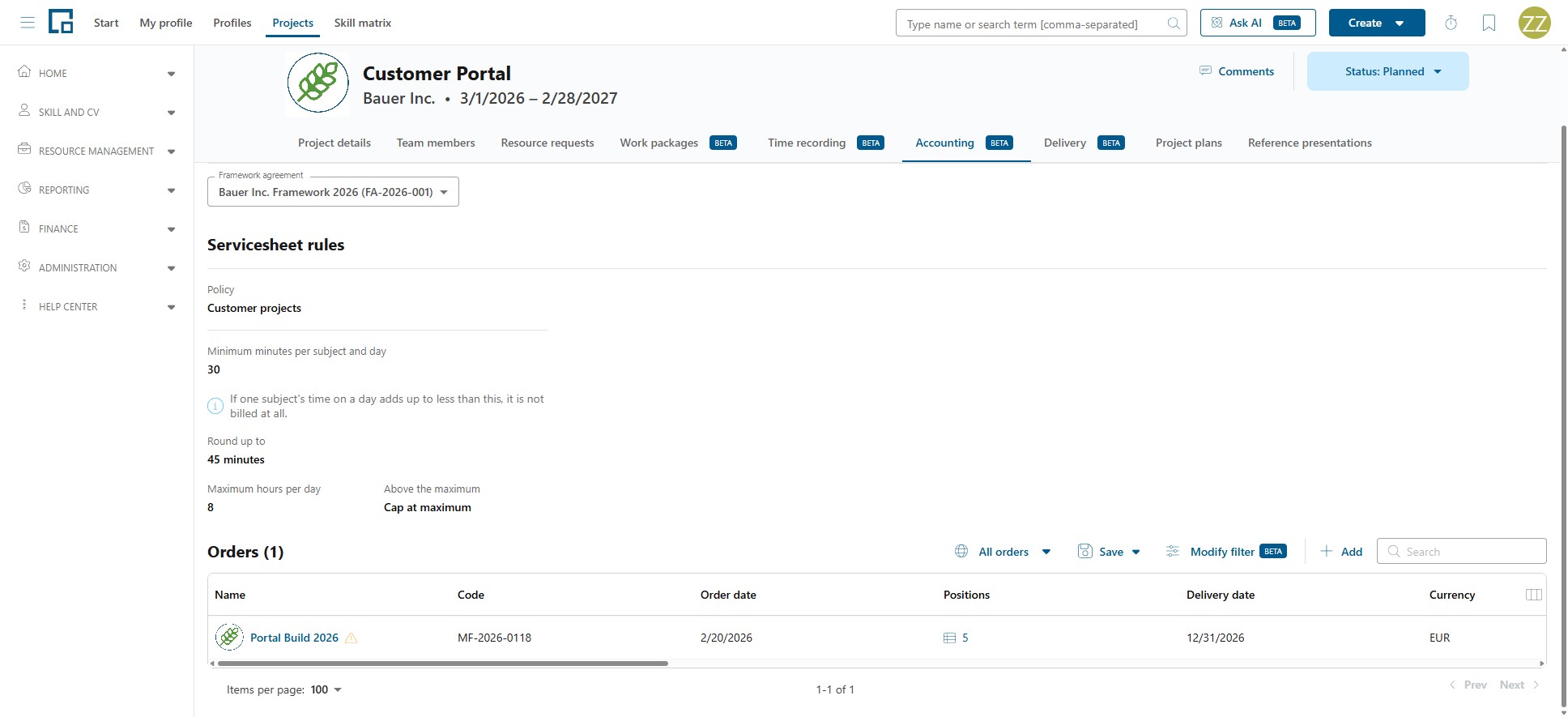
The project's Accounting tab
The Accounting tab holds the commercial setup for one project, in three sections.
Framework agreement: the agreement this project belongs to, or "No framework agreement". A project belongs to at most one. See Framework Agreements.
Servicesheet rules: the duration rules used when the project's recorded time is turned into billable hours. New projects start from the default policy. See Servicesheet policies.
Approval required for recorded time: whether this project's recorded time waits for somebody to confirm it. Off by default, in which case the time is confirmed as it is entered and is billable straight away. Shown only while your company has the approval workflow switched on. See When confirmation is needed.
Orders: the orders on this project. Click Add to attach one: the picker searches your existing orders, so an order that already exists for another project can simply be added here rather than created twice. If none fits, choose Create new order in the picker.
Creating an order
The order's own fields are configurable for your company, so the exact set may differ. The standard fields are:
| Field | Description |
|---|---|
| Name | Required. What the order is called. |
| Code | The customer's order number or your own reference. |
| Customer | The company that placed the order. |
| Projects | The projects the order is delivered on. An order can serve several. |
| Currency | Required. The one currency the order is billed in. |
| Order date / Delivery date | When the order was placed and when it is due. |
| Billing address, Shipping address, Goods recipient | The commercial addresses. |
| Terms of payment, Shipping terms | The agreed terms. |
| Description, Notes | Free text. |
Note: The currency cannot be changed once the order has servicesheets. The field is then locked and explains "The currency can't be changed because this order already has servicesheets." Withdrawing every servicesheet on the order releases it again. See Currencies and totals.
decídalo warns you when the order and its project do not line up in time: "The order expires on … before this project ends on …" or "The order only becomes valid on … after this project starts on …". These are warnings, not blocks.
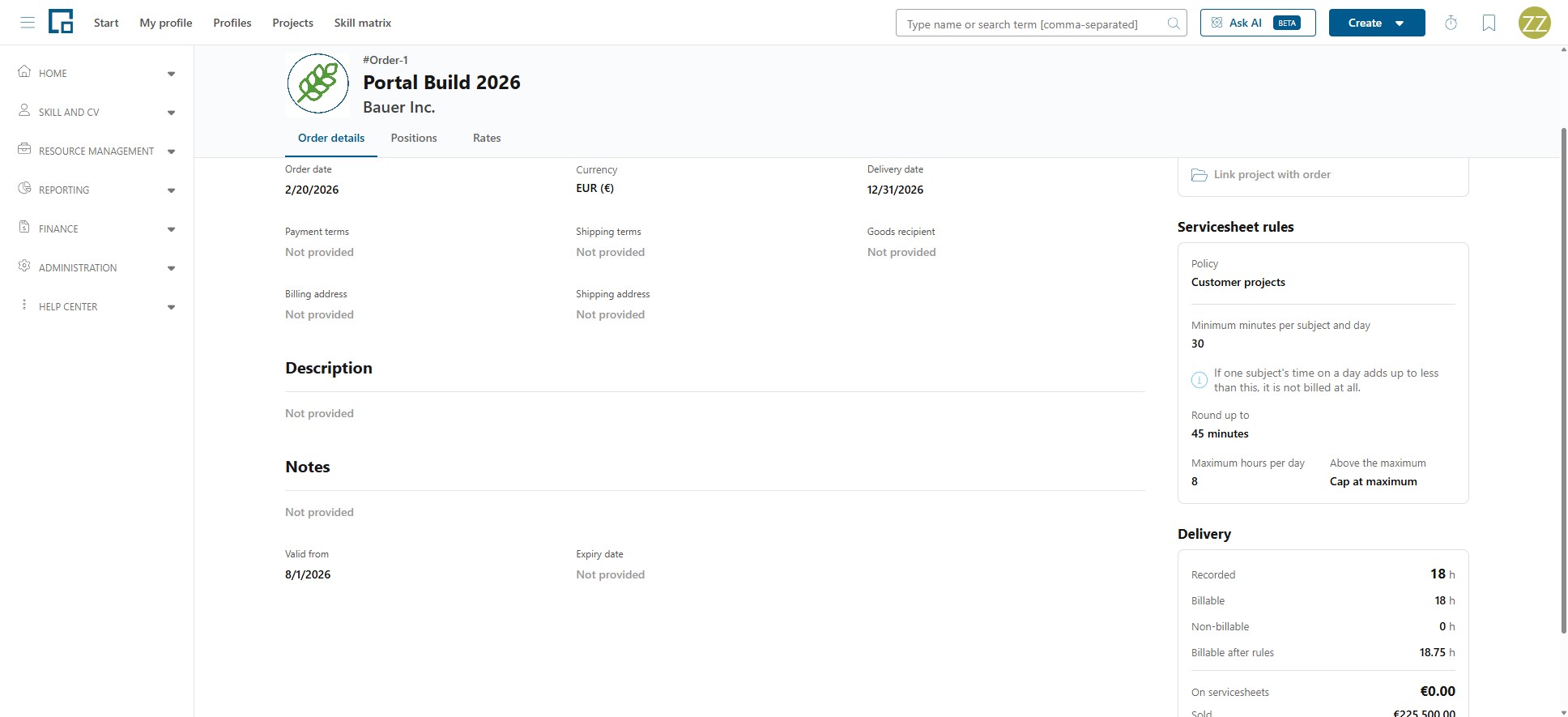
The order detail page
An order opens with three tabs.
| Tab | What it holds |
|---|---|
| Order details | The order's own fields, editable in place. |
| Positions | The lines of the order and their prices. |
| Rates | The rates the positions are priced from. |
Alongside them the page shows the projects the order is delivered on (add one with Link project with order or Create new project, remove one with Remove project), the order's Servicesheet rules, and its Delivery figures.
Note: Changing or removing an order's project also removes the links between its positions and that project's work packages. decídalo asks before doing it.
Adding positions
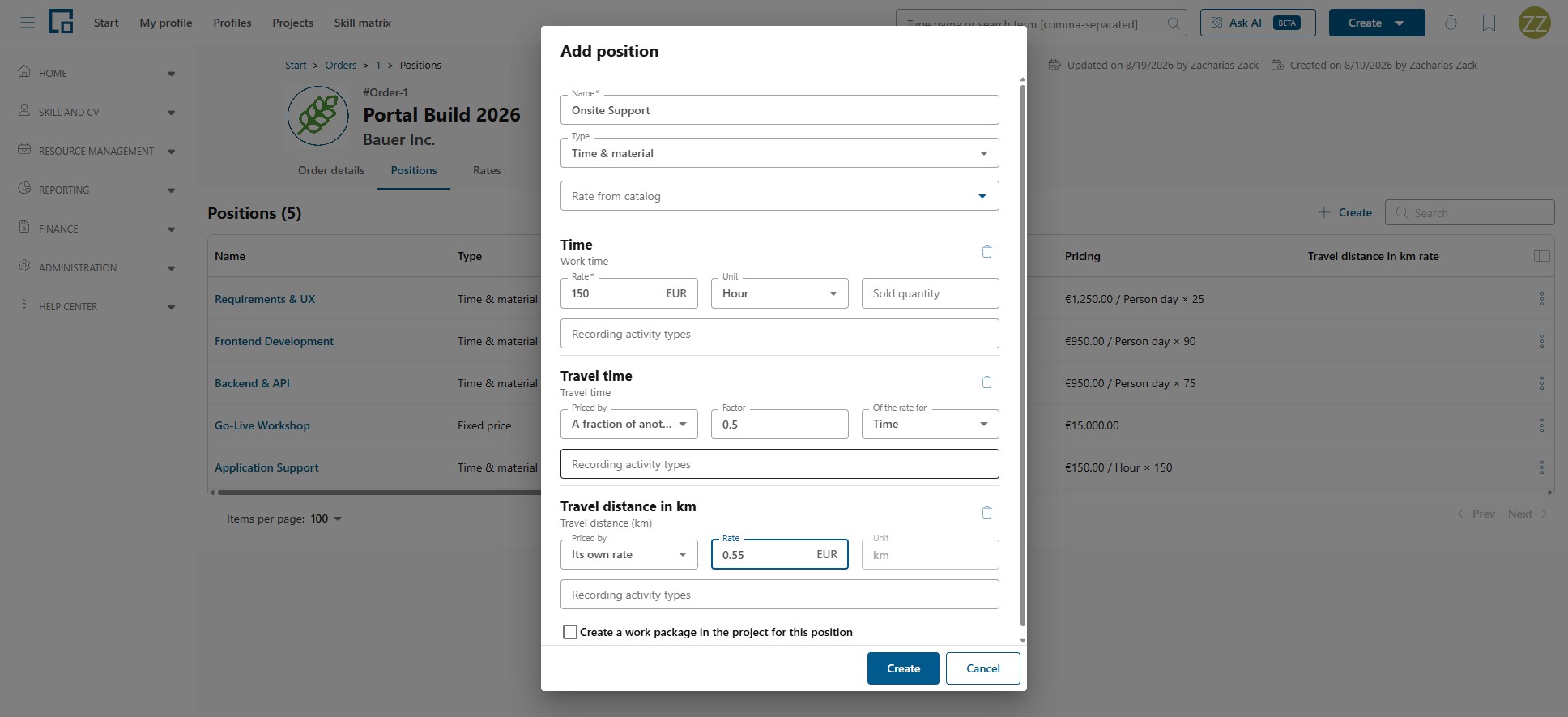
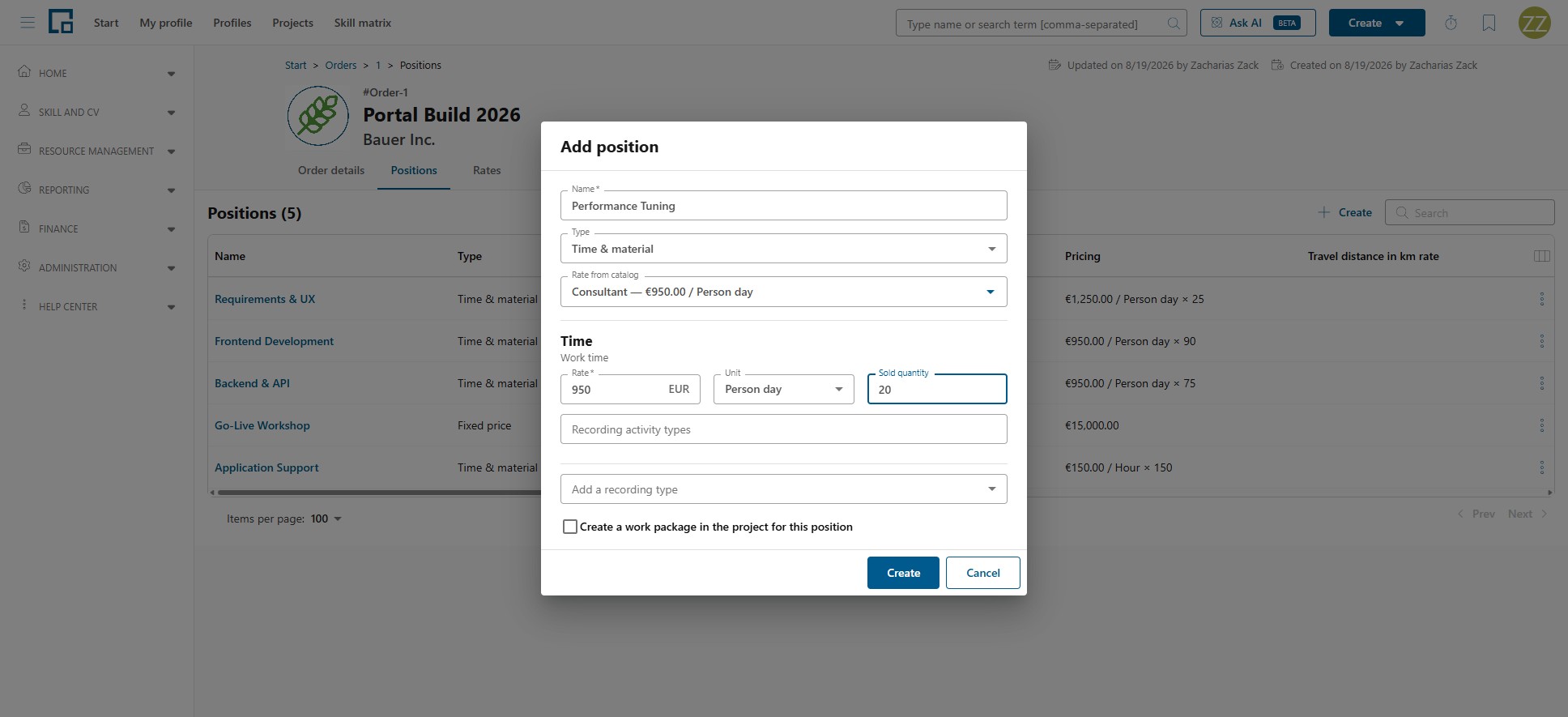
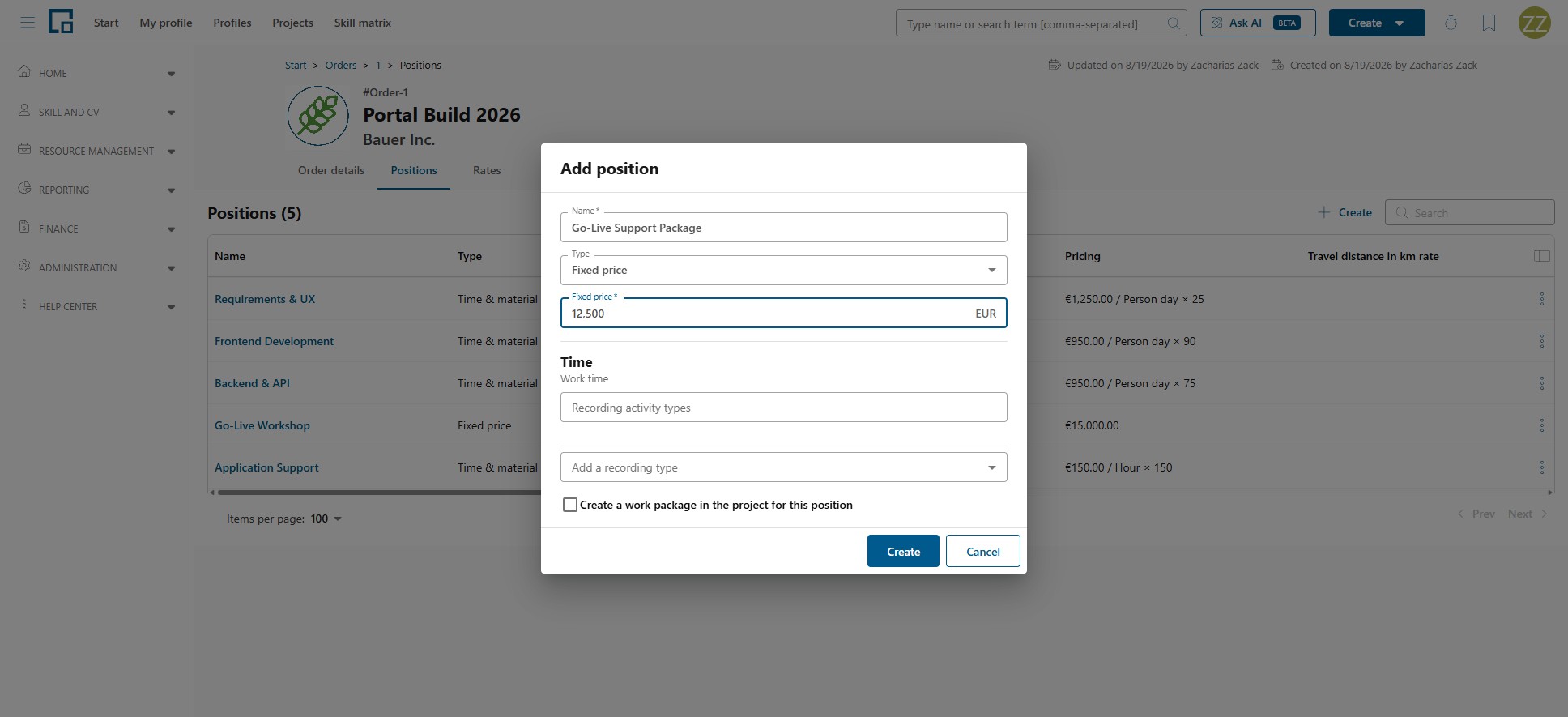
Open the Positions tab and click Create to open the Add position dialog.
| Field | Description |
|---|---|
| Name | Required. What the position covers. |
| Type | Fixed price or Time & material. Switching type clears the fields that no longer apply, after asking. |
| Fixed price | Fixed-price positions only: the lump sum. |
| Rate, Unit and Sold quantity | Time & material only: the price per Hour or per Person day for the time itself, and the agreed volume that Remaining is measured against. All three describe the working time, so they are hidden on a position whose activity types do not record it. Such a position has no hours to price or to agree, and is sold through its other recording types instead. |
| Recording activity types | Which activity types may be recorded against this position, and whether each is billable. |
A position has no currency of its own. It is priced in its order's.
Instead of typing a rate, pick one under Rate from catalog. The picker lists the order's own rates under From this order and the central catalogue under From the catalog; an order with no rates of its own shows only the catalogue. Either prefills the rate and the unit, and a catalogue pick also links the position to that rate, which is what fills Rate code. Leave the field empty to price the position by hand.
Pricing the other recording types
A position is priced per recording type, not once. Time is priced by the Rate above; every other type the position records (travel time, a travel distance) gets its own row, and each is either:
- its own rate, typed or prefilled like any other, or
- a share of another type's rate on this position, travel time at half the work-time rate, say. The share follows its source, so re-pricing the work automatically re-prices the travel.
A type with no rate is still recordable; it simply contributes nothing to the amount.
A fixed-price position records the same types, and prices none of them. It is set up the same way, one row per recording type saying which activity types record it, but the rows carry no rate: the lump sum covers whatever is recorded against the position. The Fixed price is stated once, above the rows, because it is what the position costs rather than the price of any one recording type. Time is then an ordinary row there and can be removed like any other, so a position that only ever records travel is possible.
The positions grid then shows one row per position with its Name, Type, Rate from catalog, Rate code, Pricing, one column per priced recording type, allowed activity types, Work packages, Recorded and a Delivery bar. A recording type's rate column appears only while that type is active. What is on servicesheets and what is paid are read from the bar and its breakdown rather than from columns of their own. The bar's info icon opens the full breakdown, the same figures described under Where you see billing information. A position with no rate or no agreed quantity has no maximum to measure against. Its bar is drawn all the same: empty while nothing has been billed, and, as soon as anything is, wholly in the warning tone, because every cent of it is beyond a volume of nothing. A note beside it says no rate or quantity is set yet.
Connecting work packages
A position can be connected to one or more work packages in the project. Use Connect work package to link an existing one, or type a name and choose the create option to make a new one. When the order serves several projects, Create in project decides where it goes. Disconnect work package removes the link.
Connecting changes who may record time and where:
- A position without work packages is recorded against directly. Its Direct recording list decides which activity types are allowed, and the recorder setting of the position's project decides who may use it.
- A position connected to work packages is recorded against those work packages instead, and the drawer explains "This position is connected to work packages, so its activity types are recorded against those work packages." Only the members of the work package's team may record against it, and the project's recorder setting is not consulted.
The full rule set is under Who may record against what.
Note: An order position whose order is not linked to any project and that is not connected to a work package cannot be recorded against by anyone, because there is neither a project nor a team to decide from. Link the order to a project, or connect the position to a work package.
The Rates tab
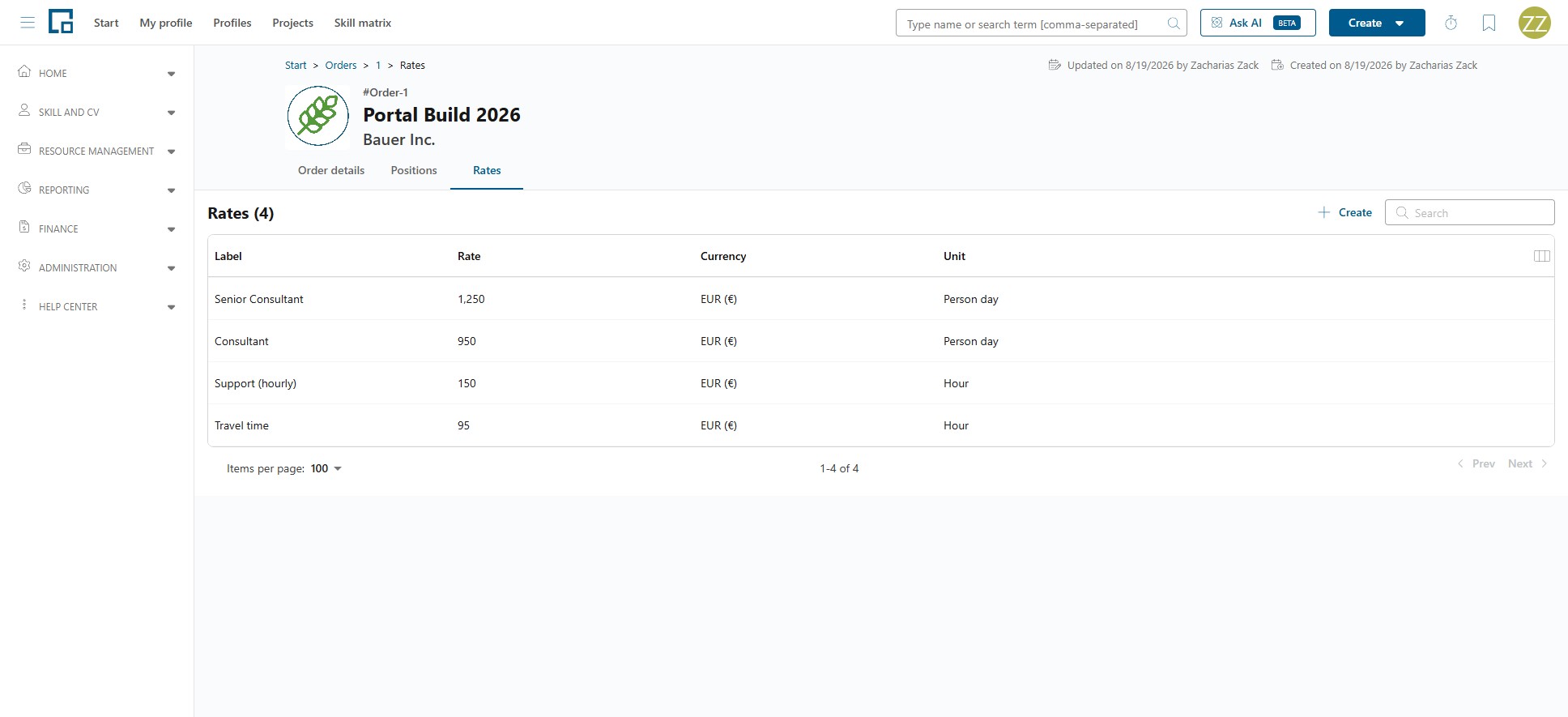
The order's Rates tab is the pool the positions are priced from. Add entries with Create in the toolbar and fill in Label, Rate, Currency and Unit, or use Prefill from framework agreement in that dialog to copy a rate across from the agreement. An empty tab offers the same thing as Add rate, under "No rates yet. Add one or prefill from the framework agreement."
Prefilling copies. Editing the framework agreement afterwards does not change orders already prefilled from it, and editing an order rate does not change positions already priced from it.
Deleting
Deleting an order or a position asks for confirmation and names what is being deleted. Recorded time that is already on a servicesheet keeps that servicesheet's snapshot.