Time recording concept in decídalo
Note: Time recording is currently a beta feature and is being rolled out with pilot customers. If you would like to take part, please get in touch with us.
Time recording lets your people capture how much they worked and what they worked on. Those records are the basis for two things: giving project managers a picture of the effort that actually went into a project, and, where work is billed by effort, supplying the hours that are then carried over onto servicesheets, decídalo's record of the work delivered to a customer.
Time recording is switched on per company, and what each person may see and do is controlled by permissions. If the menu entries described here are missing for you, either the feature is not enabled for your company or your permission profile does not include them.
This page explains the terms used across the rest of the time recording documentation. If you just want to get your own hours in, go straight to My Timesheet.
Working time and recorded time
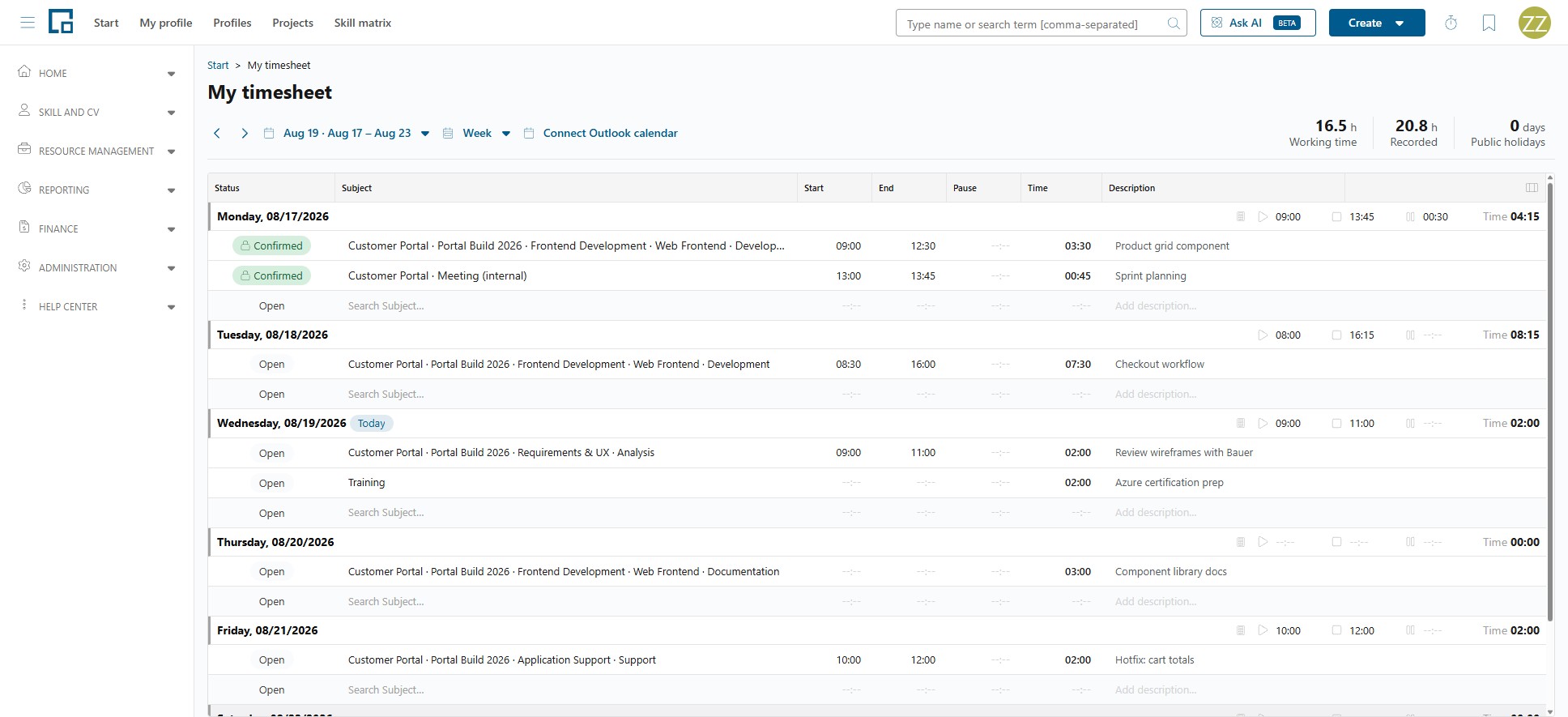
For each day, decídalo keeps two separate records of the time itself, and they do not have to match.
Working time is attendance: when the working day started, when it ended, and how long the break was. It is shown as Start, End, Pause and Time. Time is not a field you fill in. It is always calculated as end minus start minus pause. To change it, change one of those three values.
Recorded time is the list of entries describing what was worked on. Each entry has a subject, optionally a start and end time, a duration and a description.
The two are related but independent. A person can be at work for eight hours and record six hours of project work, and the remaining two hours are simply not attributed to anything. Recorded entries can also add up to more than the working time.
By default, the working time for a day is calculated from the recorded entries, and the field carries the hint "Calculated from your entries. Manual working time recording is turned off." Only timed entries can feed that calculation: an entry needs a start and an end time to say anything about attendance, so an entry that carries only a duration adds to Recorded but not to Working time. If your company enables the Manual working-time recording setting, the working time becomes editable and a value entered by hand takes precedence over the calculated one.
Both figures appear as tiles above the timesheet:
| Tile | What it shows |
|---|---|
| Working time | "Net attendance (start to end minus pause) across the selected period." |
| Recorded | "Total time recorded on entries in the selected period." |
Recorded time and billed time
There is a third figure, and it is deliberately kept apart from the first two: what ends up on a servicesheet is not simply what was recorded. Your company's billing conventions are applied in between (a minimum length per subject and day, rounding up to a step, a cap on what one person may be billed for in a day), and whoever composes the servicesheet can still adjust the result before it goes to the customer.
So decídalo keeps three separate records:
| Record | Answers | Who maintains it |
|---|---|---|
| Working time | When was this person at work? | The person, or their entries. |
| Recorded time | What was worked on, and for how long? | The person recording. |
| Billed time | What is charged to the customer for that work? | Whoever does the billing. |
That separation exists so recording can stay honest. Record what actually happened. If a task took 20 minutes, enter 20 minutes, not half an hour because you have heard that your company bills in quarter hours. Rounding by hand distorts the effort figures project managers work from, and it gains billing nothing: the rules are applied on the billing side anyway, and doing it twice bills the customer for time nobody spent.
Nobody recording time needs to know what those rules are, or whether an entry is billable at all. Those questions are answered later, by other people, on the Delivery tab and in billing.
What you record time on
Every entry is booked against a Subject. A subject is exactly one of four things:
- a project together with an activity type
- a work package within a project, together with an activity type
- an order position together with an activity type
- a general activity, which stands on its own and belongs to no project
Subjects are shown as a path, so it is clear where the time lands. The form depends on what is being recorded against:
| Recorded against | Shown as |
|---|---|
| A project | Project · Activity type |
| A work package | Project · Work package · Activity type |
| An order position | Project · Order · Position · Activity type |
| An order position through a work package | Project · Order · Position · Work package · Activity type |
| A general activity | the name of the general activity, on its own |
For an order that is not linked to a project, the project is left out of the path. The customer is shown underneath as a second line, which helps when several projects have similar names.
Who may record against what
Which subjects a person can choose is not a global list. It is decided per subject, and the rule differs by kind:
| Subject | Who may record against it |
|---|---|
| General activity | Everyone. General activities belong to no project, so nothing gates them. |
| Work package | Only the members of that work package's team. |
| Order position connected to a work package | Only the members of that work package's team, exactly as above. |
| Project | Whoever the project's recorder setting allows: everyone, the people with confirmed bookings, a named list, or both groups. |
| Order position recorded directly | The recorder setting of the project whose tab the position was configured on. |
The rule of thumb: as soon as a work package is involved, its team decides. A work package's own membership is the whole test, and the project's recorder setting is not consulted, including for an order position that is connected to a work package, which is the case that produces the longest subject path.
An activity type that has been deactivated centrally cannot be recorded against either, even where it is still listed.
Note: An order position whose order is not linked to any project and that is not connected to a work package currently cannot be recorded against by anyone. There is neither a work package nor a project to decide from, so no one qualifies. Link the order to a project, or connect the position to a work package, to make it recordable.
How the project-level setting is chosen is described in Setting Up Time Recording on a Project.
Activity types and general activities
Activity types describe what kind of work an entry was: for example development, consulting, travel or project management. They are maintained centrally for the whole company, and each one carries a Billable by default setting that decides whether time recorded against it can end up on a servicesheet.
That default can be overridden where it matters: a project, a work package or an order position can declare an activity type Always billable here or Never billable here, or leave it at Use global setting.
General activities cover work that belongs to no project at all: internal meetings, training, administration, and also vacation and sick leave. General activities are never billable and never appear on a servicesheet.
Note: Recording vacation or sick leave as a general activity is only a record of how the time was spent. It is not an absence, it does not go through absence approval, and it has no effect on availability, capacity or the resource plan. Absences are managed separately (see Working Time Patterns, Absences & Availability).
Both catalogues are maintained by an administrator under Time Recording Setup, alongside the recording types described below.
What an entry records
An entry always records time, which is what a timesheet is for. Beside it, an entry can carry further values, and each of those is a recording type.
decídalo ships one recording type that cannot be removed: Time itself, the hours you worked. Your administrator can add others, for example:
| Records | Entered as | Example |
|---|---|---|
| Working time | hh:mm | A second time figure beside the worked time |
| Travel time | hh:mm | 1:30 spent travelling to the customer |
| Travel distance | a number in the type's own unit | 120 km driven |
Anything measured in time is bounded by the day: at most 24 hours in one entry. A distance is a quantity and carries no such limit.
A recording type is not available everywhere. It is switched on per subject (a general activity, a project's activity type, a work package or an order position), so a subject that never involves travel simply does not offer a travel column. Where it is switched on, the type appears as its own column in the timesheet and as its own field in the recording drawer.
Two consequences worth knowing:
- Time itself can be switched off for a subject. A subject that records only a distance shows no start, end, pause or time, because those four belong together and the timesheet closes them as a group.
- Values already recorded are kept, even if the type is later switched off for that subject or deactivated altogether. They stay visible, struck through, and they still count for billing. Nothing you recorded is ever silently discarded.
Administrators maintain the catalogue under Time Recording Setup.
Statuses of a recording entry
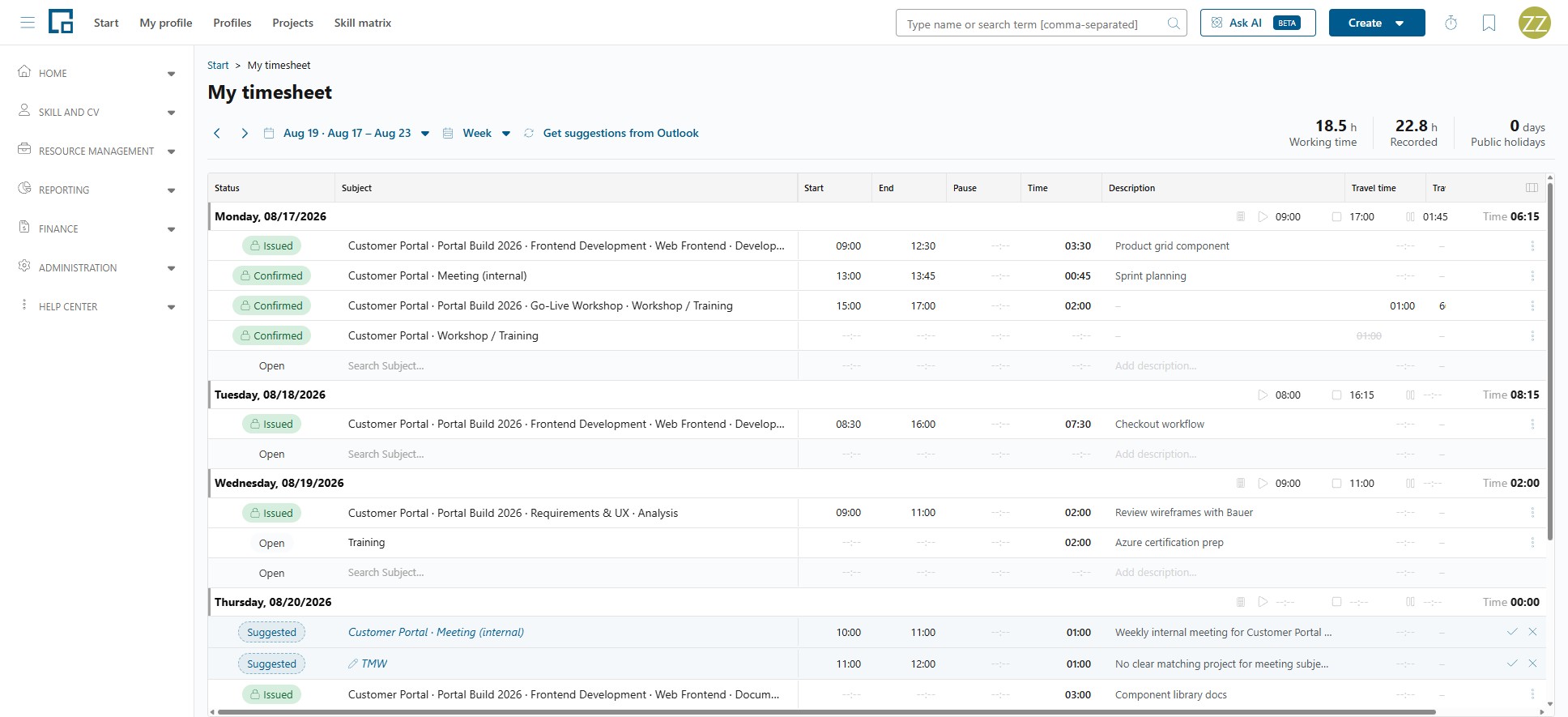
Each entry carries a status that shows how far it has travelled and whether it can still be changed.
| Status | Meaning | Can the recorder still change it? |
|---|---|---|
| Suggested | "Suggested from calendar": a proposed entry that nobody has accepted yet. It counts towards nothing until it is accepted. | It is accepted or dismissed, not edited |
| Open | A normal recorded entry. | Yes |
| Confirmed | "Confirmed (locked)": an approver has confirmed the entry for billing. | No |
| Issued | "On a servicesheet (locked)": the entry has been put on a servicesheet. | No |
| Imported | "Maintained through the import and locked for editing": the entry came from another system through the import interface. | No, it is changed in the source system |
Open and Confirmed are the two statuses somebody actually sets: an entry becomes Confirmed when a person with approval rights confirms it on the project. Issued and Imported are different, because nobody sets them. The system derives them, the first from the entry sitting on a servicesheet, the second from the entry being maintained by another system through the import. In the timesheet they are shown in the same Status column, because for the person who recorded the time the practical effect is the same: the entry is locked.
Note: Issued means the entry is on a servicesheet, and a draft one already counts. It does not mean the servicesheet has been accepted by the customer. A servicesheet takes a snapshot of the times it contains, so its entries are locked from the moment it is created. Withdrawing the servicesheet releases them again.
Where recorded time is used
On your own timesheet. You see and maintain your own entries in My Timesheet, in a day, week or month view.
By managers and approvers. Anyone with the reach to view other people's timesheets can open them under Timesheets, and anyone with approval rights confirms recorded time on the project's Delivery tab (see Timesheets & Approval).
In billing. Confirmed, billable time is what gets carried over onto servicesheets. How a recorded hour reaches a servicesheet line is described in the Billing concept.
On the project plan. Work packages show how much time has been recorded against them, so planned and actual effort can be compared.
Permissions
| Permission | Controls |
|---|---|
| Timesheet view | Whose timesheets you can open. Set to None it also hides your own timesheet. |
| Timesheet editing | Whose entries you can create, change and delete. |
| Configure project time recording | Which projects you can set up for time recording. |
| Approve project time recording | On which projects you can confirm recorded time. |
| Manage activity types and general activities | The central catalogues. |
Substitutes act with the reach of the person they stand in for (see Delegations).