Delegations
A clear delegation rule is an important part of efficient team and project organization. In many situations, such as vacation, illness, or other absences, tasks, decisions, and approvals still need to be handled reliably. Without a defined substitute, delays, unclear responsibilities, or restricted system permissions can quickly occur.
Explanation of the Delegation Rule
In decídalo, a delegation lets one user act as a substitute for another. While the delegation is active, the substitute receives the delegating user's permissions in addition to their own. In practice, they can see and do everything that either user could on their own, across the profiles, projects, resource requests, bookings, and approvals they work with.
The following principles apply:
- Nothing is taken away. The substitute keeps all of their own permissions and gains the other user's on top.
- Only permissions over other people and objects are delegated, never the delegating user's rights over themselves. For example, a substitute does not gain the right to approve the delegating user's own placements or to edit that user's own profile.
- Delegation does not chain. If the person delegating to you is themselves a substitute for someone else, you do not inherit that further delegation, only the rights the person granted to you directly.
Who may be chosen as a substitute is governed by the assigner's “Allowed to assign substitutes” permission (see Assigning a Substitute below). On teams that the delegating user manages, the substitute is also shown with a “Substitute” tag.
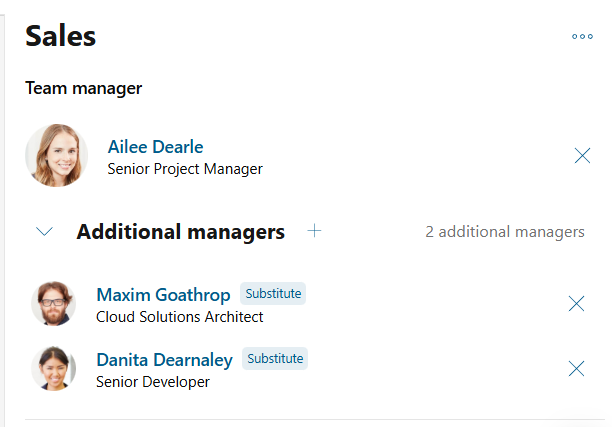
Once a delegation is in place, the substitute is immediately authorized to act on the delegating user's behalf, and no re-login is required.
What a Substitute Can Do
While acting on someone's behalf, a substitute can, for example:
- See the same profiles, projects, resource requests, and bookings that the delegating user can see, in lists, search, and detail views. When a substitute opens a profile, project, resource request, or booking that they can only see because of a delegation, a banner explains that they are viewing it as a substitute, and on whose behalf.
- Reach the same areas in the navigation menu that the delegating user can. Menu entries the delegating user has access to, for example Proposals or the Skill Matrix, become available to the substitute while the delegation is active, without a re-login.
- Handle the delegating user's open tasks in My Tasks (for example, approvals). The delegated tasks live on a separate Substitute tasks tab, next to the substitute's own My tasks tab, so the two stay clearly separated. Each delegated task also shows which user it was inherited from. The Substitute tasks tab only appears while a delegation is active.
- Open the same timesheets and confirm the same recorded time, where time recording is in use. The substitute inherits the delegating user's timesheet view and editing reach, as well as their right to configure time recording, approve recorded time and manage billing on the projects the delegating user covers. See Timesheets & Approval.
Assigning a Substitute
A substitute can be assigned on your own profile, as well as on any profile for which you have the “Manage Users, Teams & Permissions” permission. Whether you can assign substitutes, and whom you may choose, depends on your role's “Allowed to assign substitutes” permission:
| Setting | Who you may assign |
|---|---|
| No | You cannot assign substitutes. |
| Same permission profile | Only users who share the same role (permission profile) as the user being delegated. |
| All | Any user. |
To assign a substitute, navigate to the profile and open “Account” → “Your substitutes.”
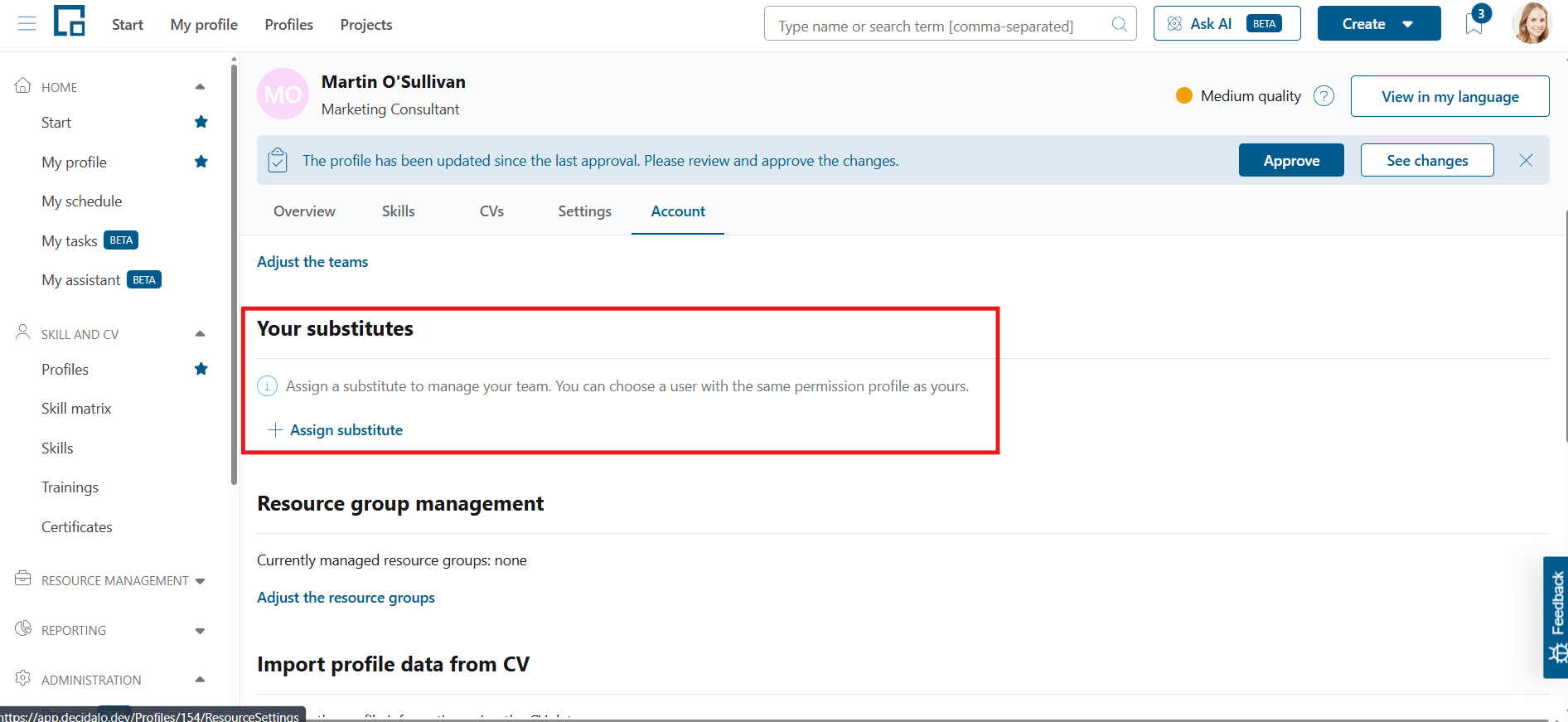
Click “Assign substitute” to open a dialog where you can select another user. Depending on the “Allowed to assign substitutes” setting above, either any user or only users with the same permission profile.
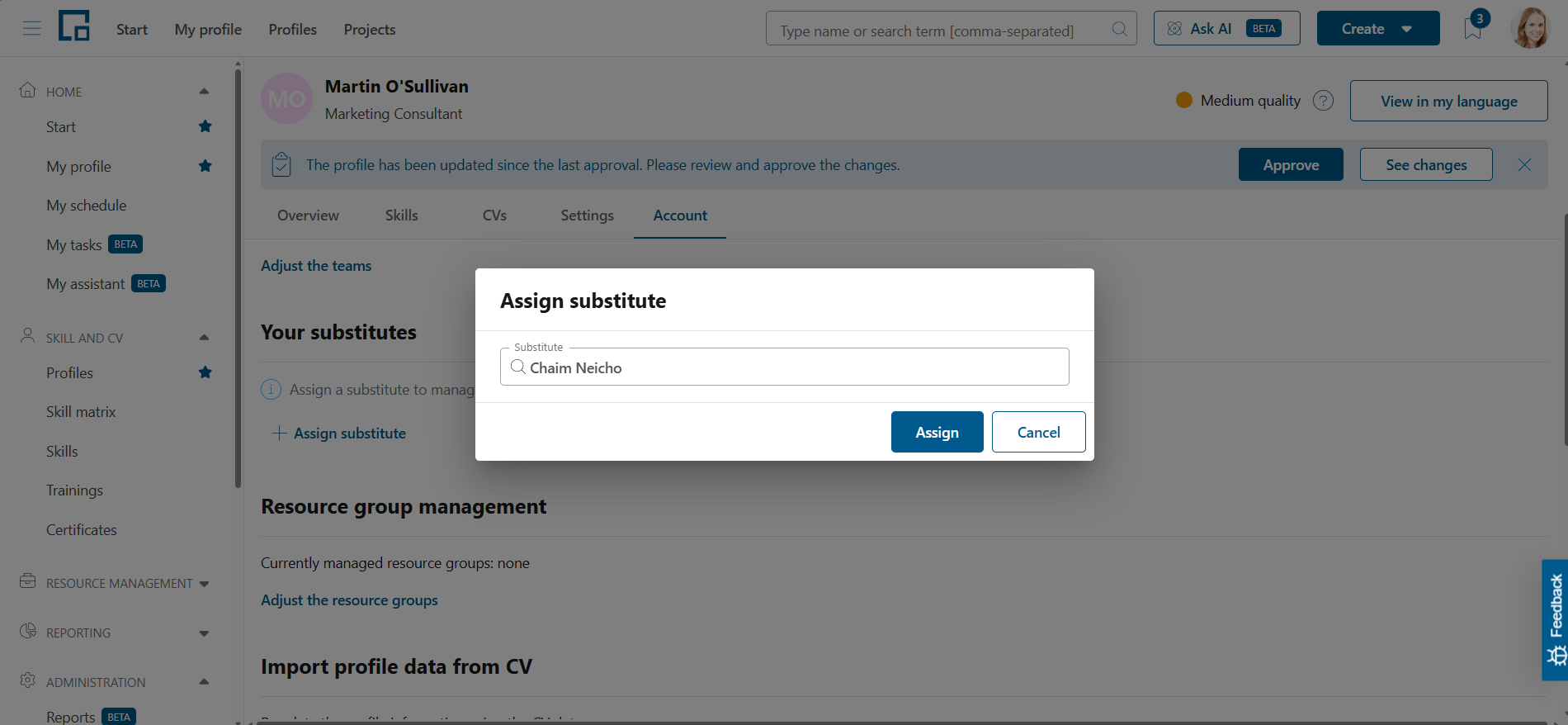
Click “Assign” to confirm the substitute. After the dialog closes, the substitute will appear in the list under “Your substitutes.”
Note: Substitutions do not have time limits or automatic removal. They must be reset manually.
Removing a Substitute
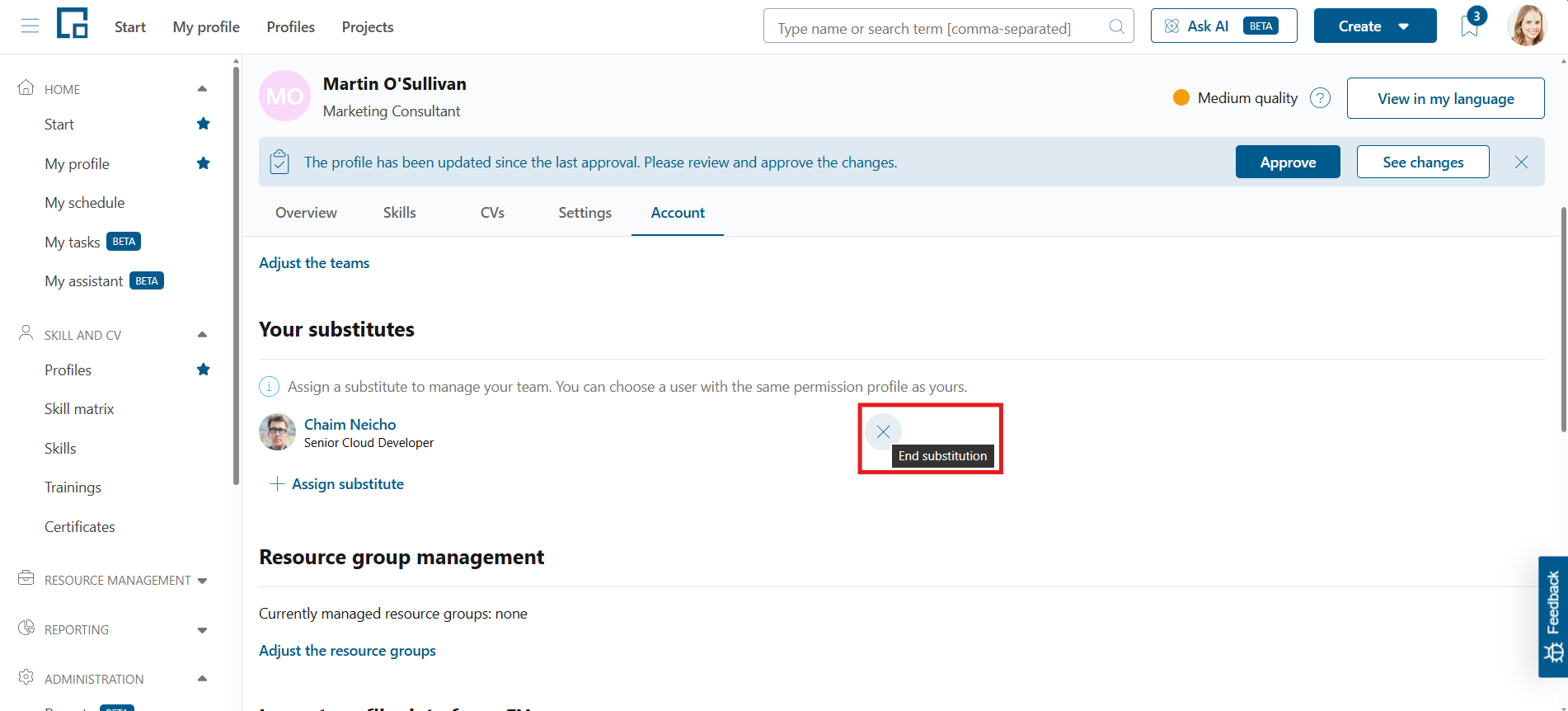
To remove a substitute, click the “x” button next to the substituting user in the list. This removes the user from the list and immediately revokes the delegated permissions, unless another delegation exists for that user.