Timesheets & Approval
Note: Time recording is currently a beta feature and is being rolled out with pilot customers. If you would like to take part, please get in touch with us.
Two different jobs are covered here, on two different pages:
- Timesheets shows you somebody else's recorded time, person by person. It is the page for looking, and, with the right permission, for correcting.
- The project's Delivery tab is where recorded time is confirmed. It works project by project rather than person by person, because that is how time is checked before it reaches a customer.
Opening someone else's timesheet
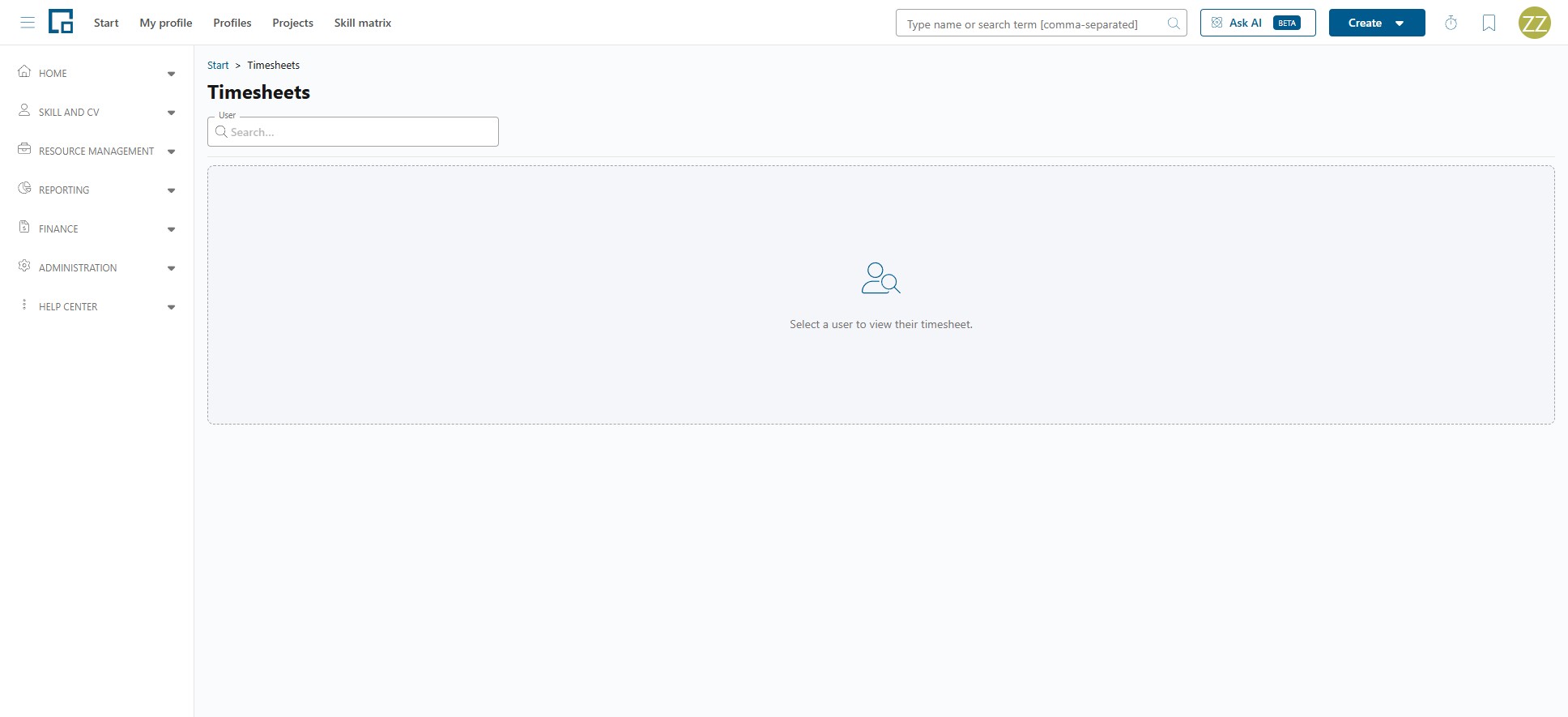
Select Timesheets in the Finance area of the menu, then pick someone in the User field. Until you do, the page shows "Select a user to view their timesheet."
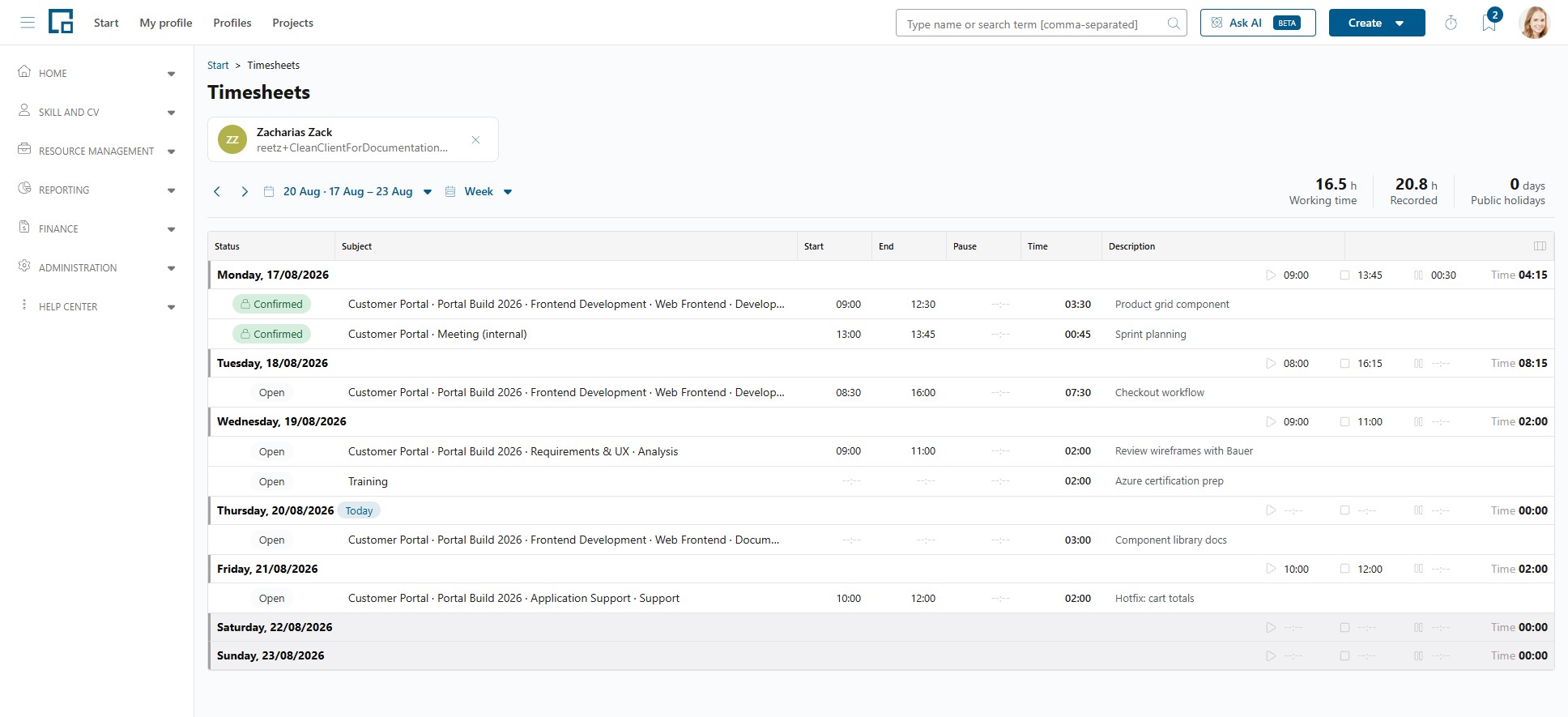
The list only offers people you are allowed to open. Once you pick one, the timesheet looks and behaves exactly like your own (the same day, week and month views, the same grid, the same columns), so everything in My Timesheet applies here too.
One difference: the Report button, and with it the work time report, is only offered on someone else's timesheet if you also hold the Allow data export permission. Downloading another person's attendance is a data export like every other report in decídalo; your own timesheet needs no such right.
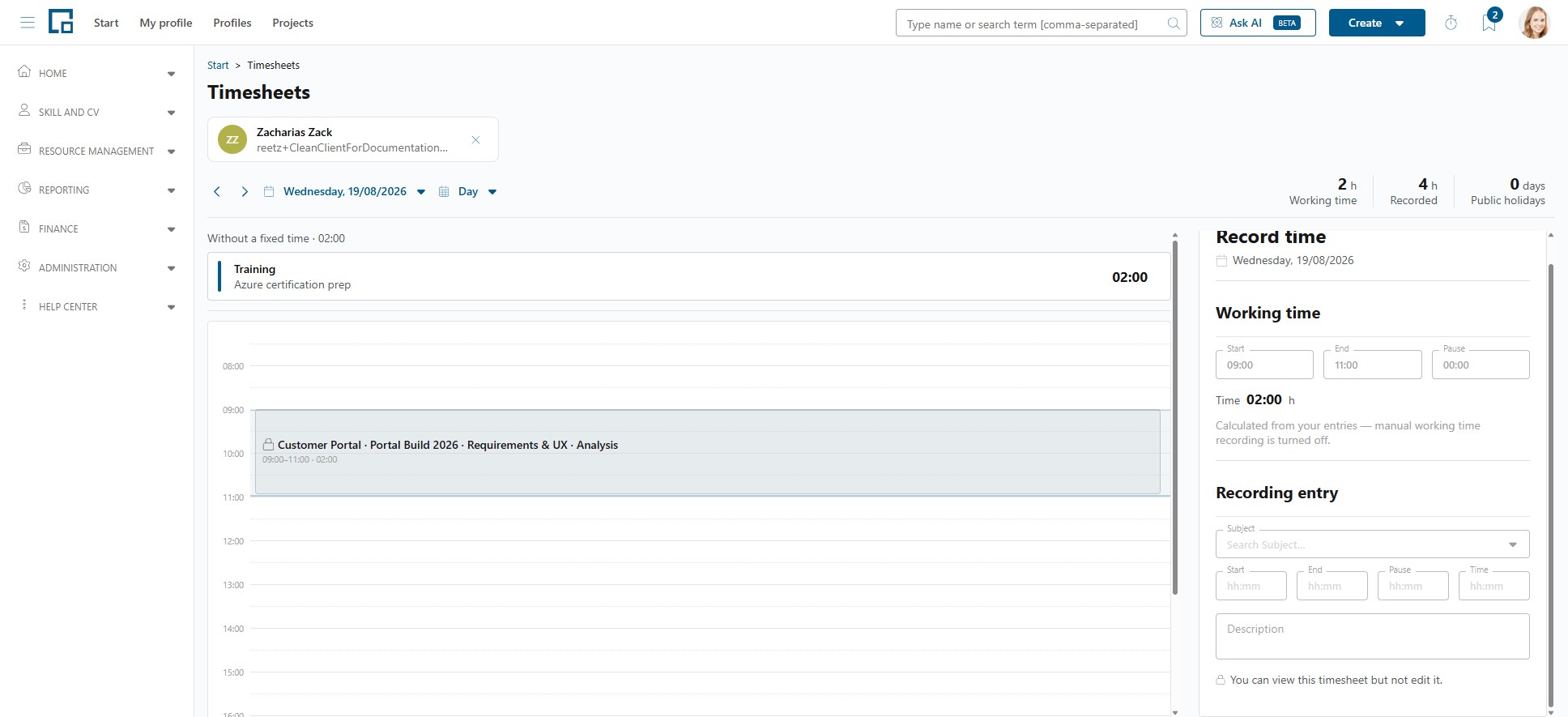
If you may see the timesheet but not change it, it is read-only. In the week and month views that shows as an absence: the empty row at the bottom of each day is gone, so there is nowhere to start a new entry, and the existing cells cannot be edited. In the day view each entry carries a lock, and the recording panel says "You can view this timesheet but not edit it."
Who you can see and who you can edit
Two permissions decide this, independently of each other:
| Permission | Decides |
|---|---|
| Timesheet view | Whose timesheets you can open. |
| Timesheet editing | Whose entries you can create, change and delete. |
Both take a scope: None, Own data, Team data, Resource group, Team & Resource group or All data. With Team data, for example, you reach the people in the teams you manage, including sub-teams.
Note: Timesheet view set to None normally hides your own timesheet as well. It is not only a permission over other people. The exception is a substitute arrangement: if you stand in for someone whose reach covers you, your own timesheet stays available.
Substitutes act with the reach of the person they stand in for, so standing in for a team manager also means seeing that manager's team's timesheets (see Delegations).
Confirming recorded time
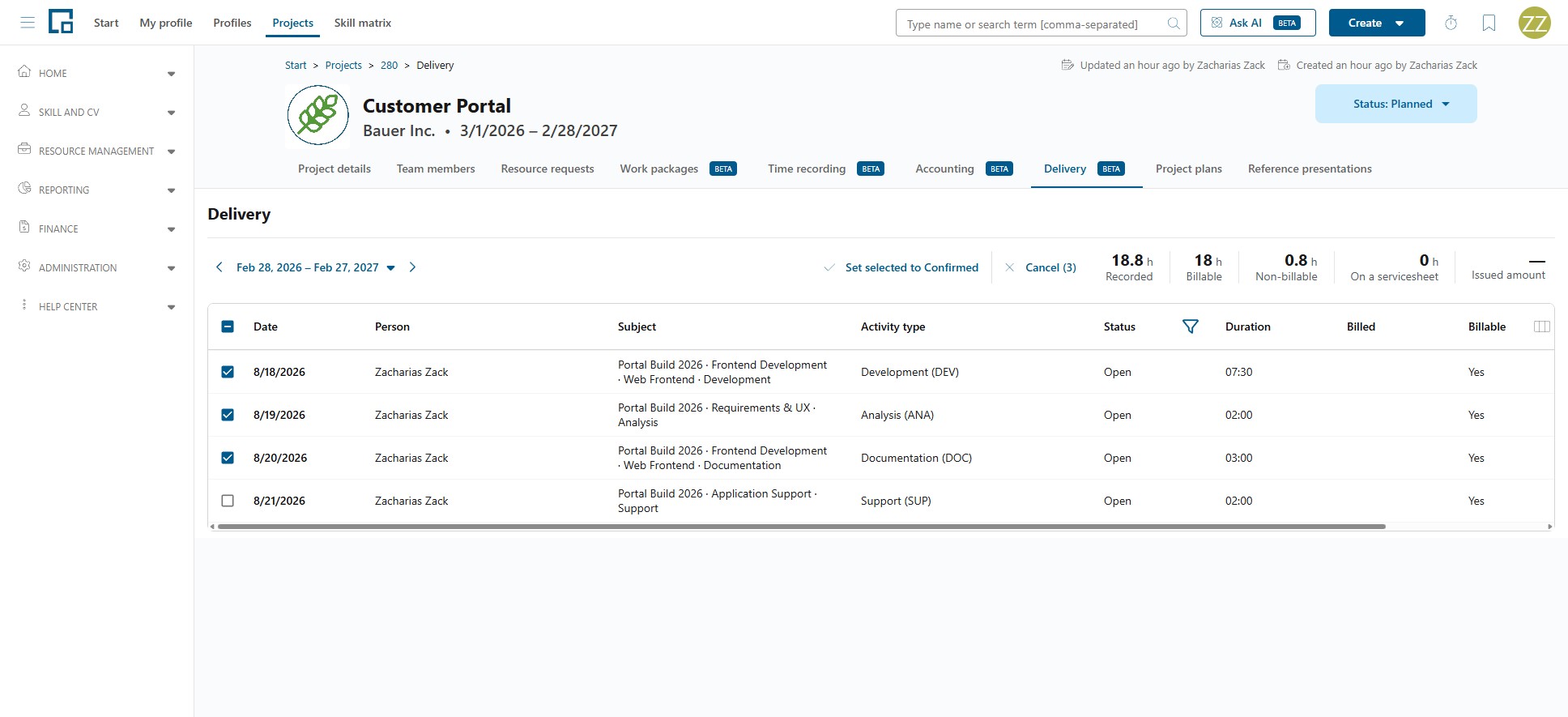
Confirmation happens on the project, not on the person. Open the project and switch to the Delivery tab. You need the Approve project time recording permission for that project, and approval alone is enough to open the tab.
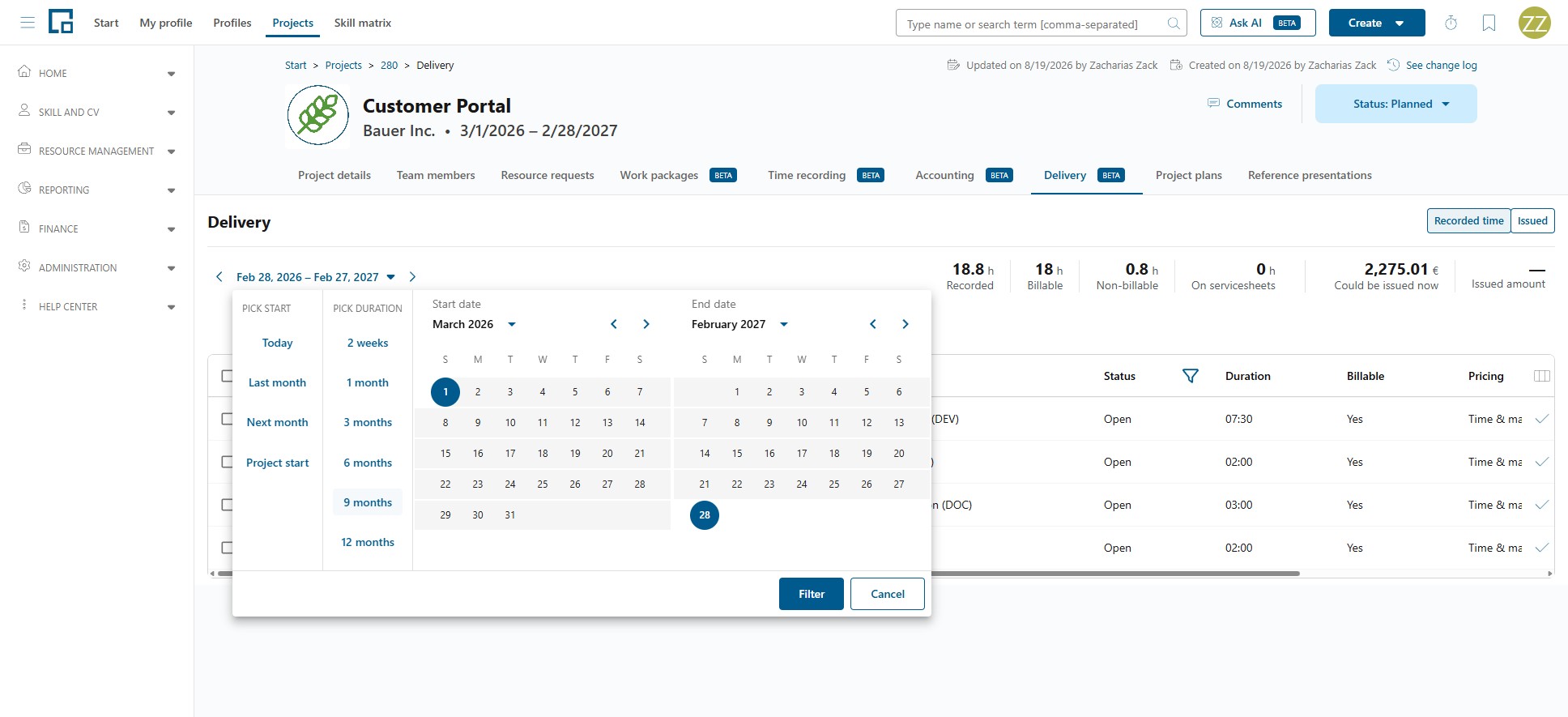
Choose the period you want to check. The picker opens on the months of a year; Custom range below them opens the presets, where Pick start offers Today, Last month, Next month and Project start, the last covering everything recorded since the project began, and Pick duration runs from two weeks to twelve months. You can also pick the two dates in the calendars beside them.
The grid lists every recorded entry for the project in that period:
| Column | Shows |
|---|---|
| Date | The day the time was recorded for. |
| Person | Who recorded it. |
| Subject | What it was recorded against. |
| Activity type | The kind of work. |
| Status | Open, Confirmed, Issued or Imported. |
| Duration | How long it was recorded as. |
| After rules | The hours that would actually be billed. Only shown where duration rules apply. |
| Billable | Whether this time may be billed at all. |
| Pricing | How the order position bills this time: Time & material or Fixed price. |
| Issuable now | What this entry alone would be worth if billed now. Empty on a fixed-price position, which bills one lump sum for the position rather than by the hour. |
Each column can be filtered and sorted, and there are dedicated filters for People, Subjects, Activity types and Statuses, useful for working through one person or one activity type at a time.
Where your company's duration rules change the outcome, the row says so: After rules for the adjusted hours, Billable after rules, and Excluded by rules for time the rules drop entirely. Entries on the same subject on the same day are judged together, so on those rows After rules shows each entry's share of the combined result rather than a figure derived from that row alone. The rules are resolved per entry: an entry is shaped by the rules of the order it is priced from, and the project's own rules apply to time recorded straight to the project or to a work package. Where the project's orders use different policies, the figures say Duration rules: vary by order rather than naming one. See Servicesheet policies.
To confirm:
- One entry: use the confirm button on the row. On an entry that is already confirmed, it is disabled with "Already confirmed".
- Several entries: tick them and use the bulk confirm button above the grid. If your selection contains entries that are already confirmed, it is disabled with "The selection includes entries that are already confirmed." Clear the selection with the cancel button next to it.
Only the entry's own status decides this. Time that is already on a servicesheet can still be confirmed, because approval and billing are separate facts, and confirming such an entry moves nothing that was billed.
Above the grid, tiles summarise the work: Recorded, Billable, Non-billable, On servicesheets, Could be issued now and Issued amount, plus Billable after rules where duration rules apply. Could be issued now is what the billable time that is not yet on a servicesheet would be worth at today's rates; time with no resolvable rate is left out, and the tile's tooltip says how much that is. If nothing has been booked you see "No time has been recorded for this project in the selected period."
Note: The tiles cover the whole project, not the period you picked. The period narrows only the rows in the grid below them.
When confirmation is needed
Two settings decide this: one for the whole company, one per project.
The company setting
Time recording approval decides whether the approval step exists at all:
- On: the approval step exists, and each project decides whether to use it (see below).
- Off: recorded time can be billed without a confirmation step. The Delivery tab still works and you can still confirm, but it is no longer a gate.
See Time Recording Setup for the setting, and What makes recorded time billable for what it means downstream.
The project setting
While the company setting is on, each project decides for itself, under Approval required for recorded time on the project's Accounting tab:
| Setting | What happens on that project |
|---|---|
| Off (the default) | Time is confirmed as it is entered and is available for billing straight away. Nobody has to confirm anything, and the Delivery tab offers no confirm buttons. |
| On | Time stays Open until somebody confirms it on the Delivery tab, exactly as described above. |
Approval is therefore an opt-in per project: switch it on for the projects whose time you want checked (typically billable customer work) and leave it off for internal or fixed-price projects, where a confirmation step would only add a chore.
You need Manage project billing and orders on the project to change it. The setting is only shown while the company setting is on; with it off, no project confirms or auto-confirms anything.
Note: Switching the setting does not change time that is already recorded. Turning approval on leaves the project's existing confirmed time confirmed; turning it off leaves entries that are still Open open. Clear those with the bulk confirm on the Delivery tab.
What confirming does
Confirming an entry has three effects:
- The recorder can no longer change or delete it. Their timesheet shows it as Confirmed with the hint "Confirmed (locked)". This applies to time somebody confirmed. On a project that confirms automatically nobody approved anything, so the person who recorded the entry can still correct it. See Locked entries.
- It becomes available for billing, provided it is billable.
- Once it is put on a servicesheet its status becomes Issued and it stays locked until that servicesheet is withdrawn, which releases the time for billing again.
Note: There is currently no way to undo a confirmation. Check entries before you confirm them, particularly when using the bulk action.
Permissions
The Approve project time recording permission is project-scoped:
| Value | Meaning |
|---|---|
| None | "Cannot confirm recorded time on any project." |
| Own data | "Confirm recorded time only on projects you created." |
| All data | "Confirm recorded time on all projects." |
Independently of the permission profile, a project contact type can grant Approve time recording on the individual projects somebody is a contact for. See Permissions.