Notifications
Email notifications
Email notifications alert users to important events or remind them to get back to the software to finish incomplete tasks. decídalo provides several email notifications that can be enabled by an administrator.
Managing email notifications
Decídalo contains a list of standard email notifications which can be managed on the ‘Administration’ page. Under ‘Notifications’ and ‘Email notifications’, a list of all currently implemented email notifications is displayed with properties:
- Notification
- Description
- Active
- User can opt out
- Select who gets notified
Every user that has the permission ‘Manage Users, Teams & Permissions’ can adjust the notification setup (see: Permissions).
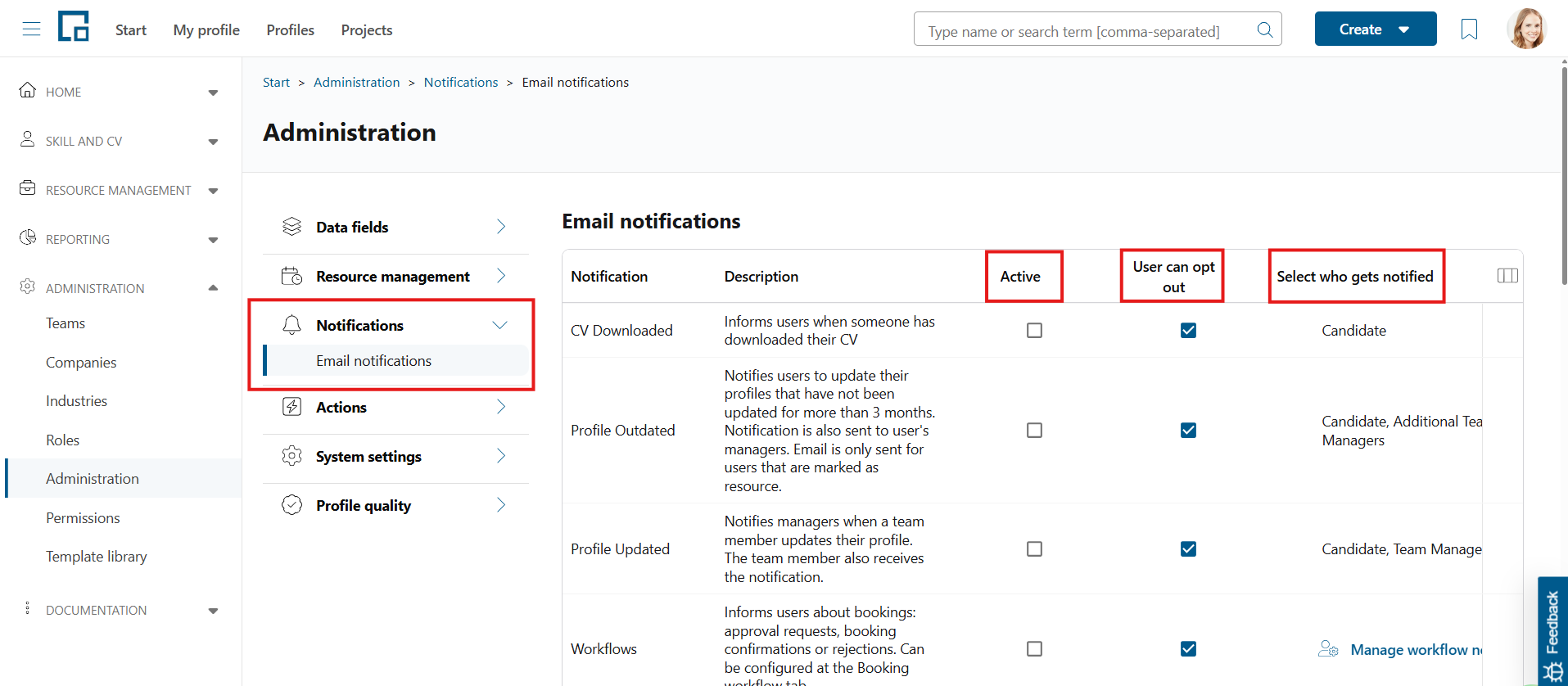
The ‘Notification’ column shows its title, the ‘Description’ column displays a detailed description of the notification’s trigger.
The ‘Active’ flag determines, if an email notification is activated or deactivated for all users. If a notification is active, it is sent out for all users on its respective trigger. The ‘User can opt out’ flag determines, if users are able to deactivate a notification for themselves only.
The ‘Select who gets notified’ column allows administrators to configure which recipient roles receive each notification. Each notification type has a predefined set of possible recipients (e.g. Candidate, Team Manager, Resource Manager) and each role can be individually enabled or disabled.
Two entries in the list stand for a whole process rather than for a single email: ‘Candidate suggestions’ and ‘Internal marketplace’. ‘Candidate suggestions’ covers four emails and ‘Internal marketplace’ three, and their ‘Active’ and ‘User can opt out’ flags apply to all of a process’s emails at once. ‘New entries in the internal marketplace’ is not part of that process entry and carries its own ‘Active’ and ‘User can opt out’ flags. Their recipients are not set here but on a separate page, which is opened with the ‘Manage’ link in the ‘Select who gets notified’ column (see: Candidate Suggestions).
Opting out of email notifications
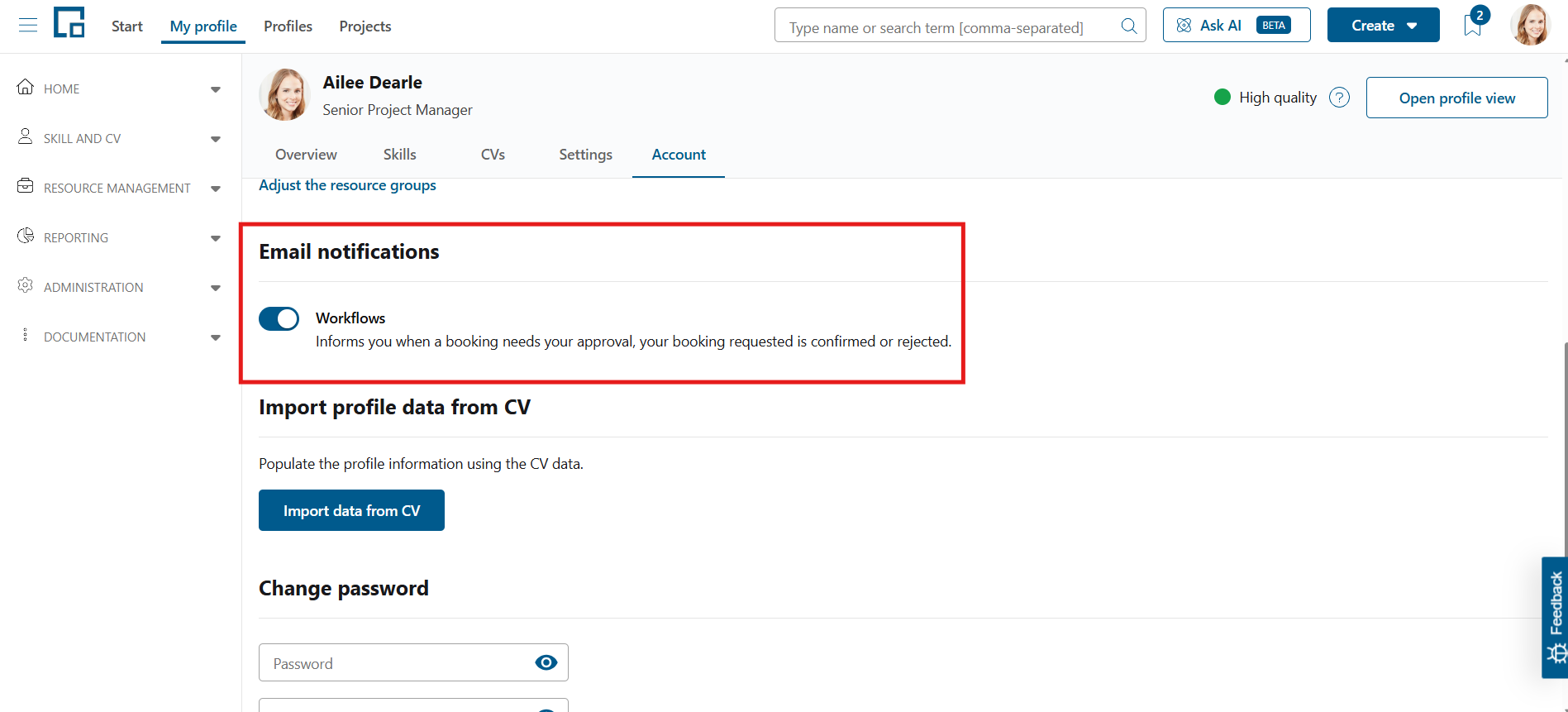
The opting out can be done by any user on their profile’s account settings. Every active notification that a user can opt out is displayed under ‘Email notifications’. If users do not want to get this email anymore, they can click on the switch to opt out. This can be undone at any time.
The candidate suggestion and internal marketplace emails are listed there as one entry each, in the same way as on the administration page. Opting out of such an entry opts the user out of all emails of that process.
Notification details
This section provides details about all email notifications.
| Notification | Receiver | Trigger | Details | Limitations |
|---|---|---|---|---|
| CV downloaded | User (Candidate) | The user’s CV has been downloaded, including when it is exported as Word or PDF from the “View in my language” profile view. | Profiles, CVs, Accounts | - |
| Profile outdated | User (Candidate), Team Manager, Additional Team Managers | The user’s profile has not been updated in the past three months. | Profiles, CVs, Accounts | User has to be marked as ‘Resource’. Profile |
| Profile updated | User (Candidate), Team Manager, Additional Team Managers | A team member’s profile has been updated. | Profiles, CVs, Accounts | User has to be team manager of at least one team. |
| Workflows | Assignee (Candidate), Requestor, Team Manager, Project Manager, Resource Manager | There is an event or open task in the workflow of a booking. | Events or tasks can be, for example, approval requests, confirmations, or rejections. Booking Workflow | - |
| Planning alerts | Assignee (Candidate), Team Manager, Resource Manager, Project Manager, Resource Group Manager | Part of one team member’s planning is outside of the approved booking period. | Booking Workflow | - |
| New Resource Request | Resource Manager, Resource Group Manager, Requestor, Project Manager | A new resource request has been created, or an existing one has been assigned to the user. | - | - |
| Check planning | User (Candidate), Resource Manager, Team Manager | Runs daily, no event trigger. Sent when the user’s current or future planning has not been changed in the last 10 days. | - | - |
| Booking created (reserved & confirmed) | Assignee (Candidate), Team Manager, Project Manager | The user has been assigned to a newly created booking (all statuses except soft bookings). | Booking Workflow | Soft bookings are covered by the separate ‘Soft booking created’ notification. |
| Soft booking created | Assignee (Candidate), Team Manager, Project Manager | The user has been assigned to a newly created soft booking. | Booking Workflow | Split out of ‘Booking created’. It starts with that notification’s settings, including each user’s opt-out, and is configured separately from then on. |
| Booking updated (reserved & confirmed) | Assignee (Candidate), Team Manager, Project Manager | A booking which the user is assigned to has been updated (all statuses except soft bookings). | Booking Workflow | Soft bookings are covered by the separate ‘Soft booking updated’ notification. |
| Soft booking updated | Assignee (Candidate), Team Manager, Project Manager | A soft booking which the user is assigned to has been updated. | Booking Workflow | Split out of ‘Booking updated’. It starts with that notification’s settings, including each user’s opt-out, and is configured separately from then on. |
| Project updated | Project Manager, Resource Manager, Project Assistant, Sales Responsible | A project has been updated. | Projects | - |
| Resource request feedback deadline approaching | Resource Manager, Resource Group Manager, Requestor, Project Manager | Seven days before and exactly on feedback deadline of resource request. | - | Email is sent only if the resource request is in ‘Open’ status. |
| Profile update feedback | User (Candidate), Team Manager | There is feedback on a user’s submitted profile changes. | Profiles, CVs, Accounts | - |
| Request approval | Team Manager, Additional Team Managers | A user has asked for their own profile changes to be approved. | Profile Quality Assurance | Inactive by default. Only the user themselves can trigger it, and only while their profile has changes since the last approval. The same switch is also available under Administration > Profile Quality > Approval Workflow. |
| New candidate suggestion | Requestor, Project Manager, Resource Manager, Team Manager, Candidate | A candidate has been suggested manually for a resource request. | Candidate Suggestions | Recipients are configured on the Candidate suggestions page. Candidates suggested automatically are covered by the separate ‘Automatic candidate suggestions’ notification. |
| Automatic candidate suggestions | Requestor, Project Manager, Resource Manager, Team Manager, Candidate | Candidates have been suggested automatically for a resource request by the automatic resource request feature. | Candidate Suggestions | Split out of ‘New candidate suggestion’. It starts with that notification’s settings, including each user’s opt-out, and is configured separately from then on. Activated and given recipients on the Candidate suggestions page. |
| Candidate suggestion approved | Requestor, Project Manager, Resource Manager, Team Manager, Candidate | A candidate suggestion has been approved. | Candidate Suggestions | Inactive by default. The user who approved is not notified. |
| Candidate suggestion rejected | Requestor, Project Manager, Resource Manager, Team Manager, Candidate | A candidate suggestion has been rejected. | Candidate Suggestions | Inactive by default. The user who rejected is not notified. |
| New marketplace application | Requestor, Project Manager, Resource Manager, Team Manager, Applicant | Someone has applied for a resource request in the internal marketplace. | Candidate Suggestions | Recipients are configured on the Candidate suggestions page. |
| Marketplace application accepted | Requestor, Project Manager, Resource Manager, Team Manager, Applicant | An application in the internal marketplace has been accepted. | Candidate Suggestions | Inactive by default. The user who accepted is not notified. |
| Marketplace application rejected | Requestor, Project Manager, Resource Manager, Team Manager, Applicant | An application in the internal marketplace has been rejected, either by a reviewer or automatically because the resource request was filled, withdrawn or taken off the marketplace. | Candidate Suggestions | Inactive by default. The rejection reason is included if one was given; an automatic rejection names the reason instead. |
| New entries in the internal marketplace | Every user who may see the internal marketplace | Resource requests have been published to the internal marketplace. | Internal Marketplace | Inactive by default. Aggregated into at most one email per user per day, listing the entries published in the last 24 hours and linking to each of them. At most ten entries are listed, with a link to the marketplace for any beyond that. On a day with no new entries no email is sent. A request on a confidential project shows the customer as “Confidential”. |
| Booking expiration approaching | User (Candidate), Project Manager, Resource Manager, Team Manager | A booking ends in 30 days, with a second reminder 2 weeks before end. | Booking Workflow | - |
| Certificate expiration approaching | User (Candidate), Team Manager, Additional Team Managers | A user’s certificate expires within 90 days. | Profiles, CVs, Accounts | - |
Links in booking notification emails
Booking notification emails (booking created, updated, soft booking created, soft booking updated, confirmed, or rejected) include a button that opens the related booking. If the recipient’s authorization role does not have the Bookings page enabled, that button would otherwise lead to a permission-denied page. In that case the button links to the recipient’s My schedule page instead, so the link always reaches a page the recipient can open.
The booking-approval-required email is the exception: it always links to the booking, because its recipients need to open the booking in order to approve or reject it.
For more information on the following topics, please refer to