Profile Quality Assurance
In this document, we will explore how decídalo provides a quality assurance feature for CVs using profile quality indicators. This feature helps identify whether a profile is of low, medium, or high quality, which is essential for ensuring that the data included in a CV is comprehensive and well-structured.
Quality Indicator
On each profile you can find a quality indicator, showing high, medium, or low quality of the profile. This feature provides immediate insights and allows users and team managers to review the quality and overall completeness of a profile, helping to identify areas for improvement.

Admin Settings
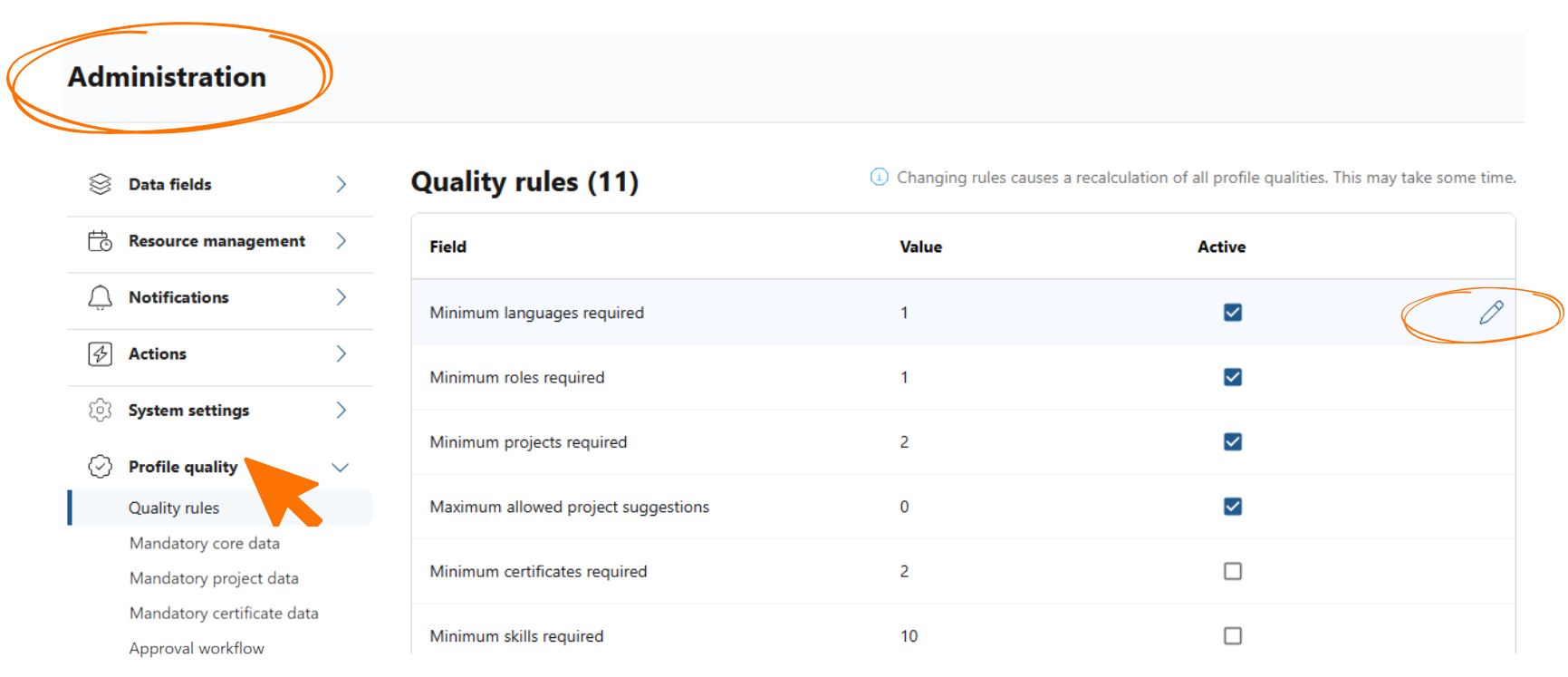
Every company has different requirements when it comes to what constitutes a good-quality profile and which criteria are important. That's why we offer the option of defining these criteria individually. Admins have several customization options: It is possible to customize the criteria for the quality indicator in the administration section: set core data, choose which fields are mandatory, and define individual conditions.
Quality rules
It is possible to specify and edit the value of each quality rule, such as setting the minimum number of skills or projects required to achieve a high-quality profile. Each quality rule can be activated or deactivated, giving the admin full control of the included data.
Mandatory fields
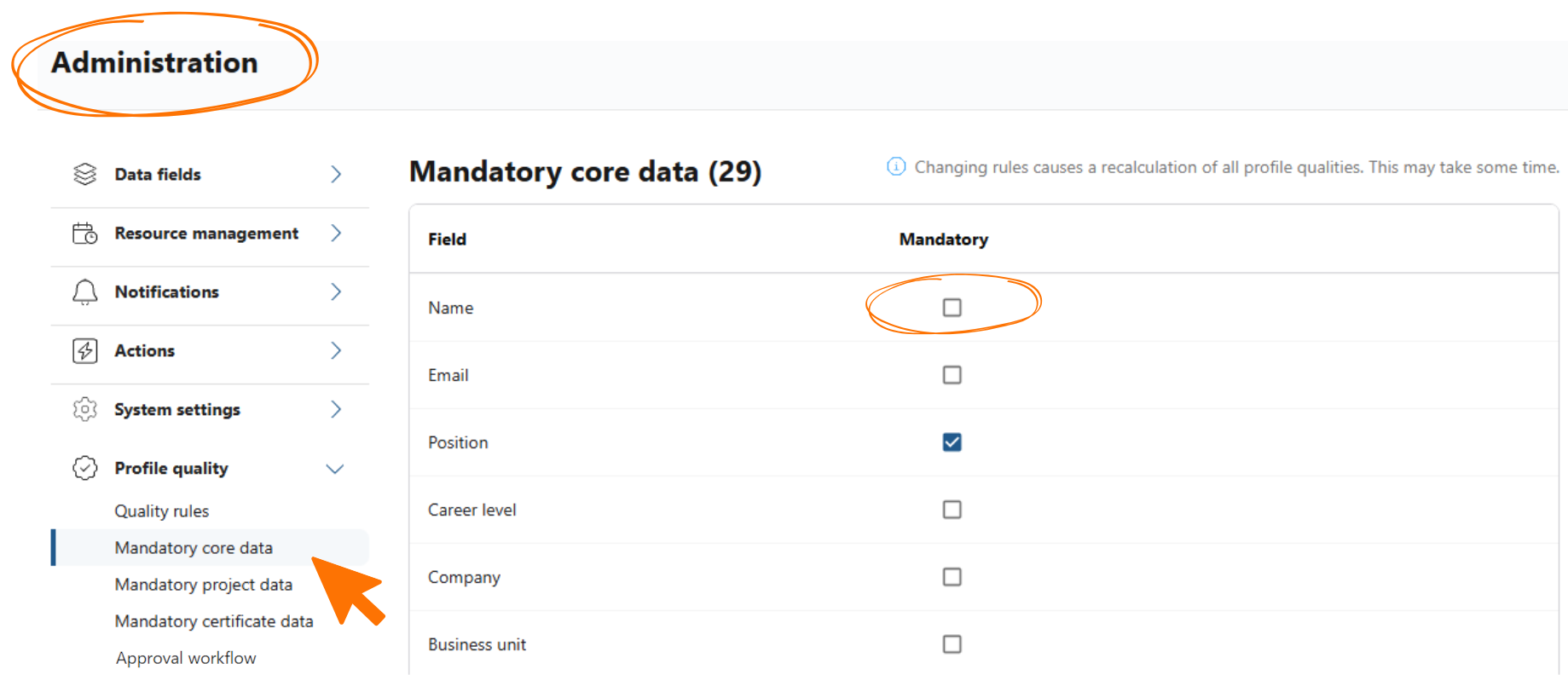
Mandatory core data: What information should users include in their profiles? Decide which information is mandatory by selecting or deselecting the fields.
Mandatory project and certificate data: Admins can also customize mandatory data for certificates and projects. Tailor it to reflect exactly what matters most to your organization. For certificates, the issue date is always required when adding a certificate to a profile; the expiration date can additionally be marked as mandatory, either here for all certificates or for an individual certificate from its management side drawer.
Approval Workflow
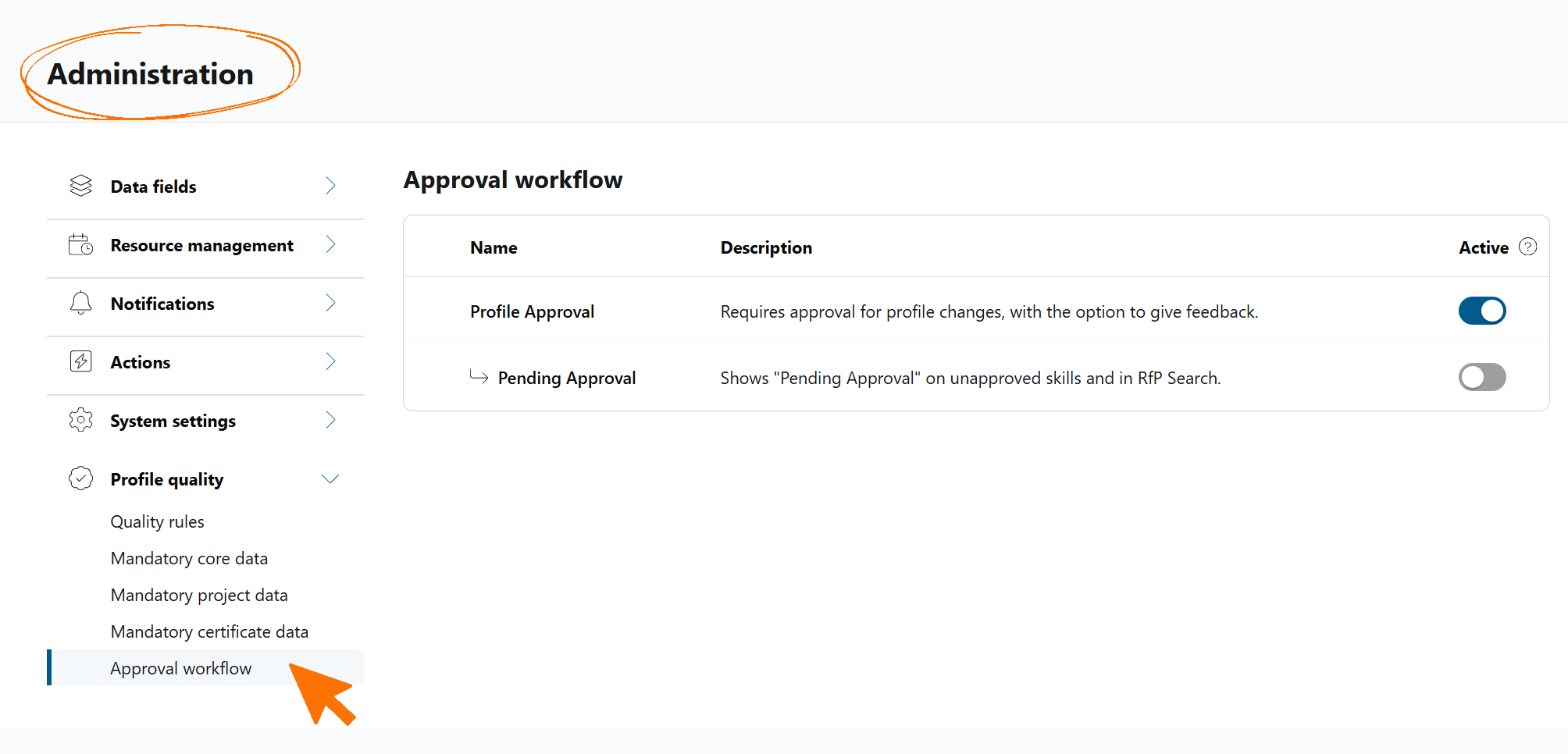
The approval workflow settings can be found under Administration > Profile Quality > Approval Workflow. They control whether the profile approval feature is active for the organization and how pending changes are displayed.
The settings are presented in a table with three rows:
| Setting | Description |
|---|---|
| Profile Approval | When enabled, profile changes require explicit approval. Users with the 'Profile approval' permission see an approval banner on changed profiles and can review, approve, or reject the changes. |
| Pending Approval | A sub-setting available only when Profile Approval is enabled. When active, skills that have been added or changed since the last approval are labelled as 'Pending Approval' in the skill details side drawer and in the RfP / Candidate Search results. |
| Request Approval | A sub-setting available only when Profile Approval is enabled. When active, users see a banner on their own changed profile and can ask their team manager to review it, which sends the 'Request approval' email notification. |
Note: If Profile Approval is turned off, the Pending Approval sub-setting is automatically disabled as well. Request Approval keeps its configuration, because the same switch also controls the 'Request approval' email notification on the Notifications page.
Reviewing the changes: When you open the approval banner on a changed profile, the Profile changes side drawer lists every changed item grouped by section (skills, languages, roles, and so on). The Change column tells you what happened to each item.
For skills, the Change column shows the skill level so you can see exactly what changed, not just that something changed:
| Change column | Meaning |
|---|---|
| 2 → 3 | The skill level changed from 2 to 3 since the last approval. |
| No level specified → 3 | The skill previously had no level set and was rated 3. |
| 2 → No level specified | The skill's level was removed. |
| Added (Level: 3) | A new skill was added with level 3. |
| Added (No level specified) | A new skill was added without a level. |
| Removed | The skill was removed from the profile. |
What else?
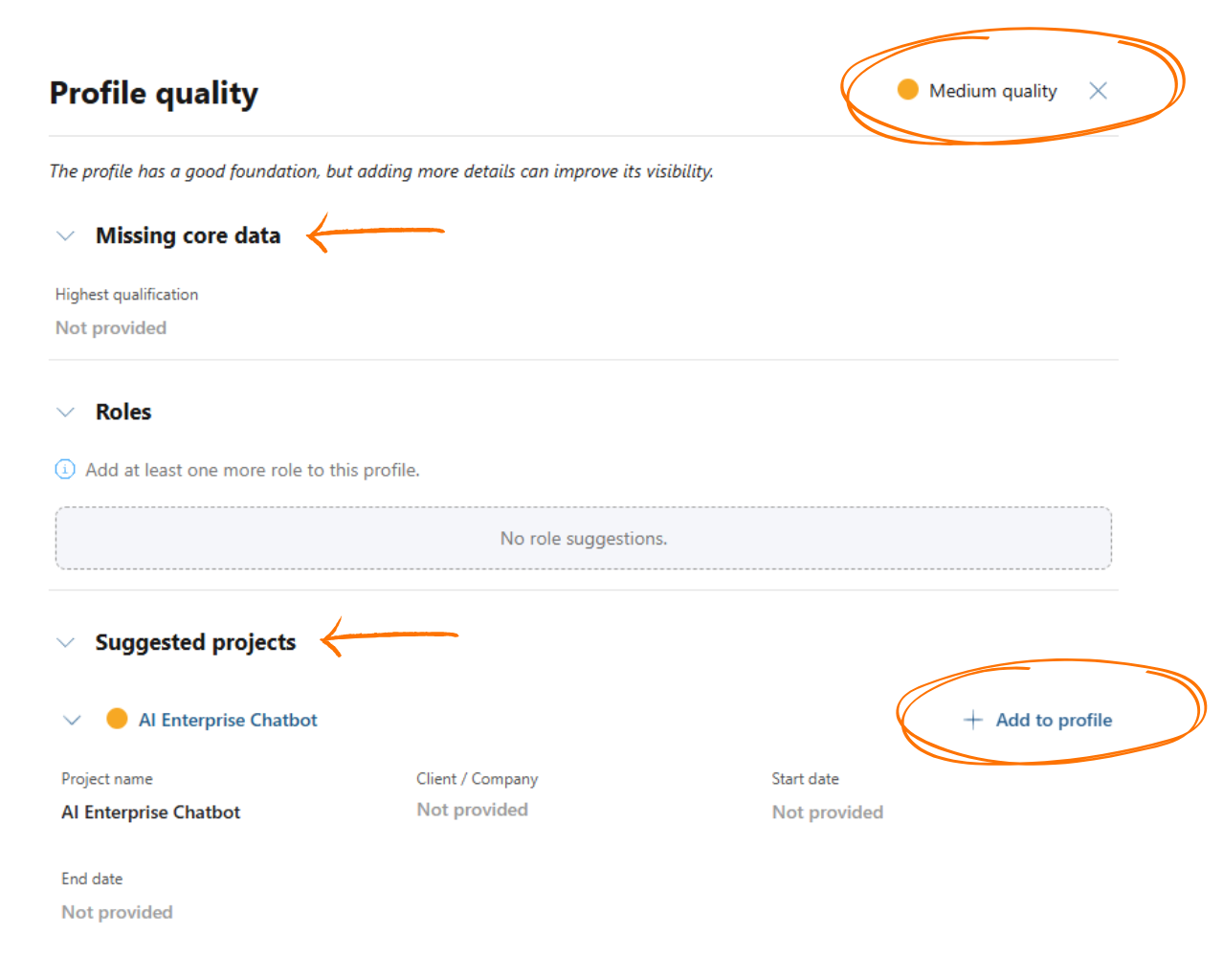
When the criteria are set, users can now use the quality indicator pop up on their profile to evaluate what data is missing to ensure high quality and fulfill quality rules. To open the pop up, just click on the icon next to the quality indicator on the profile. The pop up will inform the user what key information is missing and give enhancement suggestions to take into consideration.
Example: Is something missing like a role or a language? No problem! The quality indicator helps to improve the profile and ensure a high rank in search results.
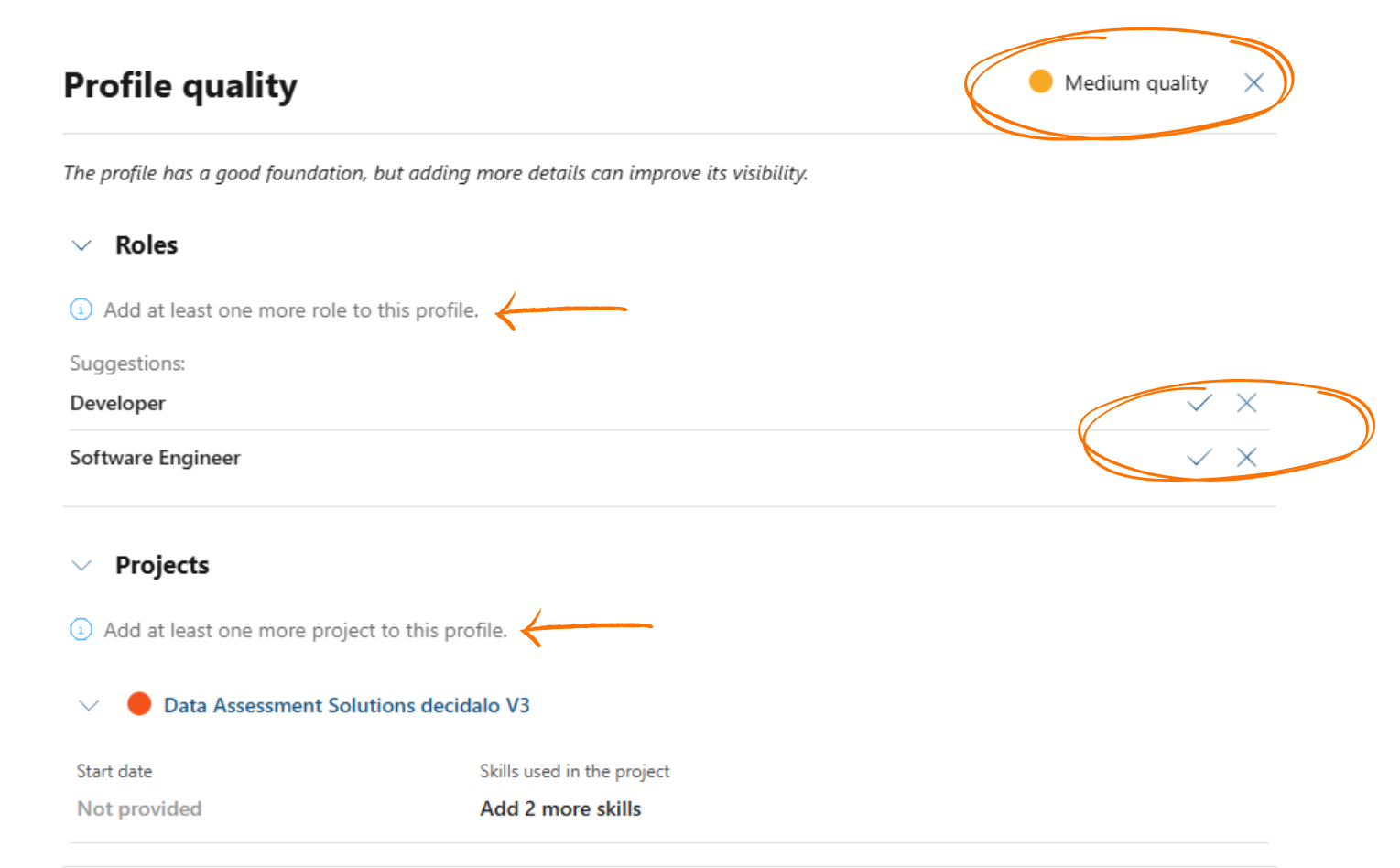
Example: Any projects where a user is a team member or has an active booking are shown as suggestions in the profile quality popup, making it easier to add them to the project history.
Export Quality Report
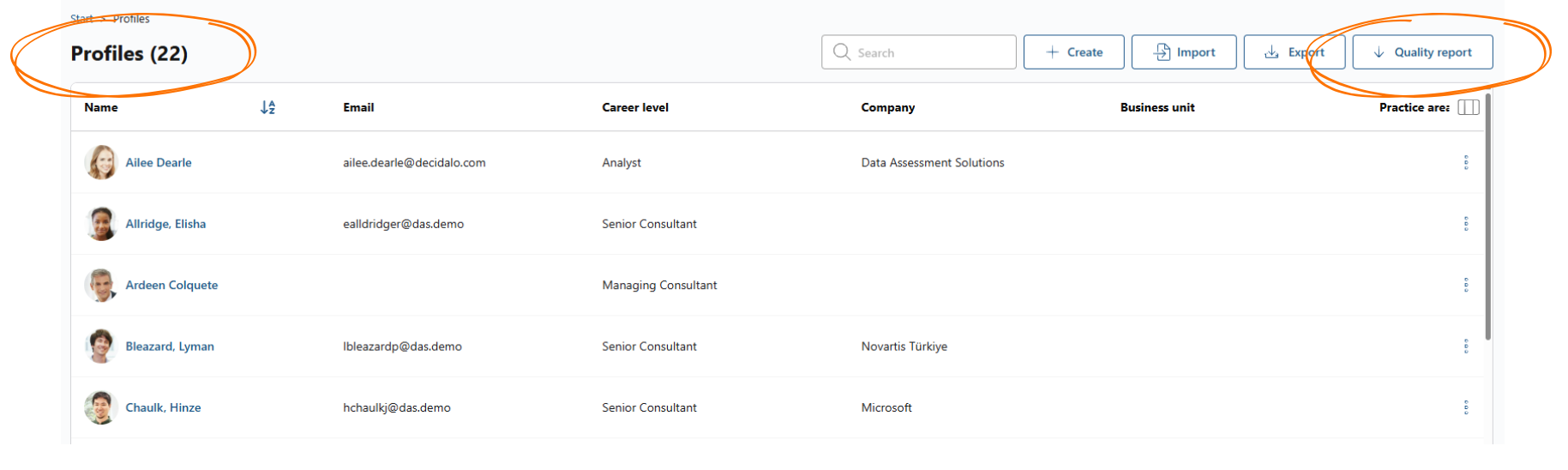
We offer an export option on the ‘Profiles’ page. This view is primarily for managers, giving them a clearer overview of user profile quality and to provide feedback to consultants when necessary.