Workflows
This article explains the concept of booking workflows in the resource management process. It shows how to manage and configure booking workflows in decídalo and defines the involved roles and approvals.
Bookings and Booking Statuses
A booking in decídalo is used to allocate capacity or time of a person (resource) to a project, customer or activity. Bookings are created when a resource is staffed to a project or a resource request, which is a resource demand in general.
Decídalo distinguishes three statuses for bookings:
Soft: provisional booking that does not affect availability. This is typically used when the demand is not confirmed, i.e. for opportunities.
Reserved: a temporary status that is set when waiting for the booking to be confirmed. This status impacts availability. It triggers an approval workflow, if configured.
Confirmed: the final status after the booking was approved.
Rejected: the approval request for a reserved booking was rejected. This is largely equivalent to removing the booking, except that the rejected booking is kept for auditing and analysis purposes. It does not affect availability and is hidden on the user frontend.
Since bookings can impact availability and define what the person will be working on, booking someone requires specific permissions. In decídalo booking permissions can be configured by booking status. Everyone may be allowed to soft-book or reserve candidates, but not to create confirmed bookings.
In larger organizations the user having the resource demand, often someone in the sales organization, typically does not have the permission to create confirmed bookings for resources. They need to request candidates (typically from the delivery organization) by reserving them (creating a reserved booking) or via a resource request.
On a resource request, a candidate can carry both a suggestion status (suggested, approved or rejected) and a booking. To make conflicting situations easy to spot, the Candidates tab shows a warning icon in the Suggestion column whenever the two no longer match. Hover the icon to see the explanation. The warning appears when:
- the suggestion was rejected but the candidate still has a confirmed booking, or
- the suggestion is not rejected while its booking has been rejected.
Note: The warning is only an indicator that highlights the inconsistency; it does not change the suggestion or the booking. Resolve it by updating whichever of the two no longer reflects the intended decision.
Bookings and Schedules
Every booking comes with a schedule. The booking defines the start, end and total effort in person days or capacity of a person’s assignment. The schedule defines how the effort is distributed on the timeline. In a simple example the booking could be for five person days (with 8h per person day) over a duration of two weeks. The schedule could be 4 hours every working day, or 3 days the first week and 2 in the second, or any other distribution.
Schedules and bookings are relevant for different use cases. The booking defines the commitment of the resource’s time for a given duration. It typically involves an approval process. In the example above, the resource’s team manager has committed the resource to the project for five days. The detailed planning on how the days are delivered is done by the project manager.
Here the project manager can change the schedule but not the committed times on the booking. The permissions for bookings and schedules are different.
Booking and Schedule Permissions
decídalo distinguishes resource-based and project-based permissions.
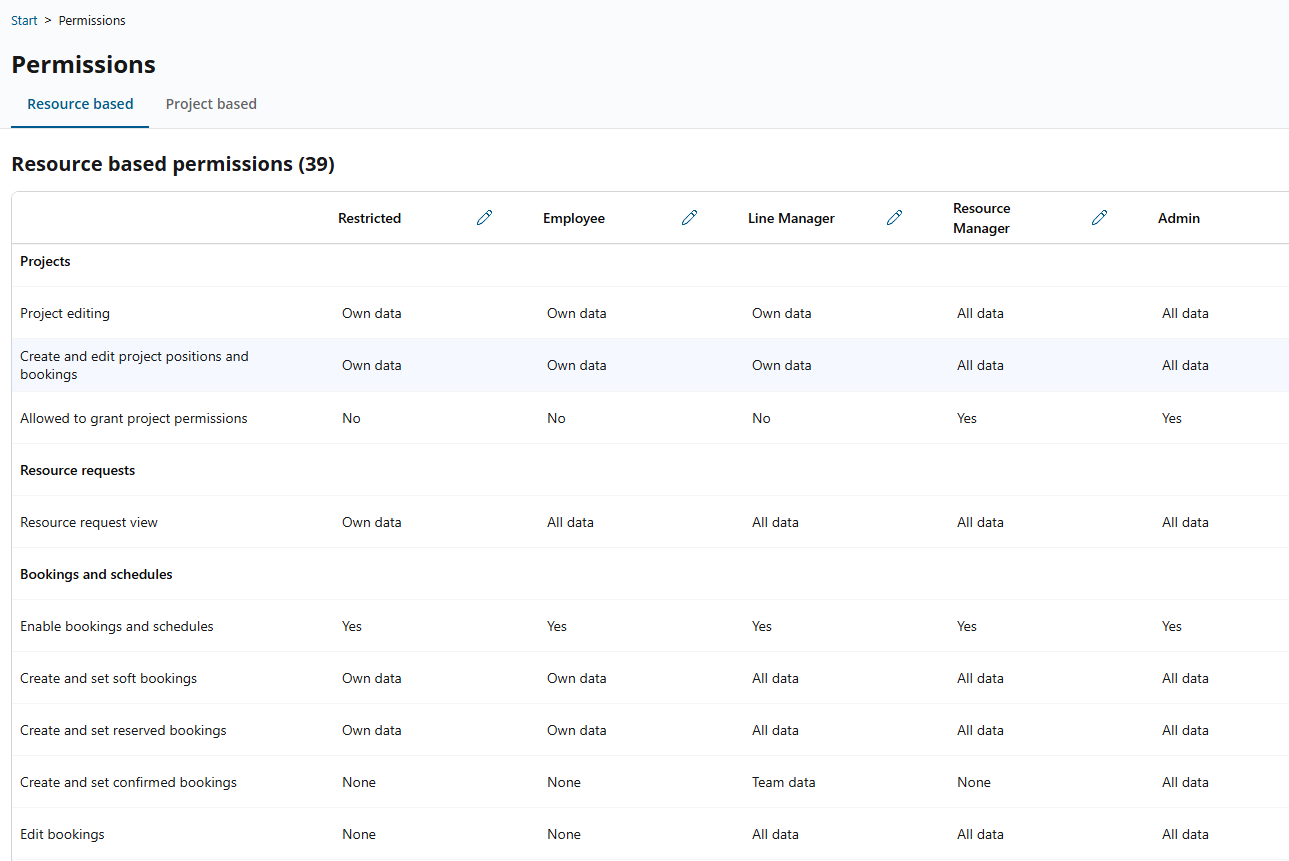
Resource based permissions are directly tied to users through their permission profile. The user’s permission profile is set on the Account tab on their profile. The permissions a user gets from this are defined on the Permissions menu item under the Administration menu section. This menu item is only visible to Administrators.
Resource based permissions define which features a user can access and which permissions he has on employee data like profiles and CVs. These permissions are static and defined by the users role within the organization. Typical permission profiles are employee, team manager or administrator.
Project-based permissions extend the resource-based permissions in a project context. For example, an employee may not be allowed to edit any bookings by default, but if he is assigned to a project as a project manager, he can be allowed to edit the bookings for that project. In this case he does not have resource-based booking permissions but project-based permissions for specific projects.
Resource-based permissions
In the booking context the following permissions are relevant:
Projects section
Project editing. The default permissions for editing projects. The user can either edit the project he added himself (Own data) or all projects (All data). On this level we can only define general project permissions and not permissions for specific projects. Note that there is no “none” option since it must always be possible that users add projects to their project history on their profile.
Create and edit project positions and bookings: Defines for which projects the user can add or edit bookings by default. The options are also Own or All. Even if a user is in general allowed to create or edit bookings he cannot automatically add or edit bookings on any project. Booking permissions and project permissions are separated. If a booking is added to a project, this affects the project’s costs and modifies the project. Therefore, separate permissions are required to do this. Note, that in decídalo bookings can be created without a project.
Allowed to grant project permissions: This is the permission to set the project manager, resource manager, sales responsible or substitute project manager on a project. These roles get project-based permissions. To prevent that users extend their own or someone else’s permissions by setting these roles, this requires an explicit permission. This capability can also be granted per project and contact type instead of globally (see “Grant project permissions” under Project-based permissions below).
Bookings and schedules section
Create and set soft / reserved / confirmed bookings: These are three separate permissions for the different booking statuses. They define for which group of persons the user can create bookings in the respective status or set that status on an existing booking. The options are:
None: this option is only available for the status confirmed. If this is set, the user cannot create a confirmed booking for anyone, including himself. Soft and reserved bookings the user can at least create for himself.
Own data: the user can create bookings in this status only for himself or set the status only on his own bookings (where he is booked).
Team data: in addition to his own data, the user can do this for the team or teams he is managing. This option only makes sense for permission profiles that can manage teams (permission “Allow to lead team” set to yes).
Resource Group - In addition to his own data, the user can do this for the resource groups he is managing. This option only makes sense for permission profiles that can manage resource groups (permission “Allowed as resource group manager” set to yes).
Team & Resource Group: this option is relevant for users that lead teams and resource groups. It combines the two previous options.
All data: the user can create or set bookings in these status for everybody.
Edit bookings: This permission specifies which bookings the user can edit. Editing includes all properties of the booking, like start / end date, person days, but also the status. With edit permission the user can set any status on the booking, regardless of the create and set bookings permission described above. Edit permissions only apply to existing bookings. Permission the user gets from this setting overwrites any restrictions he may have from other permissions, including the “Create and edit project positions and bookings” or any project-based bookings. That’s the reason why this permission is introduced. For example, a team manager may not have permission to book anyone from his team on a project. The project manager is responsible for the project and must approve this. But for everyone on his team the team manager is typically allowed to edit their bookings because he is responsible for his team’s utilization.
The options are the same as above with one addition:
- Self created data: these are bookings created by the user for himself. If someone else created the booking for the user, this would be “own data” but not self-created. This option is introduced to allow users managing adding and editing their own bookings, but preventing them from editing bookings that were created for them through an approval workflow.
In general users can always edit bookings they created as long as they are in the same status that they created them in. This is a global default permission that does not need to be configured and cannot be disabled. It prevents that users cannot correct bookings directly after creating them.
View bookings and schedules: Permissions to view bookings and schedules. They should at least be the same level as the editing permissions. The definition of the options is the same as for editing.
Edit booking schedules: As explained in the previous paragraph, permissions to edit schedules must be distinguished from permissions for bookings. This setting configures permissions to edit the schedule belonging to a booking, independent of the permissions on the booking.
Project-based permissions
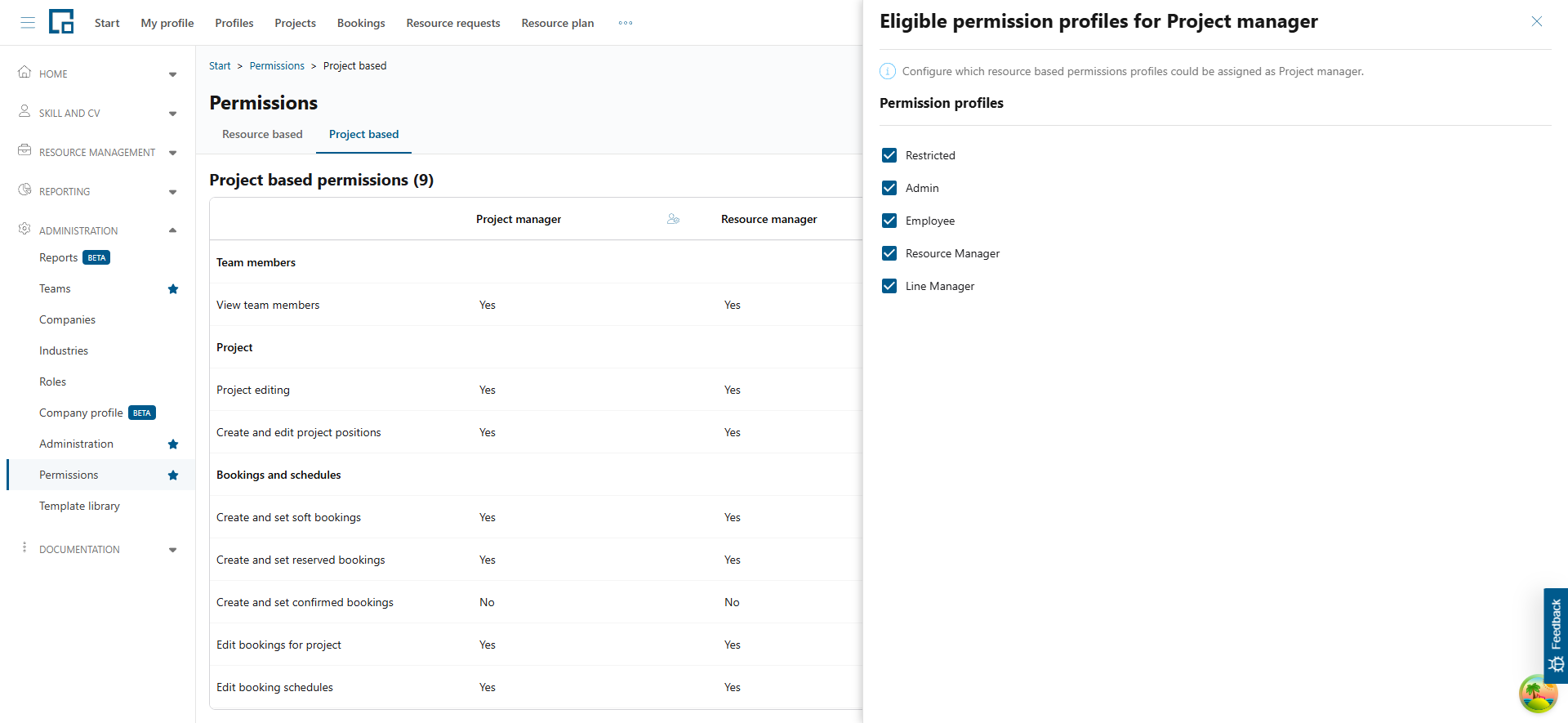
Project-based permissions are configured under the “Project based” tab on the Permissions page.
They are used to extend the permission for defined project contact persons within the scope of a project. The following contact persons can be set on the project and can get project-based permissions:
- Project manager
- Substitute project manager
- Sales responsible
- Resource manager
These project contact types are mapped to the permission profiles defined on the “Resource based” tab. The mapping defines which users can be set for which contact type. For example if all user can be set as the project manager on a project, we need to map all permission profiles to the project manager contact type. If only resource managers can be set as the resource manager on a project, the mapping is one-to-one in this case.
The mappings are defined by clicking on the icon in the contact type column. This opens a side drawer where the related permission profiles can be selected.
The following booking-related permissions can be configured by contact type:
Create and set soft / reserved / confirmed bookings: If set to yes, the contact person can create bookings in the respective status (soft, reserved, or confirmed) for all profiles for which he has view permissions. It only takes effect on the “Team members” tab of the project. With this permission the user can create bookings via the “Add member” functionality (under the Add button). Ensure that the (resource-based) permission profiles mapped to the (project-based) contact type have “Profile view” permission higher than “Own data”. Otherwise the user can just book themselves.
Edit bookings for project: If “Yes” the contact person can edit all existing bookings on this project, regardless of his resource-based permissions. This includes changing the booking data (dates, person days, etc.) and the status. He can change the status to any value.
Edit booking schedules: If “Yes” the contact person can edit all schedules belonging to bookings for this project, regardless of his resource-based permissions.
In addition to the booking-related permissions above, the following project-management permission can be configured by contact type:
Grant project permissions: If “Yes”, the contact person can manage the contacts of this project: they can set or remove project contacts (project manager, substitute project manager, resource manager, sales responsible) and attach or detach contact groups and resource groups, for the projects where they hold this contact type. This is the project-scoped counterpart of the resource-based “Allowed to grant project permissions” permission: it lets, for example, a project manager manage the contacts on their own projects without being able to do so on all projects. Substitutes (deputies) of such a contact inherit this permission.
Booking Workflows
The booking workflow defines the approval steps required to get from a reservation to a confirmed booking. Booking workflows are used in larger organizations where different people are involved in the project staffing process. If in your organization resources are directly booked to projects without any approval steps, then booking workflows are not relevant for you.
The required approvals depend on the organization and can be configured. A typical workflow for mid-sized organizations has a single approval step: The team lead (line manager) needs to approve the bookings of his employees.
In large firms the workflow can involve multiple people, e.g. resource manager and team lead.
Booking workflows require the booking to be linked to a project. The project provides the context for the booking, especially the involved roles and people.
In decídalo the following user roles can be involved in the booking workflow:
Project Manager: The project manager set on the project. This is the same as the project manager contact type from the project-based permissions.
Team Lead: The Team Lead of the booked resource as shown on the person’s profile.
Candidate: The booked resource (person).
Resource Manager: The Resource Manager set on the project. This is the same as the resource manager contact type from the project-based permissions.
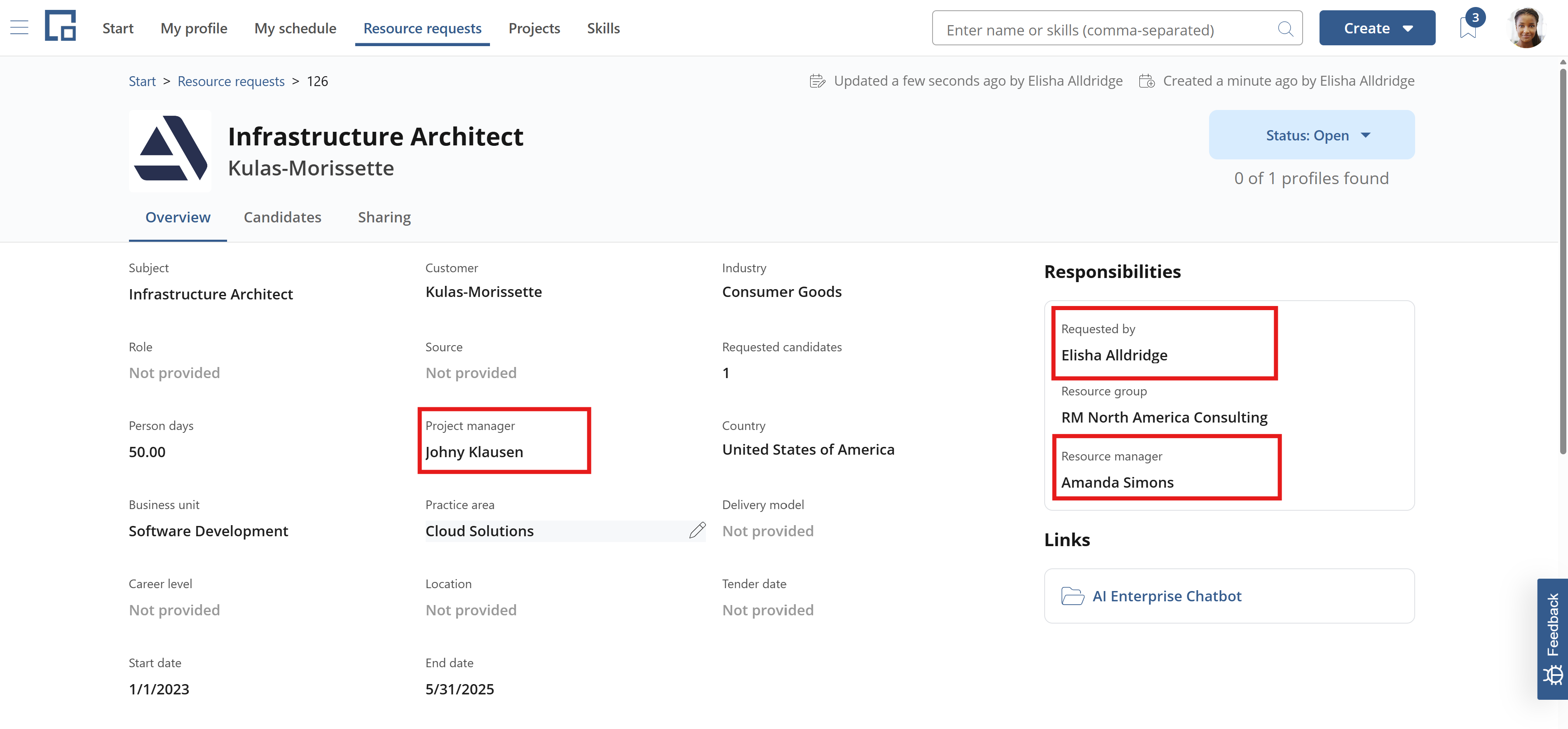
Requestor: The requestor is only relevant if the booking belongs to a resource request. In this case the requestor is the person shown in the “Requested by” field in the Responsibilities section of the request.
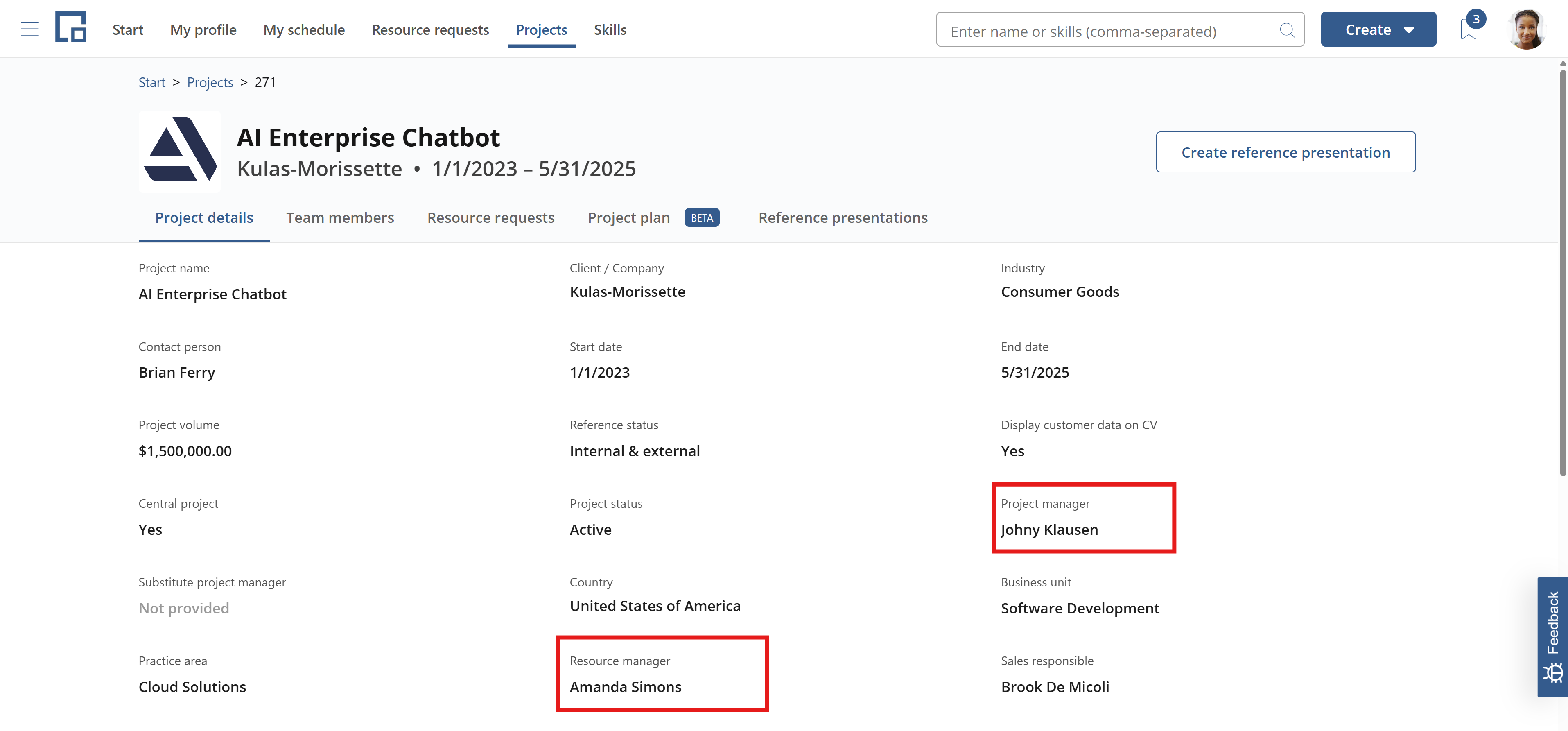
: project manager and resource manager are set on the project
When a resource request is created for a project, the project manager and resource manager are automatically copied. The requestor is by default the user that created the resource request. These contact persons can be changed afterwards.
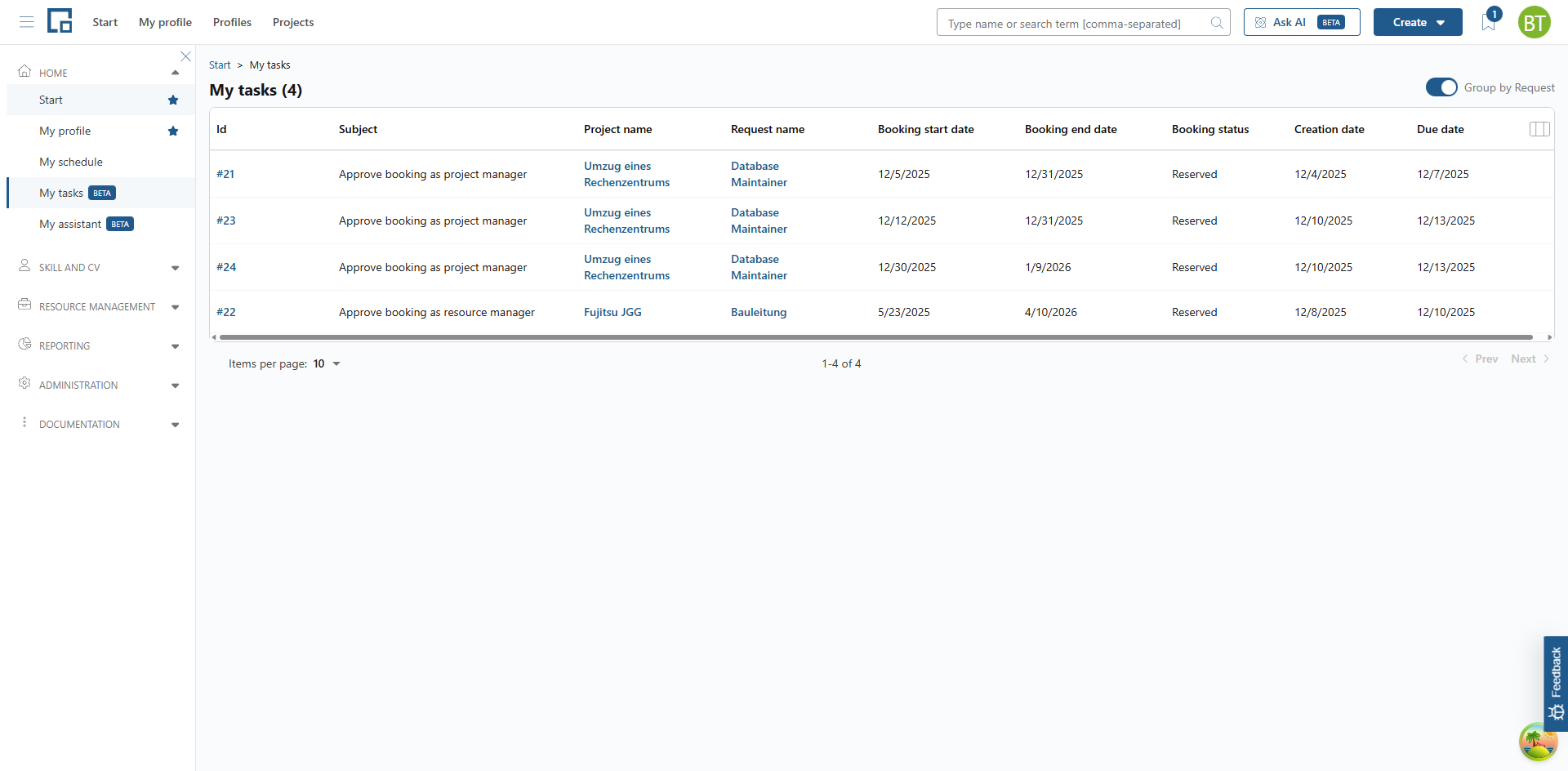
If a reserved booking is created on a project, the approver(s) (configured by the workflow) will get a task in decídalo which is noted under the 'My tasks' menu section. The tasks are sorted by due date per default, and it is also possible to navigate to the project (via the project name link) or the resource request (via the request name link).
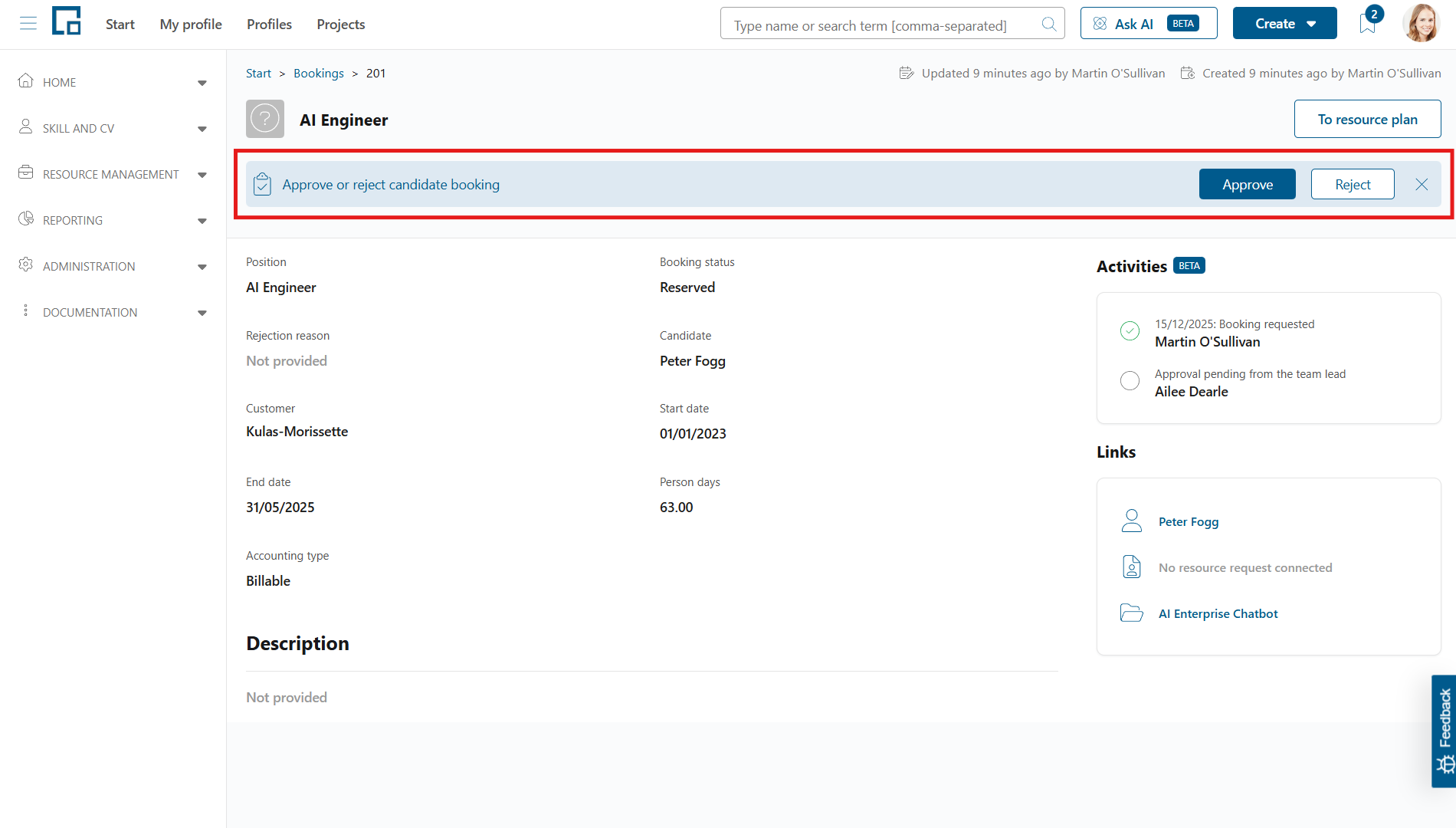
Clicking on the booking id, the approver can get to the actual booking. At the top of the page, under the booking's general info, a banner is indicating the possibility to approve or reject this booking.
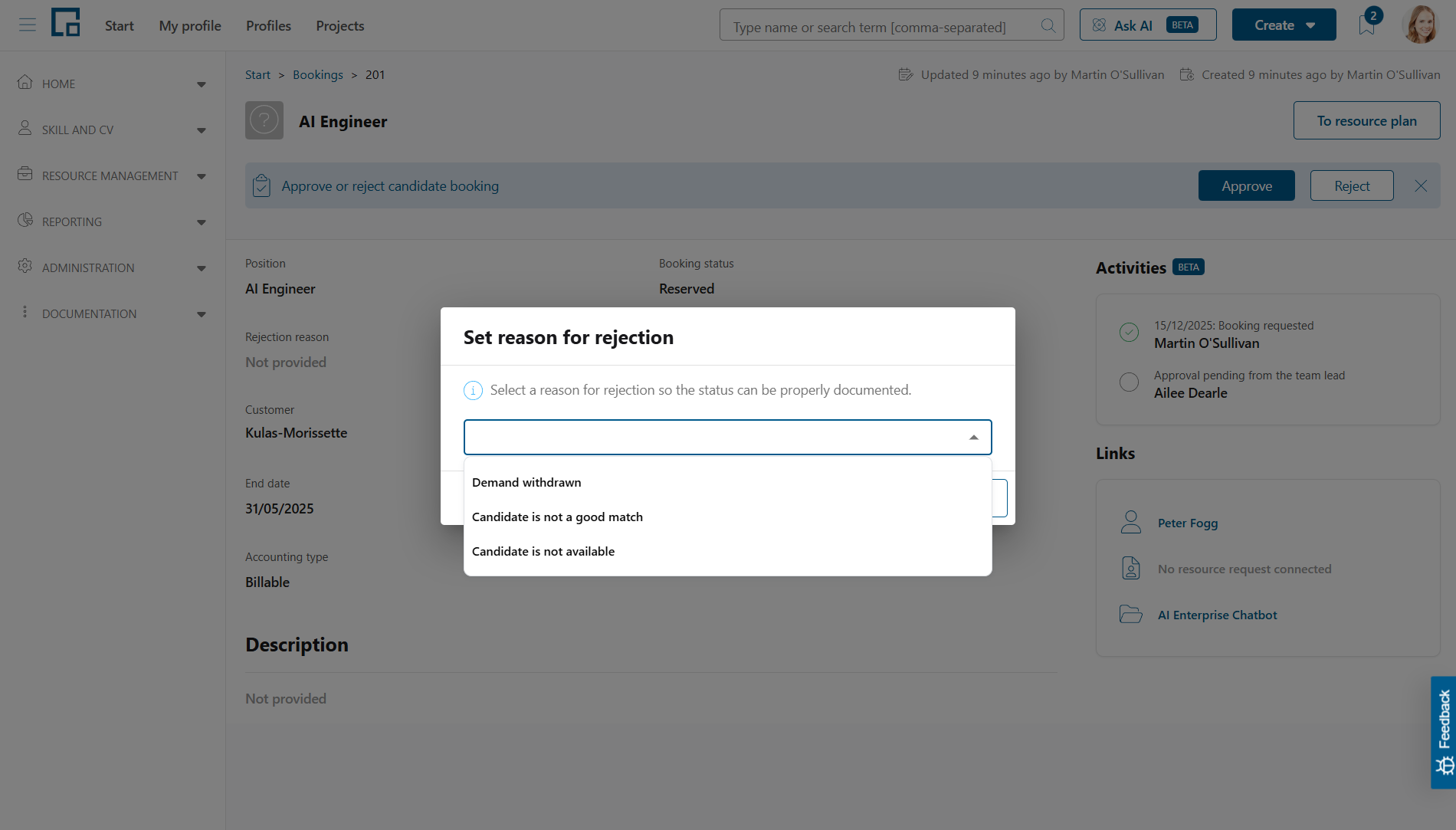
By clicking 'Approve', the current user gives one's consent to the requested booking. If 'Reject' is clicked, a pop-up with a select field for the rejection reason appears. Select a reason and click 'Confirm' to reject the booking.
Configuring booking workflows
To configure workflows for booking approvals in decídalo, select the Administration menu item in the Administration menu section. Then expand the Resource management section and select Booking workflow.
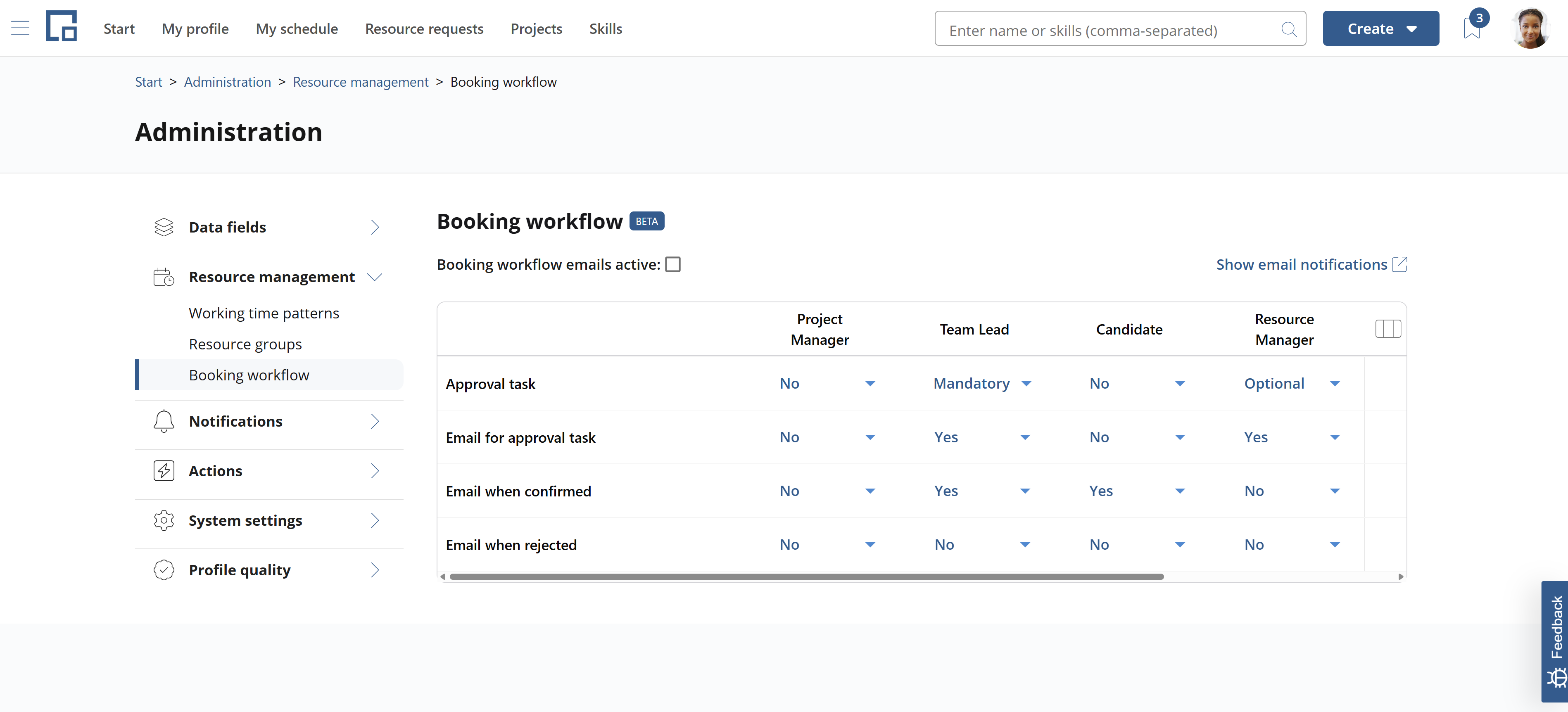
The first row in the booking workflow configuration table (Approval tasks) is used to configure the required approvals. The other rows are used to configure email notifications related to approvals.
Approval tasks
The booking approval workflow is triggered when a booking in status reserved is created under a project. If a booking is approved, the booking status is changed from reserved to confirmed. If the approval is rejected, the status is changed to rejected.
Before configuring the workflow review the booking permissions described above. If, for example, you want project managers to be able to find resources for their project but require approval from the team manager, ensure that the project manager is permitted to view all profiles, permission to create reserved bookings but no permission to create or set confirmed bookings. The first permission is needed to find candidates, the second to trigger the approval workflow, the third to ensure the team manager must be involved to confirm the booking.
Decídalo supports two types of approval configurations:
- Specific people must approve
- Any eligible person can approve
To configure the first type, set the “Mandatory” option in the “Approval task” row for roles that must approve the booking. For example, if the Team Lead must approve, set Mandatory in the Team Lead column and set all other columns to No. If the Team Lead and the Resource Manager must approve, set both columns to Mandatory. The booking is set to status confirmed only after both roles approved it.
For the second type of approvals set all roles that can approve the booking to “Optional”. For example, if the Team Lead or the Resource Manager can approve, set both optional. The booking is approved when either one of them approves it. Just one person needs to approve here.
If mandatory and optional roles are configured, the optional ones are ignored. Make sure to have only “Mandatory” or only “Optional” set in the first row.
In case a person who needs to approve a booking creates the booking, the creation is treated as an approval. You can’t approve bookings you created yourself.
This is relevant in the context of Resource Requests. Let’s assume we configured the requestor to be a mandatory approver. If a resource manager creates a booking in status reserved for the resource request, the requestor must approve it. However, if the requestor himself created the booking, there is no need for him to approve it. If the requestor does not have permission to confirm the booking, you must ensure that an additional approver is configured, e.g. the resource manager.
Notifications
The rows below the “Approval task” row list the configurable email notifications for the approval workflow.
To enable workflow emails in general set the “Booking workflow emails active” checkbox above the workflow configuration table. This checkbox is the same as the Workflows Email notification on the Email notifications configuration (click on “Show email notifications” to get there). Setting it on the workflow config automatically sets it in the email config section, and vice versa.
The following Emails can be configured:
Email for approval task: If set to Yes and the same column has an entry in the approval task row other than No, then an email is sent to the corresponding contact if an approval task is created for them. If the same column has No in the approval tasks row, a Yes in this email row will be ignored.
Email when confirmed: If set to Yes, an email will be sent to the contact, once the status of the booking changes to confirmed, i.e. after the final approval. In contrast to the previous mail, this email can be set independent of the value in the approval task column. The mail can also be sent to contacts that don’t have to approve. For example, the candidate can be informed, even if he does not have to approve.
Email when rejected: Same as above but sent when the booking status is set to rejected, i.e. when an approval is rejected.
Note: The project status automation can trigger email notifications, if they are configured for the target booking status.