Project Concept
Projects are used in two contexts in decídalo:
- As a source of experience
- As the basis for resource management
Past projects end up in the project histories of employees. They show which skills were applied in practice. These projects are also used to create reference presentations. Completed projects are essential for proving expertise in proposals. They are needed for skills and reference management. Ongoing and planned projects define resource demands and schedules. They are central building blocks for resource management. decídalo covers the full project life cycle, from opportunity to success story. Since employee profiles in decídalo contain their complete project history, they can contain projects that were done for a previous employer or before decídalo was rolled out. Not all projects went through the life cycle in decídalo.
Project setup
The project details tab on the project page contains the general specification data of the project.
Centrally created projects vs. project history entries
There are two ways how projects can get into decídalo.
- A project is centrally created or imported.
- The project is added to the project history of a profile.
When employees are onboarded to decídalo they typically upload their CVs. Each project is imported into decídalo. From CVs it is not possible to uniquely identify projects. The same project can look different in different CVs leading to redundant creation. Therefor these project history entries must be distinguished from centrally created projects. The “Central project” indicator is used for this purpose. When a project is created for the project history of a profile or by the CV Parser, this flag is set to No. For projects that are added on the Project page or via the Create button in the application header, the default is Yes.
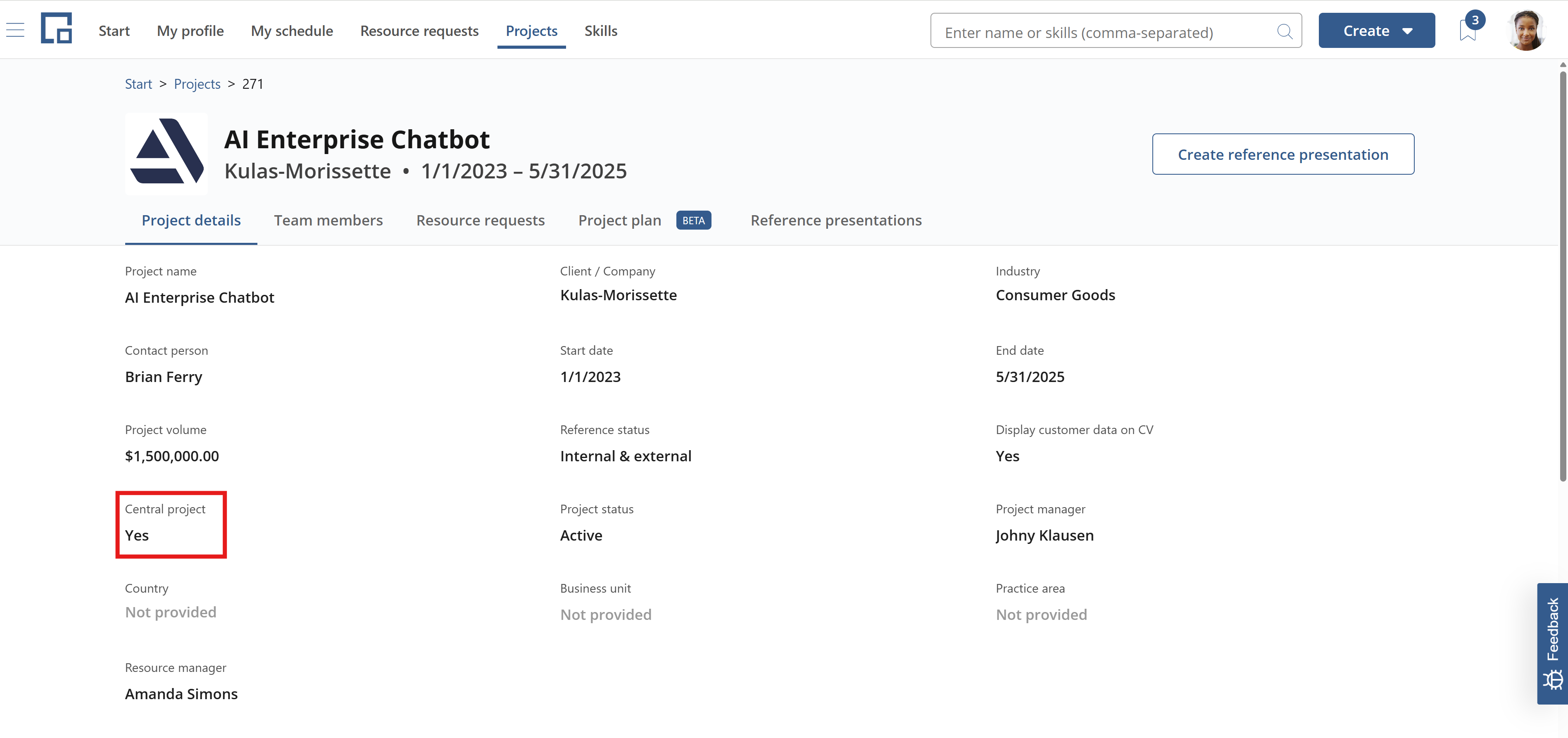
Projects that are not central should only be referenced on the profile of a single person. They should have a single team member. These projects are not validated and not intended to be used for anything else. Central projects can have multiple team members and are used for resource management as well as for creating references. When adding existing projects to a profile only central projects can be selected.
Confidential projects
Confidential projects are projects that contain sensitive or private information and should not be visible to all users in the system. Access is controlled based on configured permissions. Confidential projects are always visible to the project creator and any project contact. All other users cannot view the project details or see them in the project list. Additionally, confidential projects cannot be selected directly on a user’s profile; users can only be added through the project details page. Once a user is added to a confidential project, they can see it on their profile and export it in the CV, but they cannot open the project details or edit any data unrelated to their own profile, unless they have been granted explicit permissions.
Project stakeholders
The following stakeholders can be set on a project:
- Project manager
- Substitute project manager
- Sales responsible
- Resource manager
By default, the project manager and resource manager field are shown on the project details tab. The other two stakeholder fields can be enabled by an administrator on the data fields administration for Projects (Administration menu → Data fields → Project). Stakeholders are relevant for project-based permissions and the staffing workflow. For details on this see Workflows. Project stakeholders are propagated to resource requests created under the project.
Project status
In the top right corner of the project page its status is displayed. In decídalo, the project status can have the following values:
| Project status | Description | |
|---|---|---|
| 1 | Not provided | The project status is unknown. |
| 2 | Unconfirmed | The project is still an opportunity. |
| 3 | Planned | The project is confirmed and planned for the future. |
| 4 | Active | The project is currently ongoing. |
| 5 | Completed | The project has been completed in the past. |
| 6 | Withdrawn | The project has been cancelled. |
The project status can be edited by clicking on the inline selection dropdown. Simply select the desired status; the dropdown is closed automatically. If an automation is configured, a pop-up explaining the upcoming changes for resource requests or bookings might appear.
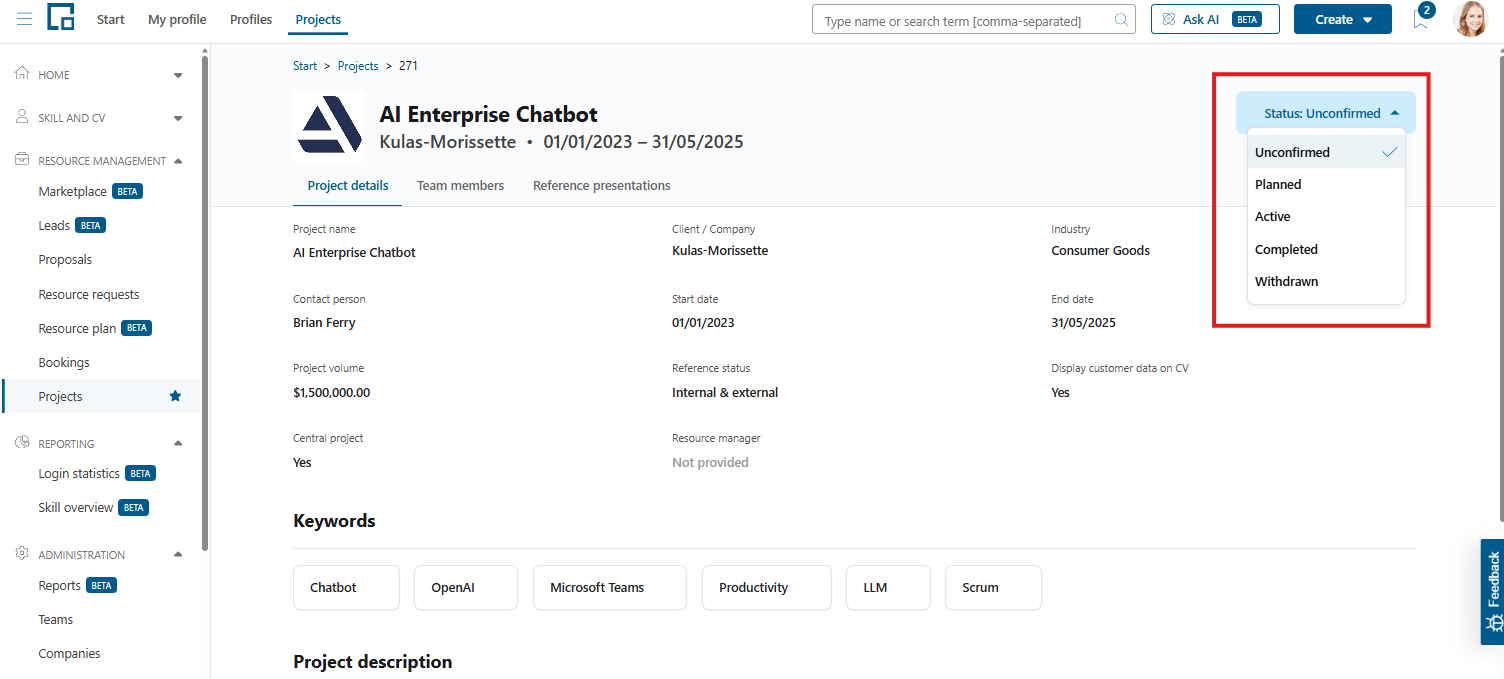
Note: Currently, the project status is only edited by users and not set by any automation.
To get information about the decídalo project status postprocessing automation, see automation.
Project contacts
To manage permissions for projects in decídalo, users can be assigned as project contacts. When a project is created, the list of project contacts is empty by default, but the creator can edit it anyways. There are four different contact types, which users can be assigned to:
- Project manager
- Project assistant
- Resource manager
- Sales responsible
The project contacts can be found on the right side of the project details tab. Each contact type is an accordion, in which all users assigned as contacts can be found.
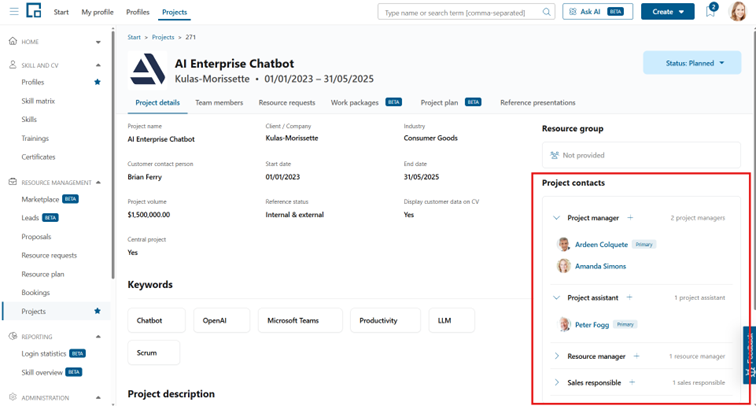
Each contact type always contains exactly one primary contact, if at least one user is assigned. Thus, in total there can be four primary contacts per project, one in each contact type.
Project contacts are propagated to resource request created for the project.
Reference and CV related fields
This section describes project data fields that are relevant for reference presentations and CV related use cases.
Reference status
The reference status indicates if this project is approved as a reference, meaning it can be used as a showcase in proposals. The options are:
- Not approved: the project is not approved as a reference. This is the default value that is set for all newly created projects.
- Internal: internally approved as a reference, but not by the client / customer.
- External: reference approved by the client.
- Internal & external: reference approved internally and by the client. Reference presentations for this project can safely be used in RfPs or proposals.
- Blocking notice: this project must not be used as a reference. This status is set if there is a confidentiality agreement with the client. Only central projects should be used as references. Note that the reference status has no impact on the generation of reference presentations. Presentations can be generated for any reference status.
Display customer data on CV
If “Display customer data on CV” is set to no, the customer name will be replaced with the alias, and the logo will not be shown on CVs that include this project. See the CV Templates documentation for details on showing customer data in CVs. The alias for a customer can be set in the companies administration (menu item Companies under Administration). The default for “Display customer data on CV” is yes.
Project volume
Project volume is an input field for the total cost of the project. I can be used in reference presentations. Project volume is not calculated from the project plan or actual efforts. It must be manually set.
Fields relevant for resource requesting
A number of project fields are propagated to resource requests created for the project. These are:
- Customer
- Project stakeholders (see above)
- Country
- Business unit
- Practice area
- Legal entity
- Service line
- Delivery model
- Location
- Priority
Note that only the customer field is enabled by default on the project. All other fields must be activated by an Administrator in the Data fields section. They are mostly relevant for large organizations that operate in different countries. Business unit and practice area are used to identify the resource group for the request. See Resource Groups for more information.
Project Team Members
The team members tab on the project page lists all resources assigned to the project. Resources are either persons (represented by their profile) or dummy resources representing unfilled project positions. Note that stakeholders are not automatically team members, and rejected bookings are not shown by default.
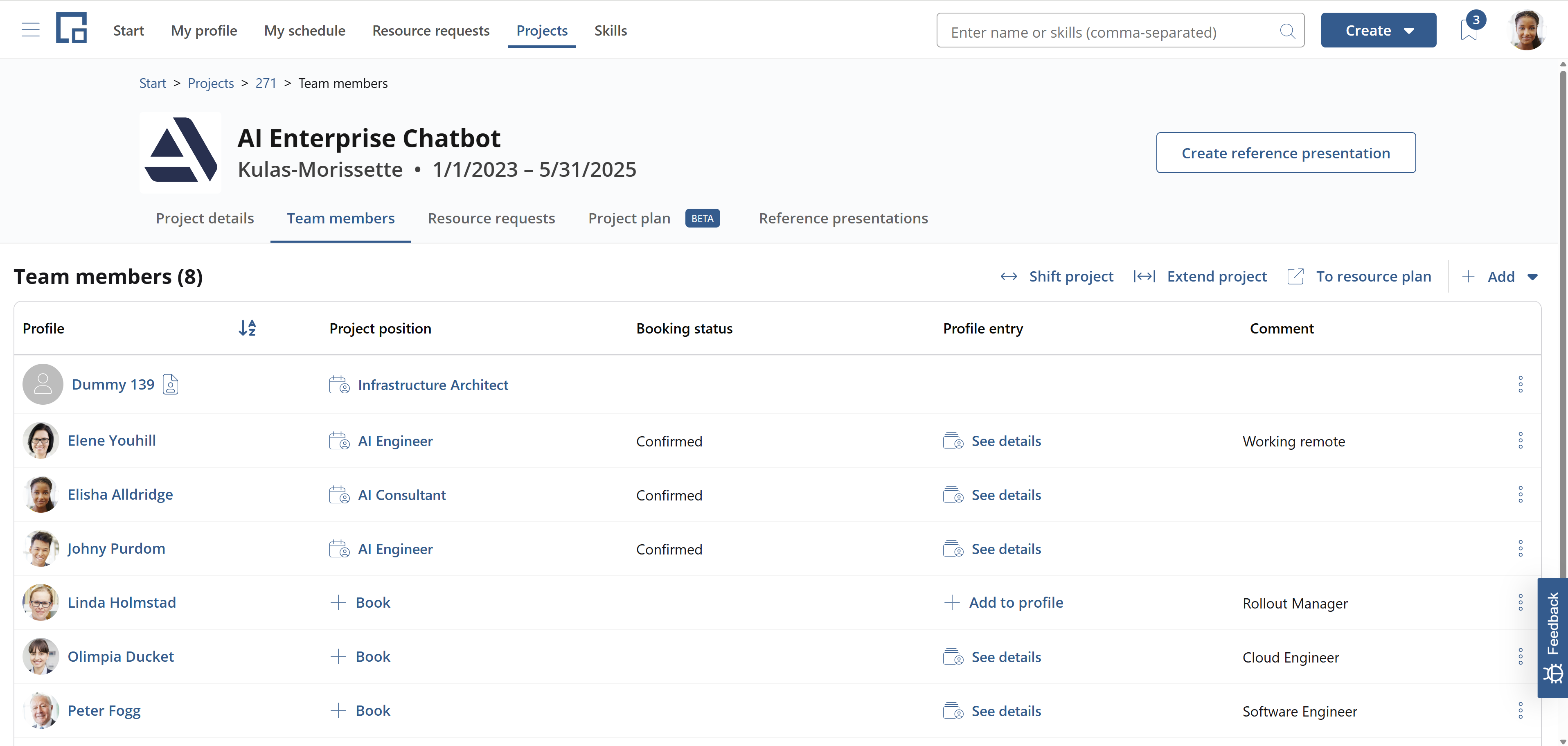
Every profile with the project in the project history is a team member. But team members don’t automatically get the project added to their profile. The profile entry column of the team members table shows whether the project is on the person’s profile. If it is not, the “Add to profile” option is shown; if it is, a “See details” selector opens the project history entry. The same person can be assigned to a project more than once (see Several assignments of the same person below).
Persons booked on the project are also team members. See for more on bookings. But team members are not automatically booked on the project. If a booking exists it is shown in the project position column. A booking links a person to a position.
There are different ways to add team members: Directly on the project, from the project history of a profile or from a booking.
Adding resources directly to the project
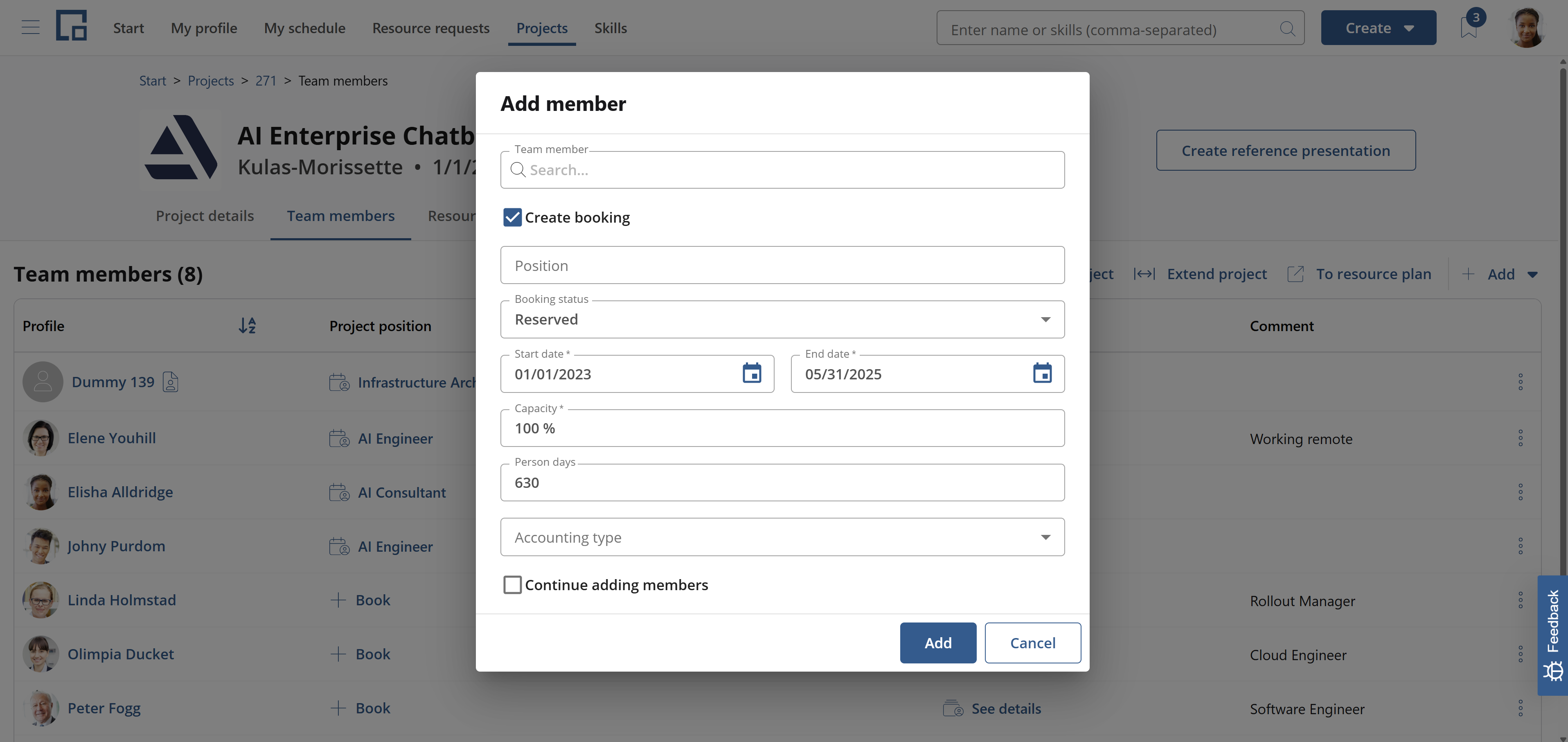
Resources can directly be added by using the Add button above the team members table. There are two options: Add member and add position. Select “Add member” to add a person (profile). You can directly create a booking in this step or opt out of this. The project is not automatically added to the person’s project history. It can be manually added by clicking “Add to profile” in the profile entry column. Add a position if the resource is not known by name. Positions represent resource demands. As long as the position is unfilled, a dummy profile is shown in the profile column. To staff the position, click on the dummy profile. A side drawer opens with the options to staff by name or to create a resource request. See the following section for more on resource requests.
Adding team members vie the project histories
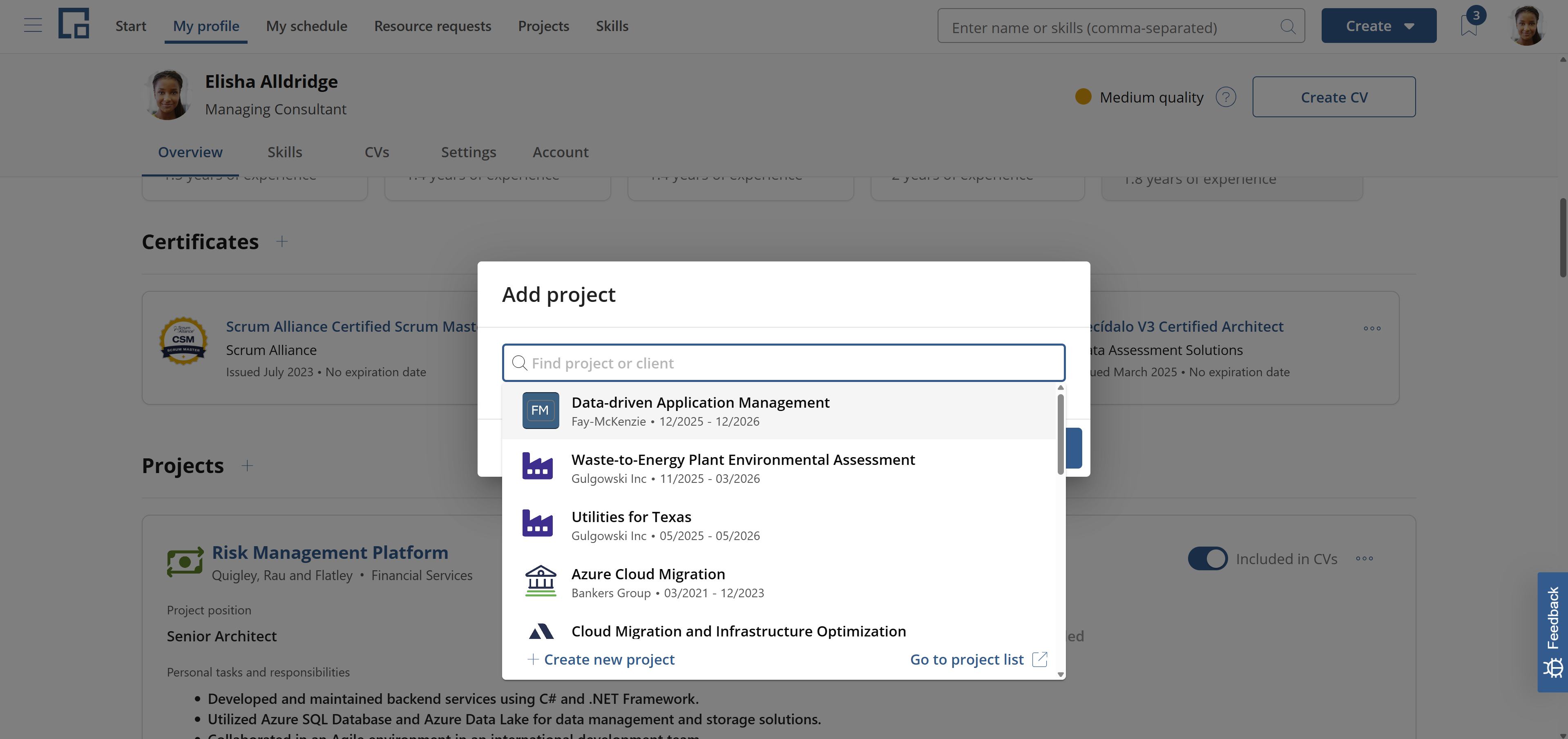
When a project is added to the project history of a profile this profile (person) is automatically added as a member. The profile entry column of the team members tab shows a link to the project history details. A booking is not automatically created in this case. It can be manually created via the Book action in the project positions column.
Adding team members via bookings
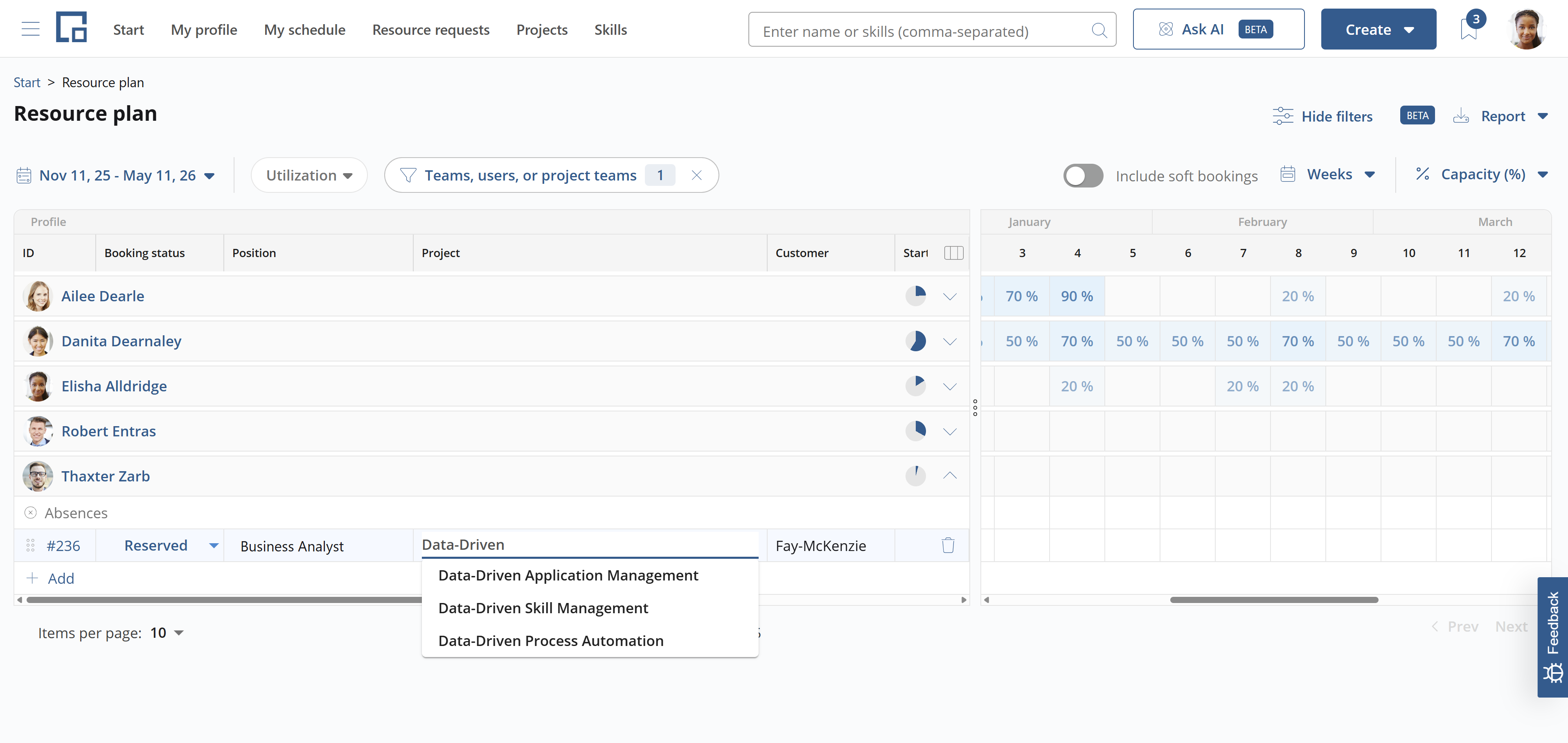
On the resource plan (located in the Resource Management menu section) persons (employees) can directly be booked on projects. To do this, expand a row and click the Add button to create a new booking for the employee.
Note that permissions are required to create bookings. For more on bookings and permissions see Workflows.
Set the project for the booking in the corresponding column. This adds the employee as a team member. A link to the booking will be shown in the project position column. No project history entry is created here.
Creating a booking for a resource request belonging to the project has the same effect. For more on resource requests see the next section.
Adding and downloading CVs for several team members
You can create or download CVs for several team members at once. Select one or more rows in the team members table using the checkboxes in the first column. A selection toolbar then appears above the table with bulk actions for the selected members.
The toolbar offers two CV actions:
- Add CVs: opens the Add CV dialog. Choose a CV template and, if available, the focus or customization options, then confirm to generate a CV for every selected member. The CVs are generated in the background, so you do not have to wait and nothing is downloaded automatically. While generation runs, the CV column of each selected member shows a “CV is being added” indicator; as soon as a member’s CV is ready, the indicator is replaced by a link to the new CV, so you do not have to wait for the rest of the batch. The person who started the generation also sees a small progress notice in the corner (“Creating CVs in the background… X of N done. You can keep working.”). Other users viewing the same project see the per-member indicators but not this notice. While a generation is still running you can already select other team members and start a further batch for them; only members whose CV is currently being generated cannot be part of a new batch.
- Download CVs: downloads the existing CVs of the selected members as a single ZIP file. This action only downloads CVs that already exist; it does not generate new ones. While the ZIP is prepared, the CV column of each selected member shows a “CV is being exported” indicator and you can keep working in the rest of the application.
The same toolbar also contains the Delete selected and To resource plan actions, and a Clear selection button that shows the number of selected members and resets the selection.
Note that the CV actions are only available when you have the required permissions for all selected members. If a selected member cannot have a CV created or downloaded, the corresponding button is shown but disabled, and a tooltip explains why.
Several assignments of the same person
The same person can appear on a project more than once, for example in two different roles, or for two separate phases of the same engagement. Each assignment is a separate project history entry with its own position, dates, personal tasks and skills.
For members whose project is on their profile, the profile entry column shows a “See details” selector. Open it to list that person’s project history entries for the project, one item per entry, each labelled with its position (or “No position specified” when the position is empty). Select an entry to open its details. When the person has more than one entry, all of them are listed here, and the selector also offers “Add to profile” to add a further entry.
You can also add another assignment from the person’s profile: open the Projects section of the profile and add the project again. Projects that are already on the profile are no longer hidden in the search. They are marked “On profile”, so you can deliberately add a further entry for them. See Profile for managing project entries on a profile.
Removing a team member’s profile entry from the team members table removes all of that person’s entries for the project at once; the confirmation states how many entries are affected. To remove only one of several entries, delete that single entry from the person’s profile.
Resource requests for projects
Resource requests are used to find candidates for project positions. If the position does not already exist it will be created together with the request.
For an existing, unfilled position, click on the corresponding dummy profile in the team members table of the project. In the side drawer, select the option to create a resource request. Type or paste the requirements into the description field. The advanced options are pre-filled from the project.
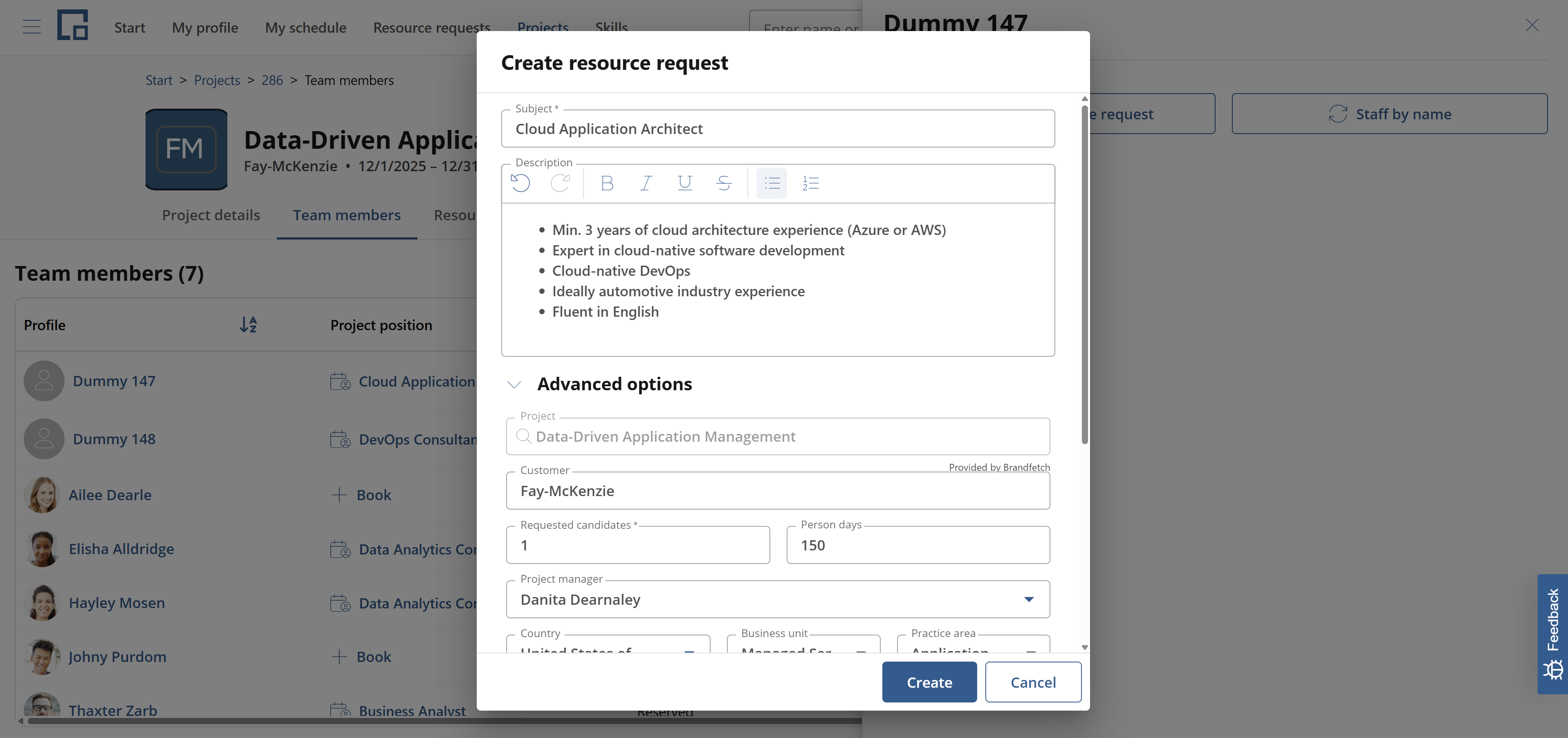
If the position was not yet created, you can directly add a resource request under the corresponding tab on the project. Click the Create button on the resource requests table. Enter a subject. This will be used as the name for the position that will be created together with the request. To edit the details of the position, go back to the team members tab. In the team members table, positions for which a resource request was created can be identified by the profile icon right to the dummy profile label. Clicking the dummy profile shows the resource request data in a side drawer. To see the full request and process it, click the link on the top of the side drawer or the request on the resource request tab.
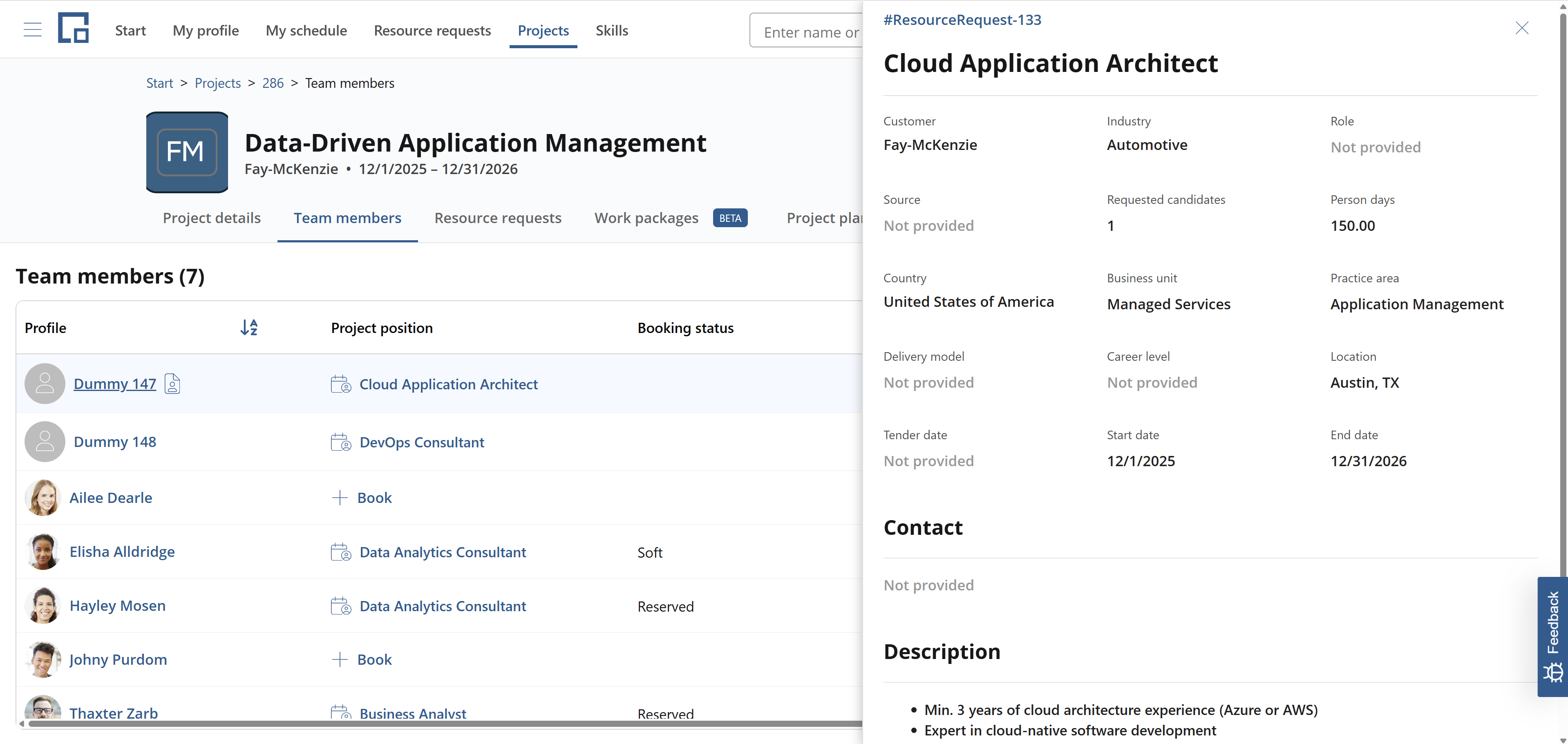
Adding candidates to project resource requests
If candidates are saved to the request without a booking, they don’t show as team members on the project. Only if they are booked, they do. When a candidate is book, the dummy resource on the corresponding position is replaced with the candidate profile. Note that multiple candidates can be booked on a resource request. In that case, a copy of the original position will be created for each additional candidate.
Project plan, bookings and schedules
The project plan shows the bookings and their schedules. Schedules are the weekly, daily, or monthly distribution of times or capacities. Team members without booking are shown below the schedule as unplanned members.
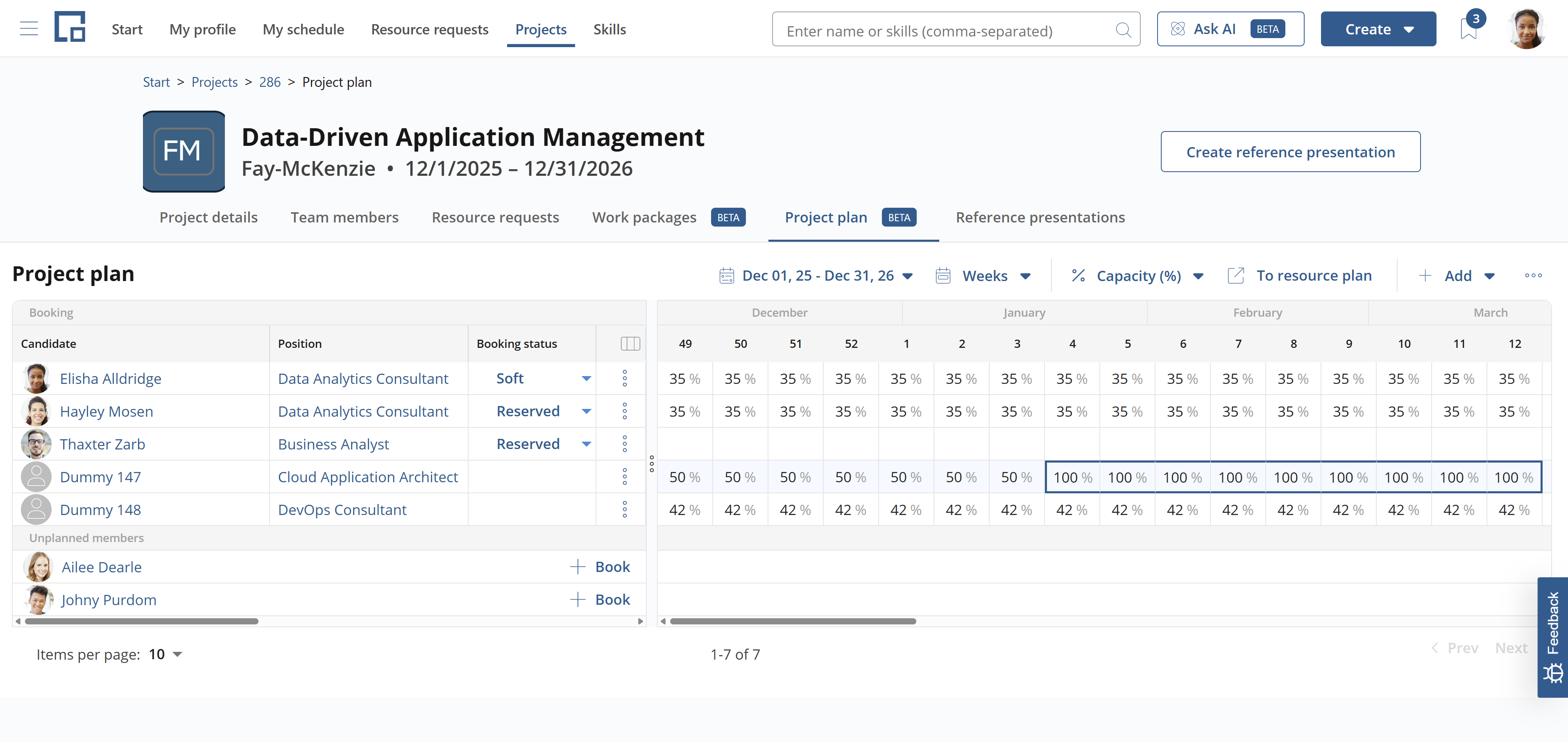
For booked resources the schedule is prefilled by evenly distributing the person days defined on the position between the positions start and end date. Dummy resources also have a schedule. Schedules can be manually overwritten.
Display settings
The Settings menu on the project plan provides per-user display toggles (your selection is remembered):
- Hide bookings with empty schedules: hides bookings that have no planning in the selected period, leaving only actively planned work.
- Show rejected bookings: controls whether rejected bookings are listed. Note that, unlike the Team Members tab (where rejected bookings are hidden by default), the project plan shows rejected bookings by default; turn this toggle off to hide them.
- Include soft bookings in totals: includes soft (preliminary) bookings in the aggregated values.
It is also possible to shift or extend all bookings at once using the shift project or extend project buttons on the team members tab. To shift the project, provide a new start date. The project dates and all related bookings will be moved accordingly. The duration of the project and bookings remains the same. The entire project is moved along the timeline.
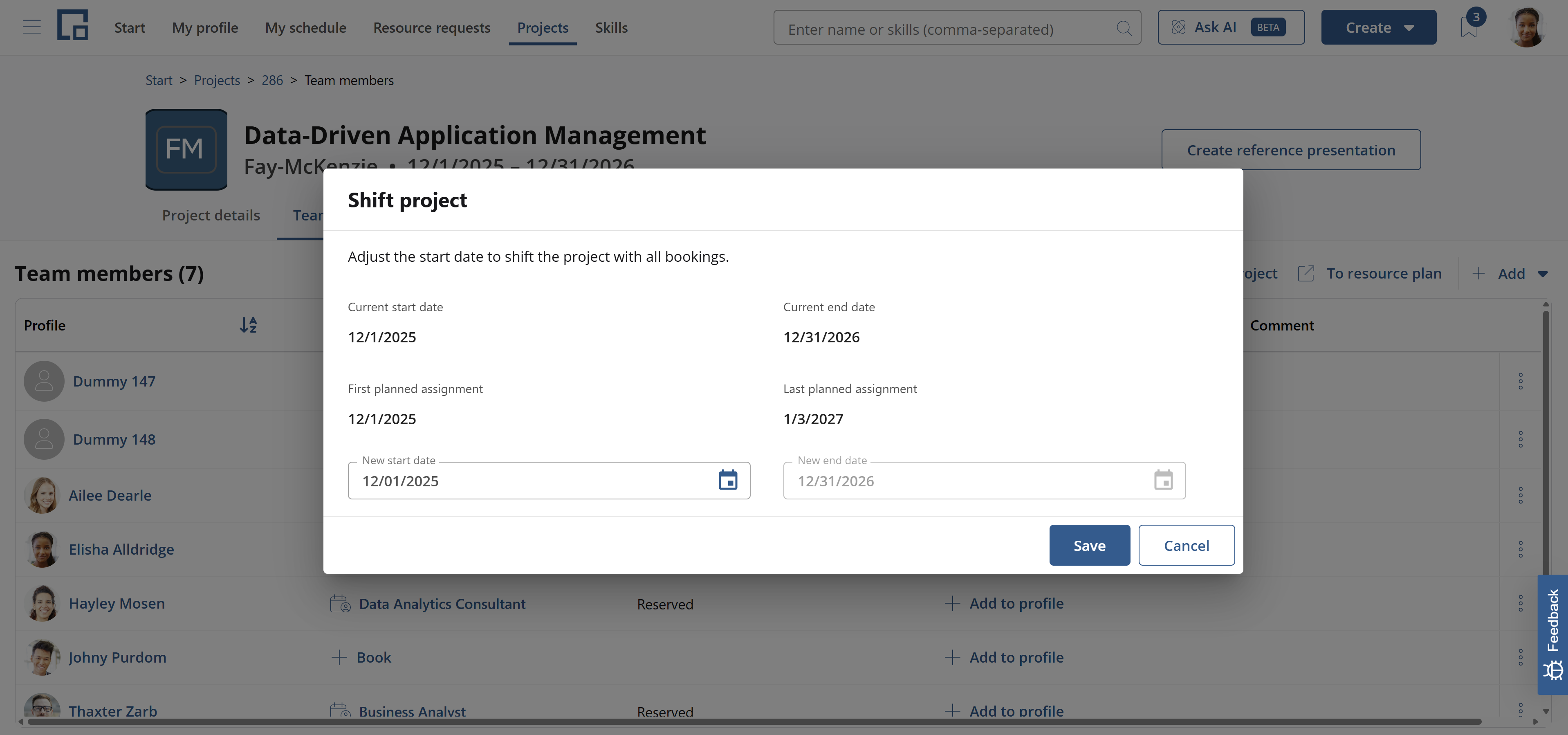
To extend the project, provide a new end date. The project end date and all bookings will be extended. When extending, a dialog asks what should happen to existing bookings:
| Option | Description |
|---|---|
| Extend existing planning | Planning entries are extended using the capacity of the second-to-last week. This week is used because the project's end date does not always coincide with the end of a calendar week, so the last fully completed week provides a reliable capacity pattern. If no entry exists in the penultimate week, the system falls back to the last week's capacity or the booking's standard capacity. |
| Redistribute person days | Keeps the total person days the same and spreads them evenly over the new duration by overwriting the existing schedule with a uniform weekly capacity. |
| No planning change | Only booking end dates are moved to the new project end date. No new planning entries are created; capacity and project plan remain unchanged. |
When shortening a project (setting the end date earlier), no options are shown. Instead, a warning is displayed: all bookings ending after the new date will be cut off and their schedules deleted.
Reference presentations
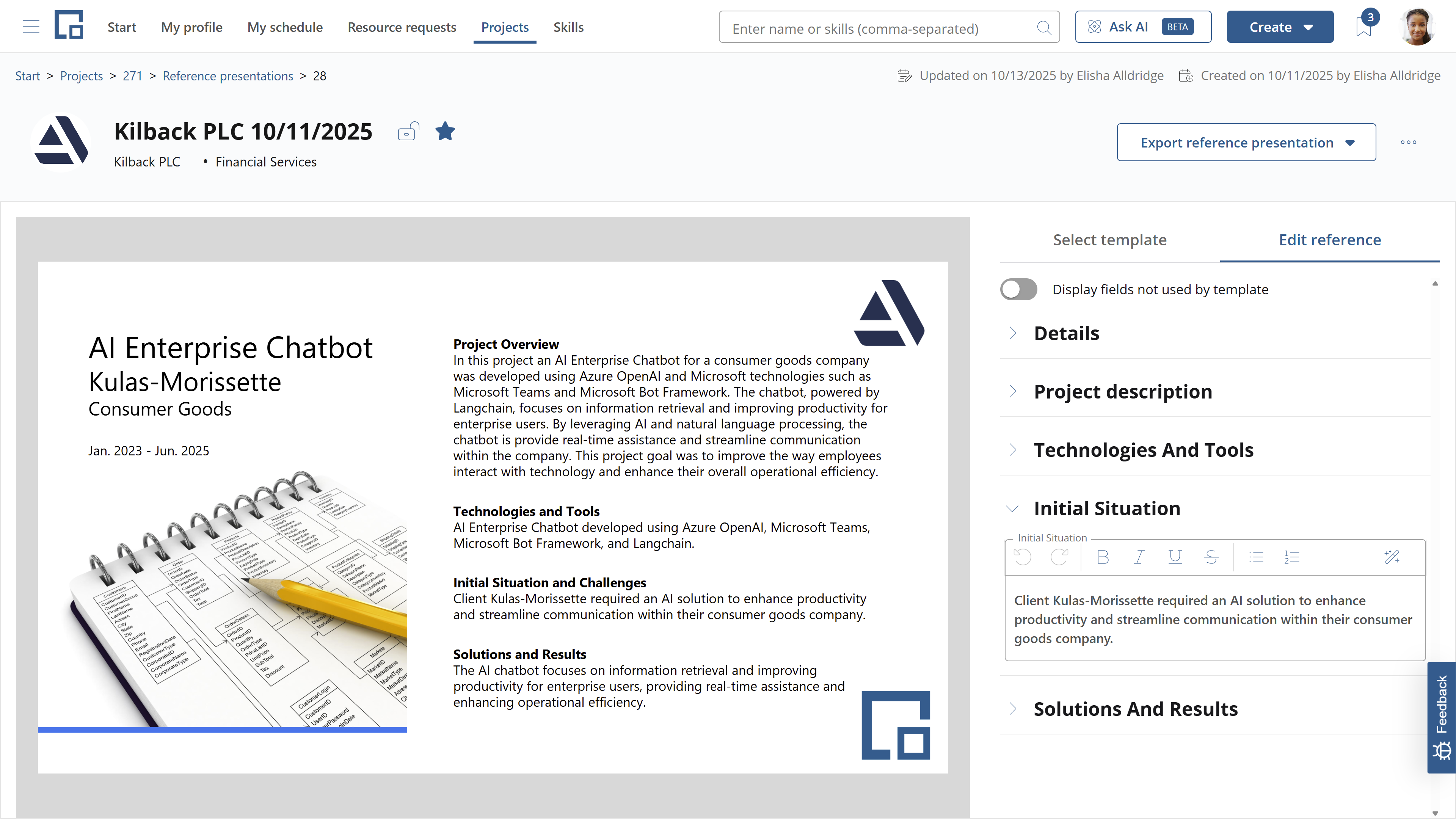
Reference presentations are documents that are shared with customers as part of the sales process. They are used to demonstrate experience. Reference presentations are to projects what CVs are to profiles.
For each project multiple presentations can be created in different templates and languages. decídalo supports templates in Microsoft Word and PowerPoint. Presentations can be exported in these formats or as PDF documents. For more on reference presentation templates see PowerPoint and Word.
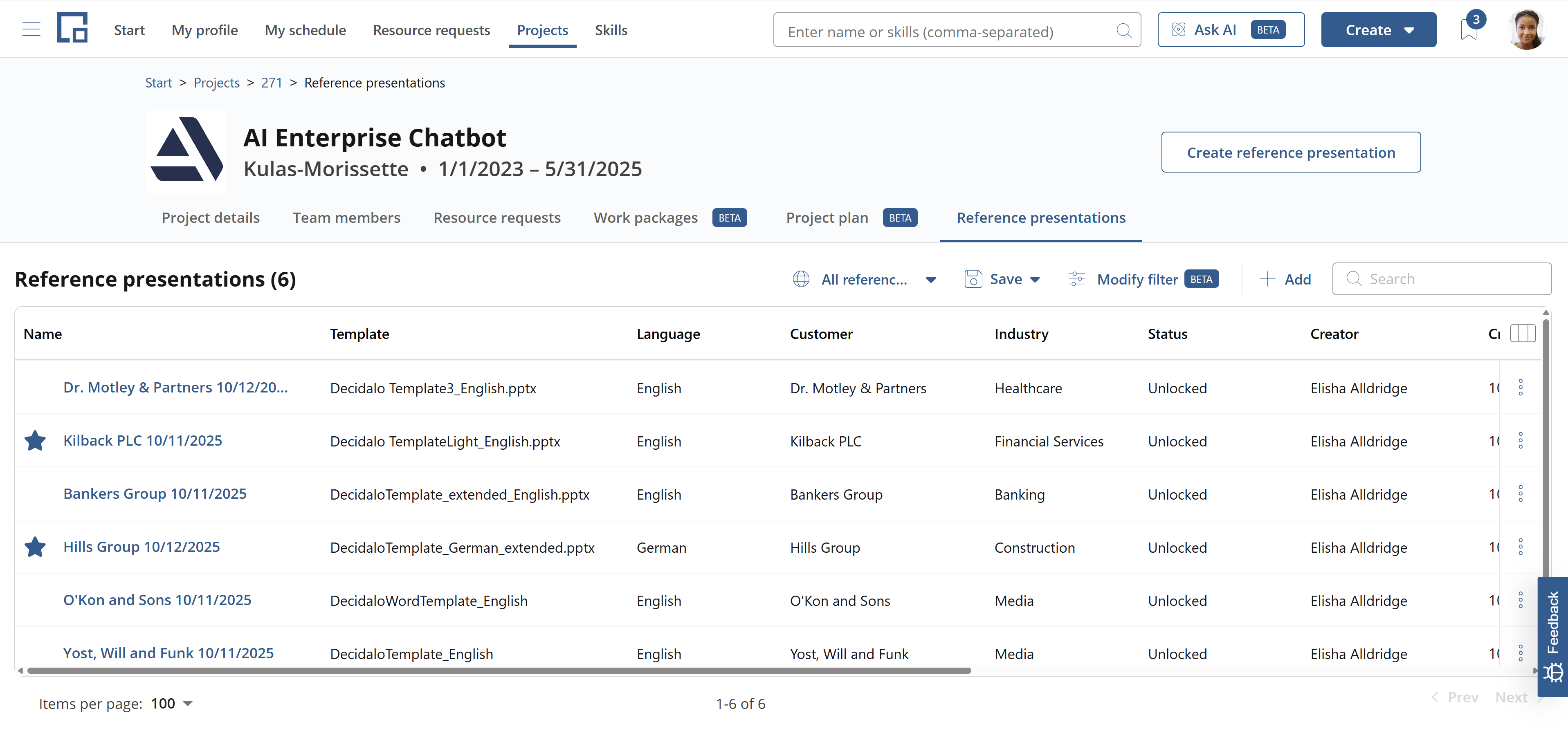
In contrast to CVs, project references are static. Once the project is completed, it will not change. It makes sense to create quality-assured presentations for different audiences (e.g. different languages, or industries). These can be marked as master presentations which are identified by a star icon in front of the presentation name.
An overview of the presentations across all projects is available on the Reference Presentations page.
Reference presentations can contain additional content that is not available from the project, for example descriptions of the initial situation and the results achieved. Such additional fields can be defined in the presentation templates. Decídalo will try to prefill them from the available data using AI. The fields are included in the reference presentation editor where they can be manually edited.
Time recording and accounting
Where time recording is enabled, a project has three additional tabs.
The Time recording tab decides what may be recorded on the project and who may record it: which activity types are allowed on the project, on its work packages and on its order positions, and whether recording is open to everyone, to people with confirmed bookings, or to a named list. See Setting Up Time Recording on a Project.
The Accounting tab holds the commercial setup: the framework agreement the project belongs to, its orders and their positions, and the Servicesheet rules that decide how recorded time is turned into billable hours. See the Billing concept.
The Delivery tab shows the time recorded on the project together with its billing state, and is where recorded time is confirmed before it can be put on a servicesheet. See Timesheets & Approval.
Note that once time has been recorded against a project or one of its work packages, that project or work package can no longer be deleted or merged.
A project that has a project code cannot be merged either, in either direction. The code is what other systems use to identify the project, and a merge deletes one of the two entries, so the code would be lost with it. The merge action is greyed out on a coded project and explains why when you hover it, and a coded project is not offered in the list of projects to merge into.
Companies and industries are protected the same way, with one difference: a coded company or industry can still be merged into, so it survives and keeps its code. See Administrating companies and Administrating industries.