CV Templates
Here you'll find everything regarding the CV templates:
Editing and uploading a template
A CV template in decídalo is a Microsoft Word file or a Microsoft PowerPoint file. You can adjust an existing template by downloading it and opening the corresponding application. When you customized the template according to your requirements, it can be uploaded again as a new custom template. The following video summarizes the process for word templates:
For more complex requests check out the guides linked below or reach out to the support.
Ordering the templates in the template library
Under Administration > Template library the templates of each language are grouped into three sections:
- Internal - the templates used for the profile preview.
- External - the templates your organisation uploaded.
- System - the templates that ship with decídalo.
You can arrange the External and System sections yourself. Point at the row of a template, grab the handle on its left edge, and drag the template to the position you want. The new order is saved as soon as you drop it.
This order is also the order in which the templates are offered when a CV is created, so you can move the templates your teams use most to the top. Two things stay fixed:
- External templates are always offered before system ones - you arrange the order within each of the two sections.
- The Internal section is not re-orderable, because it holds at most one anonymous and one non-anonymous template.
A newly uploaded template appears at the top of its section until you move it.
How to Import Your Own CV Template
decídalo offers the possibility to upload and use your own CV template. But this requires little preparation as you need to tell decídalo where to insert the data from the templates. This requires you to tell decídalo where in the template the data have to be inserted. In the following, we will provide an introduction to the mechanism to prepare your templates for decídalo.
How to Adjust/Create the Template
Depending on the template you want to adjust/create, we will give further details in the respective articles about Word or Powerpoint.
Uploading The CV Template
It is advisable to convert the template in small iterations by only adding a subset of merge fields at the time. This way you will have an easier time finding errors during the process as the uploader can only give limited feedback on what might break in the uploaded document.
To upload the template document, go to decídalo and navigate to the CV page, e.g. by generating a CV from your own profile. On the right side of the CV page, inside the SELECT TEMPLATE section, scroll down to the very bottom and either drop your template file or select it in a file browser by pressing the upload button.
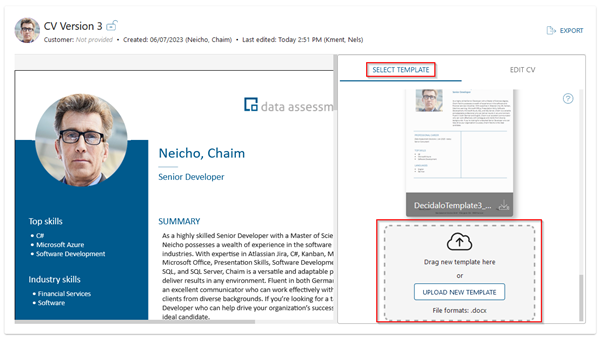
After choosing a display name for the application, the template will appear in the list of templates. It will show a valid preview if the uploaded document includes no errors. You can now edit the content in the edit section.
Since you might not included all possible fields, it is good to know that the fields that are not used by the selected template are either displayed in gray.
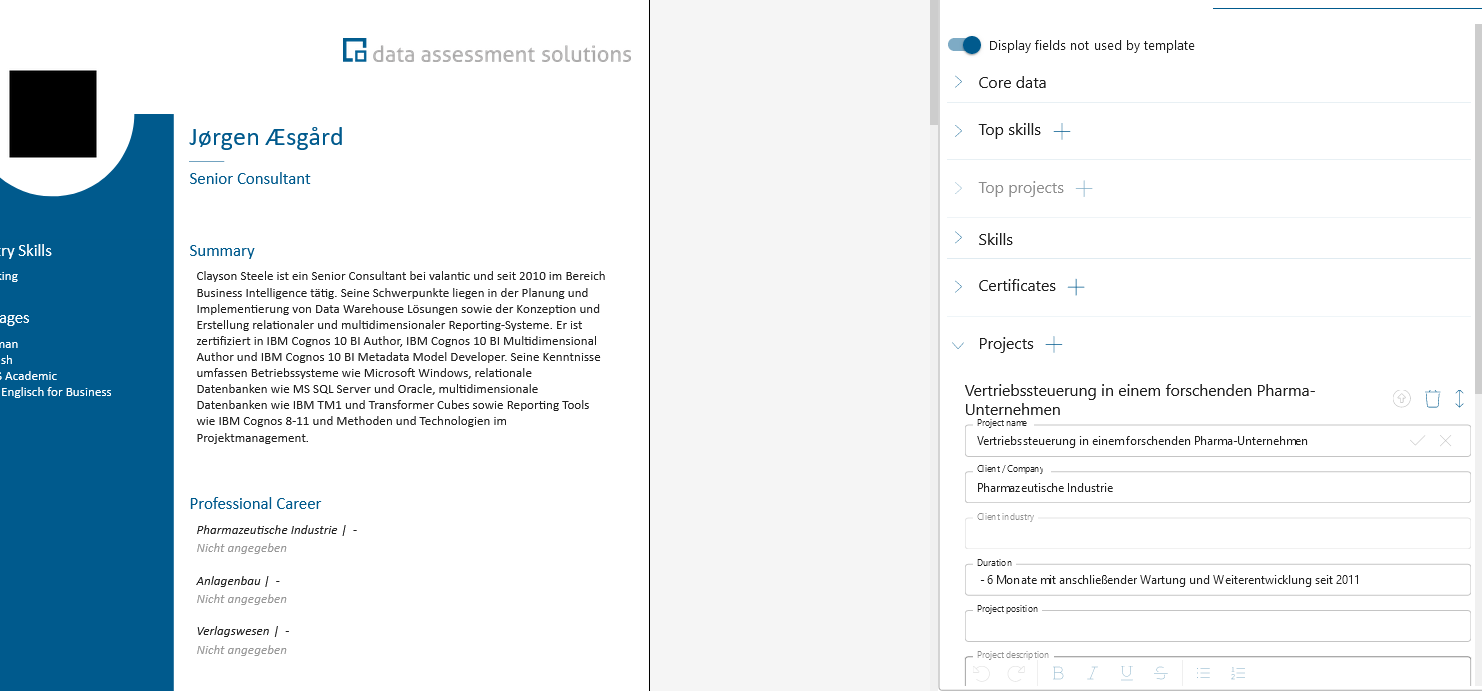
or hidden. You can choose from the two possibilities via a switch.