Setting Up Time Recording on a Project
Note: Time recording is currently a beta feature and is being rolled out with pilot customers. If you would like to take part, please get in touch with us.
Nobody can record time on a project until two questions have been answered: what may be recorded, and who may record it. Both are answered on the project's Time recording tab. Until they are, the project does not appear as a subject in anyone's timesheet.
You need the Configure project time recording permission for the project, either through your permission profile or because you are a project contact with that right.
Opening the tab
Open the project and switch to the Time recording tab. It has four sections, described below in the order they appear.
The central catalogues of activity types, general activities and recording types are maintained elsewhere, by an administrator (see Time Recording Setup). On this tab you only choose which of them apply to this project.
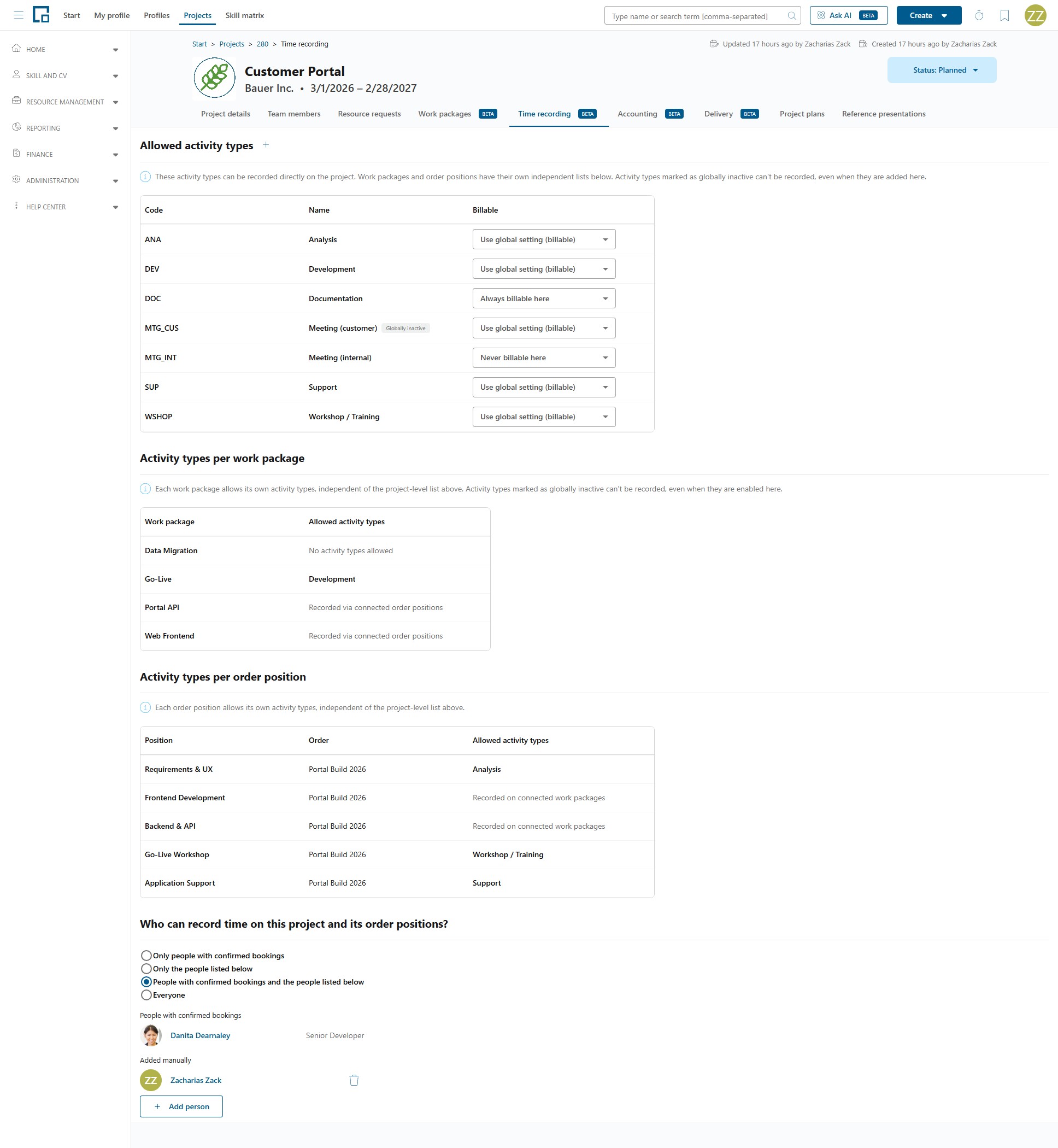
Allowed activity types
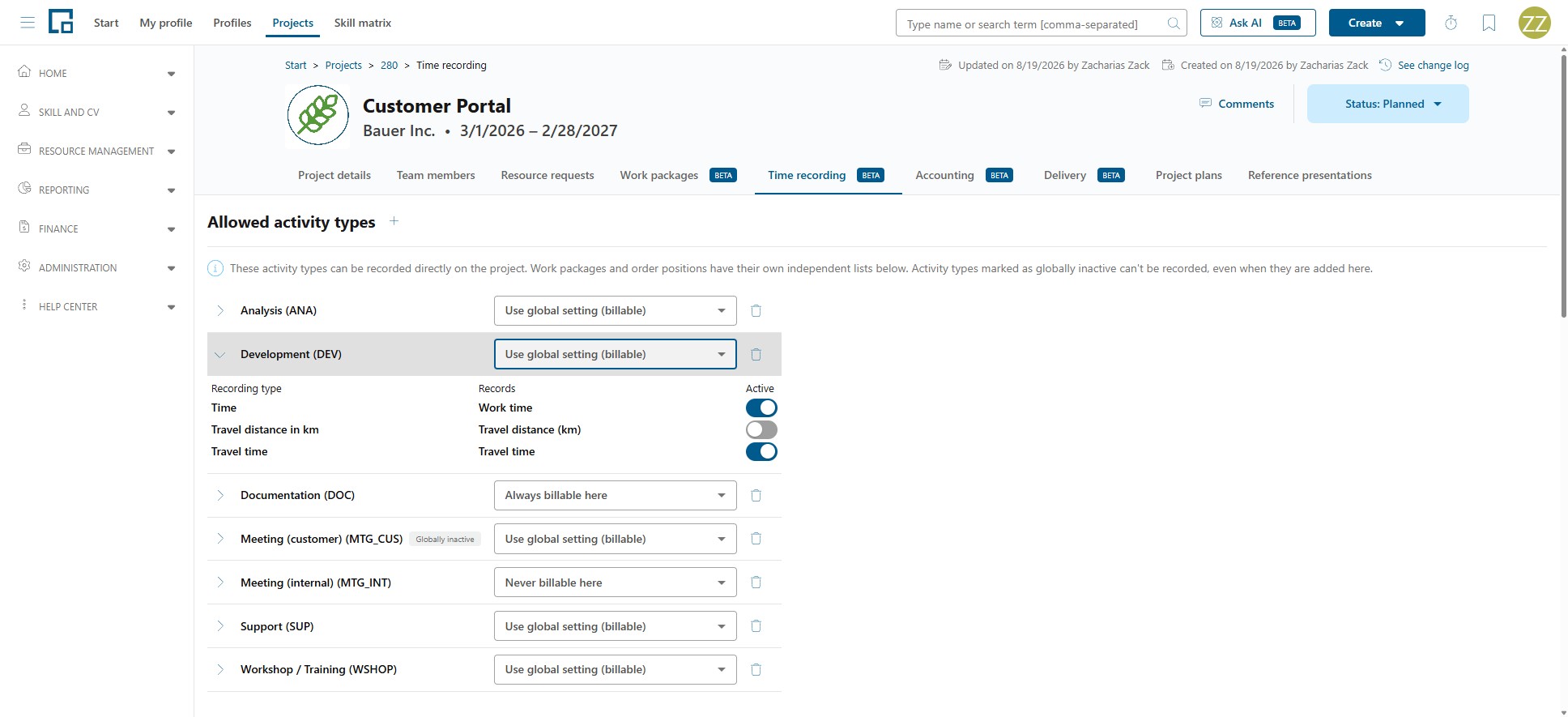
"These activity types can be recorded directly on the project. Work packages and order positions have their own independent lists below. Activity types marked as globally inactive can't be recorded, even when they are added here."
This is the list for time booked straight onto the project, without a work package. Use Add activity types to pick from the central catalogue, and Remove on a row to take one out again. While the list is empty it shows "No activity types configured."
The table shows Code, Name and Billable. A row marked Globally inactive refers to an activity type that an administrator has deactivated centrally. It stays visible here for reference but can no longer be recorded against.
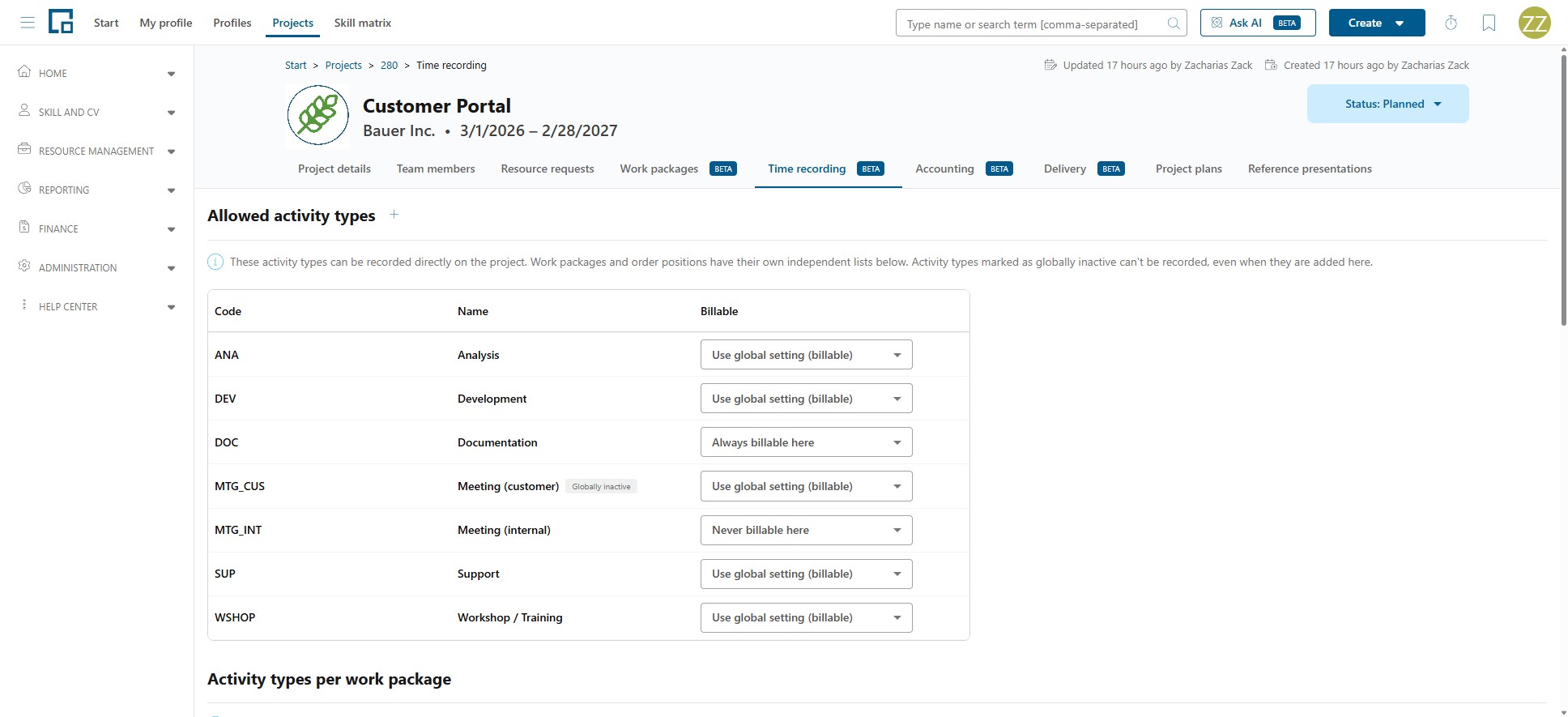
Overriding whether an activity type is billable
Each row has a Billable setting that decides how time recorded against that activity type on this project is treated:
| Option | Effect |
|---|---|
| Always billable here | The time is billable on this project, whatever the central default says. |
| Never billable here | The time is never billable on this project. |
| Use global setting | The activity type's own Billable by default applies. The current inherited value is shown in brackets, for example Use global setting (billable). |
Only billable time can end up on a servicesheet. What that means further down the line is described in the Billing concept.
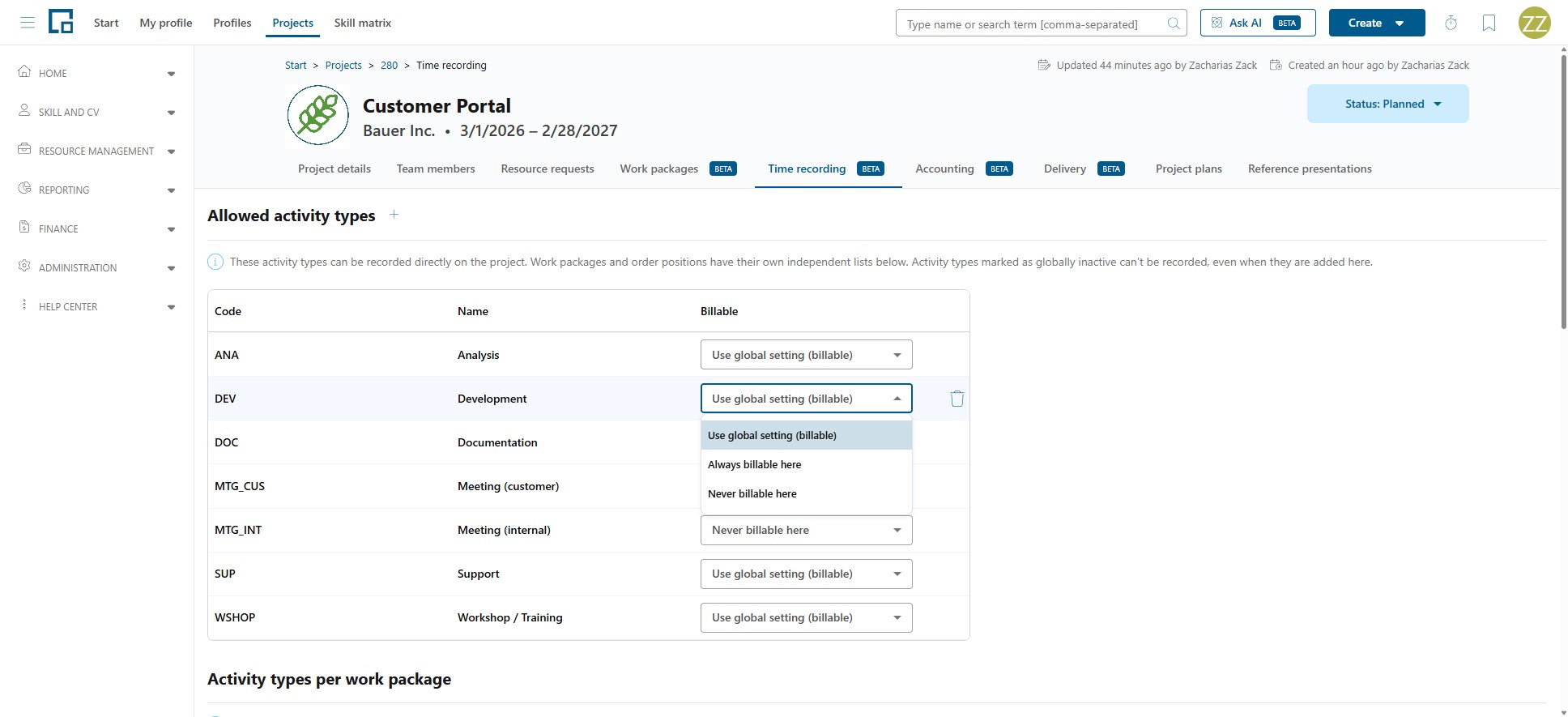
Activity types per work package
"Each work package allows its own activity types, independent of the project-level list above. Activity types marked as globally inactive can't be recorded, even when they are enabled here."
If the project is broken down into work packages, each one gets its own list. This list is genuinely independent: adding an activity type to the project does not add it to any work package, and vice versa.
The table shows the Work package and its Allowed activity types, or "No activity types allowed" where none are set. Open a work package to manage its Activity type and Billable rows in a drawer. If the project has no work packages at all you see "This project has no work packages."
Only the members of a work package's team can record against it. Unlike time booked straight onto the project, the recorder setting further down this page does not apply, because work-package membership is the whole rule.
Own activity types, or an order position's
The same drawer has an Order positions section, and a work package works one of two ways depending on whether anything is connected there:
- No order position connected: the work package uses its own activity types, the ones listed in the drawer. Time recorded lands on the work package.
- An order position connected: the position's activity types are used instead, and the work package's own list is switched off. The list stays visible but inactive, marked "Inactive while order positions are connected. Time is recorded on the connected positions’ activity types instead. Activity types added here also start inactive." In the table the work package shows "Recorded via connected order positions", and the connected positions are listed under Recorded activity types.
The hint when you connect one says it directly: "Connecting an order position records its activity types against this work package instead of the work package’s own." Use Disconnect to go back to the work package's own list.
This is what produces the longest subject path, Project · Order · Position · Work package · Activity type: the position supplies the activity type, and the work package is where the time lands.
Because the time lands on the work package, the work package's team decides who may record it, just as for a work package with its own activity types. Connecting a position does not hand that decision to the project's recorder setting.
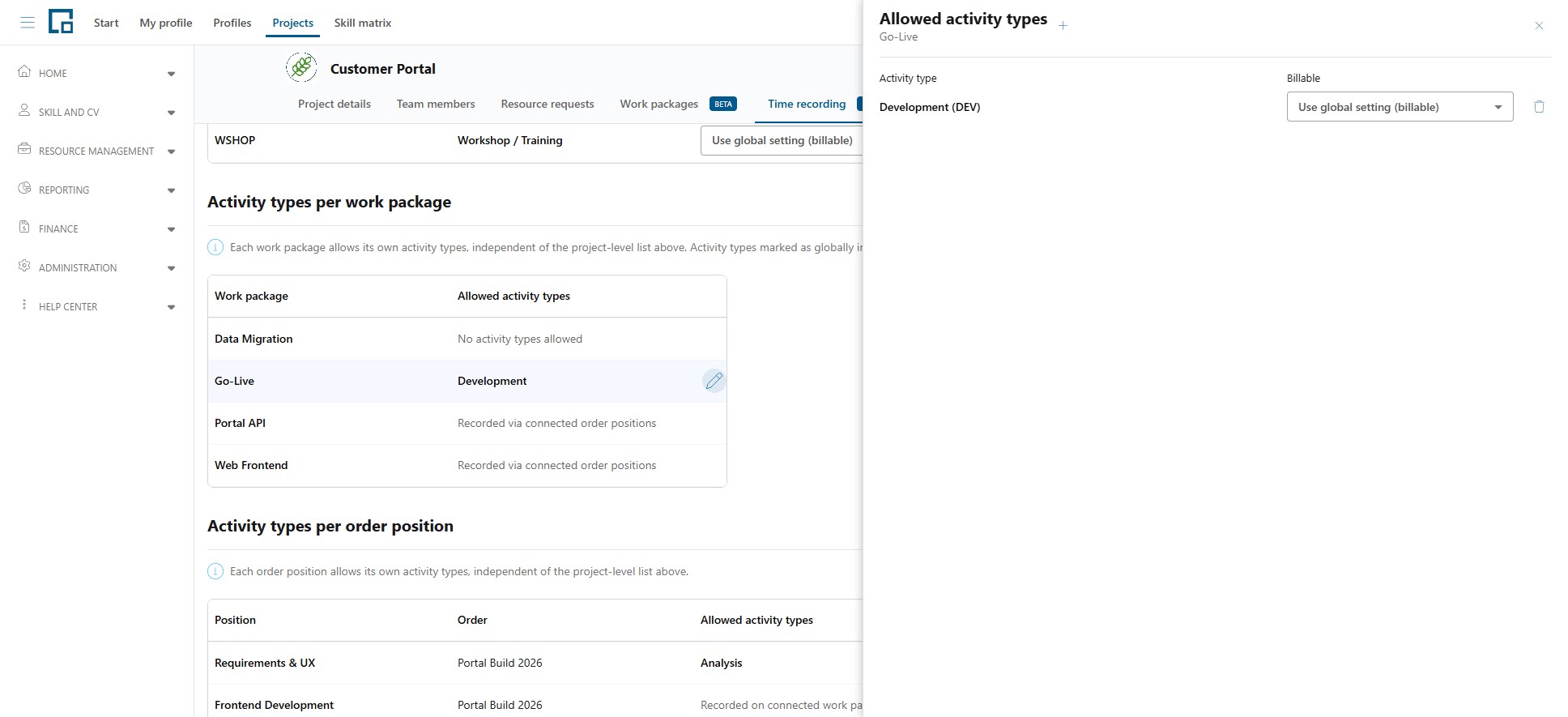
Activity types per order position
"Each order position allows its own activity types, independent of the project-level list above."
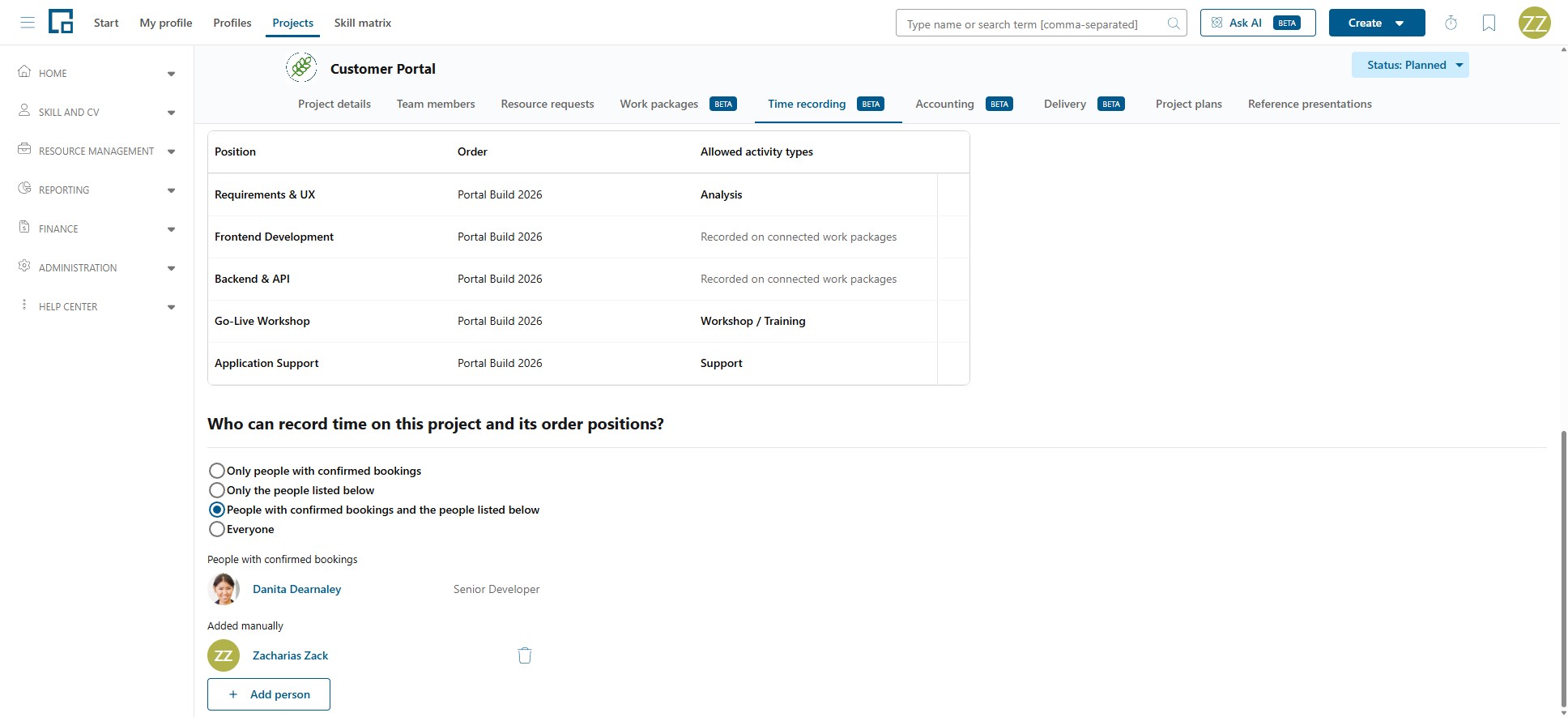
Order positions can be recorded against directly, without going through a work package. They appear here with their Order, Position and Allowed activity types.
There is no switch to turn this on. A position is recorded against directly whenever it is not connected to a work package. Connect one and its activity types are recorded against that work package instead, and the position shows "Recorded on connected work packages". Disconnect it and direct recording applies again. If the project has no order positions at all you see "This project has no order positions."
Who may record against a position depends on how it is recorded:
- Directly (no work package connected): the project's recorder setting below applies, exactly as for time booked straight onto the project.
- Through a connected work package: that work package's team decides, and the recorder setting is not consulted. See Own activity types, or an order position's above.
Because an order can serve several projects, a position may appear on more than one project's tab. Each project only sees the positions of the orders it is linked to.
Note: A position belonging to an order that is not linked to any project, and that is not connected to a work package either, cannot be recorded against by anyone, because there is nothing to decide from. Link the order to a project, or connect the position to a work package.
Which recording types a subject offers
Beside its time, an entry can carry further values such as travel time or a travel distance. Each is a recording type, and each is switched on per subject, so a subject that never involves travel offers no travel column. See What an entry records.
Every list works the same way: open the subject and tick the types it should record.
| Subject | Where |
|---|---|
| A project's activity type | the Activity types section on this tab |
| A work package | the work package's drawer |
| An order position | the position's recording-targets drawer, per activity type |
| A general activity | its drawer under Administration → Time recording |
Time is always recorded and is not in the list, with one exception: a subject can be set to record no working time at all, for instance one that only ever captures a distance. Its timesheet row then shows no start, end, pause or time, because those four are one decision rather than four.
Switching a type off later does not remove what was already recorded against it. Those values stay on their entries, shown struck through and no longer editable, and they still count for billing.
Who can record time on this project and its order positions?
The last section decides who may book time onto the project itself and onto its order positions. It does not govern work packages, because those go by work-package membership, as described above.
Choose one of four modes:
| Mode | Who may record |
|---|---|
| Only people with confirmed bookings | Anyone with a confirmed booking on the project. This is the default. |
| Only the people listed below | Only the people you add by hand; bookings are ignored. |
| People with confirmed bookings and the people listed below | Both groups together. |
| Everyone | Anybody in the company. |
Note: The two booking-based modes are only offered if your company uses resource management, since that is where bookings come from. Without it you can choose only between Only the people listed below and Everyone, and the list is the default.
People who qualify through a booking are listed automatically under People with confirmed bookings; if there are none yet you see "No one has a confirmed booking on this project yet". People you add yourself appear under Added manually, where Add person adds someone and Remove takes them out again. An empty manual list shows "No people added yet".
Changing the setup later
The setup can be changed at any time, but it only affects what happens next:
- Removing an activity type stops new entries being recorded against it. Entries that already exist are untouched and keep their subject.
- Narrowing who may record does not remove anyone's existing entries either.
- Nothing that has recorded time against it can be deleted. This applies to projects, work packages and activity types alike, for example "This activity type can't be deleted because time has already been recorded against it. Deactivate it instead." The same guard prevents merging a project or work package that carries recorded time.
The commercial side
The Time recording tab only answers what may be recorded and by whom. The commercial setup lives next door on the project's Accounting tab: the Framework agreement the project belongs to, its Orders, and the Servicesheet rules that decide how recorded time is turned into billable hours. The recorded time itself, with its billing state, is on the Delivery tab.
Related
- Time recording concept: what a subject is and how it is put together
- Timesheets & Approval: confirming the time that gets recorded here
- Time Recording Setup: the central activity type, general activity and recording type catalogues
- Project Concept: projects, work packages and bookings