Time Recording Setup
Note: Time recording is currently a beta feature and is being rolled out with pilot customers. If you would like to take part, please get in touch with us.
This page covers what an administrator sets up before anyone can record time, in the order it needs doing. The per-project part of the setup is not done here. It is done by whoever runs the project, on the project itself; see Setting Up Time Recording on a Project.
Switching the feature on
Time recording is enabled per company by decídalo and is not a self-service setting. If you would like it switched on, get in touch with us.
Because the feature is still in beta, users additionally need the Beta Features permission. Without it the time recording and finance pages stay hidden even after the feature is enabled for your company. In the menu the pages are marked with a beta chip.
System settings
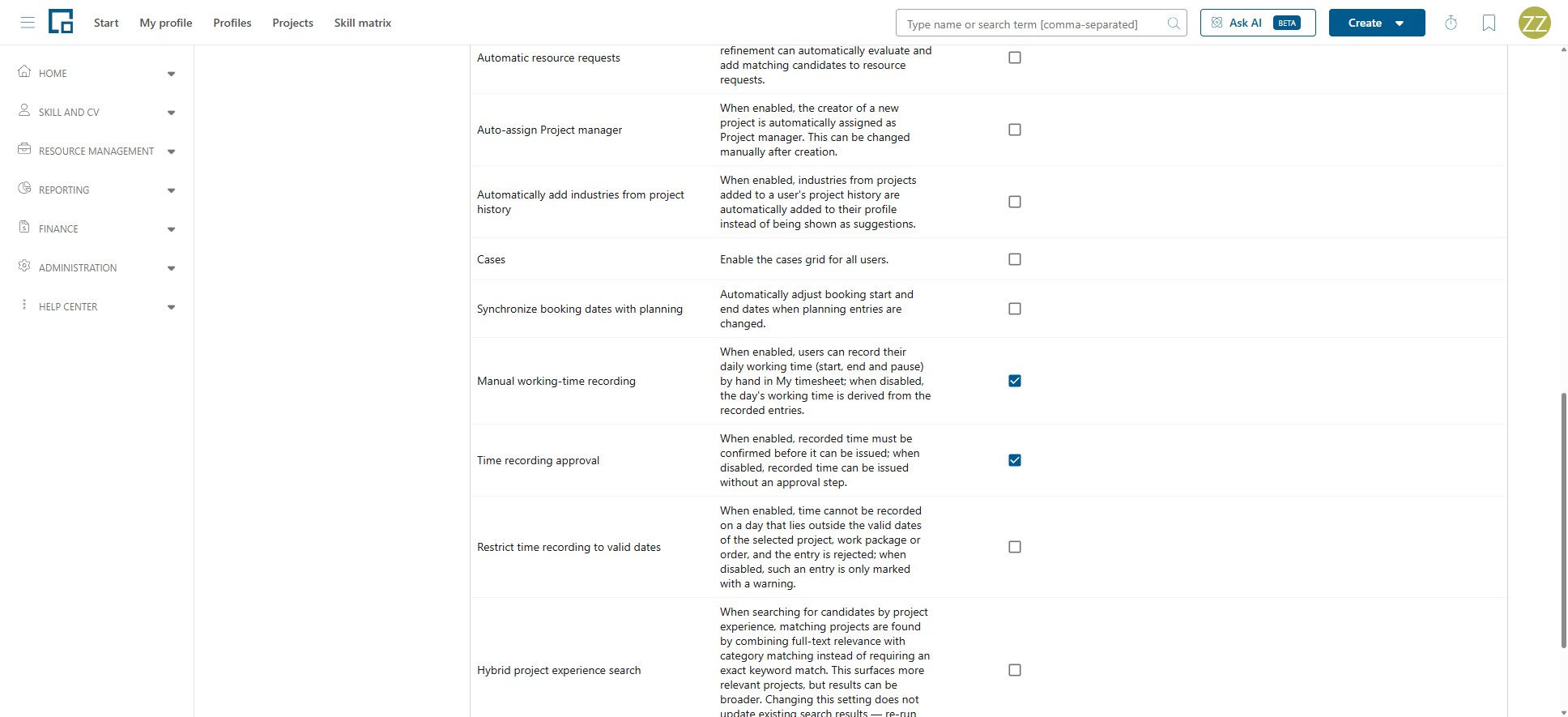
Three settings for time recording are maintained under Administration → System settings → Feature settings. They only appear once time recording is enabled for your company.
| Setting | Description | What to choose |
|---|---|---|
| Manual working-time recording | "When enabled, users can record their daily working time (start, end and pause) by hand in My timesheet; when disabled, the day's working time is derived from the recorded entries." | Leave it off unless attendance genuinely has to be entered by hand. With it off there is one less thing for users to fill in, and the working time still adds up from their entries. |
| Time recording approval | "When enabled, recorded time must be confirmed before it can be issued; when disabled, recorded time can be issued without an approval step." | Turn it on if someone should check recorded hours before they reach a customer. With it off, recorded time flows into billing unchecked. |
| Restrict time recording to valid dates | "When enabled, time cannot be recorded on a day that lies outside the valid dates of the selected project, work package or order, and the entry is rejected; when disabled, such an entry is only marked with a warning." | Turn it on where recording outside a project's window is genuinely an error. Left off, people can still record it and only see a warning, which suits projects whose dates are not kept exact. |
All three take effect for everyone. Note the disclaimer on that page: some settings only take effect after users log out and back in.
Note: Confirming is done on the project's Delivery tab (see Confirming recorded time).
Note: Time recording approval only makes the approval step available; each project then decides whether to use it, under Approval required for recorded time on its Accounting tab. A project that does not require it (the default) has its time confirmed as it is entered. See When confirmation is needed.
Activity types
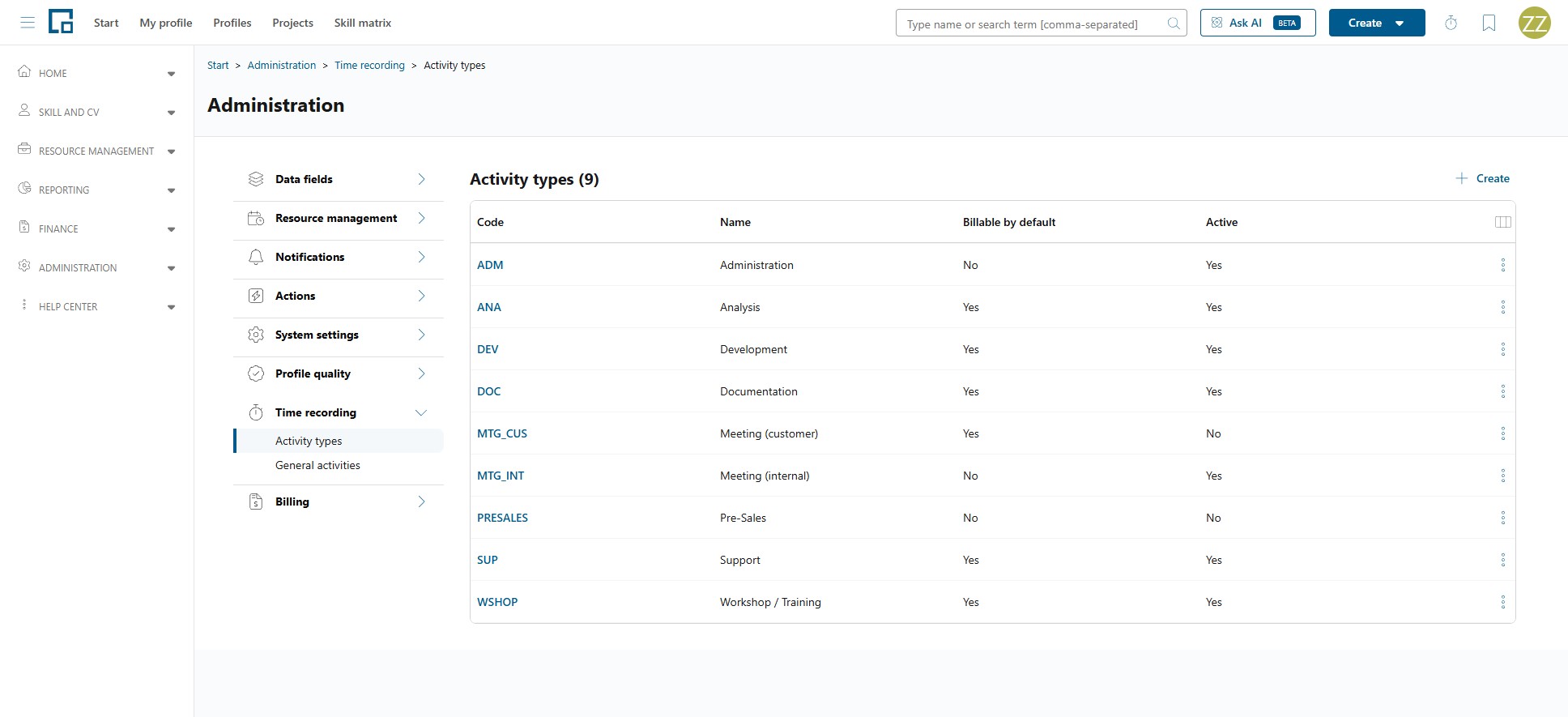
Administration → Time recording → Activity types.
Activity types are the company-wide catalogue of what kind of work an entry was: development, consulting, travel, project management, and so on. Every project then picks which of them may be recorded against it.
The grid shows Code, Name, Billable by default, Active, Target system code and Activity type category.
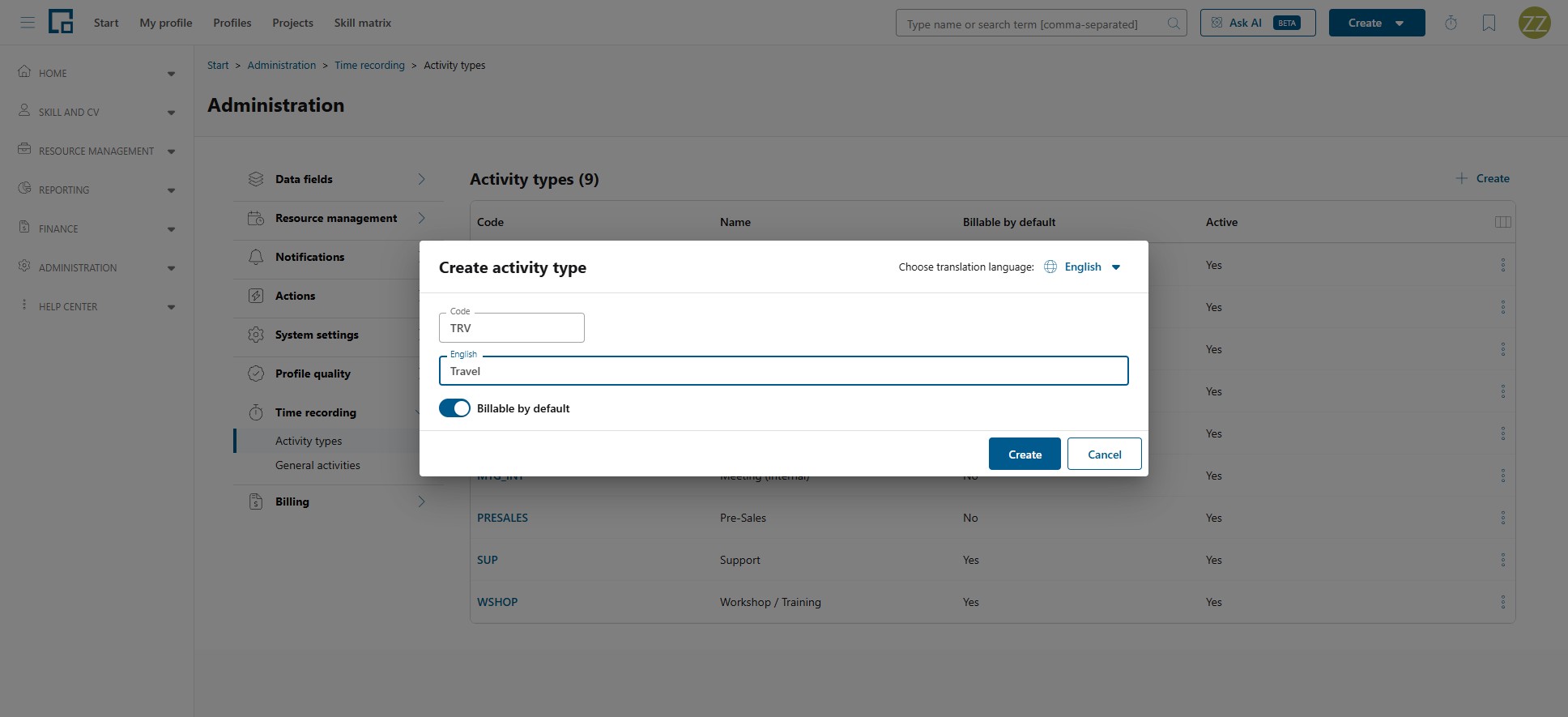
- Code is a short identifier and must be unique. If it is already taken you get "Another activity type already uses this code."
- Name is maintained per language, so each user sees the catalogue in their own language.
- Billable by default decides whether time recorded against this activity type can end up on a servicesheet. Individual projects, work packages and order positions can override it.
- Active controls whether it can still be chosen. An inactive activity type cannot be recorded against, even on projects where it is still listed. There it is marked Globally inactive.
- Target system code is optional free text naming the external system that time recorded on this activity type is exported to, not a second code for the activity type itself, which is what Code is. Give every activity type that feeds the same system the same value, and an export can then ask for exactly that system's entries. It changes nothing inside decídalo; leave it empty where nothing is exported.
- Activity type category is optional free text naming a bucket the receiving system totals by: a cost centre, a service line. Where Target system code says where the time goes, this says how it is grouped once it arrives, so several activity types share one value on purpose. It changes nothing inside decídalo; leave it empty where nothing is exported.
Use Create activity type to add one, and the row actions to edit or delete.
Note: Once time has been recorded against an activity type it can no longer be deleted: "This activity type can't be deleted because time has already been recorded against it. Deactivate it instead." Clearing Active is the right way to retire it, and it leaves existing entries untouched.
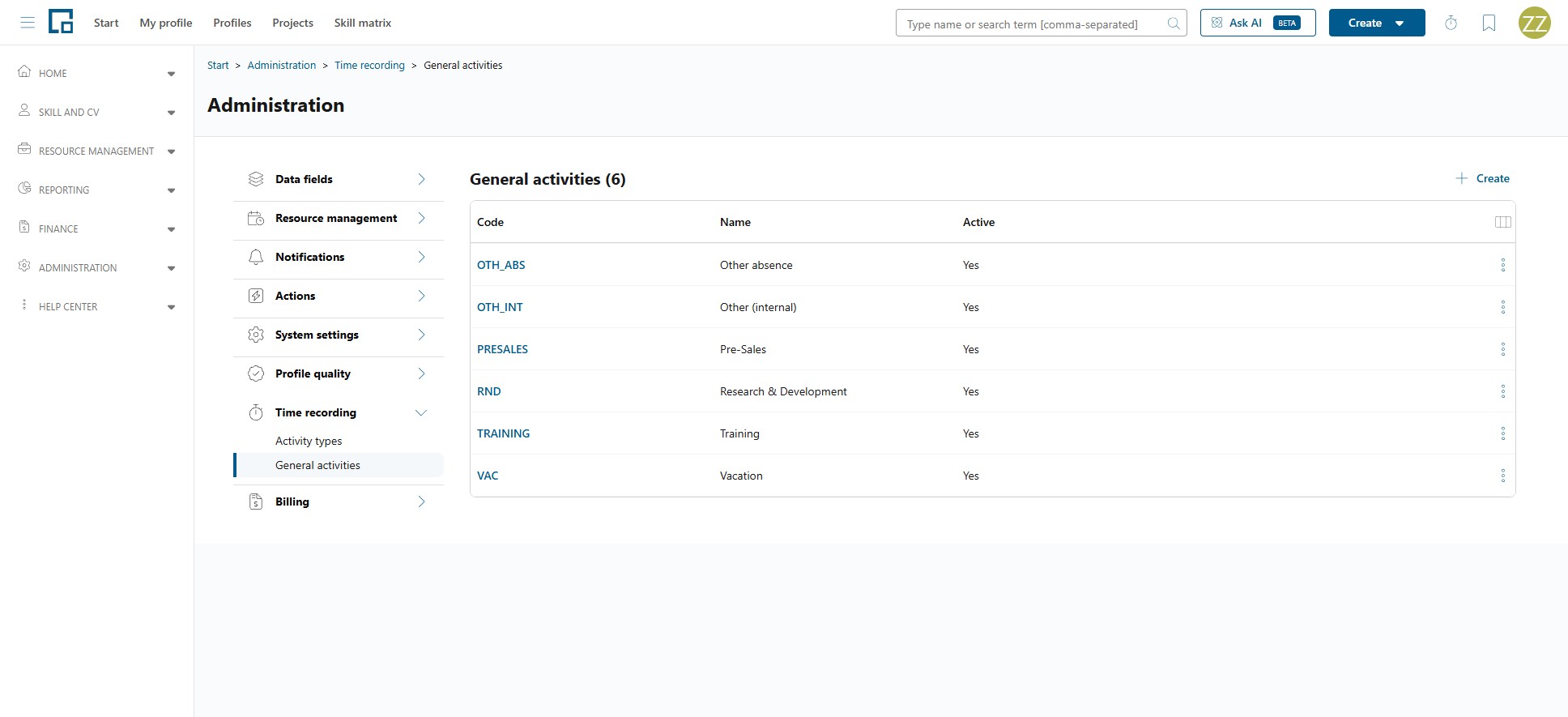
General activities
Administration → Time recording → General activities.
General activities are for work that belongs to no project: internal meetings, training, administration, and also vacation and sick leave. They are maintained exactly like activity types, with Code, Name, Active and the optional Target system code, and they are created with Create general activity.
There is no billable column here: general activities are never billable and can never appear on a servicesheet.
The same rule applies as above: once time has been recorded against a general activity it cannot be deleted, only deactivated.
Note: A general activity for vacation or sick leave records how time was spent. It is not an absence and has no effect on availability, capacity or the resource plan. See Working Time Patterns, Absences & Availability.
Recording types
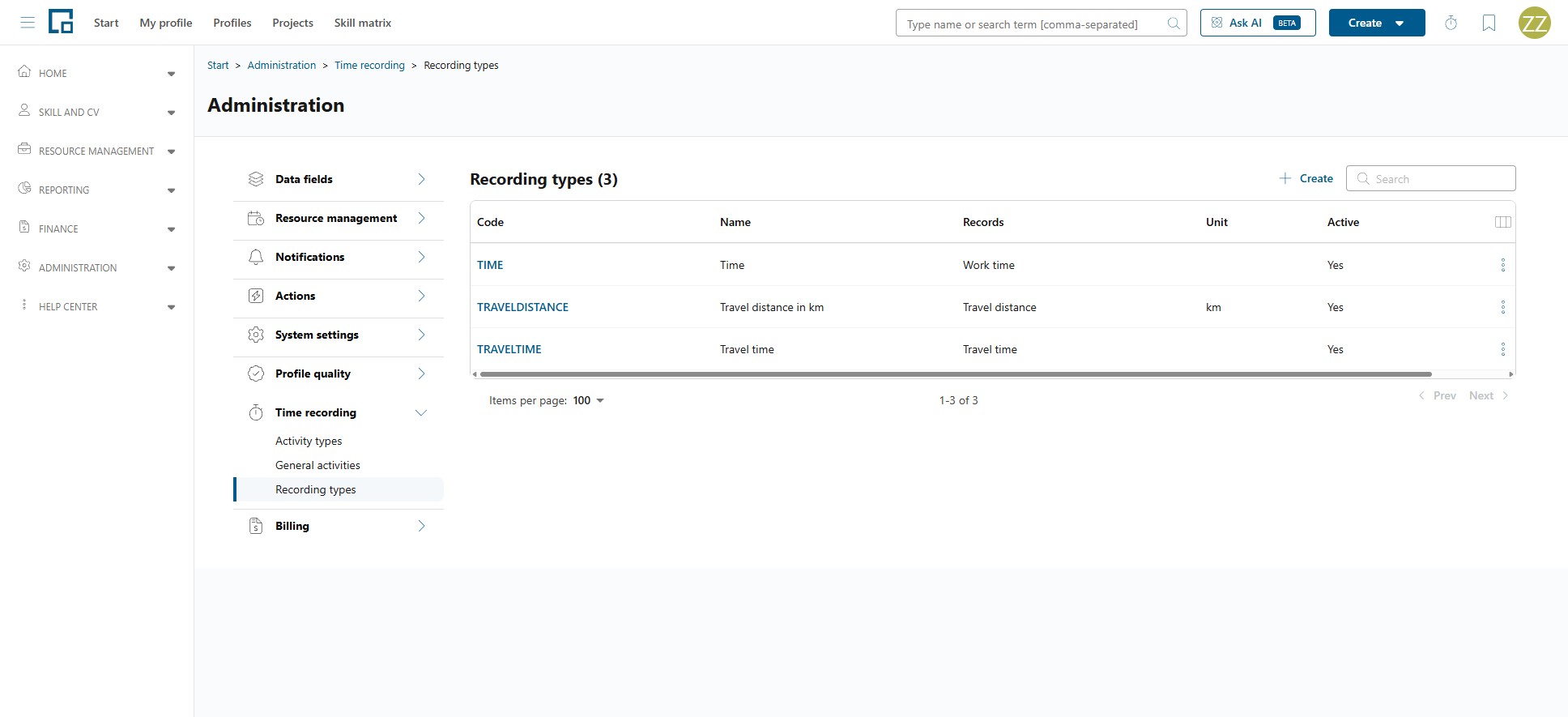
Recording types live under Administration → Time recording → Recording types. A recording type is a value an entry can carry beside its time (travel time, a travel distance), and each one is its own column on every timesheet that offers it.
The grid lists each type by Name and Code, what it Records, its Unit and whether it is Active.
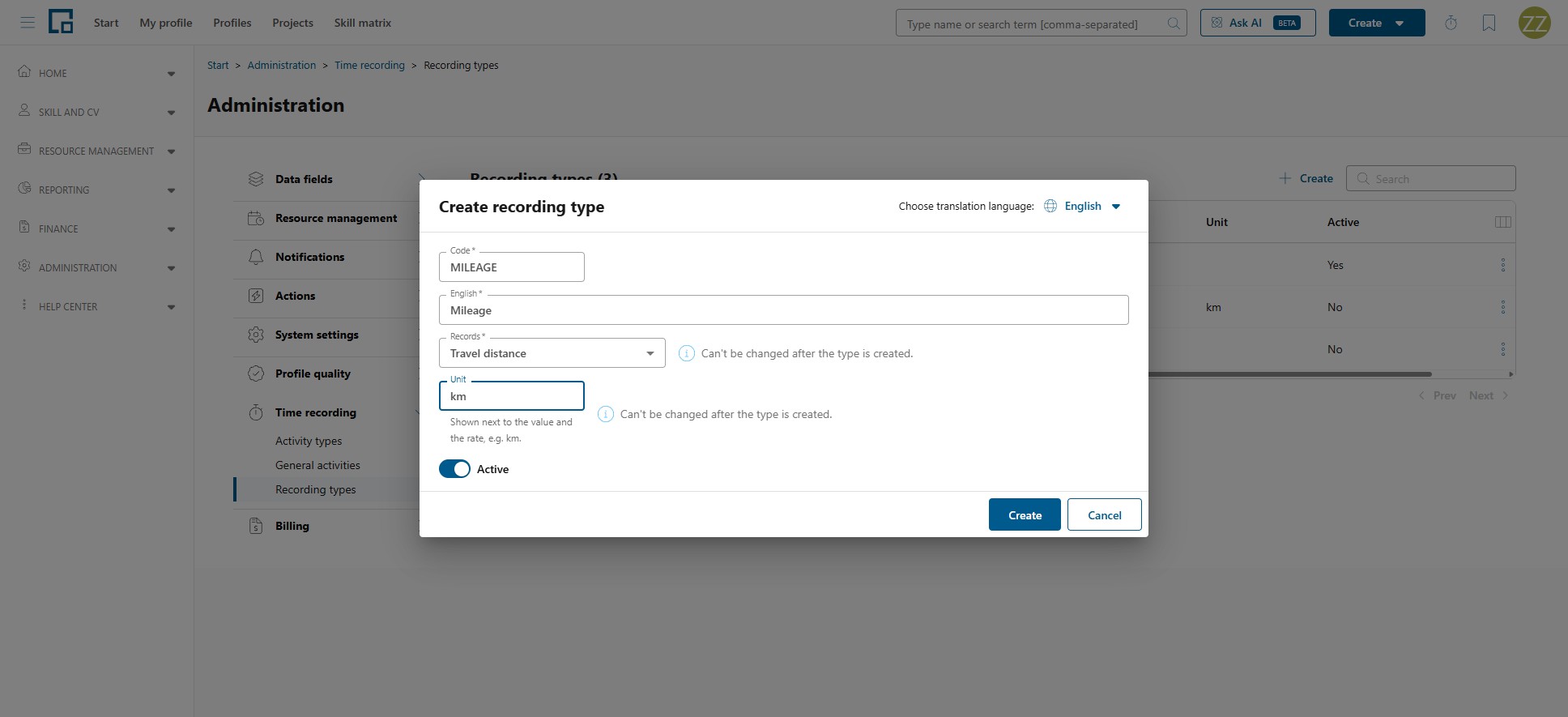
Creating one
| Field | Description |
|---|---|
| Code | Required, unique. Also decides the internal column name, so it cannot be changed later. |
| Records | Working time, Travel time or Travel distance. Decides how the value is entered and stored, and is fixed once created. |
| Unit | Travel distance only: "km", "miles". Free text: the unit belongs to your type, so no setting elsewhere has to agree with it. It is fixed once the type is created, because the recorded numbers carry no unit of their own, and relabelling km as miles would change what every existing value and every rate agreed per km means, rather than convert it. |
| Name | The label shown as the column heading, per language. Languages you leave blank are machine-translated from the one you filled in. |
A Working time or Travel time type is entered as hh:mm, exactly like the timesheet's own
time columns: type 1:30, or a plain 1.5 for an hour and a half. A Travel distance is entered as
a number in your locale's format.
Time itself is in the list and cannot be deleted or deactivated: it is the recorded time, and a timesheet without it has nothing to record. Nothing marks it out in the grid; each action refuses with its own message: "The default recording type can't be deleted. It is the recorded time itself." and "The default recording type can't be deactivated. It is the recorded time itself."
Activating and deactivating
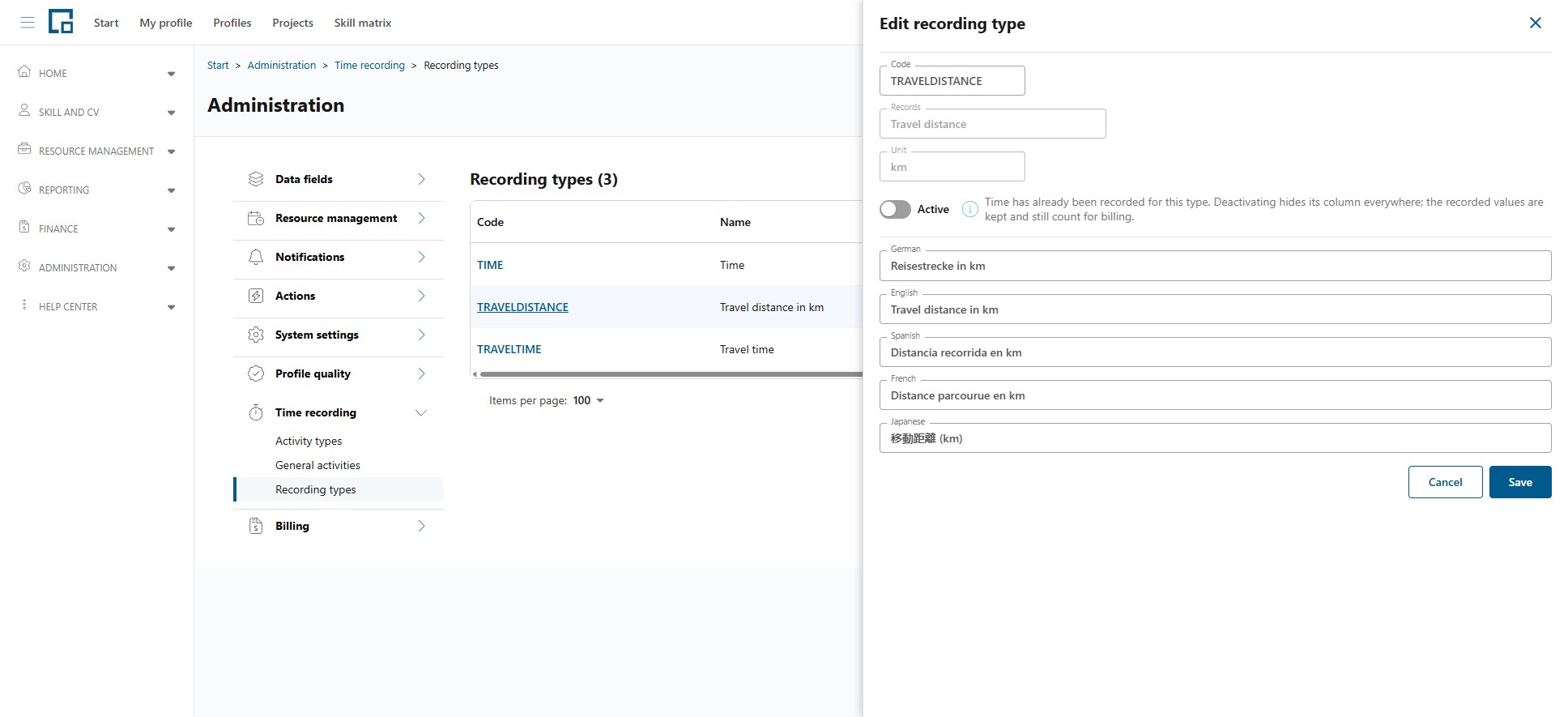
A type's Active switch is on its detail drawer and is saved with the rest of the form. Deactivating hides its column everywhere (the timesheet, the recording drawer and the servicesheet composer), and the column is no longer offered in the show/hide menu at all.
Deactivating never deletes anything. Values already recorded are kept and still count for billing; the drawer says so before you save. Reactivating brings the column, and those values, straight back.
Deleting
Deleting a recording type removes its column and every value in it, so it is refused once anything has been recorded against it; deactivate it instead.
It is refused for a second reason too, which applies even when nothing has been recorded: if any order position prices the type, or prices another type as a fraction of it, deleting it would take an agreed price with it. Remove those prices first, or deactivate the type. The grid disables the action and says which reason applies.
Where they are switched on
Creating a type does not make it recordable. It is enabled per subject, and each surface has its own list:
- a general activity: on its drawer under Administration
- a project's activity types: on the project's Time recording tab
- an order position: on the position's recording-targets drawer
See Setting up time recording on a project.
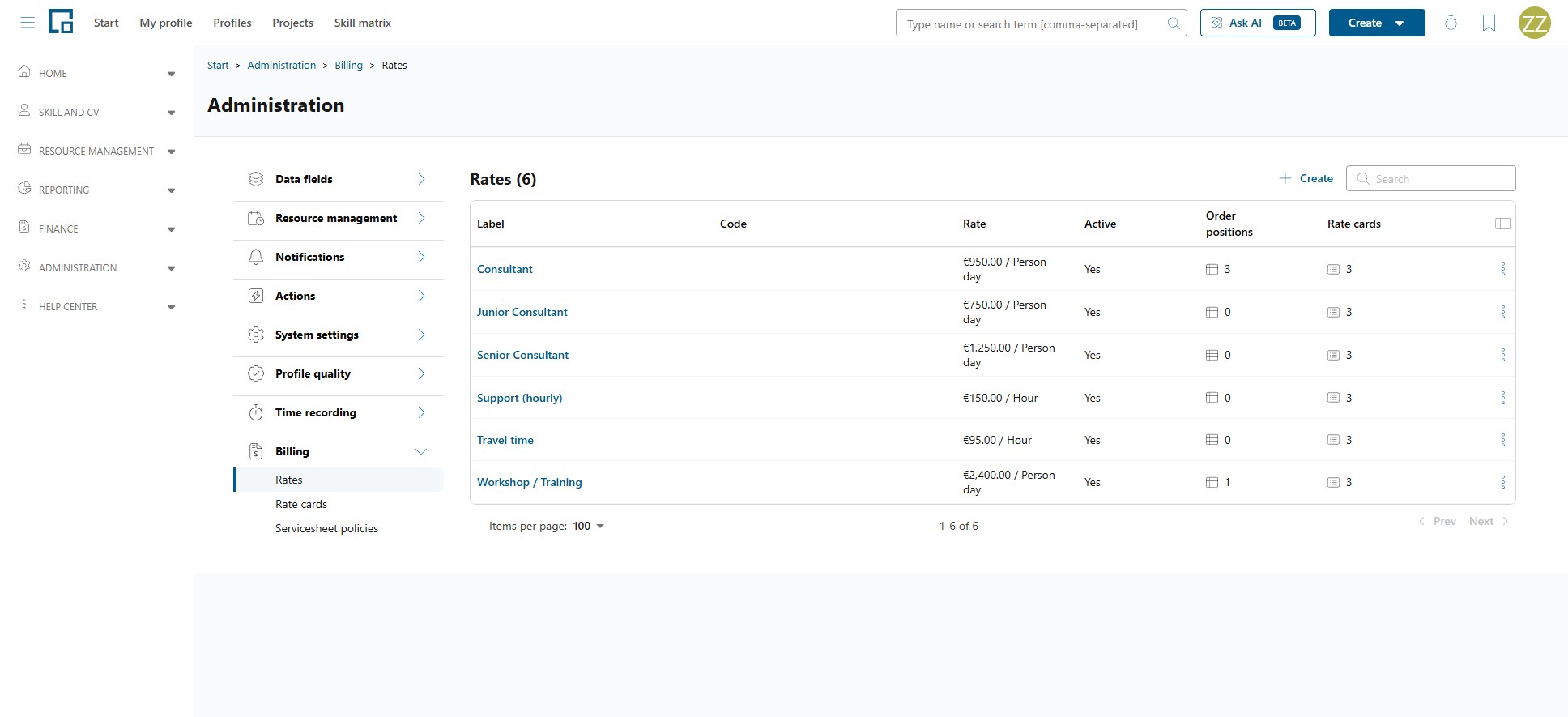
Rates
Rates live under Administration → Billing → Rates. This is the tenant-wide catalogue of priced labels (a role, a service) that orders and framework agreements draw on.
Like a rate card, a rate here is reference data: prefilling copies it, so changing a rate later never moves a price already agreed on an order. Where a rate card is a named bundle you prefill as a set, this catalogue is the flat list the bundles and the orders are built from.
Each rate also carries an optional Rate category: free text naming a bucket an external finance system totals by, so several rates share one value on purpose. It is not the rate's identifier, which is what Code is, and it changes nothing inside decídalo; leave it empty where nothing is exported.
Orders and order positions
Orders are not maintained centrally. They belong to the commercial side of a project and are created and edited by whoever manages its billing, under Orders in the Finance area of the menu or on the project's Accounting tab. There is nothing for an administrator to switch on before they can be used.
Two things about them matter for time recording, which is why they appear on this page at all:
- An order position is one of the things people can record time against, either directly or through a work package it is connected to. Which activity types a position allows is set per project (see Setting Up Time Recording on a Project).
- The position carries the rate, so it decides what the recorded time is worth. See Where the rate comes from.
An order can serve several projects, and it holds its own rates on its Rates tab. How orders, positions and framework agreements fit together is described in the Billing concept, and managing them step by step in Orders & Positions.
Order data fields
Orders are driven by the data field configuration, so which fields appear on an order and in the orders grid is up to you. Configure them under Administration → Data fields for the Order entity (see Data Fields).
Rate cards
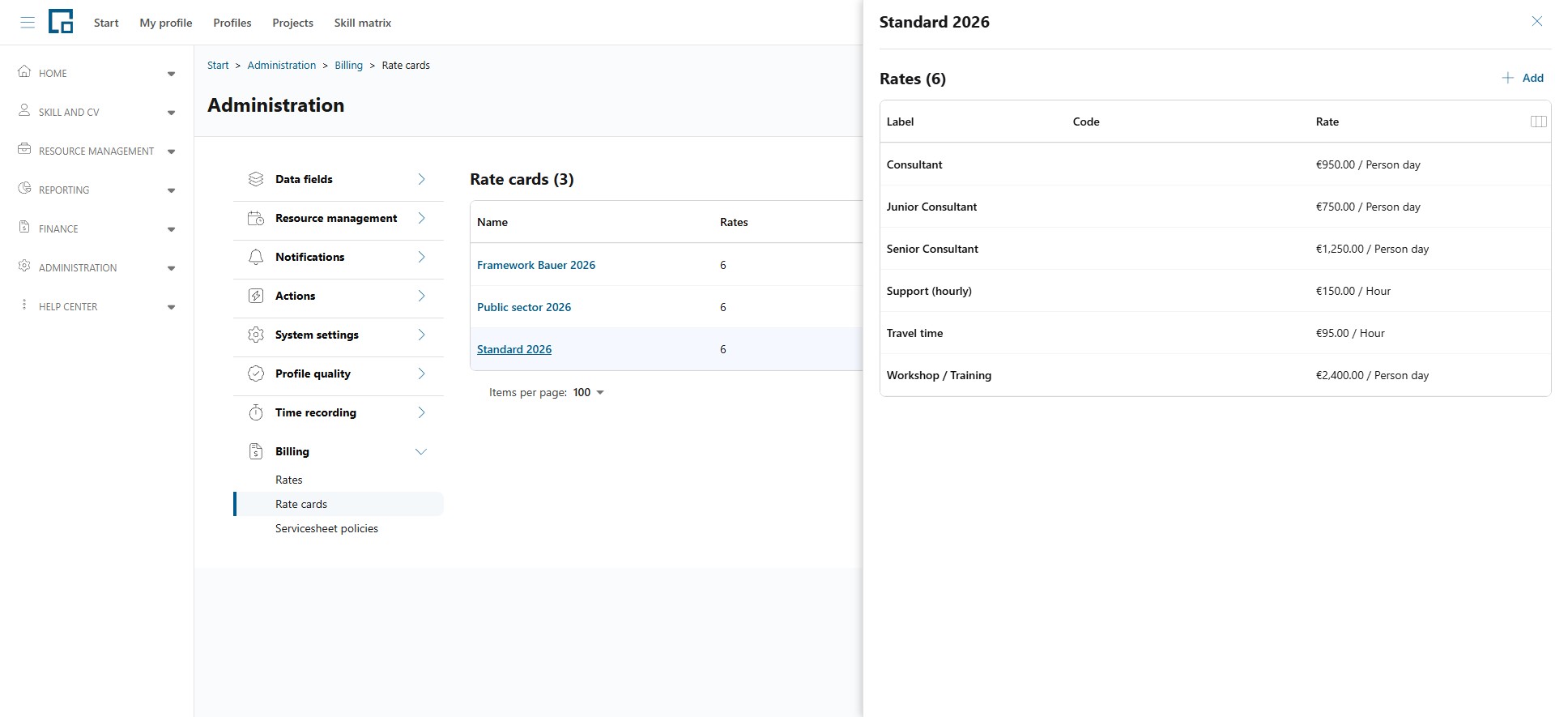
Rate cards live under Administration → Billing → Rate cards. A rate card is a named price list that acts as reference data: its entries are copied into a framework agreement or an order when you prefill from it, and the copy is independent afterwards. Editing a rate card therefore does not change agreements or orders that were already created from it. An order carries its own rates on its Rates tab, which can be filled by hand or prefilled from the framework agreement.
The grid lists each card by Name with the number of Rates it holds. Open a card to maintain its Rates section, where each entry has:
| Field | Description |
|---|---|
| Label | What is being priced, typically a role such as "Senior Consultant". |
| Rate | The price. |
| Currency | The currency of that rate. |
| Unit | Hour or Person day. A person day is billed as eight hours. |
Deleting a card asks "Delete rate card "{name}" and all its entries?" The agreements and orders prefilled from it keep their copies.
Where the cards are used is described in Framework Agreements; for how a rate feeds a servicesheet, see the Billing concept.
Servicesheet policies
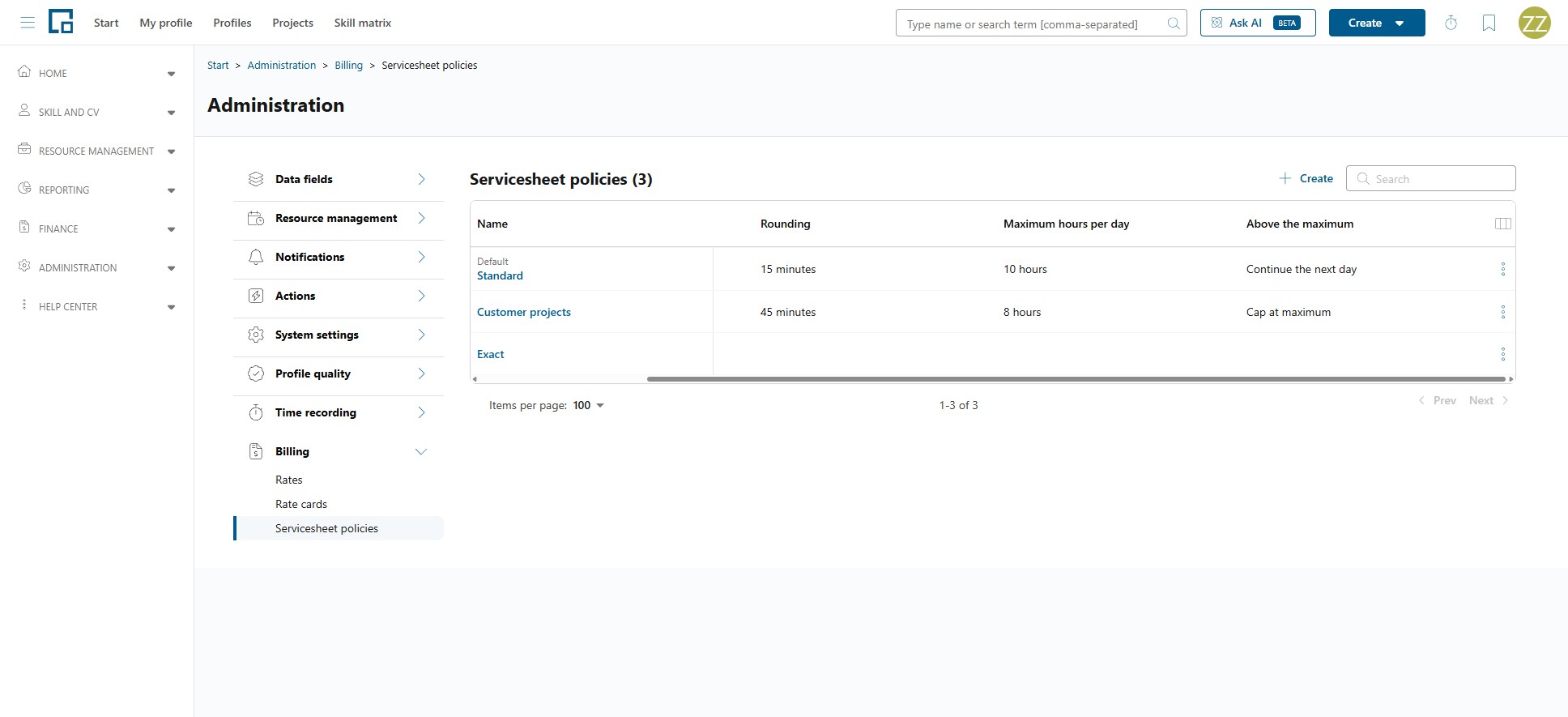
Administration → Billing → Servicesheet policies.
A servicesheet policy is a named set of duration rules. The rules do not change what people record. They decide how the recorded time is turned into the hours that go onto a servicesheet, so that what reaches the customer follows your company's billing conventions rather than the raw stopwatch.
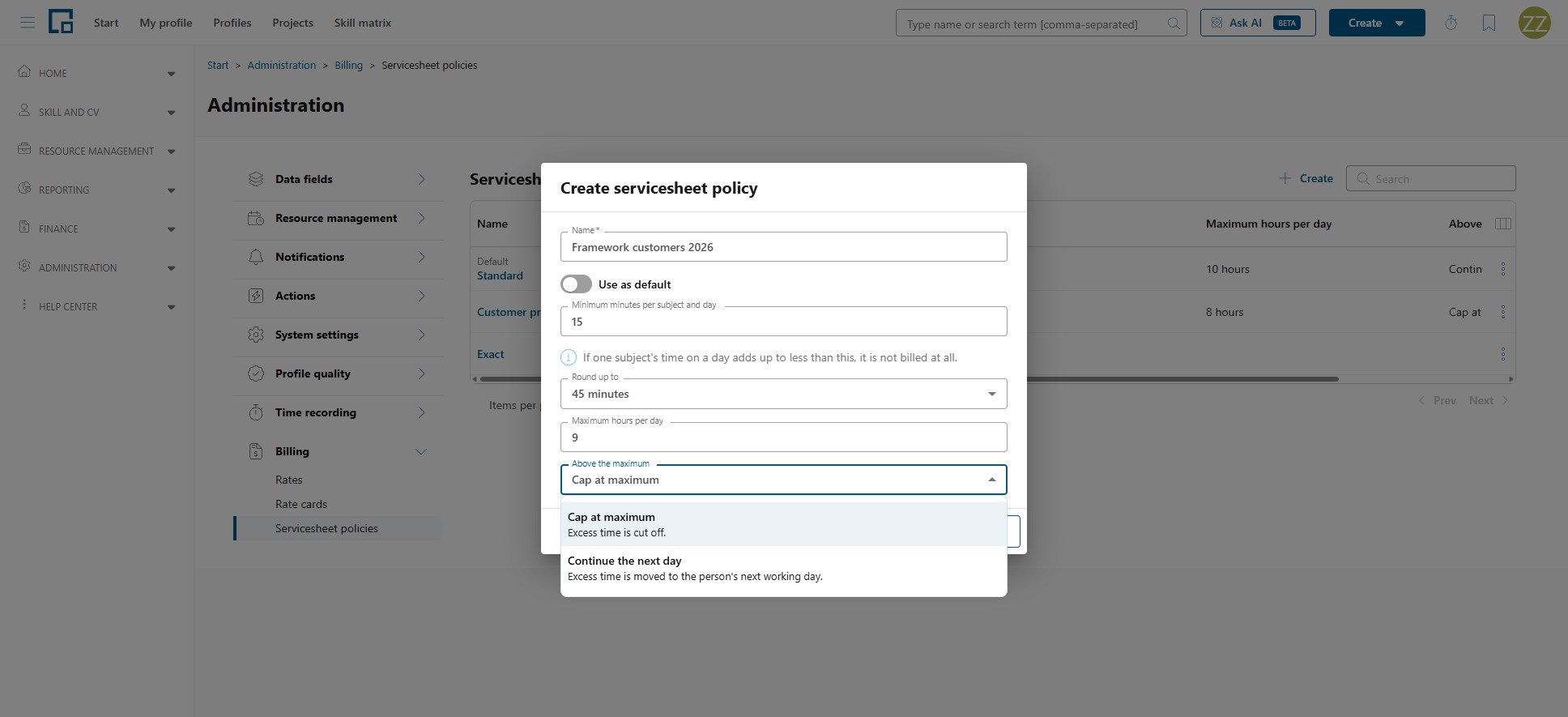
A policy has four settings:
| Setting | What it does |
|---|---|
| Minimum minutes per subject and day | If one subject's time on a day adds up to less than this, it is not billed at all. |
| Round up to | The combined time is rounded up to the next multiple of this step, once per subject and day, not per entry. |
| Maximum hours per day | The most that may be billed for one person on one day. |
| Above the maximum | What happens to time beyond the maximum: Cap at maximum ("Excess time is cut off.") or Continue the next day ("Excess time is moved to the person's next working day."). |
"Subject" is the same combination the timesheet shows: project, work package, order position and activity type. All of one person's entries on one subject on one day count as a single piece of work: the minimum judges their combined time, rounding lifts that combined time once, and if the rules bill them they prefill as a single servicesheet line. Someone who records the same task five times in a day is therefore treated exactly like someone who recorded it once. Different subjects stay separate lines, unless the daily maximum runs out on that day. Then everything recorded on that day prefills together as one line, because what each subject bills depends on what the others took.
Mark one policy Use as default: "This is the default policy. New orders and projects start with its rules." Individual orders and projects can then follow a different policy or define their own rules, on the order's detail page and on the project's Accounting tab under Servicesheet rules.
Where rules have changed the outcome, the project's Delivery tab shows it per entry (After rules, Billable after rules and Excluded by rules), so the effect is visible before anything is billed. Those figures preview the project's rules; where an order carries its own, the servicesheet composed from that order is the authoritative figure.
Note: The rules prefill a servicesheet, they do not fix it. Whoever composes the servicesheet still sees the proposed hours and can change them: adjust the billed hours on a line, combine or split lines, or include something the rules excluded. The policy decides the starting point, the person doing the billing has the last word.
Permissions
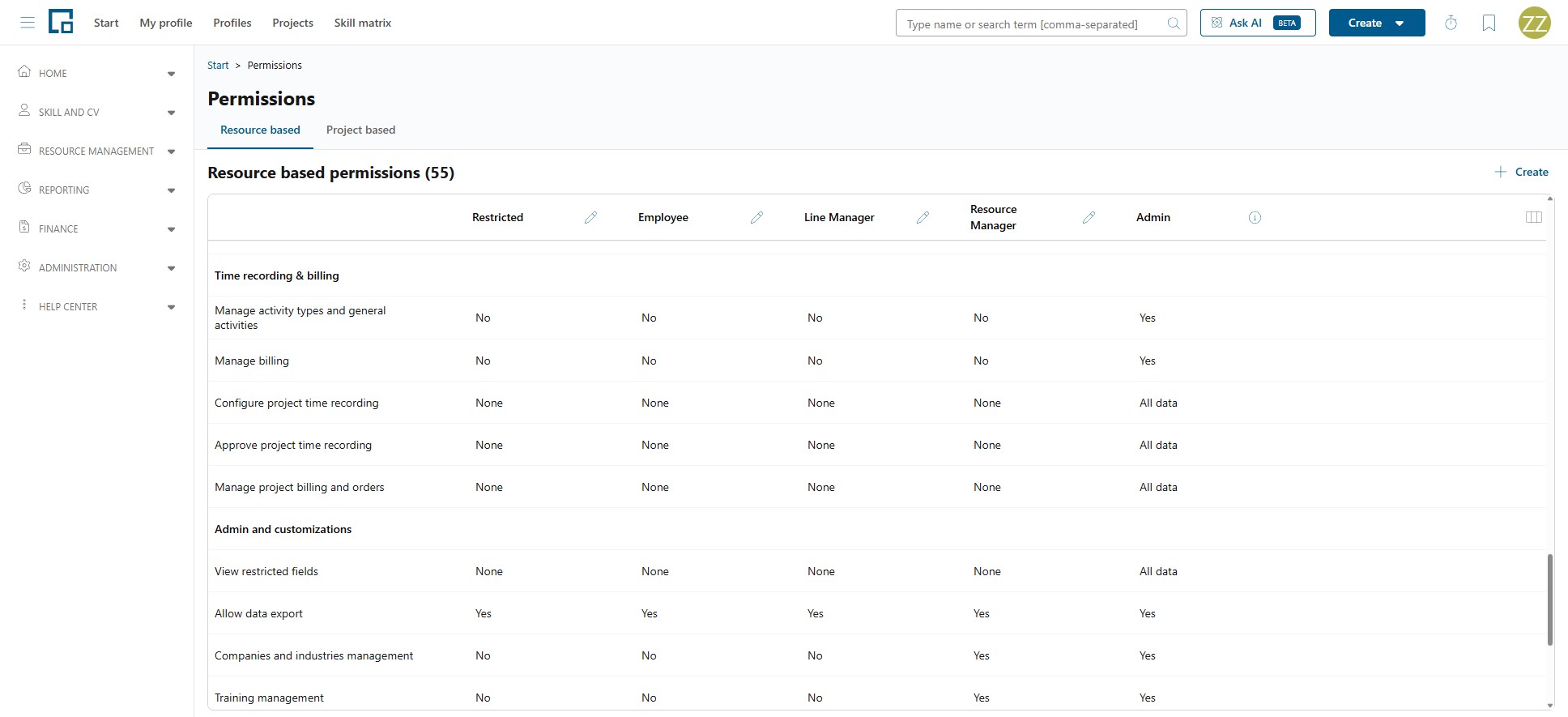
All time recording and billing permissions sit in the Time recording & billing group, on the Resource based and Project based tabs of a permission profile.
| Permission | Unlocks |
|---|---|
| Timesheet view | Opening timesheets. None also hides the user's own timesheet. |
| Timesheet editing | Creating, changing and deleting entries. |
| Manage activity types and general activities | All three catalogues on this page. |
| Configure project time recording | A project's Time recording tab. |
| Approve project time recording | Confirming recorded time on a project. |
| Manage project billing and orders | Orders and the project's Accounting and Delivery tabs. |
| Manage accounting | Rates, rate cards and framework agreements, plus orders on all projects. |
| Manage billing | Servicesheets, servicesheet policies and billable work, plus each project's Delivery tab in reduced form (its servicesheets only). |
Two things affect who ends up with these rights beyond the permission profile itself:
- Project contact types can grant the project-scoped rights (Configure time recording, Approve time recording and Manage billing and orders) on the individual projects a person is a contact for.
- Substitutes act with the reach of the person they stand in for; see Delegations.