Framework Agreements
Note: Billing is currently a beta feature and is being rolled out with pilot customers. If you would like to take part, please get in touch with us.
A framework agreement holds the commercial frame you have with one customer: the agreement's name and number, the currency it is written in, how long it runs, the projects it covers and the rates that were agreed. Orders created underneath it are prefilled from those rates, so the agreement is the place to record a price once instead of on every order.
Open it under Finance → Framework agreements. The page and everything on it require the Manage accounting permission.
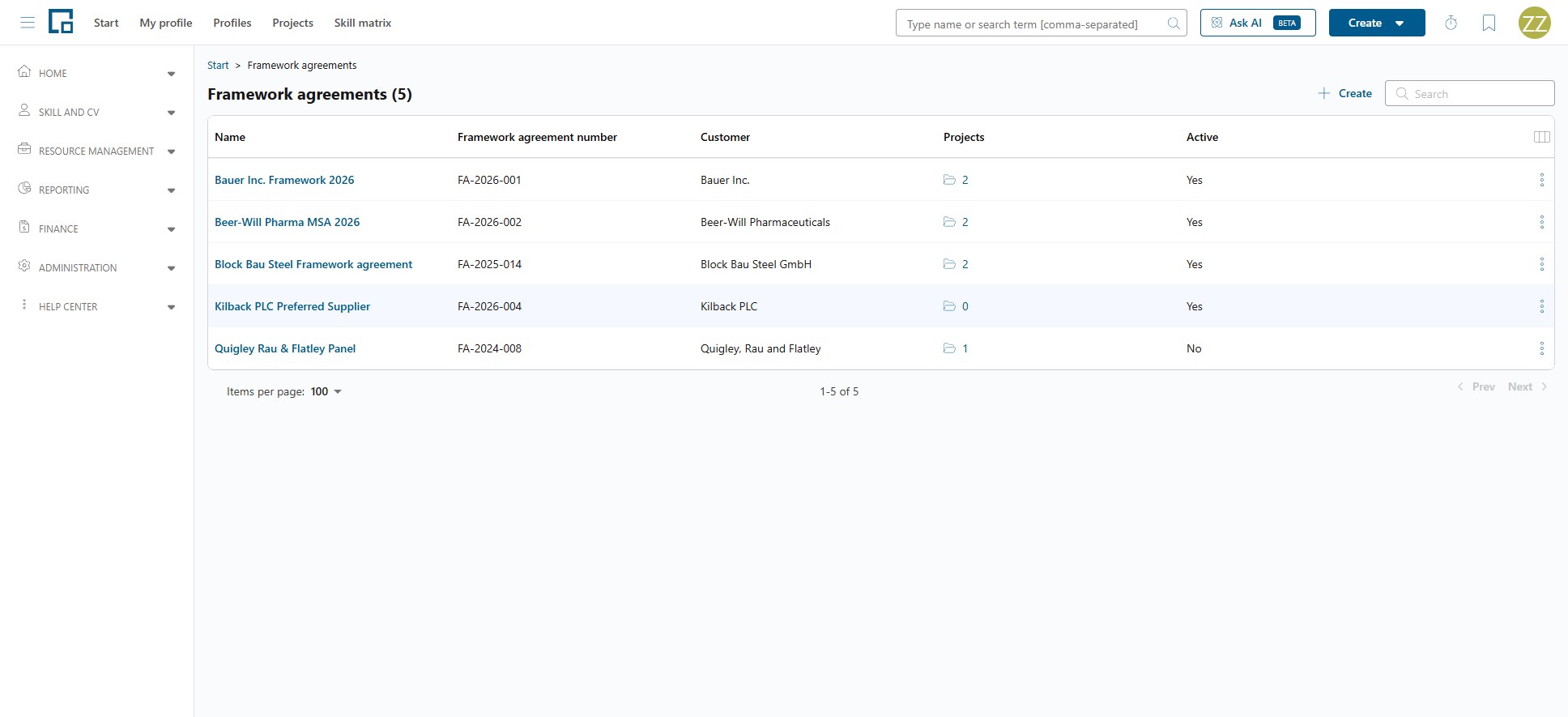
| Column | Description |
|---|---|
| Name | The agreement's name. Opens it for editing. |
| Framework agreement number | Your own reference number for the agreement. |
| Customer | The company the agreement is with. |
| Projects | How many projects it covers. |
| Active | Whether the agreement is still in use. |
All five columns sort and filter.
Creating a framework agreement
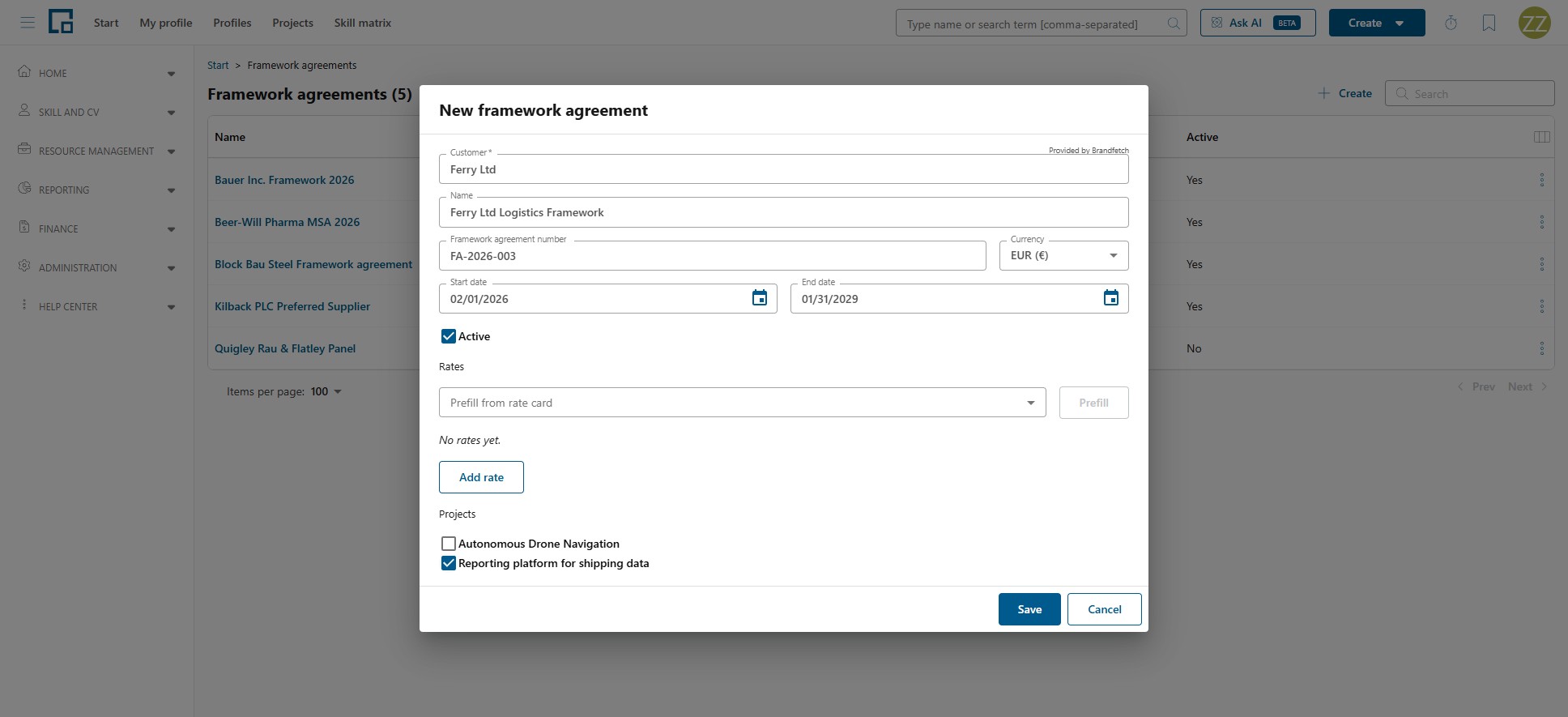
Click Create and fill in the New framework agreement dialog.
| Field | Description |
|---|---|
| Customer | The company the agreement is with. Pick this first, because it decides which projects you can select. |
| Name | The agreement's name. |
| Framework agreement number | Your own reference number. |
| Currency | The currency the agreement is written in. Orders created under it are prefilled with it. |
| Start date / End date | The validity period. The end date must be after the start date. |
| Active | Clear this to retire an agreement without deleting it. |
| Projects | The projects the agreement covers. |
Which projects you can add
Only projects of the selected customer are offered. Until you pick a customer the field shows "Select a customer to choose projects.", and a customer with no projects shows "This customer has no projects."
A project belongs to at most one framework agreement. A project that is already covered elsewhere is listed as "{project} (already in another framework agreement)" and cannot be selected. Remove it from the other agreement first.
Note: You can also set the framework agreement from the other end: the project's Accounting tab has a Framework agreement section. See Orders & Positions.
Agreeing the rates
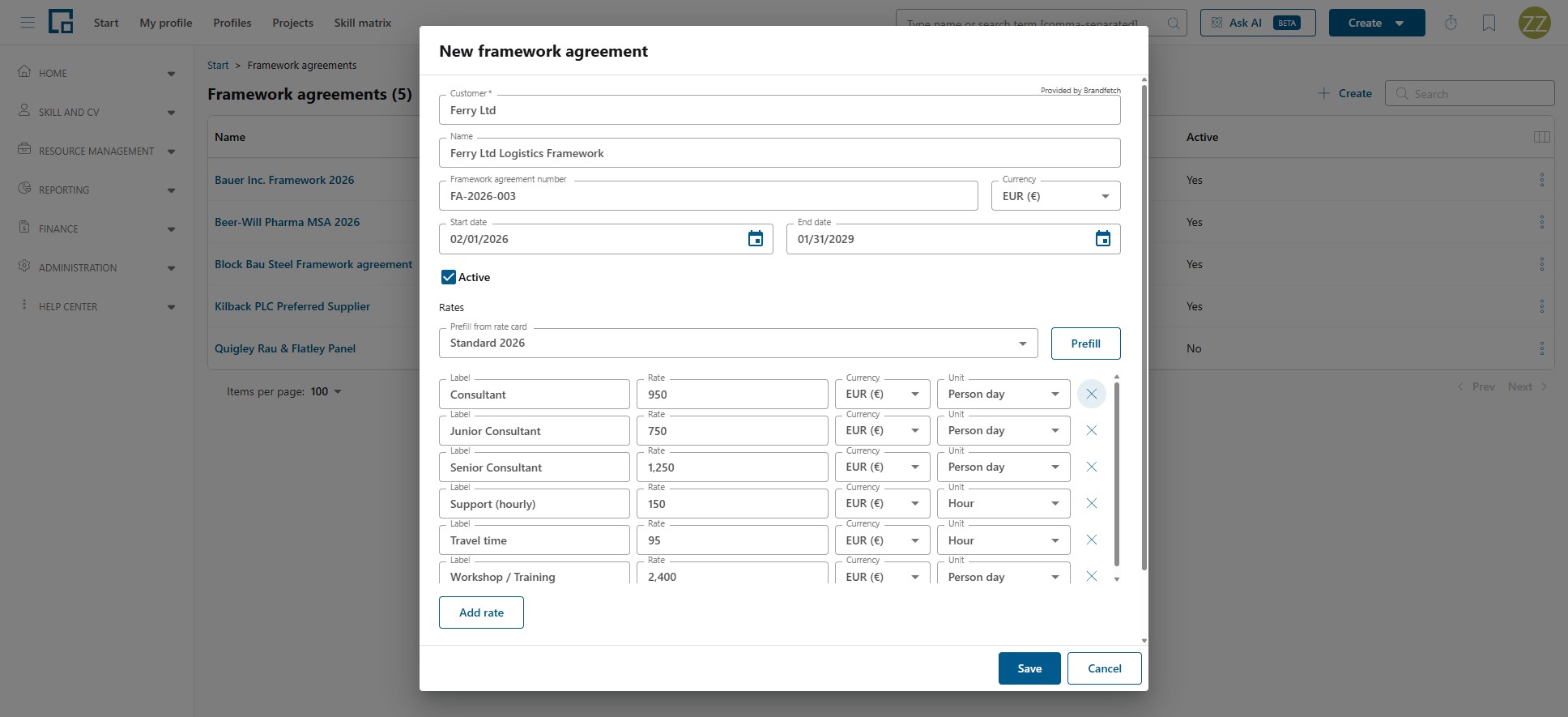
The Rates section of the dialog holds the rates that were agreed with the customer. Each entry is one priced role or service.
| Field | Description |
|---|---|
| Label | What is being priced, for example a role such as "Senior Consultant". |
| Rate | The agreed price. It cannot be negative. |
| Currency | The currency of that rate. |
| Unit | Hour or Person day. |
Add entries one at a time with Add rate, or start from a rate card: choose one under Prefill from rate card and click Prefill. Prefilling copies the rate card's entries into the agreement; it does not link them. Editing the rate card afterwards leaves existing agreements untouched, which is deliberate: an agreed price should not move under a customer's feet.
Rate cards are maintained by an administrator (see Rate cards).
Note: A Person day rate is converted to an hourly rate by dividing it by eight when time is billed. That eight is fixed and does not follow your company's working time patterns.
Changing and removing an agreement
Click the agreement's name to reopen the dialog. Everything can be changed, including the rates.
Because each step in the chain is a copy, changing an agreement's rates does not change orders that were already prefilled from it. Apply a price correction where it is used as well, not only at the source. The full chain is described under Where the rate comes from.
To retire an agreement without losing its history, clear Active.
Deleting asks for confirmation. An agreement that has servicesheets cannot be deleted: the delete action is disabled and explains "This framework agreement has servicesheets and cannot be deleted." Deactivate it instead.
Where the agreement is used
- On an order: the order's Rates tab can be prefilled from the agreement with Prefill from framework agreement. See Orders & Positions.
- On a servicesheet: the agreement is shown on the servicesheet and is a column in the servicesheet list.
- On billable work: the Billable orders grid shows each order's framework agreement.