Working Time Patterns, Absences & Availability
Contractual working hours, holidays, and absences like vacation or sick leave impact employees' availability. This article explains how constraints on availability is managed in decídalo.
Working time patterns
Employees can have different working time models. In decídalo, these are represented using working time patterns.
Working time patterns define contractual working hours per week. In decídalo they are defined by the working hours for each day of the week. Days with hours are working days; the weekly working hours are the total over all days. Uneven distributions, for example a short Friday, are fully supported.
Every employee profile in decídalo has at least one associated working time pattern. It can have multiple with different validity periods that cannot overlap.
Defining standard working time patterns
Managing working time patterns requires the "Manage Users, Teams and Permissions" permission that is typically only given to the Admin role.
Given this permission, you can customize the default working times for your company and add other standard patterns.
To do this navigate to Administration, expand Resource management and select Working time patterns.
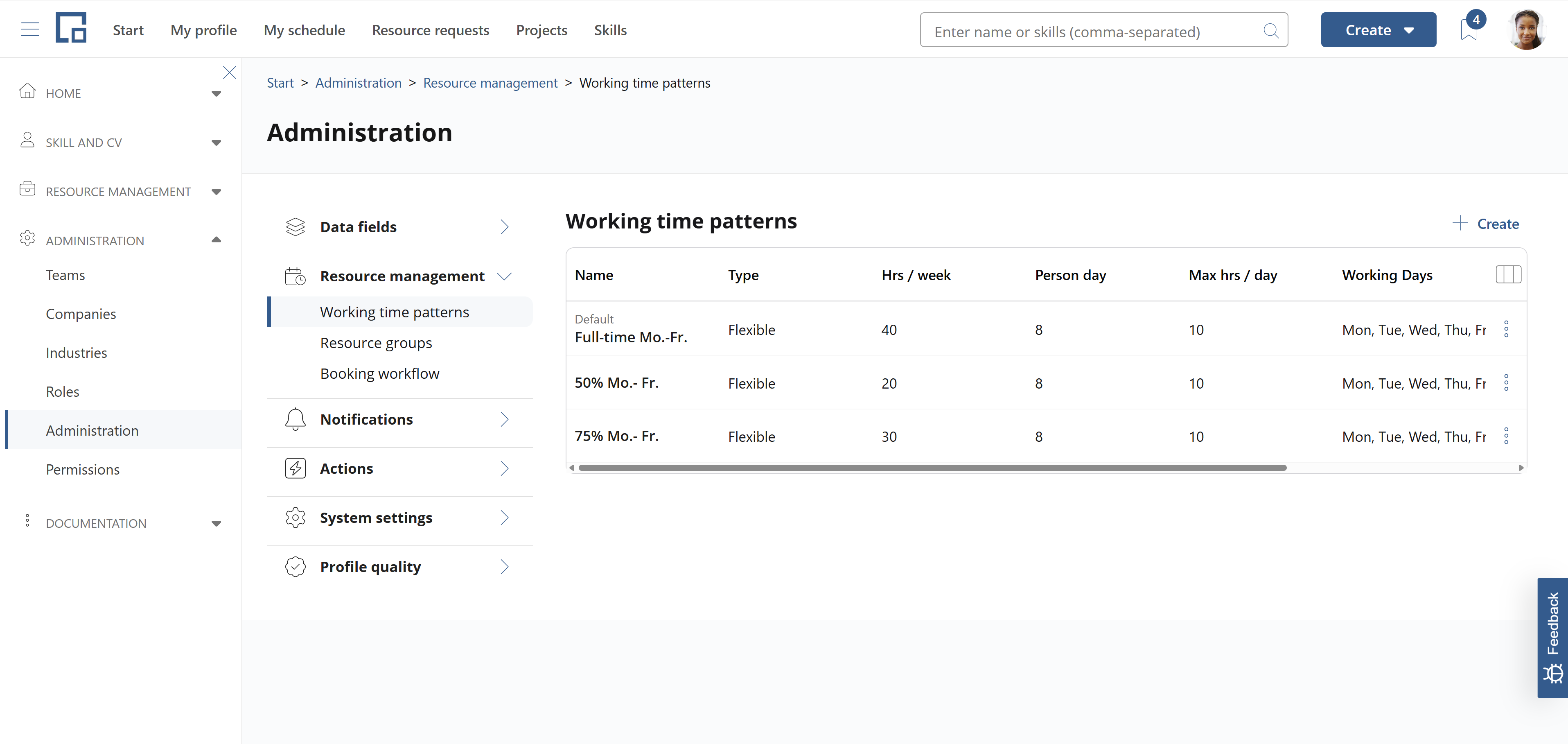
The default working time pattern
The default pattern is the first in the list and is indicated by the Default label above the name. It defines the full-time working time model for your company. This pattern specifies how 100% employee capacity is defined. Availability and capacity are calculated with respect to the default pattern.
The preconfigured default pattern is 40 hours per week, Monday to Friday. To customize it, click the three dots at the right end of the row and select Edit.
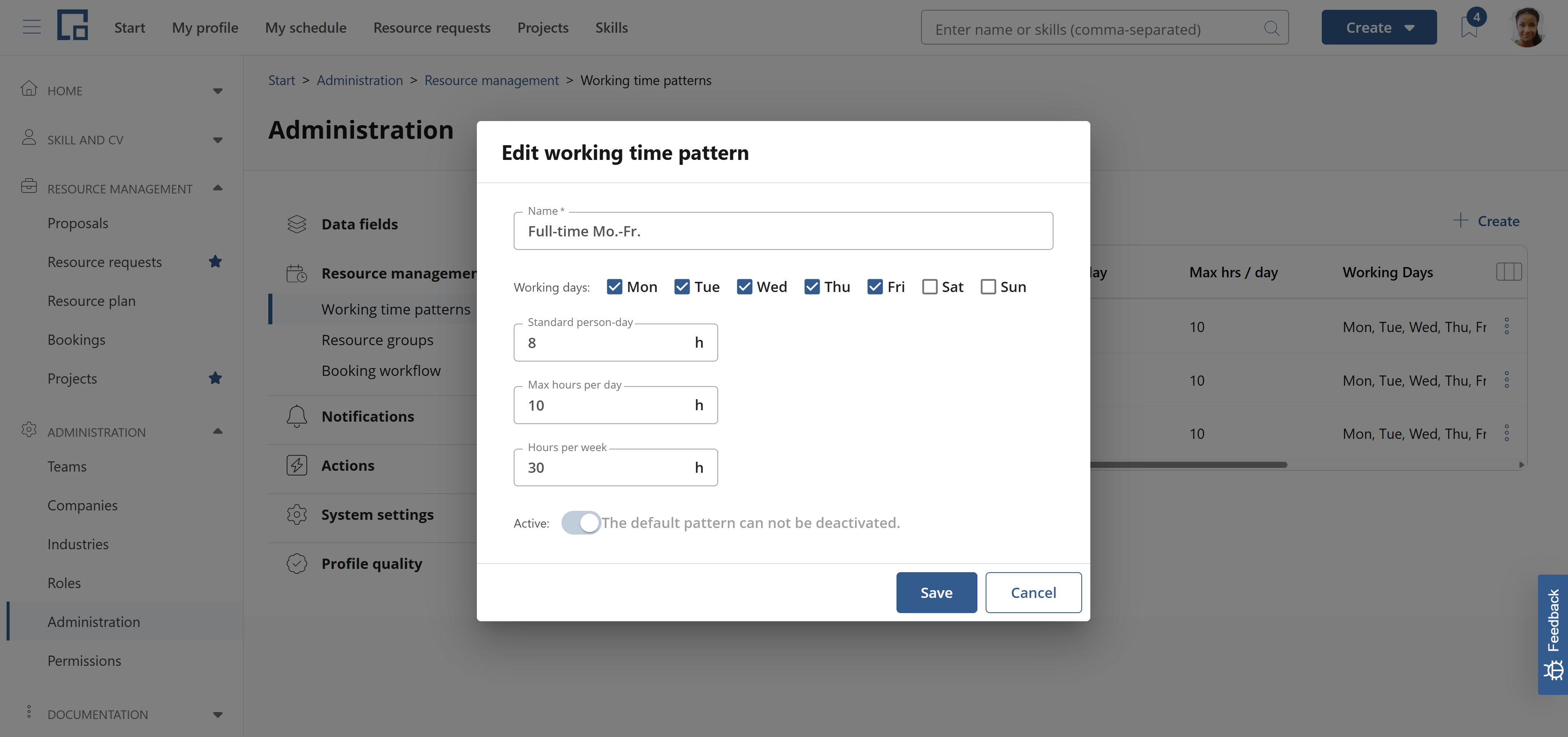
In the pop-up you can change the name of the pattern and define the working hours for each day of the week. Days with 0 hours are non-working days. Entering a value in "Hours per week" distributes it evenly over Monday to Friday; entering a value in "Hours per day" fills Monday to Friday with exactly that value. In both cases the individual day values stay editable afterwards, so you can create uneven distributions. "Hours per week" and "Hours per day" are recalculated from the day values as their total and average. The value in "Max hours per day" is currently only for information and doesn't have any impact on functionality.
The standard working hours per day ("Hours per day") are the average over the working days. E.g. for 40 h per week and 5 working days (Monday to Friday) this gives 8 h per day. This value is used when converting between capacities, hours and person days.
The default working time pattern is required and cannot be deleted or deactivated.
Click Save to submit your changes.
The working time pattern tables show the hours for each day of the week in separate columns, next to the weekly total, the hours per day, and the maximum hours per day.
Standard working time patterns
In addition to the default full-time working time pattern, multiple other patterns can be centrally added. These typically represent part-time labor contracts. To simplify the administration on employee level, an administrator can provide a list for the common labor time models in his company. The standard models can then be assigned to employee profiles. It is however also possible to define individual patterns for an employee.
To add a standard working time pattern, click the Create button above the working time patterns table. The pop-up is prefilled with the values from the default pattern. Enter a name for the new pattern and adjust the values as needed. If you don't want the pattern to be directly available for selection on employee profiles, you can set it to inactive.
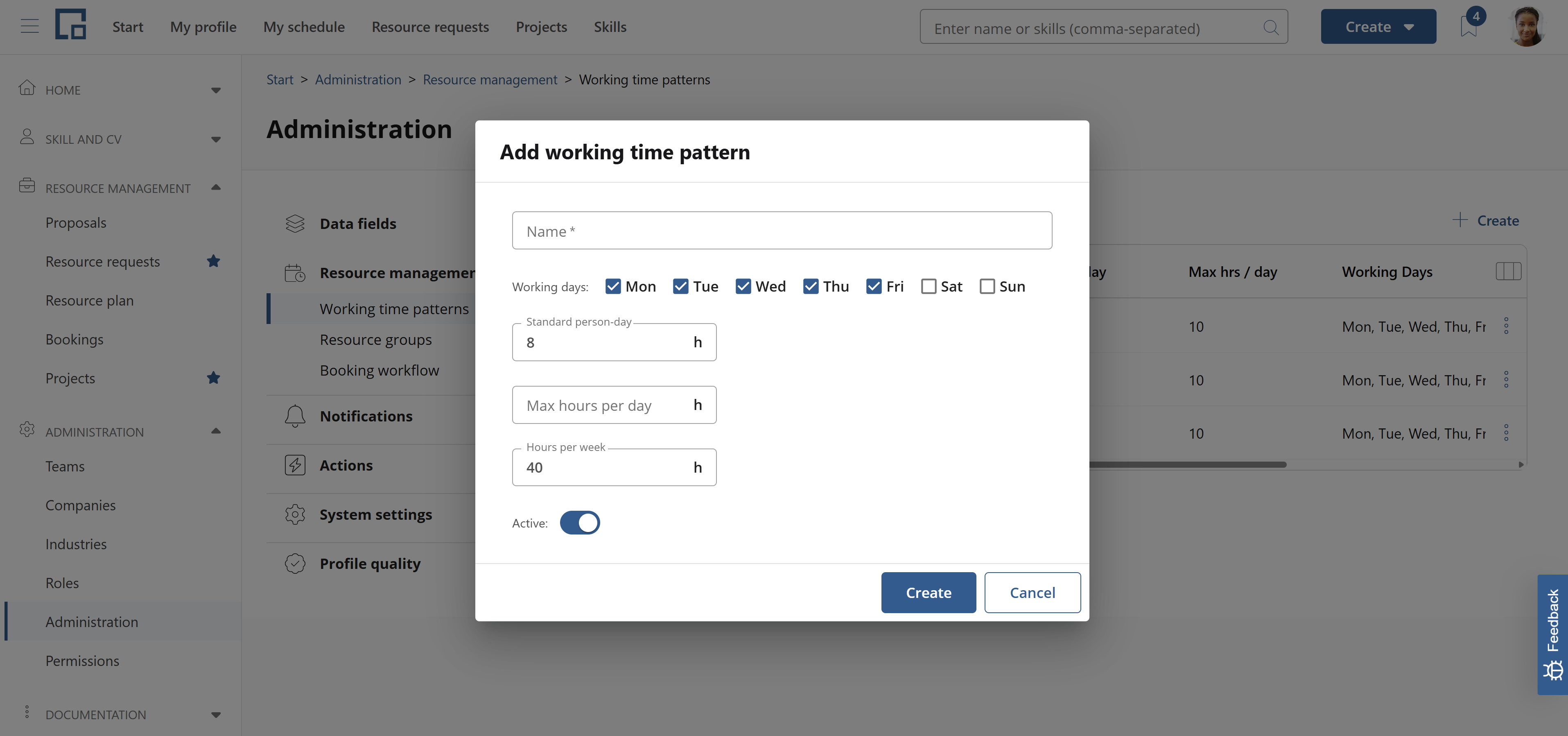
Editing non-default patterns works the same way as for the default pattern. Except that you can set them to inactive if you don't want them to be selectable anymore but don't want to delete them.
To delete a pattern, click on the three dots in the row and select delete.
Note that changing, deleting, or deactivating a standard or default pattern will not affect the working time models of employees. The centrally administrated patterns act as templates that are copied to employee profiles when selected. Changing or deleting them afterwards does not affect the values applied to the profile. Likewise, overwriting the pattern on a profile does not affect the standard definitions.
Setting employee working time models
The working time pattern of an employee is set on their profile on the Settings tab.
Defining the working times for employees requires the same permission as editing the standard working time patterns (“Manage Users, Teams and Permissions” = Yes).
When a profile is created the default working time pattern is automatically set. There must be at least one entry in the working time pattern table under Settings.
On the profile, working time patterns have a validity period defined by a From and To date.
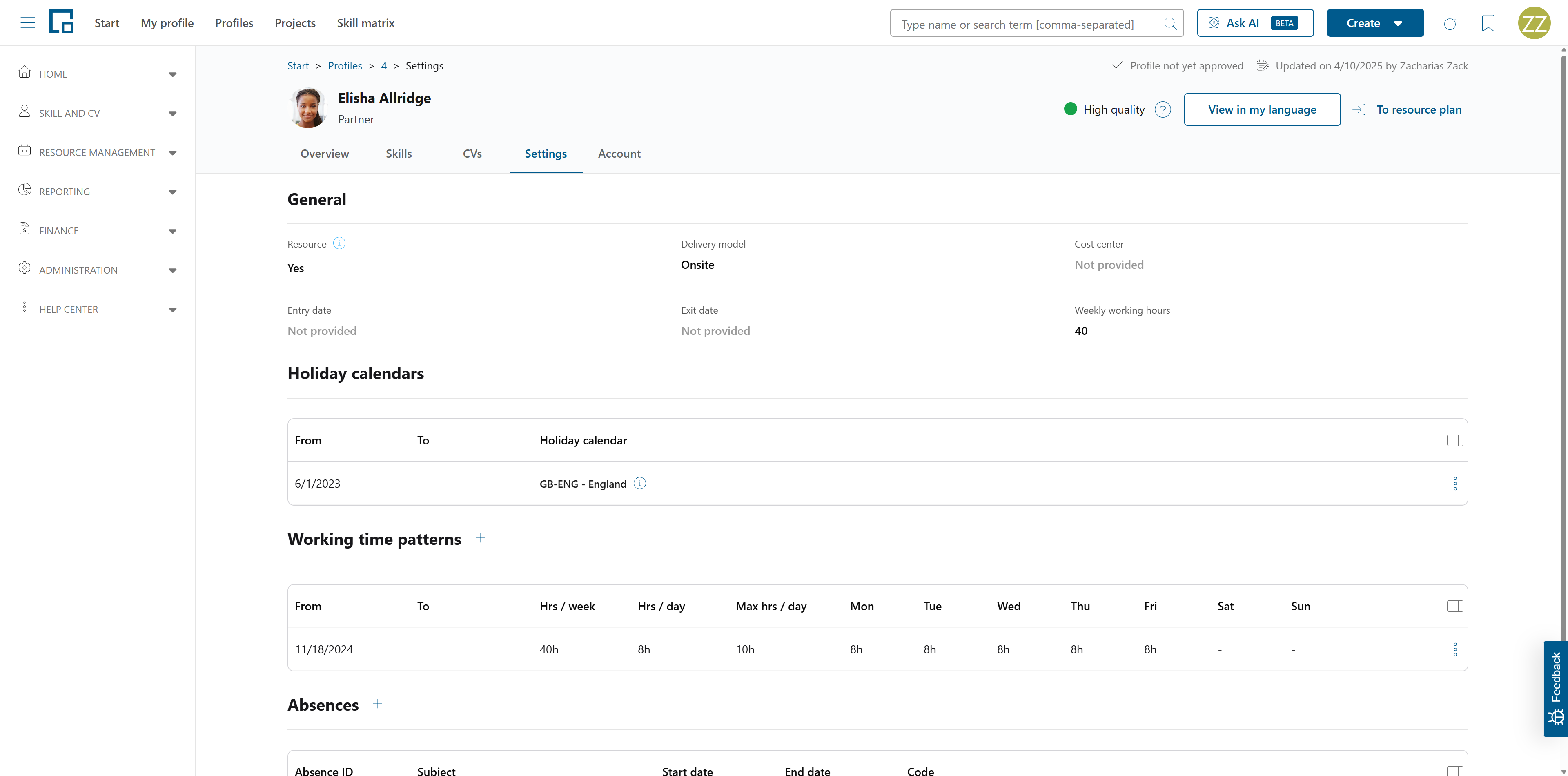 To change an employee's working hours there are two options: Edit the current working time pattern or add a new one. Choose the latter option if the change will take effect from a specific date in the future. To also change the times in the past, edit the current pattern.
Note: The General section of the Settings tab includes an entry date and exit date. The entry date is for information only and does not affect working times. Setting an exit date is the only option to close the last working time pattern. Doing so may also delete the working time patterns that start after the exit date. Set the exit date if an employee is leaving the company.
Editing existing working time patterns
To edit an existing pattern, click the three dots in its row in the working time patterns table and select Edit. This opens a pop-up.
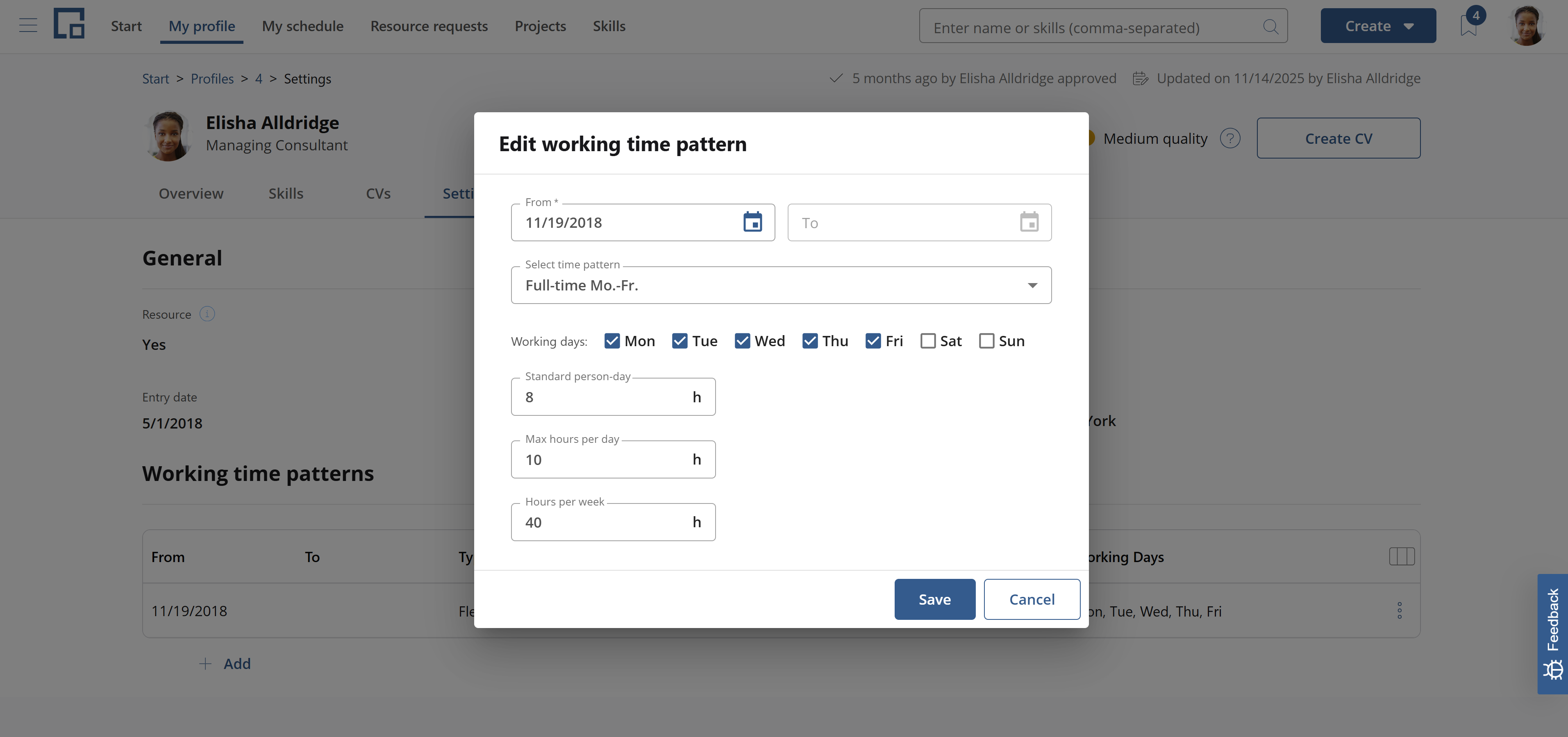
You can apply a standard pattern by selecting it from the "Select time pattern" drop-down; this prefills all fields including the hours for each day. Or you can manually change the field values, which work exactly like in the definition of the standard patterns (see above). Like there, the value in "Max hours per day" is currently for information only and doesn't impact availability.
Note that you cannot set the To date in the last pattern manually. If there is no exit date, the system ensures that there is always a defined working time pattern in the future. If you want to end that last pattern, you need to set the exit date on the profile (see above).
Click Save to apply your changes.
Adding a working time pattern
If the employee's working time model changes in the future, add a new pattern for the future model. To do this, click on Add below the table. This opens a pop-up.
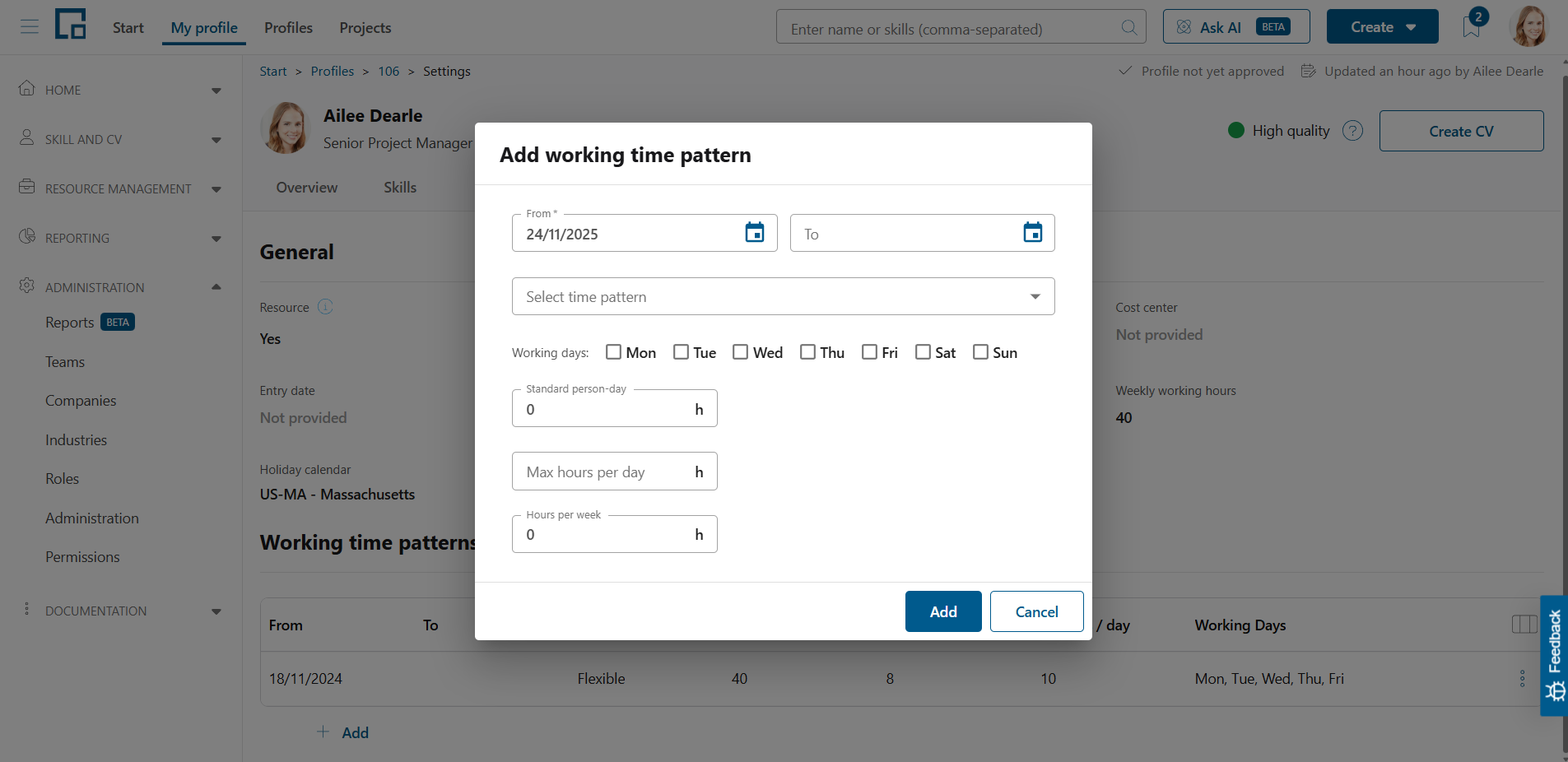
The "From" date is preset to the current date. Change it to the date from which on the new pattern will take effect. Leave the "To" date empty.
Note: Since decídalo ensures a defined working time pattern in the future, the end date for that last pattern cannot be set. The system will show a validation error in this case. You can only set an end date if this is the day before the first pattern starts, i.e. if you add a pattern before an existing one.
Click Add to create the new pattern. The "To" date of the previous pattern is automatically set to the day before the start of the new one.
The new pattern will be used to determine the employee's availability after the "From" date.
Deleting working time patterns
To delete a working time pattern, click the three dots and select Delete.
You cannot delete the last pattern, since decídalo ensures that every profile has at least one valid working time pattern.
If you delete a future pattern, the end date of the previous one is automatically removed.
Working time patterns in booking dialogs
When creating or rescheduling a booking with the weekly working time pattern option, the hours per day are prefilled from the booked employee's working time pattern effective at the booking's start date. The prefill updates when the start date or the selected employee changes, until you manually edit the day values, which then take precedence.
Importing working time patterns
If your organization maintains employee working time models in an HR system, you can import these using the decídalo API. See https://import.decidalo.app/index.html.
There are two options:
- Import complete working time patterns for employees (recommended)
- Auto-generate patterns from weekly working hours.
The first option uses the dedicated WorkingTimePattern end point. It imports working time patterns for employees and provides the same options as the manual administration on the profile settings tab. In addition to the working day flags, the end point accepts specific hours for each day (mondayHours, tuesdayHours, …). Working days without specific hours are filled with the value of hoursPerDay; hours sent for non-working days are ignored.
The second option uses the standardWeeklyHours field of the user import in the Users/ImportAsync end point. If that field is updated for a user via the API, decídalo automatically creates a new working time pattern with the start ("From") date set to the import date. The end ("To") date of the previous pattern is set to the day before. The working days of the previous pattern are used and the hours per week are set to the value of standardWeeklyHours. This option is provided since companies often only have the weekly working hours in their HR data. It is a simple way to maintain employee working hours without an additional interface.
Absences and availability
Absences in decídalo reduce employees' availability. Absences are defined with respect to the default working time pattern. If an employee's working time is reduced below the full-time capacity defined by the default working time pattern, the difference is shown as absence time.
Absences are shown as a read-only row in the employee's schedule on the resource plan and My Schedule page.
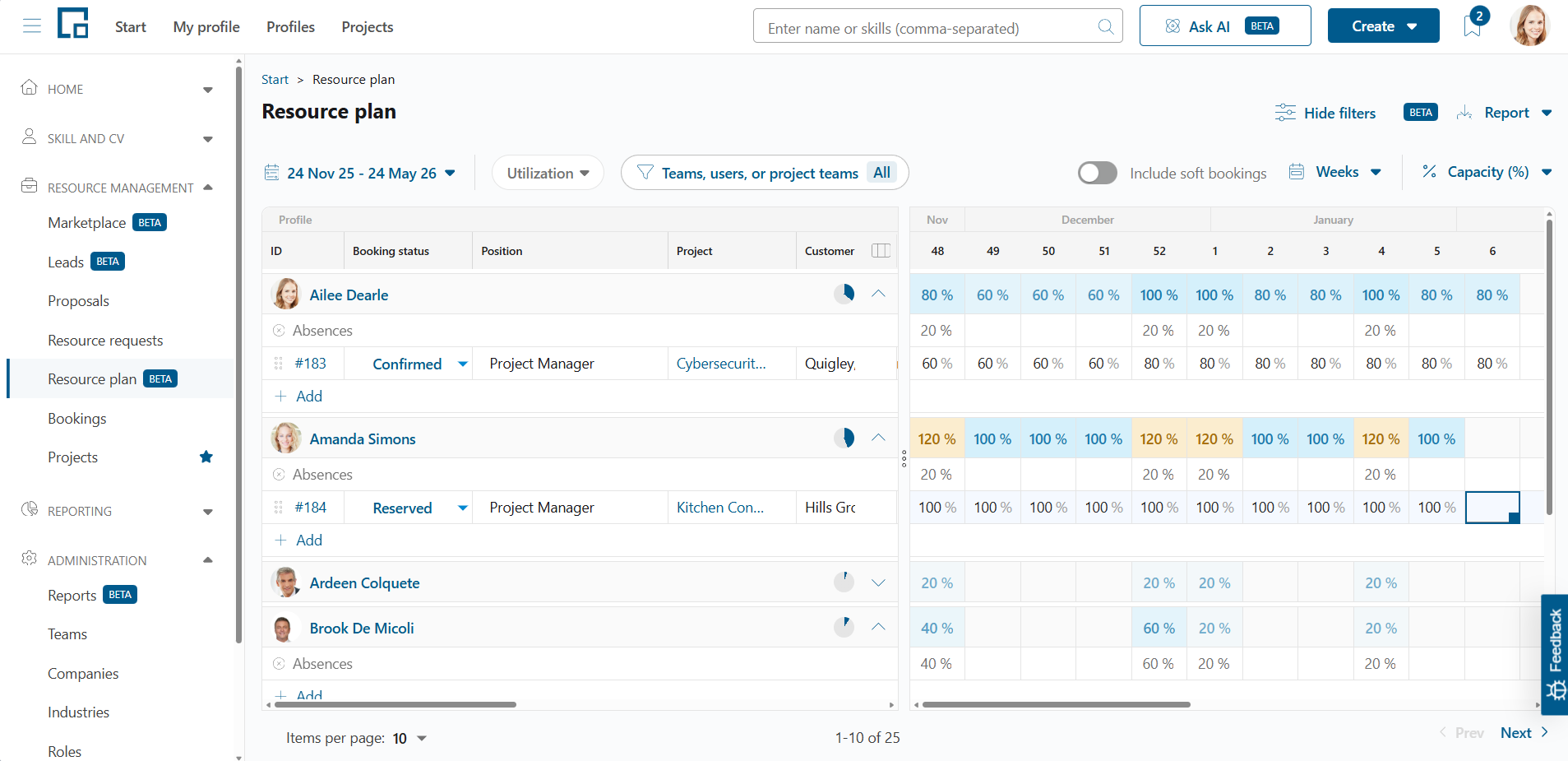
Absences have different sources:
- Reduced weekly working hours
- Holidays
- Vacation
- Sick leave or other absences
Hovering a value in the absences row explains what it is made up of. The hover lists only the sources that actually contribute to that value, each with its own colour: public holiday, working time pattern, imported absence, and manual absence. This is useful when a value looks unexpected, for example to tell a holiday apart from a reduced working time pattern.
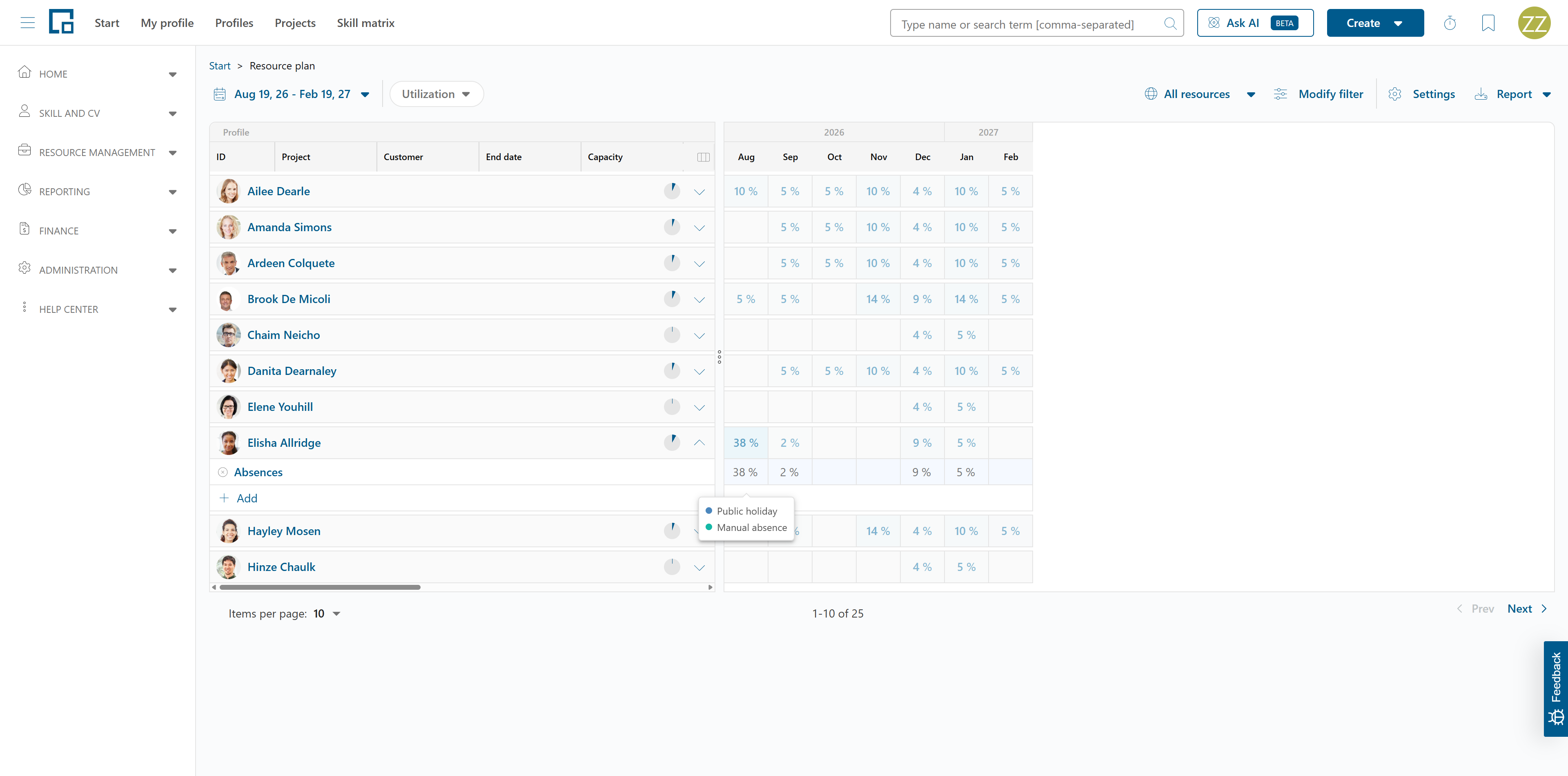
The "Absences" label at the start of the row is a link to the Settings tab of that employee's profile, where vacation, sick leave and other absences are managed (see below).
Absent hours per day
An absence does not have to cover a whole day. Every absence carries an absent-hours-per-day value, which makes half days possible, for example 4 hours of vacation on a day the employee otherwise works 8.
An absence without an explicit value counts as a full working day, based on that employee's working time pattern for each of the days it covers. Holidays always count as full days.
The absence never consumes more than the hours the employee actually works on that day. So two half-day absences on the same day add up to one full day, and a day that is covered twice, for instance a holiday plus a vacation day, still only counts once.
Reduced weekly working hours
As described above, the 100% full-time capacity is defined by the default working time pattern.
If an employee has a working time pattern with fewer hours than the default pattern, the difference is treated as absence time in decídalo.
For example, if full-time work is 40 hours per week and the employee's working time pattern is 20 hours per week, he shows a 50% absence each regular week. Absences are included in the aggregated utilization. Without any bookings the employee shows as 50% utilized.
Bookings in decídalo are always based on the default calendar. In the example above a 100% booking for one week always means 40 hours, regardless of the booked candidate. The employee with the 20-hour working week can thus only be booked for 50%. With the absence this adds up to 100% utilization.
On the daily view of the resource plan the absence on each day is the difference between the default pattern's hours and the employee's hours for that specific day. 20 hours distributed evenly over Monday to Friday (4 hours each) result in 4 hours absence every working day. With an uneven distribution the absences follow the pattern: e.g. 8 hours Monday to Tuesday and 4 hours Wednesday show 0 hours absence on Monday and Tuesday, 4 hours on Wednesday, and 8 hours on Thursday and Friday.
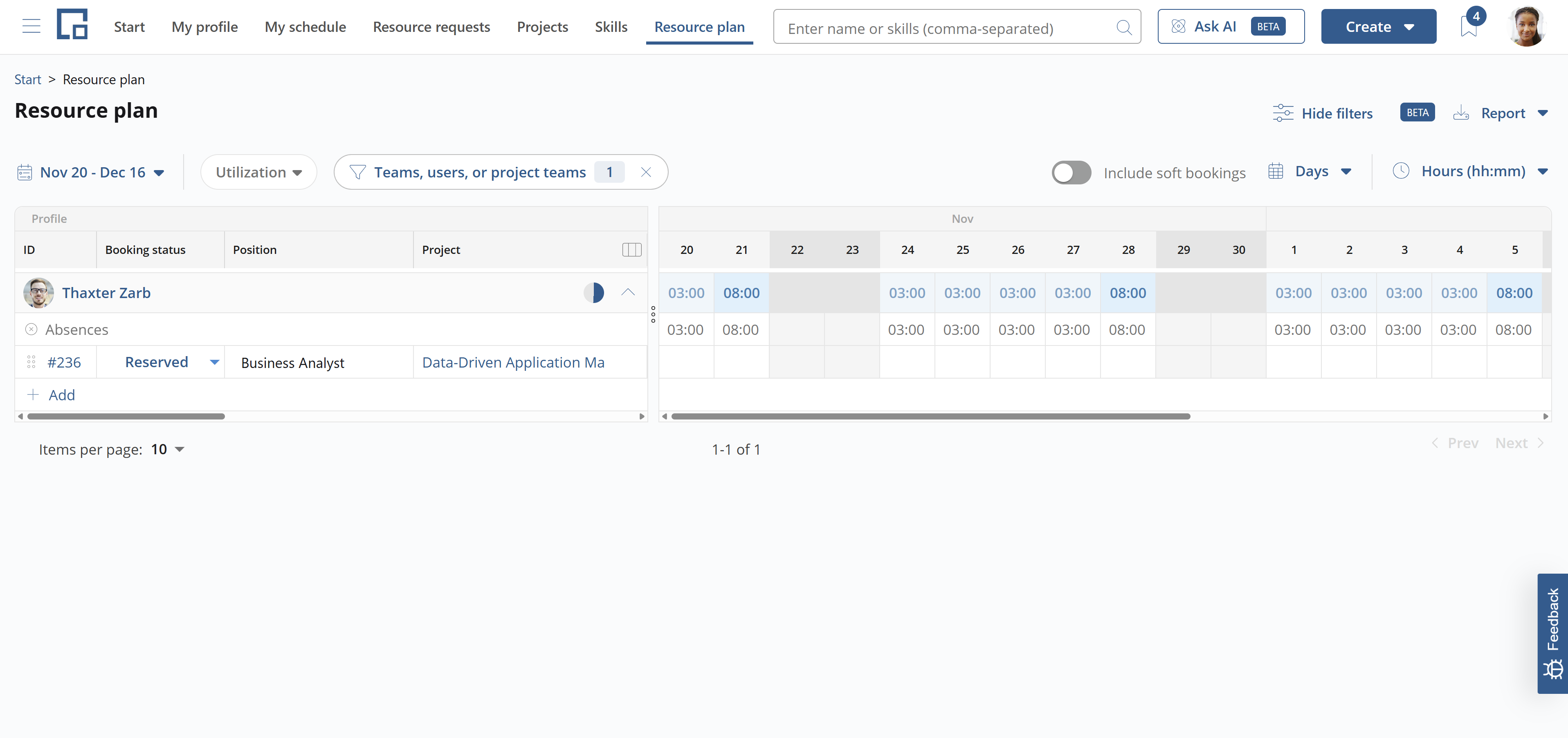
If the employee does not work on certain days these days have no hours in his working time pattern. Let's assume the employee has 20 hours per week, spread over Monday to Thursday with 5 hours each. Friday, Saturday, and Sunday carry no hours.
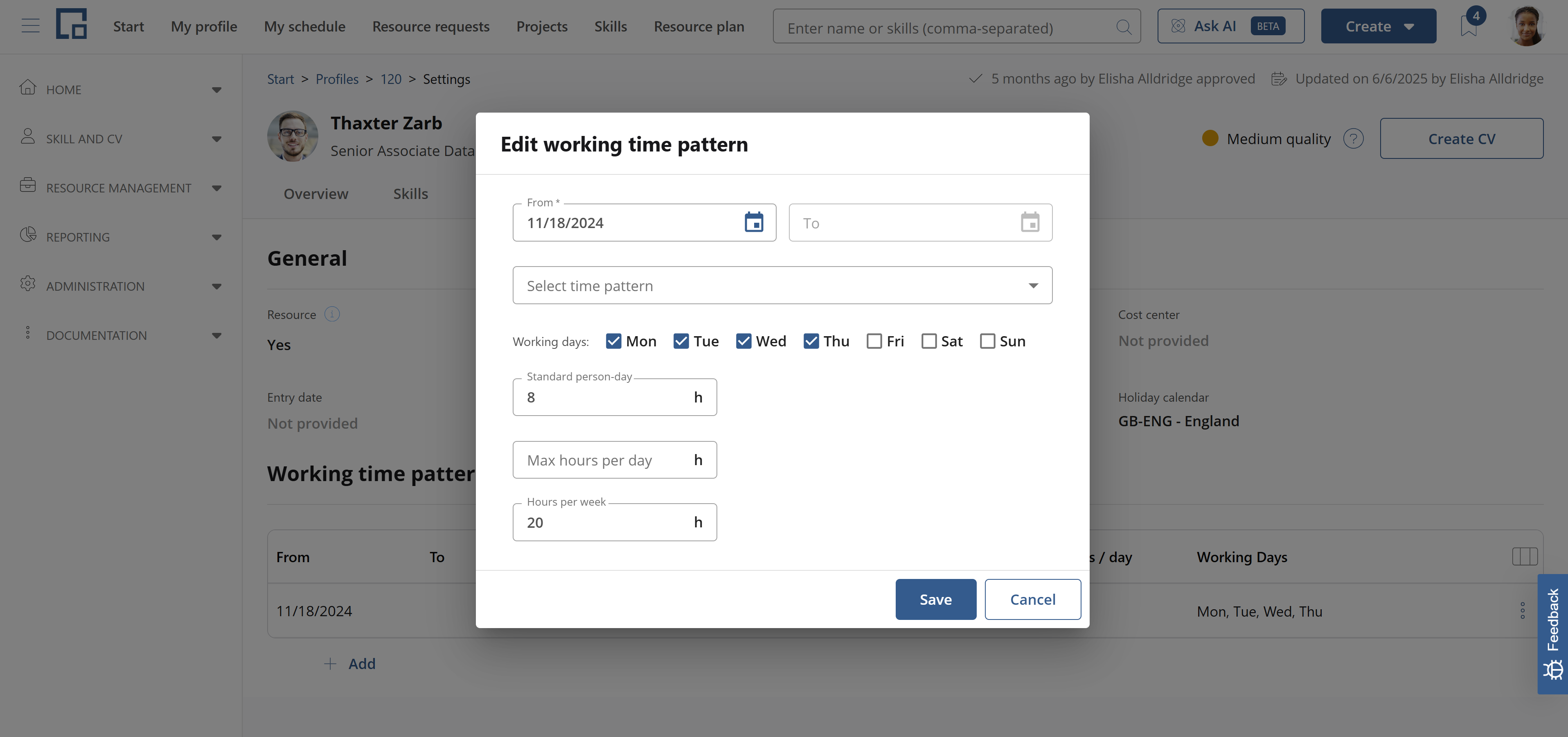
Since Saturday and Sunday are also not included in the default pattern, these days are treated as non-working days (weekend). Only Friday needs to be shown as an absence. In the daily view the employee will show full-time absence on Fridays, 8 hours in our case, and 3 hours absence Mondays to Thursdays (8 default hours minus the 5 hours of the pattern).
An employee can also work on days the default pattern does not include, for example Saturdays. Such days are shown with negative absence hours in the daily view, because they are extra capacity that increases the employee's availability accordingly.
Holidays
Holiday calendars are maintained in the Holiday calendars section on the Settings tab of the employee profile, in the same way as working time patterns: each entry has a start date and an optional end date, and the entries of one employee must not overlap. Use the auto-complete search to pick the calendar. decídalo uses a service that provides a list of global holiday calendars; the calendar name starts with the two-letter ISO code of the country, followed by the state, if applicable.
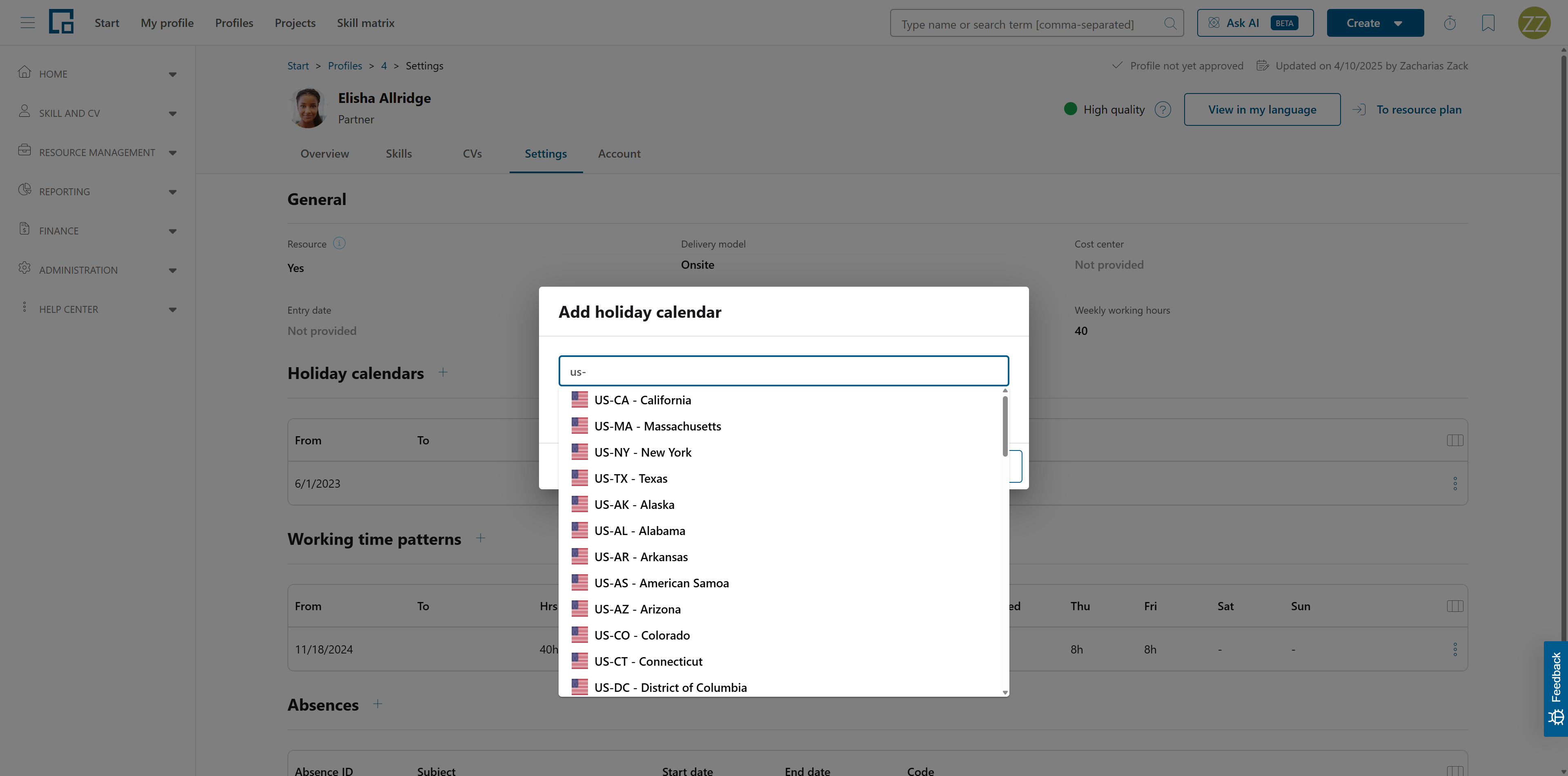
Because the calendar is dated, an employee who moves to another country or state keeps the correct holidays for past dates: close the current entry and add a new one starting the day the new calendar applies. For every day of a resource plan, decídalo uses the calendar whose date range covers that day.
When you add an entry without an end date, the running open-ended entry is closed automatically at the day before the new one starts, just like working time patterns. Any other overlap is rejected with an error, never trimmed automatically. The end date of an entry cannot be before its start date; picking the same date twice gives a one-day entry.
An employee does not have to have a holiday calendar, and gaps between entries are allowed: on a day that no entry covers, no holidays are loaded for that employee.
The section lists the entries with their date range first (From and To) and the holiday calendar next to it. The info icon behind the calendar name opens a small calendar that marks the public holidays of that entry, so you can check which days it actually affects. Use the arrows to move month by month, or the header to jump to another year or month. There is no limit on how far you can browse. Days outside the entry's date range are greyed, because the entry only applies to the employee inside its own range. The days themselves cannot be selected: the calendar only shows the holidays, it does not change anything.
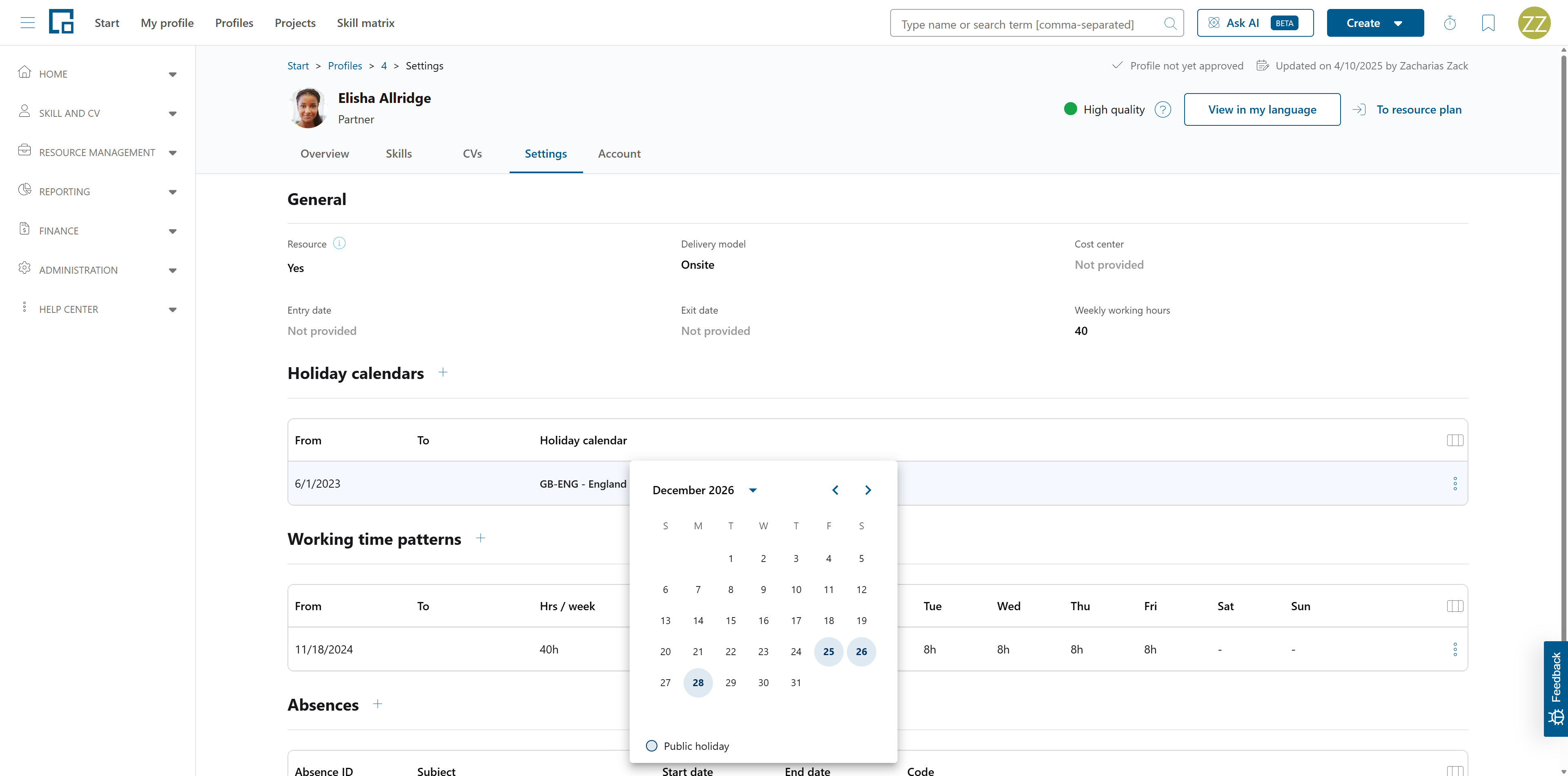
Holidays that fall on working days are shown as full-time absences in the resource plan of the employee.
The calendar entries of an employee can also be imported through the UserHolidayCalendar/Import end point of the API, similar to the working time pattern import. (The HolidayCalendar end point next to it is a different thing: it maintains the custom holiday calendars themselves, not who uses them when.) See https://import.decidalo.app/index.html
The single-value Holiday calendar field is no longer shown on the Settings tab, because the dated entries of this section replace it. The field is still available in the profiles grid and for the user import, where setting a calendar closes the running entry and starts the new one from today.
Vacation, sick leave and other absences
Vacation, sick leave and other absences are typically reported in an HR system. They can be imported into decídalo using Absence/Import end point of the API. See https://import.decidalo.app/index.html
The import accepts an absent duration per day (minutesPerDay), which is what makes half-day absences possible. Sending 240 minutes for an 8-hour day results in a half day. Leave the field out for a full working day; on an update, leaving it out keeps the value a previous import delivered.
In decídalo these absences are aggregated into the absences row of the resource plan.
Note: If your company uses time recording, vacation and sick leave can additionally be recorded as general activities on a timesheet. That is a record of how time was spent and nothing more: it is not an absence, it does not appear in the absences row, and it has no effect on availability or capacity. Absences still have to be reported through the import or maintained on the profile as described here. See Time recording concept.
Managing absences on the profile
Absences can also be maintained directly in decídalo, on the Settings tab of an employee's profile, in the Absences section. The section lists that employee's absences, both the ones created by hand and the ones delivered by an import, newest first, with their absence ID, subject, start and end date, and code.
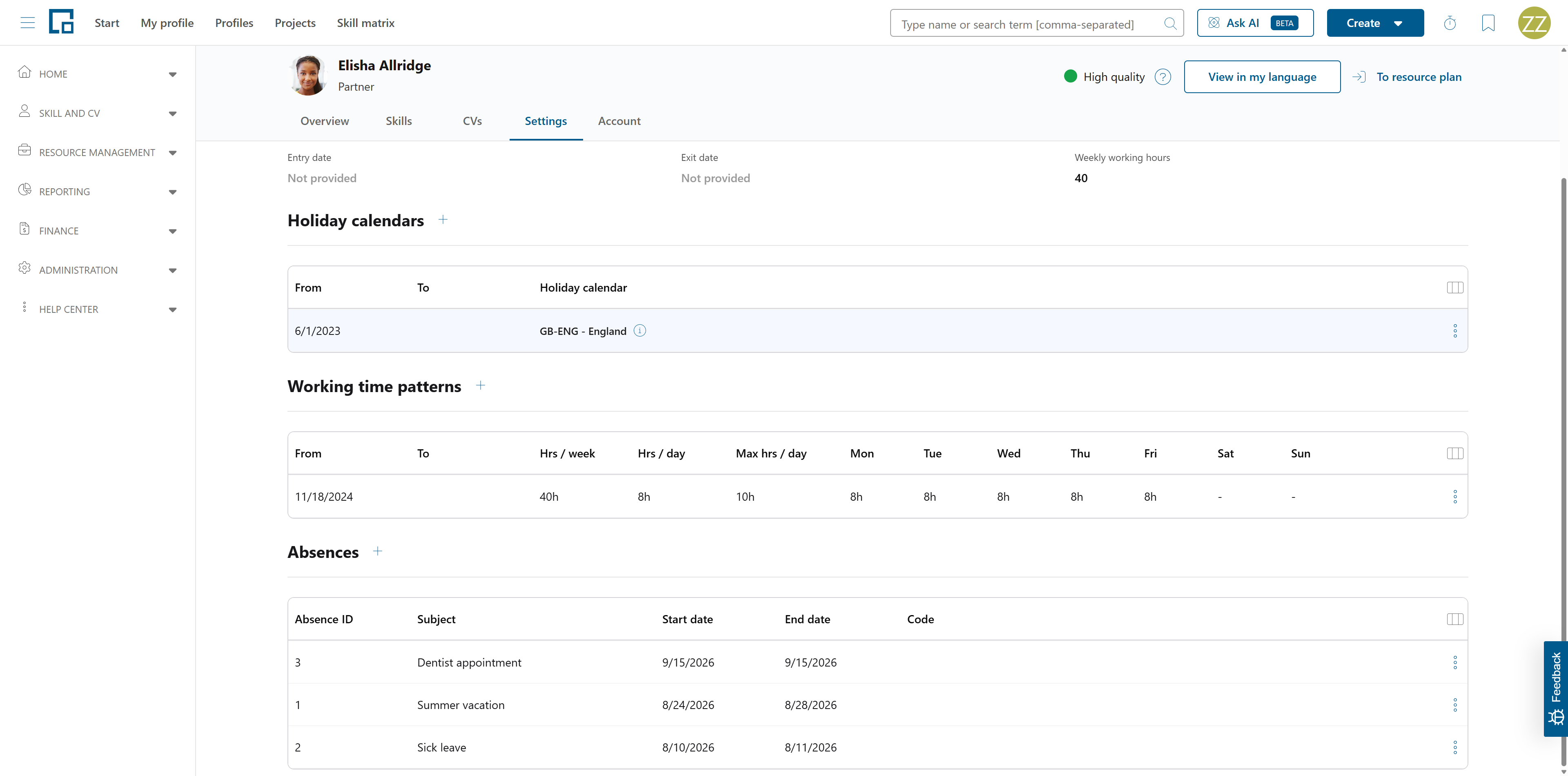
Which absences a user may change is controlled by two permissions, see Edit absences and Overwrite imported absences.
When an employee has no absences yet, the section shows a short placeholder instead of an empty table, with an add button for users who may create absences and without one for those who may not.
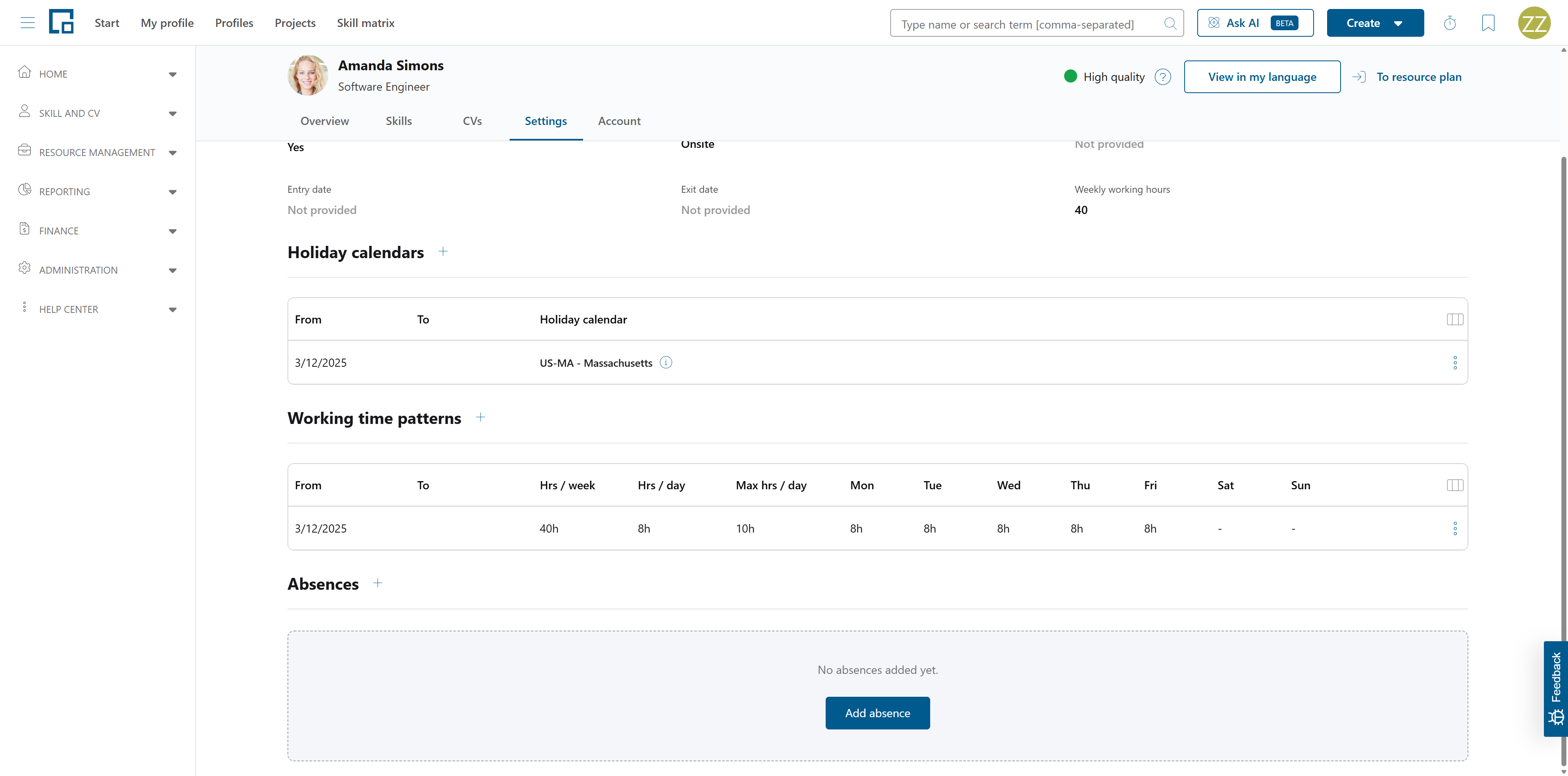
Adding an absence
Click the add button in the section header and fill in:
- Subject: the text shown in the list. Optional; an absence without one is listed as "Untitled absence".
- Hours per day: the absent hours for each day of the absence. Prefilled with your company's default working day and accepting any value up to 24 with two decimals, so half days and other partial days are possible.
- Start date and End date: the period. A single day is entered by choosing the same date twice.
- Code: optional technical identifier, typically the key the absence has in your HR system. It is what an import addresses the absence by, so it has to be unique and setting it requires the "Overwrite imported absences" permission. Without that permission the field is disabled. While you type, decídalo checks whether another absence already uses the code and says so. Leave it empty if you do not need it.
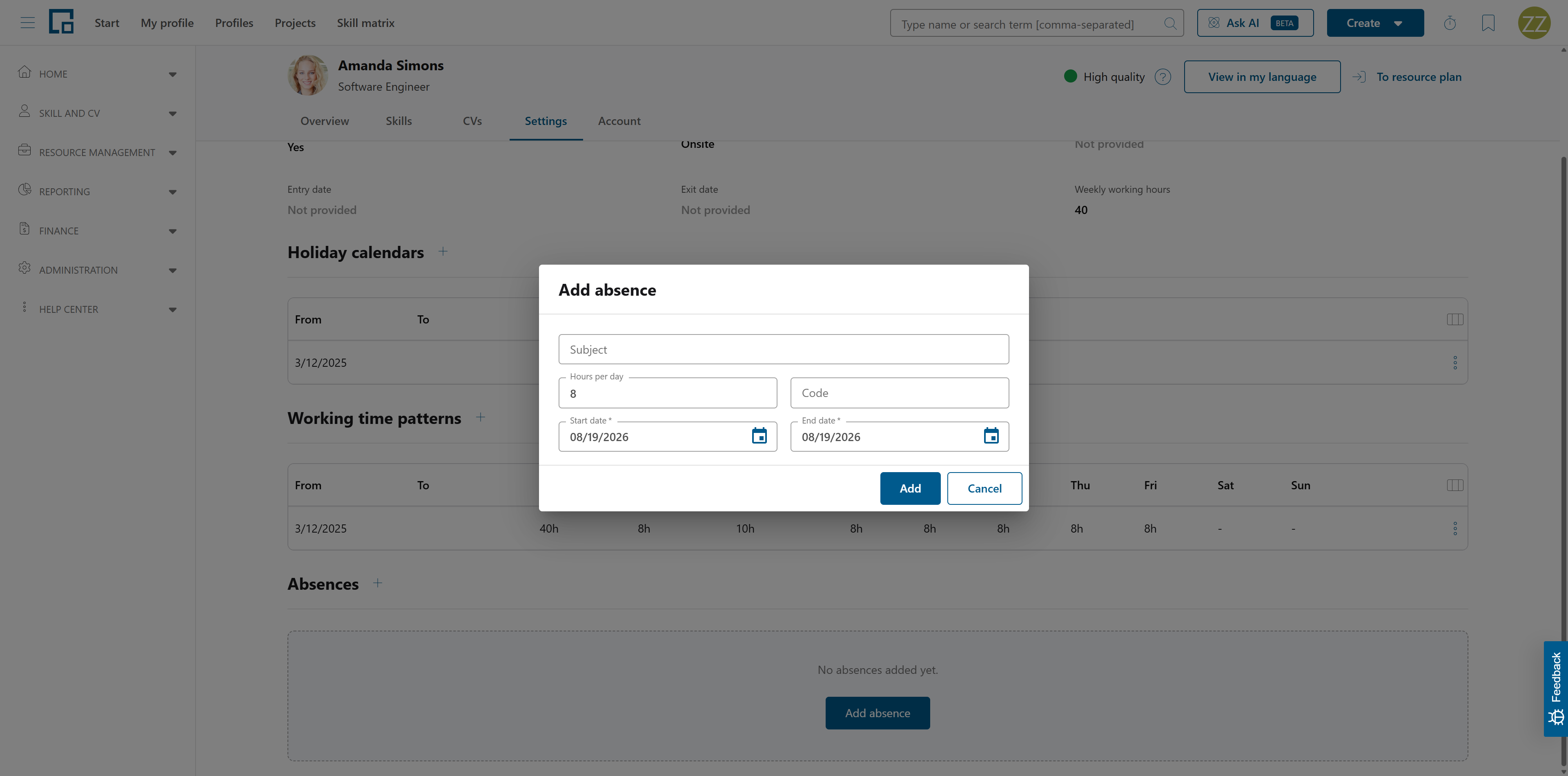
Mandatory fields are marked with an asterisk. The button stays clickable at all times: if something is missing or invalid, decídalo tells you which field to correct instead of silently doing nothing.
Editing and deleting
Rows you may change offer an edit and a delete action in the row's action menu. Editing an imported absence, including its code, requires the "Overwrite imported absences" permission; without it, the row shows a lock instead of the action menu.
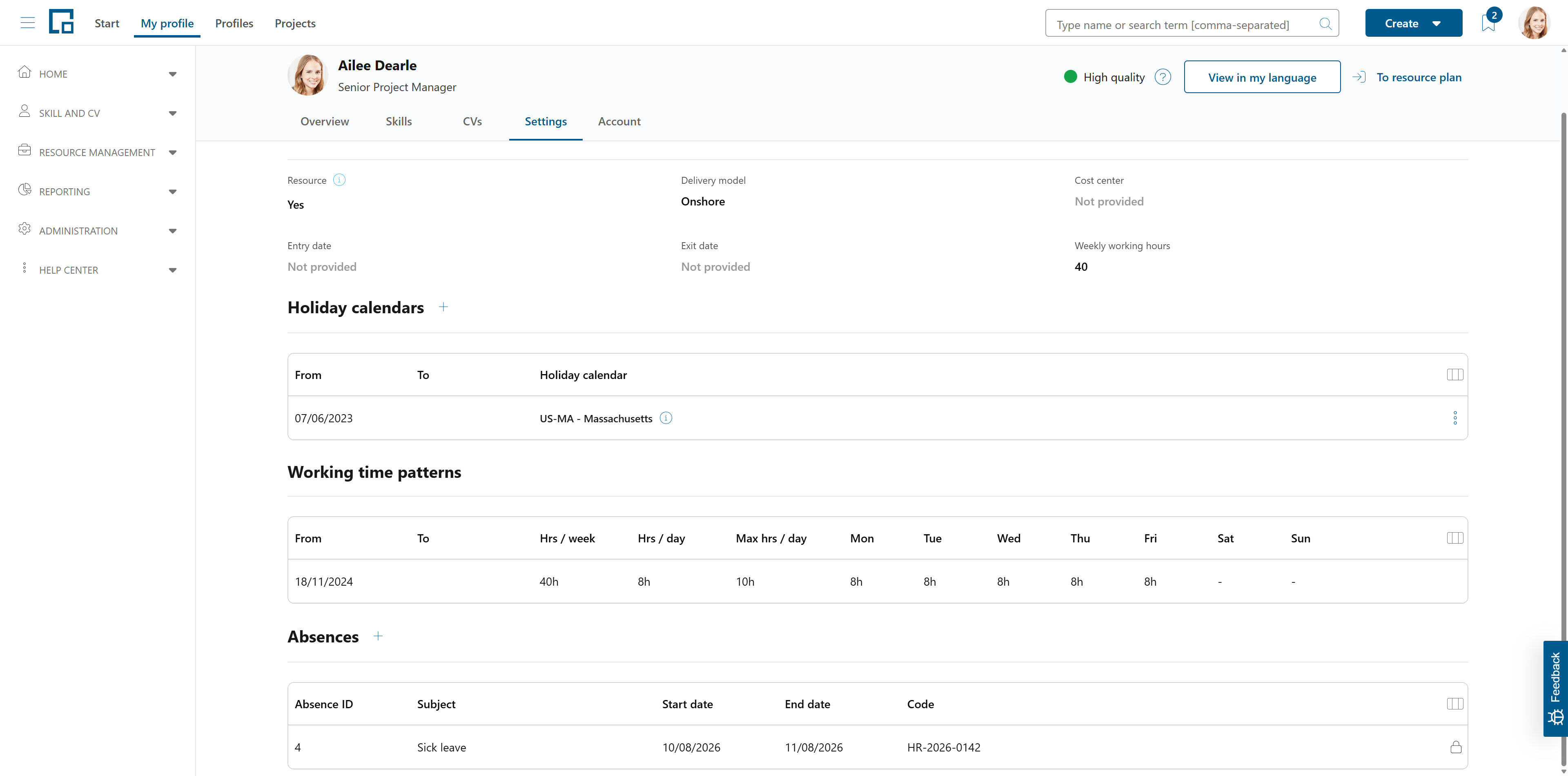
Note that decídalo does not write changes back to the source system, so an imported absence you edit here may be overwritten by the next import.
Public holidays and reductions from a working time pattern are not listed in this section, because they are not absences of the employee but follow from the holiday calendar and the working time pattern. They still show up in the absences row of the resource plan.