Defaults for New Projects and Orders
Note: Time recording is currently a beta feature and is being rolled out with pilot customers. If you would like to take part, please get in touch with us.
Before anyone can record time on a project, two questions need an answer: who may record, and what may be recorded (see Setting Up Time Recording on a Project). The two pages described here set the answers a new project starts with, so whoever runs it does not begin from nothing. They apply to projects created from then on, and to projects that adopt them later. Every project can still change its own setup afterwards, and existing projects are not changed.
The first page also sets who may record on a new order's positions without a project, the time recorded directly on an order rather than on one of its projects (see On orders).
Both pages are under Administration → Time recording and need the Manage activity types and general activities permission. Every change is saved at once.
Who can record time by default?
Administration → Time recording → Who can record time by default?
The page has two groups. Under In projects, choose who may record on a newly created project, separately for each of the four ways a project can record time:
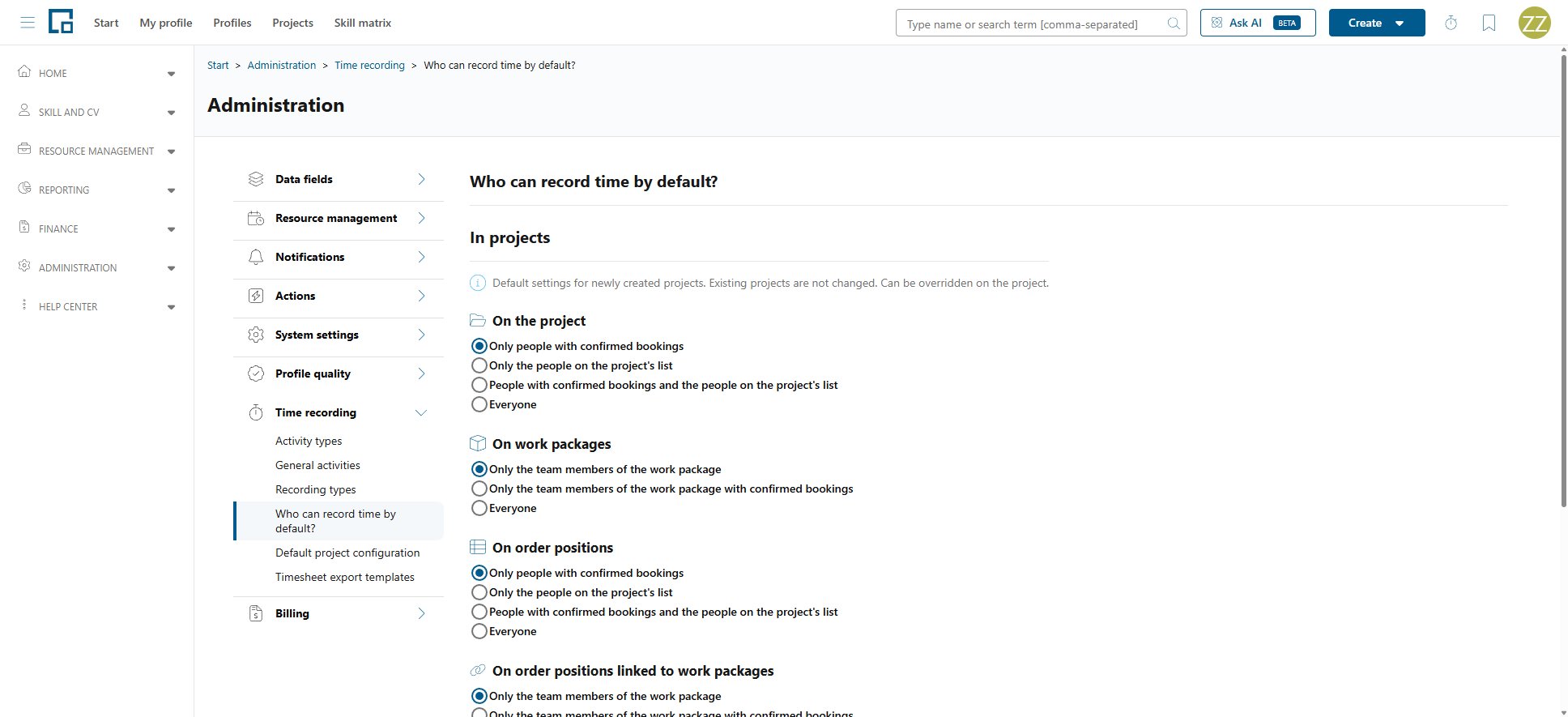
| Section | Applies to |
|---|---|
| On the project | Time recorded on the project itself. |
| On work packages | Time recorded on the project's work packages that no order position is linked to. |
| On order positions | Time recorded on the positions of the project's orders. |
| On order positions linked to work packages | Time recorded on positions through the work packages linked to them. |
The sections for the project and for order positions offer the same options a project has:
| Option | Who may record |
|---|---|
| Only people with confirmed bookings | Anyone with a confirmed booking on the project. |
| Only the people on the project's list | Only the people added to the project by hand. |
| People with confirmed bookings and the people on the project's list | Both groups together. |
| Everyone | Anybody in the company. |
The two work package sections offer the options of a work package team:
| Option | Who may record |
|---|---|
| Only the team members of the work package | The members of the work package's team. |
| Only the team members of the work package with confirmed bookings | Team members whose position on the work package has a confirmed booking. |
| Everyone | Anybody in the company. |
The booking-based options are only offered if your company uses resource management, since that is where bookings come from. Until you change anything, the page shows the rules decídalo has always applied: Only people with confirmed bookings with resource management, otherwise Only the people on the project's list, and Only the team members of the work package for both work package sections.
Every new project gets all four settings when it is created, whether or not it uses the automatic setup below.
Note: With a list-based option, a new project starts with an empty list. Add the people on the project afterwards, on its Recordable activities tab.
On orders
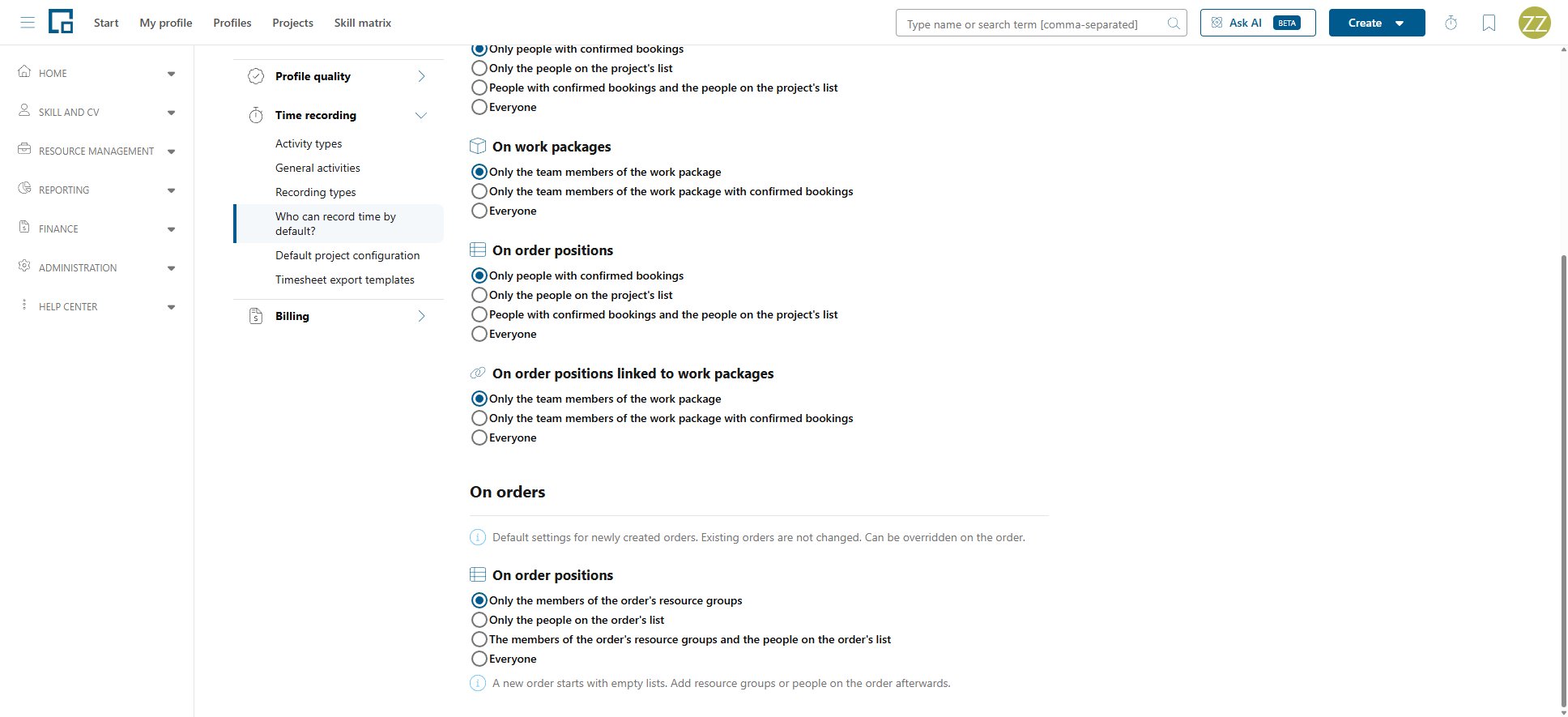
Under On orders, the section On order positions sets who may record on a new order's positions directly, without one of its projects (see Setting Up Time Recording on an Order). It offers the order's four options, whether or not your company uses resource management:
| Option | Who may record |
|---|---|
| Only the members of the order's resource groups | The members of the resource groups added to the order. |
| Only the people on the order's list | Only the people added to the order by hand. |
| The members of the order's resource groups and the people on the order's list | Both groups together. |
| Everyone | Anybody in the company. |
Until you change it, a new order starts with Only the members of the order's resource groups. Every new order gets the setting when it is created, in decídalo or through the import interface. Existing orders are not changed.
Note: With any option but Everyone, a new order starts with empty lists, so nobody can record on it yet. Add resource groups or people on the order afterwards, on its Recordable activities tab.
Default project configuration
Administration → Time recording → Default project configuration
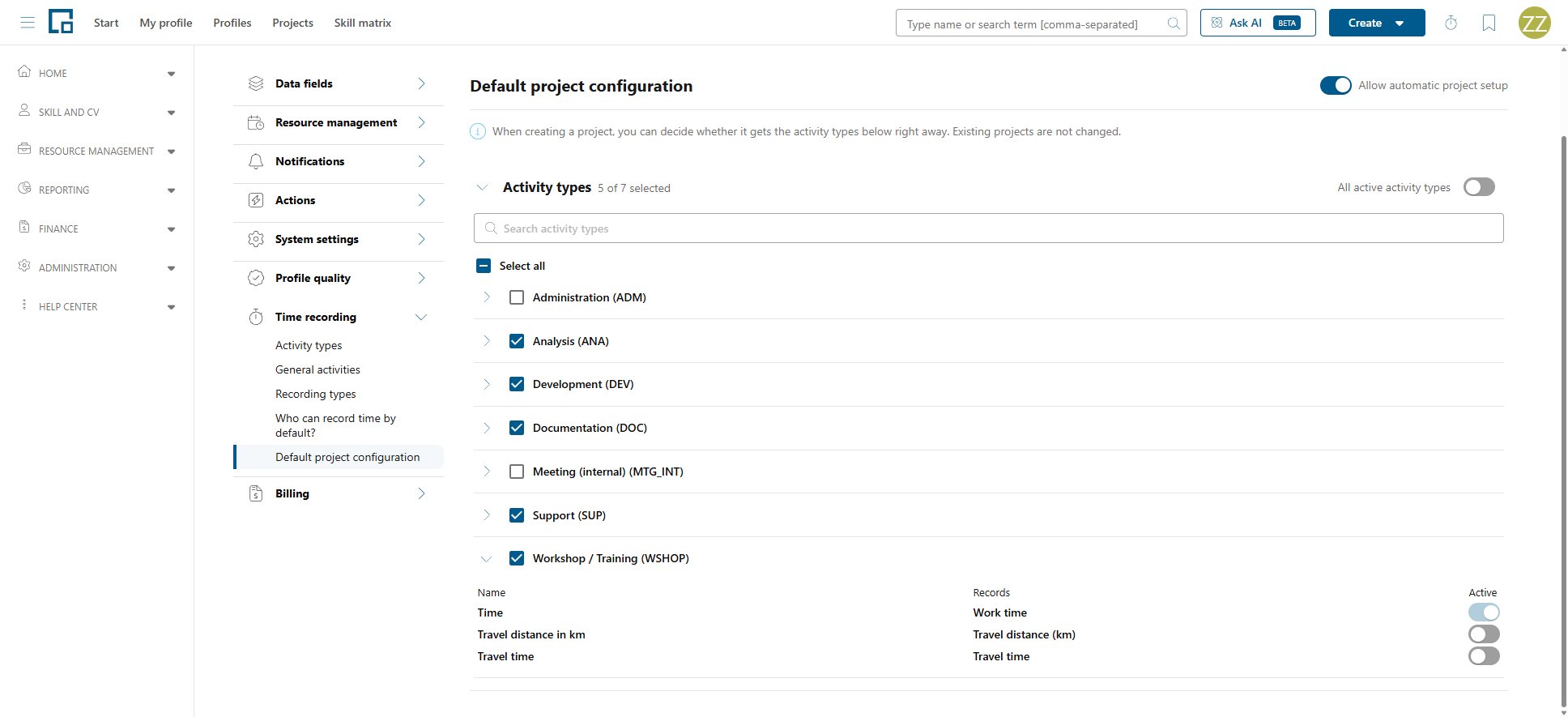
The default project configuration holds the activity types a project starts with, so time can be recorded on it straight away. Whoever creates a project decides whether it uses them, and an existing project can take them over later (see Using the defaults).
Turn on Allow automatic project setup at the top of the page to offer it. The same switch is listed as Automatic project setup in the feature settings. While it is off, the choices below are kept but not offered.
Which activity types a new project gets
All active activity types (on by default) gives a new project every activity type that is active when the project is created, including ones created later. The list below still shows each of them, so you can choose what they record.
Turn it off to choose the activity types yourself. The list then shows how many of the active ones are selected. Tick the ones a new project should get, narrow the list with Search activity types, or use Select all for the ones the search shows. At least one has to stay selected. Turning All active activity types back on keeps your selection for the next time you turn it off.
An activity type that is deactivated later stays selected but is skipped until it is active again.
What each activity type records
Click an activity type to choose its recording types: the values its entries carry beside the time, such as travel time or a travel distance (see Recording types). An activity type you have not changed records Time only.
| Column | Description |
|---|---|
| Name | The recording type. |
| Records | What it measures, for example Travel distance (km). |
| Active | Whether a new project's activity type records it. |
One recording type always stays switched on, because an activity type that records nothing could not be recorded on. Its switch is locked, and pointing at it says why. Deactivated recording types are not listed; one that was chosen before applies again once it is reactivated.
Using the defaults
- When a project is created, the create dialog offers Set up time recording with the default project configuration while the automatic project setup is allowed. Ticked, the project gets the activity types above, each with its recording types. The checkbox is shown to users whose permission profile grants Configure project time recording for their own projects or for all projects. Who may record comes from Who can record time by default? either way.
- On an existing project, Use default project configuration on its Recordable activities tab applies the defaults later, as long as recording on the project itself is not set up yet. See Using the defaults.
Related
- Time Recording Setup: the activity type, general activity and recording type catalogues, and the feature settings
- Setting Up Time Recording on a Project: what the defaults become on a project, and how to change them there
- Setting Up Time Recording on an Order: who may record directly on an order, and how to change it there