Profile
Profiles in decídalo represent an individual, typically an employee of the company, and contain all relevant information needed to include the individual in skill and resource management processes (see Understanding Profiles, Accounts, and CVs).
The better a profile is maintained, the more likely it is that an exported CV wins the next project tender for your company. Additionally, a well-filled profile helps employees getting found for resource requests.
decídalo automates the initial creation of the profile (see CV Parser and LinkedIn import) and the continuous maintenance, ensuring the data quality over time. This is realized through configurable quality rules, supporting AI features, and an approval process.
Note: There are specific permissions related to viewing, editing, approving and creating profiles. For more information, see Permission concept.
This article introduces the profile page in decídalo and explains its key features.
Header
The header of each profile contains an overview of its core data and quality.

Profile picture
Full name
Job position
Location
Core competencies
Profile approval status
Profile quality indicator
Create CV button
To resource plan button
Tab navigator
The next sections give an overview of every part of the profile header.
Profile picture
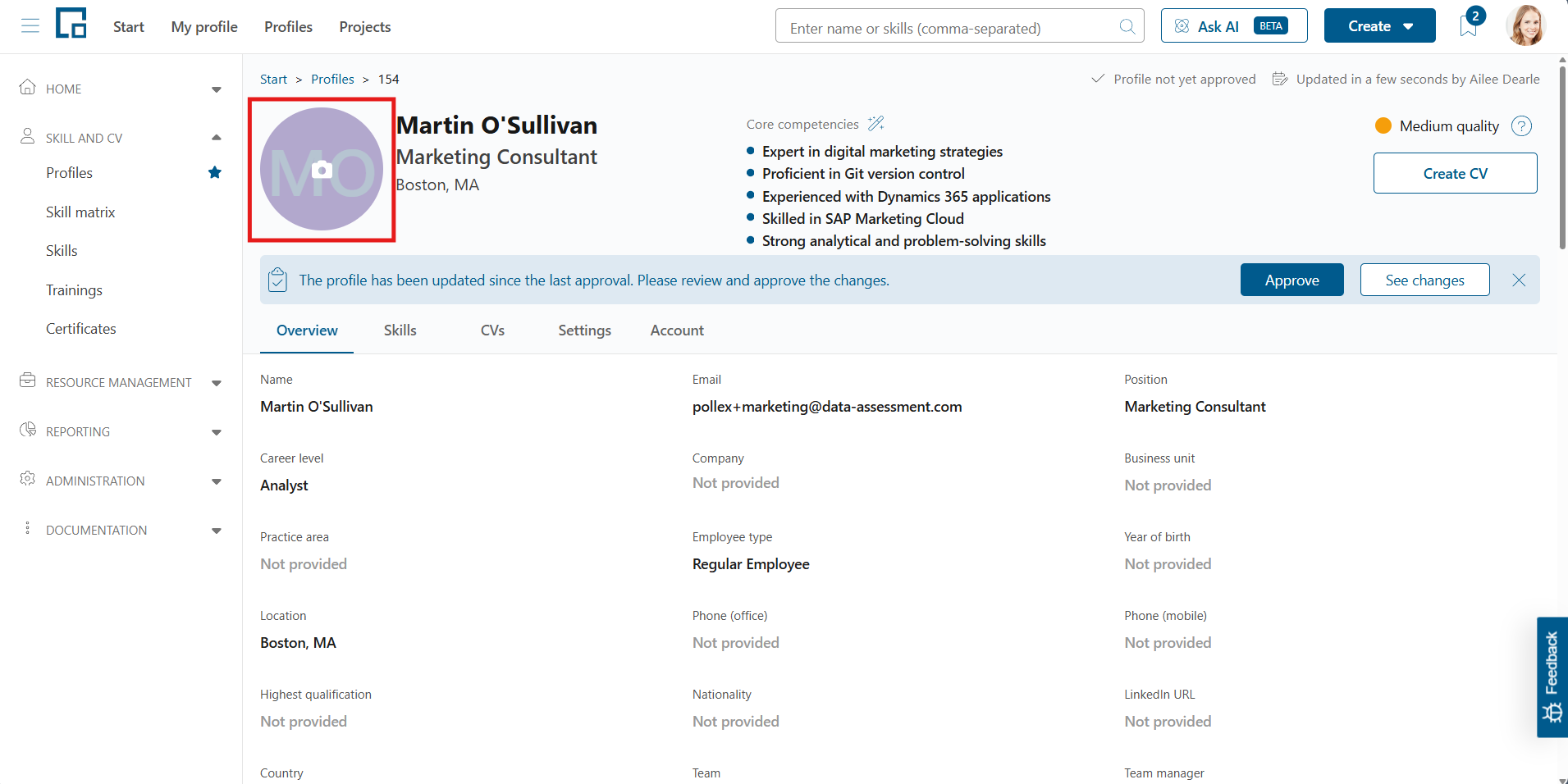
On the left side of the header is the profile picture (1) of the employee. It is shown on the profile and also as the account’s image.
Note: The profile picture is used in the CV Designer when a template with the respective placeholder is selected.
Adding or editing a profile picture
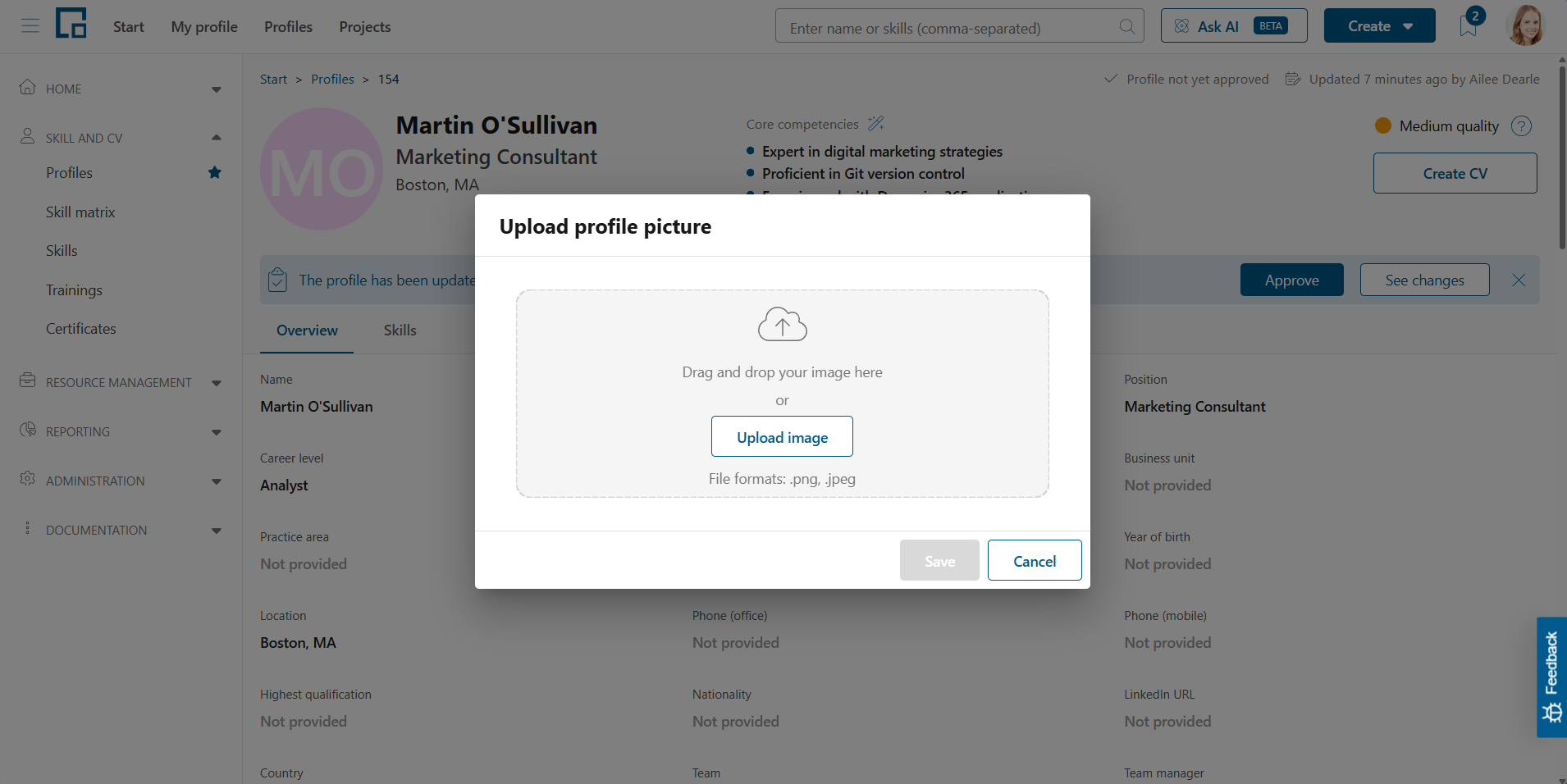
When no profile picture is present, a colorized avatar with the employee’s initials is displayed. To add a profile picture, click on the avatar and select ‘Upload profile picture’ or ‘Change profile picture’. A pop-up with an image drop-zone appears.
In the pop-up, drag and drop or select a picture from your local machine to upload it into decídalo. Only JPG and PNG formats are permitted. After it is uploaded correctly, click ‘Save’ to adjust the picture in the profile.
Deleting a profile picture
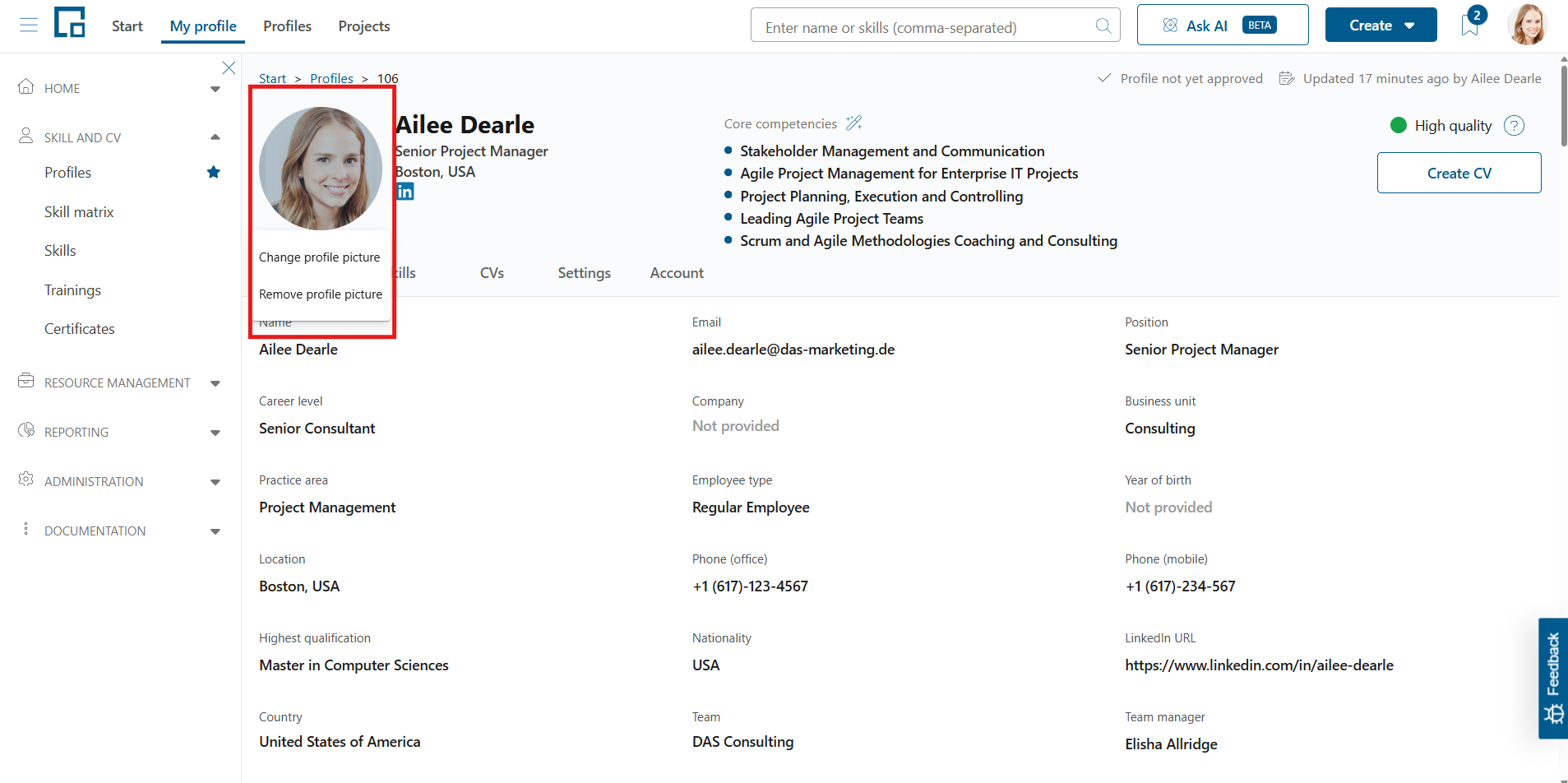
To delete a profile picture, click on it and select ‘Remove profile picture’. A confirmation pop-up appears.
Click ‘Remove’ to remove the profile picture or ‘Cancel’ to return and close the pop-up. Either of these actions closes the window. If you opted to remove the picture, the colorized avatar with the employee’s initials is displayed again.
Personal data (read-only)
Next to the profile picture on the left side of the header are the full name (2), the job position (3), and the work location (4) of the current employee. These fields can be adjusted in the Personal data and may be empty.
Core competencies
The core competencies (5) of the current employee can be created either manually (hover over and click on each line) or generated by AI (click on the magic wand). This list of the greatest professional strengths gives a quick assessment on the employee to everybody selecting the profile. Reasonable core competencies can be key to a good CV and therefore for each project tender.
When done by AI, the core competencies are generated considering all already entered profile data. Therefore, it is a prerequisite to first migrate or enter the whole profile and generate the core competencies afterwards.
Profile approval
In the top right corner of the header is the profile’s last edit date and its approval status (6). These two details define the key features of the profile approval process in decídalo. Everybody with the ‘Profile editing’ permission on the current profile can edit it, which puts the profile itself in a ‘not approved’ status. User with the ‘Profile approval’ permission can approve the latest changes and thus mark the profile data with a sign of good quality.
Note: The profile approval feature can be disabled by an administrator. This setting is found under Administration > Profile Quality > Approval Workflow. See Profile Quality Assurance for details. If you are able to approve changes to a profile, you see a banner at the bottom of the header with two buttons: one shows the changes, one approves them. On your own profile you see the same banner with one button to show the changes and one to request approval from your team manager, because approving your own profile is never possible. The request button only appears while the 'Request approval' email notification is active, and it is disabled once a request is pending, until the reviewer approves the changes or sends feedback.
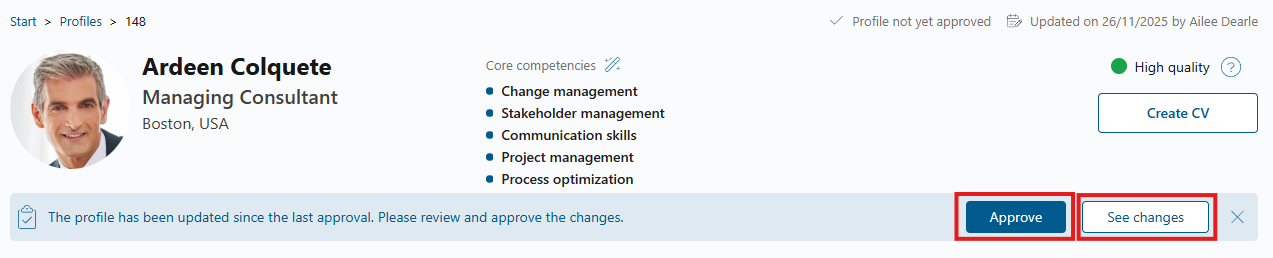
It is also possible to dismiss the approval temporarily by clicking on the close button to the far right. The banner reappears next time when opening the profile or after reloading the page.
Profile quality
On the right side of the profile’s header is the profile quality indicator (7). Get more information in Profile quality assurance.
Creating CVs
The ‘Create CV’ button (8) opens a dialog to create a cv of this profile. For a better understanding of CVs see Understanding Profiles, Accounts & CVs. All CVs created in the past are stored in the tab ‘CVs’, which is explained in Managing & Using CVs.
To resource plan
The ‘To resource plan’ button (9) navigates to the Resource Plan filtered for the current profile. This provides a quick way to check the employee's current and planned bookings directly from their profile. The button is only visible if the Resource Plan feature is available for the current user.
Profile Navigation
At the bottom of the header are the profile navigation tabs (10). It is possible to change the selected tab by clicking on the respective name. The next sections explain the views and use cases of the tabs.
Overview
The ‘Overview’ tab of the profile displays several subcategories. In summary, this tab shows core personal data and also key capabilities of the employee, apart from the professional skills.
Note: Each section on the ‘Overview’ tab can be collapsed or expanded by clicking its header. Your choice is saved for your user and reused across every profile you open, so if you collapse a section you are not interested in, it stays collapsed on your own profile and on all other profiles until you expand it again.
Personal data
The personal (or core) data section of the profile contains multiple inline editable fields which describe the employee in detail. A click on a specific field puts it into edit mode where the contents can be adjusted.
Note: Editing the fields ‘Employee Type’, ‘Team’ and ‘Team Manager’ requires specific permissions (see: Permission concept).
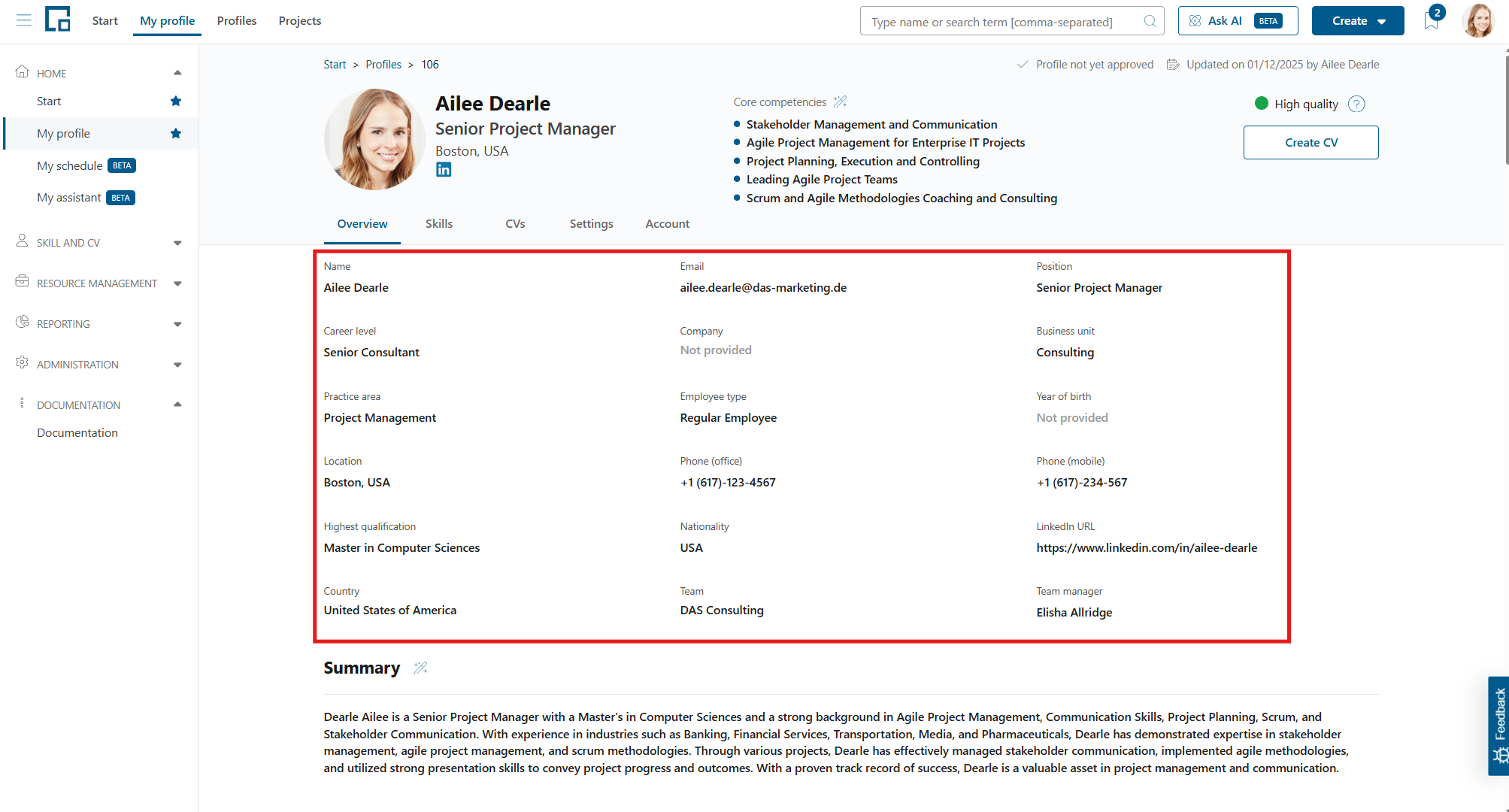
Resource groups
The personal data section also shows a read-only ‘Resource groups’ field. It tells you how many resource groups the employee currently belongs to. A profile’s resource group membership is not set by hand. It is derived automatically from the employee’s core data (such as country, legal entity, business unit, service line and delivery model) against the membership criteria of each resource group. The field updates on its own whenever you change one of these criteria on the profile, so the count always reflects the current data. For the concept behind resource groups, see Managing Resource Groups.
Click the count to open a side drawer titled ‘Resource groups and managers of {employee name}’. The drawer lists every resource group the employee belongs to and, for each group, its resource managers with their name and email address. If a group has no managers assigned, this is indicated in the drawer. When the employee belongs to no resource groups, the field shows ‘None’ and there is nothing to open.
Note: The ‘Resource groups’ field can be renamed or hidden by an administrator. This setting is found under Administration > Data fields > Entity Customization for the User object. See Customizing Data Fields in decídalo for details.
Summary
The summary shall give every viewer of the profile a quick introduction to the capabilities of the employee. A catchy summary provides visibility in every project tender, giving the employee a straight advantage over competitors.
People write about their years of experience, industry, or core competencies. Achievements, career milestones or job history can play a big role here as well.
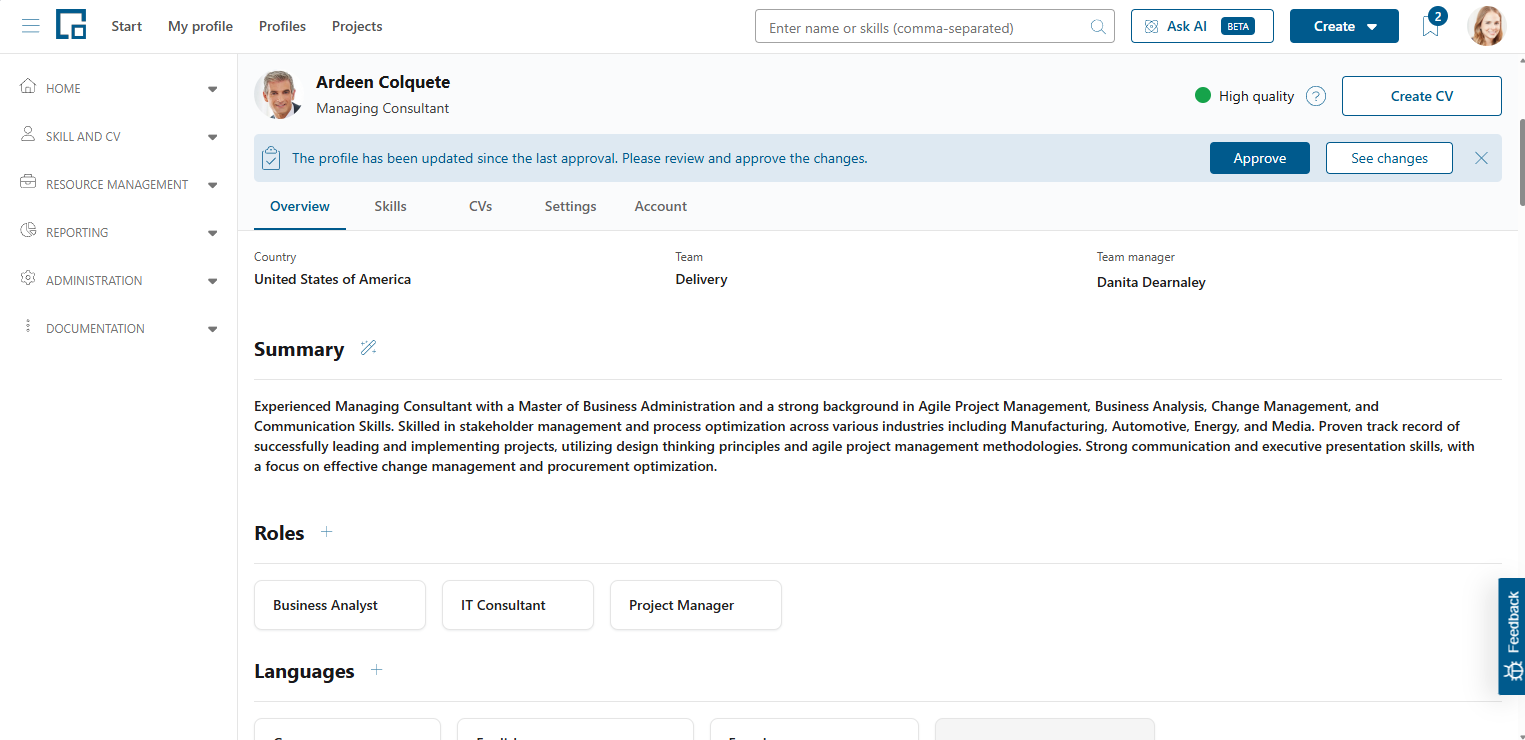
The summary can also be generated by AI, by clicking the magic wand button next to the ‘Summary’ section header. It is advised to fill the whole profile beforehand, because the AI takes all already entered profile data into account while generating the summary.
Roles
This section shows all professional roles the employee has been in. To gain more information, see Managing & Using Roles.
Languages
Many IT projects rely heavily on communication, especially when you fulfil the role of an IT consultant. Additionally, many IT projects are very international. Thus, showing language skills on CVs improves the client’s trust and relationship building with the project team.
Therefore, users can add languages in combination with a proficiency level to their profile in decídalo. Decídalo also supports that by generating suggestions from your project history data.
The ‘Languages’ section of the profile shows the language skills of the employee as tiles with the language and the employee’s level of proficiency.
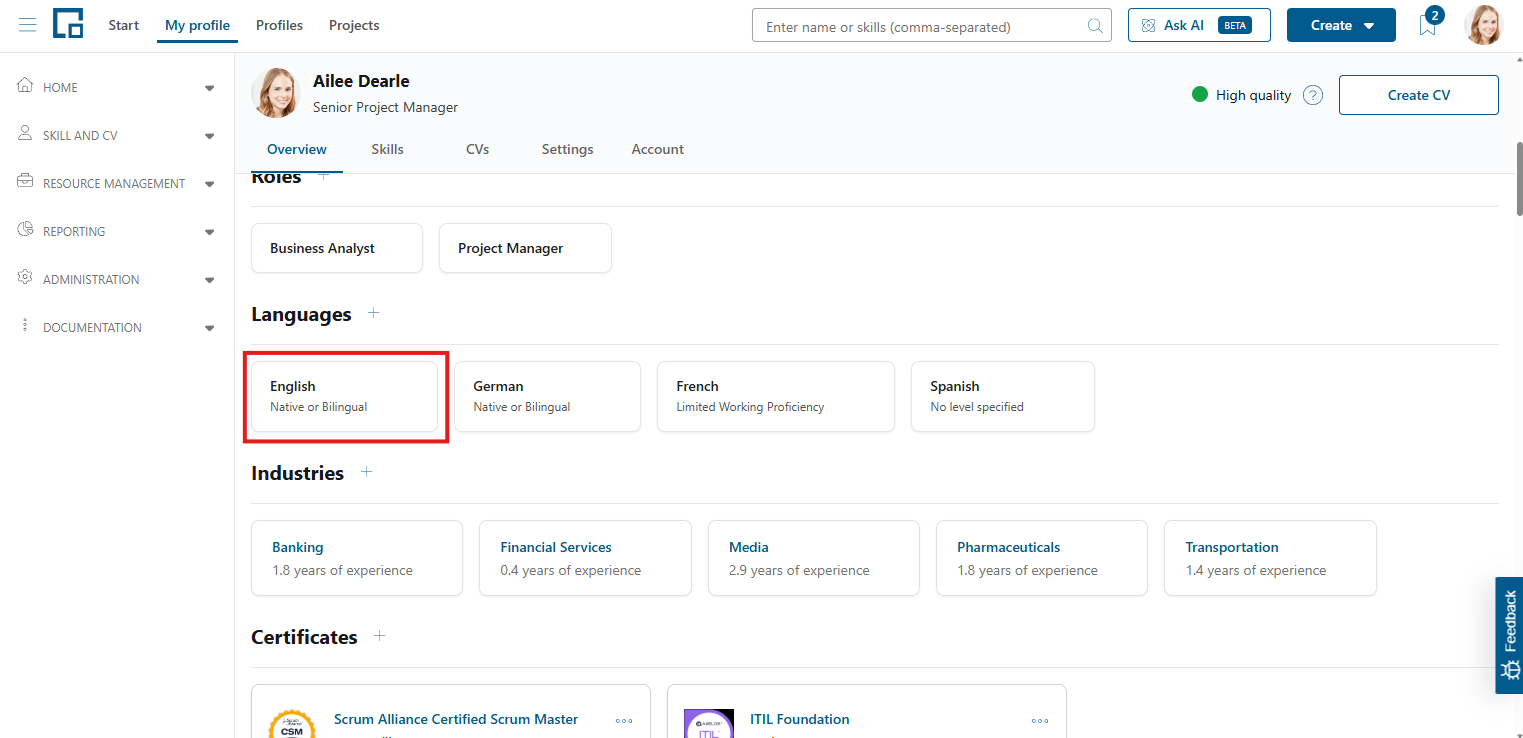
Adding languages to the profile
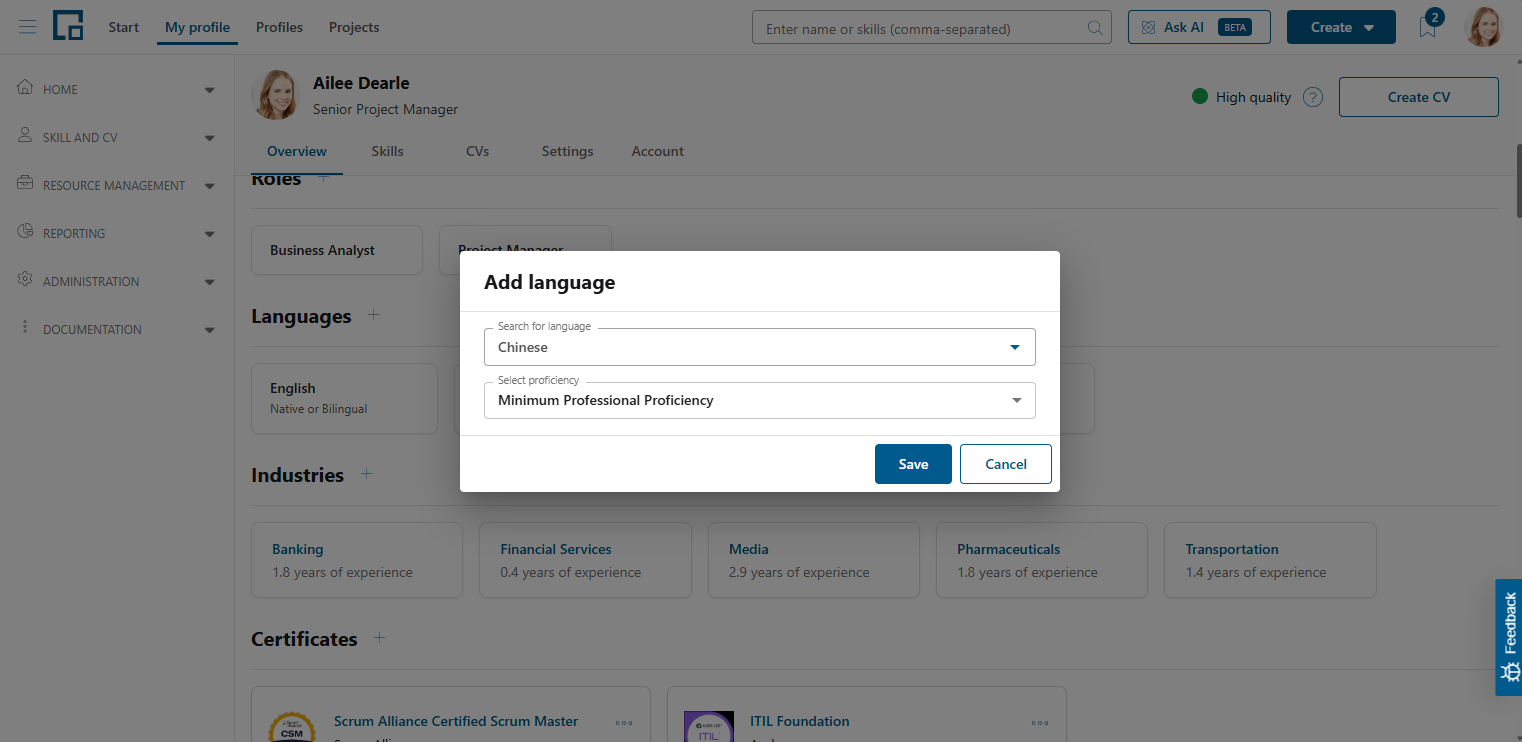
To add a language to the profile, click on the plus next to the ‘Languages’ section header and a pop-up with a form appears.
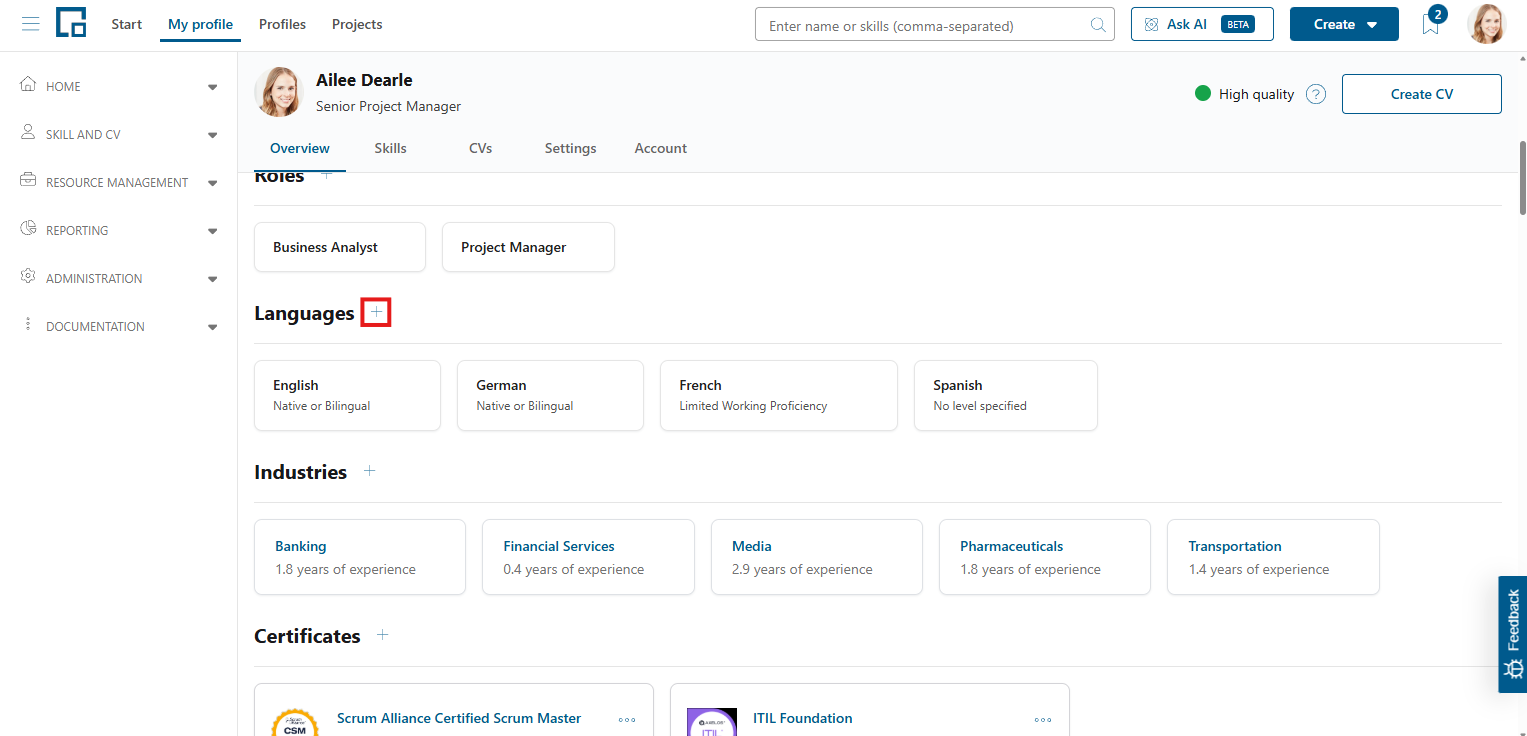
In the form, simply select the language in the respective field. The list of languages in the select field’s dropdown menu is provided by decídalo. The menu is also pointing out the already added languages behind their greyed-out name.
Optionally, select the level of proficiency after that. It is always advisable to show the level of proficiency in CVs, since it can increase the trust in the employee significantly. Click on ‘Save’ to add the language to the profile. The newly added language is put into the list of language tiles on the profile, while the list is sorted by level of proficiency.
Editing languages on the profile
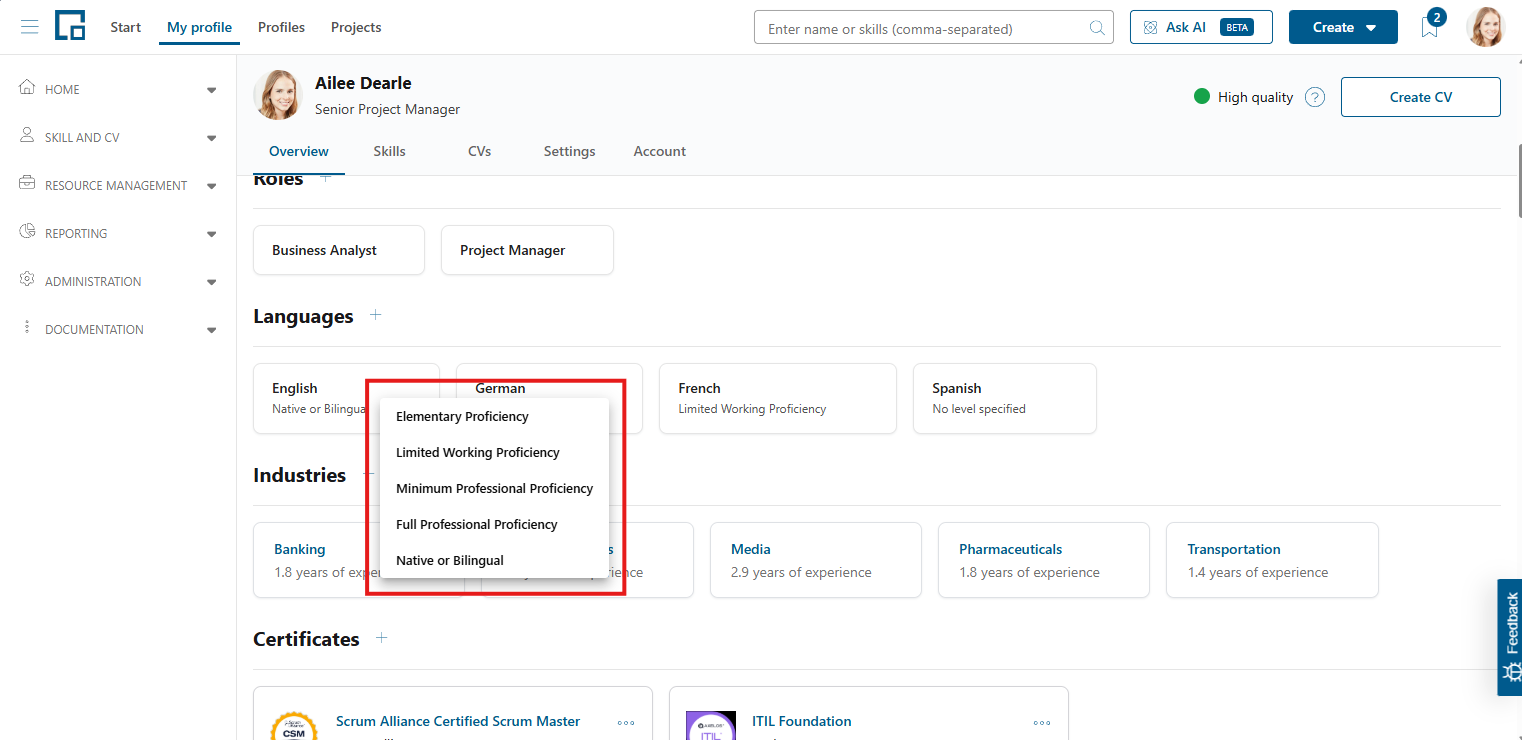
It is only possible to edit a language’s level of proficiency on a profile. Doing that, you have to hover over a language’s tile and click on the edit button that is coming up next to the language’s level of proficiency.
In the appearing context menu, select the desired level of proficiency for the current language. The menu is closed automatically by the selection click.
Note: The language can slip to another point in the tile list due to the list being sorted by level of proficiency.
Deleting languages from the profile
To delete a language from a profile, hover over the respective tile and click on the appearing trash button. The deletion is done immediately.
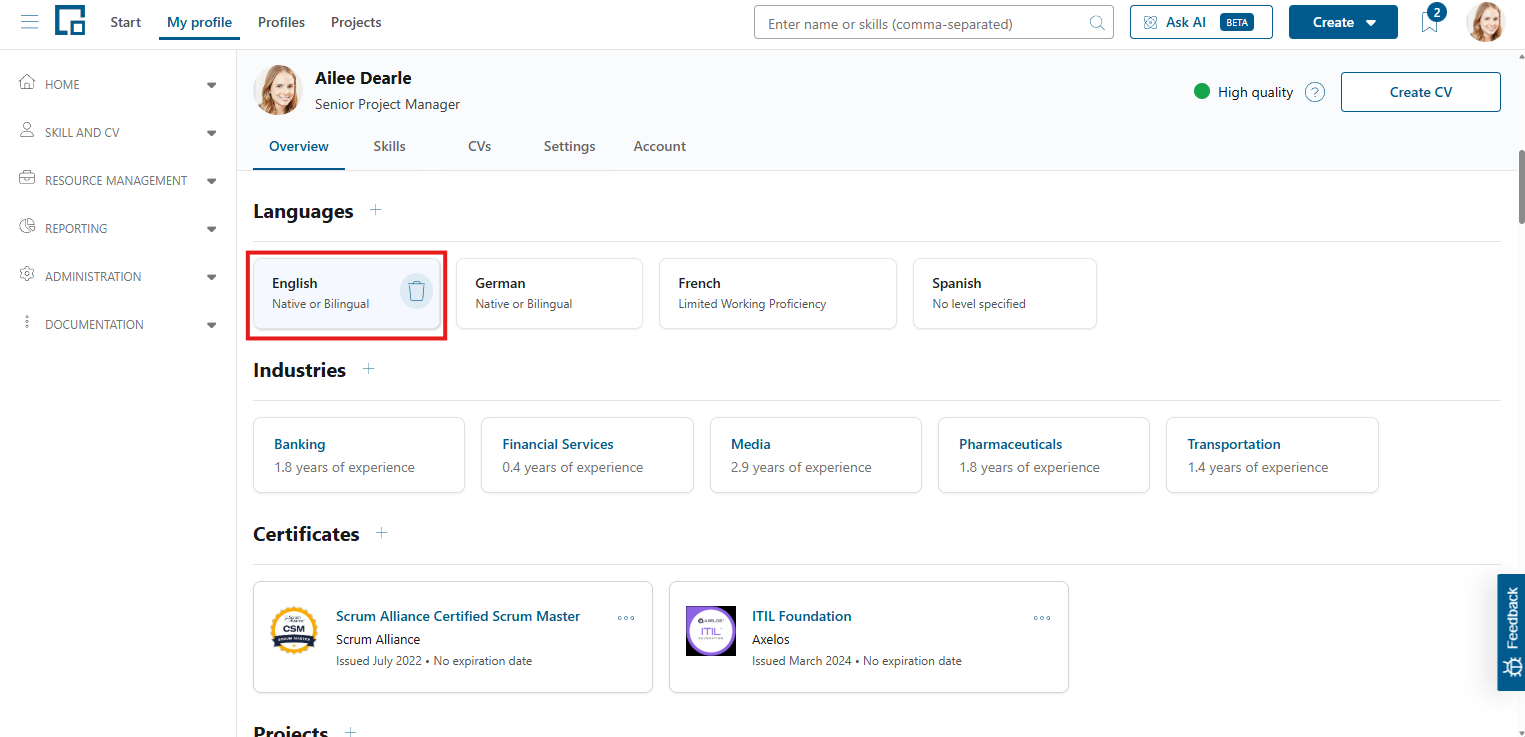
In some cases, the language does not disappear but is displayed as a suggestion immediately following the deletion. This is due to decídalo recognizing the employee has used the language e.g. in a past project.
Industries
Clients want to have consultants in their project who understand their industry and its pain points, workflows, regulations or typical systems. Proof of industry experience reassures clients that the employee has already solved similar problems and does not waste time on learning the basics first.
Therefore, users can add industries to their profile to show in which areas they have gained experience already. Decídalo supports that by generating suggestions e.g. from your project history.
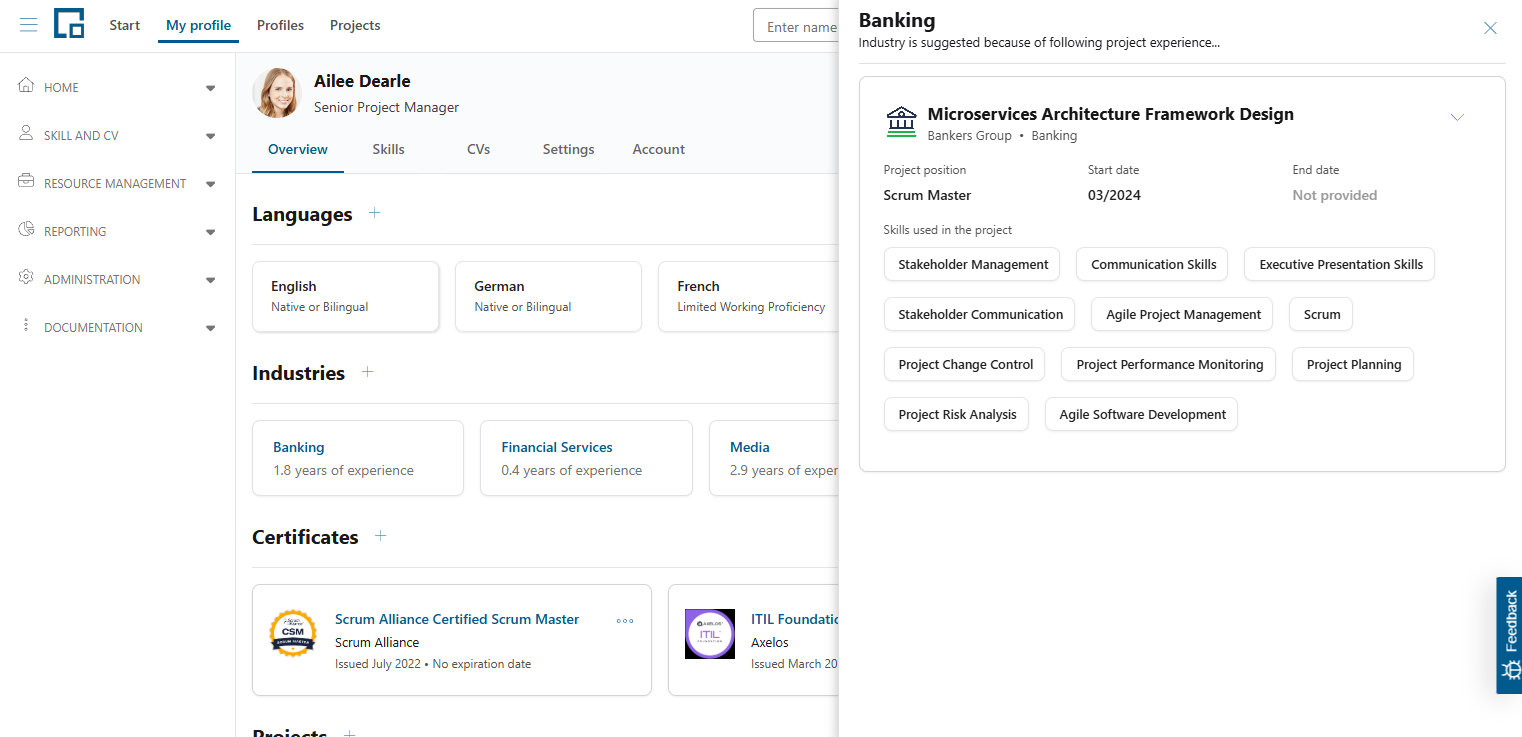
In the ‘Industries’ section of the profile, the industry experiences of the employee are displayed as tiles with the industry’s name and the years of experience.
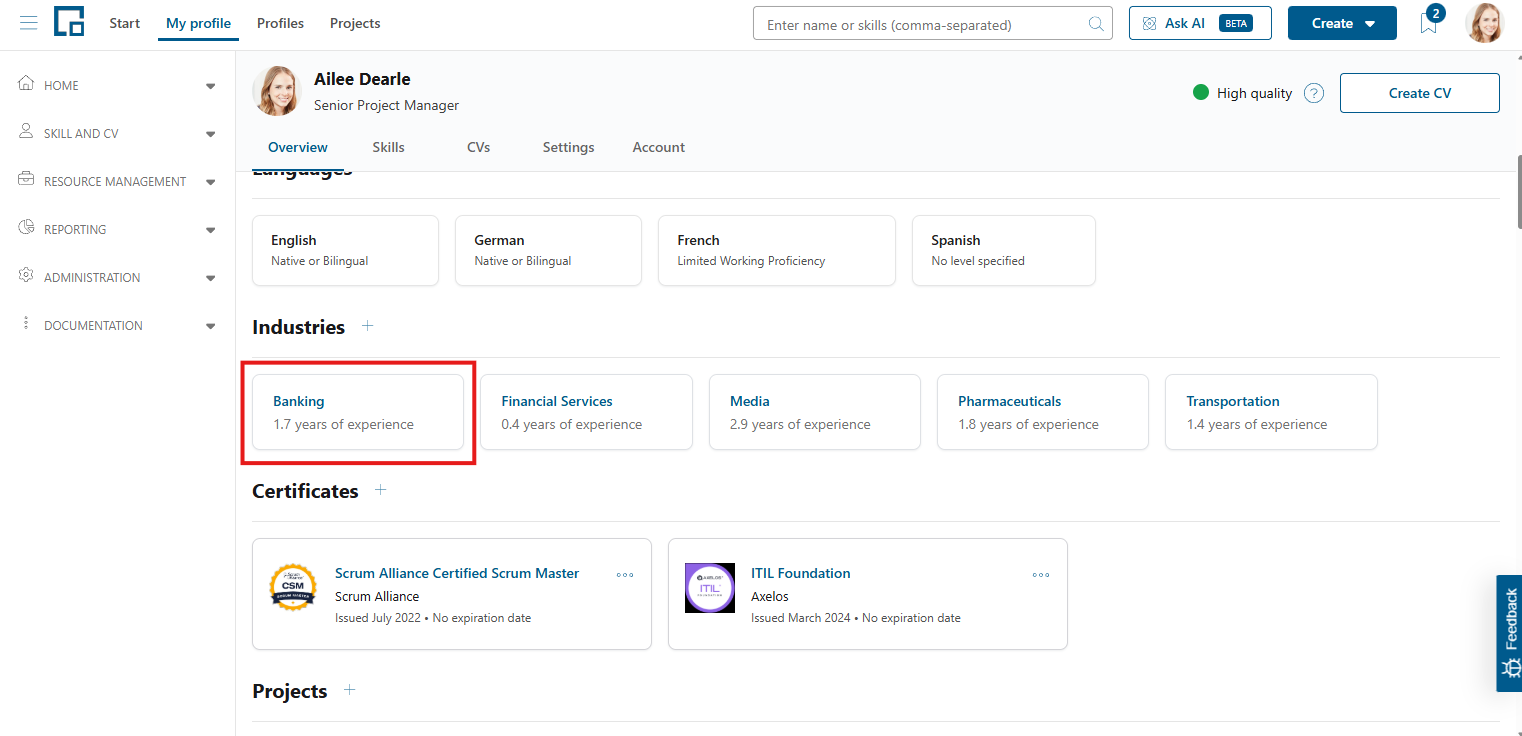
The experience is calculated automatically by decídalo by considering the profile’s project history data. To display the details of an industry skill, click on its tile and a side-drawer appears on the right showing the origin of the experience years.
Adding industries to the profile
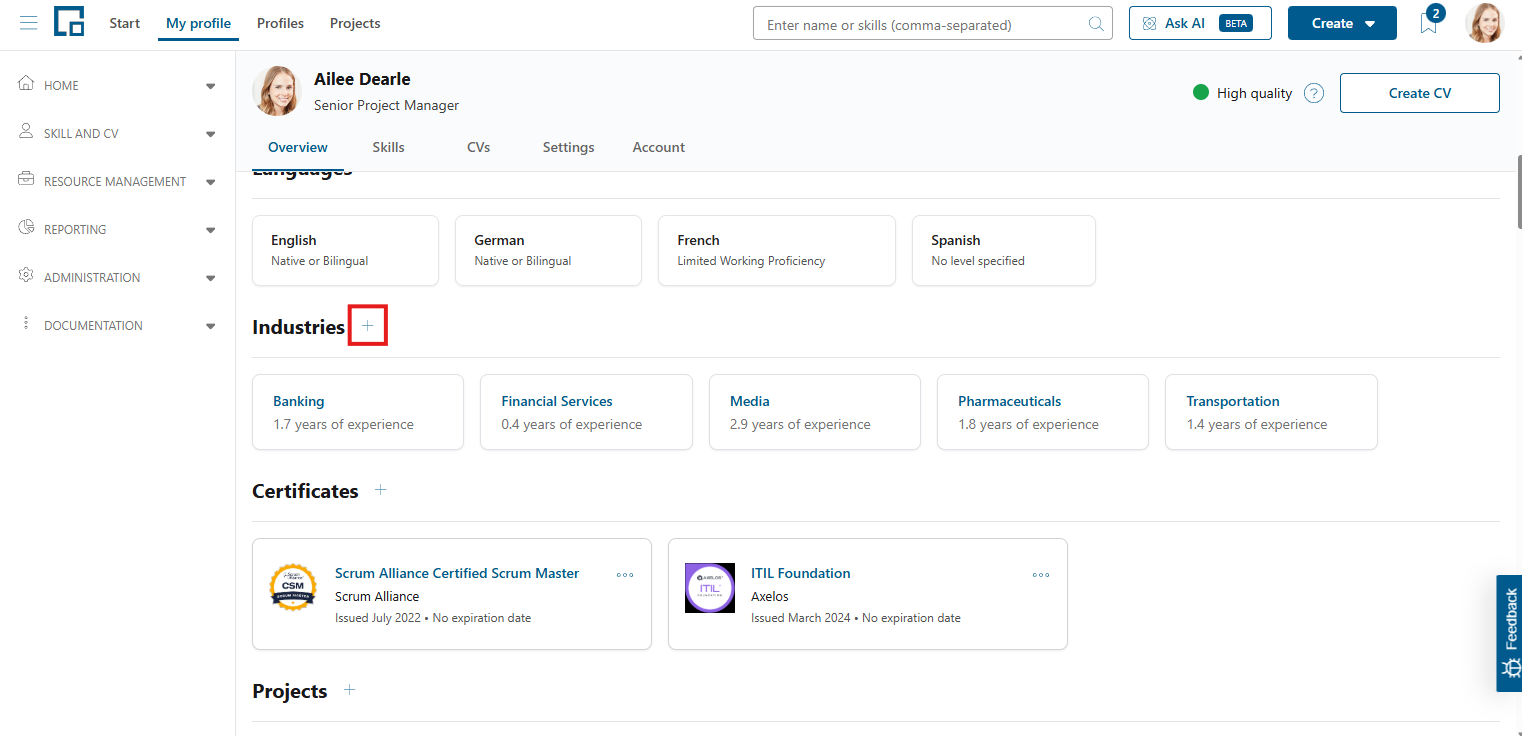
Industries can be added to the profile by clicking on the plus button next to the section header.
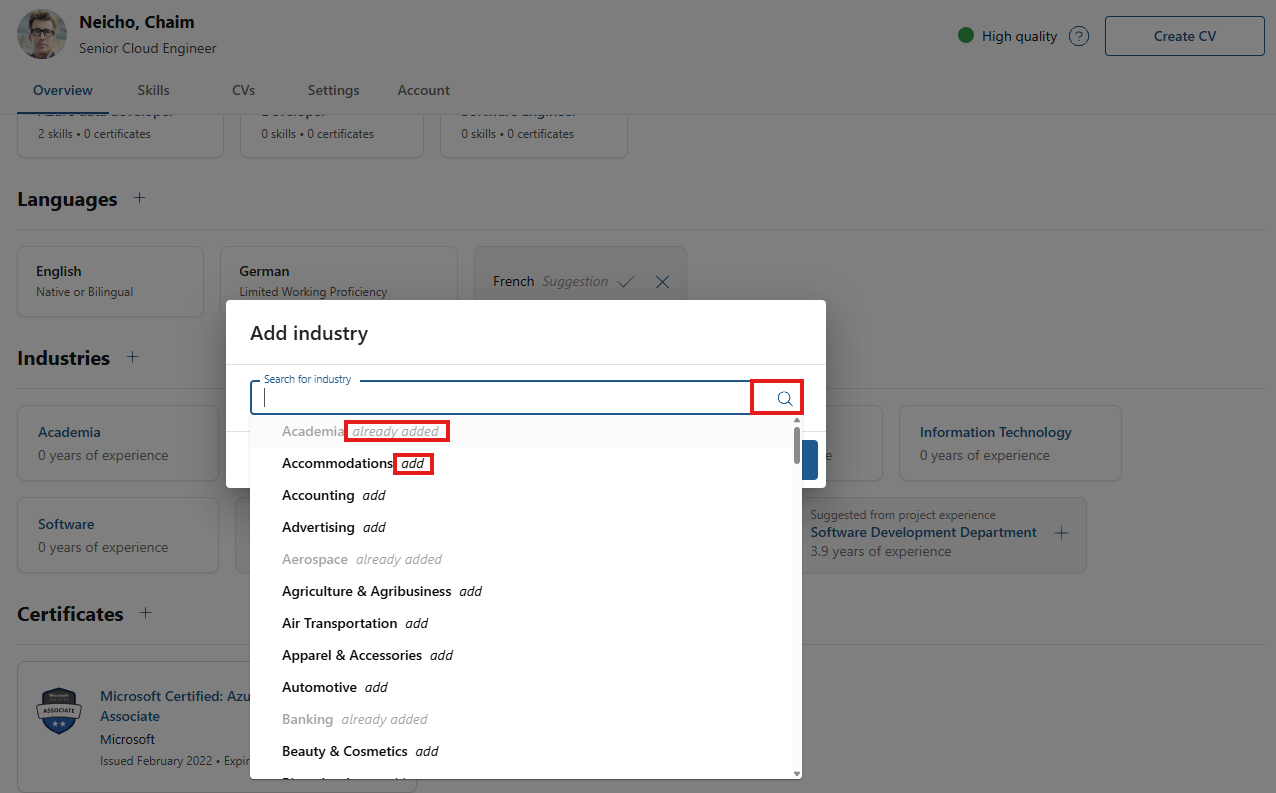
A pop-up opens in which you can search for and select an industry that you want to add. The drop-down menu displays the decídalo standard list of industries. At the end of each row on the drop-down menu you see an indicator if the industry has already been added to the profile. Simply select the desired industry and it is added in the background. Close the pop-up when you finished adding industries to the profile.
Deleting an industry from a profile
To delete an industry skill from a profile, hover over its tile and click on the trash button. The industry is removed immediately.
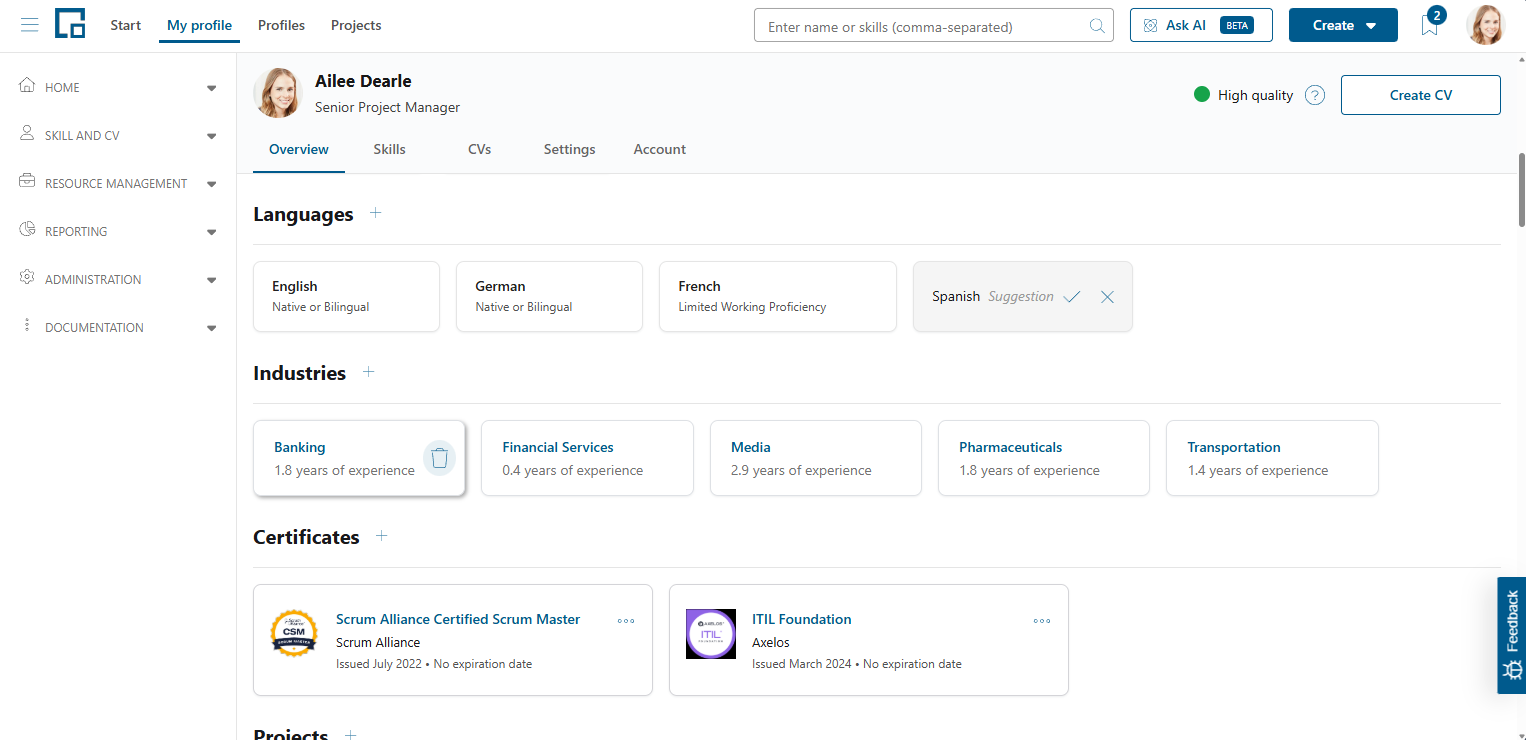
In some cases, the industry does not disappear but is displayed as a suggestion immediately following the deletion. This is due to decídalo recognizing the employee has experience in this industry e.g. from a project.
Certificates
This section of the profile shows the certifications and certificates of the employee. For detailed information see Managing & Using Certificates.
Projects
Projects demonstrate where consultants have applied their skills in real client environments. They show the scope of responsibilities, the technologies used, and the types of challenges solved. Project experience helps to quickly understand a consultant’s background.
Therefore, users can add projects to their profile to highlight the engagements they have contributed to or to link themselves to ongoing company projects. decídalo supports this by allowing projects to be connected with skills and with resource requests.
In the ‘Projects’ section of the profile, past and current project assignments are displayed, giving a clear overview of a consultant’s hands-on experience across engagements.
Adding projects to the profile
Some projects may have already been added automatically by the CV Parser when a new profile is created for the first time.
To manually add a new project to the profile, employees can click the plus icon in the Projects section and a pop-up with a form appears.
In the dialog that opens, employees can either select an existing central project that has previously been created by an administrator or create a completely new project.
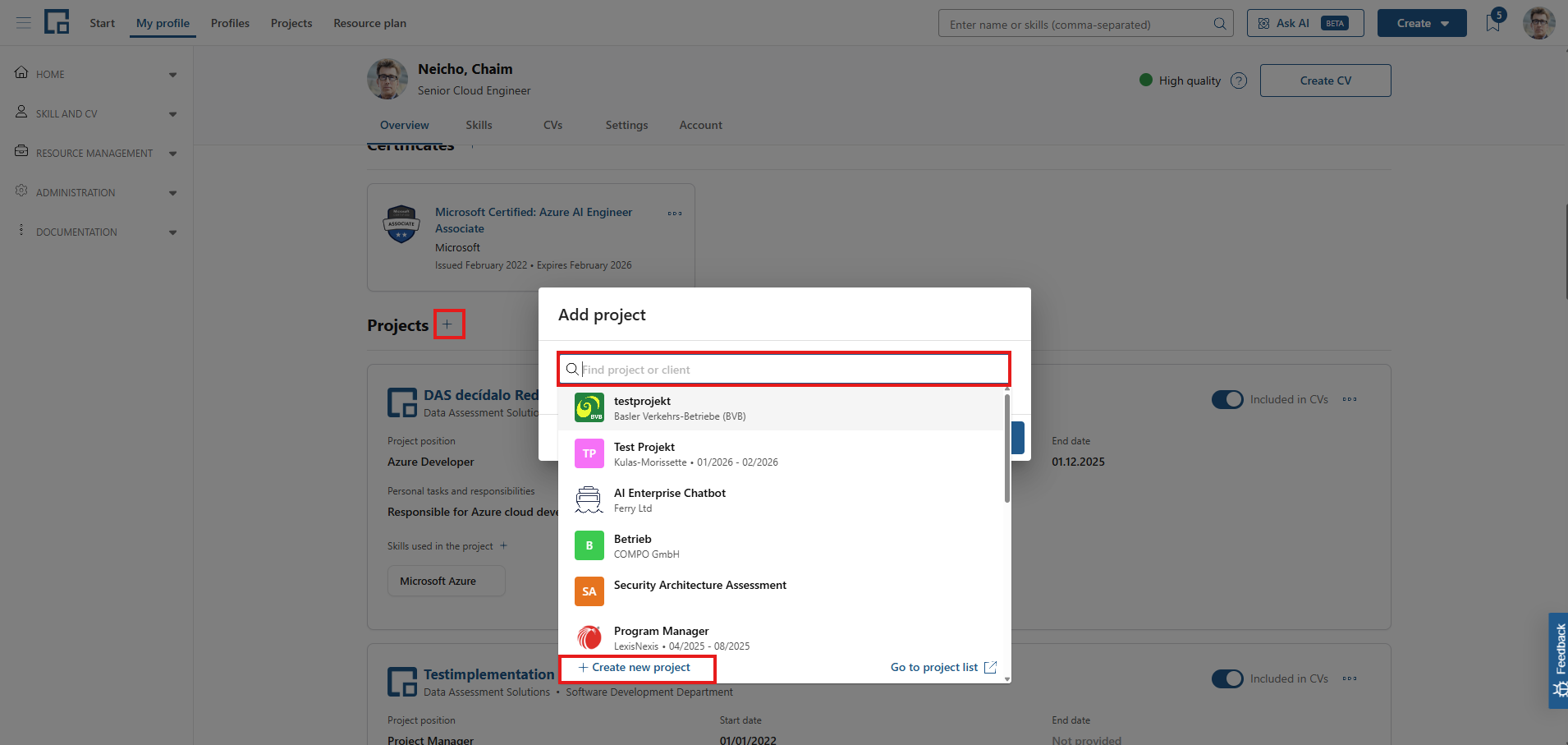
The same project can be added to a profile more than once. This is useful when a consultant held different roles on the project or contributed in separate phases. Projects that are already on the profile still appear in the search and are marked “On profile”, so a further entry can be added on purpose. Each entry is independent, with its own project position, dates, personal tasks and skills.
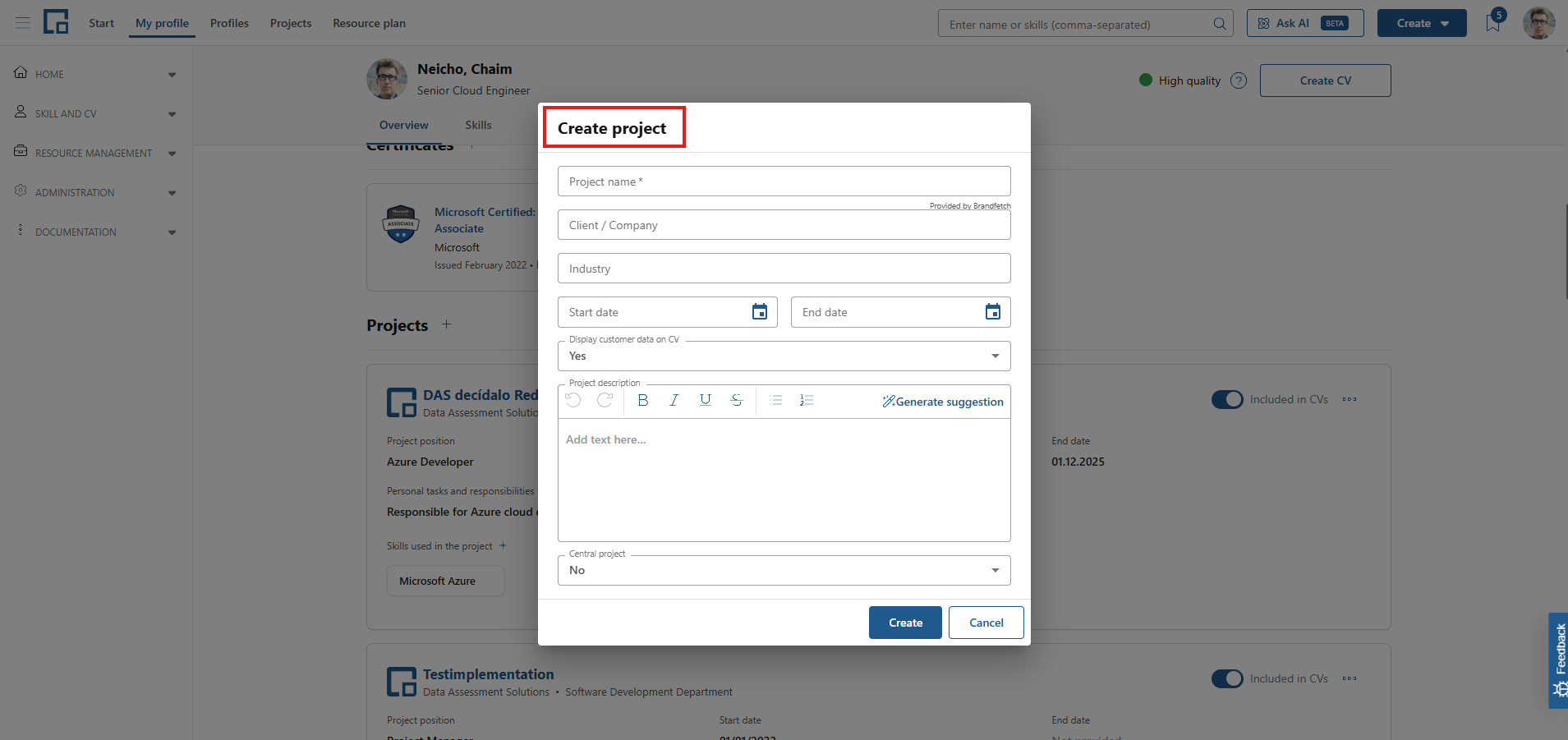
When creating a new project, a form appears where key information can be entered, including the project name, client, industry, start and end dates, and a project description.
For the project description the employee can use AI to generate suggestions. The generation dialog collects the project fields, including fields without a value and tenant-specific fields, in one editable context field. Employees can review or adjust this context and provide additional information before sending it to the AI.
Employees can also specify whether the project should become a central project and whether the client information may be displayed on the CV.
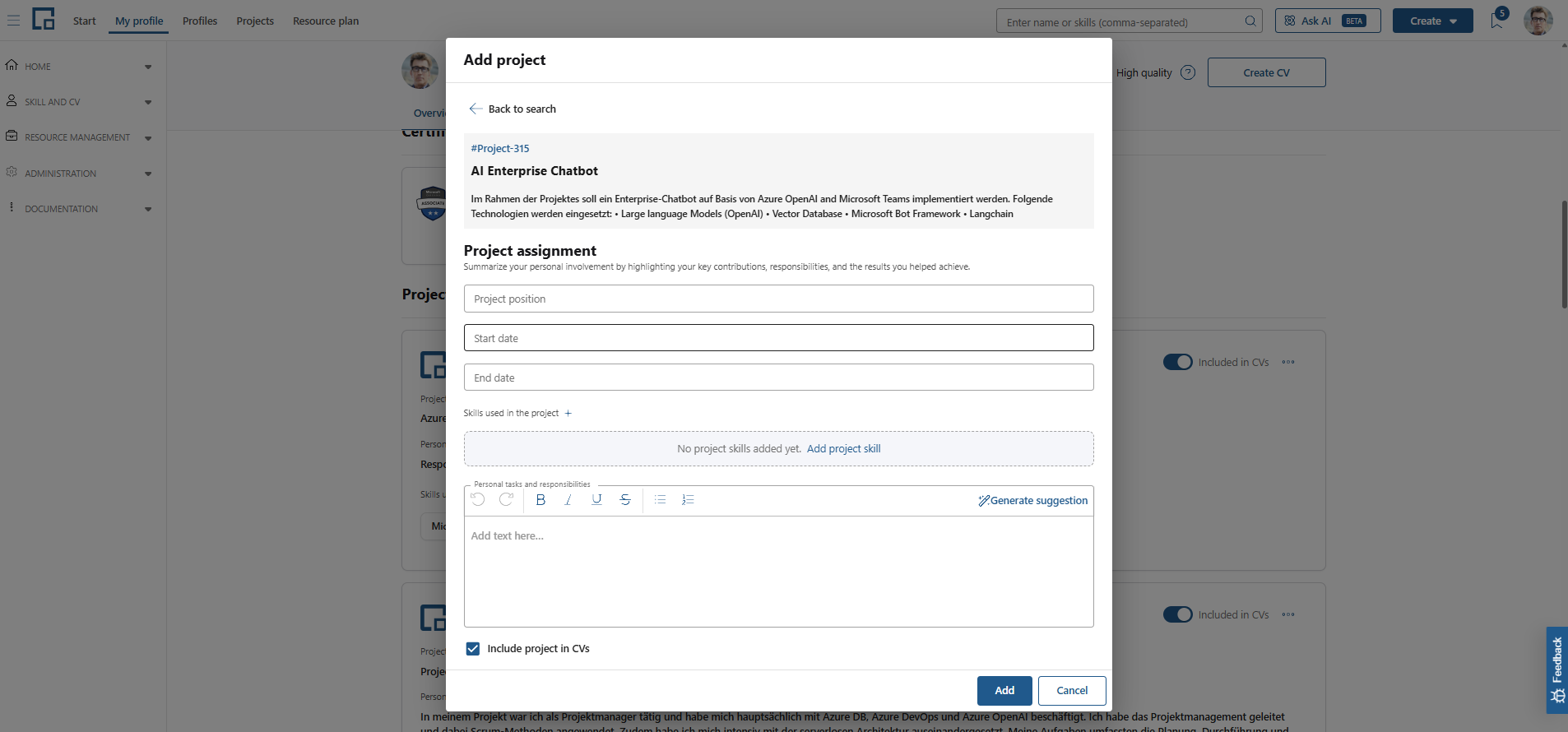
When an employee chooses to add a central project, a form appears where further details can be added. The employee can summarize personal involvement by highlighting key contributions, responsibilities, and the results you helped achieve.
The AI suggestion for the project description uses the project fields currently available in the form, including fields without a value. These details remain editable in the generation dialog, and additional information can be entered separately.
It is also possible to specify which skills are used in the project and whether the project should be included in CVs.
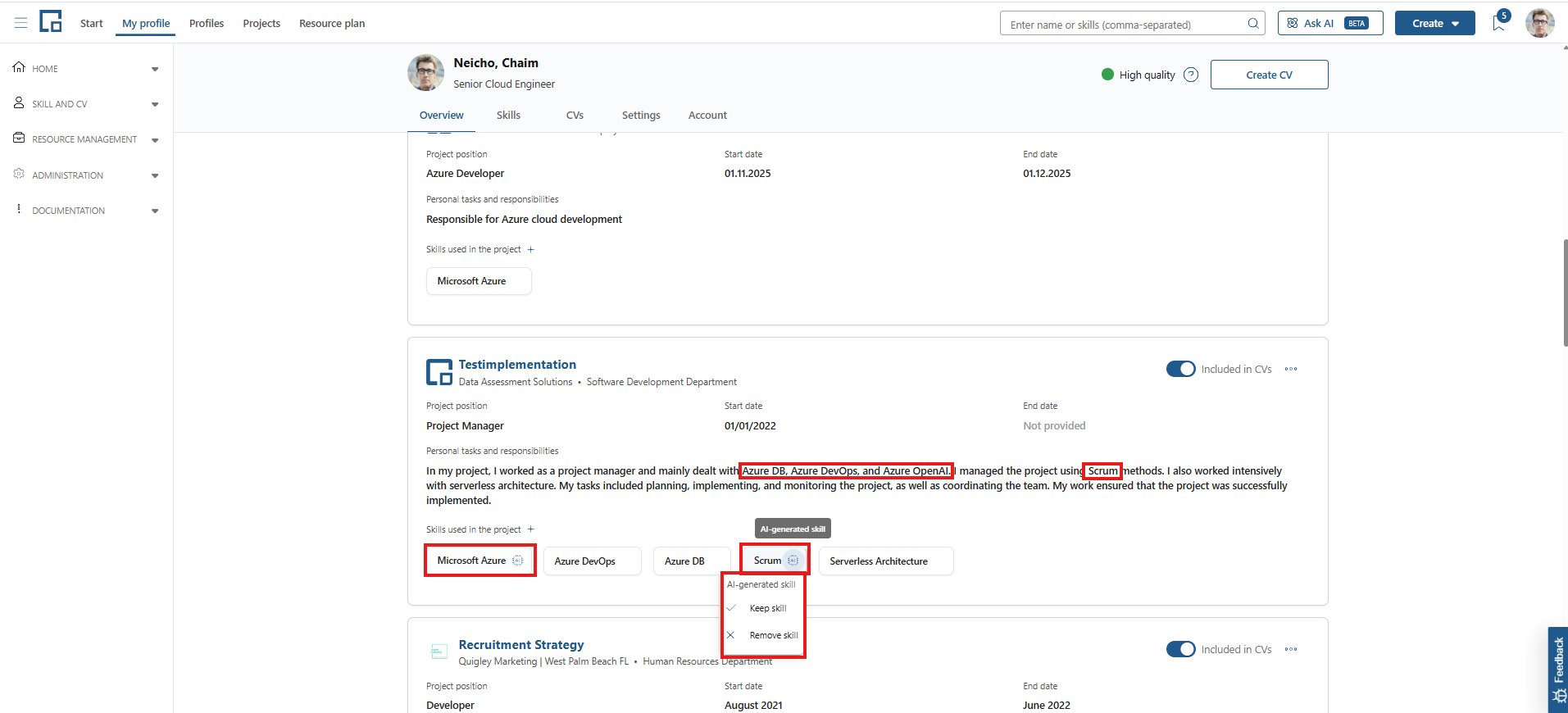
Adding projects skills to the project
After adding a project and including “Personal tasks and responsibilities”, new skills are suggested using AI. Those skills are marked with an AI-Icon and can either be added or removed. AI suggested skills are not added to the profile automatically.
Editing projects on the profile
Projects can be edited when the employee has the required permissions.
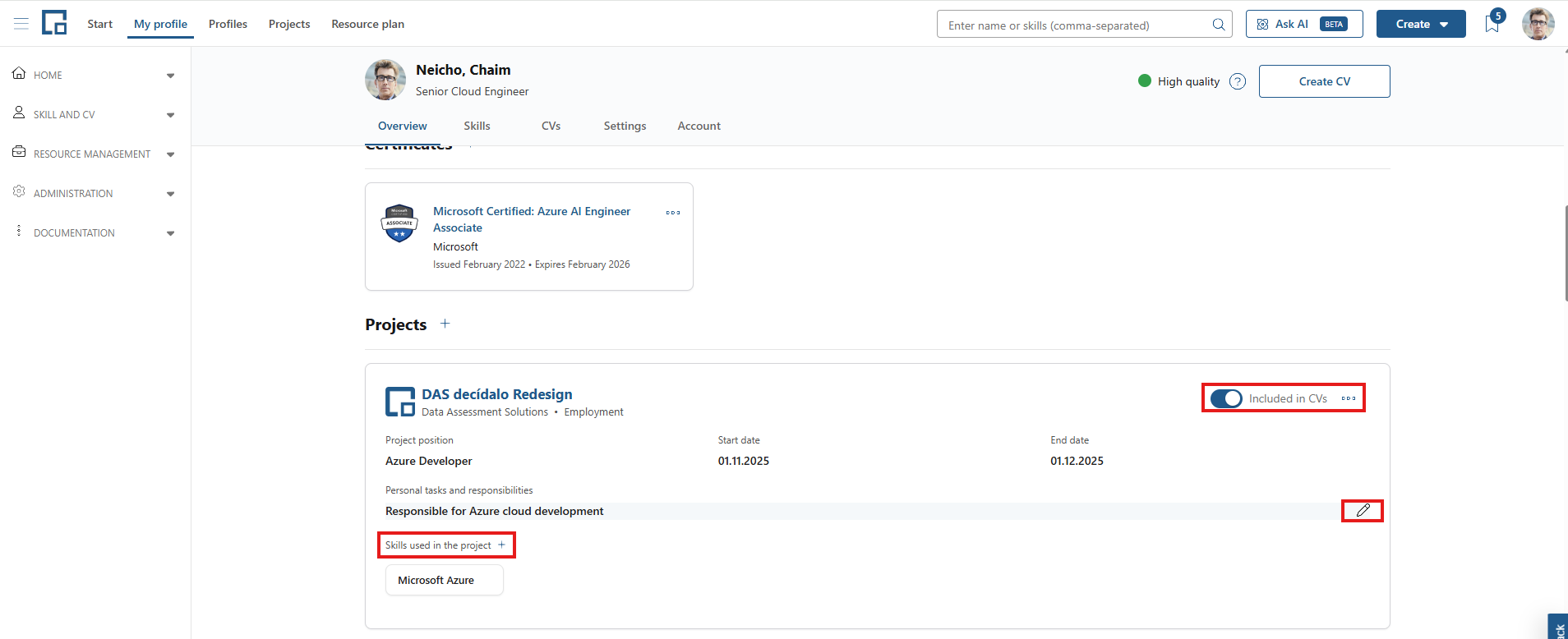
It is possible to edit the project position, start and end dates, personal tasks and responsibilities, and skills applied in the project, simply by clicking in the text fields or using the ‘plus icon’.
The employee can also activate or deactivate the toggle directly on the profile, which indicates whether the project should be included in CVs.
There is a more detailed edit mode. To enter the edit menu, click the ‘actions icon’ in the top right corner of the project tile.
In the edit window, you can now edit and add numerous fields and details, by clicking in the fields.
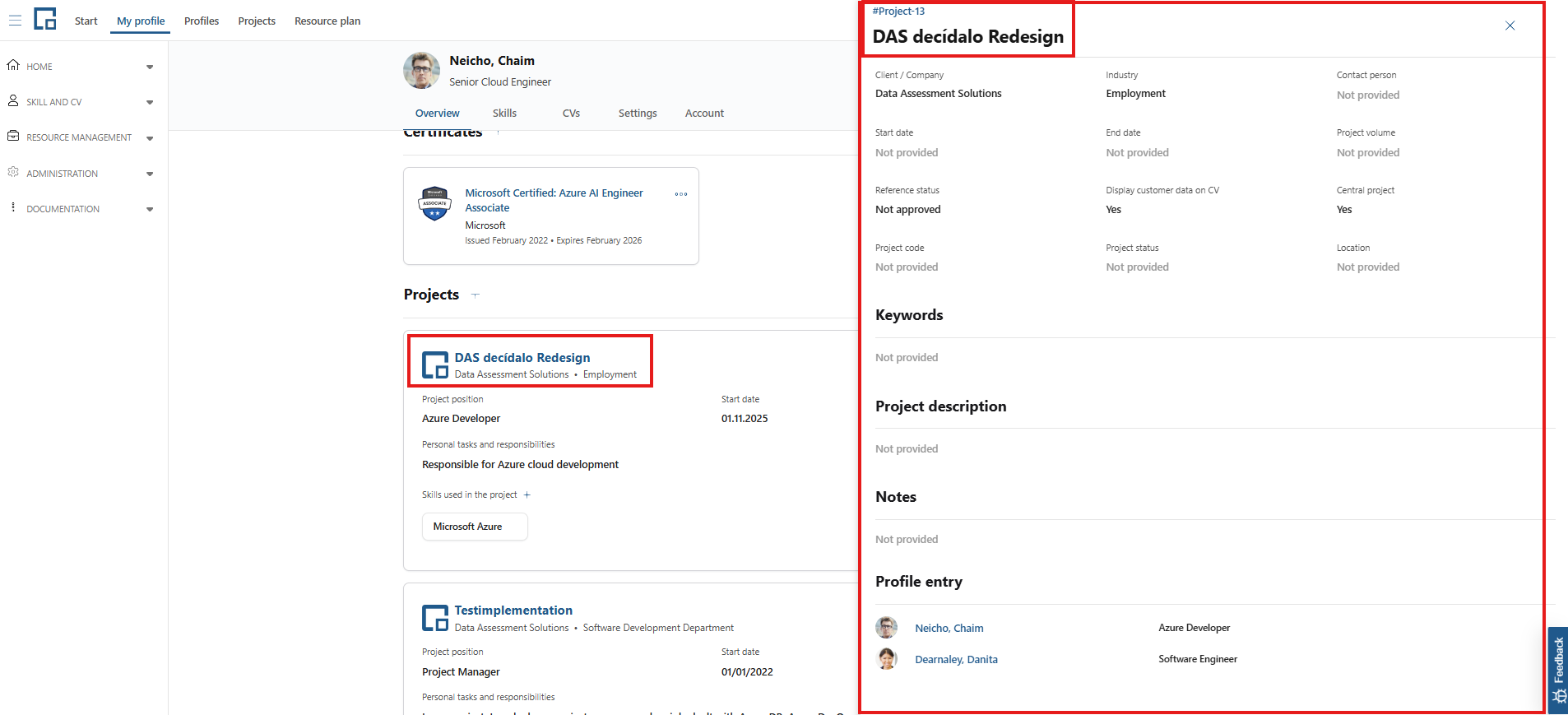
The employee can also navigate to the project entry, by clicking on the Project-ID at the top.
Deleting projects from the profile
To delete a project from a profile, click the ‘actions icon’ in the top right corner. The project is removed immediately.
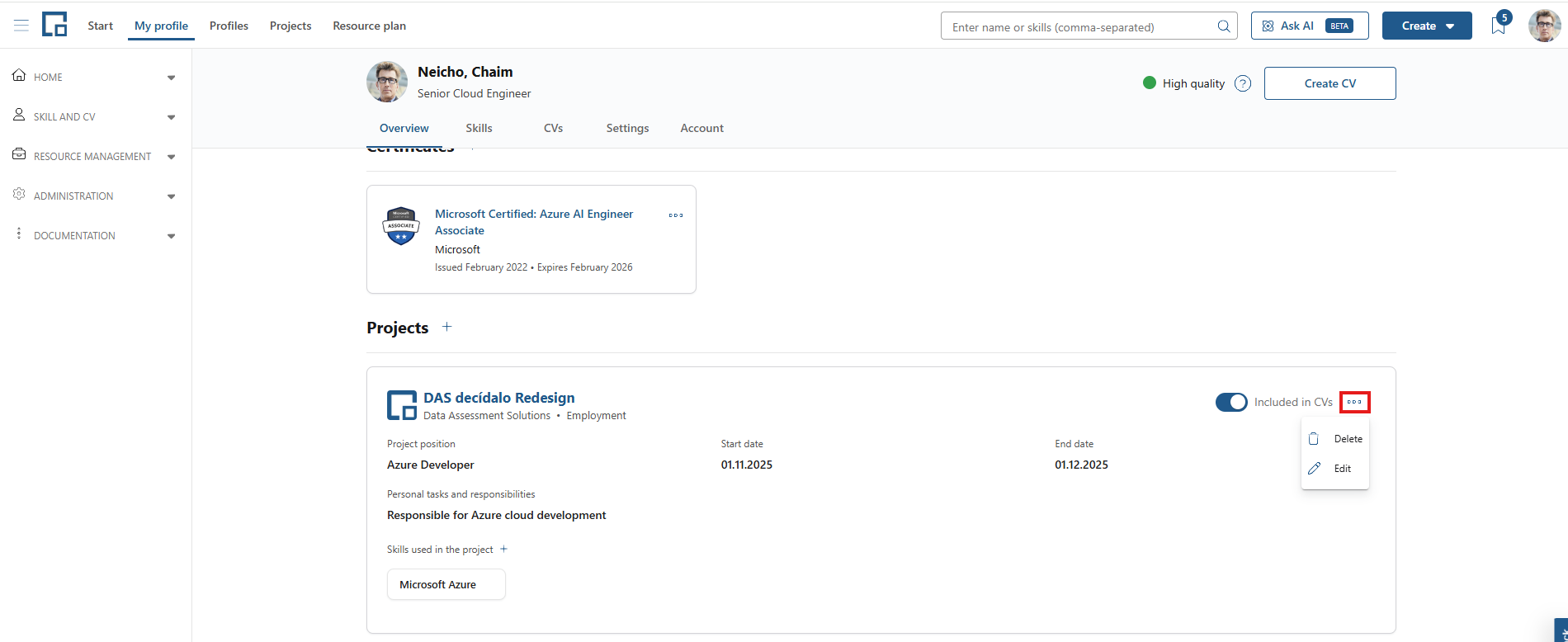
Note: If an employee has not created a project but has added an existing central project to their profile, removing it only deletes the entry from their personal profile, not from the central project page. A self-created project is only deleted if no other users are assigned to it.
Note: If the same project is on the profile more than once, removing one entry only removes that entry. The option to also delete the underlying project is offered only when the person’s last remaining entry for that project is removed.
Before deletion, a pop-up notification appears to confirm the project removal.
Top skills
The top skills section of the profile displays all assessed skills, that are marked as top skills of the current employee. The handling is explained in the ‘Skills’ tab section of this article.
Trainings
This section of the profile shows the professional trainings of the employee. For detailed information see Managing & Using Trainings.
Professional career
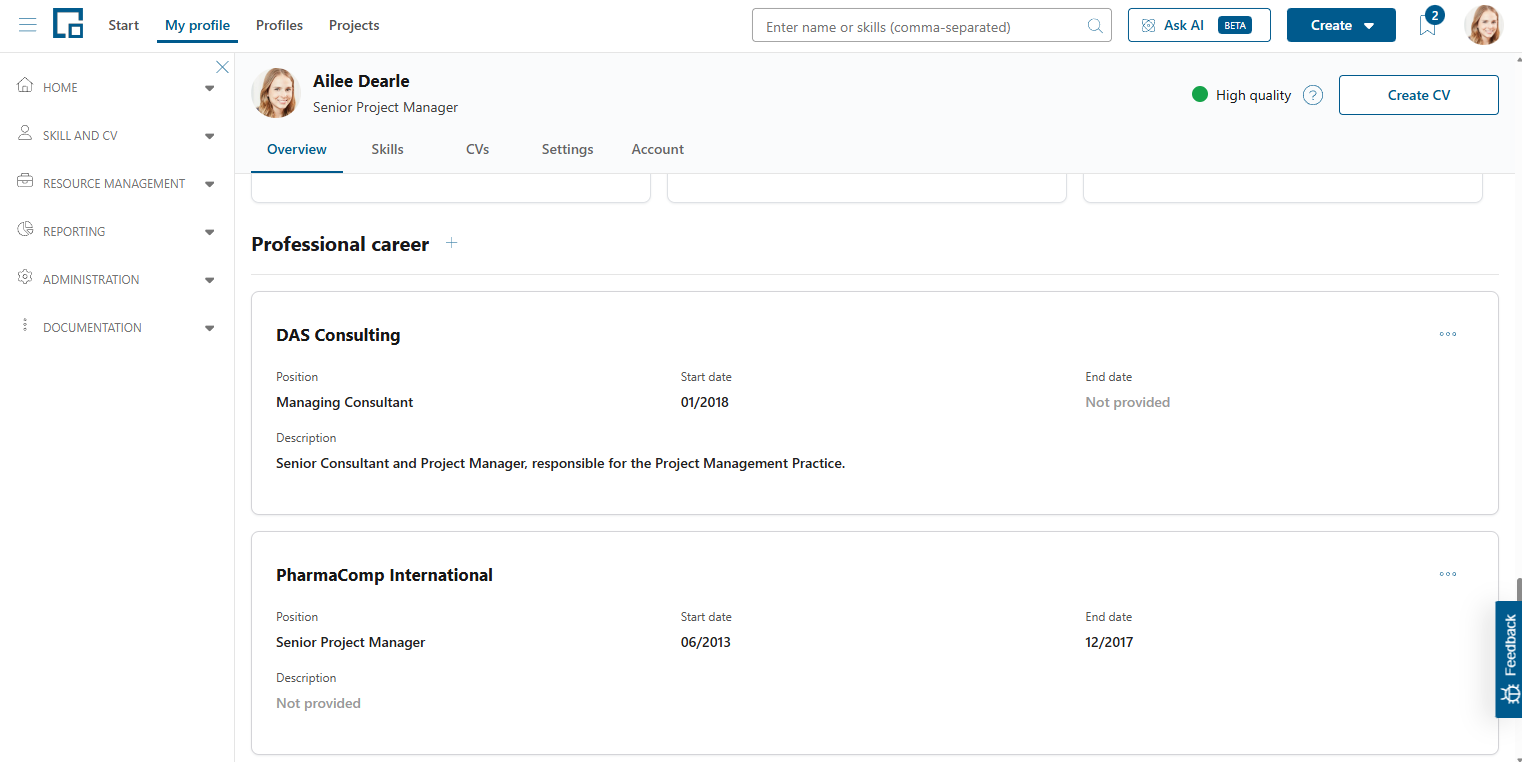
The professional career always highlights the progression and seniority of an employee, especially in IT. It also validates the technical skill set and gives evidence of previous results. Therefore, decídalo provides a built-in section ‘Professional career’ on each profile.
The professional career of an employee is displayed as a list of big tiles pointing out the details of each job: the company, job position, start date, end date (optionally) and a description. All of these fields may be empty. The career entries are sorted chronologically.
Adding professional career entries to the profile
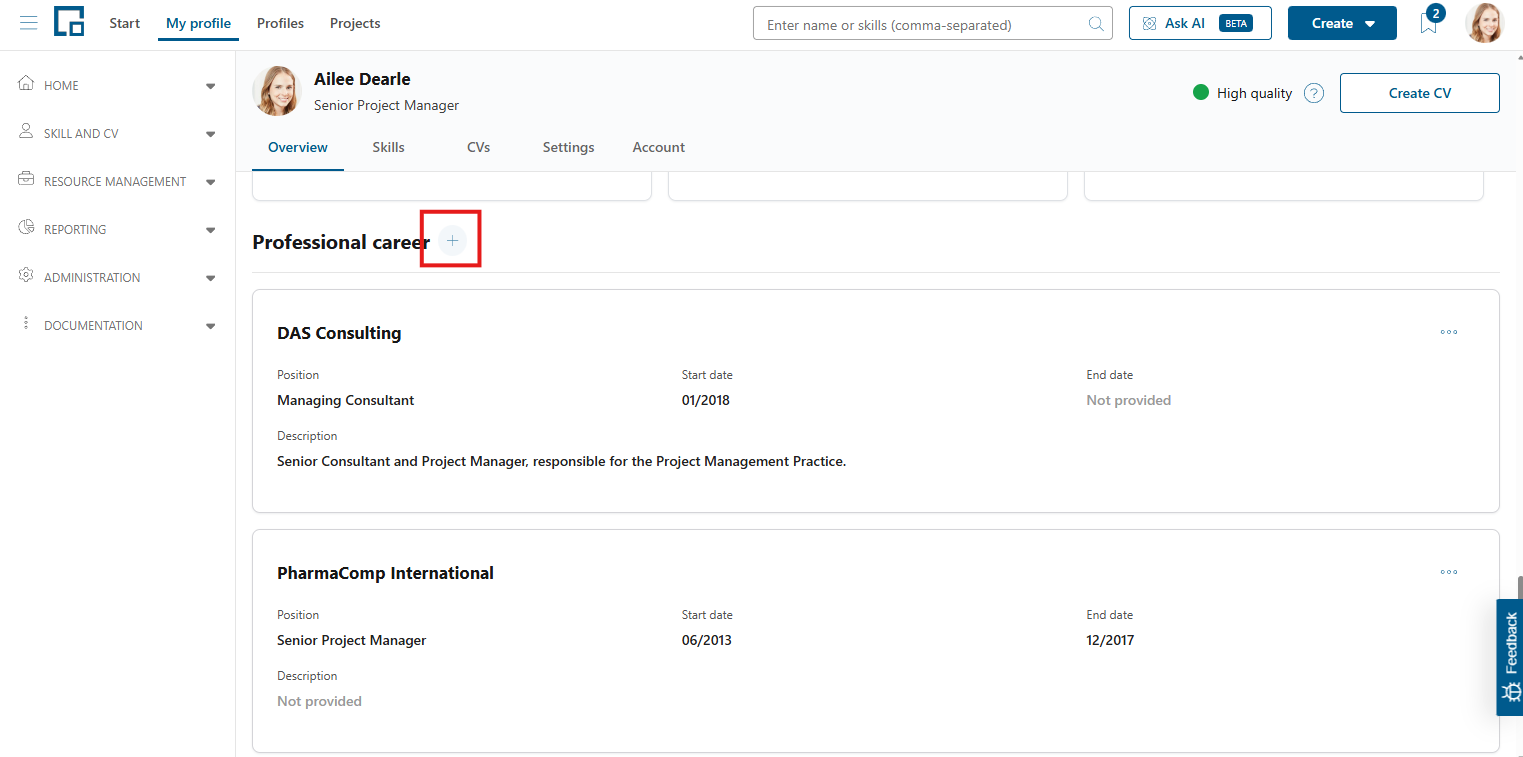
To add a new professional career entry to a profile, click the plus button next to the ‘Professional career’ section header and a pop-up opens a form.
In the form, enter the company, job position, start date, end date and a description. Entering reasonable data for all fields of the professional career enables possible clients tracing the employee’s skill origin on CVs. To add the entry to the professional career of the profile, click the ‘Create’ button.
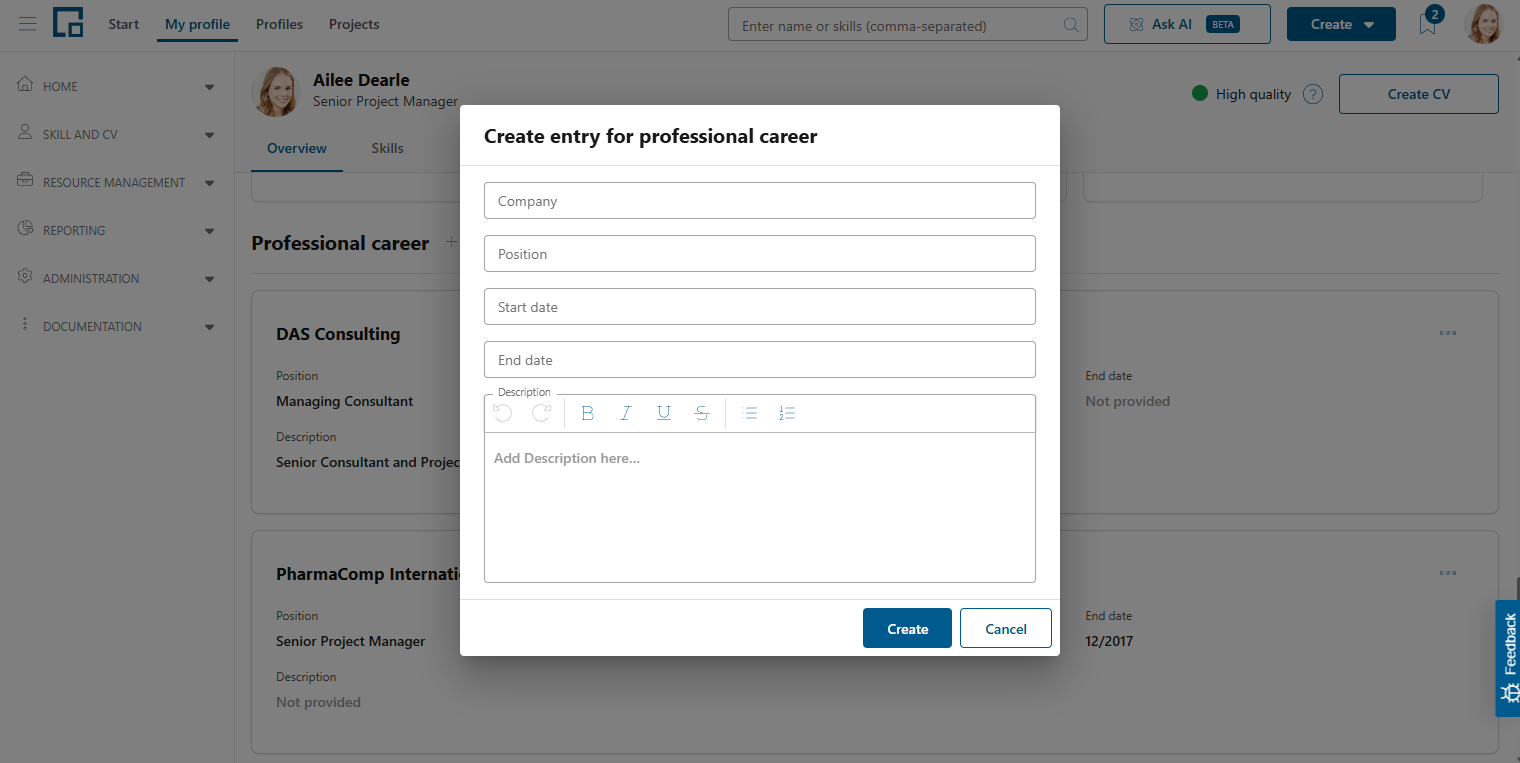
Note: The newly added entry is put chronologically into the result list, so it does not necessarily have to be at the start or end of the list.
Editing professional career entries on the profile
The tile of a professional career entry contains all properties as inline editable fields. Thus, it is possible to hover over a field and click on it to edit the property.
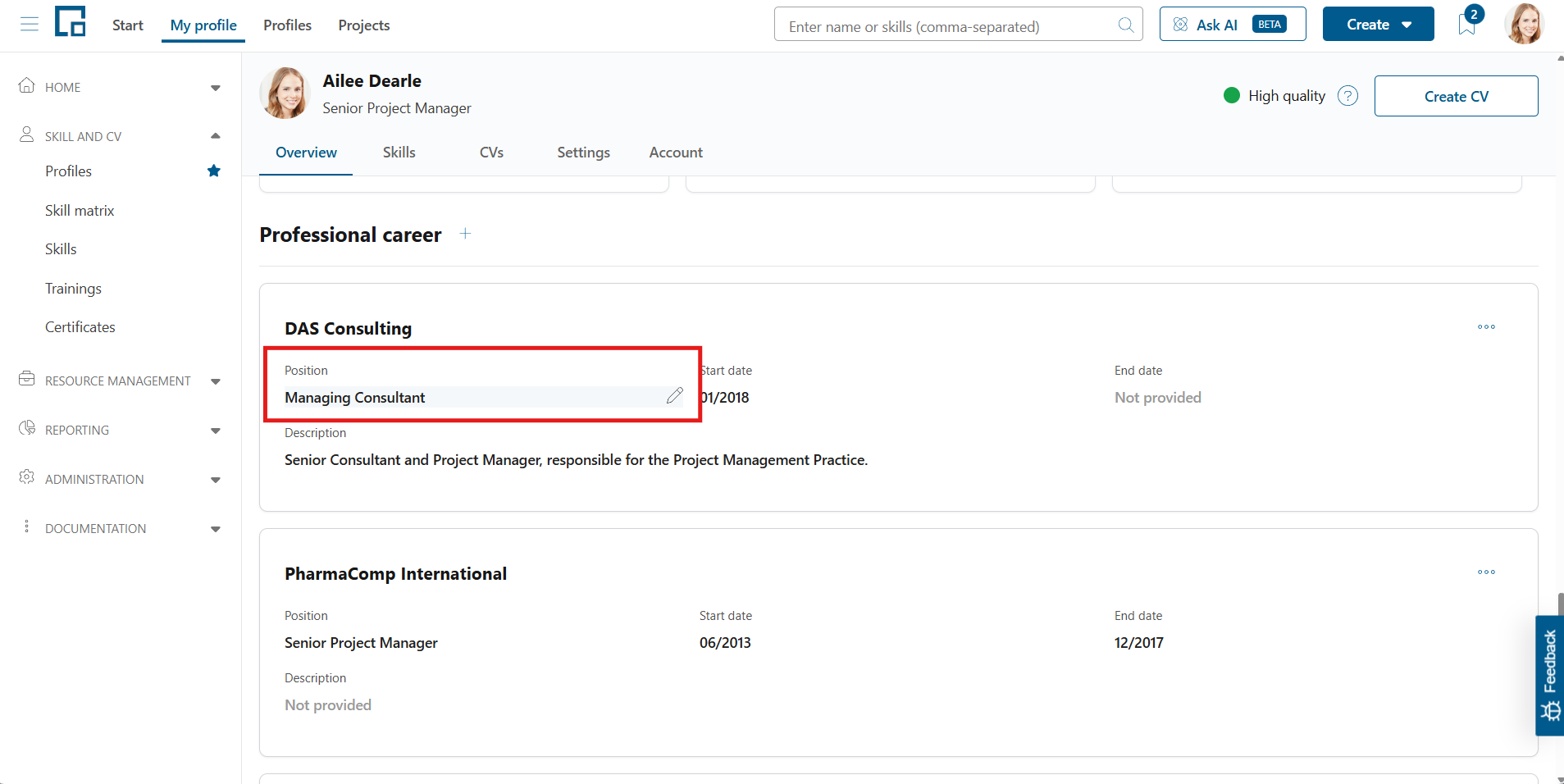
The field is automatically switched to edit mode in which it is possible to adjust the respective property.
To save the changes, click the checkmark button; to cancel them, click the cross button. With either click the field automatically switches into view mode again.
Deleting professional career entries from the profile
To delete a professional career entry from the profile, click on the three dots on the right and select ‘Delete’. Decídalo asks to confirm the deletion in the upcoming pop-up.
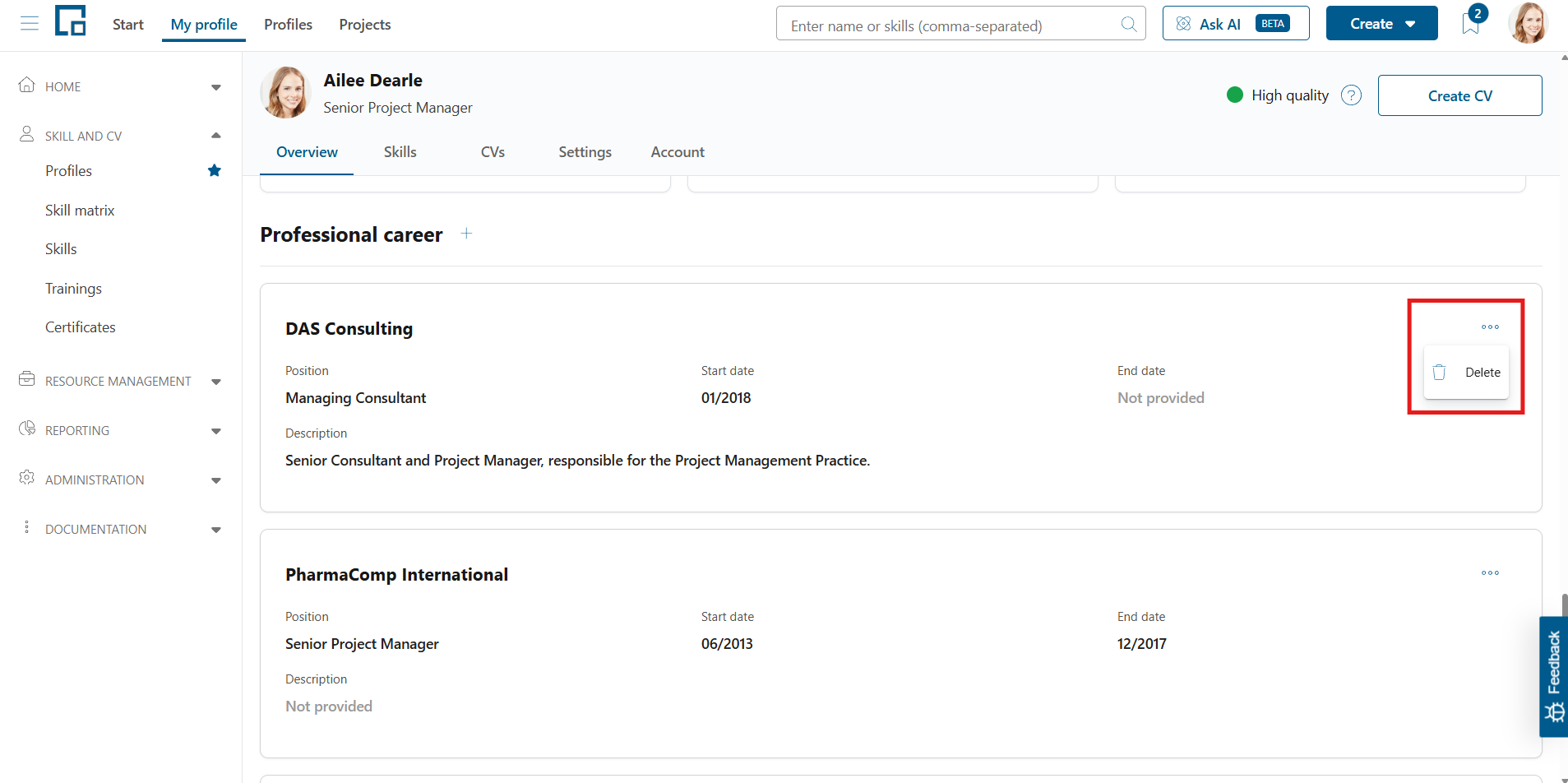
Click on ‘Remove’ to confirm the deletion, or on ‘Cancel’ to only return and close the window.
Publications
Publications can be a strong differentiator on a CV because they signal expertise, credibility and thought leadership. A possible client can be sure that the employee has deep technical knowledge, established authority and documentation skills.
The publications of an employee are shown as big tiles pointing out their detailed information: the title, type, link, publish date, authors, volume and the number of pages. Any of those fields besides the type may be empty. The list of publications is sorted by publish date.
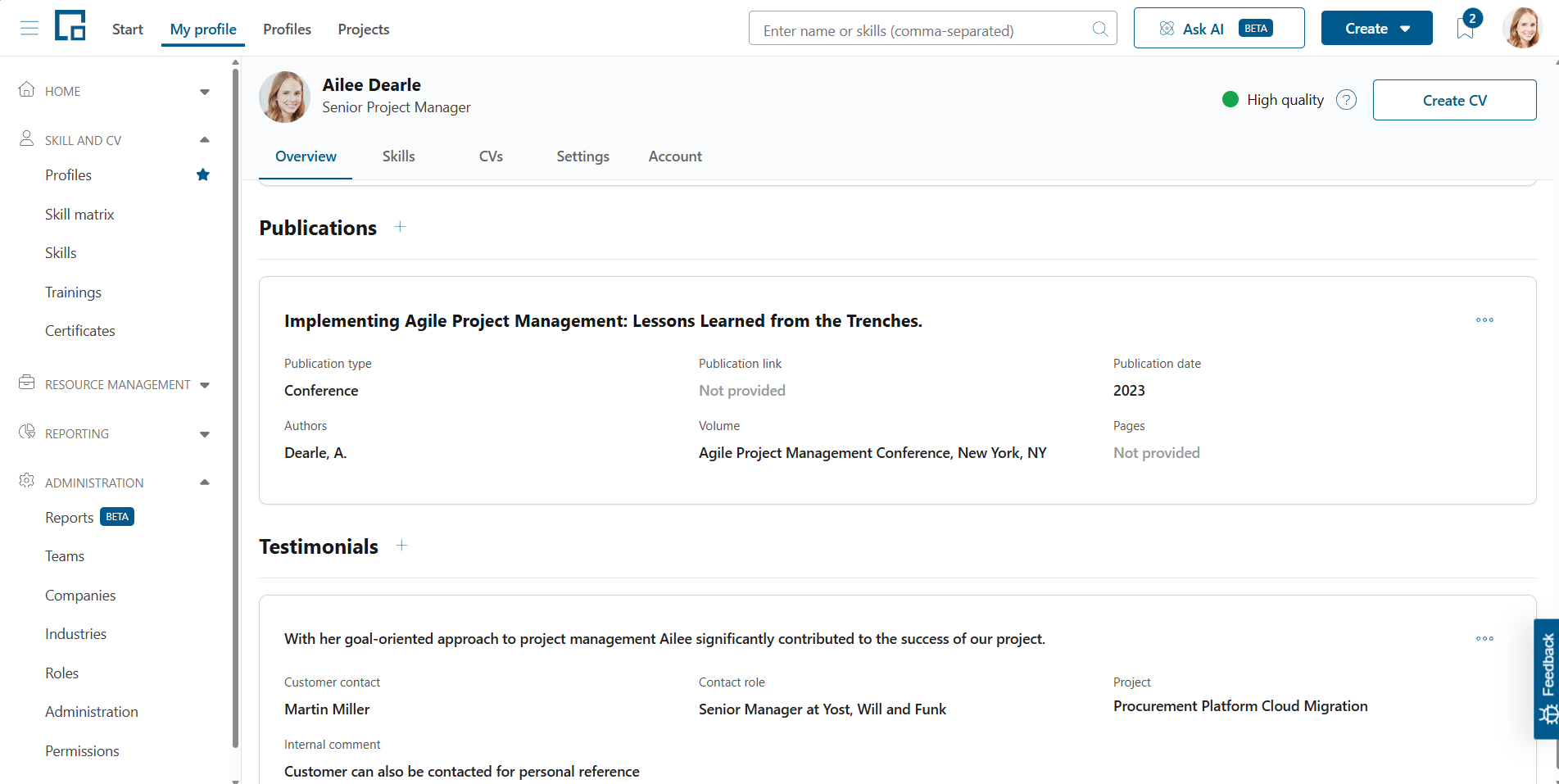
Adding publications to the profile
To add a publication to the profile, click on the plus next to the ‘Publications’ section header and a pop-up with a form appears. In the form, enter the publication’s title, type, link, publish date, authors, volume and the number of pages. To add the entry to the publication list of the profile, click the ‘Create’ button.
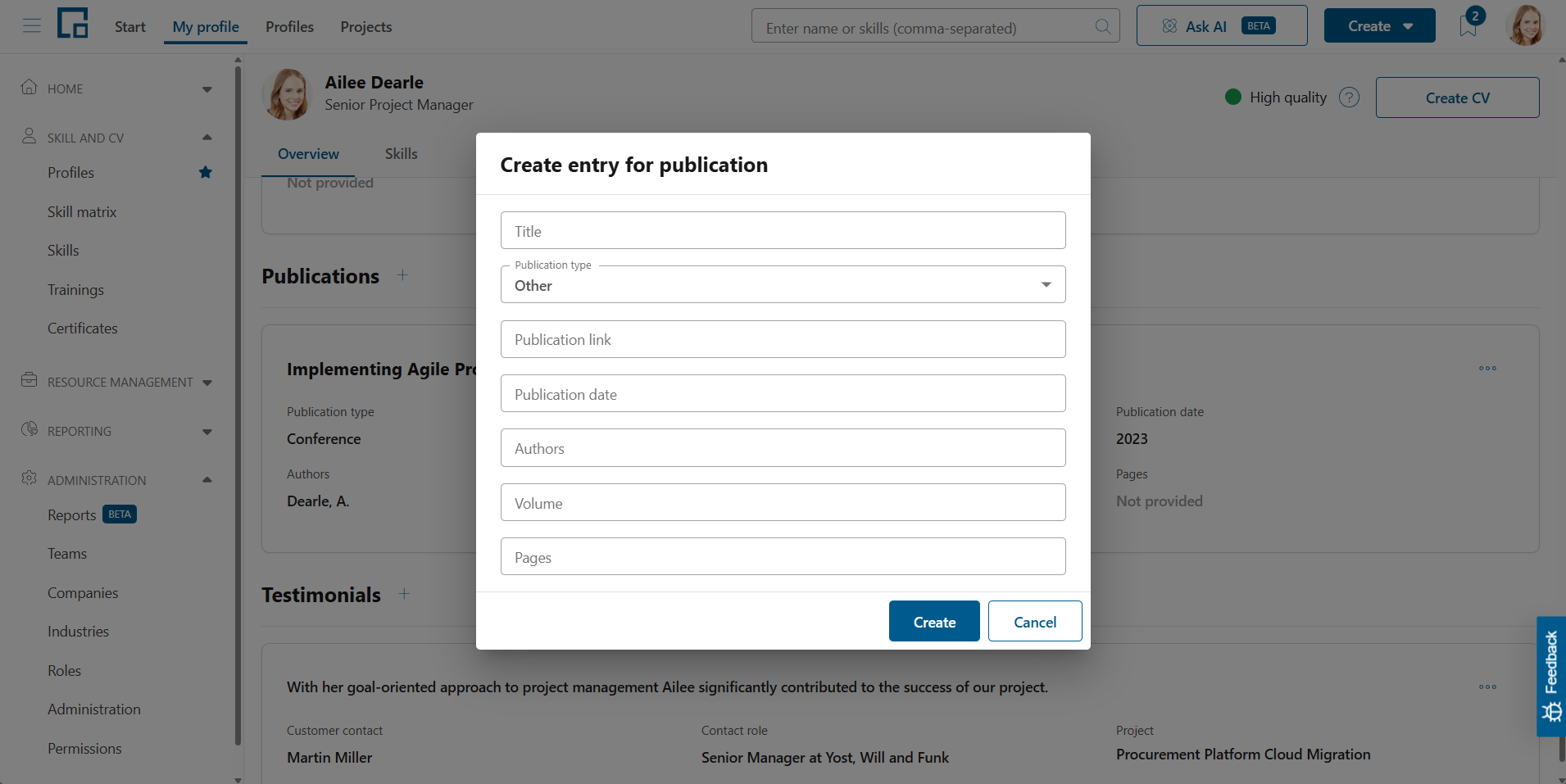
Note: The list of publications is sorted by publish date. Thus, the newly added entry may not necessarily be at the start or end of the list.
Editing publications on the profile
The tile of a publication contains all properties as inline editable fields. Thus, it is possible to hover over a field and click on it to edit the property.
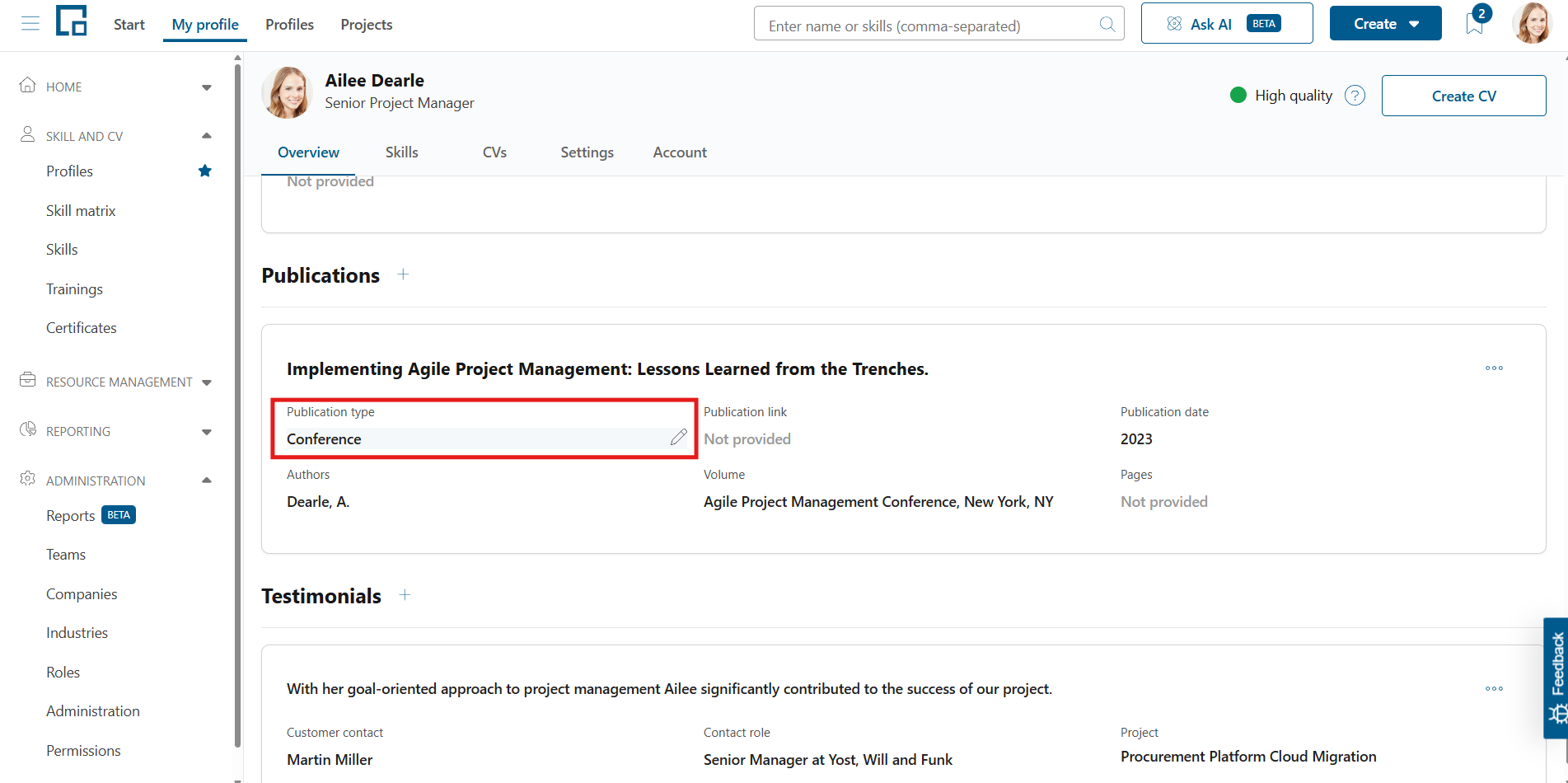
The field automatically switches to edit mode in which it is possible to adjust the respective property. To save the changes, click the checkmark button; to cancel them, click the cross button. With either click the field automatically switches into view mode again.
Deleting publications from the profile
To delete a publication from a profile, click three dots in the top right corner and select ‘Delete’. Decídalo asks to confirm the deletion in the upcoming pop-up.
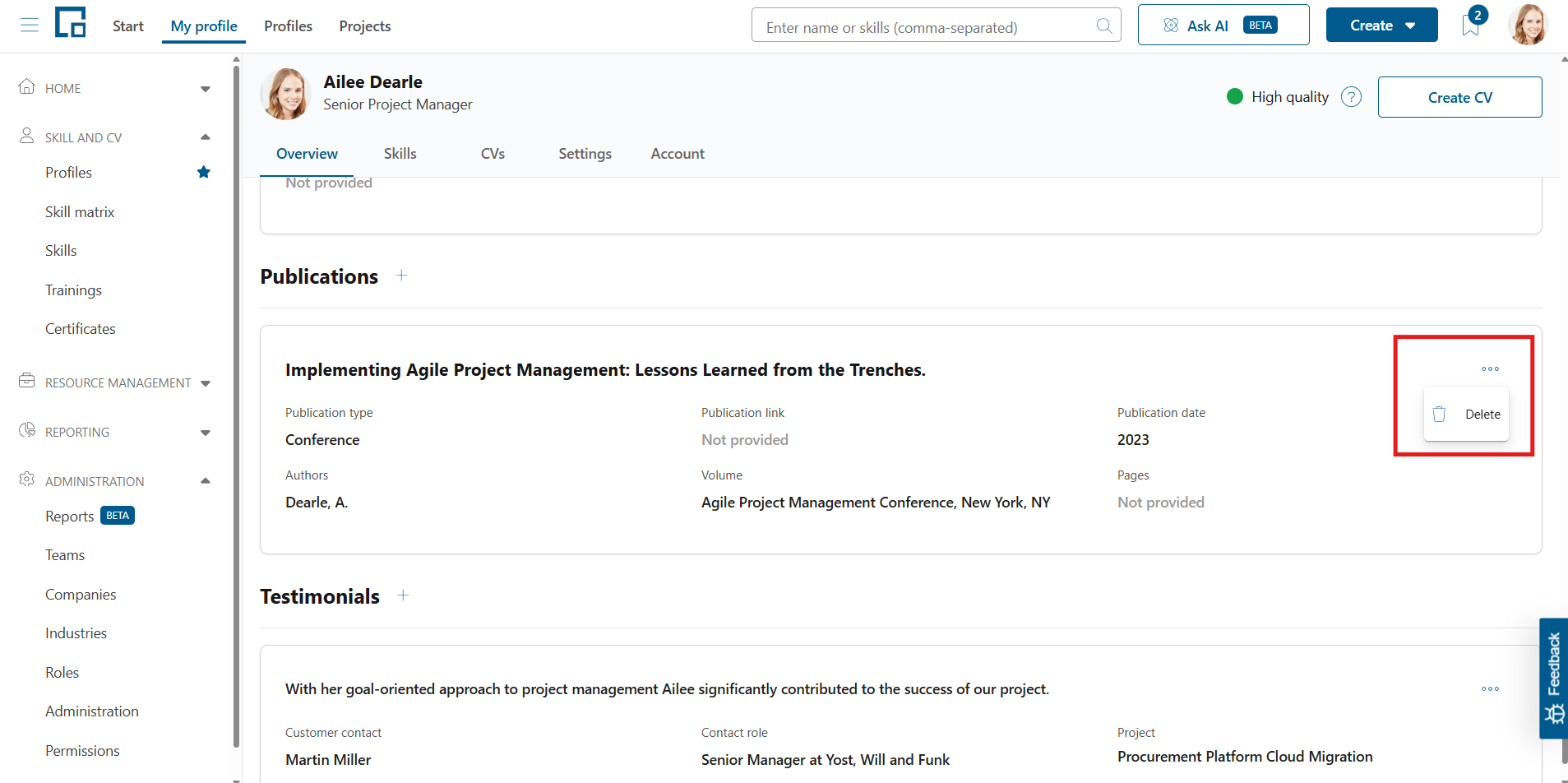
Click on ‘Remove’ to confirm the deletion, or on ‘Cancel’ to only return and close the window.
Testimonials
Testimonials are valuable on CVs because they provide credible, third-party validation of skills, results, and professional behavior. Possible clients quickly gain confidence and build trust in the employee because the testimonials can be evidence of technical expertise, problem-solving ability or leadership.
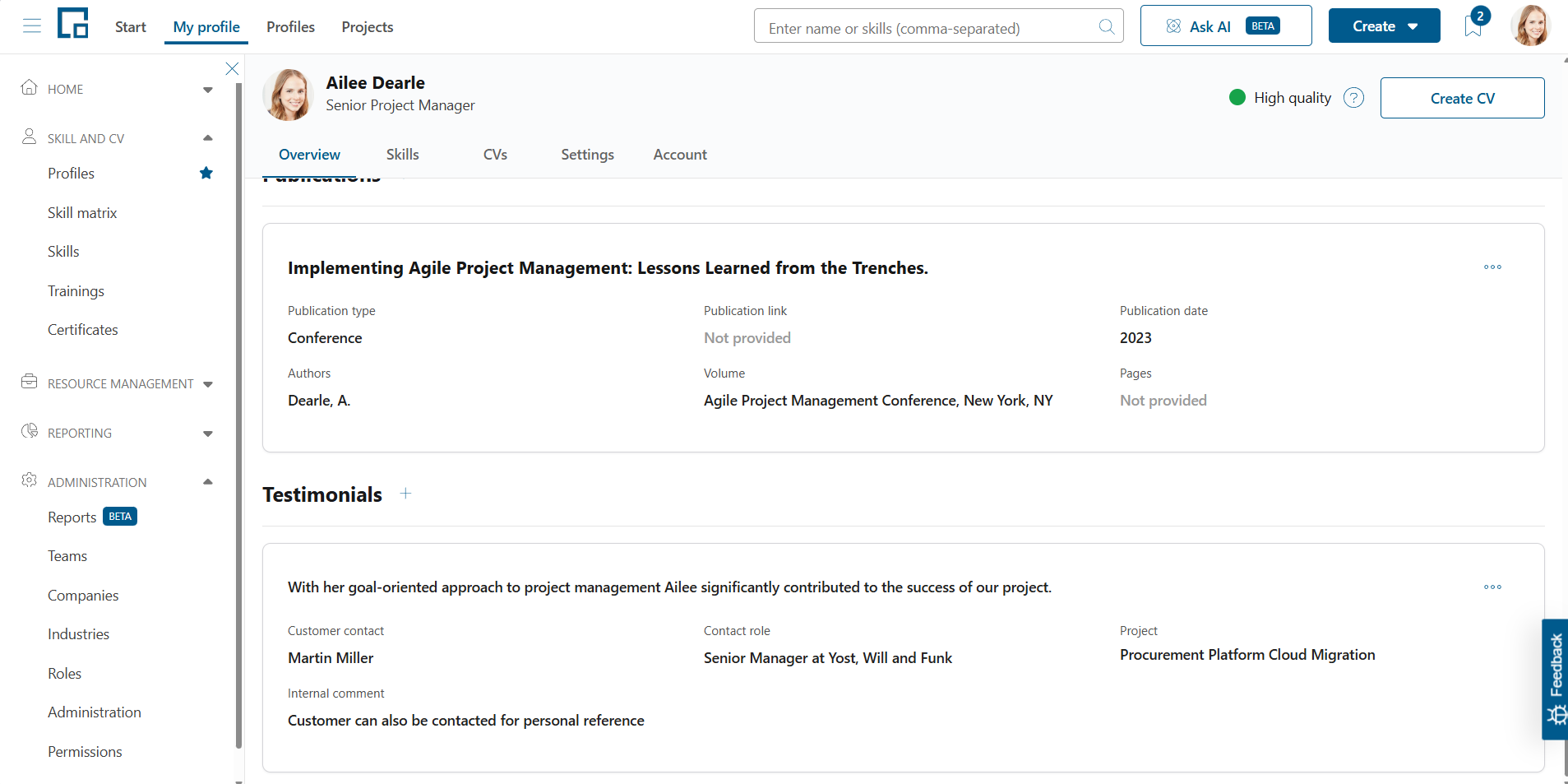
Therefore, decídalo displays the testimonials of an employee on its profile. They are displayed as big tiles with their respective information: the testimonial text, customer contact and its role, the project and an internal comment. Any of these fields may be empty.
Adding testimonials to the profile
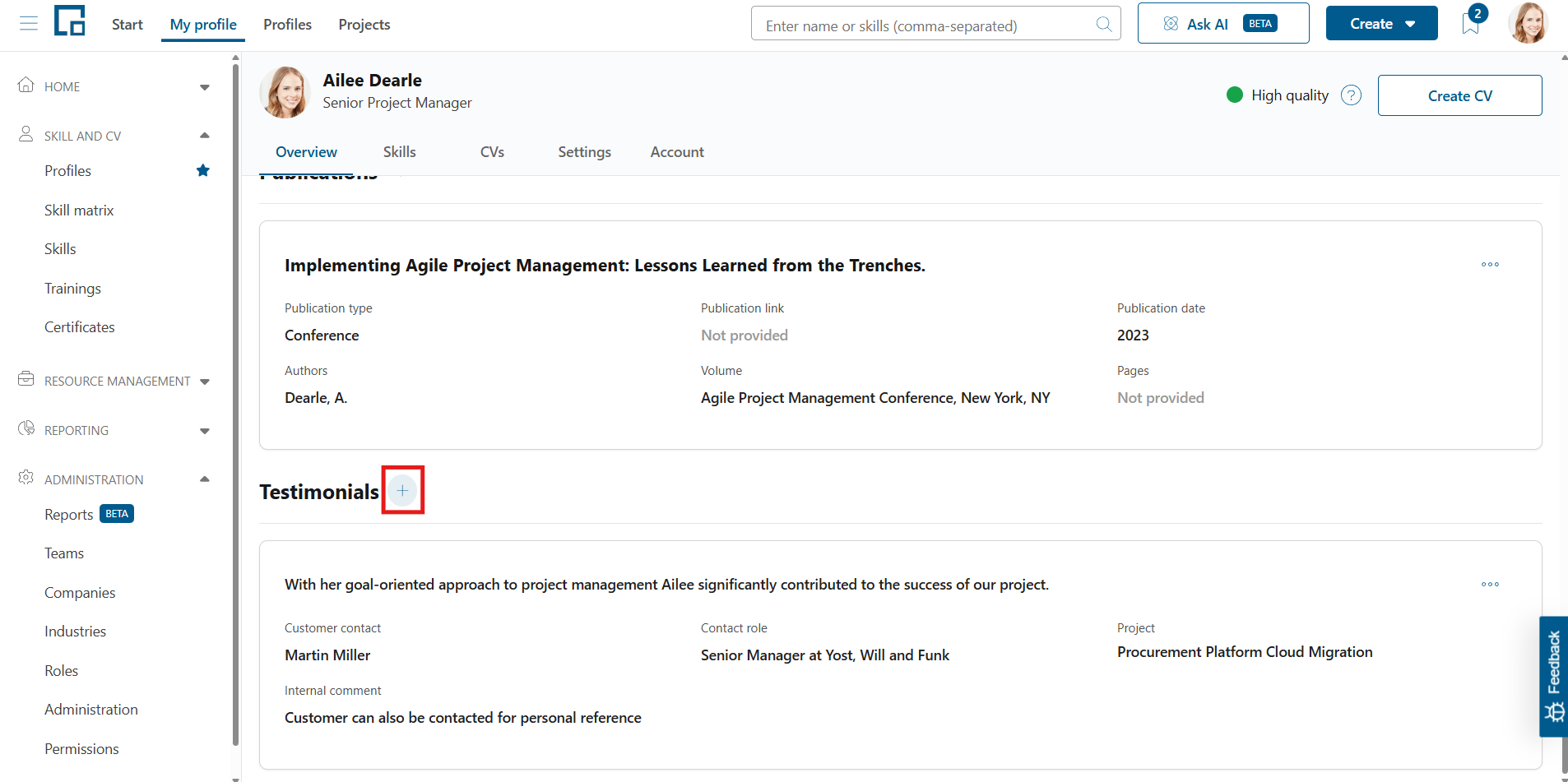
To add a testimonial to the profile, click on the plus button next to the ‘Testimonials’ section header and a pop-up with a form appears.
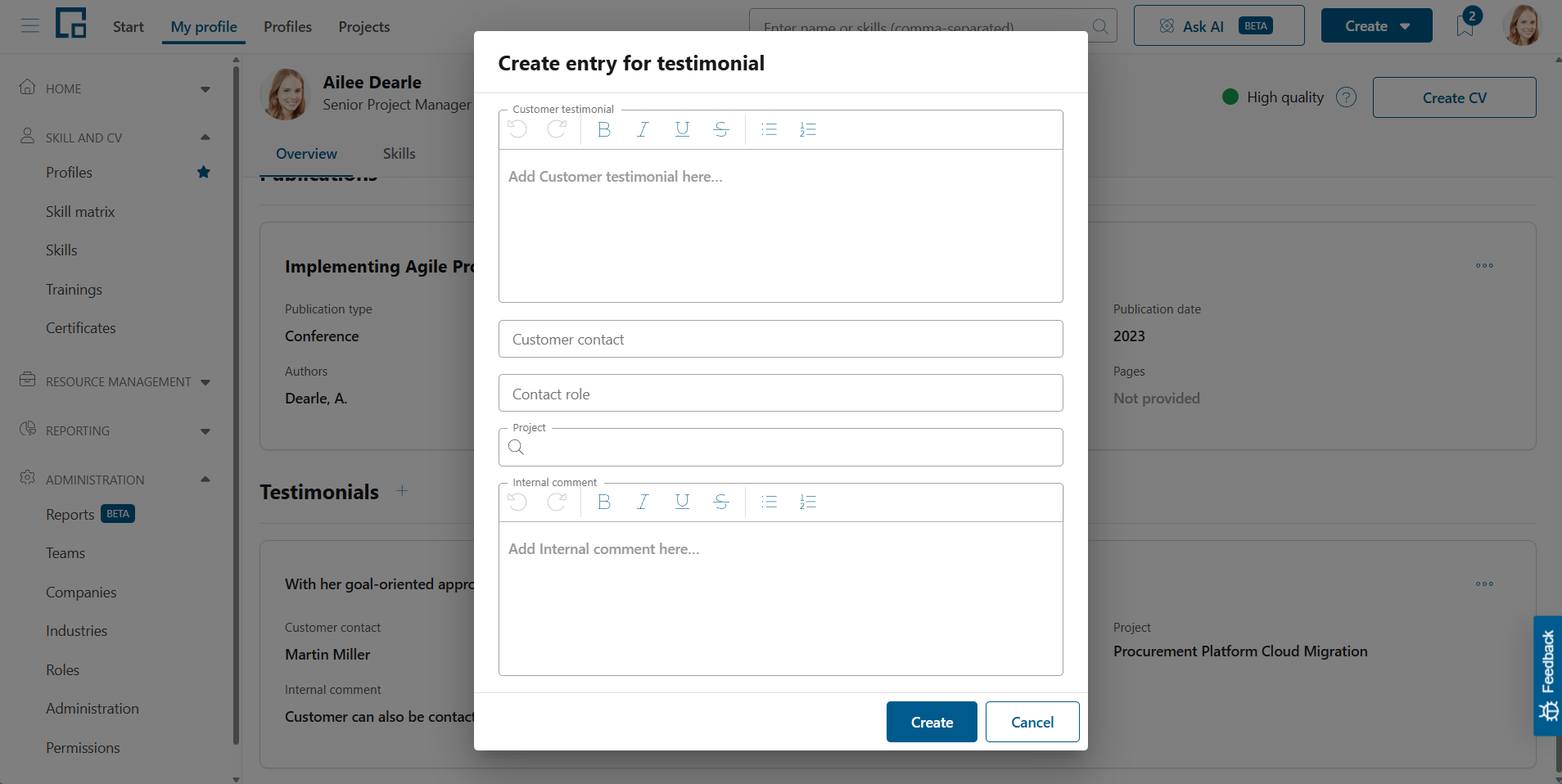
In the form, enter the testimonial’s text, the customer contact and its role and an internal comment. Additionally, a project from the company’s project list can be selected. With clicking ‘Create’, the testimonial is added to the list.
Editing testimonials on the profile
The tile of a testimonial contains all properties as inline editable fields. Thus, it is possible to hover over a field and click on it to edit the property.
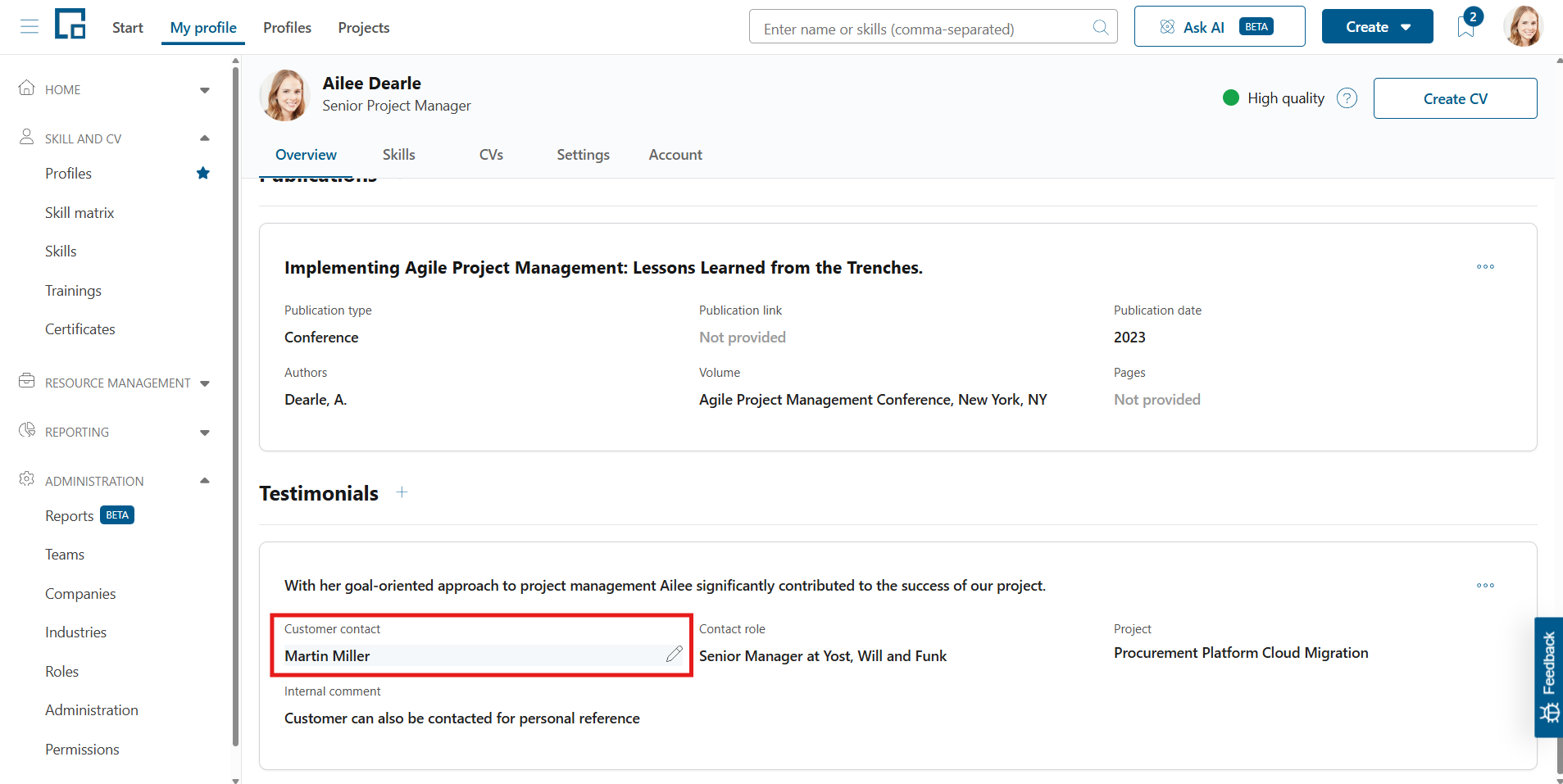
The field automatically switches to edit mode in which it is possible to adjust the respective property.
To save the changes, click the checkmark button; to cancel them, click the cross button. With either click the field automatically switches into view mode again.
Deleting testimonials from the profile
To delete a testimonial from a profile, click three dots in the top right corner and select ‘Delete’. Decídalo asks to confirm the deletion in the upcoming pop-up.
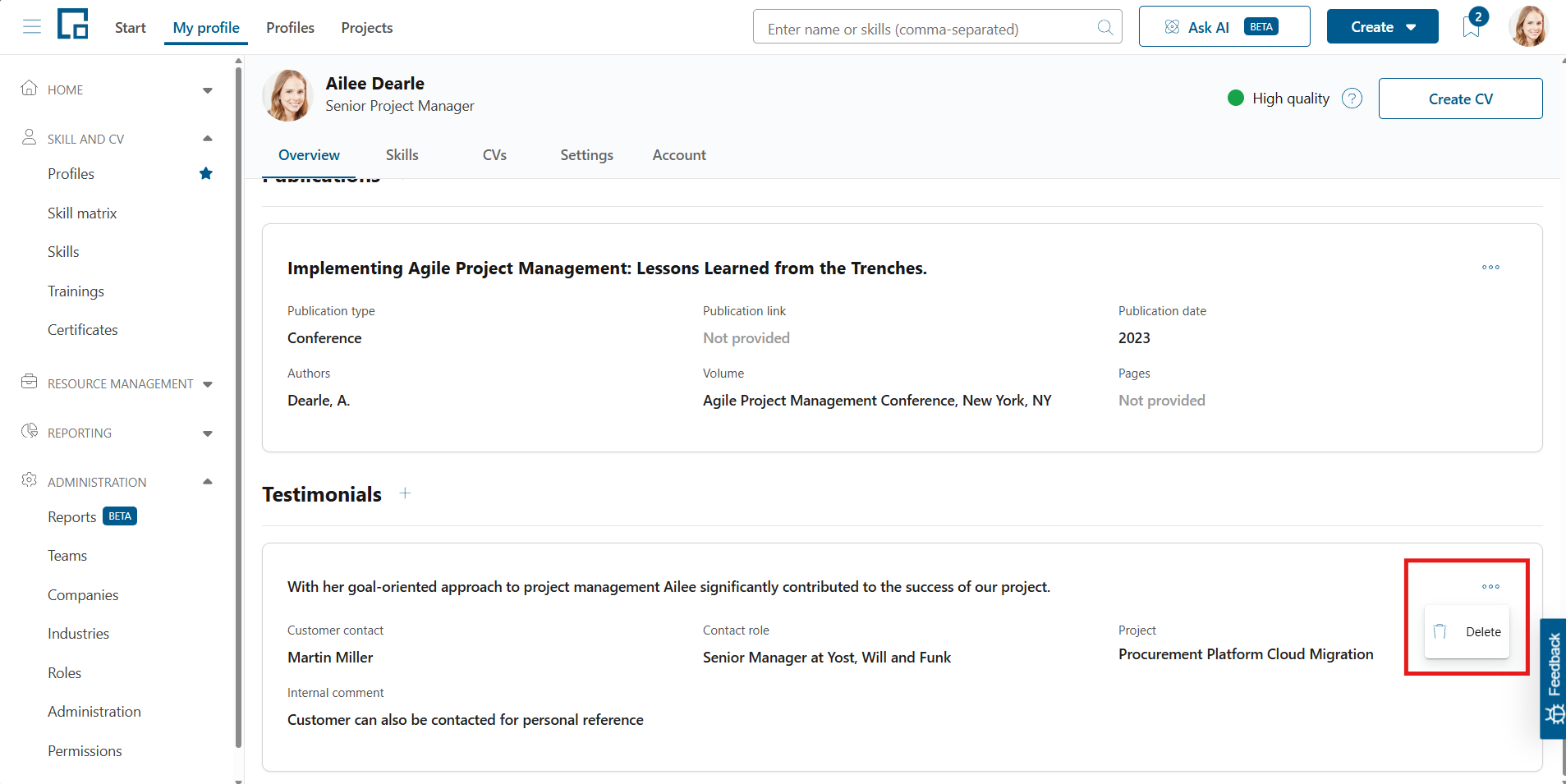
Click on ‘Remove’ to confirm the deletion, or on ‘Cancel’ to only return and close the window.
Skills
The ‘Skills’ tab lists all skills of the profile together with their assessment and usage data. Skills reach the profile in three ways: they are added manually, suggested by the decídalo AI based on profile content (see AI features for skills), or suggested from the roles assigned to the profile. Suggested skills appear as greyed-out rows until they are assessed or accepted.
| Column | Description |
|---|---|
| Skill | The name of the skill. Suggested skills show an additional info text naming the suggestion source. |
| Level | The assessed skill level, shown as one clickable chip per level of your company’s skill level scale. |
| Top skill | Marks the skill as one of the profile’s top skills, which are highlighted in the profile header. |
| Category / Sub-category | The skill catalogue category the skill belongs to. |
| Project experience | The accumulated project experience with this skill in years, calculated from the project history. |
| Used on | The number of projects the skill was used on. Click the link to see the projects. |
| Last used | The end date of the most recent project the skill was used on. |
| Updated by / Last update | Who last changed the skill entry and when. |
| Core skill | Whether the skill is part of the company’s core skill catalogue. |
Use the selector on the left of the toolbar to switch between the profile’s own skills and the skill lists shared with you; the grid then shows the assessment state for every skill of the selected list.
Assessing skill levels
Assess a skill with a single click on the level chip in the ‘Level’ column. The selected level is highlighted; click a different chip to change the assessment. An assessed level cannot be removed, only changed. Click on the legend button in the toolbar to see the definition of each level of your company’s skill level scale.
Downloading the skill list
Click Report on the right of the toolbar to download one of two Excel reports: Assessed skills or Role skill coverage.
Assessed skills contains exactly the rows the grid currently shows: any applied column filters and the current sort order are respected, and skills suggested by the AI or from roles are included. In addition to the grid columns, the file contains a ‘Suggestion’ column naming the suggestion source (‘By AI’ or ‘By role’); skills without an assessed level show ‘?’ as their level, just like in the grid.
Role skill coverage lists, for every role on the profile, each skill and certificate configured for that role next to the profile’s own assessment. It contains one row per role and skill and one row per role and certificate; a role with neither skills nor certificates configured produces no rows. It always covers all of the profile’s roles and is not affected by the grid’s filters, because it also reports skills the profile does not have yet.
| Column | Meaning |
|---|---|
| Target Level | The level the role requires (the role’s ‘Required level at least’). Shows ‘Any level’ when the role links the skill without a required level. |
| Actual Level | The level assessed on the profile. Shows ‘Unassessed’ when the skill is on the profile but no level was chosen, and ‘Missing’ when the profile does not have the skill at all. |
| In Possession | ‘Yes’ or ‘No’, whether the profile holds the certificate. |
A skill that only reached the profile as a role suggestion, a suggested row at the bottom of the Skills tab, still counts as ‘Missing’ here until a level is set for it.
The same report is available for many profiles at once from the ‘Profiles’ page, see Managing & Using Roles.
Note: The Report button is only available to users with the data export permission.
CVs
This section is explained in detail in Managing & Using CVs.
Settings
The ‘Settings’ tab of the profile contains general settings, holiday calendars, working time patterns, and absences.
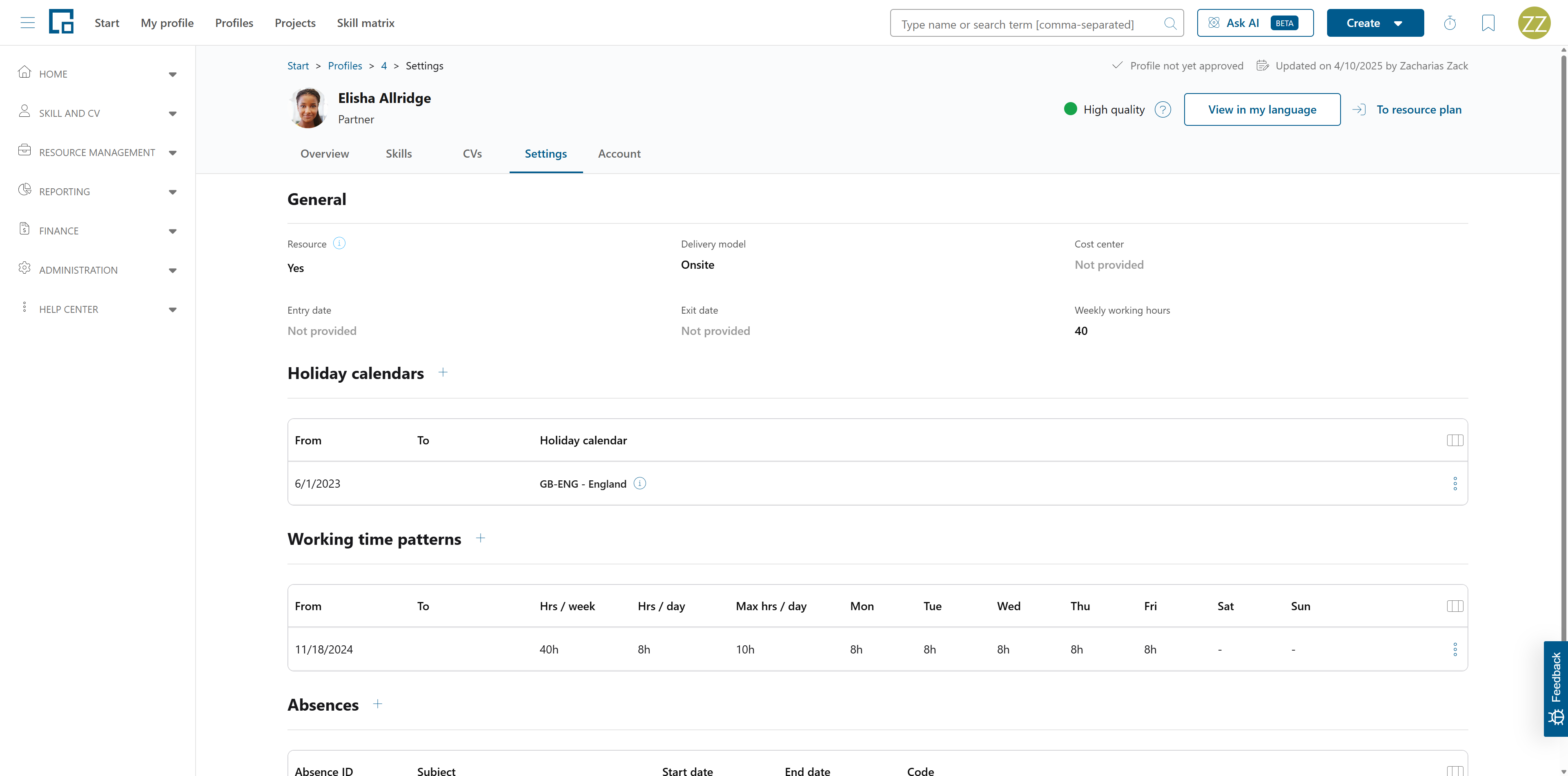
General settings
Resource
This setting defines, if an employee can be staffed to customer projects and is thus included in the resource management.
- Resource: Yes
Profiles marked as Resource set to Yes represent users who may be staffed on projects, appear in candidate searches, be assigned to resource requests, and are expected to maintain an up-to-date CV. This typically applies to employees who work on client projects or whose roles require them to be considered during staffing.
Because these users may be proposed for engagements, decídalo also sends them reminder emails if their profile becomes outdated.
Why do updated CVs matter:
Users who are not planned as resources (for example back-office employees, internal managers, or people who do not work on projects at all) do not necessarily need to maintain a detailed CV. For them, keeping this information current is optional.
- Resource: No
Profiles marked as Resource set to No currently do not receive reminder emails about outdated profiles. At the moment, however, this setting does not remove users from candidate searches or prevent them from being assigned to resource requests. Aside from the email behavior, it has no functional impact yet.
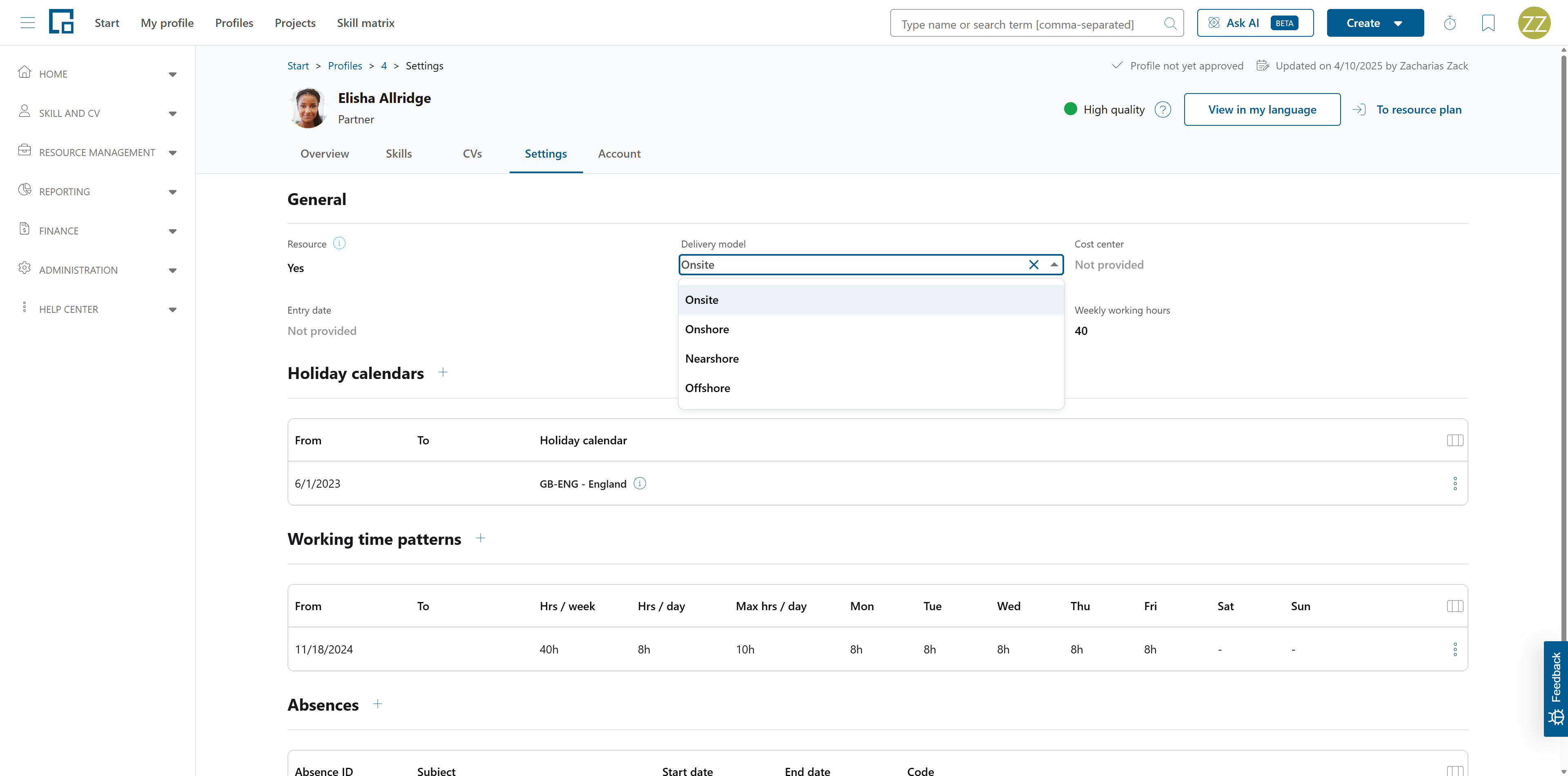
Delivery model
This field defines the usual model of delivery the employee performs in a customer project. The possible values are ‘Onsite’, ‘Onshore’, ‘Nearshore’ and ‘Offshore’.
Cost centre
The cost centre to which the consultant is charged.
Entry date
The date, where the current employee started working at your company.
Exit date
The date, where the current employee finished working at your company.
Weekly working hours
The contractually agreed weekly working hours of the current employee. This is mostly important for resource management, where this setting defines the working schedule of the employee.
Holiday calendars
Holidays differ a lot between countries or even between states. To maintain working schedules correctly and calculate utilization / capacity accordingly, this section defines the respective holiday calendars for the employee. decídalo provides a catalog of the most common holiday calendars which are named by their location.
The section lists the employee's holiday calendars with their date ranges, in the same way as working time patterns. An employee does not need to have one, and days that no entry covers simply have no holidays. The info icon behind a calendar name shows which days that entry marks as public holidays.
This section is explained in detail in Holidays.
Working time patterns
This section is explained in detail in Working time patterns.
Absences
The last section lists the employee's absences, both those created by hand and those delivered by an import, and is where vacation, sick leave and similar absences are maintained. Public holidays and reductions from a working time pattern are not listed here, but still affect the employee's availability.
This section is explained in detail in Managing absences on the profile.
Accounts
Create Account / Permissions
Get detailed information in Understanding Profiles, Accounts, and CVs and Checking Your Permissions.
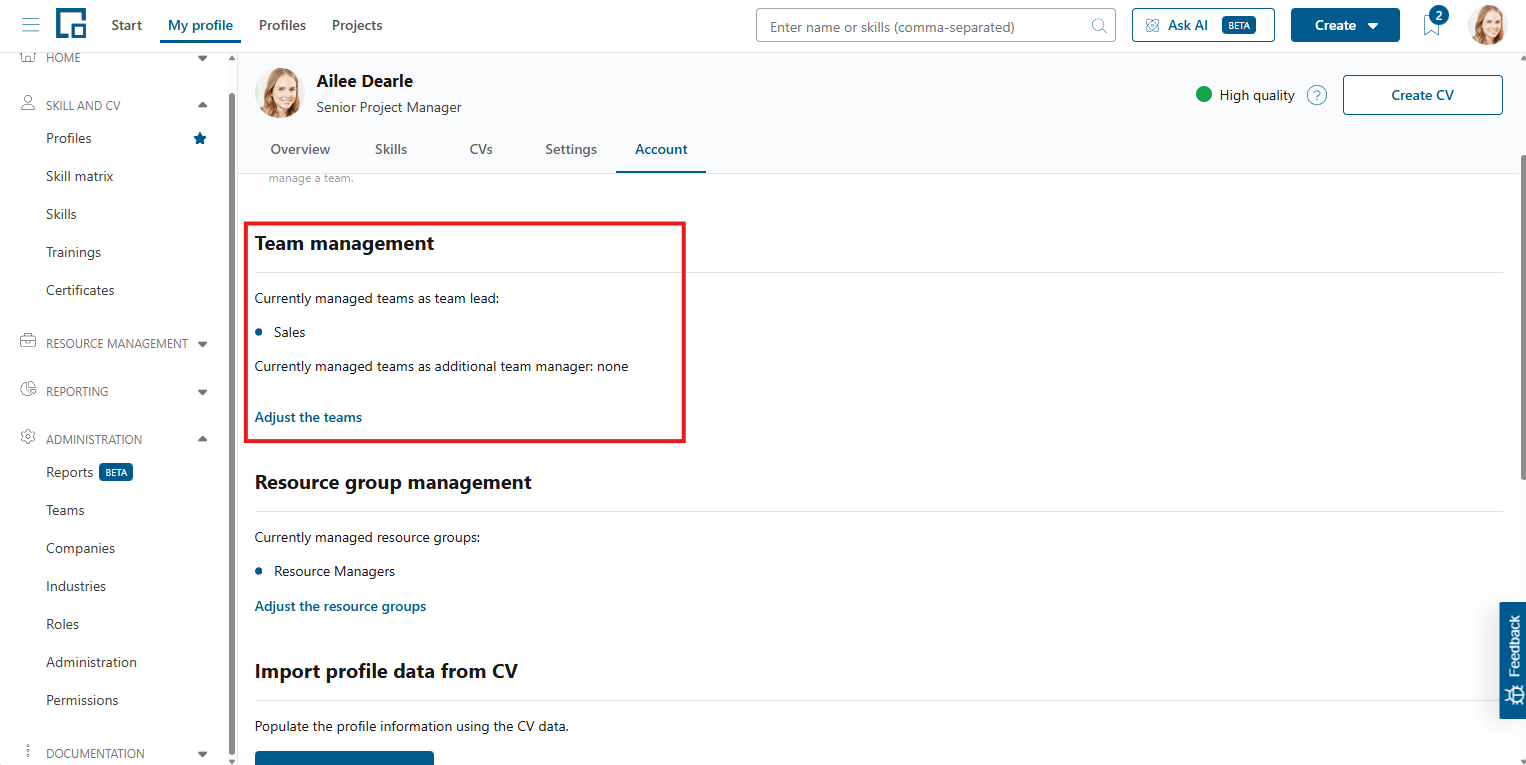
Team management
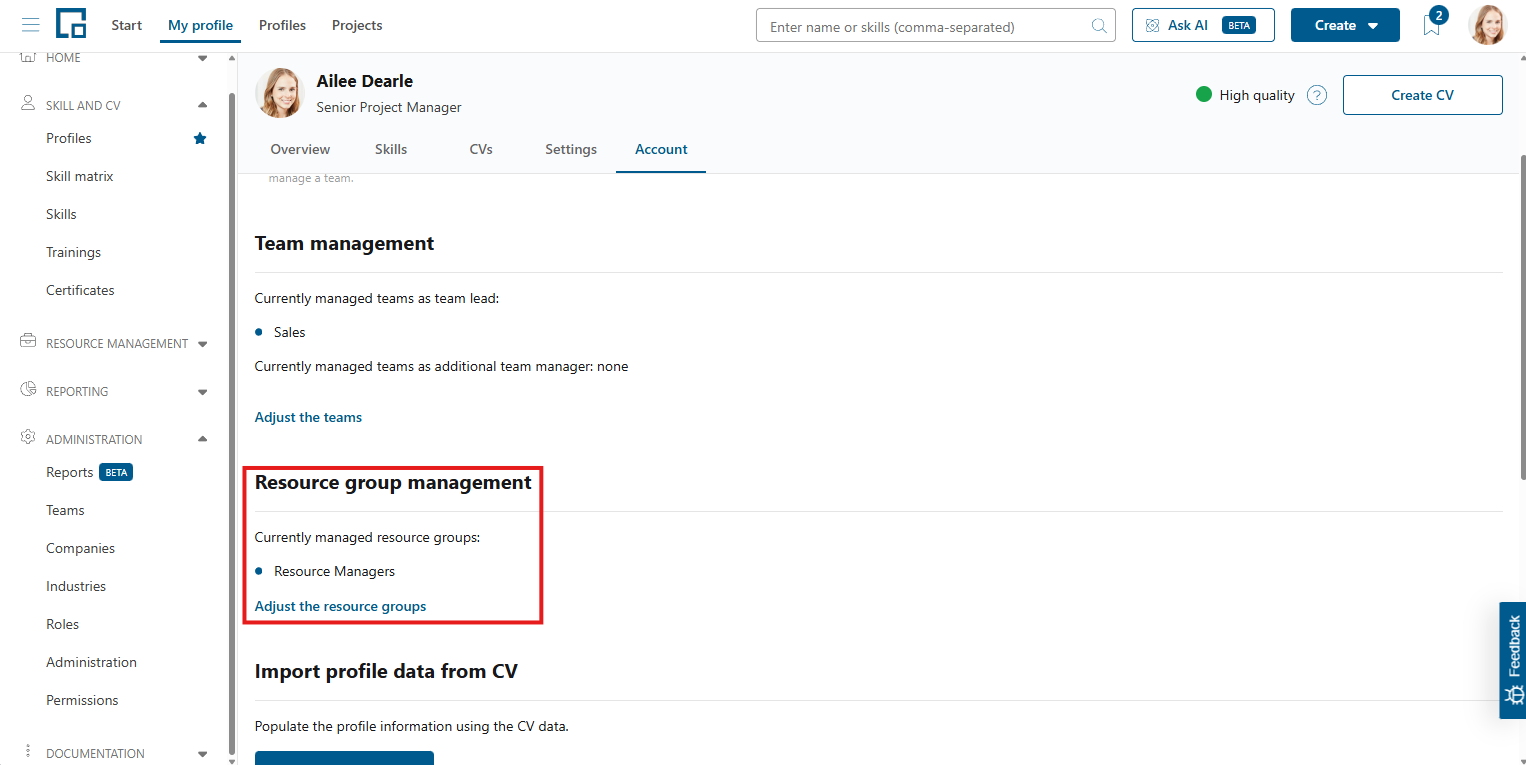
In the ‘Team management’ section the teams managed by the current employee (team lead and additional team manager) are displayed as a list. Also, if you have the permission ‘Manage Users, Teams and Permissions’ there is a link to jump to the team administration page.
Your substitutes
Get more information about delegation in decídalo via Delegations.
Resource group management
In the ‘Resource group management’ section the resource groups managed by the current employee are displayed as a list. Also, if you have the permission ‘Manage Users, Teams and Permissions’ there is a link to jump to the resource group administration page.
Import profile data from CV
Clicking the according button opens the CV parser of decídalo.
Change password
Changing the password is explained in detail in Changing Your Password.
Screen language & region
Changing the screen language and region is explained in detail in Languages and Regions.
Profile text generation language
The language used for AI text generation on the profile is explained in Languages and Regions.