Managing and Using Trainings
This article explains how to track employee trainings in decídalo. Every user can add personal trainings to their profile. Administrators can centrally manage trainings.
Trainings
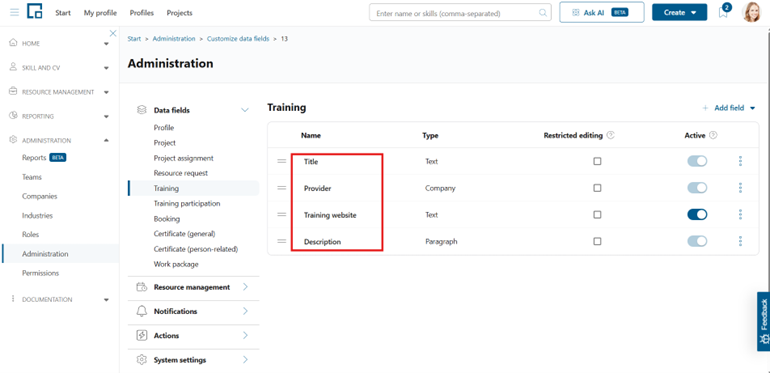
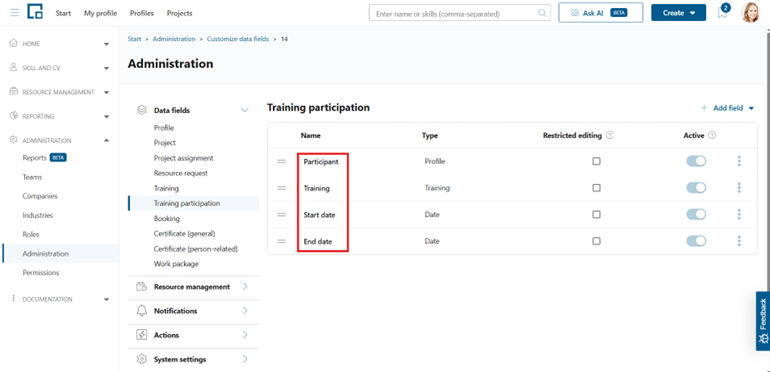
In a professional background, a training refers to structured educational programs and development activities designed to enhance an individual's specific skills, knowledge, and competencies relevant to their job role or industry. These initiatives are a key part of lifelong learning and can take many forms, from formal courses to on-the-job experience. With the completion of a training one can receive a certificate, which holds as a future proof of the conducted skill enhancement. In decídalo, we can track and manage certificates (see: Managing and Using Certificates) as well as trainings. Similar to the certificate, a training in decídalo also consists of two parts: The employee independent definition of the training and the employee specific training data. The training is defined by a title, provider, website, and a description. Start and end date are employee specific information.
Note that both parts can be customized by an administrator and the fields mentioned above are the decídalo standards. Training definitions are managed centrally in decídalo whereas the employee specific data is maintained on the employee’s profile.
Trainings on the profile
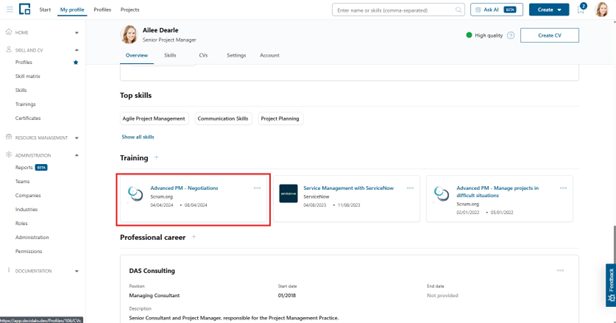
Trainings are shown in the ‘Training’ section of the profile. To see an employee’s trainings, select their profile and scroll down to ‘Training’. To manage your own trainings, select My Profile.
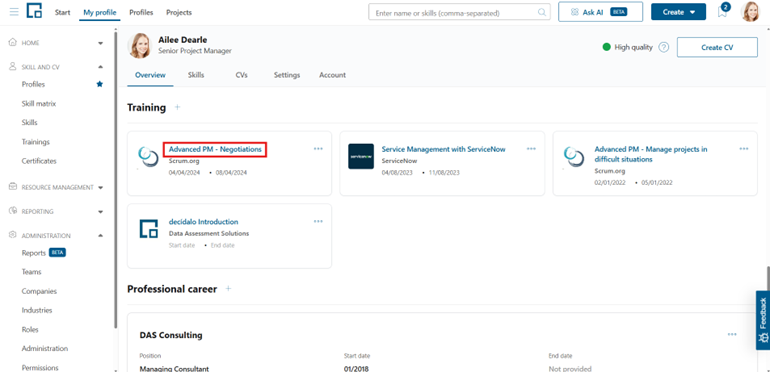
Trainings are displayed as tiles that contain their title, provider, provider logo, start and end date. Any of these fields except the title can be empty.
Adding trainings to the profile
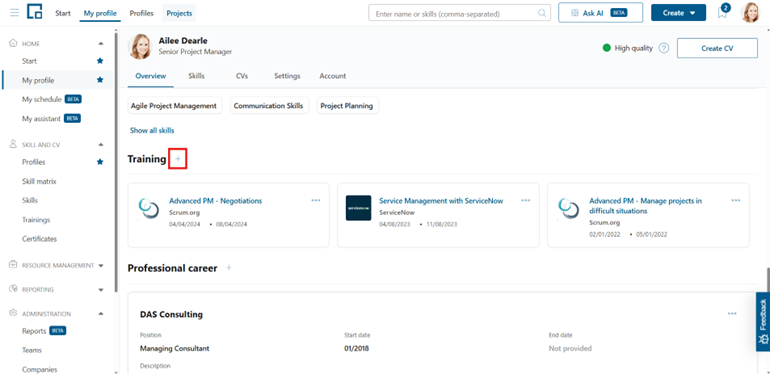
To add trainings to a profile, click on the plus button next to the 'Training' section header. This will open a form in a pop-up.
 Use the auto-complete search function in the form’s field to find a training or a provider. Your company can maintain a custom training catalog together with its respective providers. The auto-complete search includes both trainings and providers. If you find the desired training, simply select it. The training data will be displayed to you in a new pop-up.
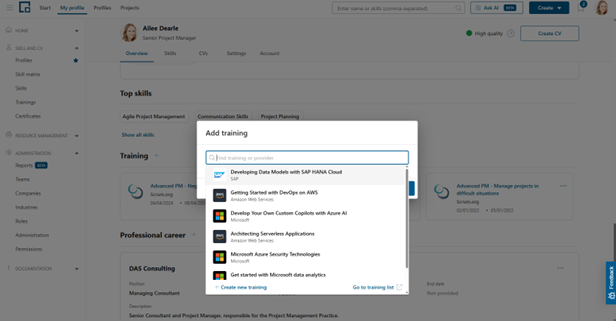 If your training is not in the list, you can add it by clicking on ‘Create new training’ at the bottom of the result list. A new pop-up will open a form to add the training.
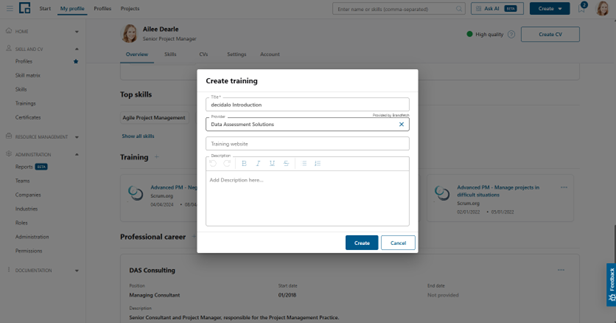 Enter the training title and select a provider from the list. You can also create a new training provider here if you can’t find the one you need. Optionally, add the training’s website and a description to it. By clicking ‘Create’ you will create the training. Entering reasonable data for the training title, provider, and description will automatically generate AI skill suggestions for the profile, which supports significantly the maintenance (see AI Skills).
Like when having selected an already existing training, the training information will now be displayed to you in a separate pop-up. Enter the training’s start and end date if known and add the training to the profile’s training section by clicking ‘Add’.
Enter the training title and select a provider from the list. You can also create a new training provider here if you can’t find the one you need. Optionally, add the training’s website and a description to it. By clicking ‘Create’ you will create the training. Entering reasonable data for the training title, provider, and description will automatically generate AI skill suggestions for the profile, which supports significantly the maintenance (see AI Skills).
Like when having selected an already existing training, the training information will now be displayed to you in a separate pop-up. Enter the training’s start and end date if known and add the training to the profile’s training section by clicking ‘Add’.
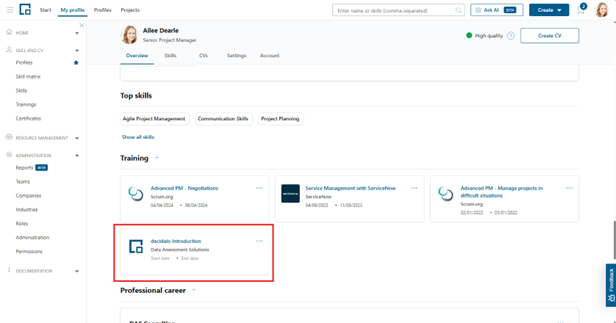
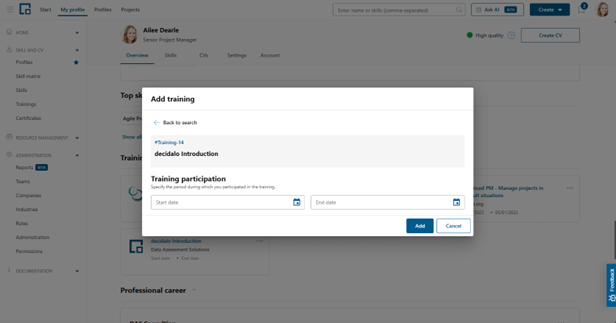 If you added a new training, it will be added to your company’s training catalog at this point. New trainings will be available for selection to all other users as well. In the currently selected profile, newly added trainings will appear at the end of the tile list.
Editing trainings on the profile
To edit training data, click on the title or the three dots in the top right corner of the tile and select 'Edit'.
 A side-drawer will open on the right with inline-editing for all training data fields.
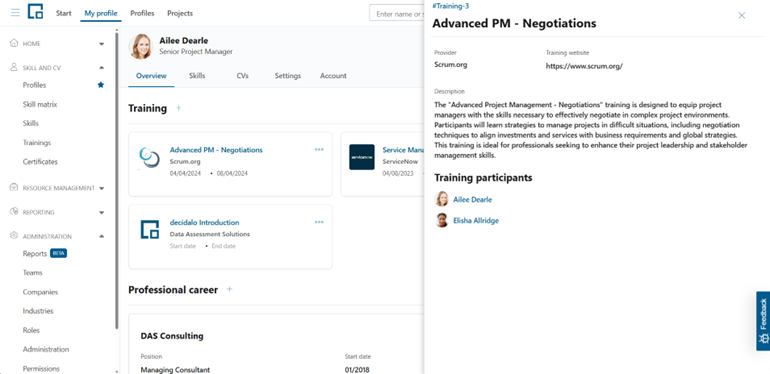 Editing the training definition and the employee specific data requires different permissions. The latter one follows the profile permission: you are able to edit it if you can edit the profile.
You can always edit your own profile, but you will need a specific permission to edit other employees' profiles.
Editing training definitions in general requires a permission profile with the corresponding setting enabled ('Training management' set to 'Yes' on the 'Permissions' page). There is one exception: Users can edit trainings that they created as long as no one else added it to their profile. Otherwise, users would not be able to e.g. fix a typo in a training they created. To close the training side drawer, click anywhere outside or the 'X' in the top right corner.
Managing Trainings
If you have 'Training management' permission (see above), you see the 'Training' menu item in the 'Skill and CV' section. Select it to manage your company's training catalog.
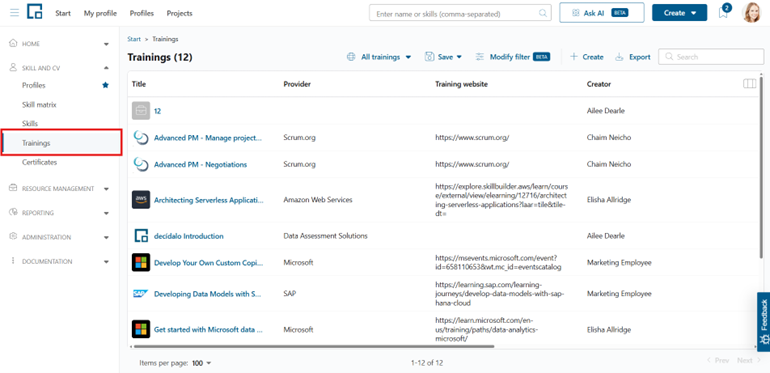 The training table by default shows the title together with the provider’s logo, provider, website, creator, creation date, last editor and the last edit date.
If you have the data export permission, the ‘Export’ button above the table offers four options. ‘Export all’ and ‘Export filtered’ produce one row per training. ‘Export all with participants’ and ‘Export filtered with participants’ produce one row per participant instead, adding the participant, start date and end date to the training columns. A training without participants still appears once, with those three cells empty. The filtered variants apply the filters and sorting currently set on the table.
To edit a training or to see the participants (profiles containing it) click on the training title.
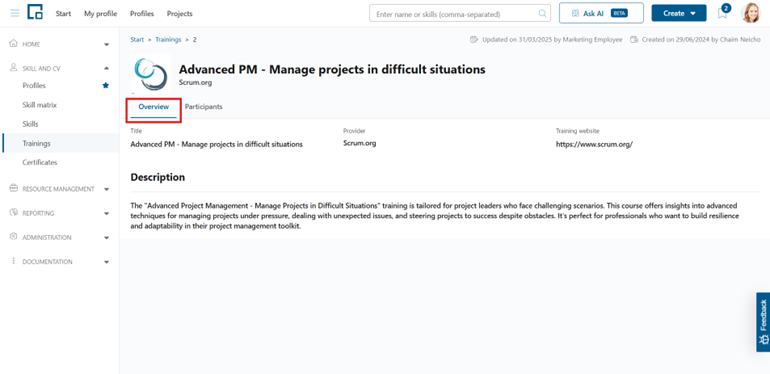
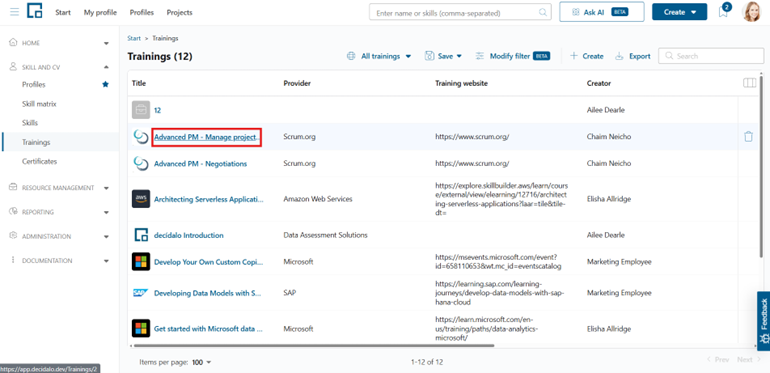 This will open a new page with two tabs displaying the details of the training. On the first tab you can edit the general definition of the training.
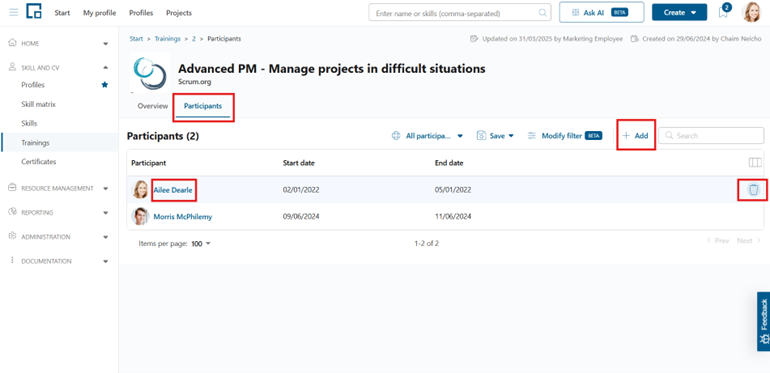
 On the second tab you can see a table of participants of this training with the respective start and end date. You can add new participants via the ‘Add’ button above the table, edit the participant information in a side-drawer after a click on their name, or remove the training from the participant’s profile by clicking on the remove button in the end of the respective table row. This button will only show up if you hover over the row.
To adjust the participants of a training, you need the ‘Profile Edit’ permission on the respective employee profile (see Permission Concept).
Creating custom trainings centrally
To provide custom trainings centrally for all users, you can add them by clicking on 'Create' above the table. A form will open in a pop-up.
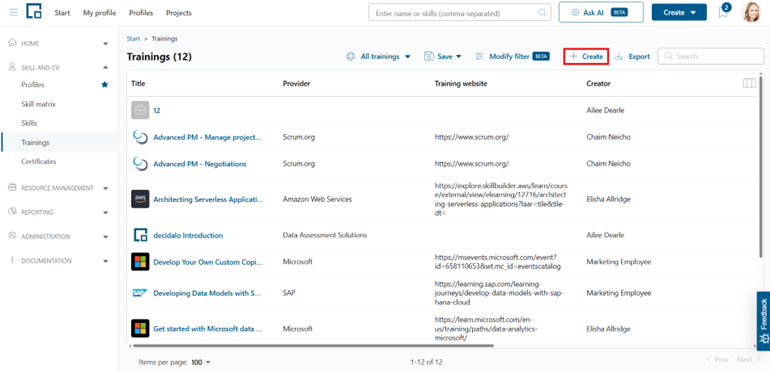
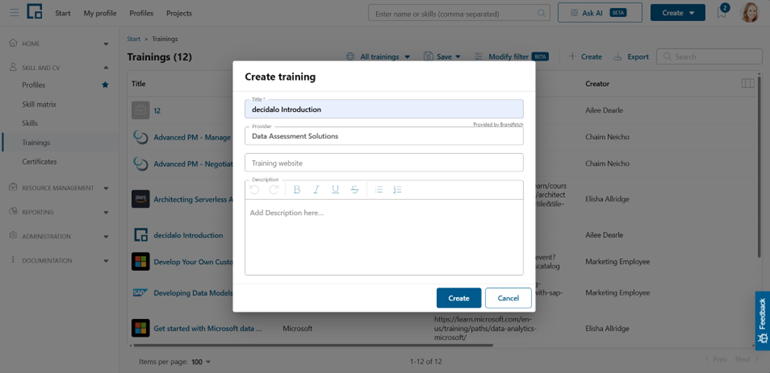
Enter the training’s title and select the provider from the auto-complete list. If you don't find it, you can add it. Optionally, provide the training’s website and a brief description of it. Click on 'Create' to create the training and add it to your company's catalog. Following that, all users will be able to add the created training to their profile.
Deleting trainings centrally
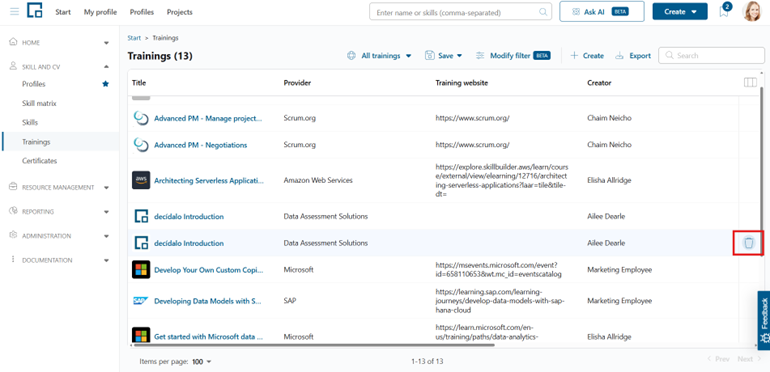
To delete trainings from your company's catalog, click on the delete button at the end of the respective row. This button will only show up if you hover over the row.
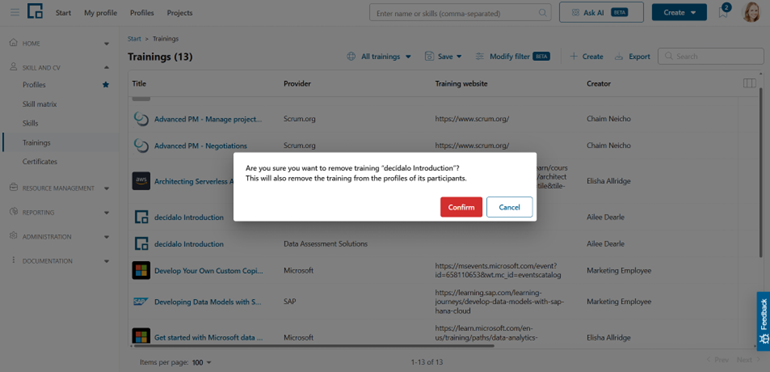
 After clicking the button, a pop-up will ask you to confirm the deletion. Keep in mind that this action will also remove the training from the profile of all participants. The training will be deleted permanently. Click ‘Confirm’ to proceed with the deletion.
Customizing trainings for your client
To customize the data fields for trainings, go to 'Administration' in the 'Administration' menu section and expand 'Data Fields'.
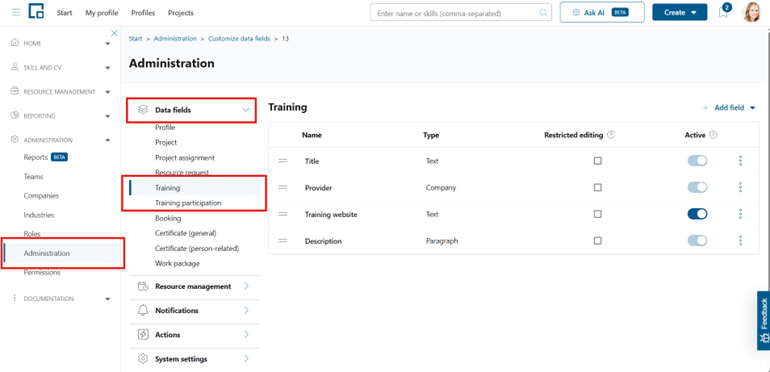 To customize the training definition, select 'Training'.
 For the employee-specific training data select 'Training participation'.
 See Customizing Data Fields for details.