Managing and using certificates
This article explains how to track employee certificates in decídalo. Every user can add personal certificates to their profile. Administrators can centrally manage and evaluate certificates.
Certifications and certificates
Employee certifications are credentials, usually awarded by an external, recognized body or vendor, that validate an individual's specific skills in a particular field, often requiring an exam and renewal. A certificate is typically awarded after completing a course or training program and does not expire.
Otherwise, certifications and certificates have similar attributes: name, issuing organization, logo, issuing date and formal proof in the form of an issued document which may be provided as a link (URL) or a file.
Certifications and certificates are managed in the same way in decídalo. For simplicity's sake, the term certificate is used for both. Employee certificates in decídalo consist of two parts: The employee independent definition of the certificate and the employee specific certification data. The certificate is defined by a name, issuing organization and logo. Issuing and expiration date and formal proof are employee specific information.
Note that both parts can be customized by an administrator and the fields mentioned above are the decídalo standards.
Certificate definitions are managed centrally in decídalo while the employee specific data is maintained on the employees’ profiles.
Certificates on the profile
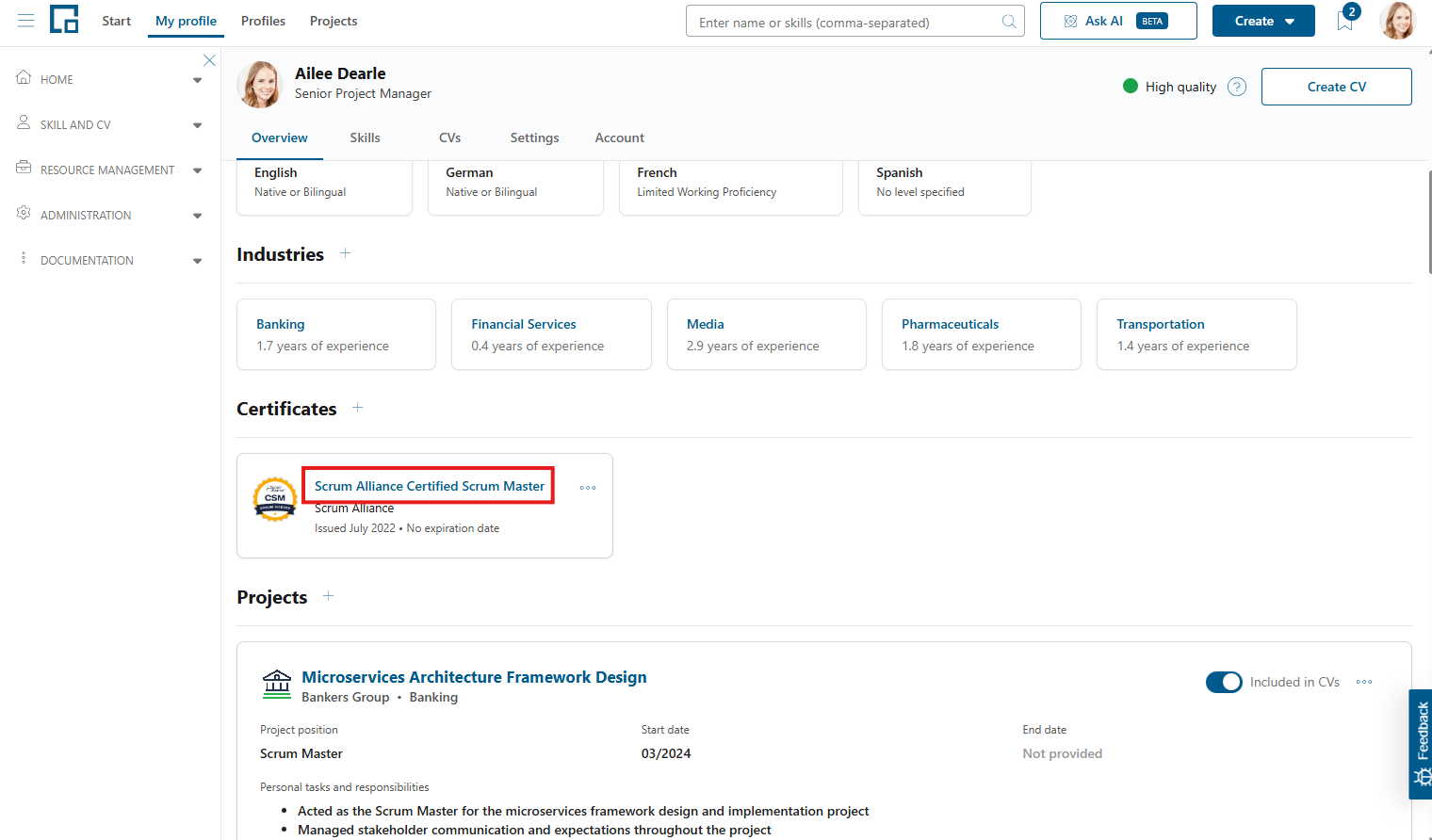
Certificates are shown in the 'Certificates' section of the profile. To see an employee's certificates, select their profile and scroll down to 'Certificates'. To manage your own certificates, select 'My Profile'.
Certificates are displayed as tiles that contain the logo, name, issuing organization, issuing, and expiration dates as well as links to the proof of certification. Any of these fields except the name may be empty.
Adding certificates to the profile
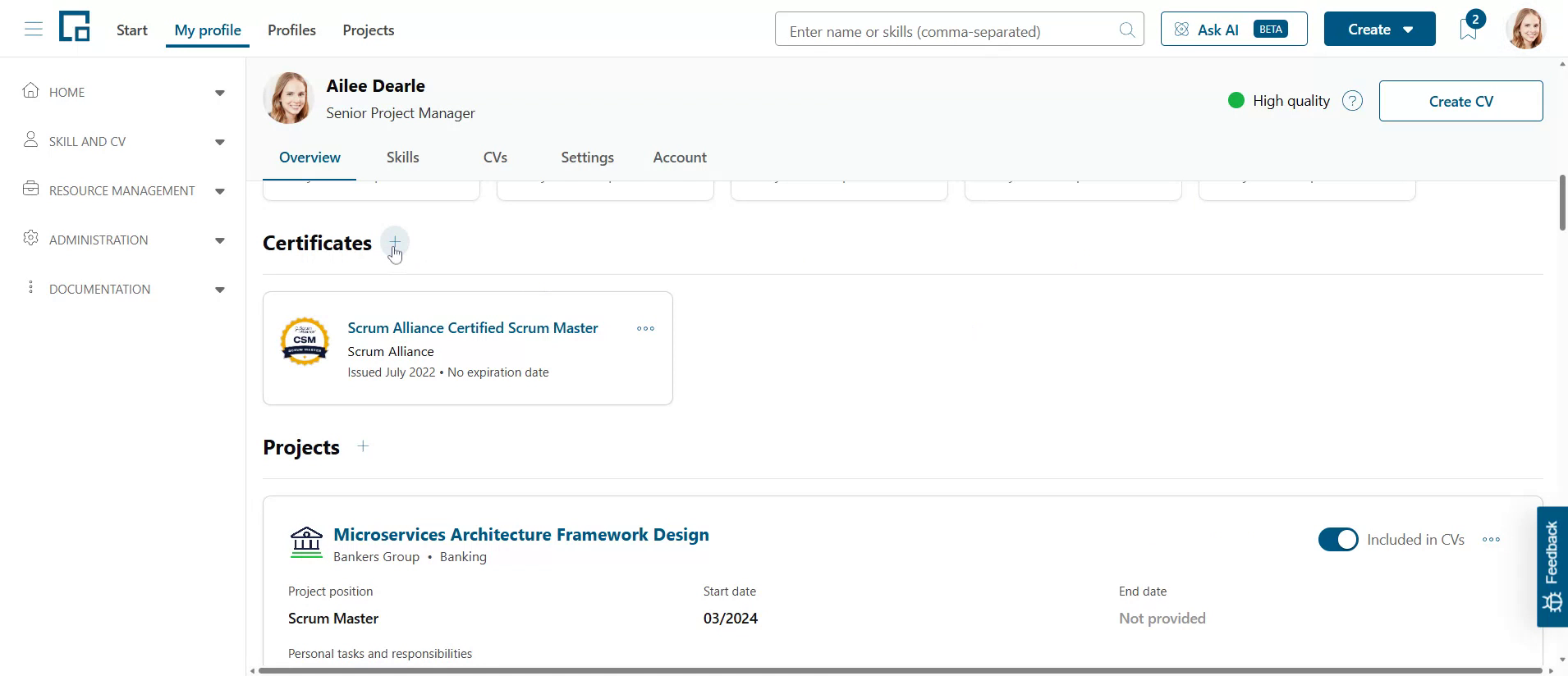
To add certificates to a profile, click on the plus button next to the certificates section header. This will open a form in a pop-up.
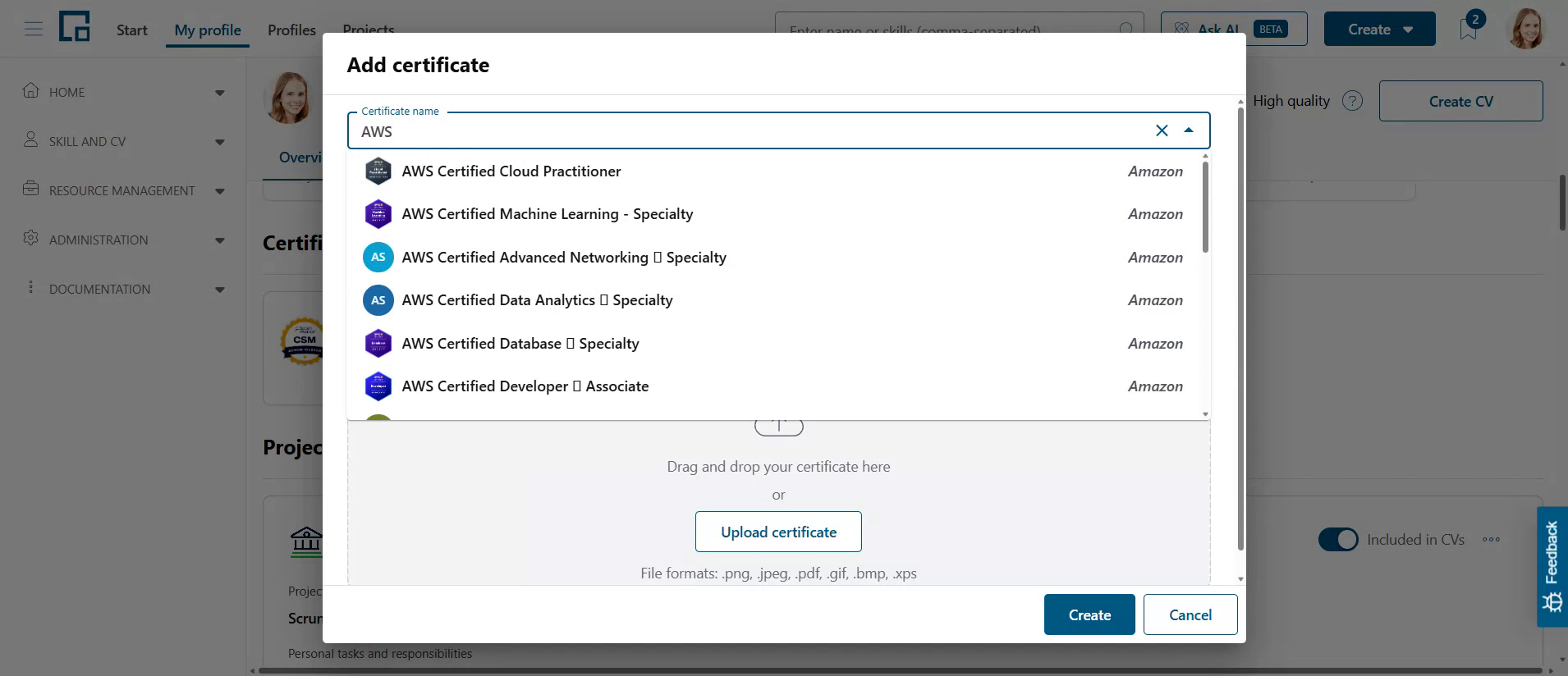
 Use the auto-complete search function in the "Certificate Name" field to find the certificate you want to add. decídalo provides a standard catalog of common certificates. In addition, your company can maintain a custom certificates catalog. The auto-complete search includes both standard and custom certificates.
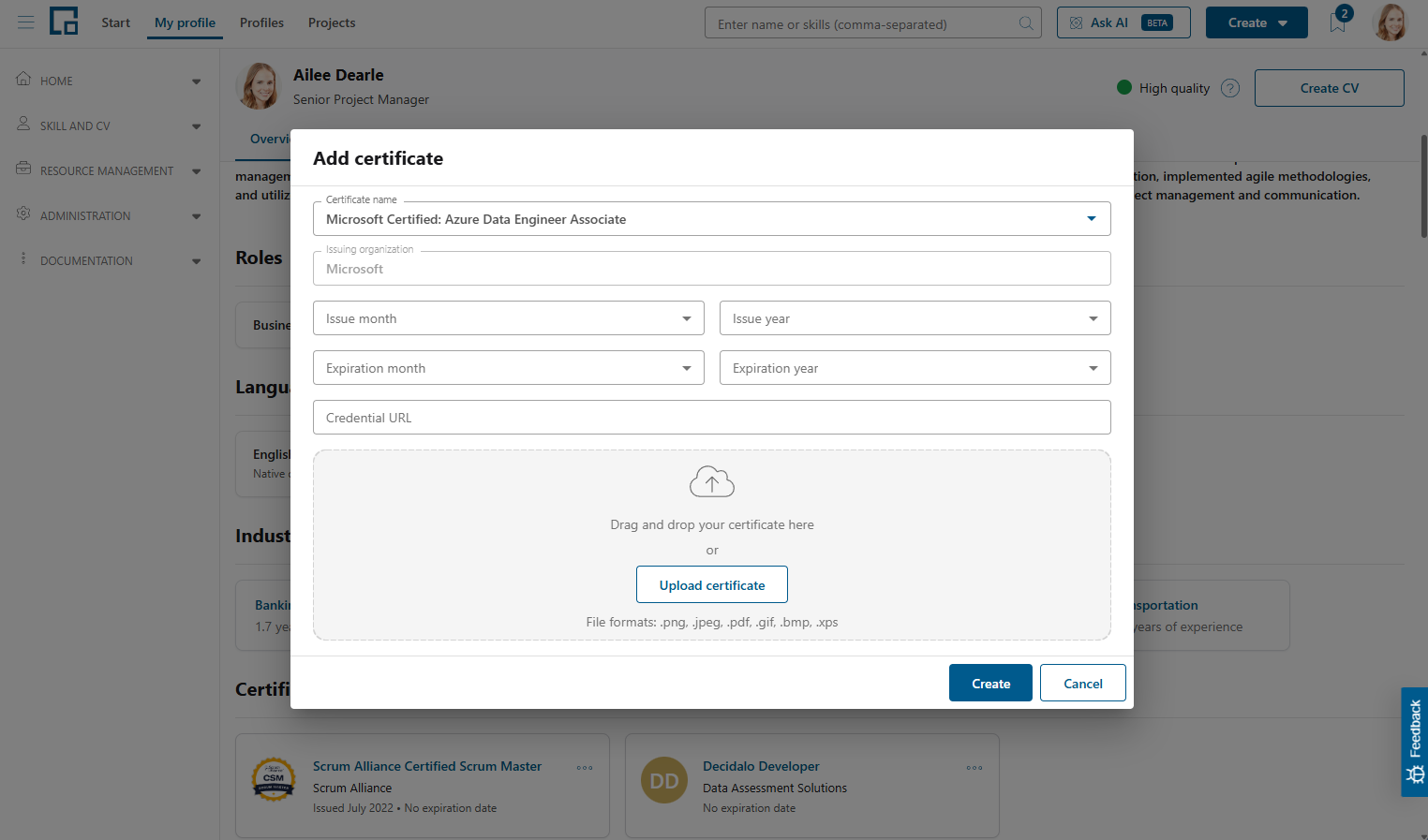
 If you find the desired certificate, simply select it. This will pre-fill the issuing organization and change that field to read-only.
 If your certificate is not in the list yet, you can add it by typing the full name in the field and entering the issuing organization. Note that you can't add logos when adding new certificates from the profile.
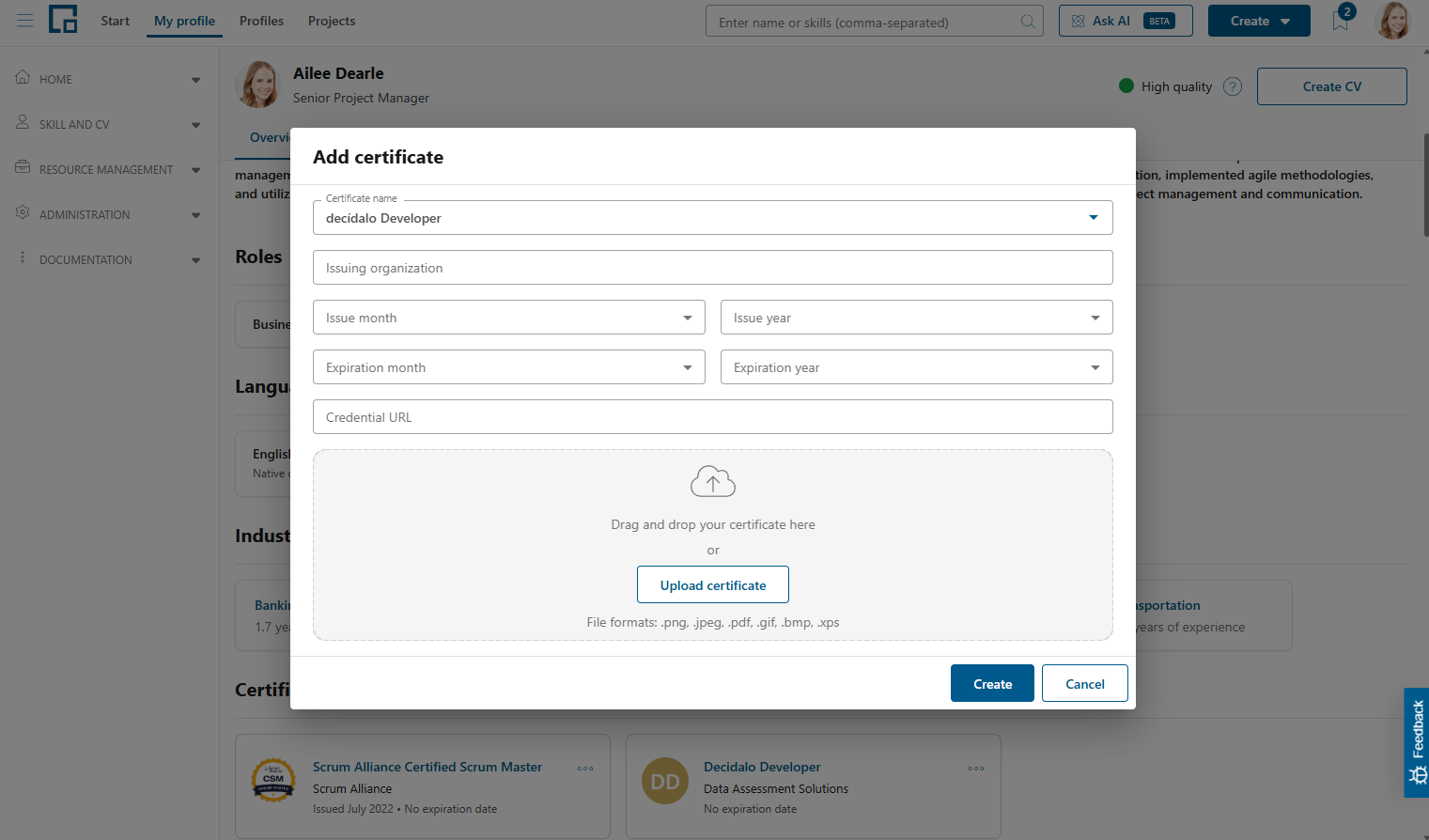 Next, provide the employee specific information: issue month and year, expiration month and year, and formal proof of certification as a link (credential URL) or uploaded document. The issue date (month and year) is always required. The expiration date is optional by default, but an administrator can make it mandatory, either for a specific certificate or for all certificates, in which case it must be provided as well. The 'Create' button stays disabled until all required fields are filled. Submit the form to add the certificate to the profile. Entering reasonable data for the certificate's name and issuing organization will automatically generate AI skill suggestions, which supports significantly in profile maintenance.
If you selected a certificate from the decídalo standard catalog or added a new certificate, it will be added to your company's certificate catalog at this point. New certificates will be available to all other users as well.
Administrators can disable the creation of brand-new certificates from the profile. When this is disabled, users who may only edit their own profile can still add existing certificates from the catalog, but can no longer create new ones. Only users with the 'Manage skills, certificates and roles' permission can add new certificates to the catalog. Existing certificates can still be added by everyone.
The central certificates page has its own permissions: with 'View skills, certificates and roles' users can open it and browse, search and filter the certificate catalog without being able to change it. They can also open the list of certificate holders; holders whose profiles they may not view are anonymized. The certificate holders export remains restricted to users with 'Manage skills, certificates and roles'.
Editing certificates on the profile
To edit certificate data click on the name or the three dots in the top right corner of the tile and select 'Edit'.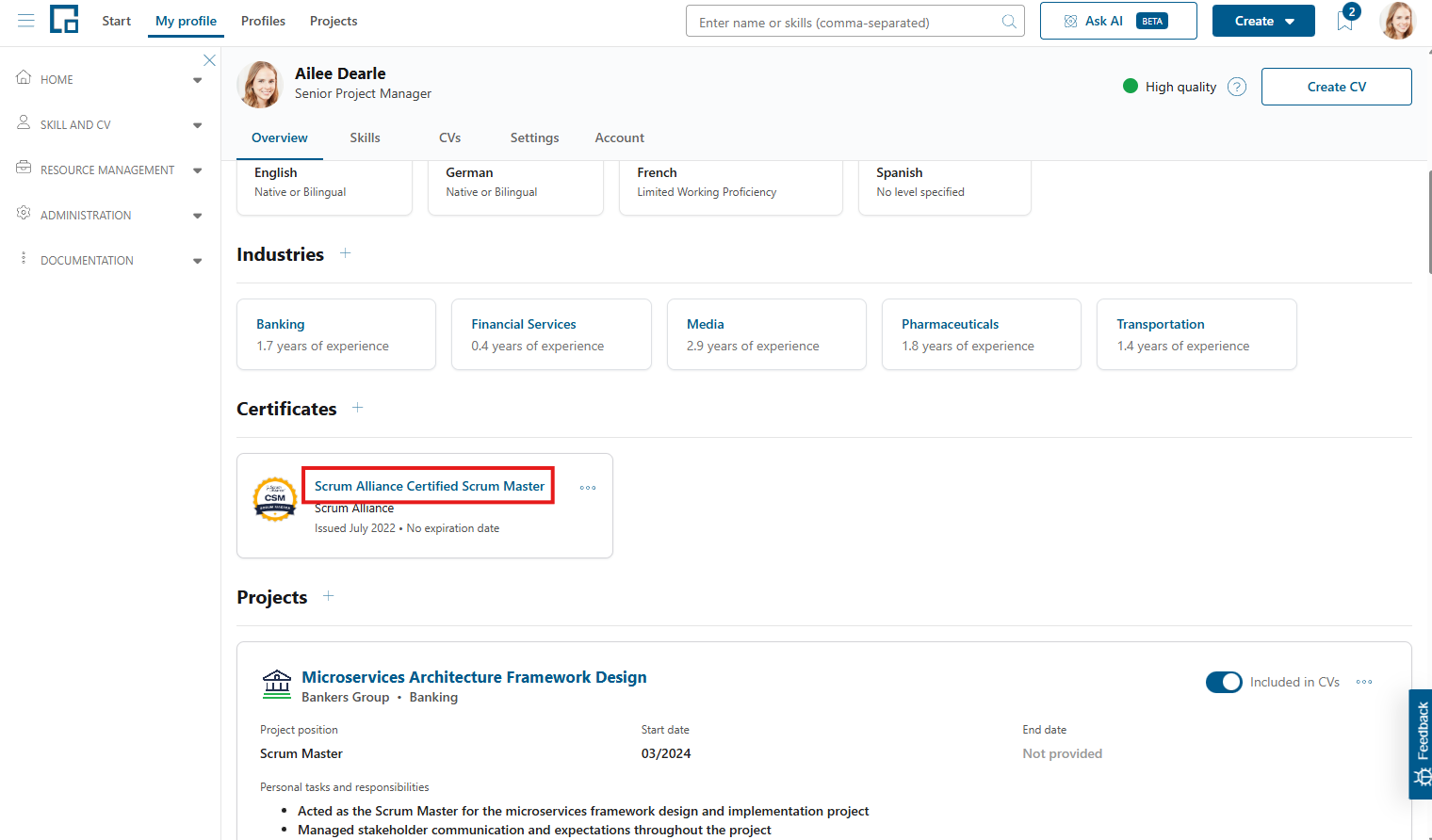 A side-drawer will open on the right with inline-editing for all certificate data fields, except the logo.
 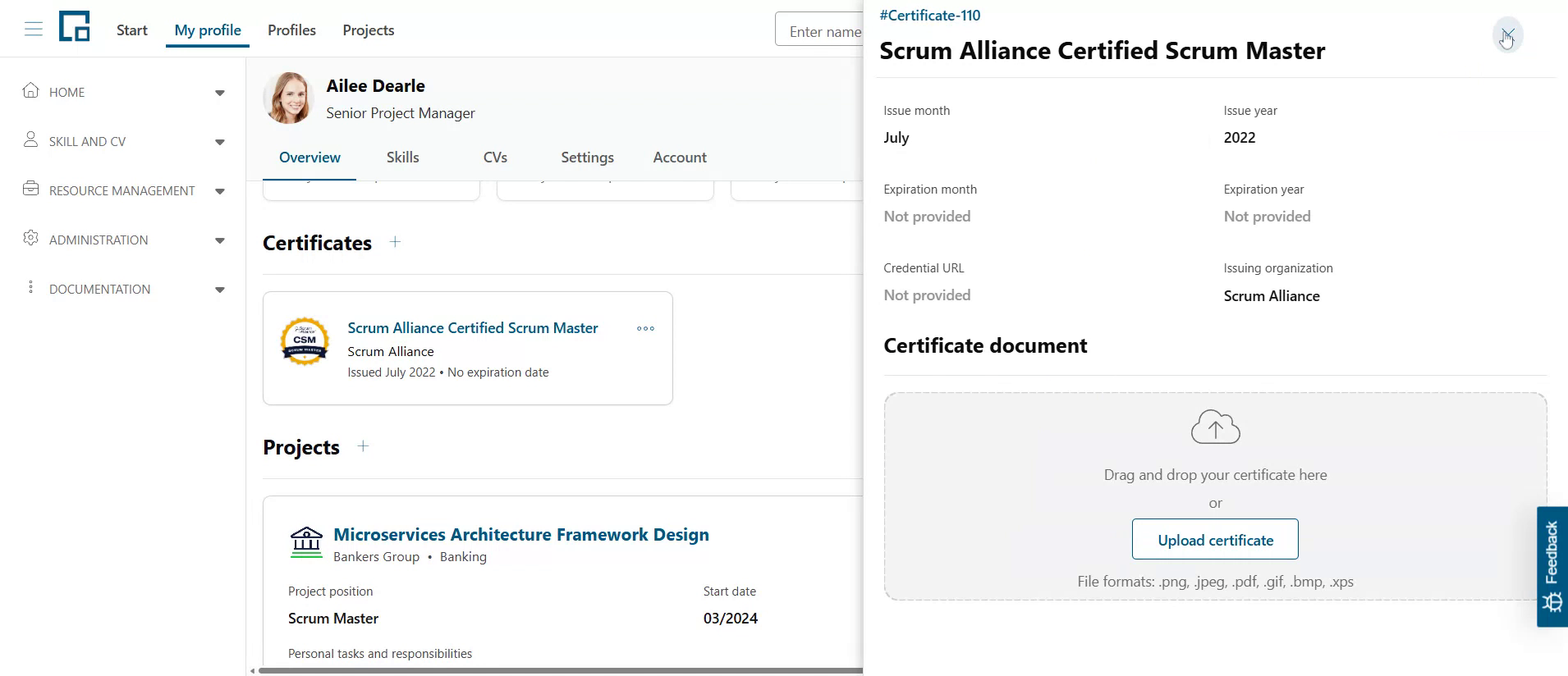 Editing the certificate definition and the employee specific data requires different permissions. The latter one follows the profile permission: you are able to edit if you can edit the profile.
You can always edit your own profile, but you will need a specific permission to edit other employees' profiles.
Editing certificate definitions in general requires a permission profile with 'Manage skills, certificates and roles' enabled on the 'Permissions' page. There is one exception: Users can edit certificates that they created as long as no one else added it to their profile. Otherwise, users would not be able to e.g. fix a typo in a certificate they created.
To close the certificate side drawer, click anywhere outside or the 'X' in the top right corner.
Marking top certificates
To highlight your most relevant certificates, mark them as top certificates, just like top projects in the project history. Click the star icon in the top right corner of a certificate tile to mark or unmark it. A filled star indicates a top certificate. Top certificates are always shown first in the certificates section; the order within the top and remaining certificates stays unchanged. Marking top certificates follows the profile permission: you can mark them if you can edit the profile.
Top certificates are also used when creating CVs: without AI customization, the certificates starred on the profile are taken over as the CV's top certificates. With 'Customize CV with AI to match context' enabled, the AI selects the top certificates based on the provided business context instead, independent of the stars on the profile. See 'Managing & Using CVs' for details on creating CVs.
Managing Certificates
If you have the 'View skills, certificates and roles' permission (see above), you see the 'Certificates' menu item in the 'Skill and CV' section. Select it to browse your company's certificate catalog; with 'Manage skills, certificates and roles' you can also maintain it.
The screenshots in this section show the view of a user with both permissions. Without the Manage permission, the Create and row-menu actions are hidden, the drawer fields are not editable, and the logo and delete controls are unavailable.
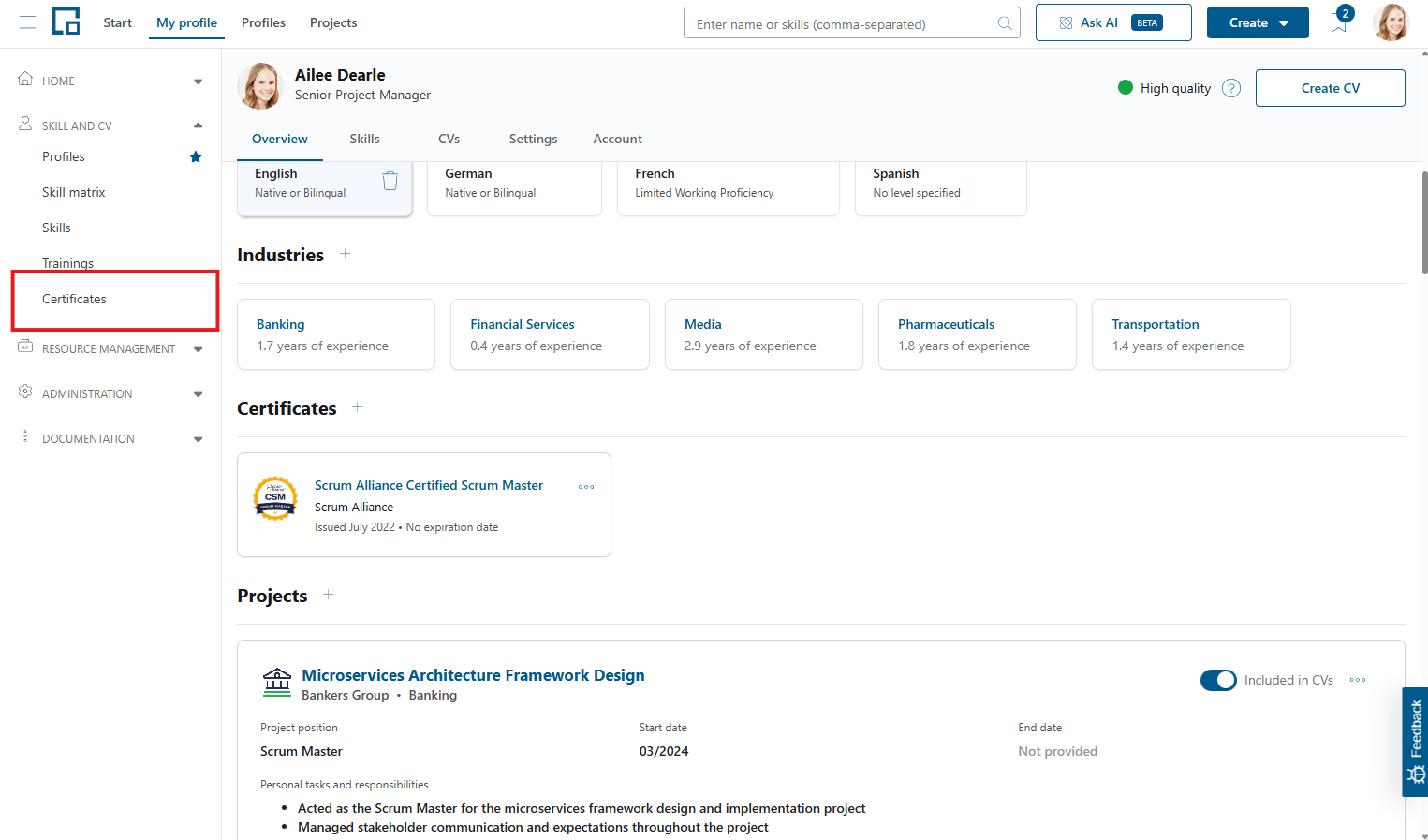
The certificates table by default shows the logo, name, issuing organization, the number of profiles that include the certificate and its creation date. The table does not include the standard decídalo certificate catalog.
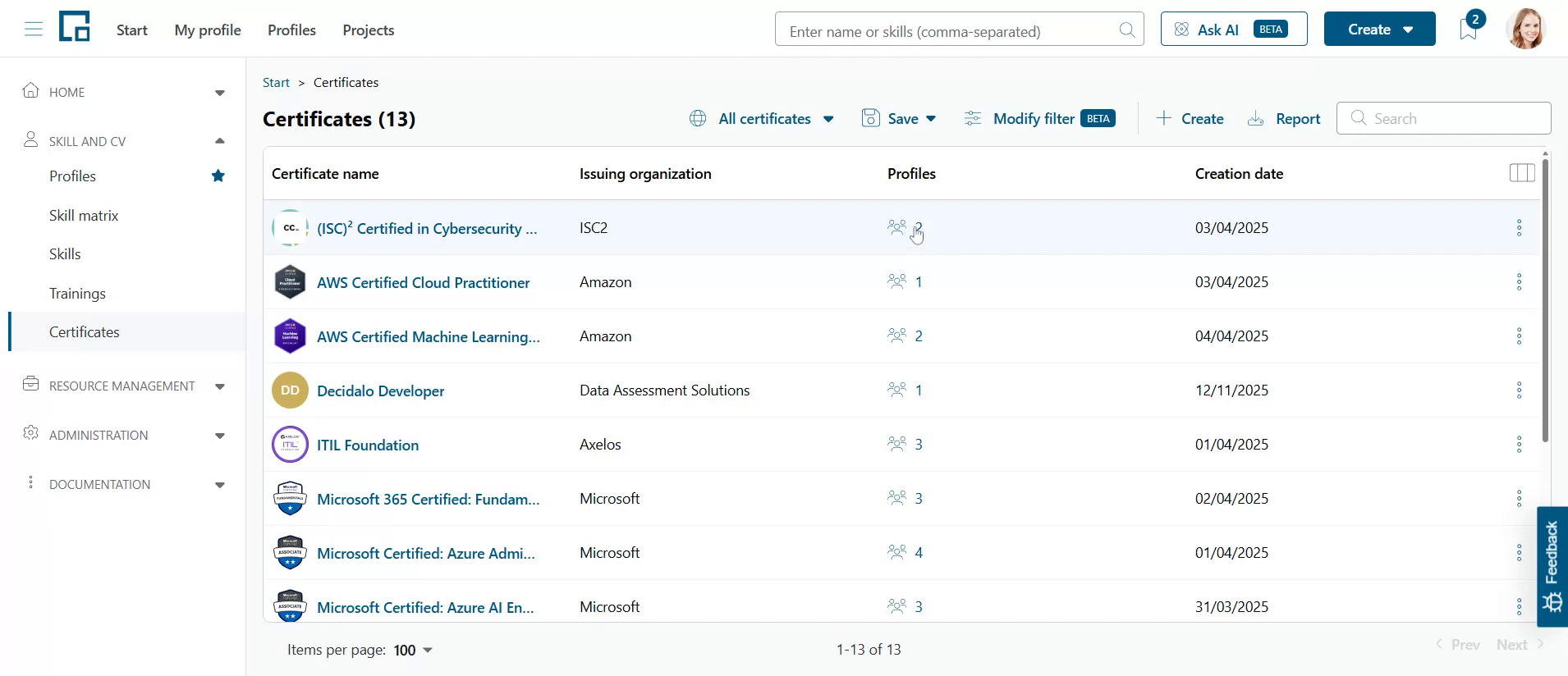
Click the certificate name or the link in the 'Profiles' column to open a side drawer with the certificate details and a list of profiles with expiration dates. Its fields are inline-editable with 'Manage' and read-only with 'Read-only'. Profiles you are not permitted to view are listed anonymized, without a picture and without a link to the profile. With Manage, click the logo or placeholder in the top left corner of the drawer to add, edit or remove the certificate logo. You can upload a PNG or JPEG image.
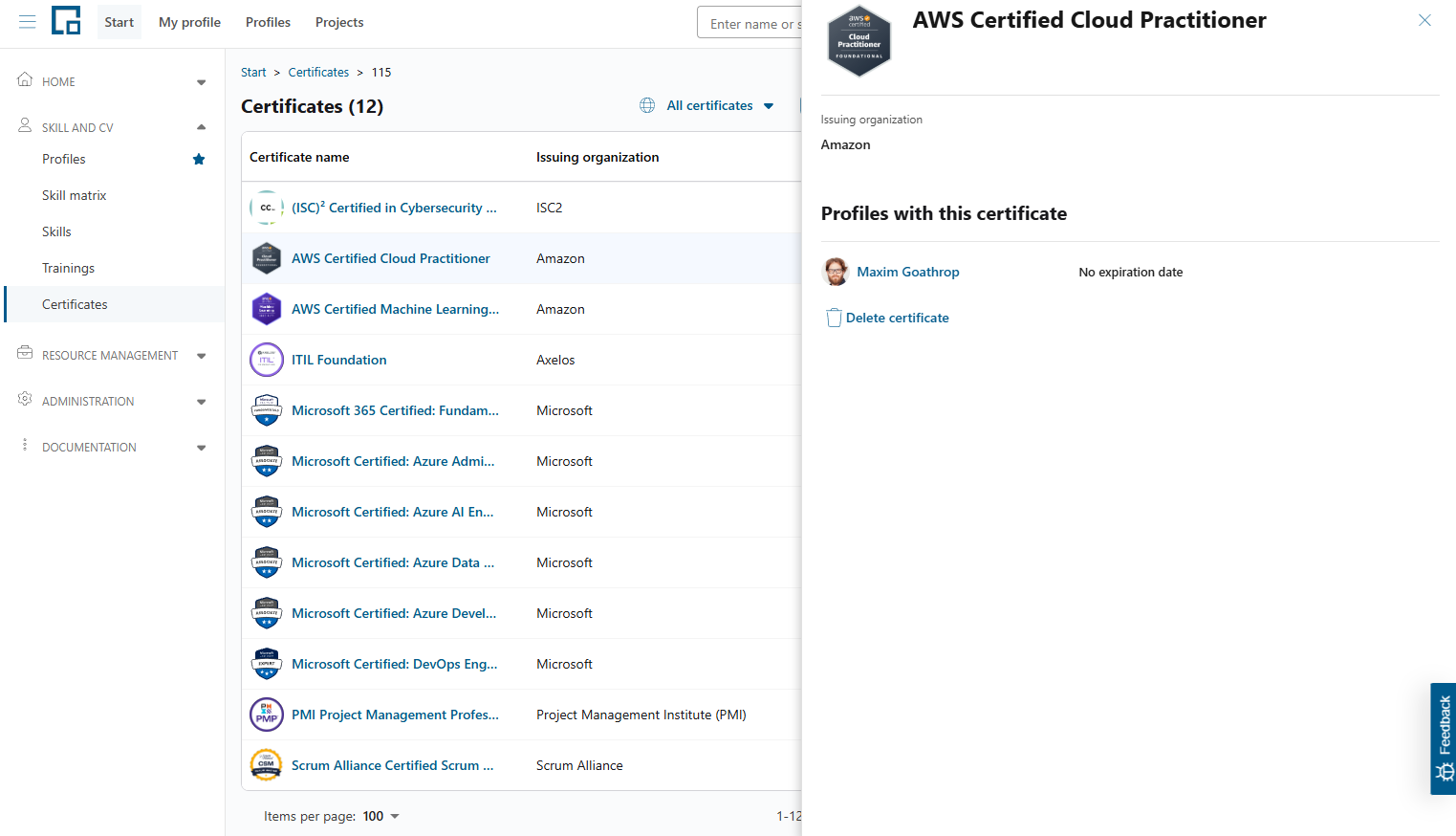
From this side drawer you can also mark the expiration date as mandatory for this specific certificate. When enabled, everyone adding this certificate to their profile must provide an expiration date. The drawer also shows how many current holders are missing an issue or expiration date, so you can gauge the impact before turning the requirement on.
Creating custom certificates centrally
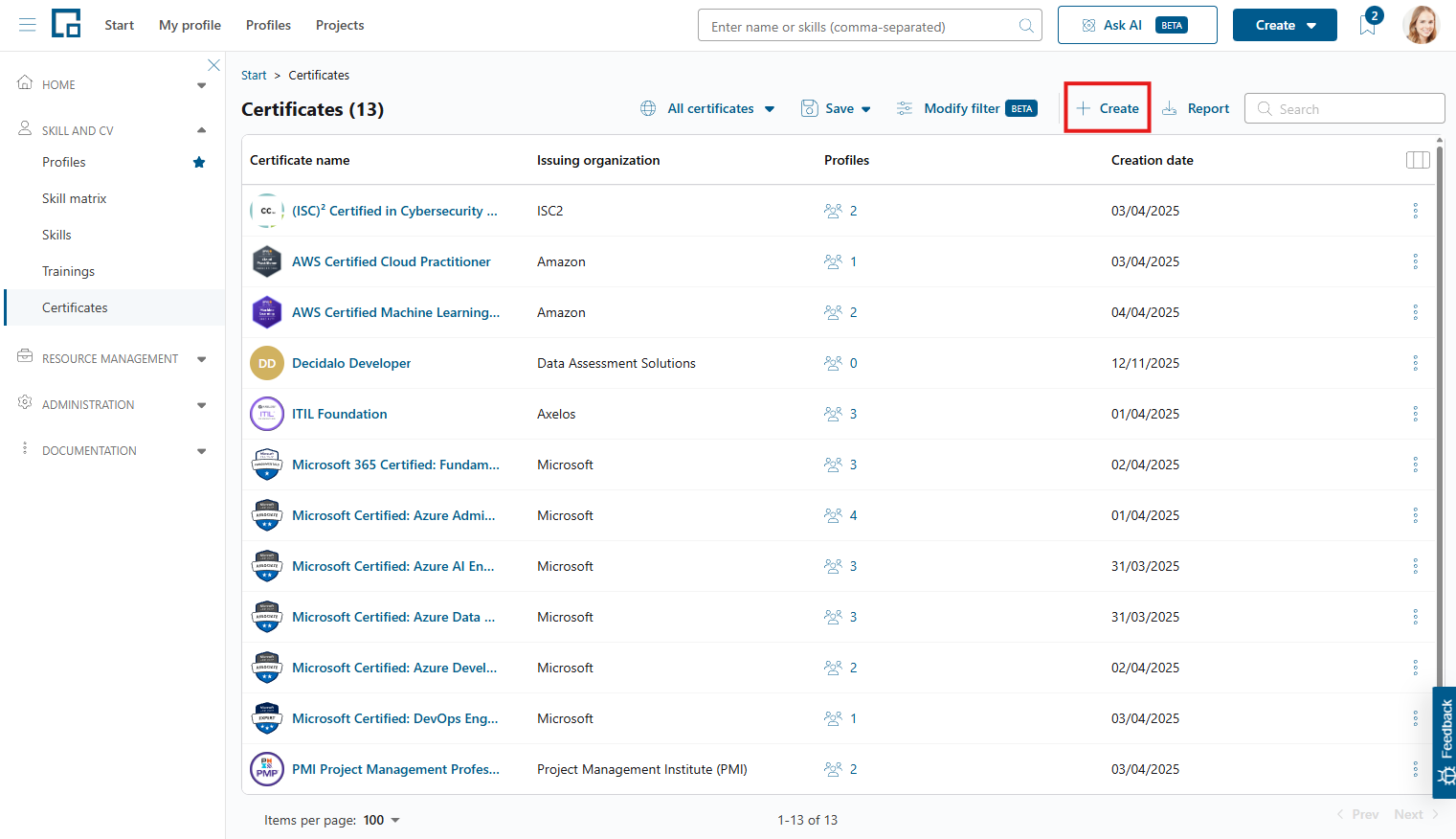
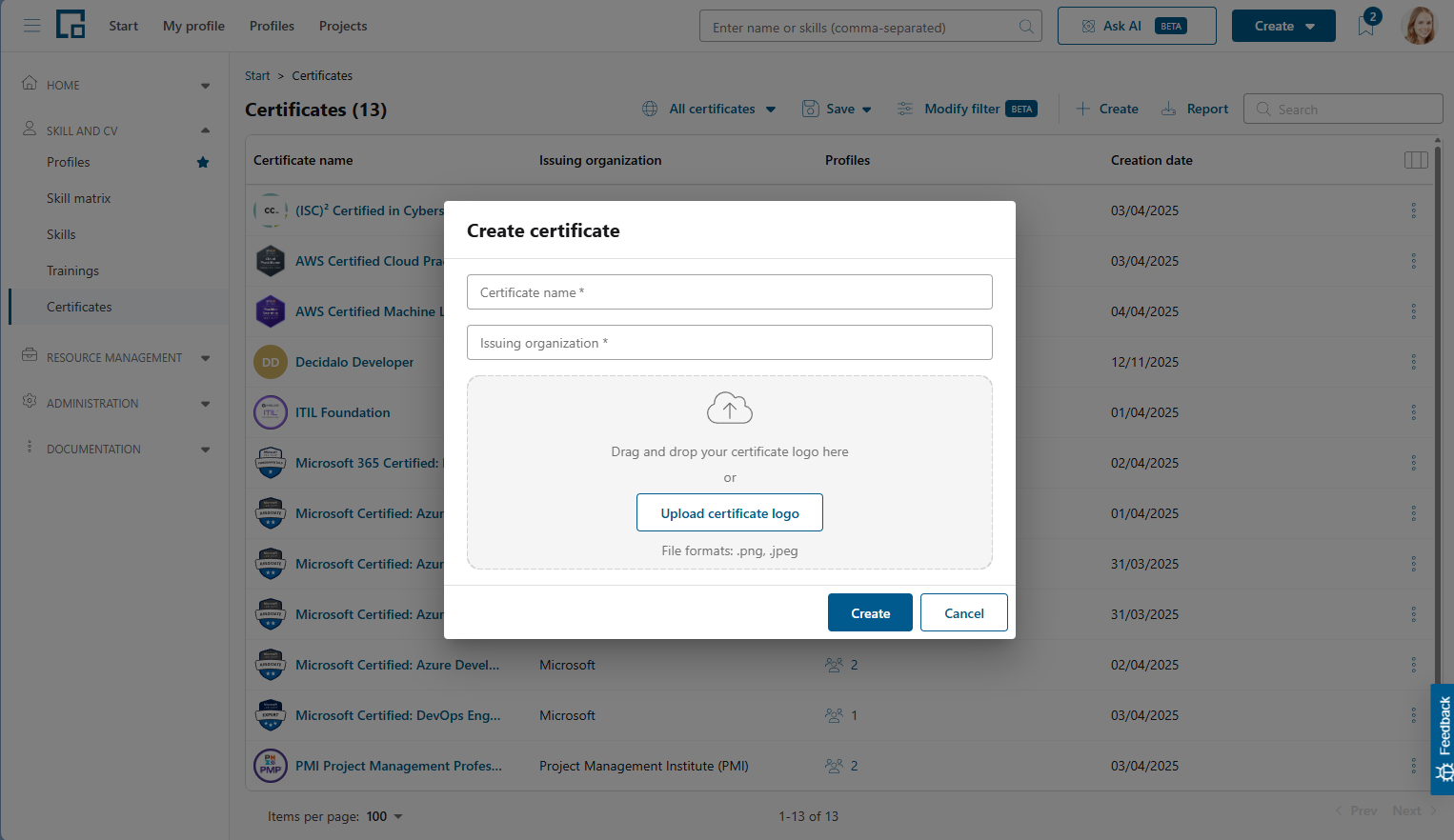
To provide custom certificates centrally for all users, you can add them by clicking on 'Create' above the table. A form will open in a pop-up.
 Enter the certificate's name and select the issuing organization from the auto-complete list. If you don't find it, you can add it. You can also upload a logo for the certificate here. Click on 'Create' to create the certificate and add it to your company's list. Following that, all users will be able to add the created certificate to their profile.
Merging certificates
You can merge two certificates into one. This is needed to remove duplicates if the same certificate has been created more than once with different spellings. To do that, click on the three vertical dots on the right end of the row containing the duplicate certificate you want to replace and select 'Merge'.
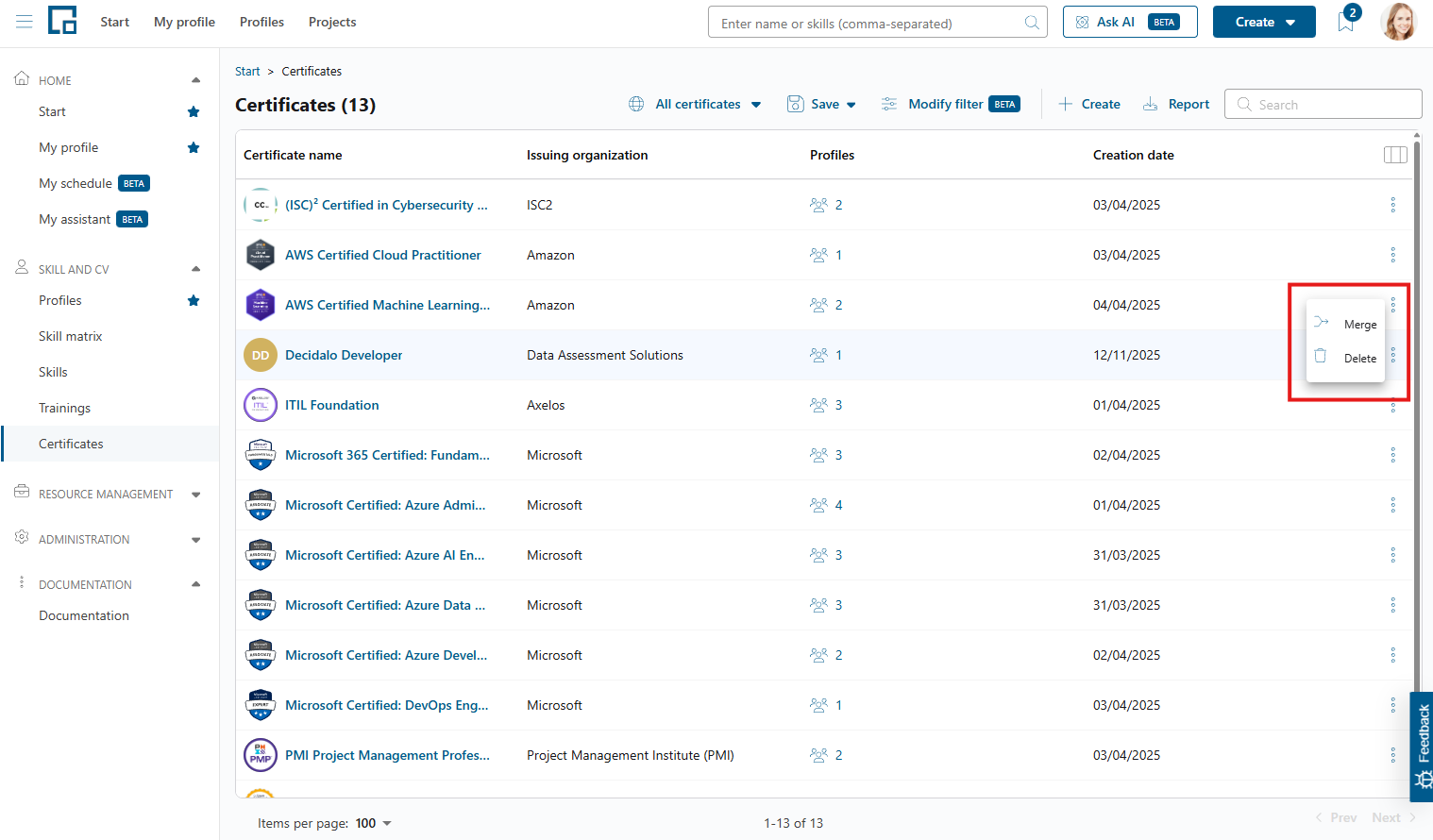 In the opening pop-up, select the target certificate you want to merge the duplicate certificate into. The certificate name and issuing organization fields will be filled with the values from the selected certificate. The values in these fields will be used for the resulting certificate. Review them and correct them if needed.
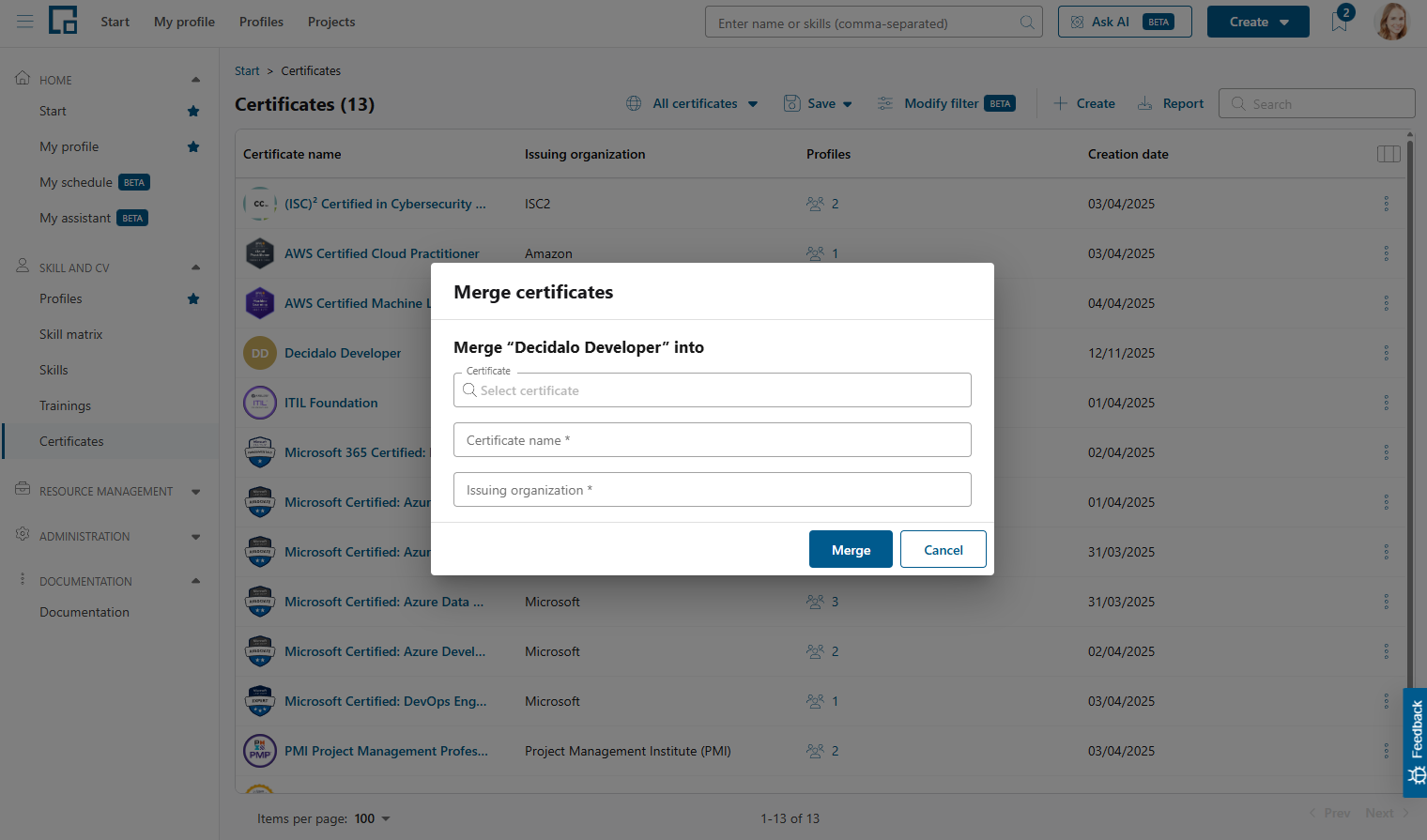 By clicking 'Merge', the duplicate certificate will be merged into the target and all references to the duplicate certificate will be replaced with a reference to the target. If you changed the name or the issuing organization in the merge pop-up, the target certificate will be updated correspondingly.
Deleting certificates centrally
To delete certificates from your company's catalog, click on the three vertical dots on the right end of the respective row and select 'Delete'.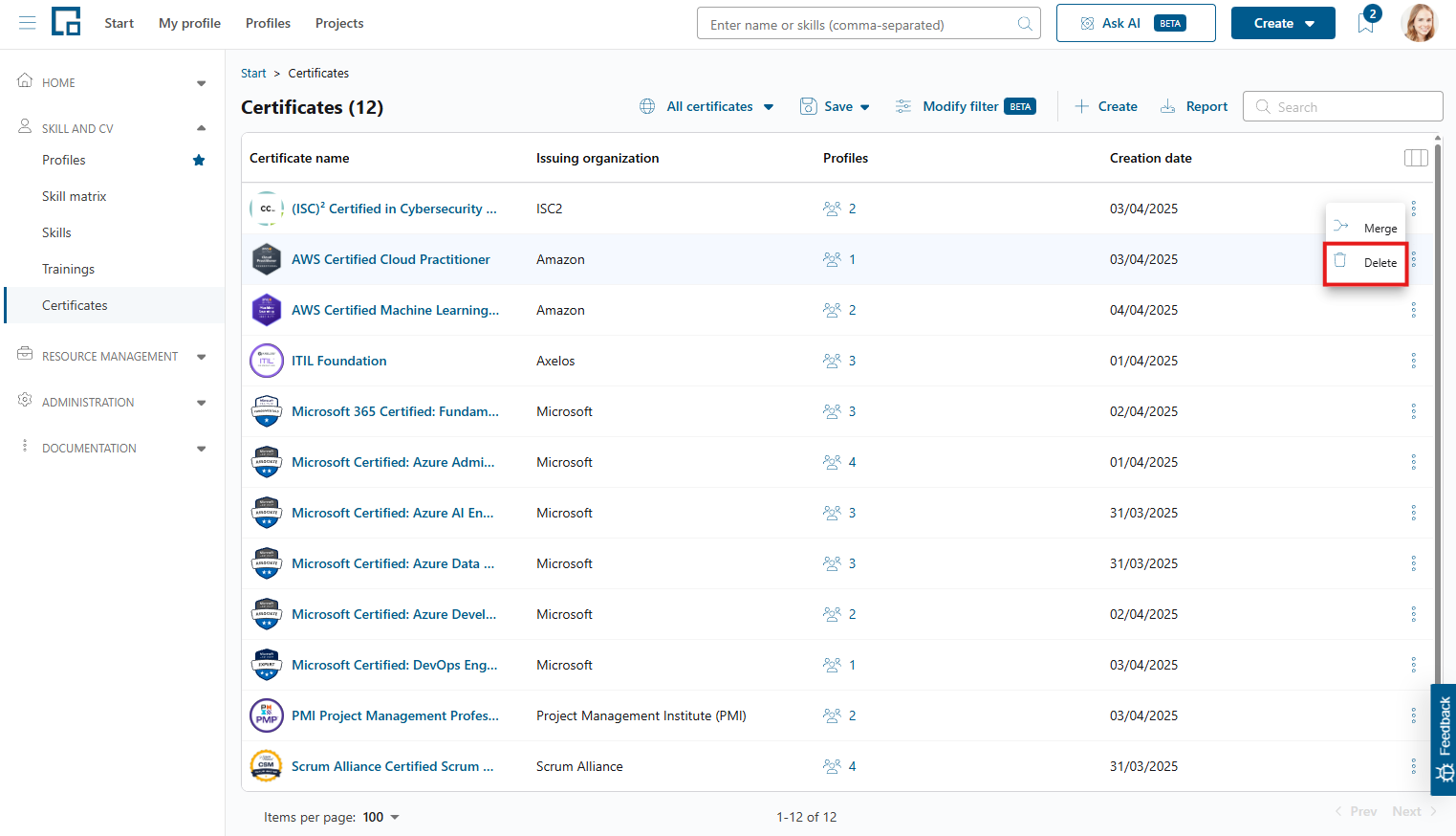 After confirming, the certificate will be deleted from the table and from all profiles that include it. If it originated from the standard decídalo catalog, it will not be removed from there and still show up the auto-complete search on the profile.
Attention: If you delete a certificate permanently, it will also be removed from all profiles in your client. It is not possible to undo this action afterwards.
Certificates overview report
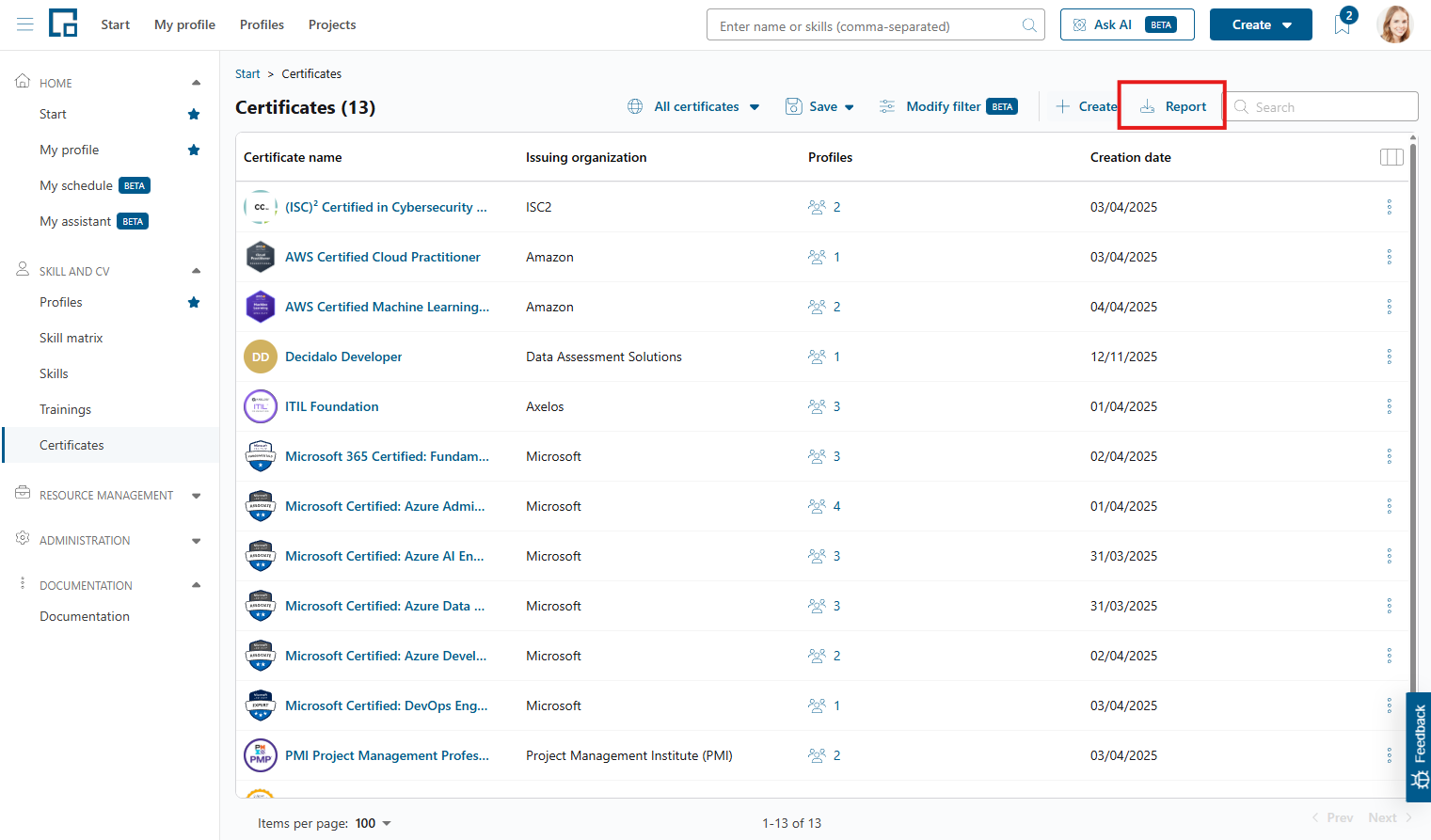
To obtain an overview of the certificates of all employees and when they are about to expire, you can download an Excel report. Click the 'Report' button above the certificates table. An Excel file with the following data will be downloaded: Certificate name, issuing organization, profile, credential URL, issuing date and expiration date. The report contains one row per employee and certificate.
Customizing certificates for your client
To customize the data fields for certificates, go to 'Administration' in the 'Administration' menu section and expand 'Data Fields'. 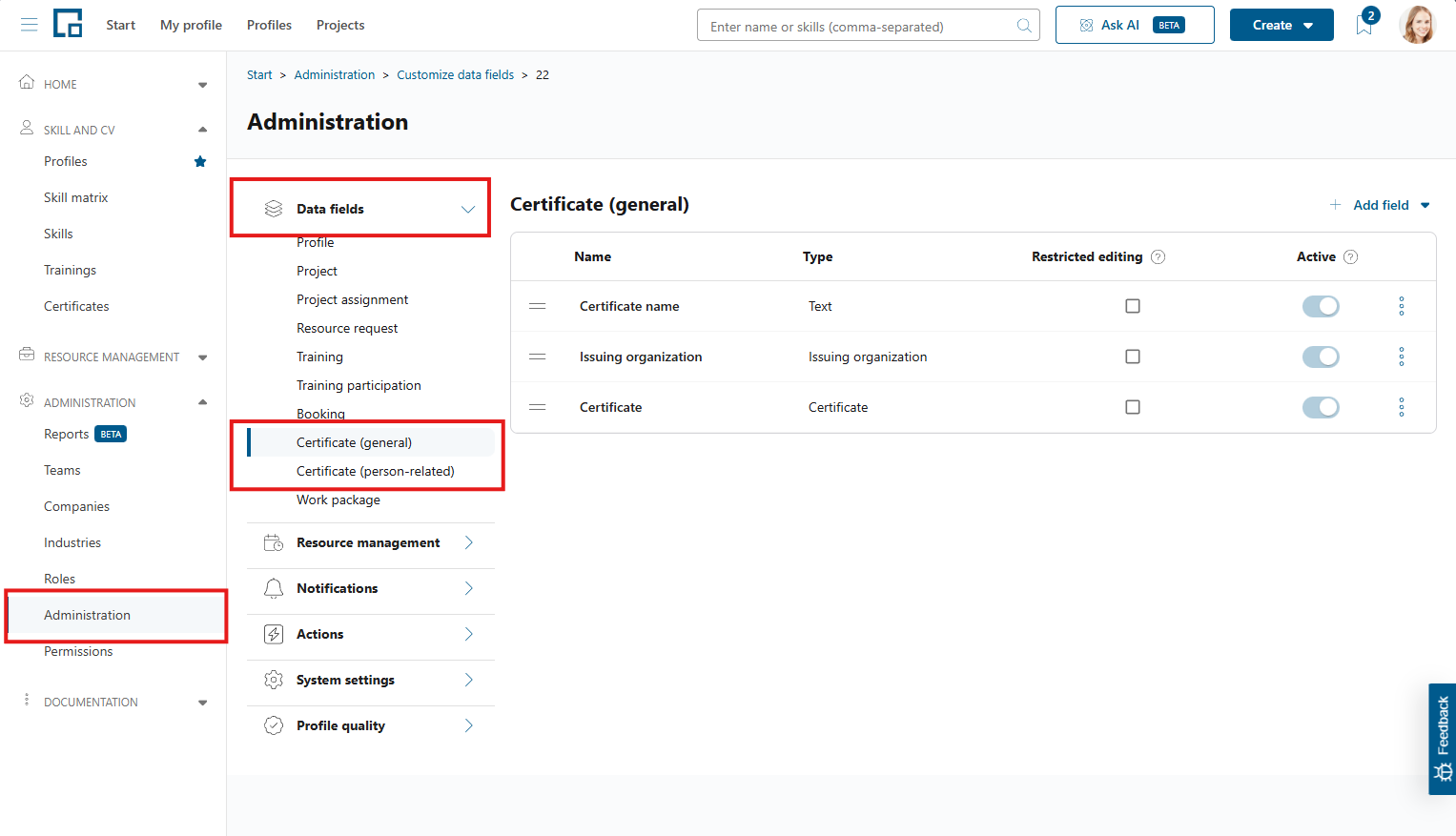 To customize the certificate definition select 'Certificate (general)'.
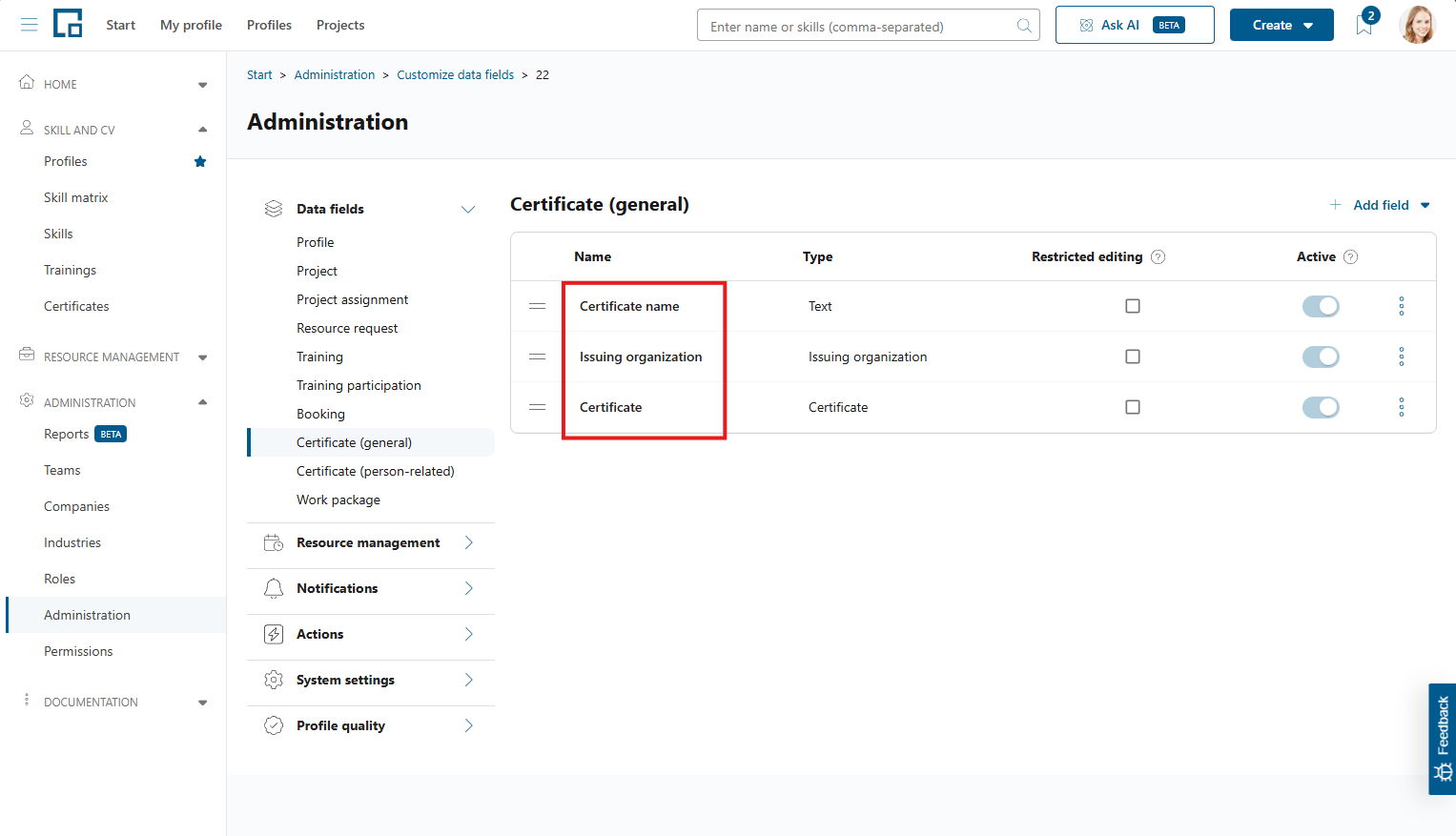 For the employee-specific certificate data select 'Certificate (person-related)'.
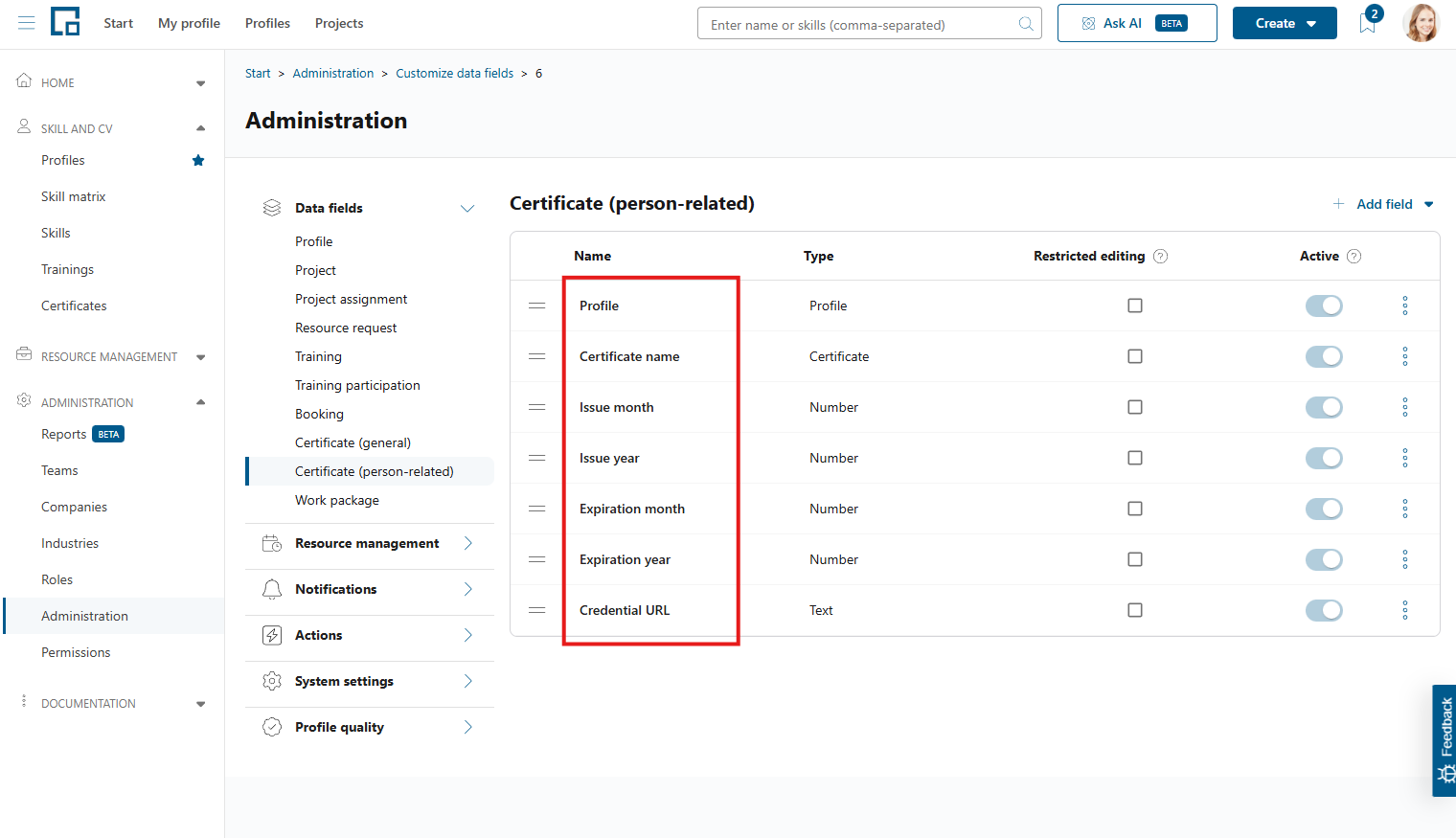 See 'Customizing Data Fields in decídalo' for details.
Making certificate data mandatory
Beyond customizing the fields themselves, administrators can decide which certificate data must be filled in. The issue date is always required when adding a certificate. In addition, you can require the expiration date for all certificates by marking it as mandatory in the certificate data settings, or for a single certificate from its side drawer (see 'Managing Certificates' above). See 'Profile quality assurance' for how mandatory certificate data feeds into the profile quality indicator.
Administrators can also control whether users are allowed to create brand-new certificates from their profile. This is a client-wide setting in the administration configuration: when it is turned off, only users with the 'Manage skills, certificates and roles' permission can create new certificates, while everyone else can still add certificates that already exist in the catalog.