Managing & Using CVs
This article explains how to handle CVs in decídalo, from creation to export into a document.
CVs in decídalo
In decídalo, the employee’s profile serves as the ‘Single Source of Truth’, whereas the CVs are copies of it, adjusted for each individual project tender. Get more information in Understanding Profiles, Accounts, and CVs.
This structure simplifies the maintenance of many CV versions aligned with their respective requirements. Easy customization comes along with the traceability of changes, and capability to undo adjustments regardless of the master profile. Decídalo also provides information to take over adjustments from the profile, when it has changed in the background.
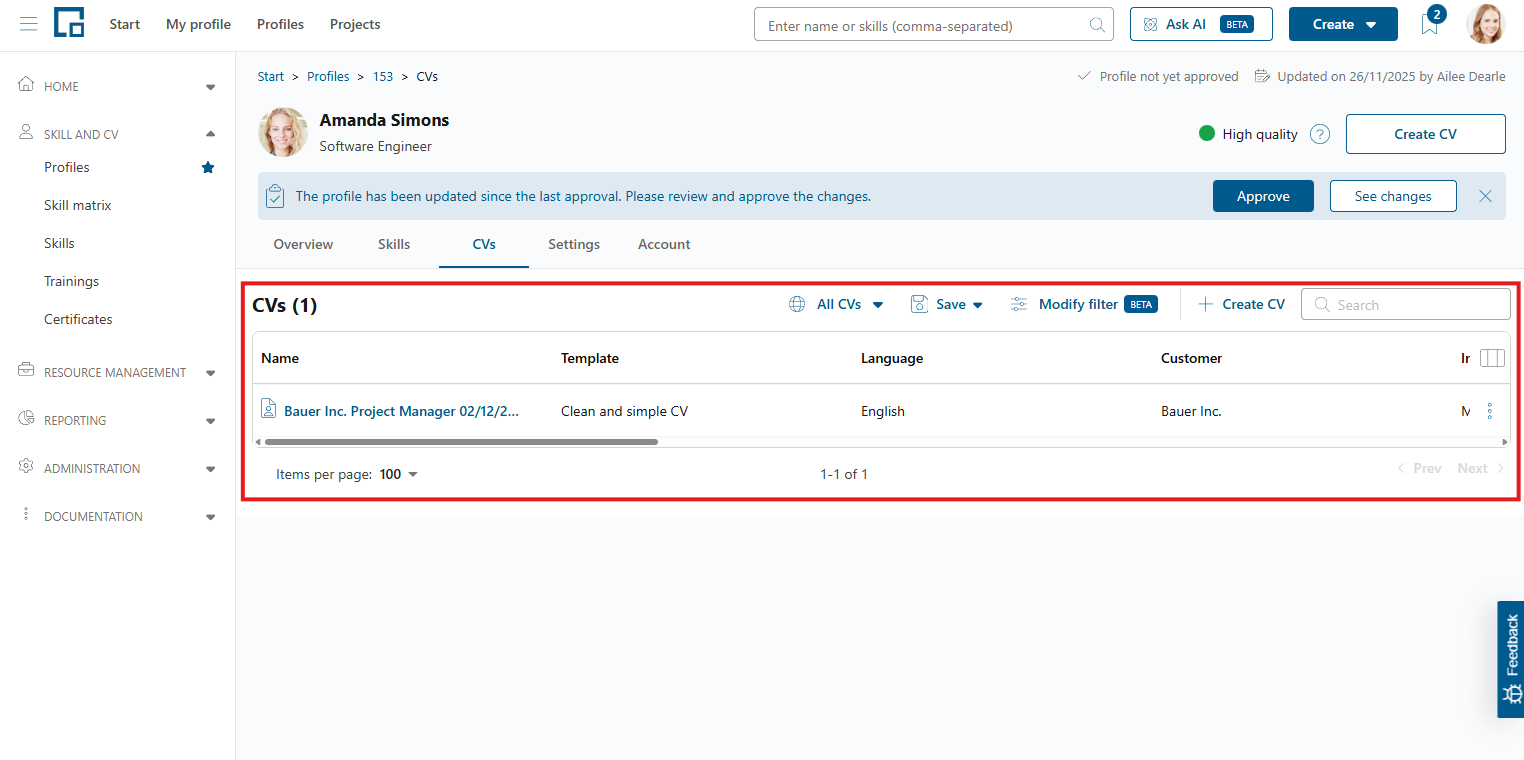
The creation, update or deletion of certain CVs is done on the ‘CV’ tab of the profile. At the top the number of already existing CVs for this profile is displayed in brackets next to the tab header.
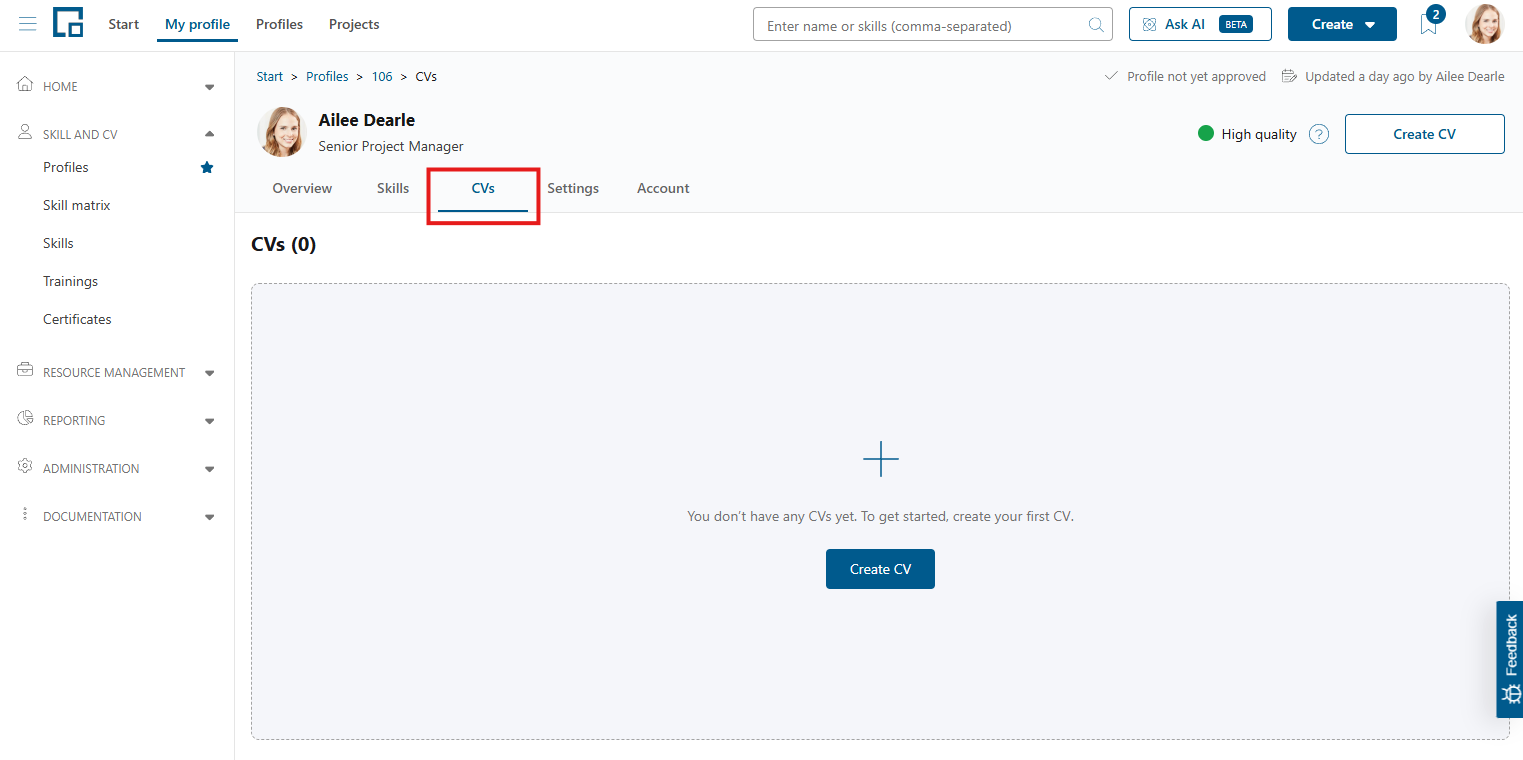
If CVs are already existing, a table with detailed information is displayed.
Creating CVs on the profile
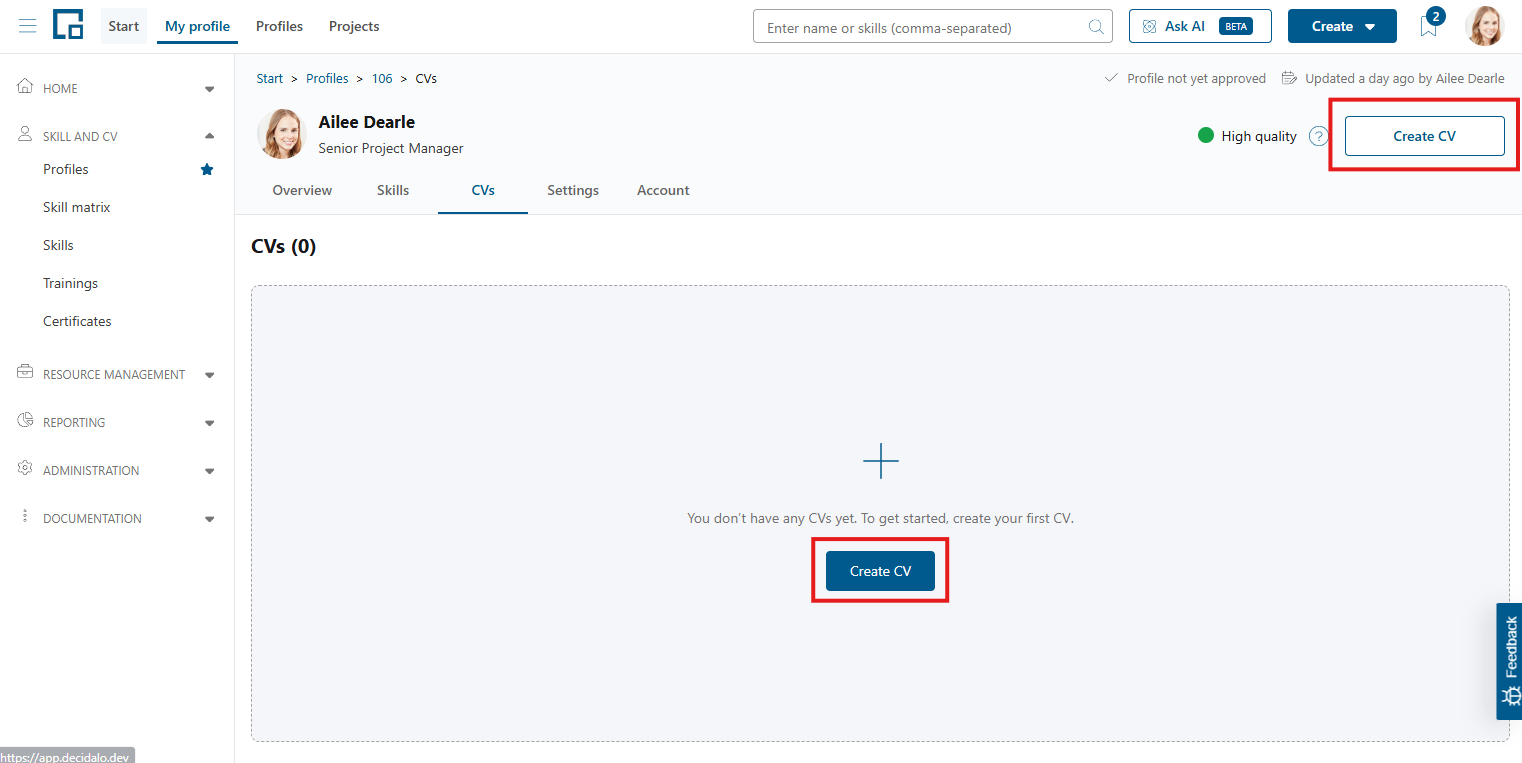
On a profile, there are several options to create a CV. In the header of the profile is the ‘Create CV’ button on the right. On the CVs tab, if no CV has been created yet, there is another blue ‘Create CV’ button in the middle of the adding zone.
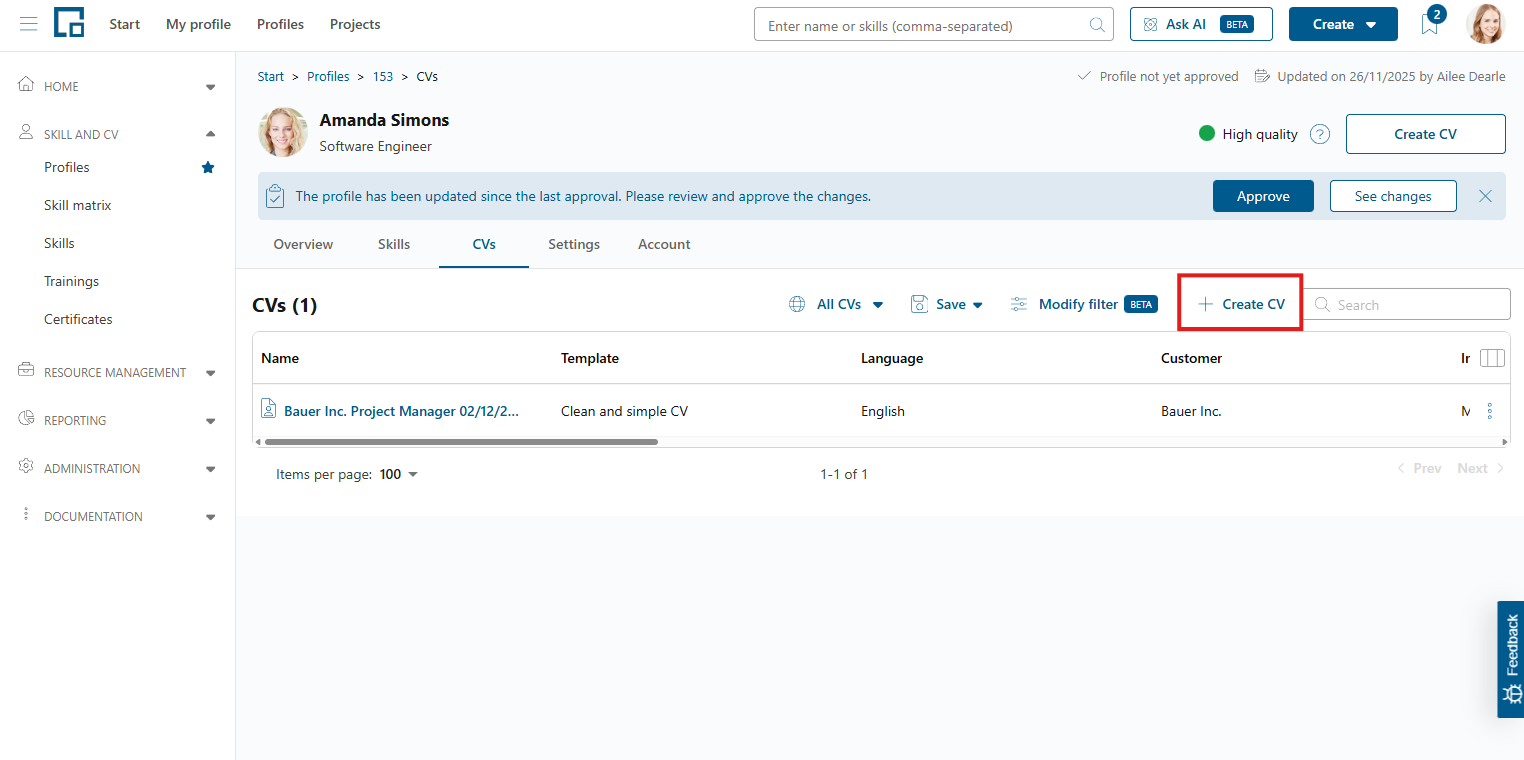
If there are already CVs for the selected profile, the ‘Create CV’ button is located in the toolbar above the table.
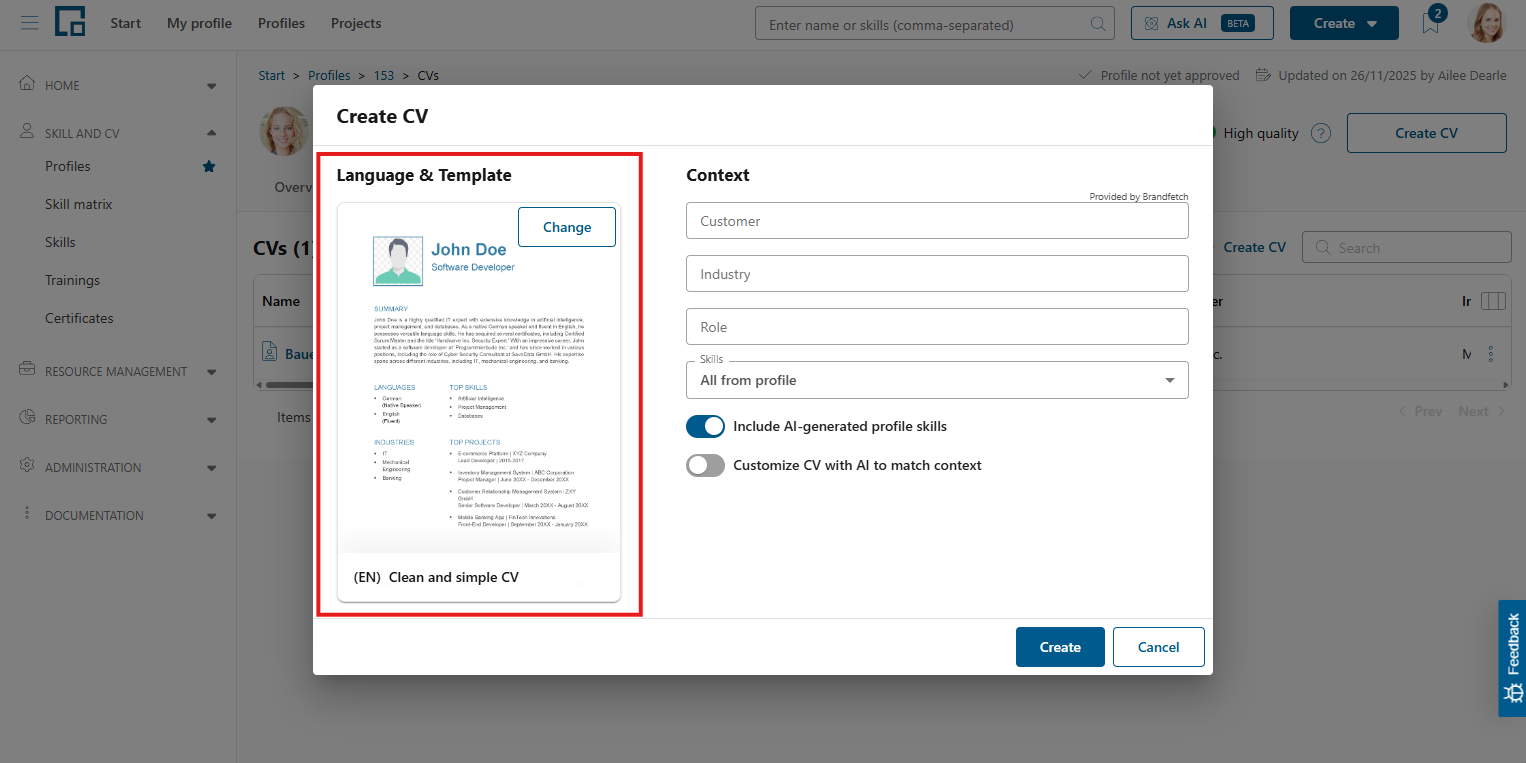
Clicking these buttons always opens the same pop-up with a form to create the CV of the selected profile. Wait shortly, until the template and language selection on the left has finished loading. This is normal due to the templates being large data sources.
Selecting the template
In decídalo, there can be multiple templates for the CV creation. The template controls the language of the exported CV, if it is anonymous or which fields from the profile it should contain. Detailed information on how to create a template can be gained from CV Templates.
On the left of the pop-up, the currently selected template is displayed. To select another template, click on ‘Change’ in the top right corner of the document and a second pop-up appears.
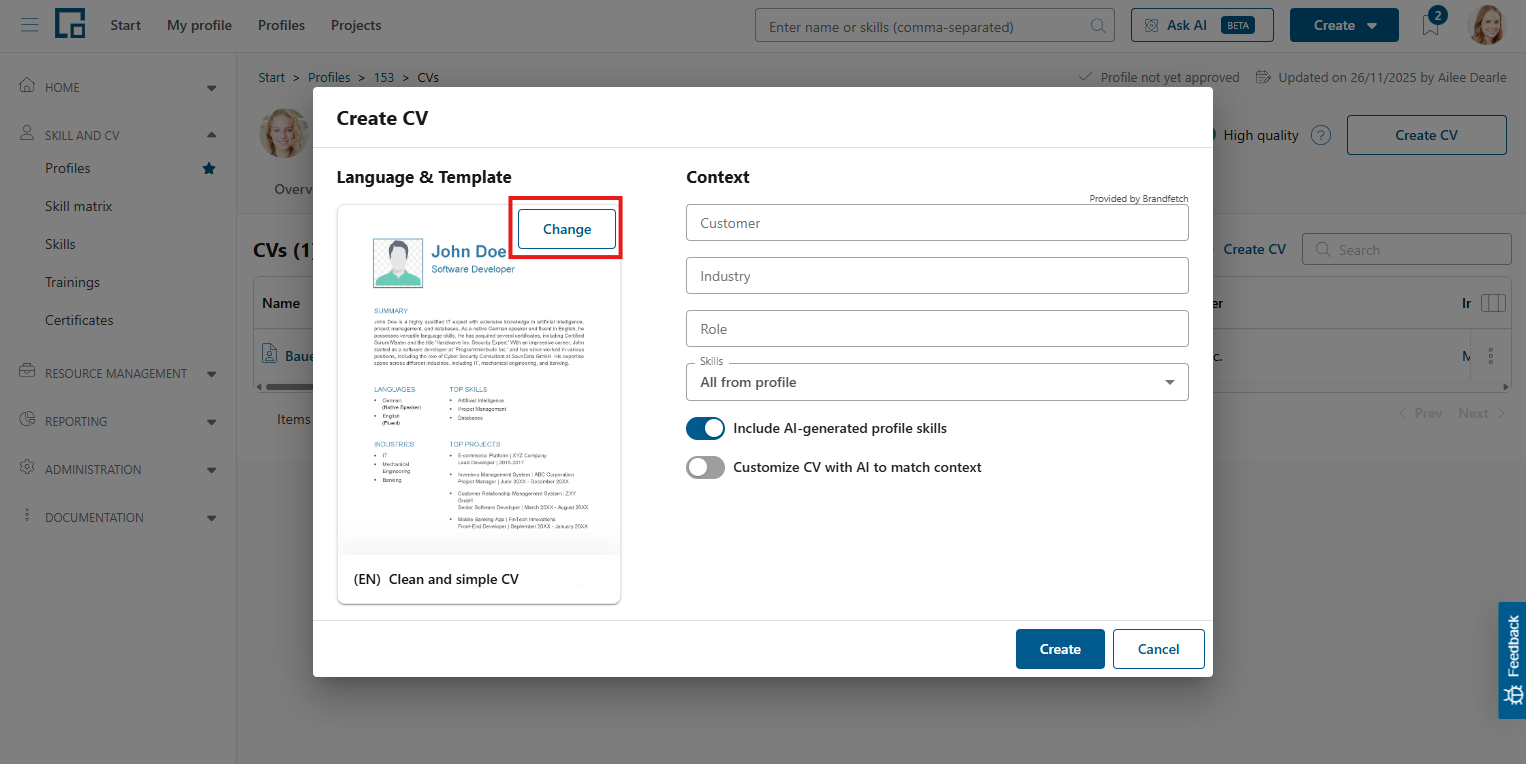
In the top right corner of the pop-up the language is selectable. Simply click on the currently selected language and select the desired one to change it. The list of templates below gets updated accordingly.
To select another template, simply click on the tile surrounding the document preview. All templates are also downloadable here (button in bottom right of each tile), to verify the correctness locally. With a click on ‘Save’ the chosen template gets selected.
Providing context to the CV export
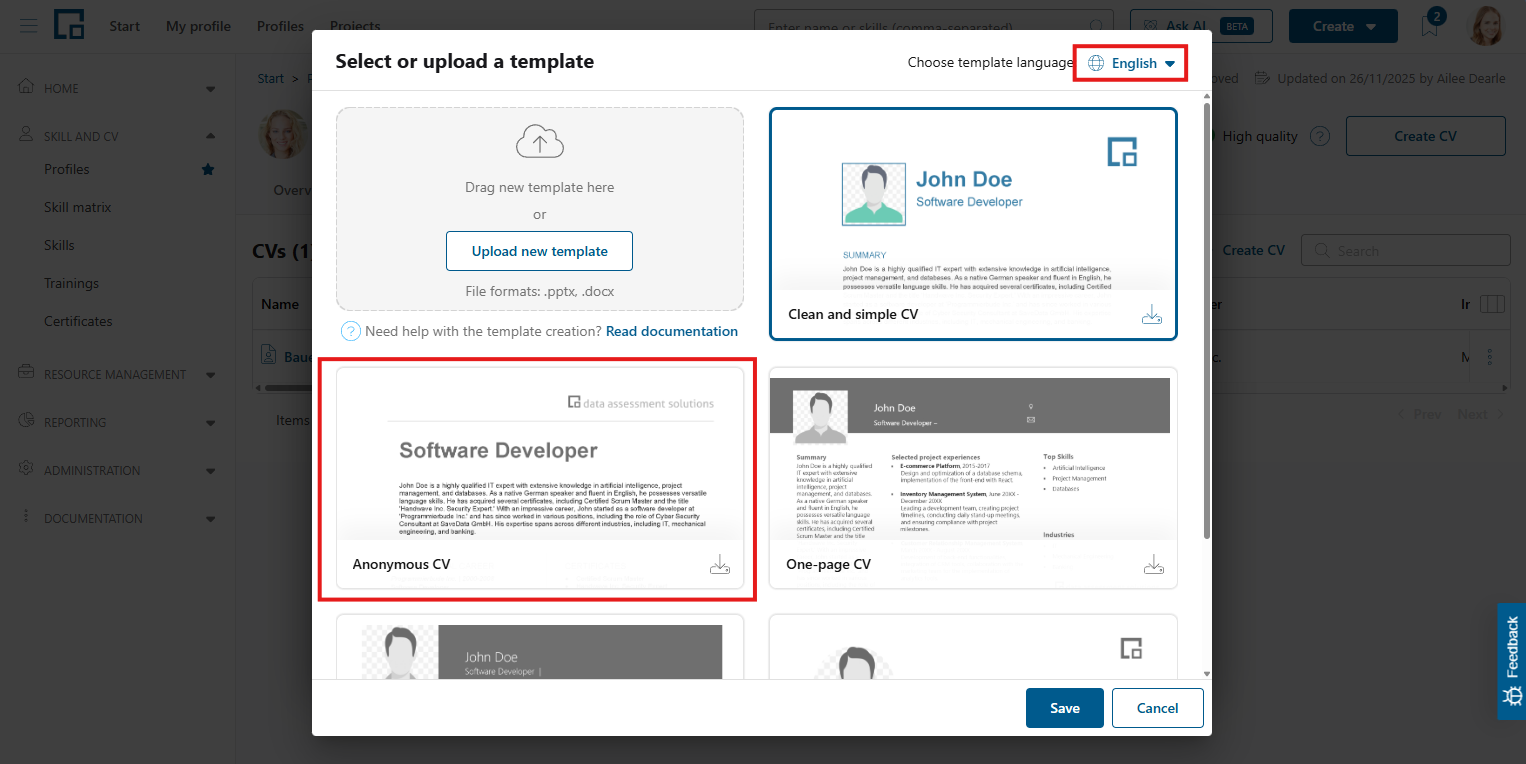
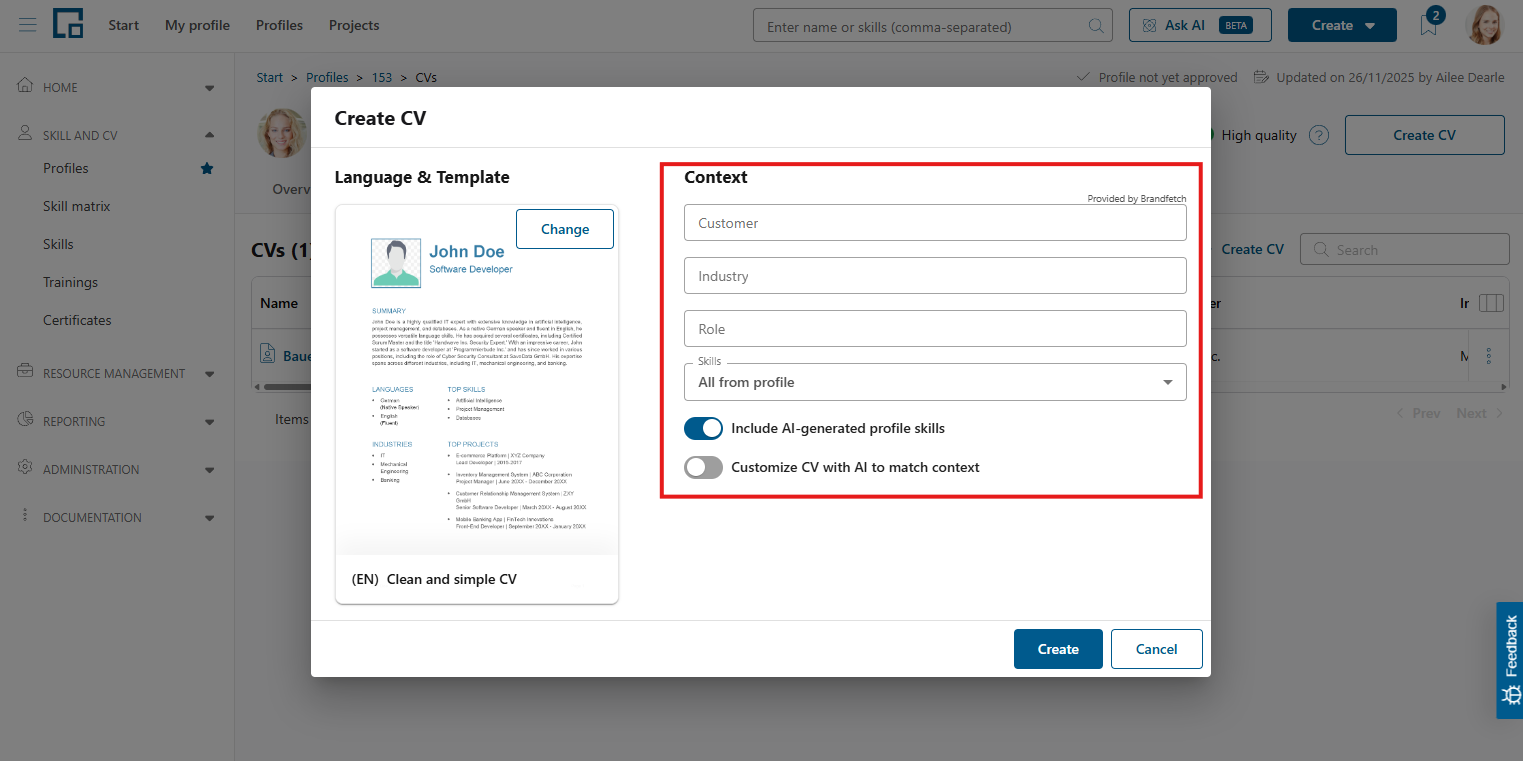
On the right side of the ‘Create CV’ pop-up, it is possible to provide business context to the CV to be created: a customer, industry, project role, and which skills from the profile should be included in the CV. Selecting a customer automatically fills the industry, if the customer’s industry is provided. Additionally, one can opt for including AI generated skills, or to customize the CV with AI to match the provided business context.
Note: Customizing the CV with AI automatically changes data fields in the CV.
The business context also determines the CV’s top content: with AI customization enabled, decídalo selects the top skills, top projects, and top certificates that best match the provided customer, role, industry, and keywords. Without AI customization, the projects and certificates marked with a star on the profile are taken over as the CV’s top projects and top certificates.
Clicking on ‘Create’ creates the CV. This may take a short while if opted for AI customization.
Jump to ‘Editing CVs’ to get more information about postprocessing the created CV.
Editing CVs
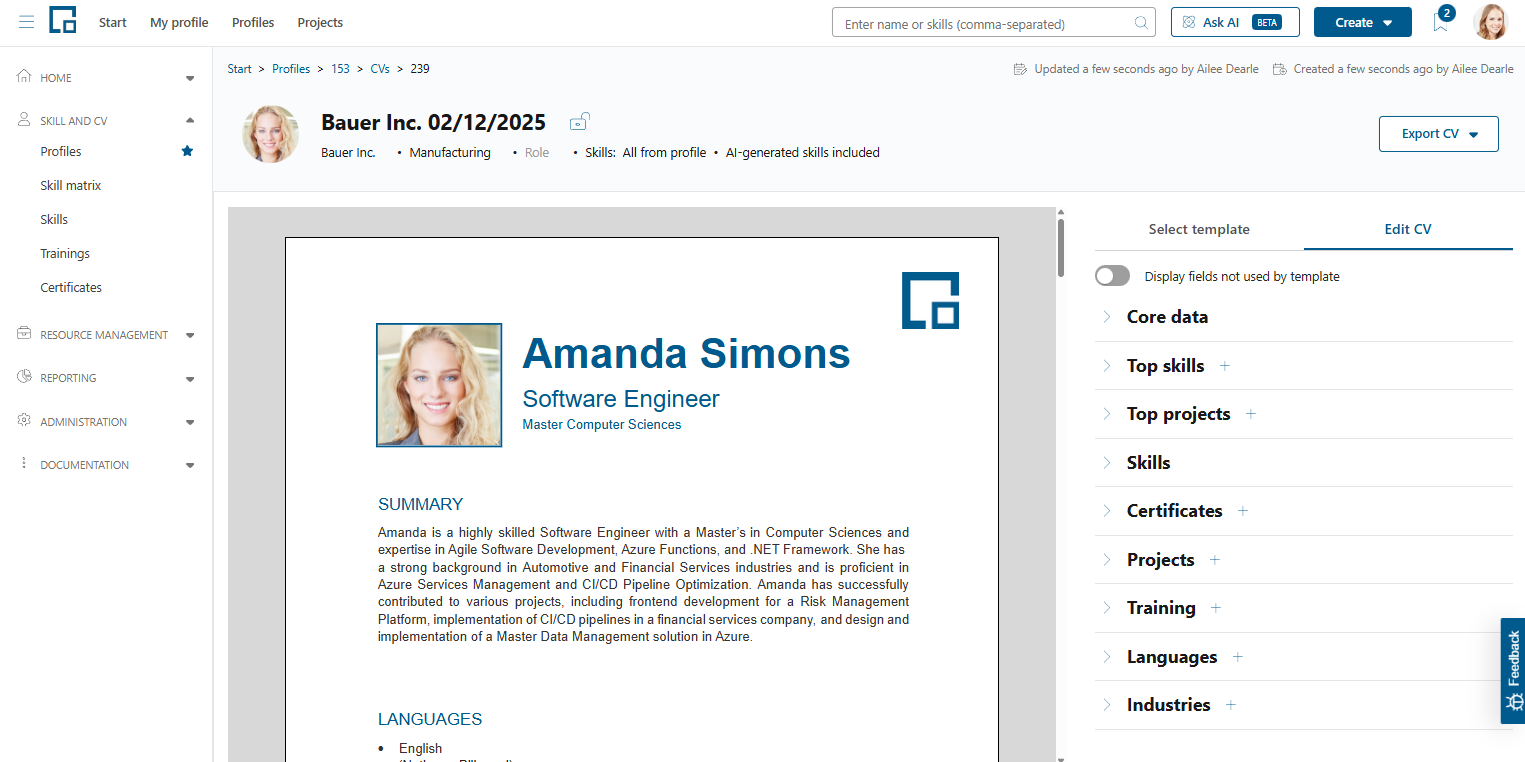
Either directly after creation or when selecting a CV from the list, the CV gets opened in an editor. On the left side, a preview of the document is displayed, while on the right side all contained profile data fields are sorted by category.
Changing the template
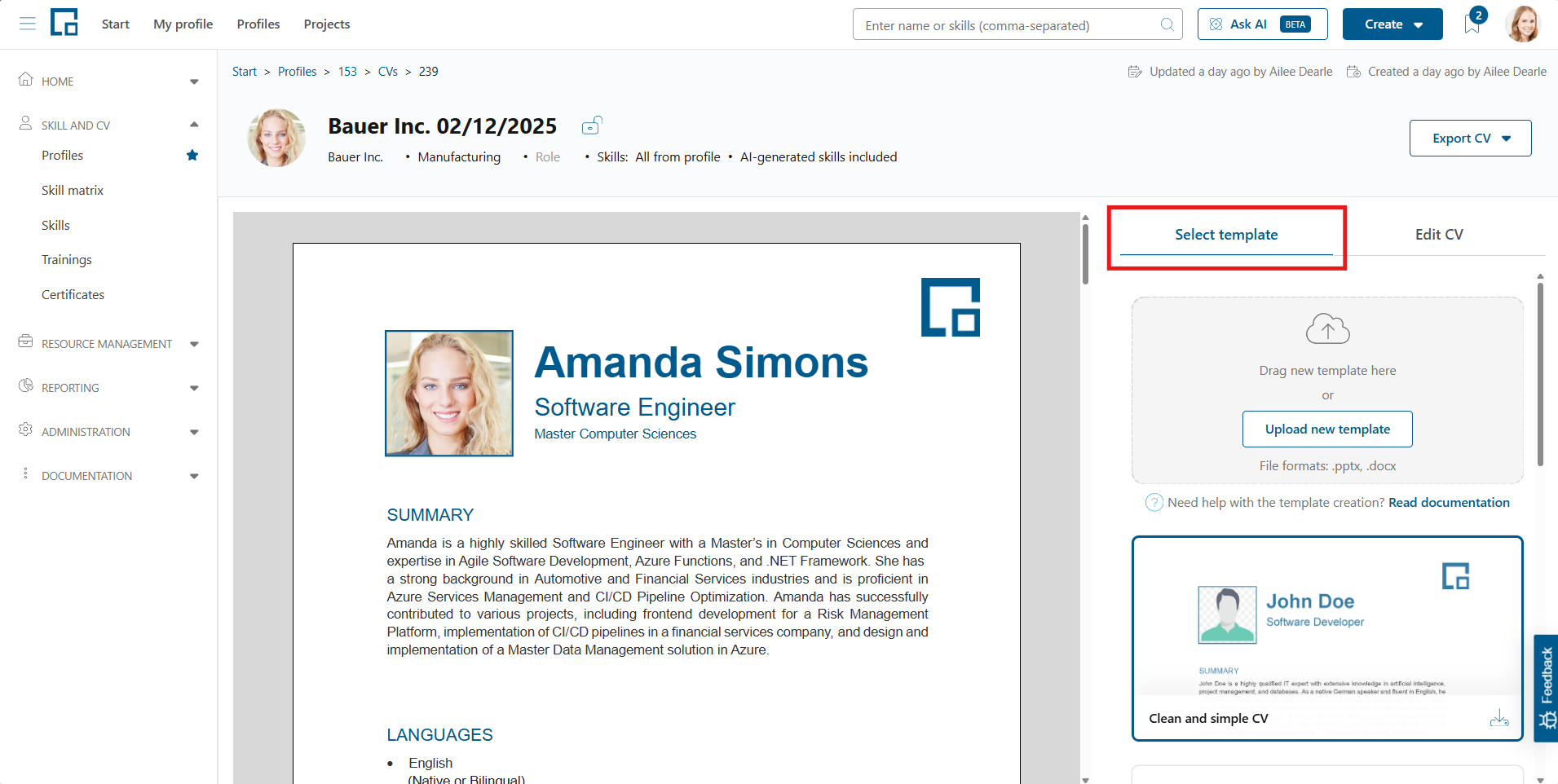
When editing a CV, it is still possible to select another template for the export. On the right side, select the first tab and choose an existing template from the list or create a new one. The displayed preview on the left changes accordingly, as well as the data fields in the ‘Edit CV’ tab if the new template uses other fields.
Editing data in the CV
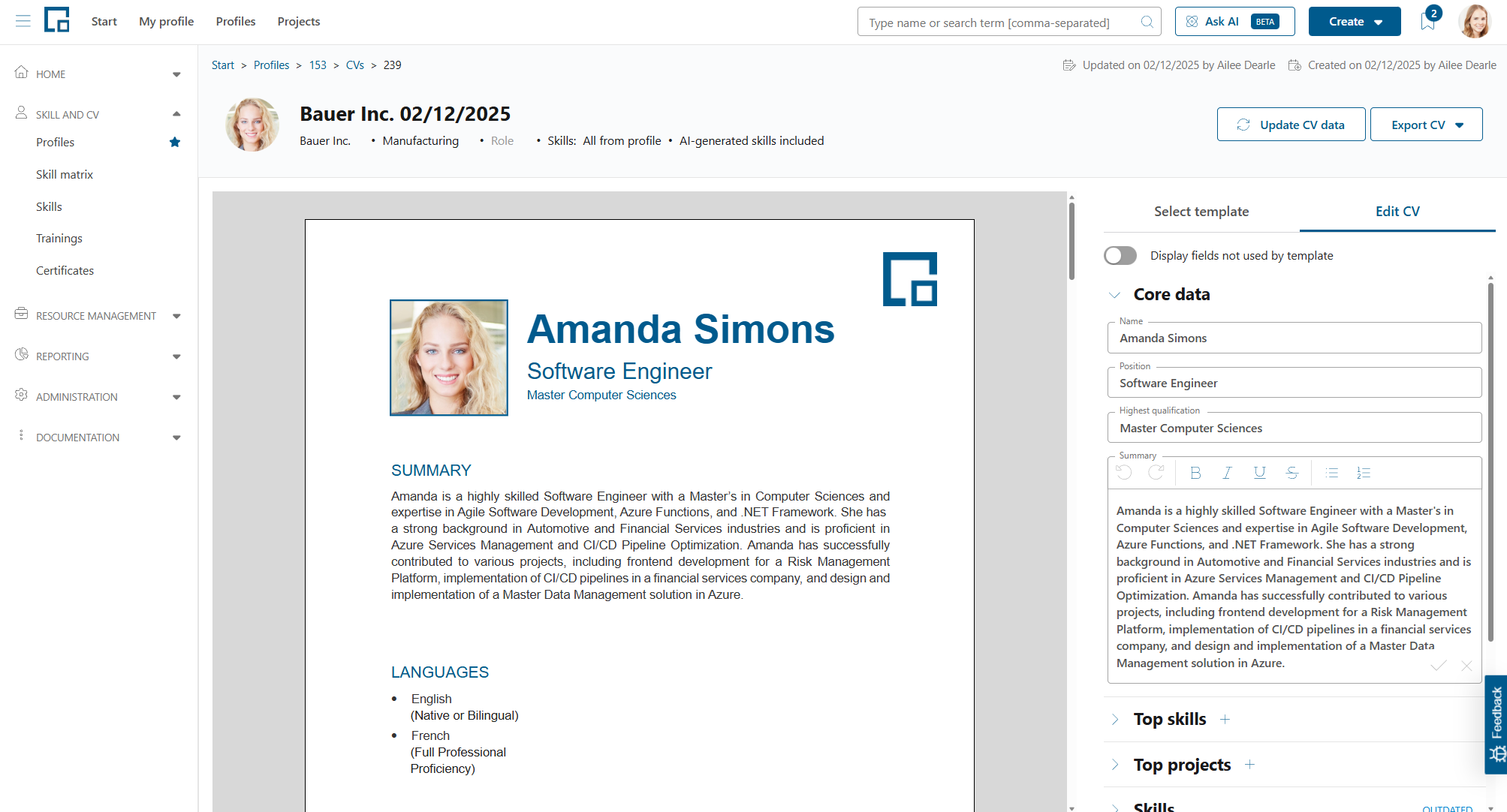
All CV data besides the profile image can be edited before it is exported into a document. To see where a specific information is originated from, simply click on the text in the document and the field is highlighted on the right side.
For instance, if one wants to edit the summary, click on it and decídalo automatically focuses the corresponding field ‘Summary’ in the ‘Core data’ category.
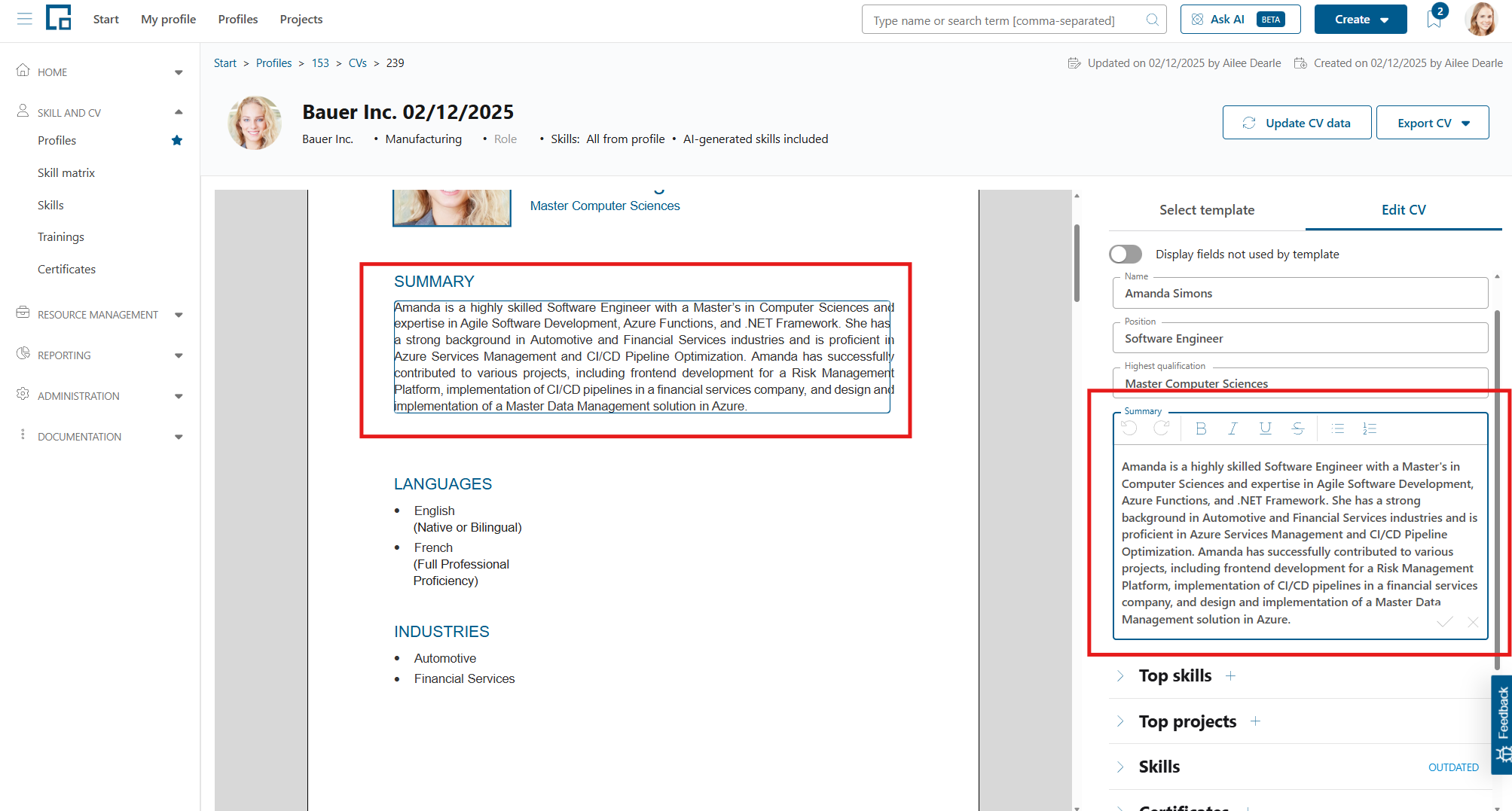
After editing, the changes automatically emerge to the document preview on the left.
Keep in mind: Editing a CV does not change the profile of the employee. The CV is an independent copy of the profile.
Skills in one-pager category sections
One-pager (PowerPoint) templates show a fixed number of skills per skill category. In the Skills section of the editor, each of these categories displays how many skills are placed on the CV against that limit (for example 5 / 5 Skills) above the skills themselves.
Skills that are placed on the CV appear as normal, editable rows. Any further skills the employee has assessed in that category that do not fit the limit are listed below them in grey, each with a + button. This lets you decide which skills the CV shows without searching for them or reordering by drag and drop.
| Action | Result |
|---|---|
| Click the + next to a greyed-out skill | Places that skill on the CV. If the category is already full the + is disabled, and hovering it shows “Category is full. Remove a skill or move it to another category”. |
| Open a placed skill’s action menu (⋮) and choose Delete | Moves the skill to the greyed-out list (it is not lost) and frees a slot, so another skill can be placed. |
| Open a placed skill’s action menu (⋮) and choose a Move to option | Moves the skill into another category, also freeing a slot. |
The number of placed skills never exceeds the limit, so the editor always matches what the exported document shows.
Note: This applies to one-pager (PowerPoint) category sections, where the template defines a fixed number of slots per category. CVs created before this behaviour was introduced may show more placed skills than the limit; recreate the CV to apply the new layout.
Forwarding changes from the profile to CVs
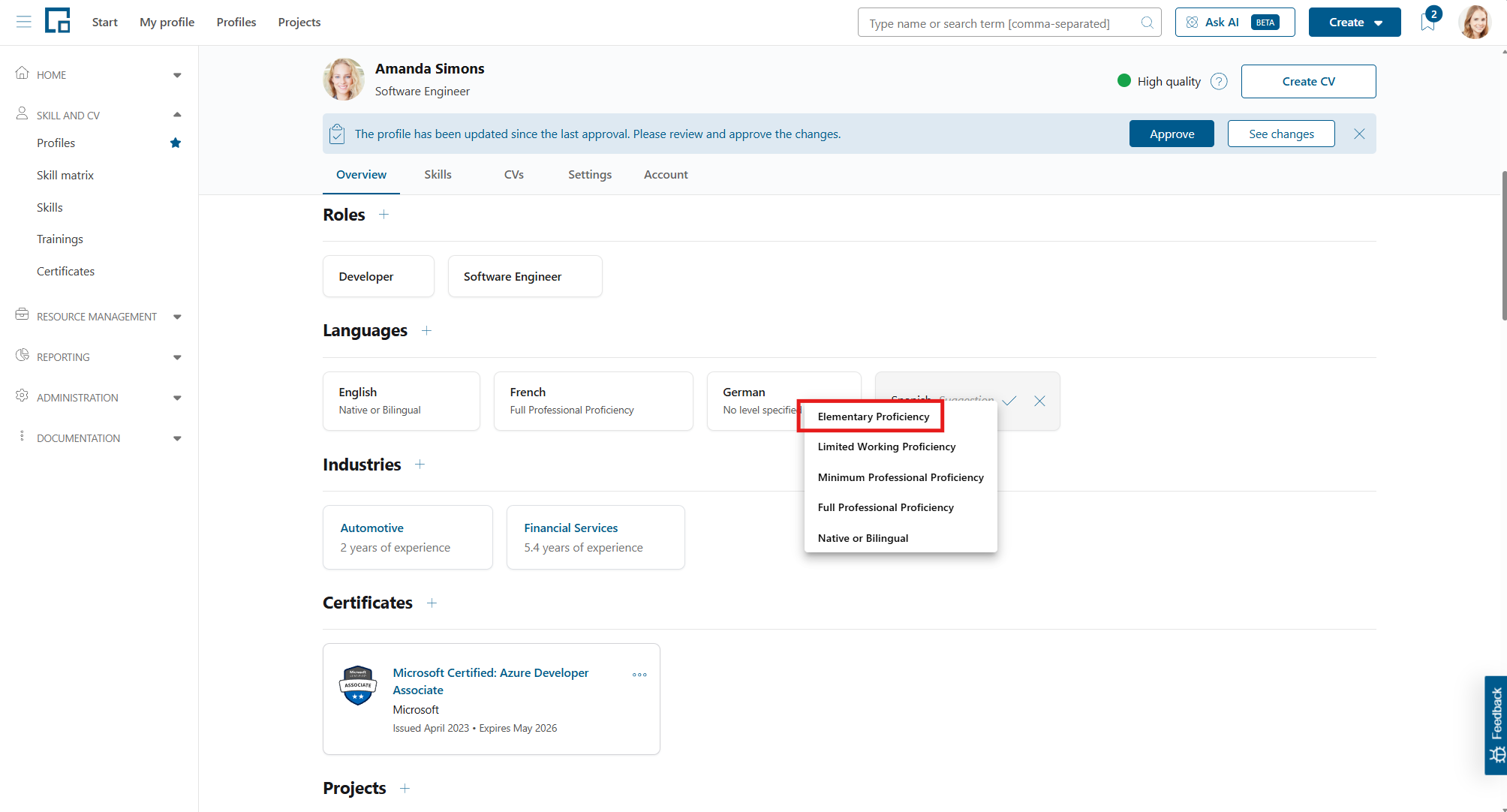
If the profile of an employee has been changed after there were already some CVs created, a banner prompting you to update the CV is shown below the CV header when opening it.
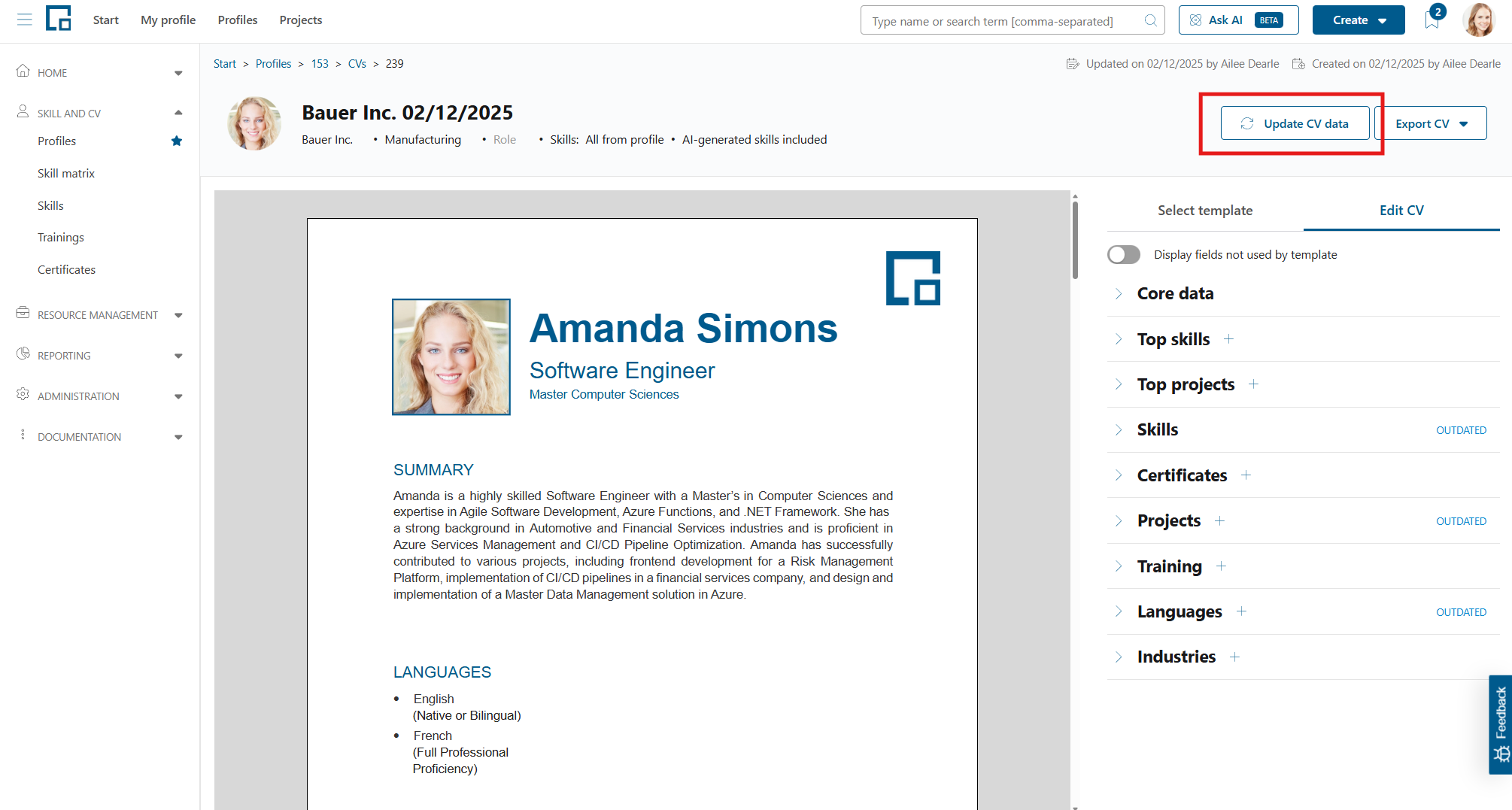
Simply click the ‘Update CV data’ button in the banner to update the CV’s data with the changes from the profile. A pop-up opens to display the changes made since the last update or the creation of the CV.
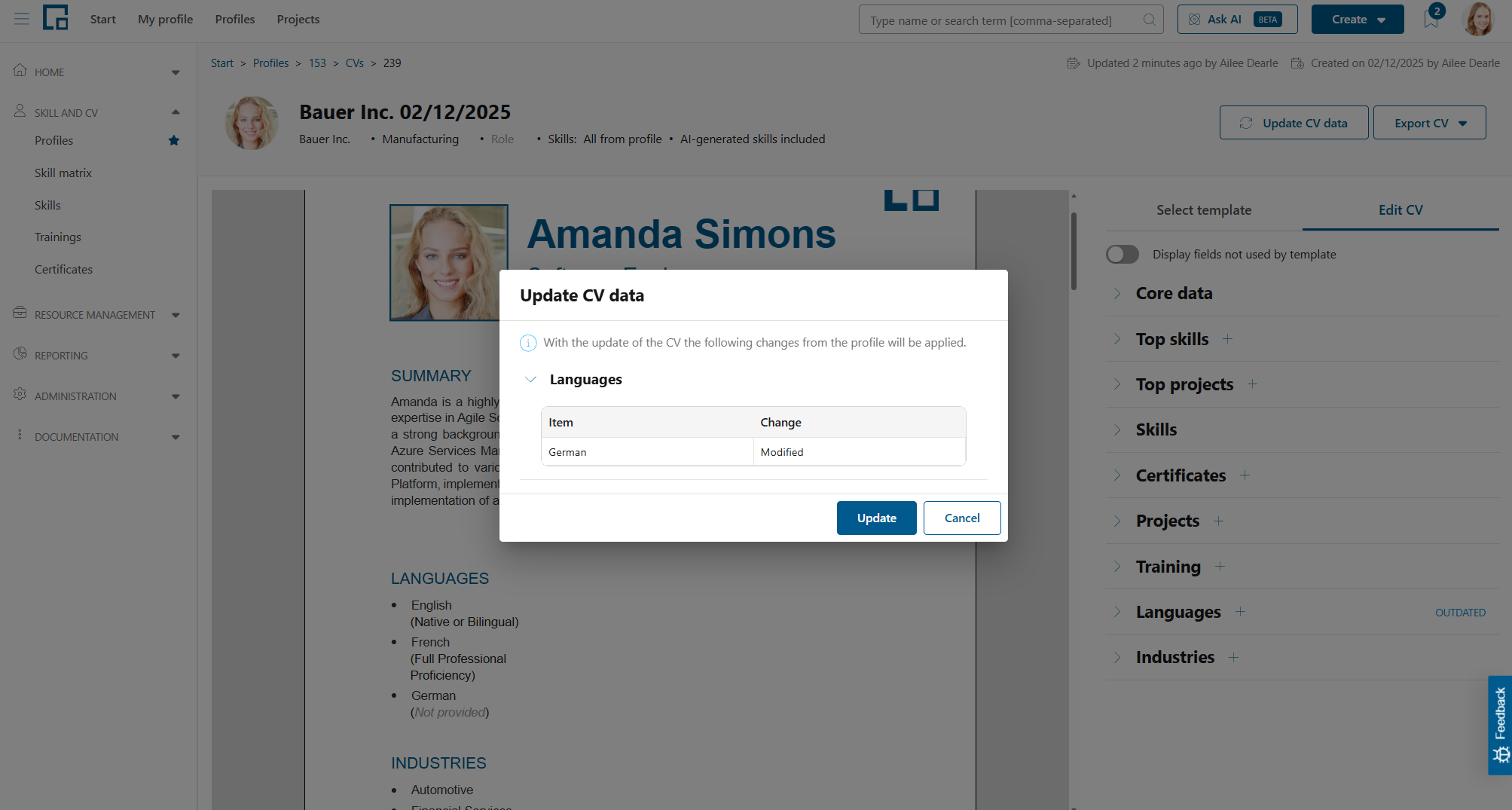
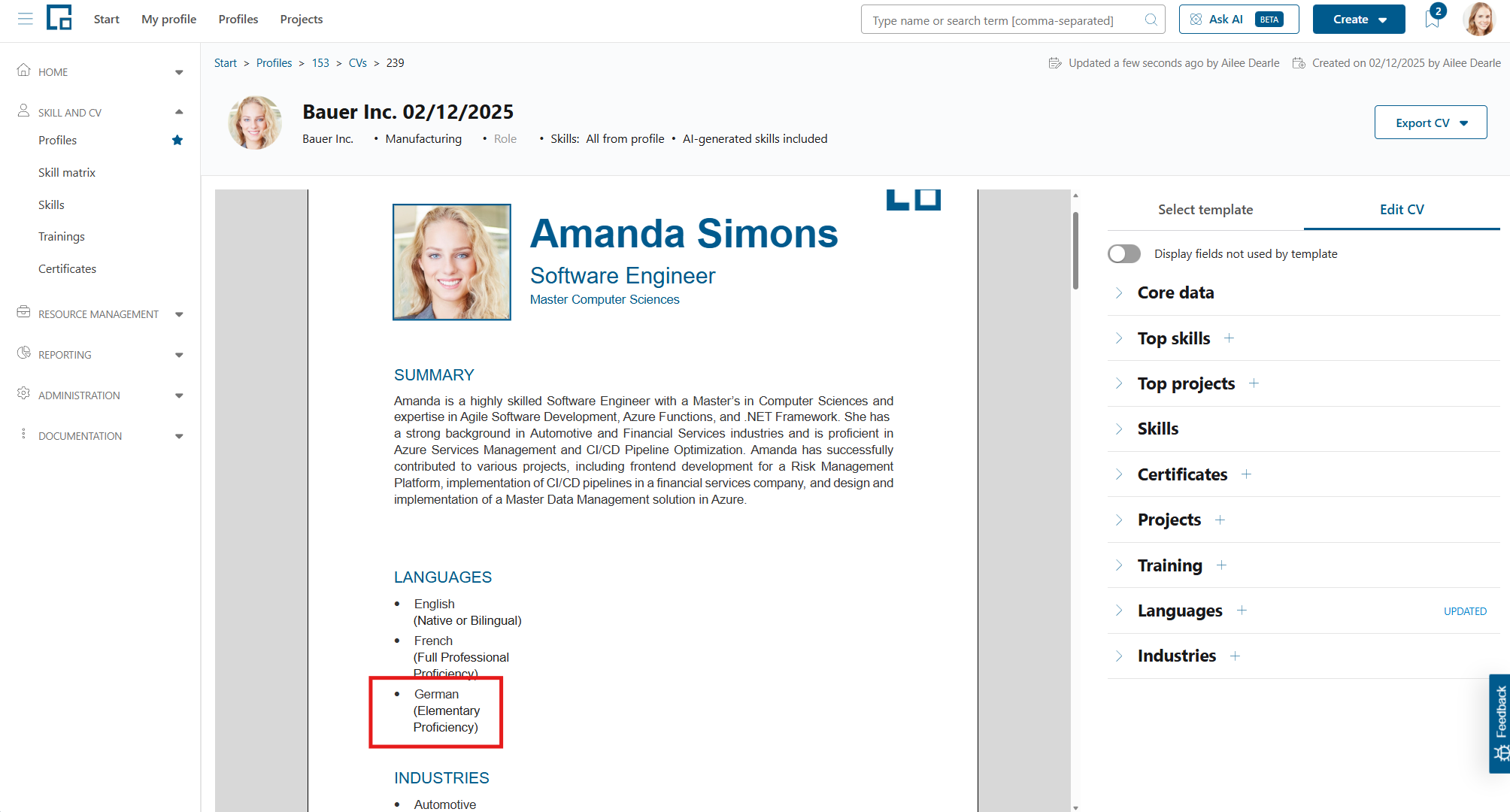
To confirm and perform the updates, click ‘Update’ and the changes are adopted immediately.
Exporting CVs
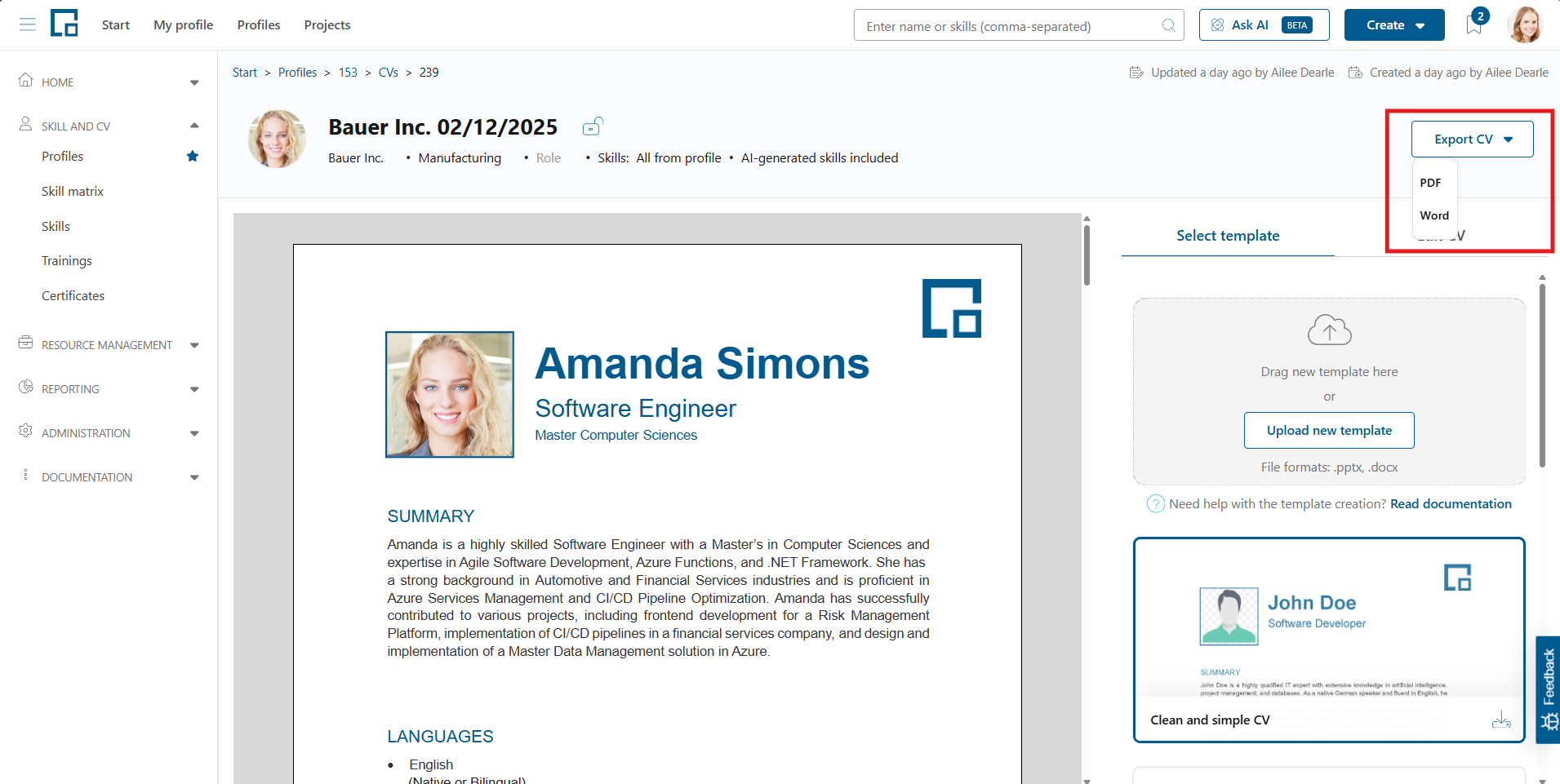
When the CV adjustments are finished, it is exportable via the ‘Export CV’ button in the top right. If a word template was selected, the CV can be exported into Word or PDF format.
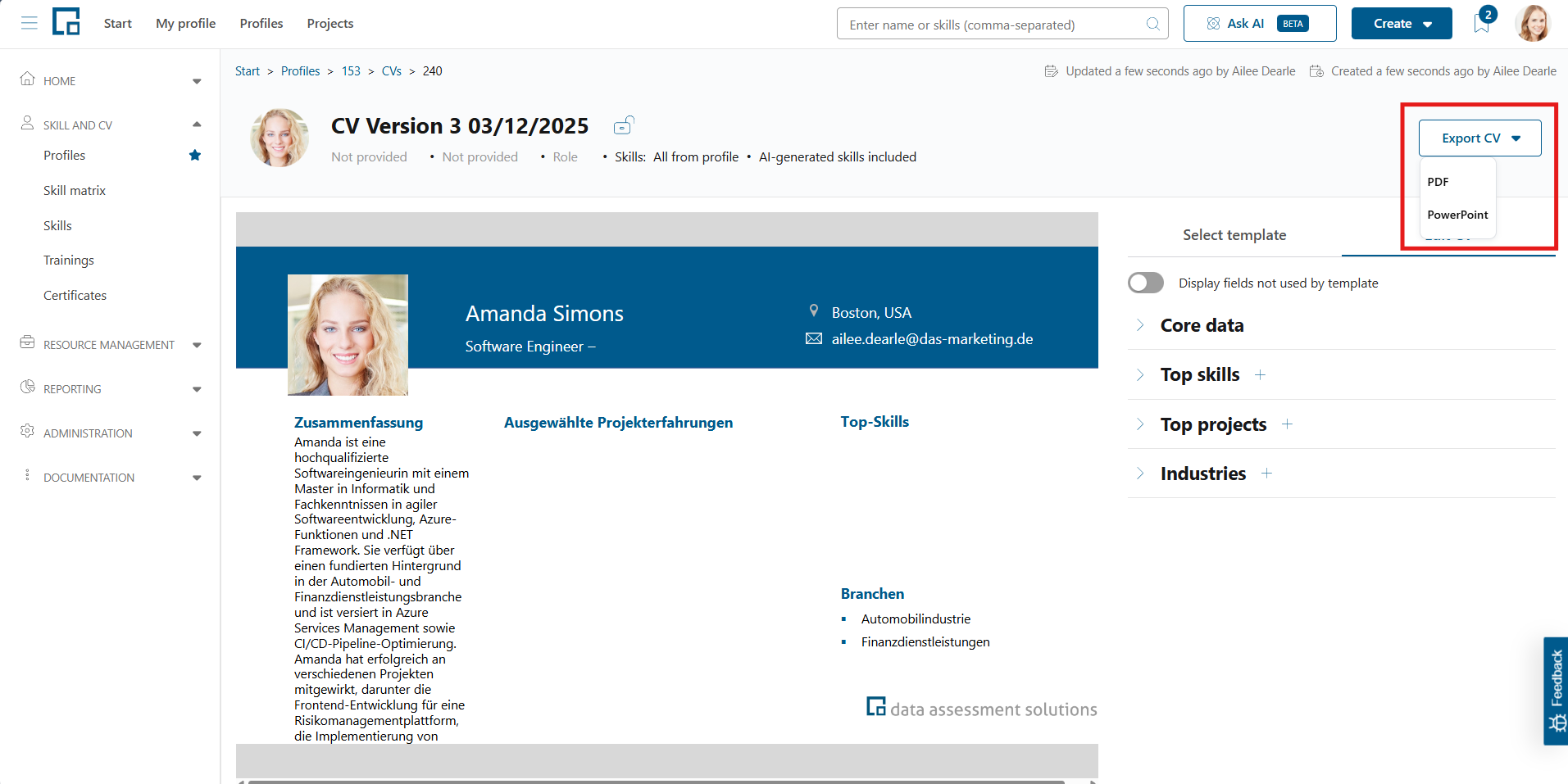
If a PowerPoint template was selected, the CV can be exported into PowerPoint or PDF format.
Copying CVs
A copy of a CV can be created by clicking the three dots at the end of a CV’s row and selecting ‘Copy’.
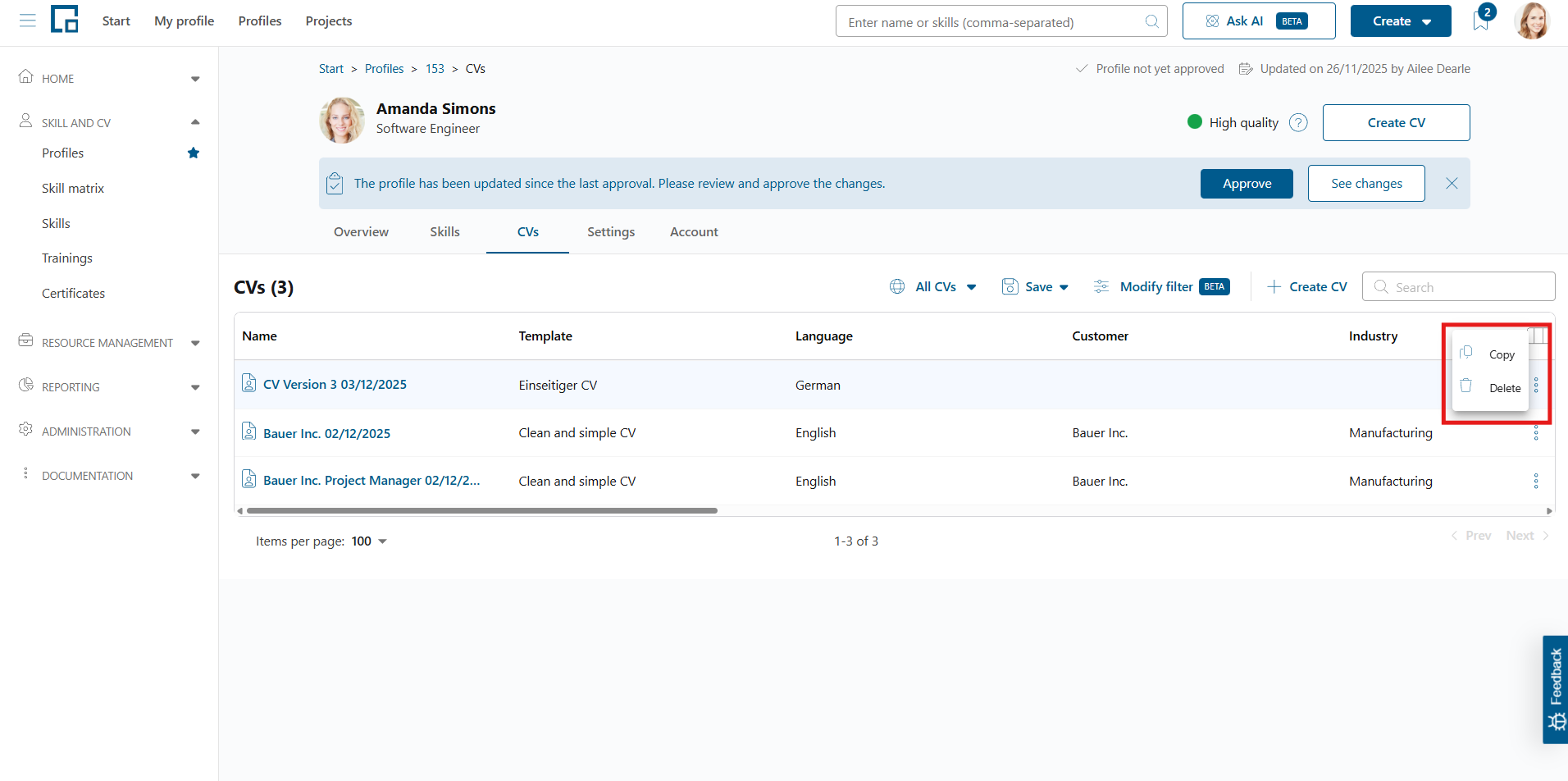
Decídalo automatically creates a new CV in the background as a copy of the selected one and navigates to the editing of the new CV.
Note: The new CV has the same name as the old, but with a ‘- copy’ suffix.
Deleting CVs
the row of the CV to be deleted, click on the three dots at the end and select ‘Delete’.
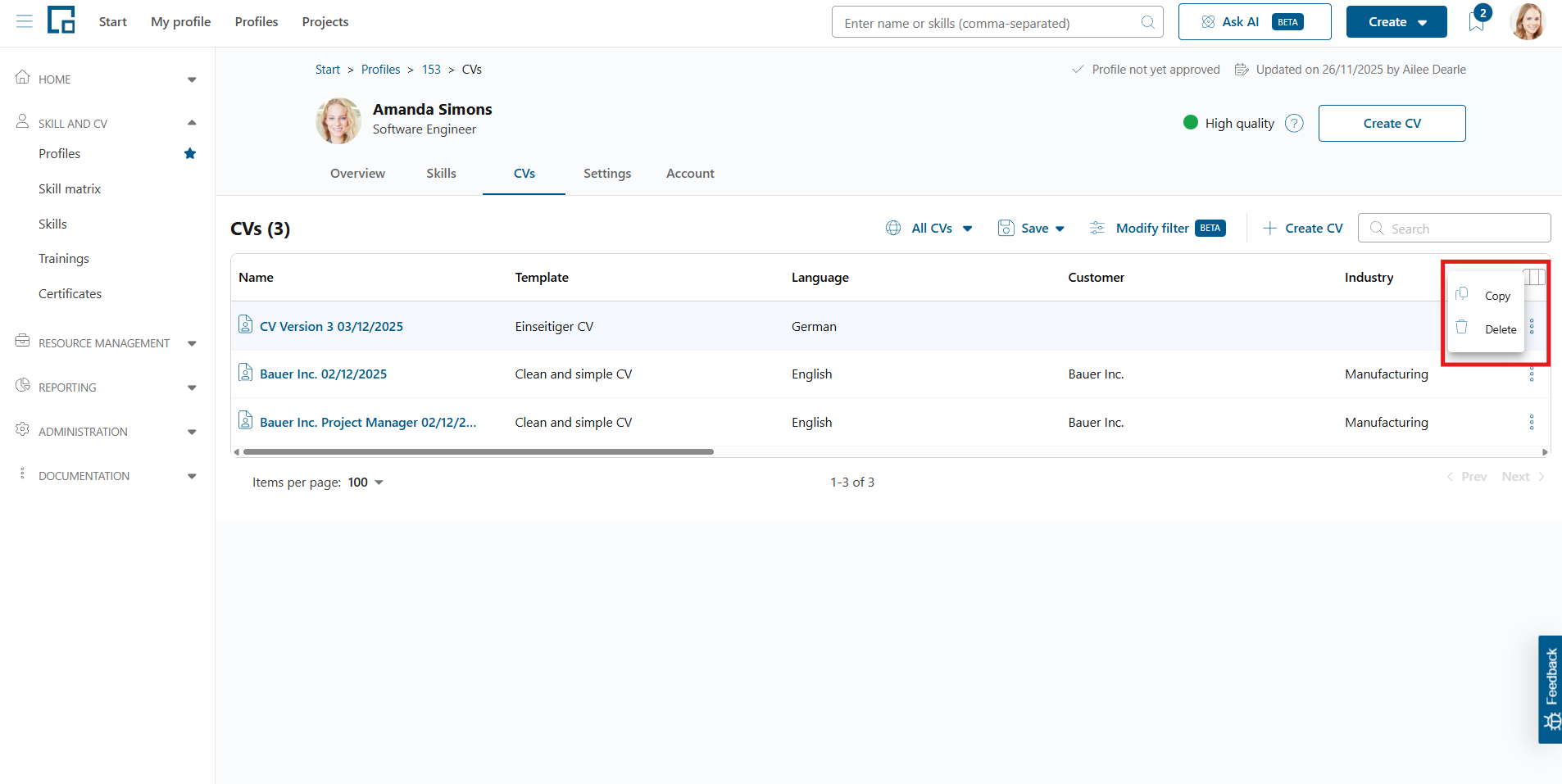
In the appearing pop-up, the deletion needs to be confirmed. Click ‘Confirm’ to delete the CV permanently.