Onboarding Assistant
The onboarding assistant guides you through setting up a profile step by step. It suggests roles, industries, skills and certificates based on your position and an optionally uploaded CV, and lets you review and adjust everything before it is saved. Nothing is written to the profile until you finish the assistant.
Starting the assistant
On a profile with low quality, a banner offers to set up the profile. Click Setup profile to open the setup dialog. The welcome section on the start page also links to the assistant with Start the onboarding assistant.
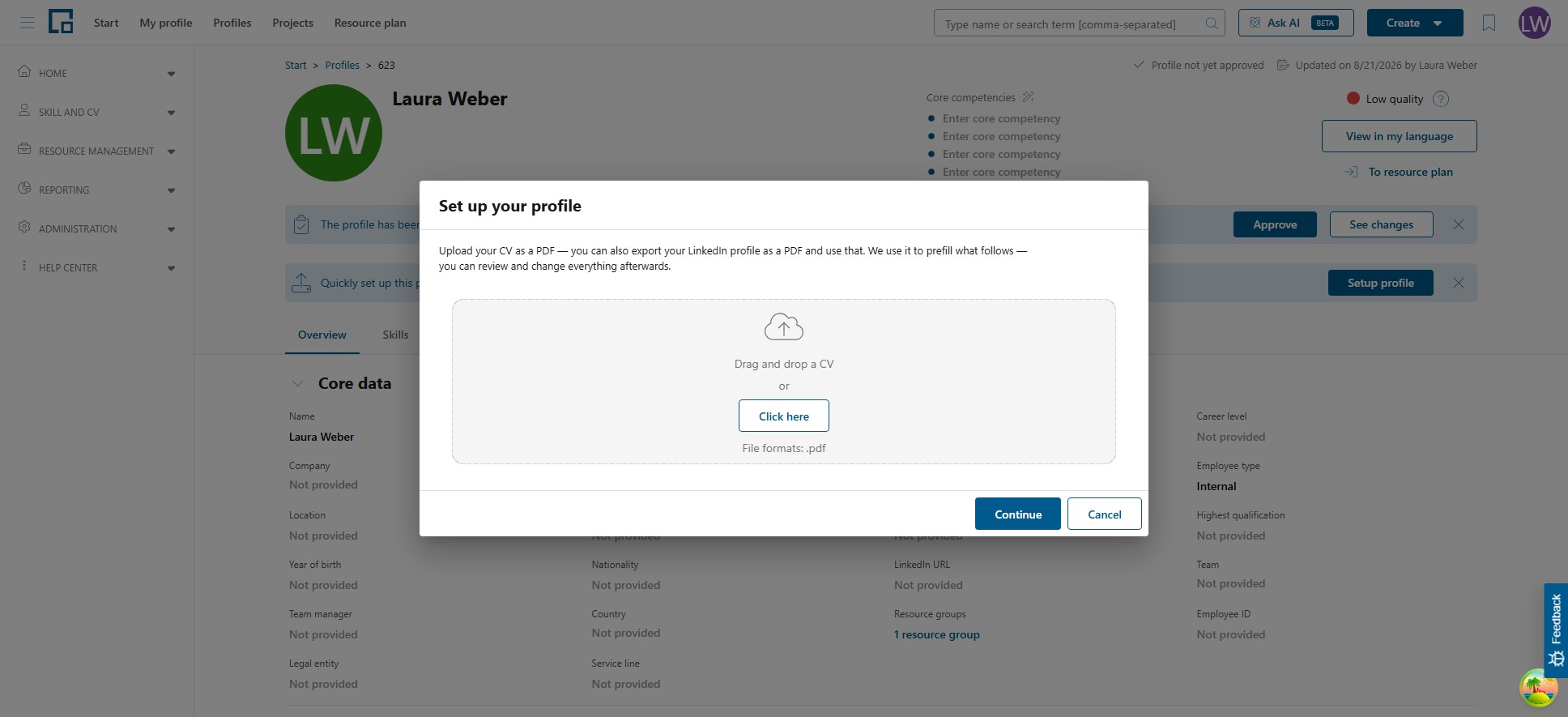
Upload your CV as PDF to prefill the following steps. You can also export your LinkedIn profile as a PDF and use that. When you upload a document, you can choose between the onboarding assistant and the CV parser. To start without a document, click Continue; a confirmation reminds you that far less can be prefilled, and the assistant then starts directly.
Note: You can leave the assistant at any time with Cancel. A confirmation dialog asks whether to discard your changes; the profile is only updated when you finish.
Welcome email
Where your administrator has enabled the Welcome email notification, new users receive a welcome email as soon as they have completed their invitation and can log in. Its button opens the profile with the setup dialog already open, so the assistant can be started straight from the email. The notification is switched off by default and can be unsubscribed from under Account on your profile.
About you
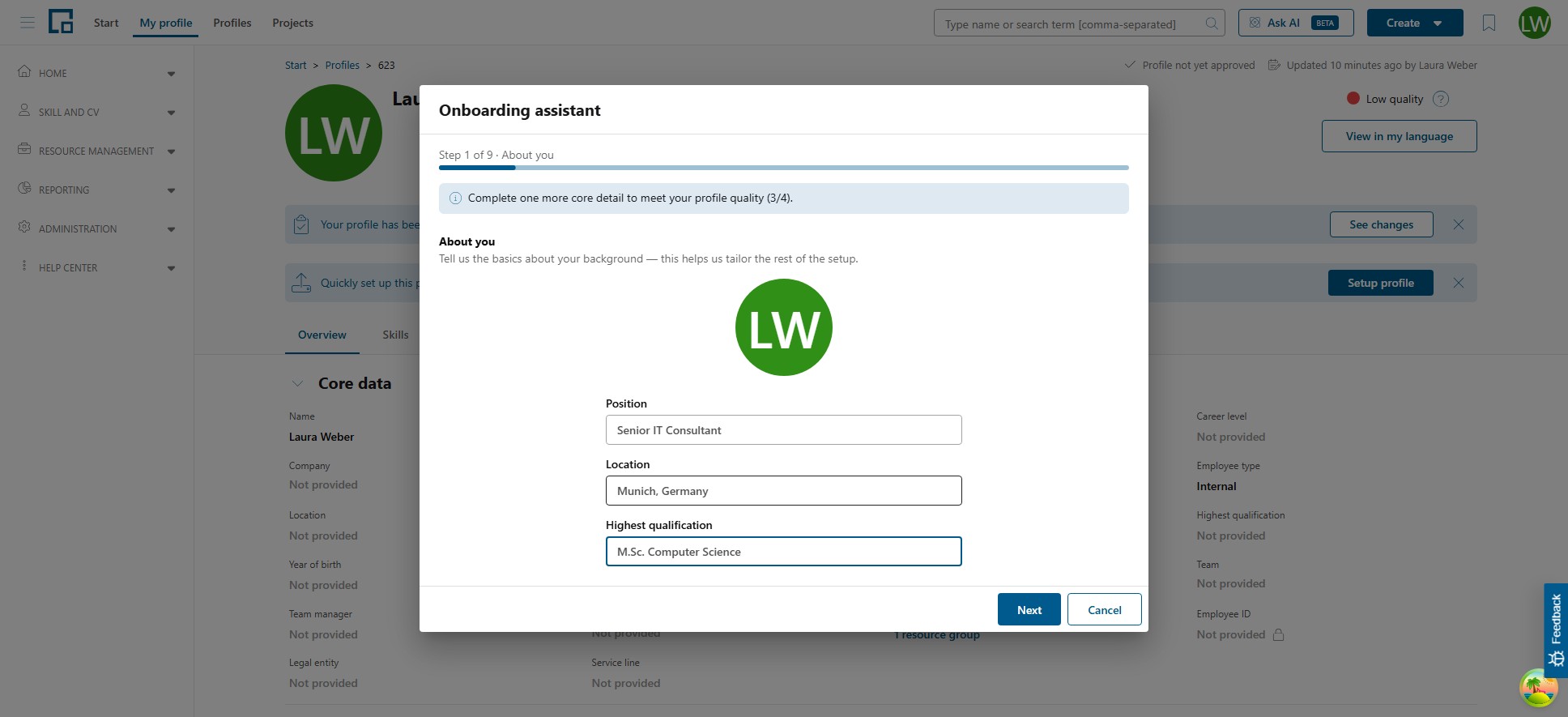
The first step collects core profile data that is still missing, such as the position, location and highest qualification. Fields that are already filled on the profile are not asked again; if nothing is missing, the step is skipped entirely.
Roles
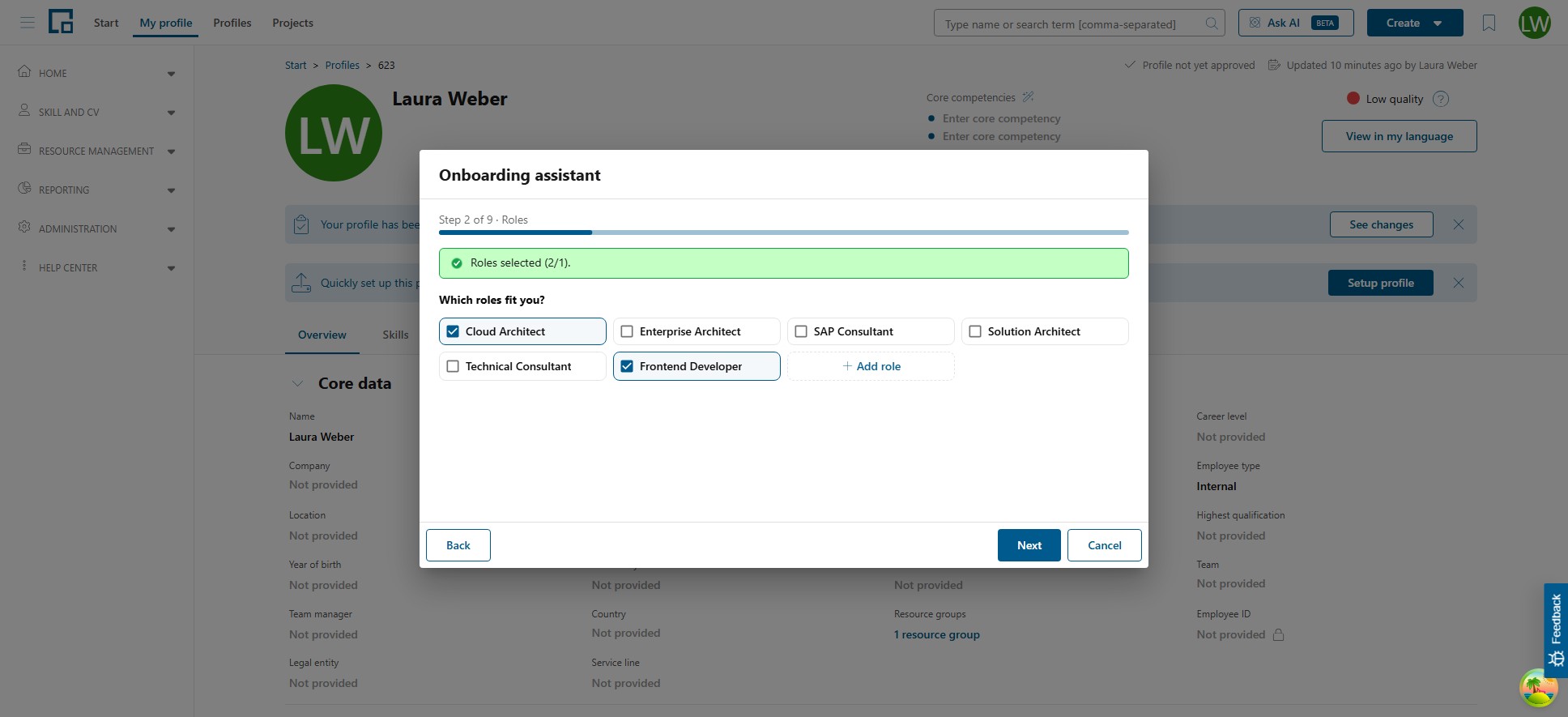
Select the roles that fit you. The assistant suggests roles matching your position; further roles can be added with Add role. The selected roles drive the skill and certificate suggestions in the later steps.
Industries and languages
Select the industries you have worked in. The assistant suggests industries matching your position and your uploaded document. In the languages step, your profile language is preselected; add further languages with their proficiency level.
Projects
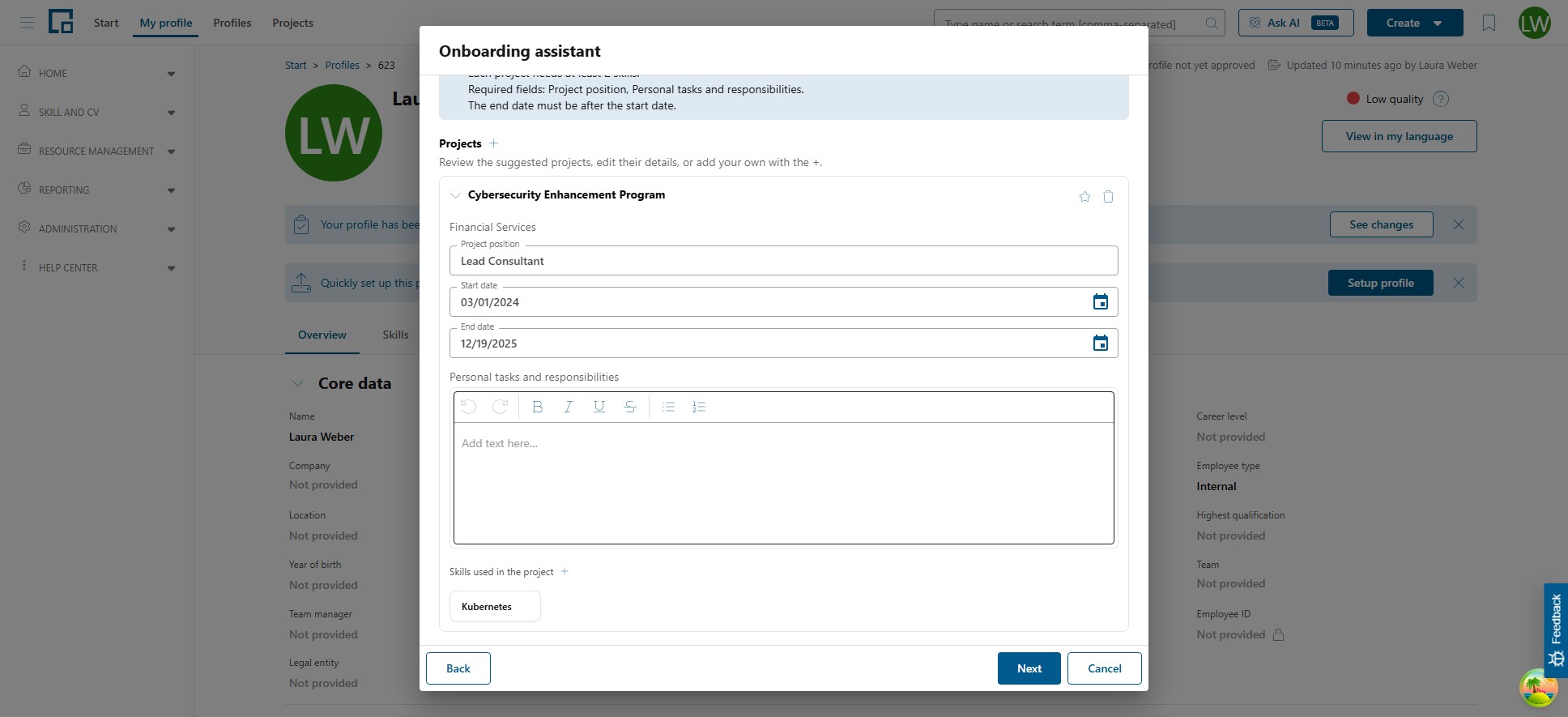
Review the suggested projects or add your own with the +. The assistant suggests projects parsed from your CV and projects you were booked on; where a matching project already exists in the project catalog, the entry is linked to it instead of creating a duplicate.
Clicking + opens a search over the existing projects. Pick a project from the list, or create a new one with the Create new project entry.
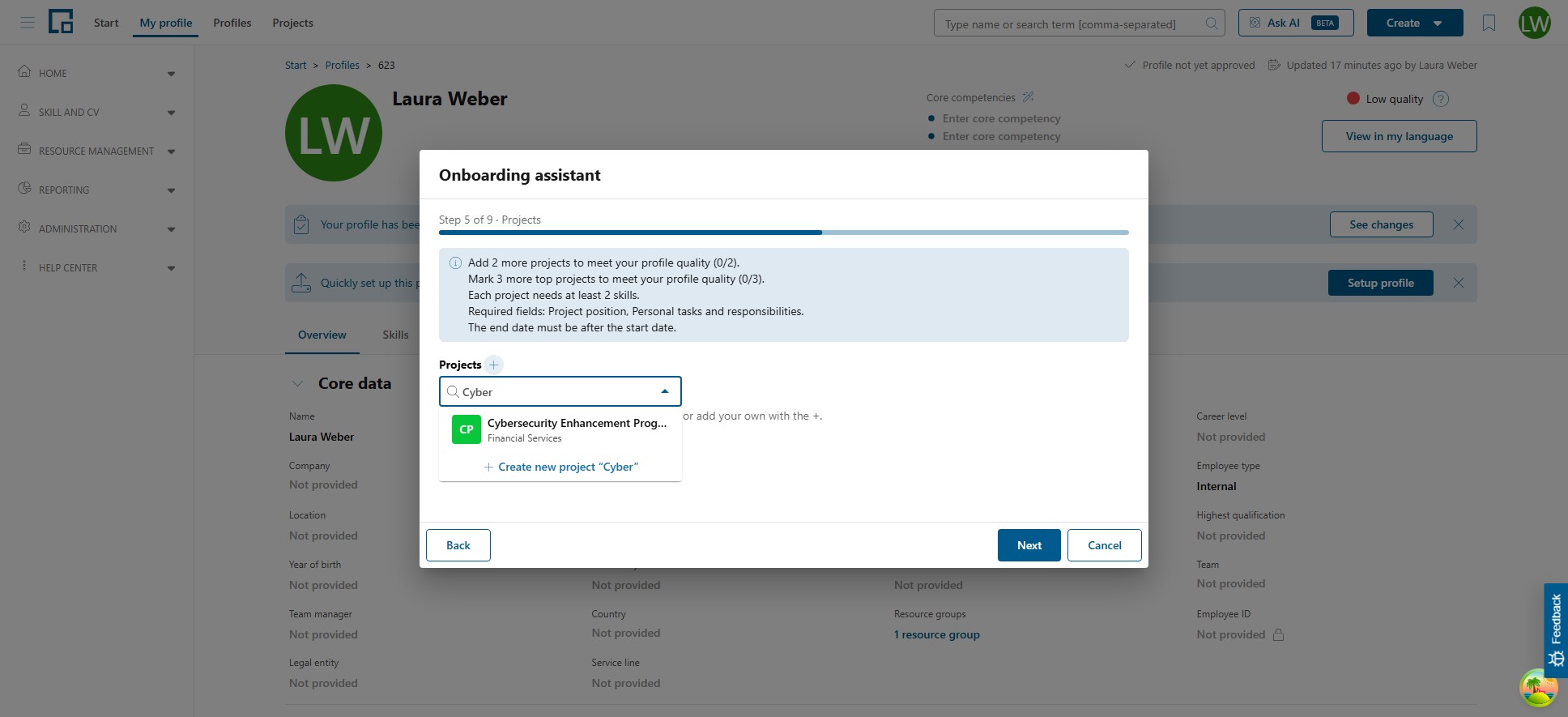
For a project from the catalog, the project data (name, client, industry) is shown read-only and you describe your personal assignment:
| Field | Description |
|---|---|
| Project position | Your role in the project. |
| Start date / End date | The period of your assignment. Prefilled from the project where available. |
| Personal tasks and responsibilities | Your contribution, as rich text. |
| Skills used in the project | Add the skills you used via the skill search. These skills also appear in the skills step for rating. |
For a newly created project, you additionally enter the project name, client company, industry and project description.
Certificates
Add certificates manually or upload a certificate document. The certificate name search shows matching entries from the certificate catalog with their issuing organization.
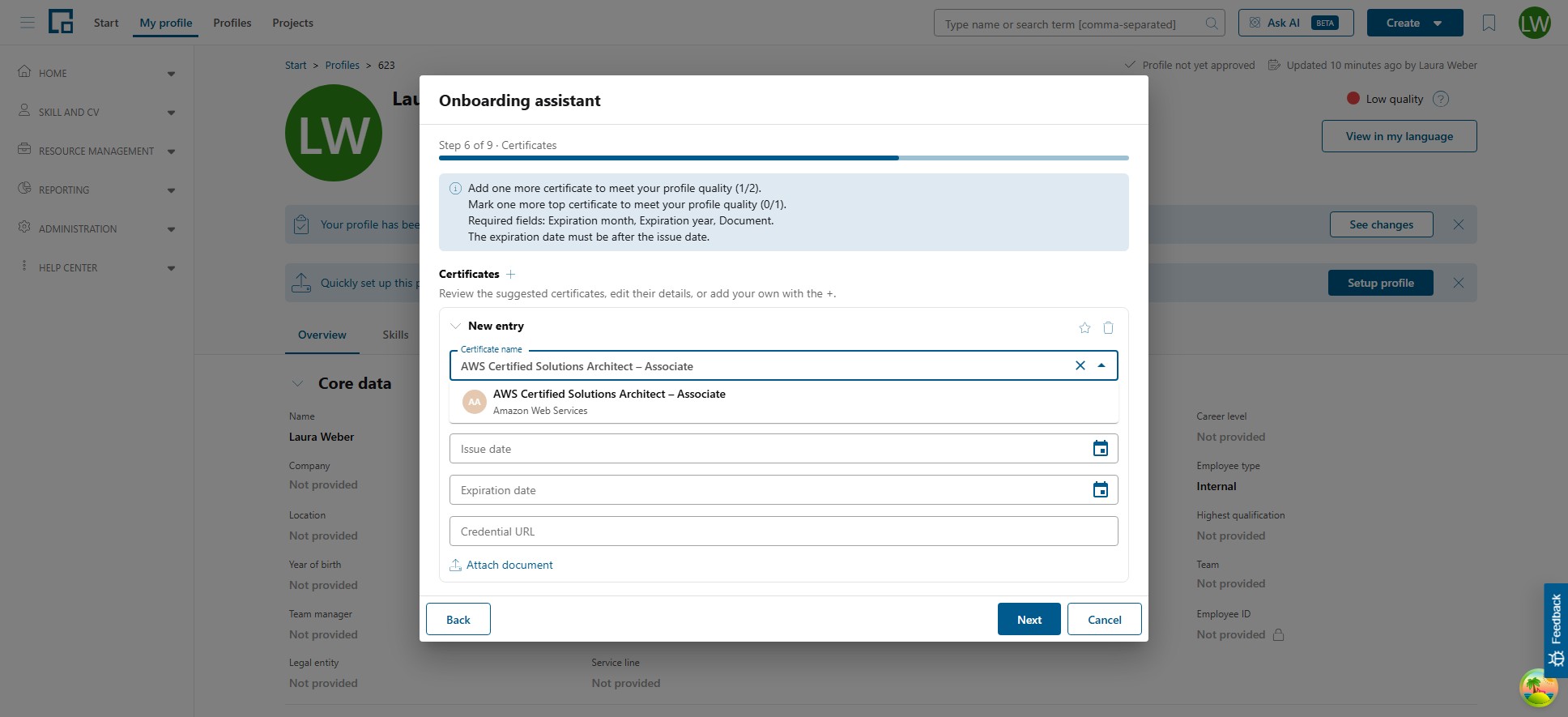
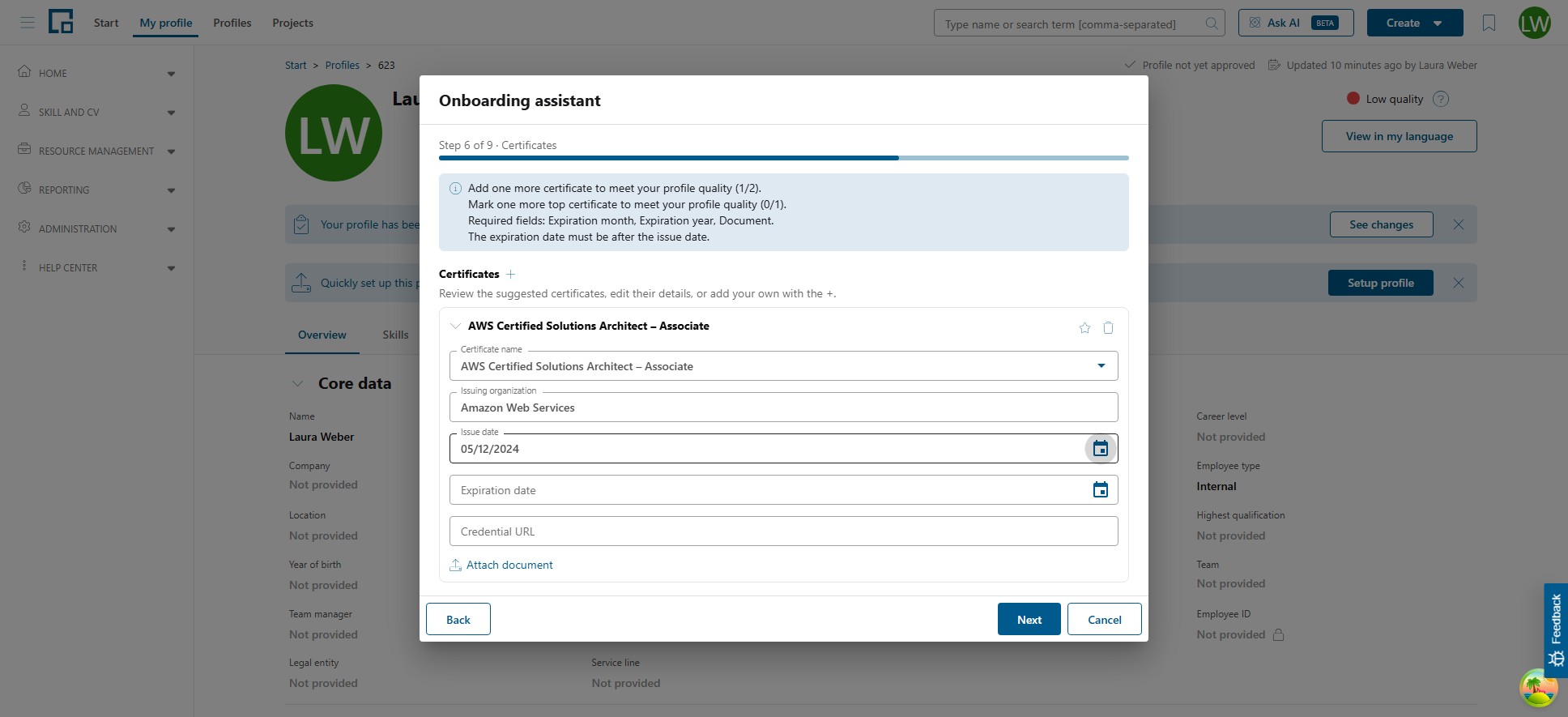
Picking a catalog entry fills the issuing organization automatically. Complete the entry with the issue and expiration dates, an optional credential URL, and attach the certificate document if available.
Note: When you upload a certificate document via Upload from document, the assistant reads the document and prefills the certificate name, organization and dates for you. Values you have already typed are never overwritten.
Certificates that your selected roles expect are added to the list automatically. If you remove such a certificate, the banner at the top reminds you which role expects it.
Professional career
Add your previous positions with company, job title, period and a description, like the professional experience section on the profile.
Skills
Rate your skills by clicking a level. The list combines skills suggested by your selected roles, skills from your projects and skills parsed from your uploaded document; add further skills with the +. Skills without a rating will not be added to your profile.
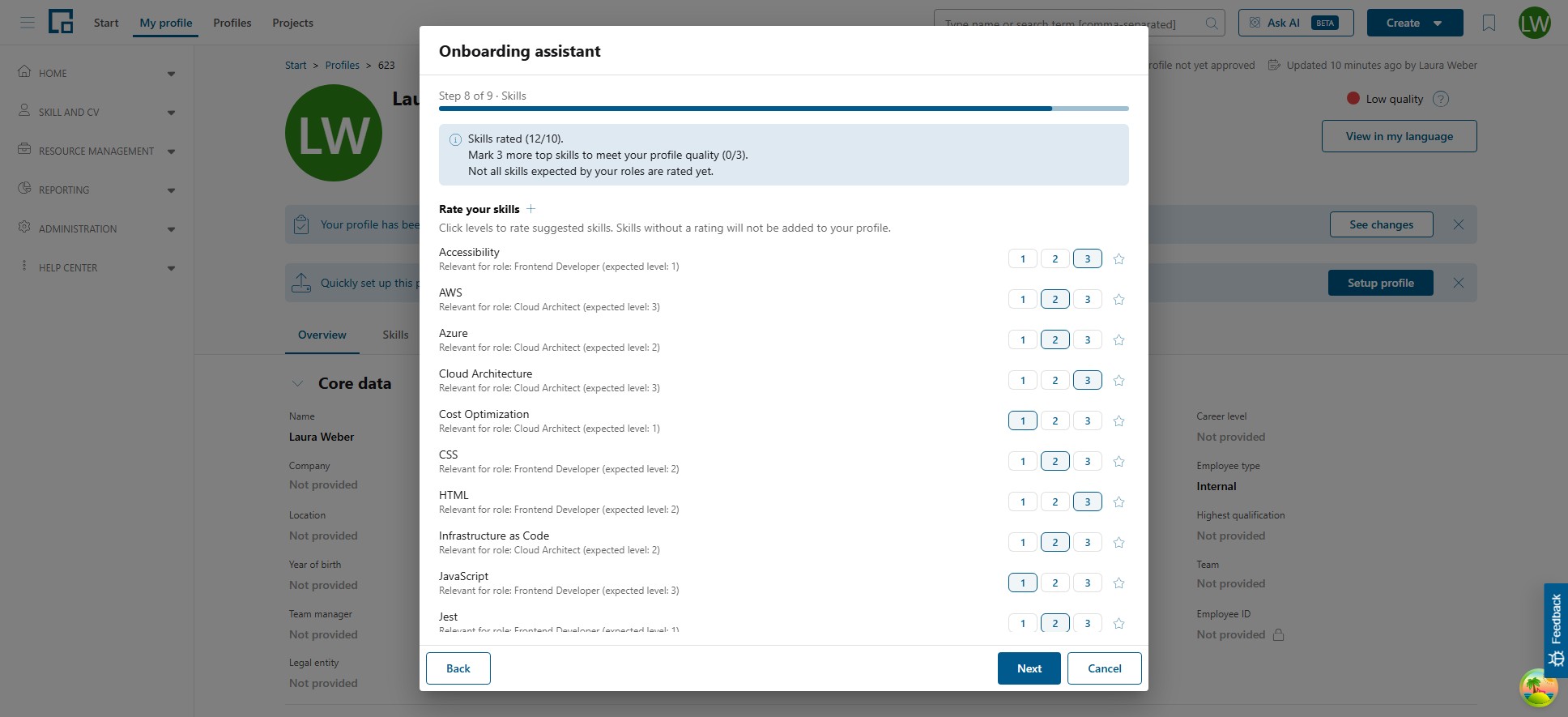
Skills that come from one of your roles show the role and the level the role expects. Hover over a level chip to see the level name. Where the top skills quality criterion is active, mark your most important skills with the star. The star becomes available once a skill is rated.
Summary
The assistant generates a profile summary from your entries. Review and edit the text in the editor before finishing.
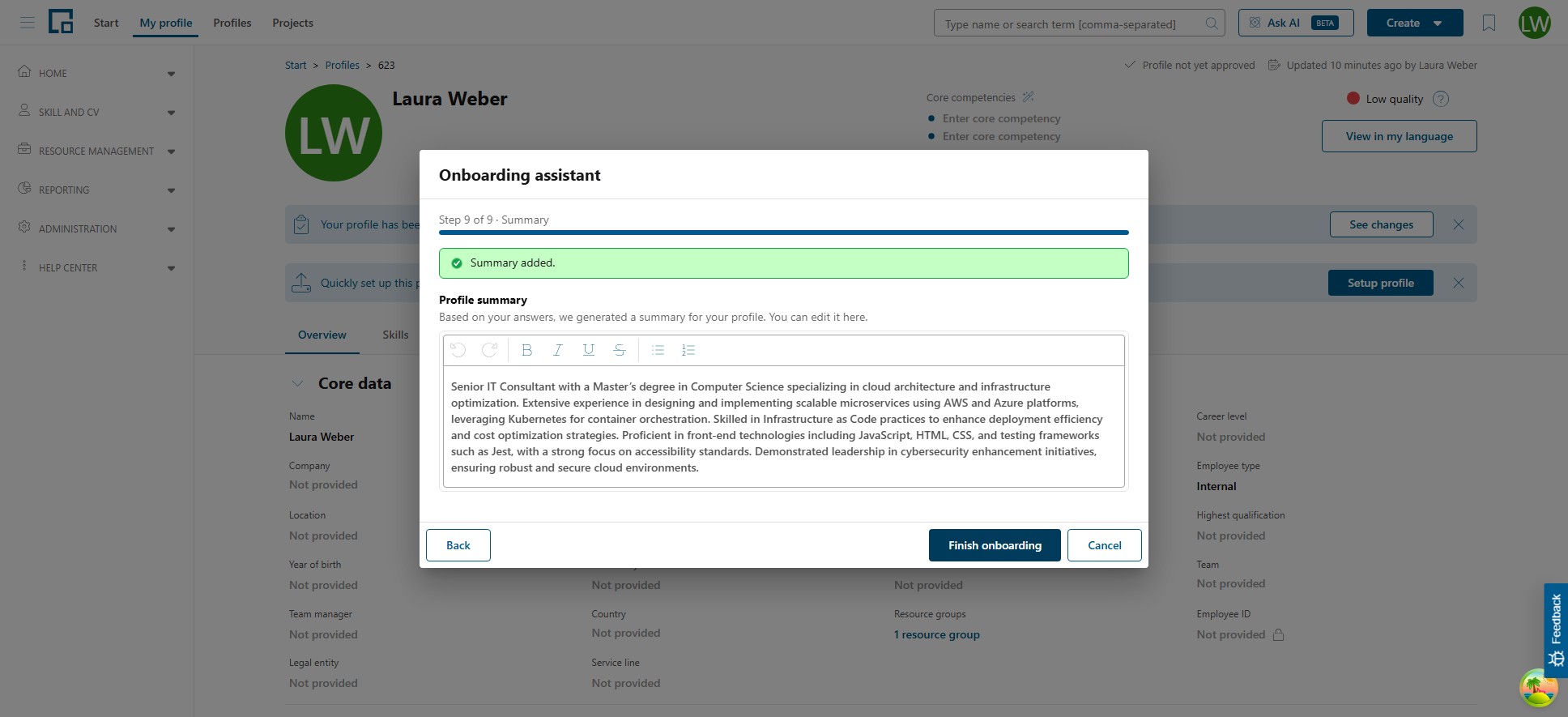
Click Finish onboarding to save everything to the profile. A confirmation screen summarizes what was added and lists any remaining quality suggestions.
Quality guidance
Each step shows a banner with the profile quality criteria the step can fulfill, for example the number of rated skills or mandatory project fields. The banner updates live as you make entries, names what still falls short, and confirms when the criteria of the step are met.
A project or certificate that still violates a quality rule additionally shows a warning triangle on its card; hover over it to see what is missing on that entry.