Administrating Teams in decídalo
This document explains how to create and edit teams, set team managers and add or remove team members. Administrator permissions are required for these operations.
Adding teams
To edit teams in decídalo, ensure you have the necessary permissions. You can verify your permissions on the Teams page by looking for a plus icon beneath the team tiles. If you see the plus, you can manage teams. Otherwise, the Teams page is read-only for you. For general information on how to navigate the Teams chart, see Navigating Teams.
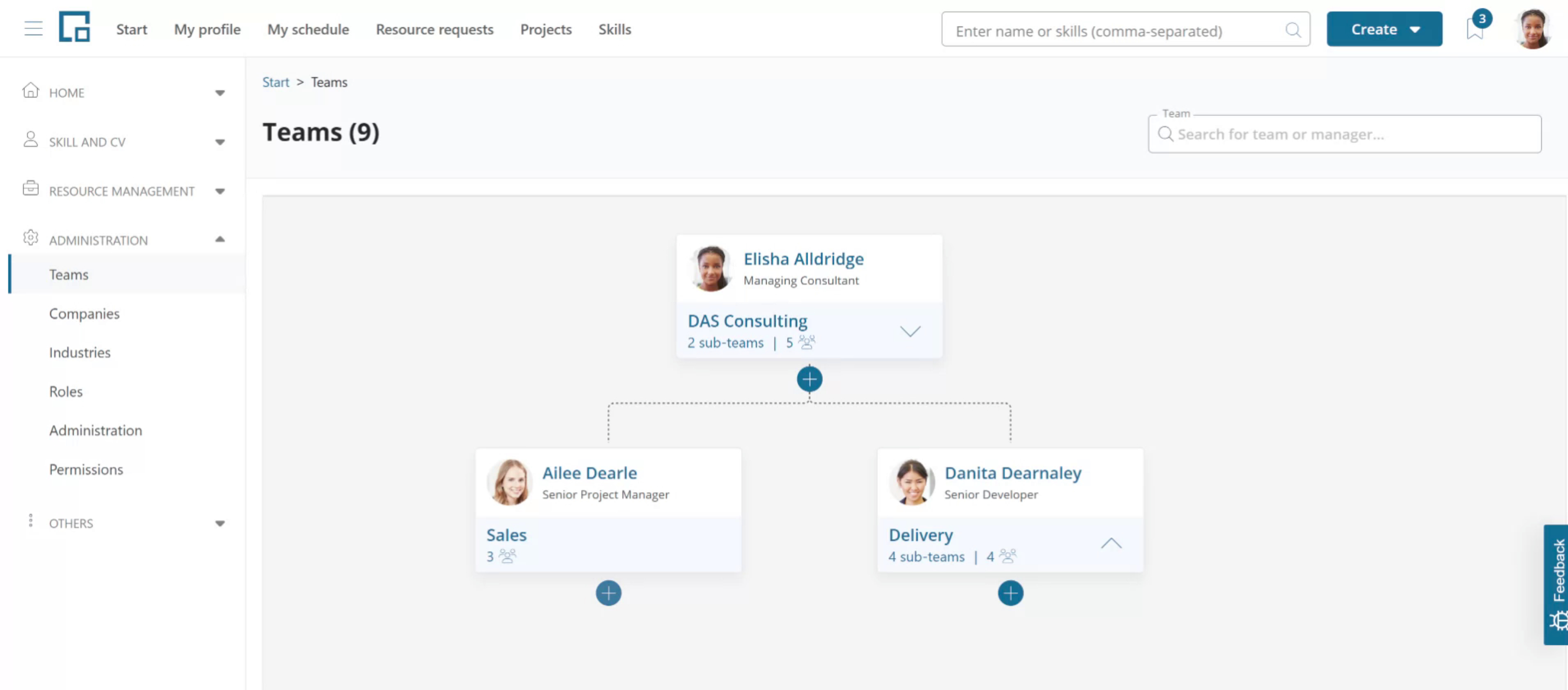
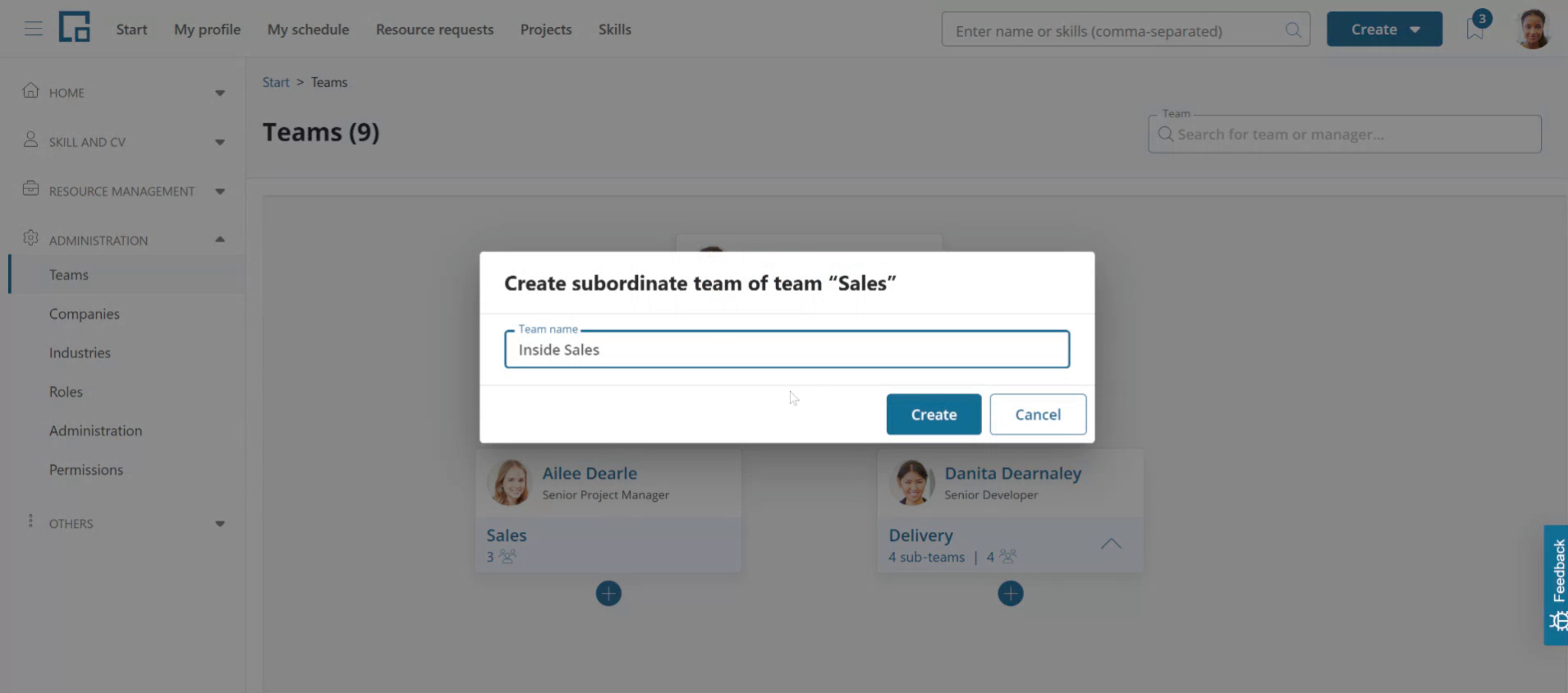
Click the plus button to add a new team below an existing team. In the pop-up that opens enter the new team's name and click "Create".
Editing Teams
To edit an existing team, click on the team tile. This will open a side panel where team data can be modified.
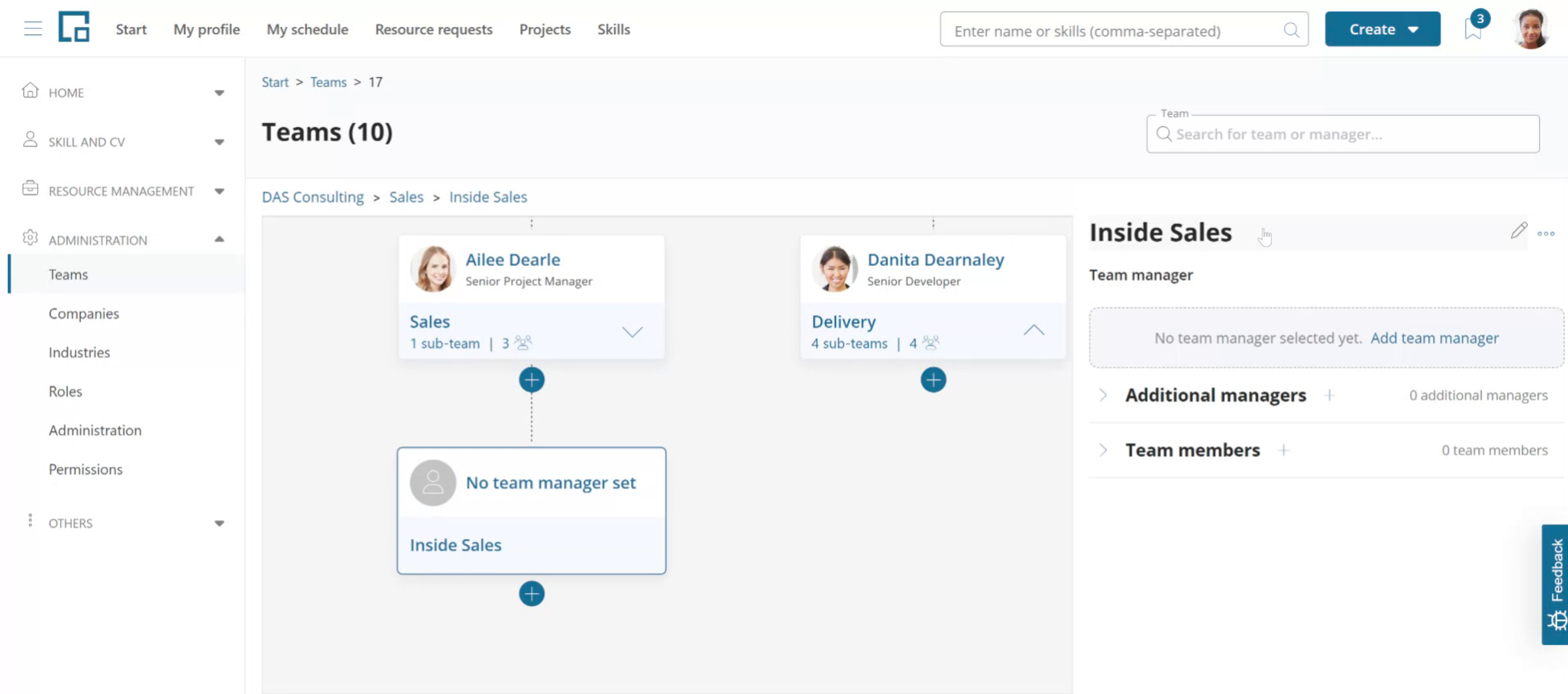
To rename the team, simply click on the team name to enter inline-editing.
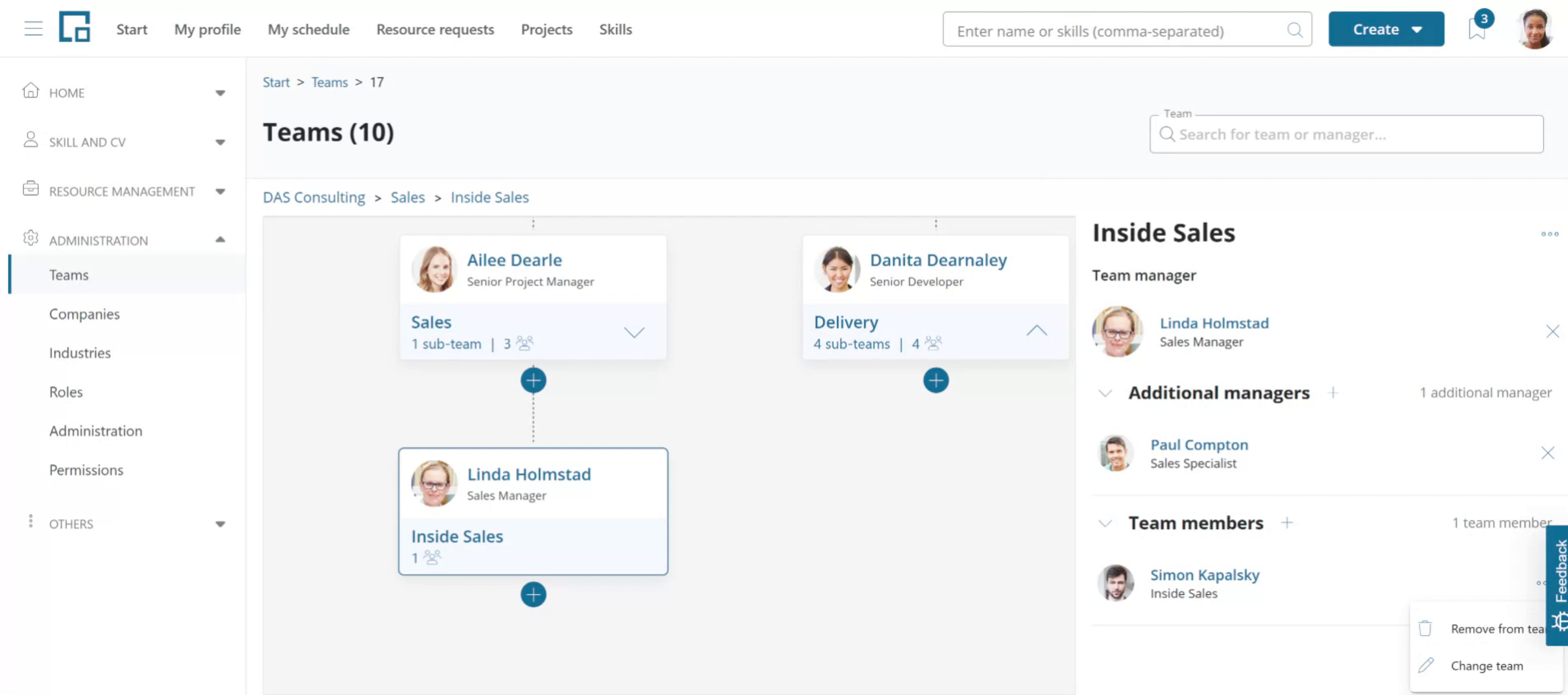
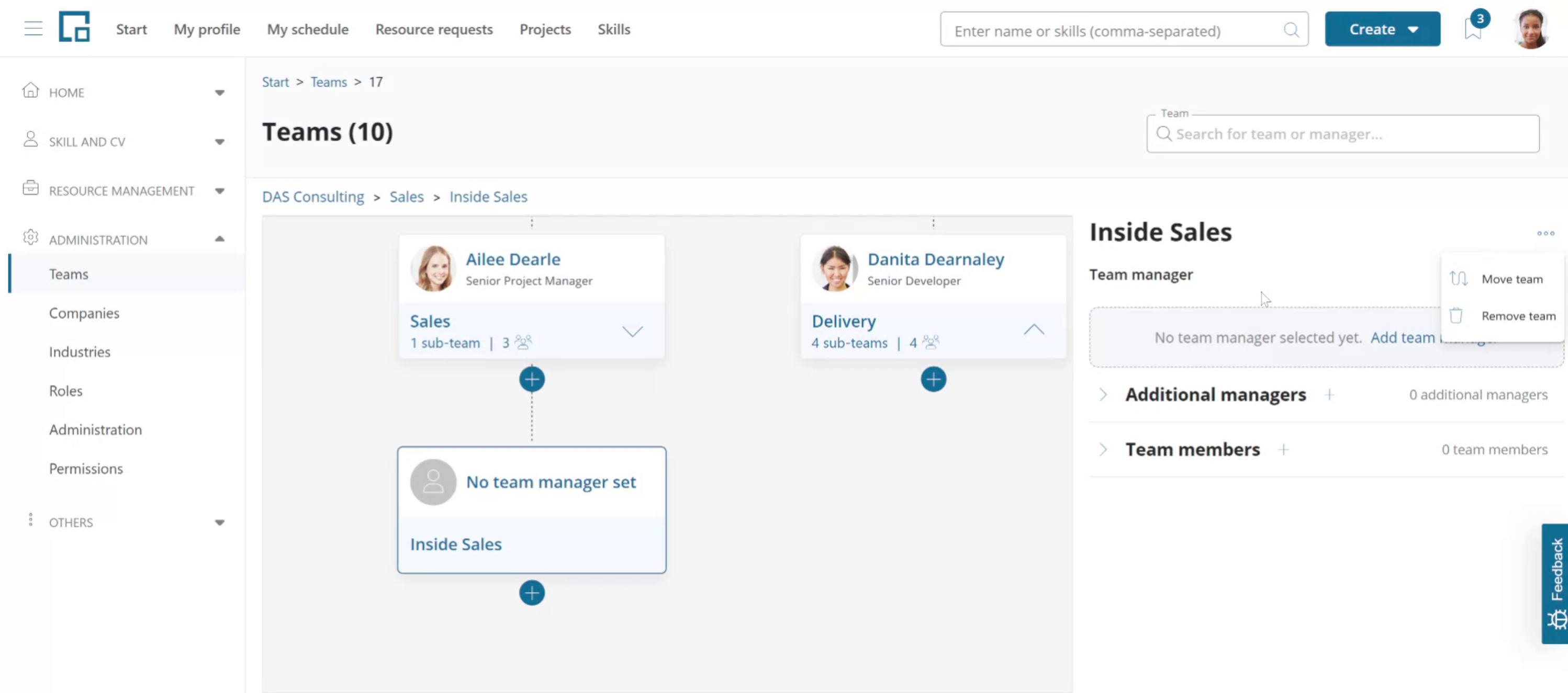
To move the team under another team or to delete it, clicking the three dots button next to the team name. Select "Move team" or "Remove team" respectively.
Setting a team code
A team code is an optional short identifier that can be assigned to each team, for example to reference an internal cost center or HR system code.
The team code is displayed below the team name in the side panel. Click on the team code field to enter inline editing. Type the code and press Enter or click outside the field to save. To remove an existing code, clear the field and save.
Note: The Team code field is only editable by users with team administration permissions. Users without those permissions can see the team code if one has been set, but cannot modify it.
Setting team managers
Each team in decídalo can have just one primary team manager. The primary manager is shown as the manager of the team members on their profiles.
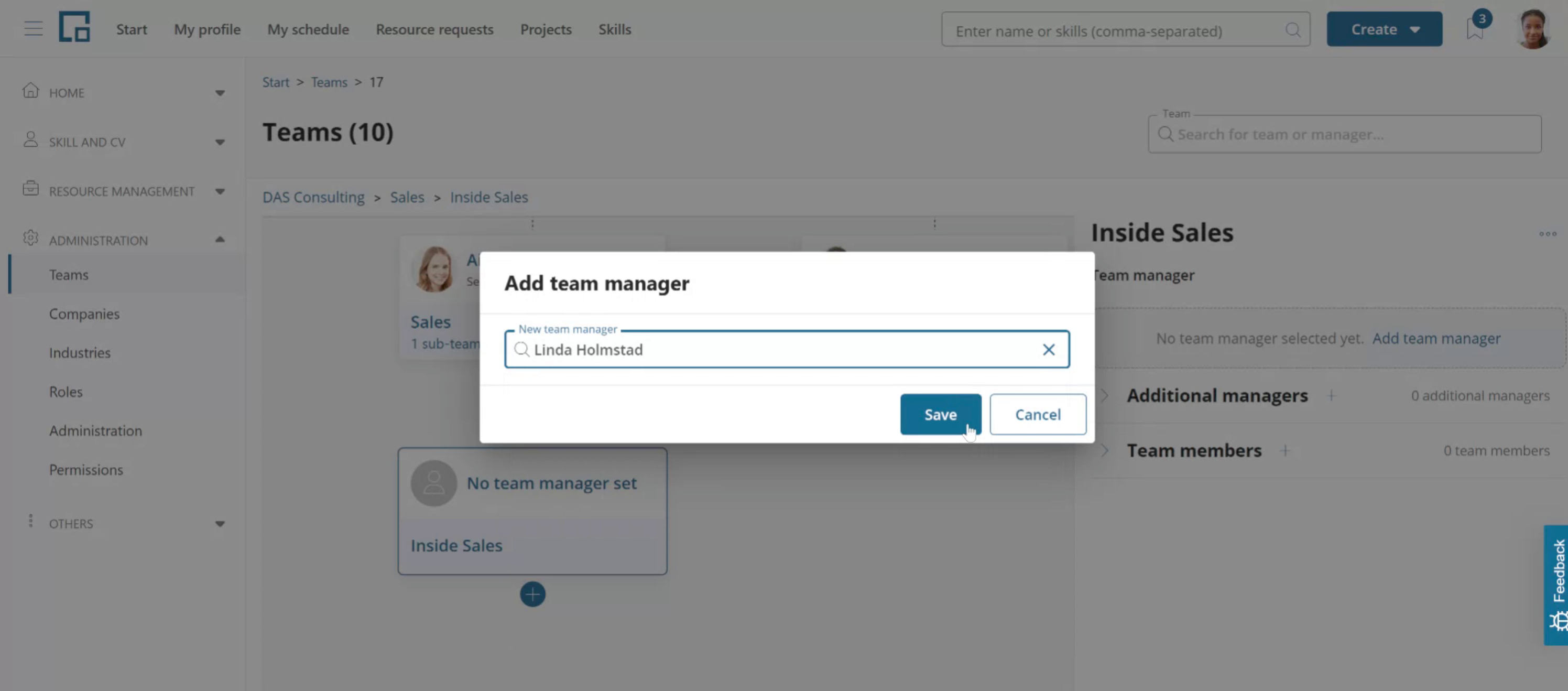
To add the primary manager, click "Add team manager," select the appropriate manager in the pop-up, and press "Save."
Multiple additional deputy managers can be added by clicking the plus button in the "Additional managers" section. Select the additional manager from the list.
If the selected person is a user in decídalo (i.e. an Account exists for the Profile) but lacks the permission to manage teams, you will receive a warning. When saving, the system will automatically change the user's role to a Team Manager role. This works the same way for primary and additional managers. Additional manager get the same permissions on the team as the primary manager.
If the selected manager has no user account, the permission check will be performed if an account is created later on. In this case you will receive a warning if you try to create an account with a permission profile that does not allow managing teams.
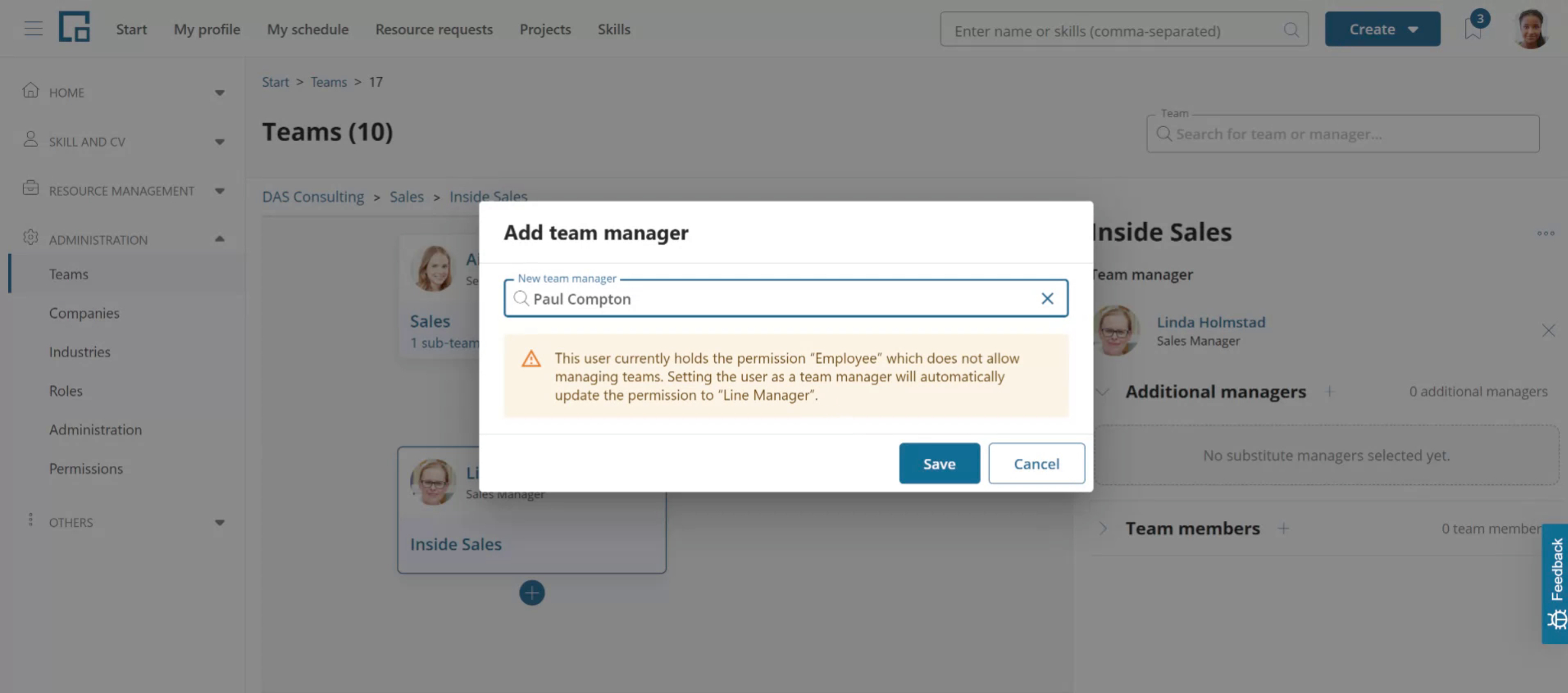
To change and existing team managers, remove them by clicking the "X" next to their names and add a new manager.
Adding or removing team members
To add team members, click the plus sign next to the "Team members" header. In the pop-out start typing the name of the person you want to add and select them from the list.
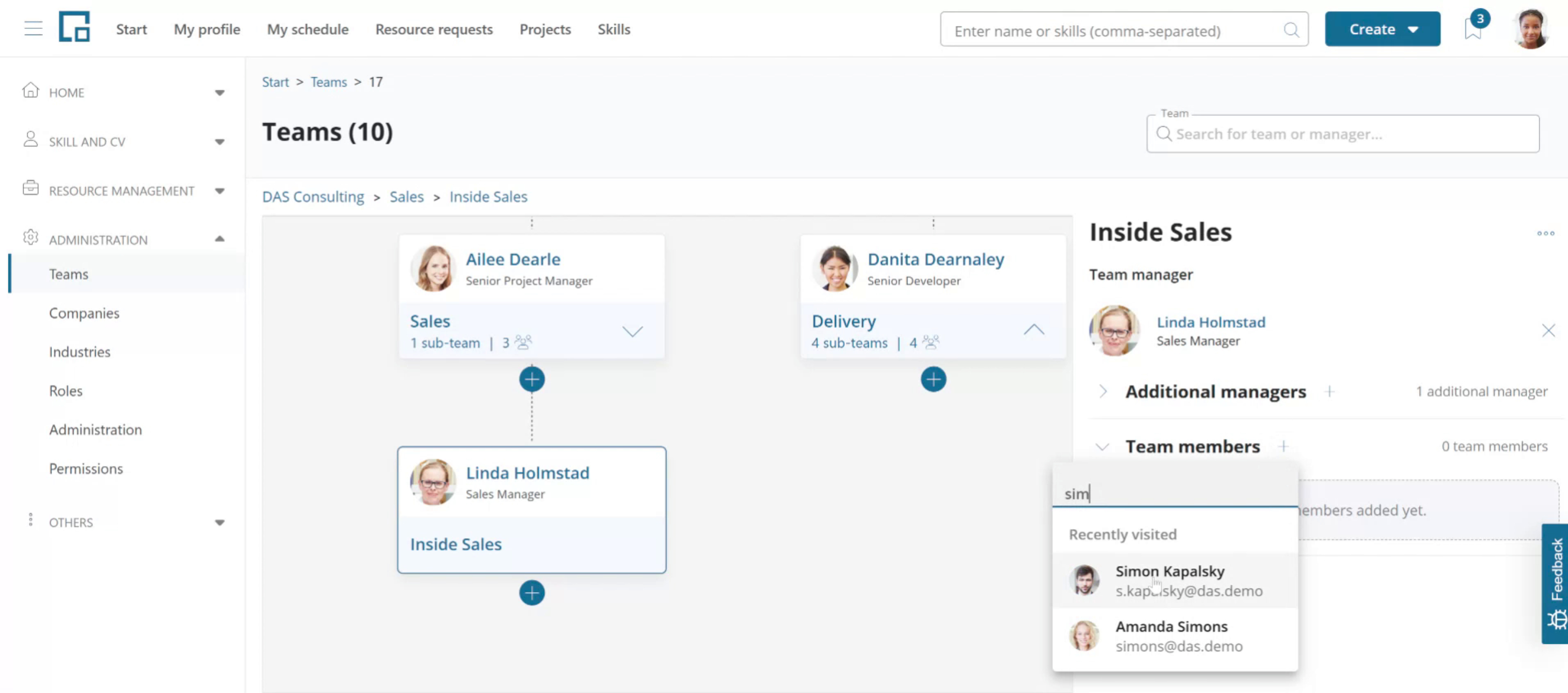
The pop-out will remain open so you can quickly add multiple team members. To close it, click anywhere outside the pop-out.
In decídalo, each person can be a team member in only one team. If you add persons that are already part of another team, they will be removed from that team.
Setting the Team on a Profile automatically adds that person to the team. You can manage team members coming from the Profile (person) or from the Team.
By clicking the three-dots button next to the team member's name, you can remove them or move them to another team. The latter action has the same effect as adding the person to a different team.