Creating Customized CVs from Resource Requests
This article gives an overview of Resource Requests in decídalo and how to use them for generating tailored CVs for proposals. Resource Requests can be thought of as search tasks for finding candidates that match specific requirements. They can be utilized for project staffing, or for addressing client inquiries by sending suitable CVs. This guide will focus on the latter, demonstrating how to create Resource Requests, find candidates and generate tailored CVs.
Note: Creating a resource request, running a candidate search, adding candidates and adding CVs all require edit permission on the resource request. With view access only, the request, its candidates and any finished search results are read-only, and the bulk actions described below are not offered. See Permission concept.
Creating a Resource Request
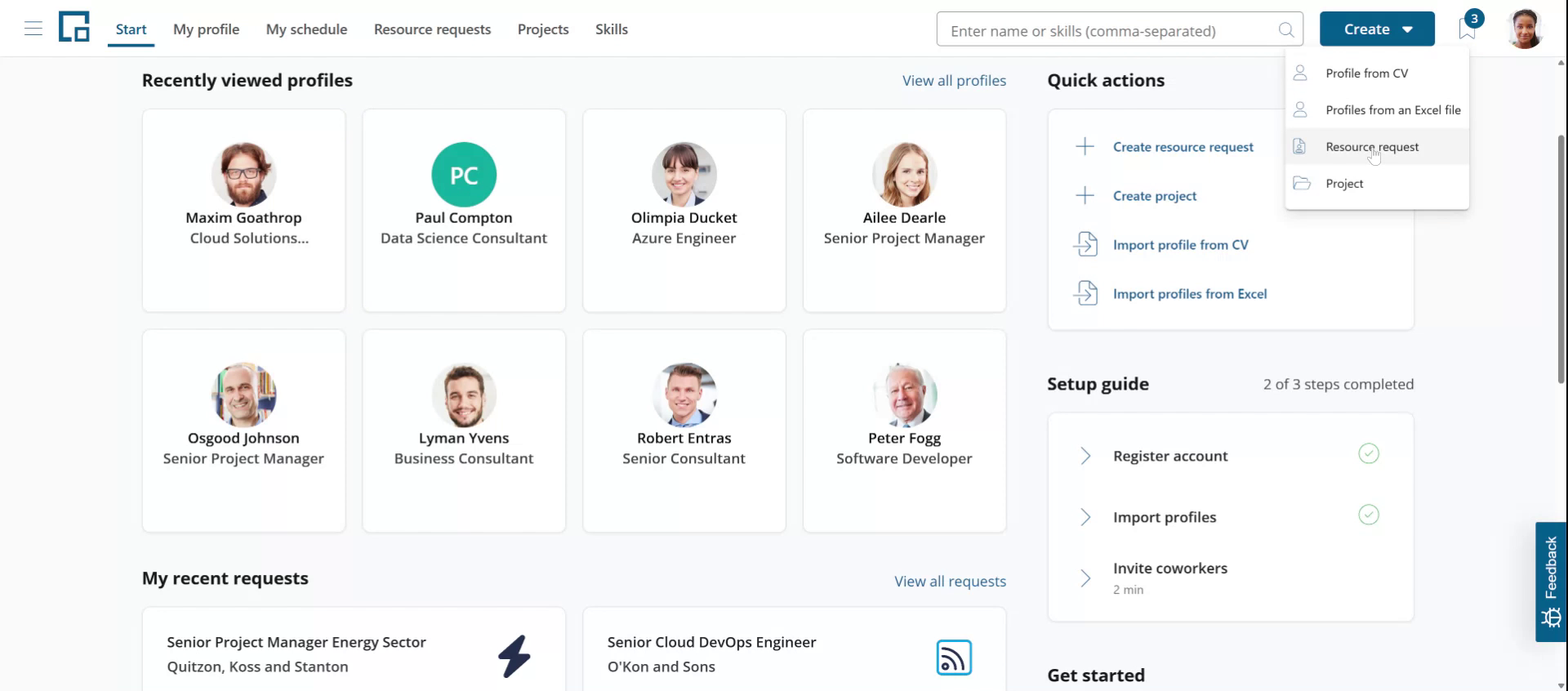
To create a Resource Request, click on 'Create' in the the header of the application and select 'Resource request.'
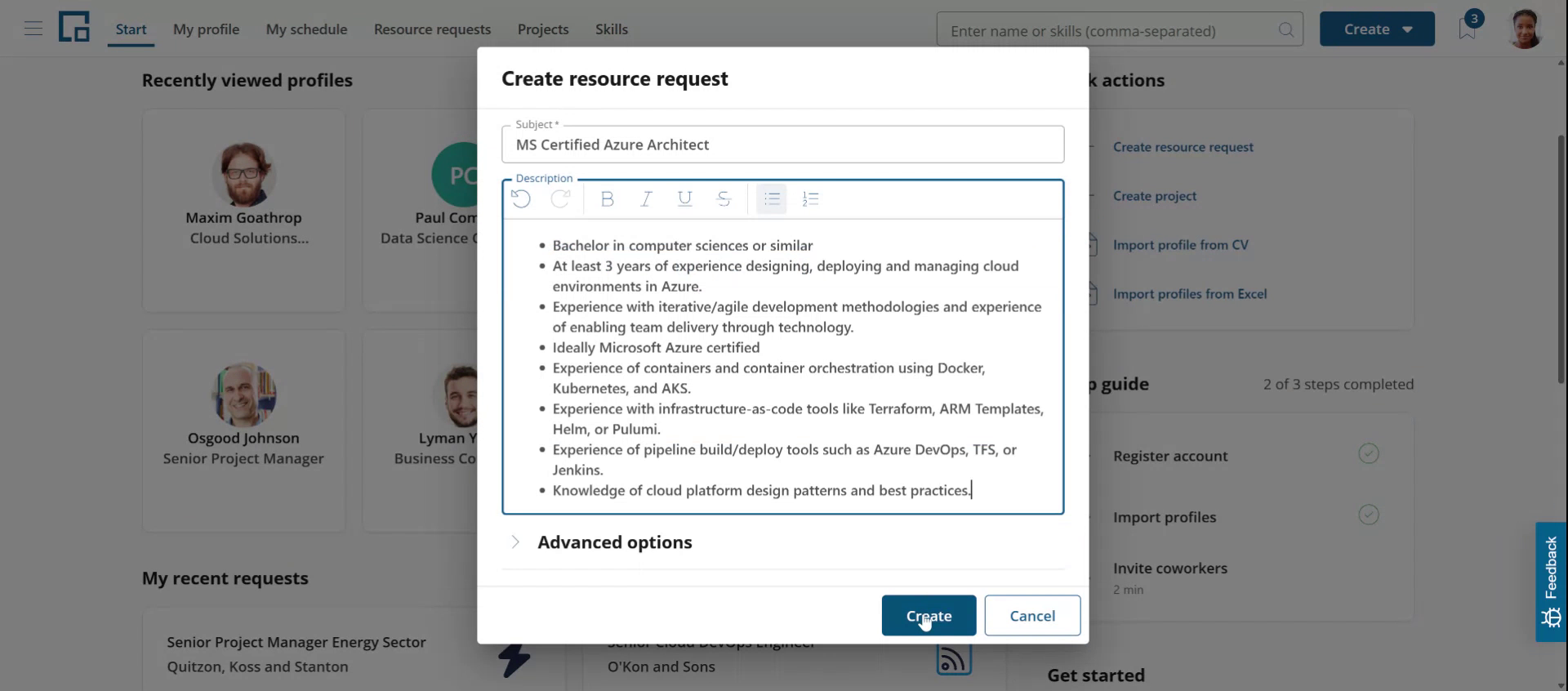
 Enter a subject (title) and copy & paste the requirements, which you may have received in an email or RfP, into the description field.
You can enter additional information like the project, customer or other request parameter in by expanding the "Advanced options" section.
Click the "Create" button to create the Resource Request.
Selecting candidates with global search
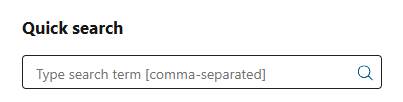
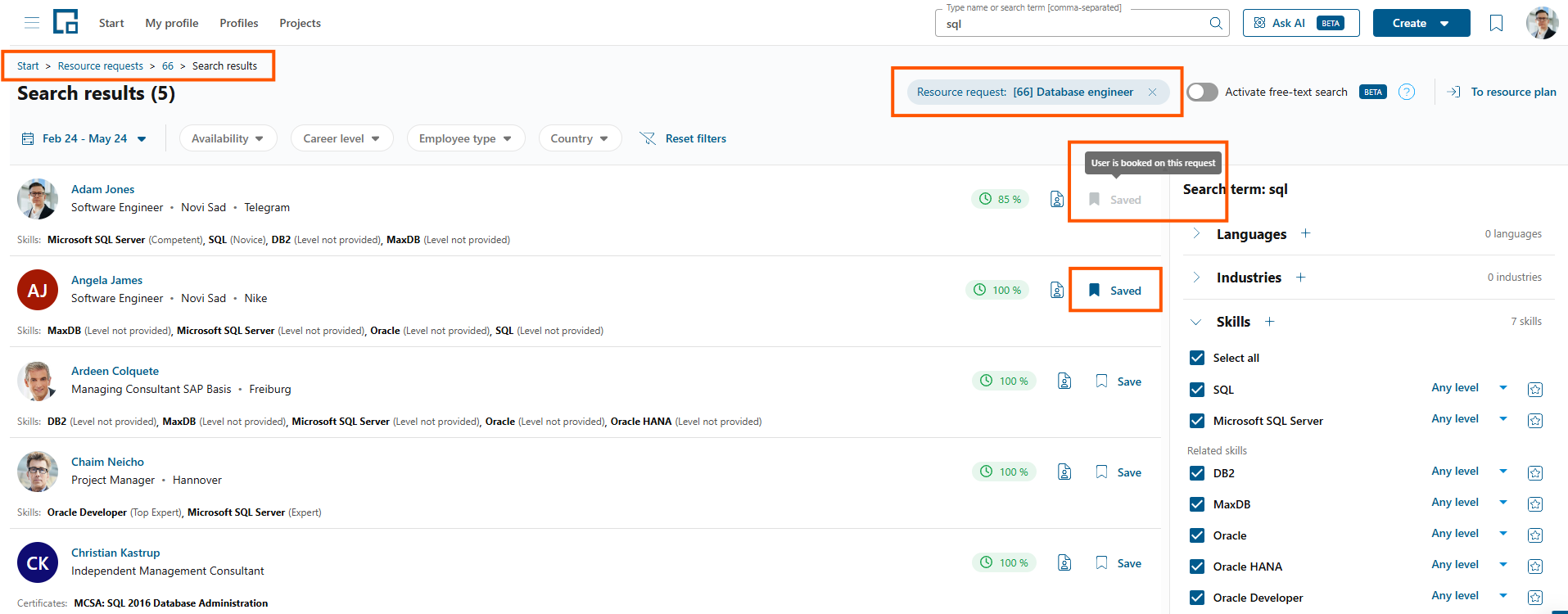
In cases where the list of requirements is short and succinct, global search can be started from the resource request by utilizing the Quick Search section. This will trigger keyword-based global search, with the context of the resource request. In this case, candidates can be directly selected and saved to the resource request with a simple approach, in case advanced search is not needed.
Start the candidate search
The system will automatically extract structured requirements from the text you provided, categorizing them into various classifications . These include job position, educational background, project experience, certifications, skills, and language proficiency.
Practical project experiences are most important for customers and RfPs. In our example one requirement is "at least 3 years of experience designing, deploying and managing cloud environments in Azure." Project experiences could also include industries or companies (X years of banking industry experience, or worked with that customer before). decídalo uses natural language processing and semantic search and does not rely on any taxonomy. It can handle complex and fuzzy requirements.
See Candidate search: Requirements for how each requirement is interpreted, and how to review and adjust its matches before searching.
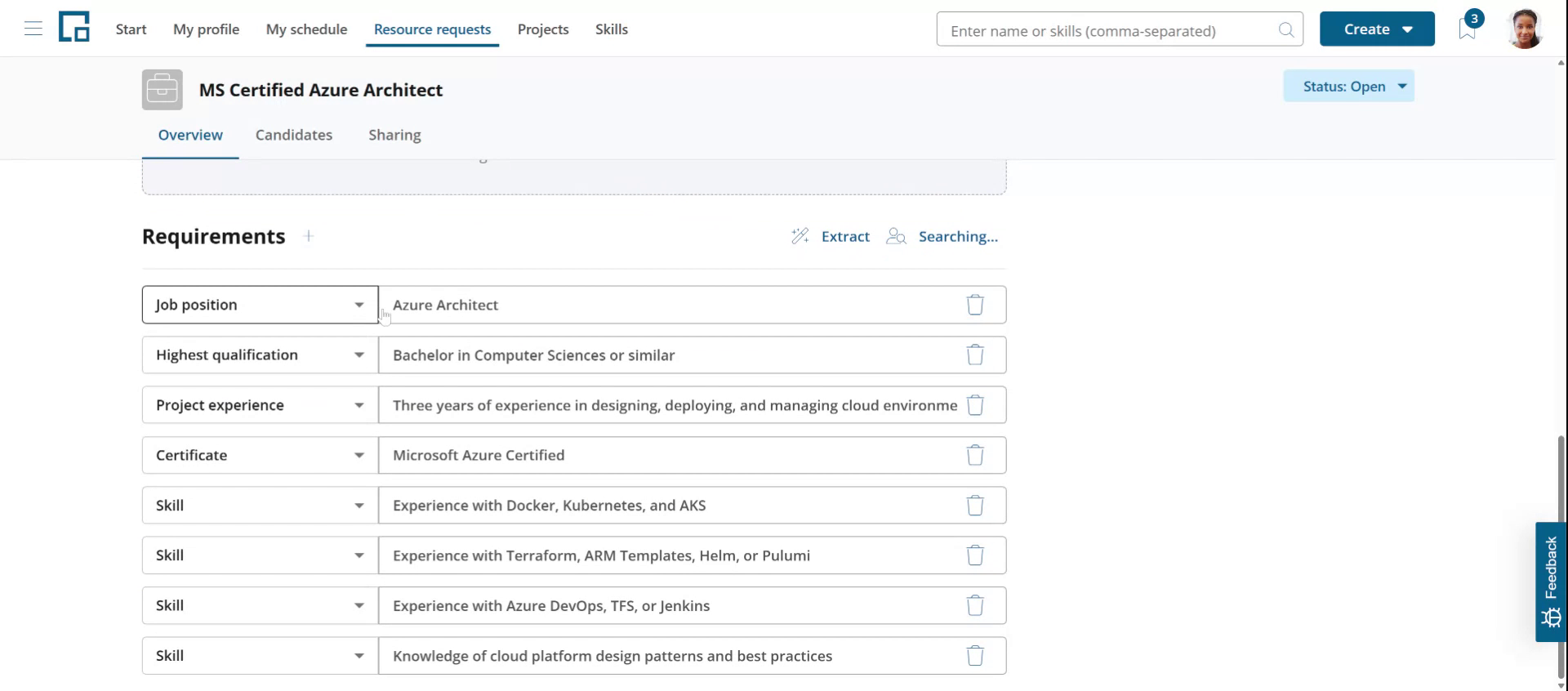 decídalo automatically starts the search and builds a candidates list in the background. A toaster banner notifies you when the results list is ready.
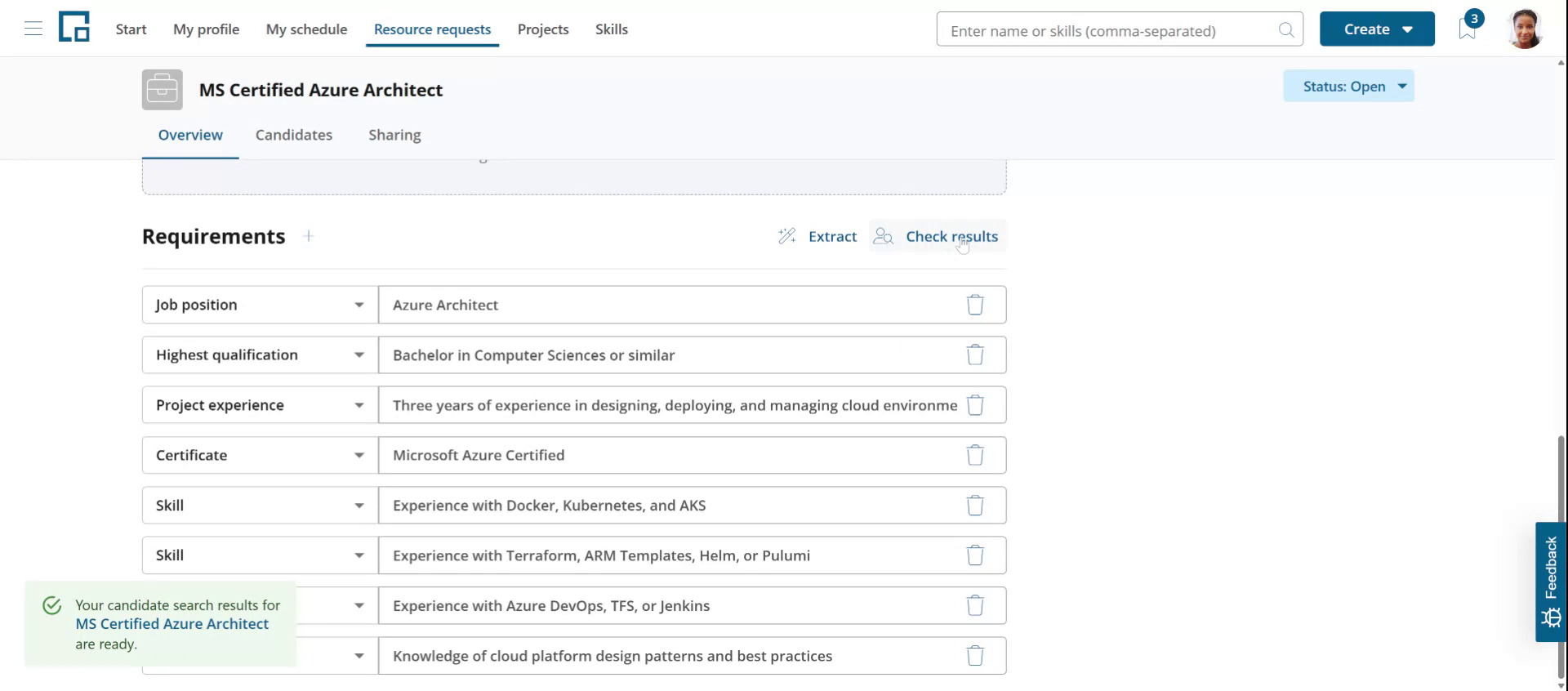 Click on "Check results" to see the matching candidates.
Review results and select candidates
In the results view is shown as a matrix. Requirements are displayed as columns, and candidates as row. Each candidate's qualifications are assessed against the requirements in the columns. A green entry indicates that a candidate meets a requirement, while red means it is not met. There can also be amber entries with a question mark. In this case the AI could not decide with confidence.
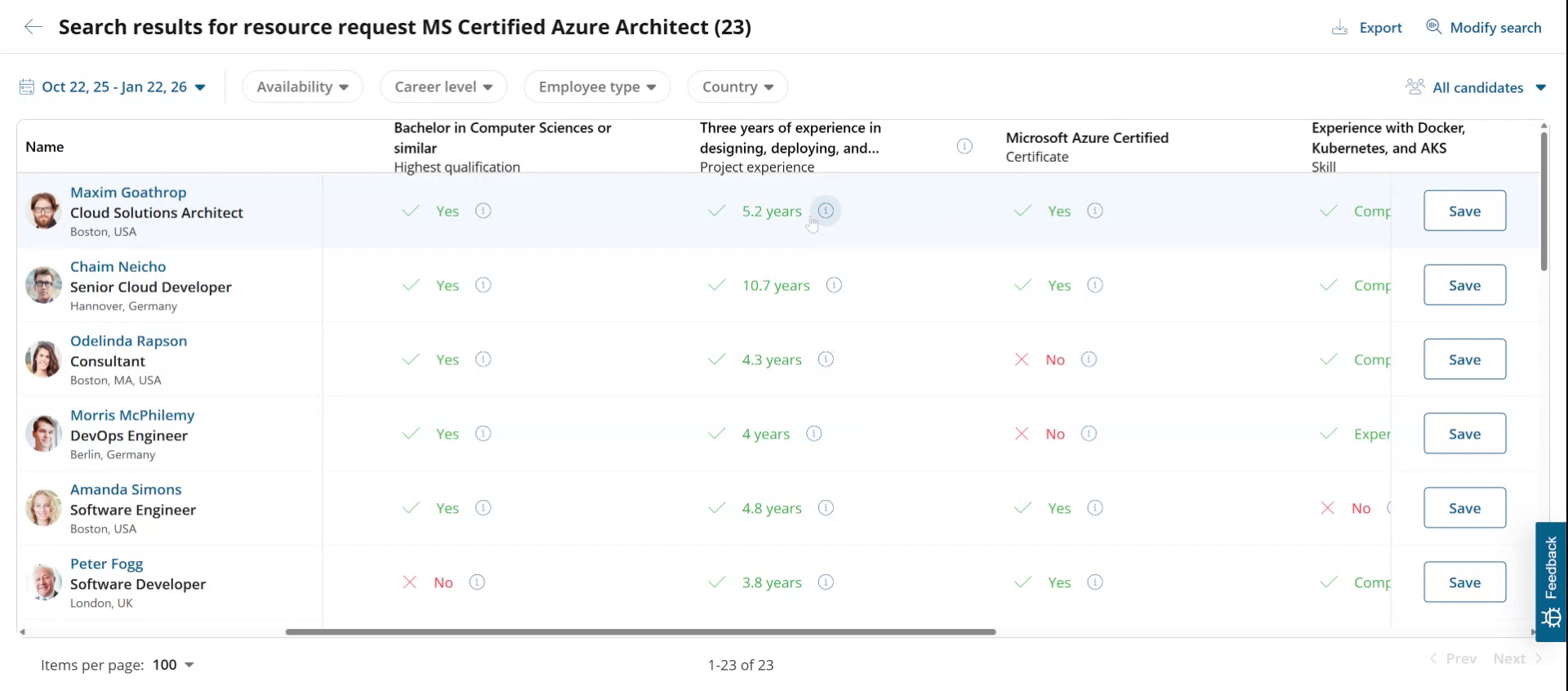 The filters can be used to narrow down the search results, e.g. by availability., country or employee type.
In the results matrix, click the info-icon in a cell to see details on how a requirement is fulfilled. decídalo understands the requirements and uses semantic search to find equivalent results. If e.g. a Bachelor's degree is required, it will also include candidates with a Master or Ph.D.
The AI search capabilities are particularly beneficial when seeking candidates with specific years of experience. In our example, if the requirement is three years of experience designing, deploying and managing cloud environments in Azure. decídalo identifies and displays suitable projects while automatically summing up the years of experience.
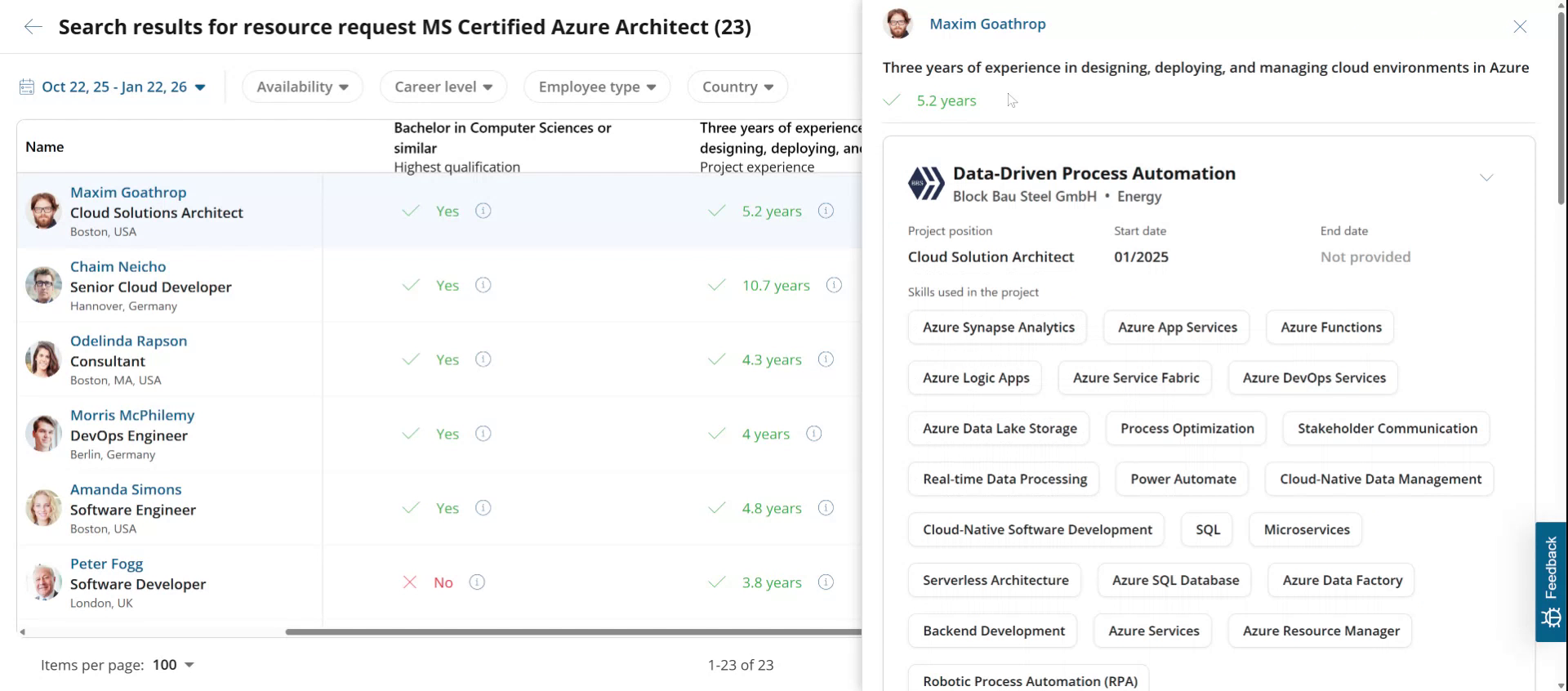 Click the Save button to add a person to your candidates list for the Resource Request.
Generate tailored CVs
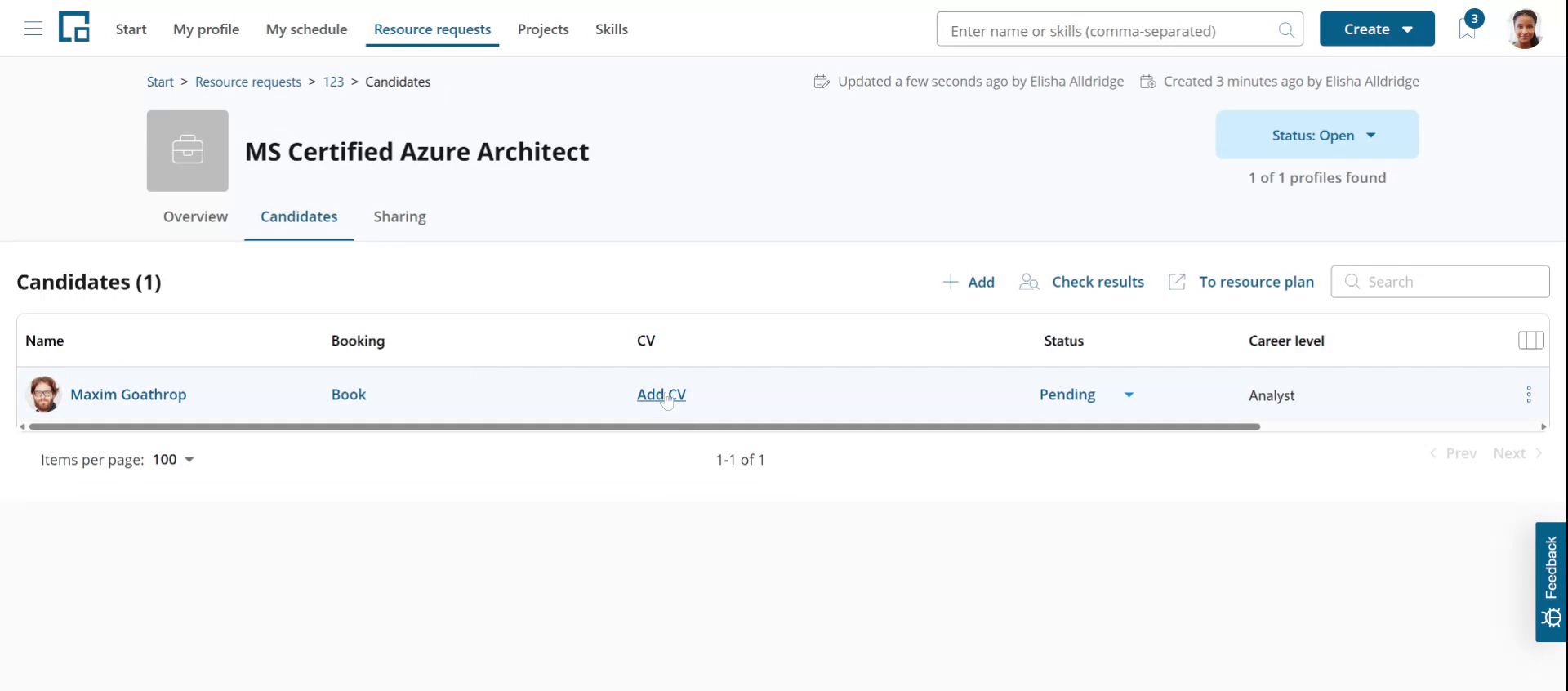
Close the results matrix by clicking on the left arrow in the top left corner. This brings you back to the Resource Request. Navigate to the 'Candidates' tab to see your saved candidates. Click on 'Add CV' to generate a CV.
 Since the client's requirements are known from the Resource Request, the system suggests customizing the CV according to these requirements. decídalo's AI will highlight relevant skills and experiences, rearrange content and re-write text to tailor the CV for this specific request.
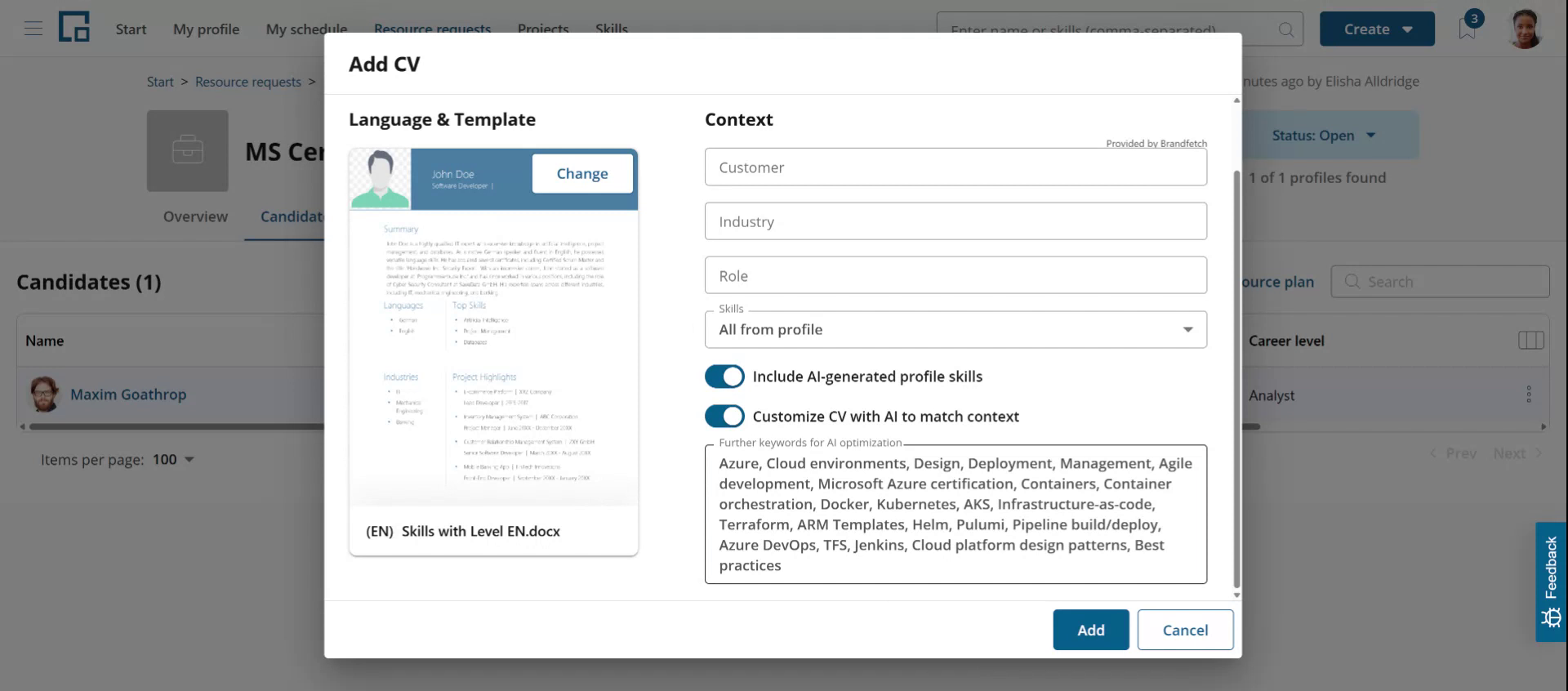 You also have the option to select a different template or translate the CV. For example, if you need a German CV while the profile is in English, choose a German template, and decídalo will automatically translate and tailor the profile in one step.
To change the template click the "Change" button on the template preview. This opens the template library. 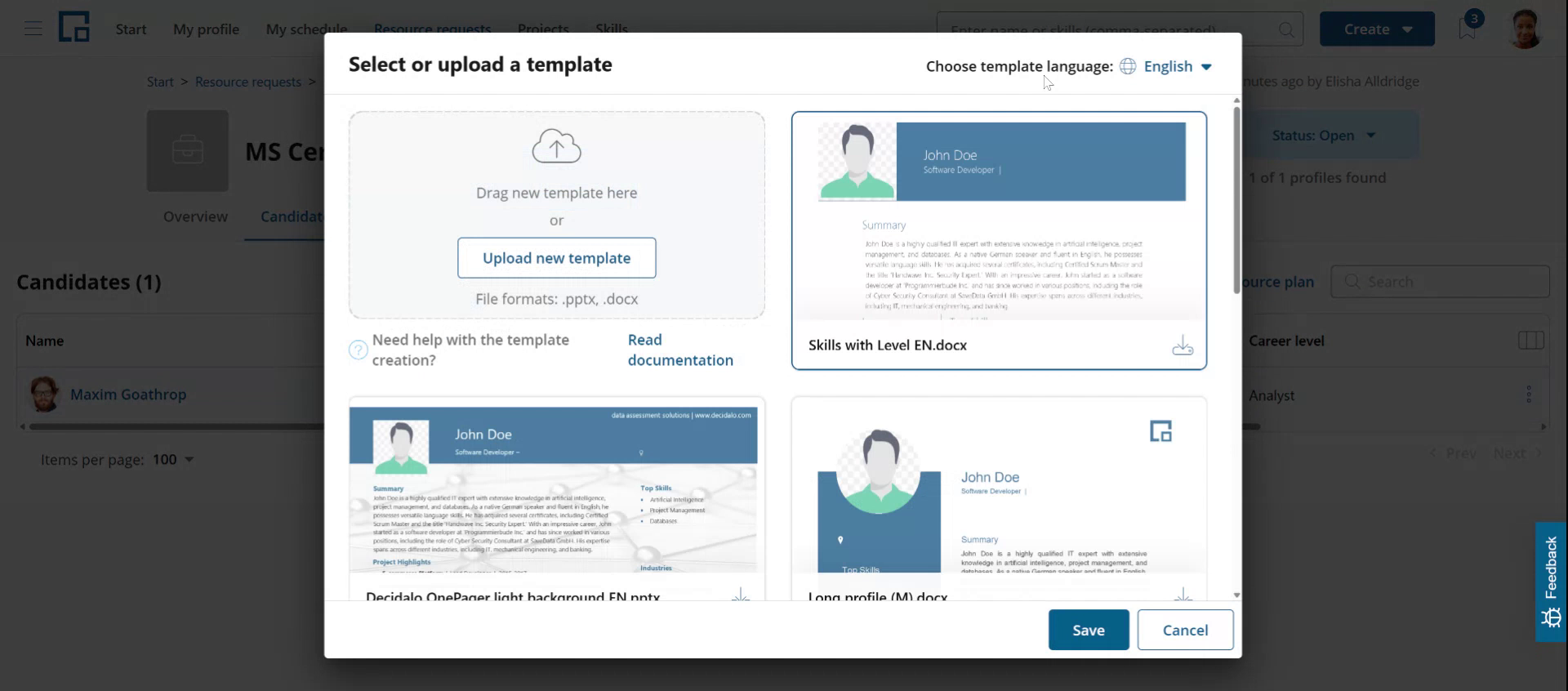 You can change the language in the top right corner to see and select templates in other languages. Click "Save" to select a template and return to the CV generation dialog.
Click "Add" to generate the CV. The tailored CV for the client's specific request is then created.
Preview the CV
A label (name) is automatically created for the CV. If a customer was set, the customer and / or role were set, these would be included in the label. Otherwise, a version number and date are used. The generated name and the CV itself can be modified in the CV designer. To get there click on the CV label in the CV column of the candidates table.
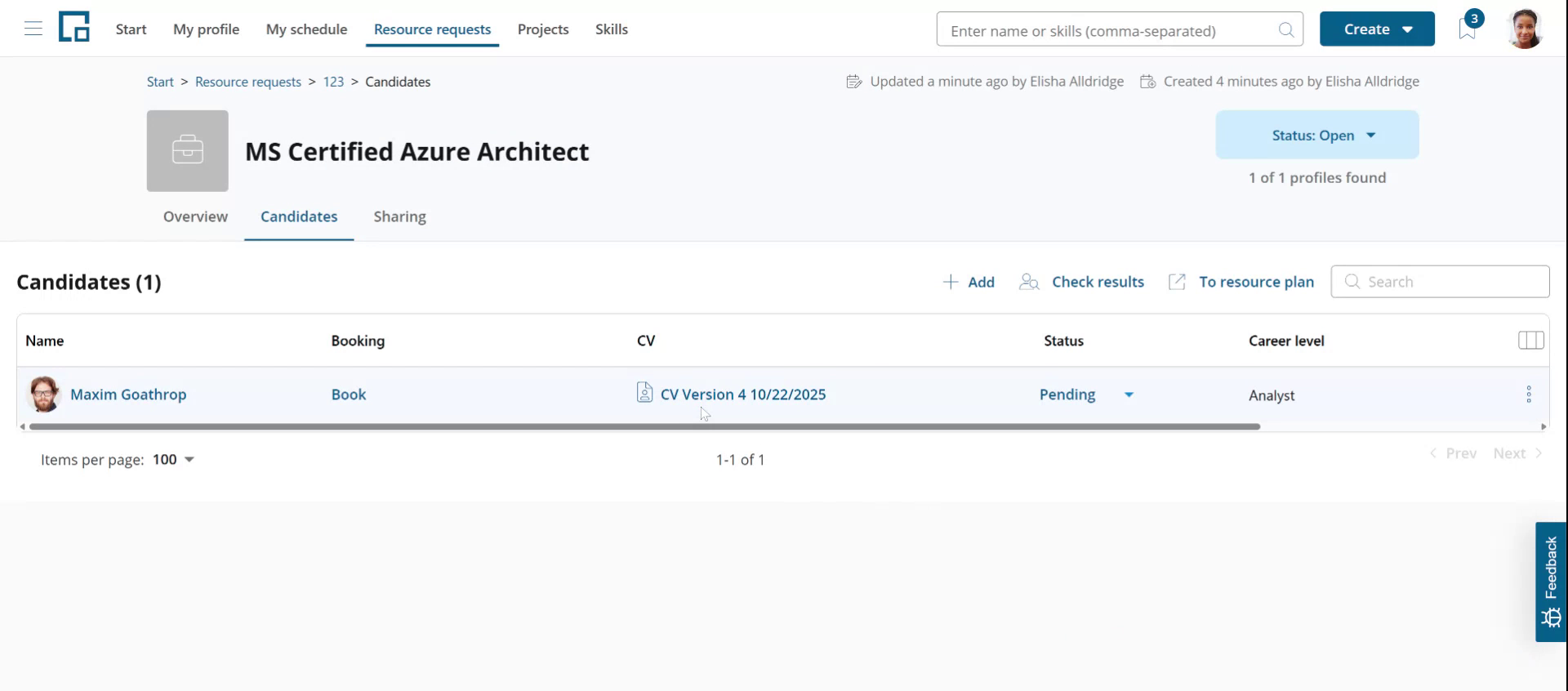 The CV Editor shows the CV exactly as it would be exported.
You will see that the top skills have been set according to the requirements, the summary rewritten, and project highlights identified.
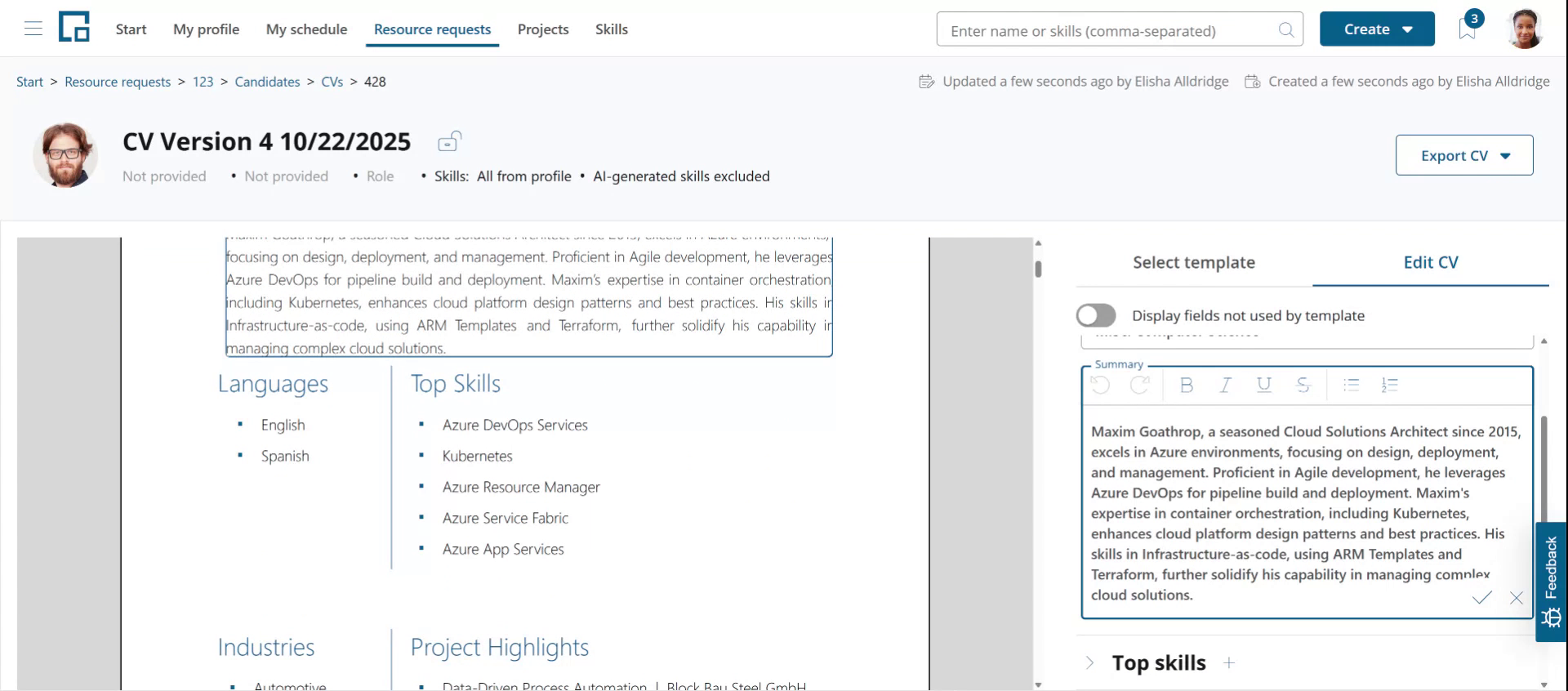
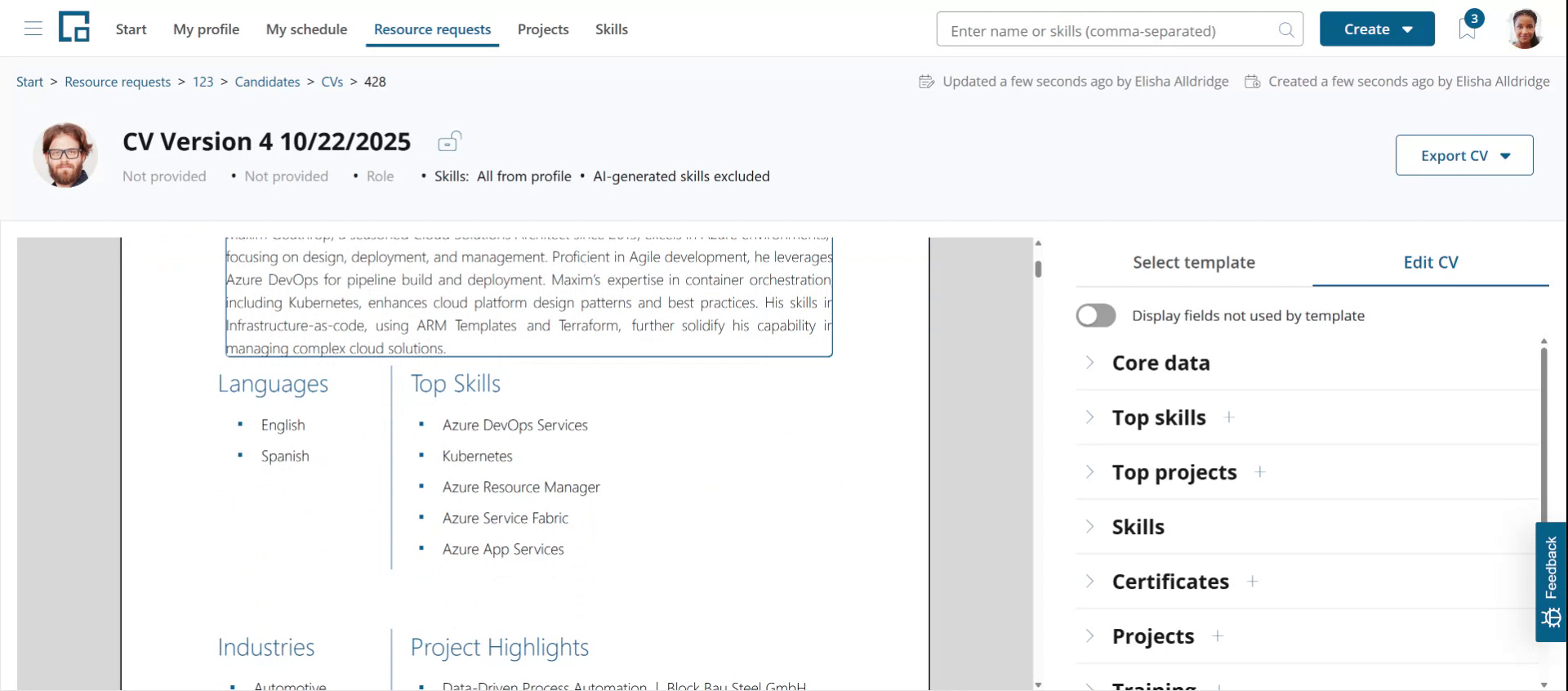 You can make adjustments at any time to ensure the CV meets the desired standards. Just click on a content section in the preview. This will select the content in the side-drawer on the right were you can edit it.
You can change text, select different skills or projects or rearrange their order.
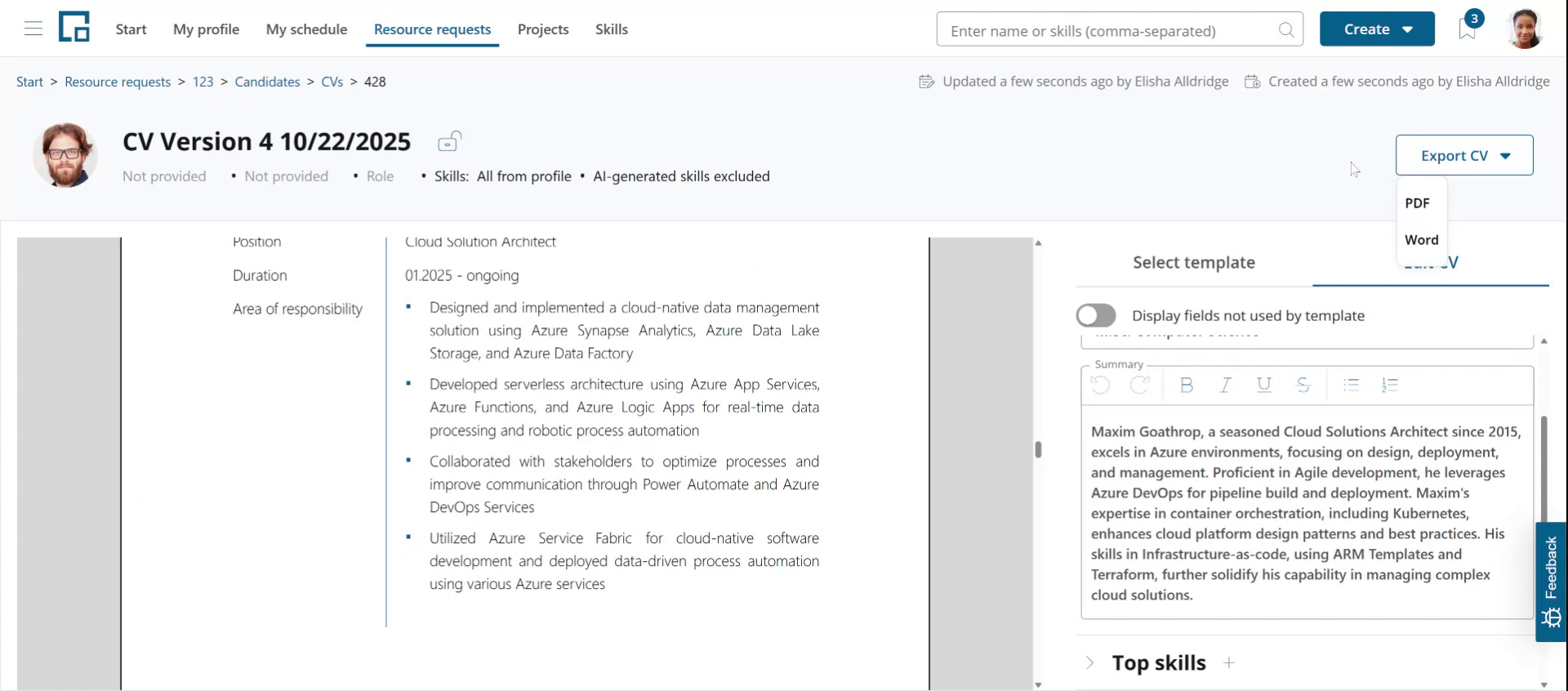
To export the CV click the "Export CV" button and select the document format. decídalo supports Microsoft Word or PowerPoint for CV templates. Depending on the selected template you can export the CV to Word or PowerPoint. PDF export is possible in both cases.
Working with multiple candidates at once
On the Candidates tab you can act on several candidates in one step instead of one at a time. Tick the checkbox at the start of a candidate row to select it, or use the checkbox in the column header to select all candidates that match the current filter and search, across every page and not just the one you are looking at. The number of selected candidates is always shown, so you know exactly how many you are about to act on (for example Clear selection (47)).
Note: the selection respects the active filters and search. Filter the candidates list first to act on only the matching candidates.
As soon as at least one candidate is selected, a bulk-action bar replaces the toolbar. The actions themselves sit behind an Actions dropdown; Clear selection and To resource plan stay directly on the bar.
The Actions dropdown offers:
| Action | What it does |
|---|---|
| Book (n) | Books the selected candidates on the resource request in one step; n is the number that will actually be booked. Opens a dialog with one shared set of booking values (booking status, subject, period, capacity, person days and accounting type), pre-filled from the resource request; the values apply to every candidate of the batch. Candidates that already have a booking on this request are left out and the dialog states how many were skipped. Each candidate is listed with its utilization for the entered period, and you can untick individual candidates before confirming. The batch is all-or-nothing: if you may not book one of the selected candidates, nothing is created and the dialog names who blocked it. Available only when there is one booking status you may use for every selected candidate, when at least one candidate is still unbooked, and for at most 50 candidates at a time; otherwise the action is disabled and a hover text explains why. |
| Add CVs | Opens the same tailored-CV dialog as the single Add CV action, pre-filled from the resource request. decídalo generates one CV per selected candidate in the background; a progress indicator shows how many are done, and each candidate's CV column shows a spinner while its CV is being created. The list refreshes automatically once generation has finished. Available only when you may create CVs for every selected candidate; otherwise the action is disabled and a hover text explains why. |
| Download CV | Downloads the CVs of the selected candidates together as a single ZIP file. Available only when every selected candidate already has a CV. |
| Delete selected (n) | Removes the selected candidates from the resource request. You are asked to confirm first; the effect is the same as removing each candidate individually. |
Directly on the bulk-action bar:
| Action | What it does |
|---|---|
| Clear selection (n) | Clears the current selection; n is the number of selected candidates. |
| To resource plan | Opens the resource plan for the selected candidates. |
Note: unlike booking a single candidate, bulk booking does not offer the weekly working time pattern. Book the candidates first and adjust an individual schedule afterwards if you need one.
The Actions dropdown works the same way as on the Team members tab of a project, though the available actions differ: Book exists only on a resource request, while the project tab additionally offers Extend and Move to project.
Screenshot to add: the Candidates tab of a resource request with several candidates selected and the Actions dropdown open (Book · Add CVs · Download CV · Delete selected), so the selection count and the Clear selection button are visible alongside it.