Candidate search: Requirements
When creating a resource request, you define search requirements that describe what you are looking for in an employee. decídalo automatically analyzes each requirement so you can see how it was understood and, where useful, review and curate the matches it found. Each requirement also has properties that control how the search behaves and how results are displayed.
Requirement Type
Every requirement belongs to a category that determines how it is evaluated against employee profiles:
| Category | What it matches |
|---|---|
| Skill | Skill entries on the employee's profile (with skill level) |
| Project experience | Past project history, matched by industry, client company, job role, and skills used in project context |
| Language skill | Language proficiency entries (with language level) |
| Certificate | Certificate entries on the profile |
| Highest qualification | Education and degree entries |
| Job position/Role | The employee's current or past job titles, matched against your role catalog |
| Distance from location | How far the employee's base location is from a given place, within a radius (in km) |
To add a requirement, click the + icon in the Requirements section. Each new requirement consists of a category selector and a text field. The category defaults to Skill, but can be changed by clicking on it. This opens a dropdown where you can select a different category.
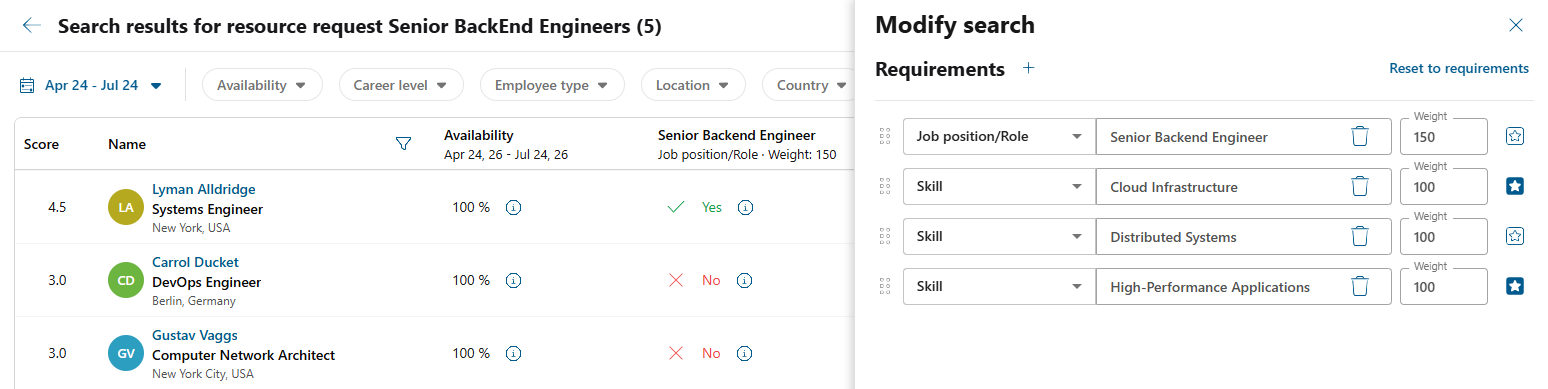
Each requirement also has a weight field, which defaults to 100, and a mandatory flag (star icon), which is unchecked by default. The weight reflects the relative importance of the requirement, while marking a requirement as mandatory flags it as a must-have condition.
Automatic Analysis
When you add a requirement, or edit its text or category, decídalo automatically analyzes it to work out what you meant. You do not need to trigger anything: analysis runs on its own and updates live as it finishes, without reloading the page.
A small Analysis: N of N counter in the Requirements header tracks how many requirements have finished analyzing, and an Extract button next to it lets you re-run the analysis for all requirements at once.
While analysis is still running, the search buttons are disabled, because searching over half-analyzed requirements would rank employees against criteria decídalo has not finished reading yet. Hovering a disabled button tells you why. They enable themselves the moment the counter completes; you do not need to reload the page. A requirement that could not be analyzed does not block the search (see Interpretation States).
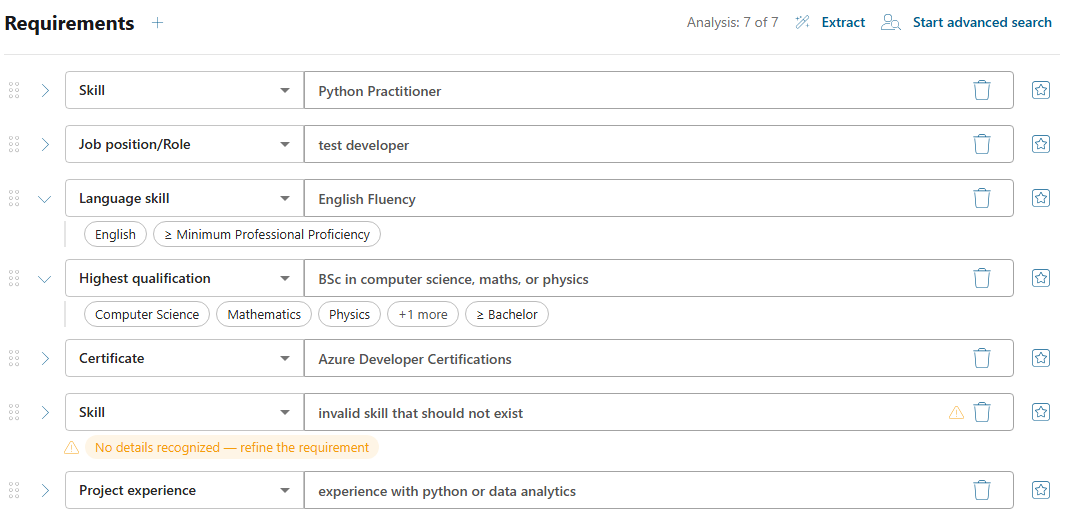
The result of that analysis is kept tidy behind an expand toggle, the chevron on the left of each requirement. Every requirement is collapsed by default, so the interpretation details stay hidden until you expand the row. The one exception is a warning: if decídalo could not understand a requirement, a short amber warning stays visible even while the row is collapsed, so you can always tell at a glance which requirements need attention (see Interpretation States).
Expand a requirement to see what decídalo understood from your text:
- Entity chips: the concrete things it recognized (for example the individual skills, certificates, or roles behind a phrase like "cloud certifications").
- Threshold chips: any level or amount it recognized (a skill or language level, a minimum number of years of experience, or an education level).
If the requirement's main entity matches nobody at all, its chip turns amber to warn you that the requirement, as understood, would return no one.
When there are more matches than fit on one line, a +N more chip reveals the remaining entities inline.
Interpretation States
Each requirement's interpretation is always in one of four states. Because rows are collapsed by default, you see the full detail of a state by expanding the row, except the Not analyzable and Partly analyzed warnings, which are surfaced even while the row is collapsed:
| State | What you see | What to do |
|---|---|---|
| Being analyzed | A short muted "being analyzed" text while analysis is still running. | Nothing. Wait for analysis to finish; it updates on its own. The search buttons stay disabled until it does. |
| Analyzed | When expanded, the interpretation with its entity and threshold chips. | Optionally review and curate the matches (see below). |
| Partly analyzed | An amber warning, shown even while the row is collapsed, naming a condition the search cannot apply, for example "Project count (min. 3) not applied" for a project-experience requirement asking for a minimum number of projects. The rest of the requirement was understood, so the interpretation chips and curation area are still shown when you expand the row. | Nothing is broken: the search runs on the part that was understood. If the unapplied condition matters, rephrase the requirement so it relies on content and duration instead. Re-analyze does not help here. |
| Not analyzable | An amber warning, shown even while the row is collapsed, with a short reason (for example "No details recognized, refine the requirement" when the text could not be understood, or "Analysis failed" if the analysis could not complete). | Rephrase the requirement text, or click Re-analyze to try again. |
Note: The screenshot under Automatic Analysis above shows two of these states: the expanded Language skill and Highest qualification rows are Analyzed (chips visible), while the Skill row "invalid skill that should not exist" is Not analyzable, its amber warning staying visible even while the row is collapsed.
Reviewing and Curating Matches
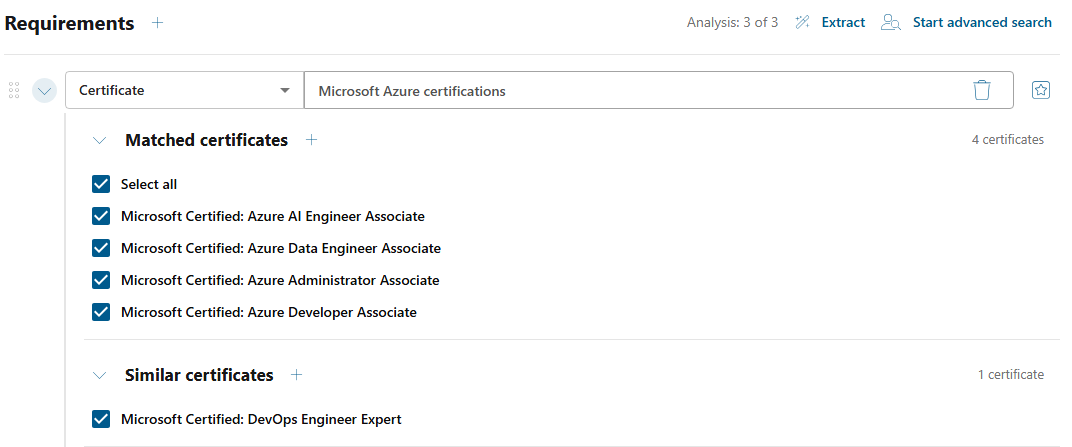
Every requirement expands, via the chevron on the left, to show what decídalo understood. For most types the expanded view simply shows the interpretation chips; for curatable types it opens a curation area where you review the matches decídalo found and decide which ones count. This lets you correct the automatic interpretation before you search.
| Requirement type | What you can curate | How changes apply |
|---|---|---|
| Skill | The matched skills from your skill catalog: tick or untick to include, and add more via search. | Immediately |
| Certificate | The certificates decídalo found, grouped into Matched certificates (direct matches) and Similar certificates (closely related). Tick or untick in either group, use Select all per group, and add more. | Immediately |
| Job position/Role | The matched roles from your role catalog: tick or untick, and add more. | Immediately |
| Project experience | The matched skills, industries, and companies: tick or untick, then click Save. Job positions are shown for context only; related search terms from earlier analyses may still appear for context. | On Save |
A few rules apply to all curation:
- Unticked matches are excluded from the search, so only the ticked matches are used when evaluating candidates.
- Your curation persists across searches. It is reset only when you change the requirement's text or category, or use Re-analyze, either of which re-runs the analysis for that requirement.
- Threshold labels use your own configuration: skill and language levels show your configured level names, and an education requirement shows a named level (for example "≥ Bachelor").
Note: Job position/Role can be curated in two places: here on the resource request, and from the search results matrix via the info (i) icon on its column. Distance from location is not curated here at all. You adjust its radius only from the results matrix, using the info (i) icon on its column (see Column Filters).
Weight
Note: Weight adjustment is disabled by default. An administrator can enable it in Administration > System settings > Feature settings by activating Requirement weighting. After changing this setting, users may need to log out and log back in before the change becomes visible.
The weight controls how much influence a requirement has on the overall ranking of search results.
- Default value: 100
- Range: 1–500
- A weight of 200 means the requirement counts twice as much as a default requirement.
- A weight of 50 means it counts half as much.
Example: If you have two requirements, Java (weight 200) and Agile (weight 100), an employee who matches Java will rank higher than one who only matches Agile, because the Java requirement carries double the ranking influence.
Mandatory
The mandatory flag (star icon ★) determines whether a requirement is strictly enforced:
- When a requirement is marked as mandatory, employees who do not fulfill it are excluded from the search results entirely.
- When it is not mandatory (default), employees are ranked by how well they match, but non-fulfilling employees are not removed.
You can toggle mandatory status by clicking the star icon next to a requirement.
Tip: Use mandatory sparingly. Marking too many requirements as mandatory can significantly reduce the number of results.
Reordering (Position)
You can drag and drop requirements using the handle on the left side of each row to reorder them. The order determines the column order in the search results matrix: the first requirement appears as the leftmost column, and so on.
Reordering requirements does not affect the ranking of employees. It is purely a visual preference for how columns are arranged in the results grid.
Modifying Requirements After Search
After a search has been executed, you can still adjust requirements by opening the Modify Search drawer. From there you can:
- Change the text, category, weight, or mandatory flag of existing requirements
- Add or remove requirements
- Reorder requirements
After making changes, click Start advanced search to re-run the evaluation with the updated criteria. The results matrix will refresh with the new ranking and column layout.
Note: Adjusting requirements and starting a search require edit permission on the resource request. Without it the requirements are read-only (you cannot add, edit, delete or reorder them, curate their matches, or use Extract), and the search button stays disabled until a search has been run. Once one has, the button opens the existing results, which you can still review, filter and export. See Permission concept.
Does the Property Affect Ranking or Results?
| Property | Affects ranking? | Affects results grid? |
|---|---|---|
| Weight | Yes, higher weight increases the requirement's influence on employee ranking | Indirectly: when Requirement weighting is enabled, the results show a Score column based on the weighted overall match |
| Mandatory | No, it filters results instead | Yes, only fulfilling employees appear |
| Position (order) | No | Yes, it determines column order in the matrix |
When Requirement weighting is enabled, the search results also include a Score column that reflects the weighted overall match.
Column Filters
In the search results matrix, each requirement is a column, and each column header offers tools to narrow and inspect the results:
- Filter: for Skill and Language skill, filter by minimum level; for Highest qualification, Job position/Role, Certificate, and Project experience, filter by match status (All, Yes and maybe, or Yes).
- Details (i): for Skill, Certificate, Project experience, Job position/Role, and Distance from location, the info (i) icon opens a drawer showing how the requirement was matched, where you can also adjust it (for Job position/Role, which of the matched catalog roles count; for Distance from location, the search radius).
Column filters work in addition to the mandatory flag: a mandatory requirement excludes non-fulfilling employees from the results, while column filters let you further narrow the visible rows within the remaining results.
Refining candidates
Note: Candidate refinement is disabled by default. An administrator can enable it in Administration > System settings > Feature settings by activating Automatic resource requests. After changing this setting, users may need to log out and log back in before the change becomes visible.
After the search has completed, you can use the Refine candidates button to let the AI automatically evaluate and save the top search results that best match the resource request description.
The button is available in the Profiles tab of a resource request once the search has finished, Automatic resource requests is enabled, and you have edit permission on the request. Click the button to start the refinement process:
- A notification confirms that refinement has started.
- A loading indicator is displayed while the AI evaluates the search results against the request description.
- When refinement is complete, a success notification appears and the candidates grid refreshes automatically with the newly added candidates.
Each refined candidate receives an AI-generated evaluation verdict and, where applicable, a suggestion note explaining why the candidate is a good match.
Note: Refinement only adds candidates that are not already assigned to the resource request. If a candidate was previously saved, it will not be duplicated.
Tip: If email notifications for resource request updates are configured, the responsible users will also receive an email when candidate refinement completes. For AI-refined candidates the email includes the suggestion reason explaining why the candidate is a good match.