The Skill Matrix in decídalo
Discover our Skill Matrix
The Skill Matrix in decídalo is your modern solution for transparent and clearly structured skill management. This feature is designed for administrators and provides a simple, intuitive, and structured overview of all competencies within your organization. On the Skill Matrix page, you can define entirely custom skill sets and adapt them flexibly to your organization’s specific needs.
What does the Skill Matrix offer?
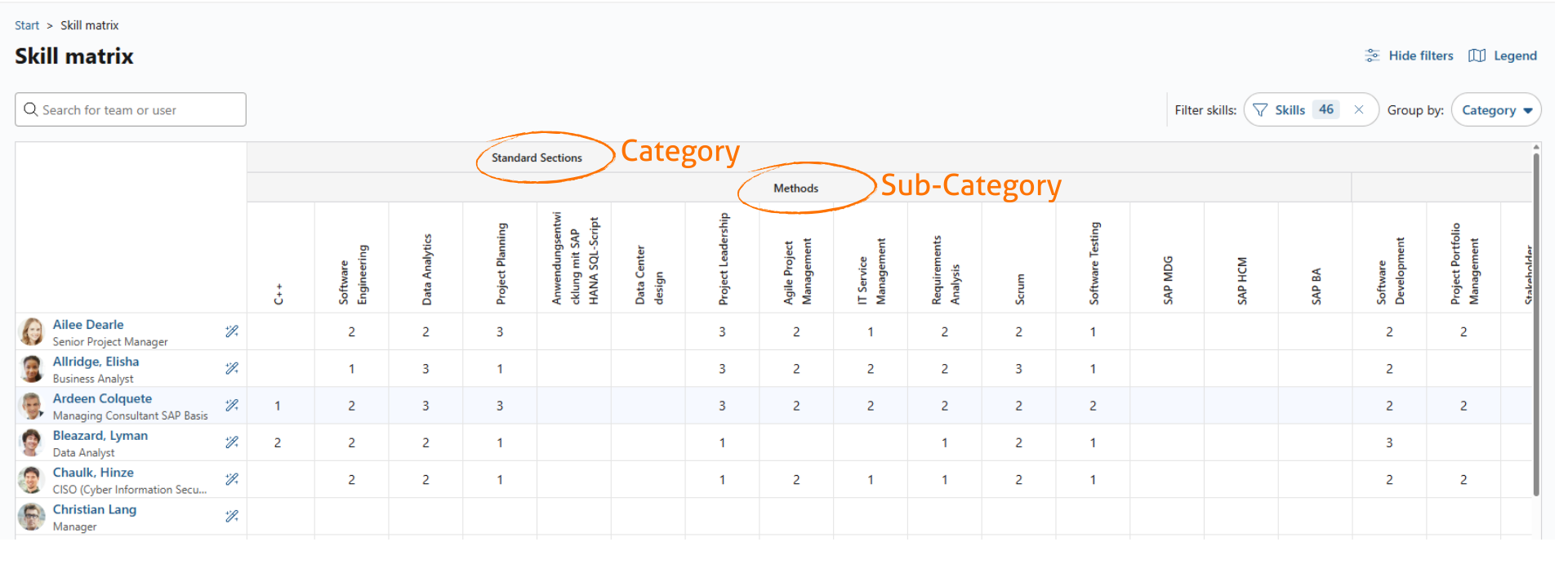
1. Skills at a glance
- Instantly see who knows what, including skill levels.
- Get a complete overview of your employees, predefined core skills, and related categories and subcategories. Core skills and categories can be defined on the “Skills” page. Feel free to check our documentation.
- Search for individual consultants, teams, or display all users to get the view you need. Selections you need regularly can be saved under a name and reused (see “Save team and user selections” below).
2. Assess skill levels
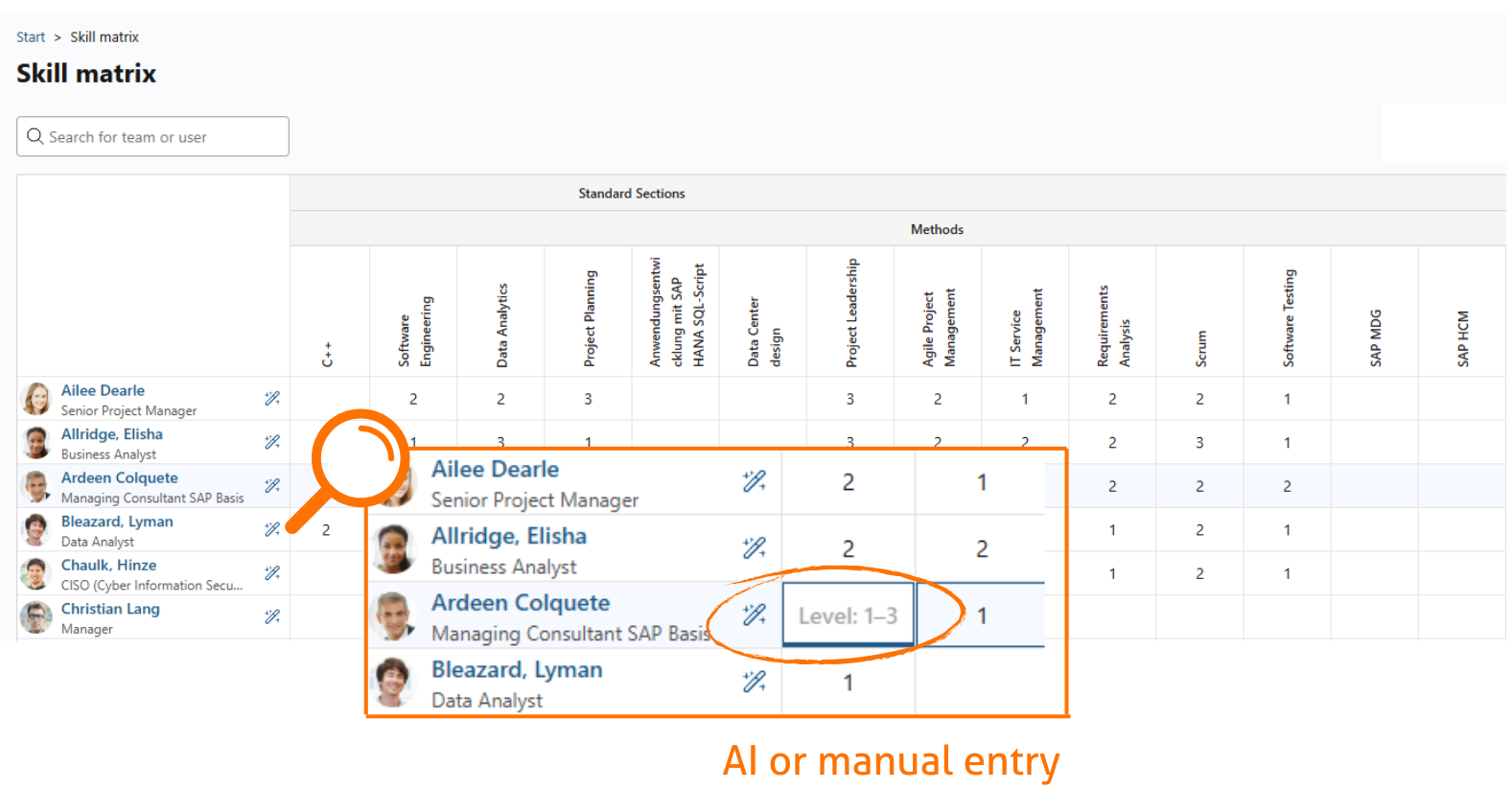
- Evaluate skills You can manually assign a skill level to an employee or let our AI suggest it automatically. Note: The AI only analyses existing profile data and generates suggestions based on it.
3. Filter and search functions
The Skill Matrix has two independent sets of filters: above the matrix you choose which people are shown, and on the right side you’ll find powerful options to customize which skills are shown. Both kinds of selection can be saved under a name and reused.
Save team and user selections
Above the matrix, the Teams, users filter controls which people appear in the matrix. The chip next to it shows how many teams and people are currently selected, or All when the matrix is not filtered.
- Build a selection: Open the filter and use the search field to add teams or individual people. Each entry is listed above the search field and can be taken out again with the x icon. Choose Filter to apply the selection, or Cancel to discard your changes.
- Save a selection: Once the selection is the way you want it, open the Save menu and choose Save as new filter. Name the filter and save it. The name has to be unique among your own filters; if it is already taken, you are asked for a different one. An empty selection can be saved as well and simply shows everyone.
- Reuse a saved filter: As soon as you have saved at least one filter, a Select saved filter dropdown appears at the top of the filter. Pick a filter and its teams and people are applied to the matrix straight away. The button above the matrix then shows the name of the active filter instead of Teams, users.
- Update a saved filter: With a filter selected, adjust the teams and people and choose Update selected filter from the Save menu to store the change in that filter. To keep the original unchanged and branch off from it, choose Save as new filter instead. The Save menu stays disabled as long as the selection is identical to the saved filter, because there is nothing to store.
- Rename or delete a filter: With a filter selected, use the pencil icon to rename it and the bin icon to delete it. Deleting asks for confirmation and cannot be undone.
- Clear the selection: Use the x icon next to the filter button to show all people again.
Saved team and user filters are personal: only you see and use the filters you create. They are independent of the skill filters described below, so any saved team filter can be combined with any saved skill filter.
Use skill filters
Filter by specific skills or skill lists.
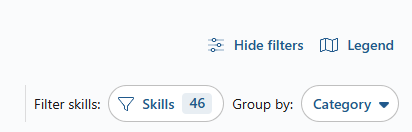
- The filter allows users to compile individual skill lists and save them for future use. Additionally, skills can be grouped by categories and subcategories for better organization.
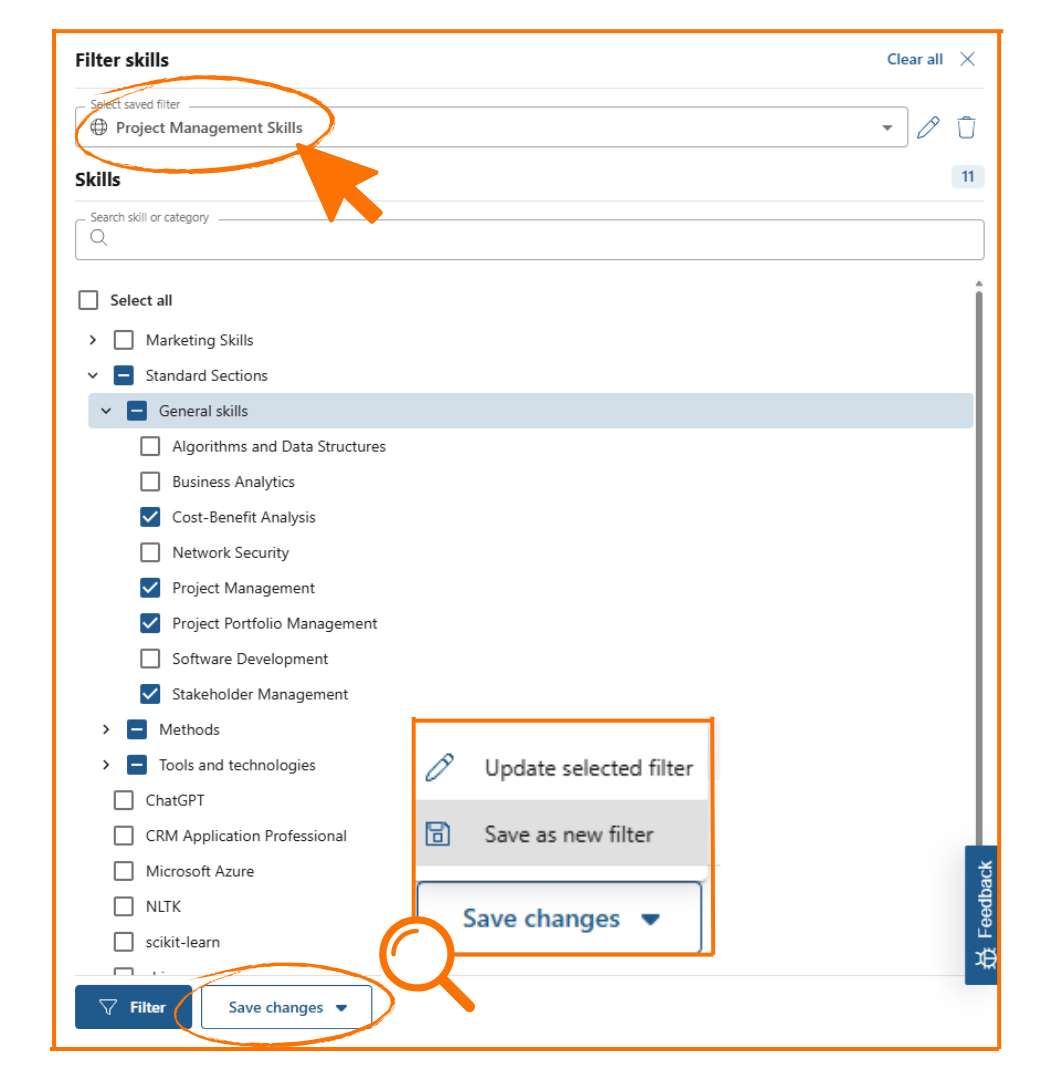
- Create new filters: You can create and save new filters. Select the desired skills and save the selection as a new filter. Name the filter and save it.
- Use saved filters (skill lists) to display only specific skills, e.g. project management skills only.
Edit existing skill filters
- Select an existing filter from the list.
- Expand the included skill sets to add or remove skills.
- Save the changes or create a new filter based on your current selection.
Search for skills or categories
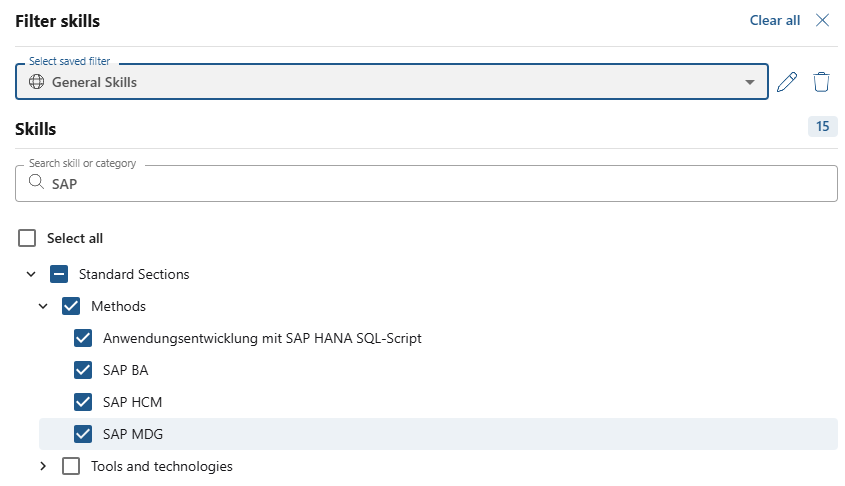
- Use the search function to find specific skills (e.g., SAP) or categories directly.
- Pick from the results: A search narrows the list without preselecting anything, so you choose exactly the skills you want to see.
- Combine several searches: Skills you have already ticked stay ticked when you search for something else. Search for "Apple", tick what you need, then search for "Microsoft" and tick more. Filter applies everything you picked, across all the terms you used.
- Add to an applied filter: While a skill filter is applied, Add to filter appears next to Filter and adds the newly ticked skills to it instead of replacing it. Skills that are not part of the current search stay in the filter; unticking a skill that is currently shown removes it.
- Start over: Clear all empties the search field, deselects the saved skill filter, and returns the matrix to showing all skills.
With the Skill Matrix in decídalo, you gain a powerful tool for visualizing, managing, and analyzing competencies across your organization. Stay on top of qualifications, make informed decisions, and streamline your skill management like never before.
If you have any questions, feel free to contact us at: support@decidalo.app