Managing Core Skills in decídalo
Core Skills represent the key competencies your company needs. They are organized into categories and subcategories, and serve as the foundation for role skill profiles. Core skills can be generated by AI based on your company profile or added manually.
Core Skills Overview
Navigate to Company Profile > Core Skills to access the core skills catalog.
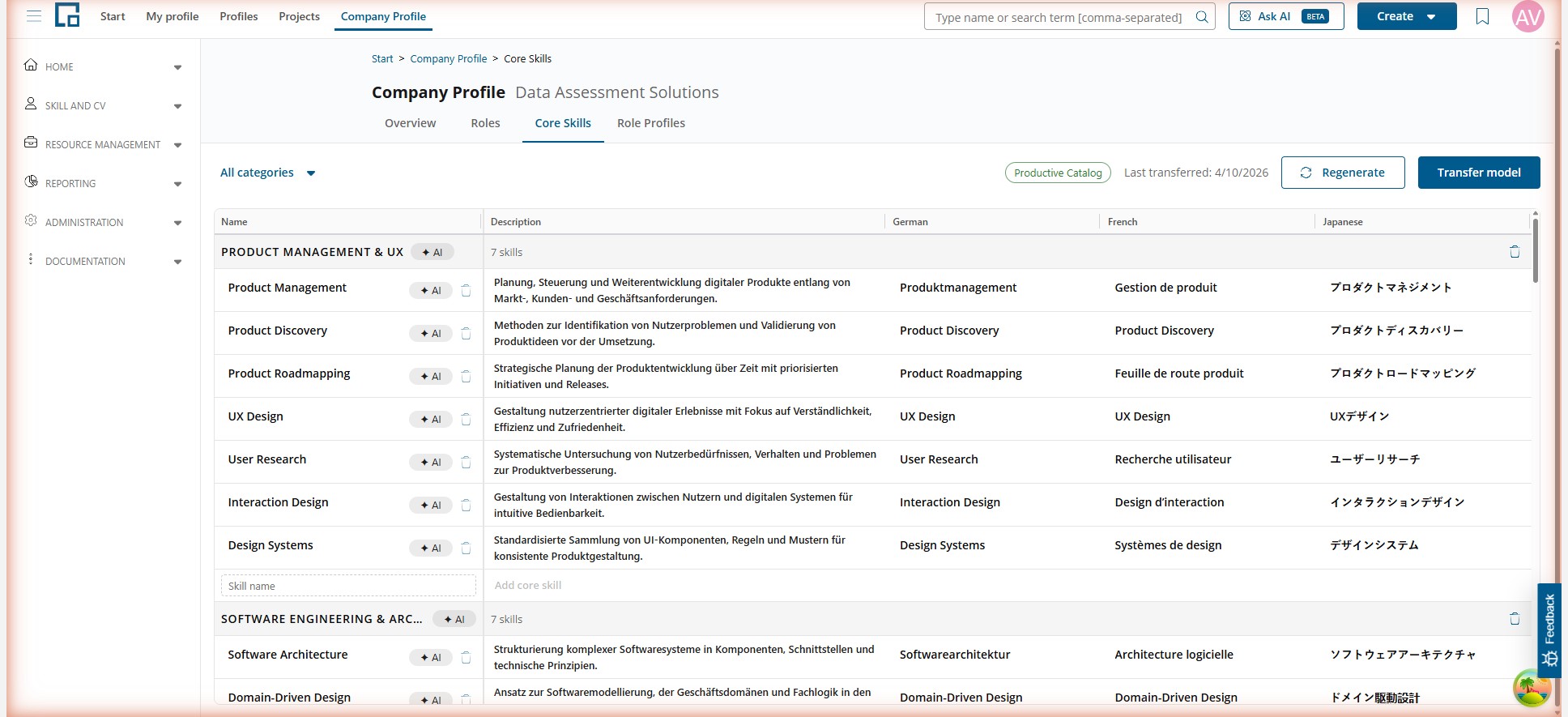
The header bar shows:
- Category filter: Filter skills by category using the dropdown on the left
- Status badge: Indicates whether the catalog is in Draft (not yet transferred) or Productive Catalog (transferred to production)
- Last action date: Shows when the catalog was last generated or transferred
- Regenerate: Generates a new set of core skills, replacing all existing ones
- Transfer Model: Opens the transfer wizard to move staged skills to the productive skill catalog
Generating Core Skills
To generate core skills using AI:
- Ensure your company profile is filled in (at minimum: industry, description, and focus areas).
- Click Regenerate (or Generate if no skills exist yet).
- A progress bar shows the generation progress (e.g., "Step 5 of 10").
- Once complete, the skills table populates with AI-generated core skills organized by category.
Regenerating replaces all existing core skills. If you have made manual edits, consider whether regeneration is appropriate.
The Skills Table
The skills table displays all core skills grouped by category. Each category row shows the category name and the number of skills it contains.
| Column | Description |
|---|---|
| Name | The skill name in the default language. Click to edit. Skills marked with an AI badge were generated by AI. |
| Description | A brief description of the skill in the default language. Click to edit. |
| English / French / Japanese / Spanish | Translations of the skill name. These can be auto-generated via AI enrichment. |
| Description (English / French / Japanese / Spanish) | The skill description per language: one column for every language your company uses, except the default one. Click to edit. A cell stays empty until that language has its own description. These are auto-generated via AI enrichment when a skill is created; while it runs, the cell shows Generating…. |
Filtering and Searching
Use the Category filter dropdown to show only skills from a specific category. You can also type in the search field to find skills by name.
Adding Skills Manually
To add a new core skill:
- Click the + button or use the add action.
- Enter the skill name and description in the dialog.
- The skill is added to the selected category.
Deleting Skills and Categories
- To delete a single skill, click the delete icon next to it.
- To delete an entire category (and all its skills), click the delete icon on the category row. A confirmation dialog will appear.
AI Enrichment
Skills can be enriched with AI to automatically generate:
- Translations in all supported languages (English, French, Japanese, Spanish)
- Descriptions if missing, including a translation of the description into each supported language
- Spelling corrections with suggestions you can accept or dismiss
AI-enriched fields are marked with an AI badge. Enrichment runs in the background after a skill is created, so the category and description cells show Generating… for a few seconds and then fill in by themselves. A description you wrote yourself is never replaced by a generated one.
Exporting the Skills Table
The Export action downloads the table as an Excel file. It contains the same columns you see in the table, including one skill-name column and one description column per language. A language without its own translation exports as an empty cell.
Transferring Core Skills to Production
The transfer process moves your staged core skills into the productive skill catalog used across decídalo. This is a guided multi-step process.
Click Transfer Model to open the transfer wizard.
Step 1: Match Core Skills (AI)
The AI automatically compares your staged core skills against the existing productive skill catalog. It identifies:
- Exact matches: Skills that already exist in production
- Synonyms: Skills with similar meaning
- New skills: Skills not yet in the productive catalog
Step 2: Review Core Skills
Review the AI-suggested matches. For each staged skill, you can:
- Accept the suggested production match
- Change the match to a different production skill
- Mark it as a new skill to be created
Step 3: Generate Sub-Categories (AI)
The AI generates subcategories for each skill category. This helps organize skills in finer granularity within the productive catalog.
Step 4: Review Sub-Categories
Review the generated subcategory names and translations. You can:
- Rename subcategories
- Delete unnecessary subcategories
- Add new subcategories
- Edit translations
Step 5: Map Skills to Categories (AI)
The AI maps your staged skills to the production categories and subcategories based on their content and context.
Step 6: Review Skill Mappings
Review the skill-to-category assignments on a paginated screen. You can:
- Move skills to different categories or subcategories
- Confirm or adjust AI-suggested assignments
Step 7: Execute Transfer
Confirm the transfer to apply all changes to the productive skill catalog. This will:
- Create new production skills for unmatched staged skills
- Update existing skills where matches were confirmed
- Reorganize categories and subcategories as defined
If the transfer is interrupted, you can resume it later from the step where it stopped. The wizard tracks your progress and allows you to continue.
Related Pages
- Company Profile Overview: Set up company information that drives AI generation
- Roles & Job Families: Define roles using your core skills
- Role Skill Profiles: Map core skills to roles in a matrix