Role Skill Profiles in decídalo
Role Skill Profiles define which core skills are required for each role and at what proficiency level. The profiles are displayed as an interactive matrix and can be generated by AI or edited manually.
Role Skill Profiles Overview
Navigate to Company Profile > Role Skill Profiles to access the skill matrix.
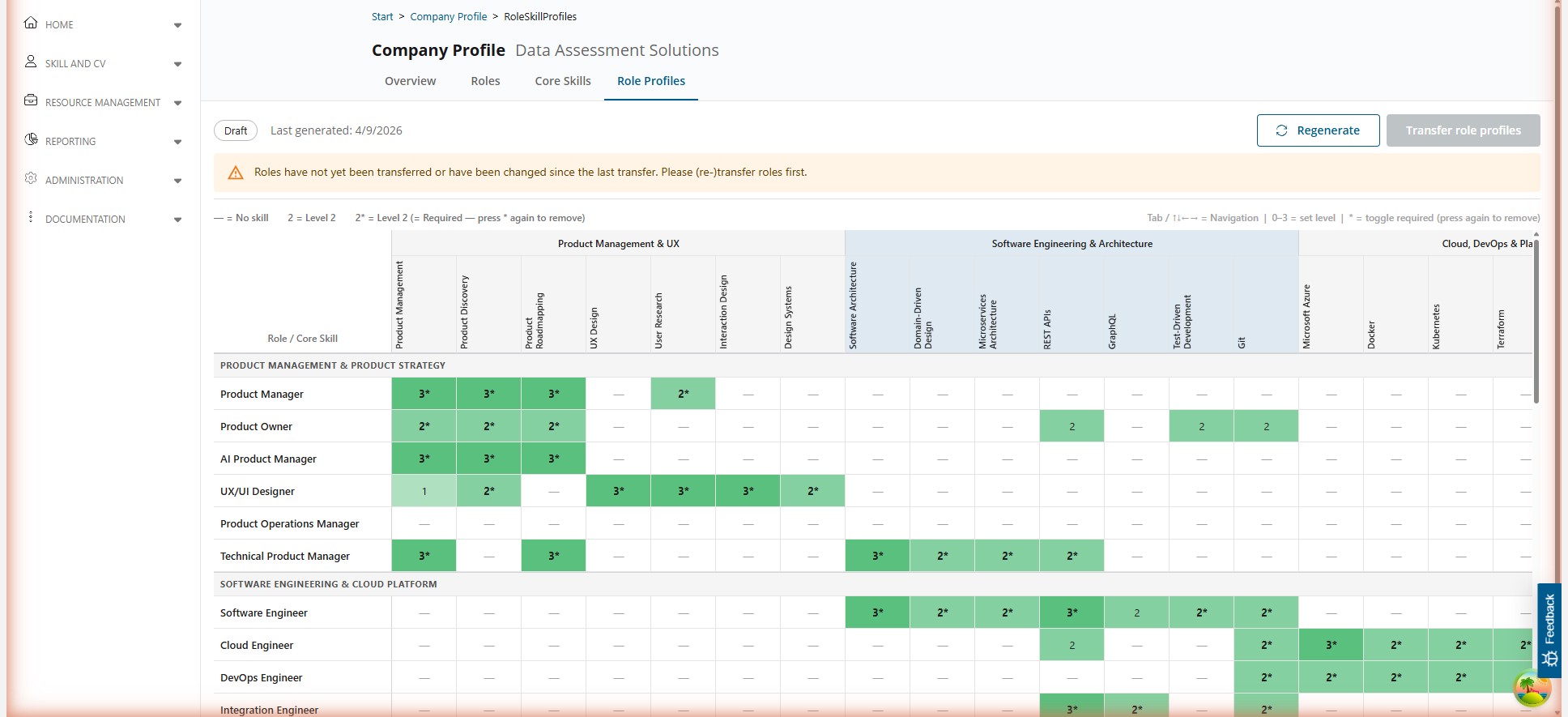
The header bar shows:
- Status badge: Indicates Draft (not yet transferred) or Productive Catalog (transferred)
- Last action date: When profiles were last generated or transferred
- Regenerate: Generate new skill profiles using AI
- Transfer Role Profiles: Move profiles to the productive catalog
Prerequisites
Before working with role skill profiles, you need:
- Core Skills: A generated or manually created core skill catalog
- Roles: Generated or manually created roles and job families
If either core skills or roles have not been transferred yet, or have been modified since the last transfer, a warning banner is displayed:
⚠ Roles have not been transferred or have been changed since the last transfer. Please transfer roles first.
The Transfer Role Profiles button is disabled until the prerequisites are met.
The Skill Matrix
The matrix displays roles as rows and core skills as columns:
- Rows: Each row represents a role, grouped under its job family (shown as a section header)
- Columns: Each column represents a core skill, grouped under its category (shown as a column group header)
- Cells: Each cell shows the skill level and whether it is a required skill
Reading the Matrix
| Cell Value | Meaning |
|---|---|
| — | No skill requirement (not applicable for this role) |
| 1 to 3 | Skill level from 1 (basic) to 3 (expert) |
| 2* | Skill level 2, marked as a required skill (asterisk indicates mandatory) |
Cells are color-coded with increasing shades of green: the higher the skill level, the darker the green. This makes it easy to visually identify skill concentrations across roles.
Navigation
The matrix supports keyboard navigation:
- Tab / Arrow keys: Move between cells
- 0–3: Set the skill level for the selected cell
- *****: Toggle the required flag on or off
Editing Skill Levels
Click on any cell to open a dropdown where you can:
- Select a skill level (0–3)
- Toggle whether the skill is required (mandatory) for this role
Generating Role Skill Profiles
To generate profiles automatically:
- Ensure both core skills and roles are available.
- Click Regenerate (or Generate if no profiles exist).
- The AI assigns skill levels to each role based on the role description and skill definitions.
Regenerating replaces all existing profile assignments. Consider exporting or reviewing your current matrix before regenerating.
Transferring to Production
The transfer moves your staged role skill profiles to the productive catalog. Before transferring, the system performs a pre-check:
- Core Skills ready: Core skills must be transferred and unchanged since the last transfer
- Roles ready: Roles must be transferred and unchanged since the last transfer
If both conditions are met, the Transfer Role Profiles button becomes active. Click it and confirm the transfer in the dialog.
After transfer, the status badge changes to Productive Catalog and the transfer date is updated.
The recommended transfer order is: Core Skills → Roles → Role Skill Profiles. Each step depends on the previous one being up to date.
Related Pages
- Company Profile Overview: Company information that drives AI generation
- Core Skills: The skill catalog used as columns in the matrix
- Roles & Job Families: The roles used as rows in the matrix