Managing Roles & Job Families in decídalo
Roles define the positions within your company, organized into job families. Each role includes multilingual names, descriptions, and trend indicators. Roles are generated by AI based on your company profile and can be transferred to the productive role catalog.
Roles Overview
Navigate to Company Profile > Roles to manage your company's role structure.
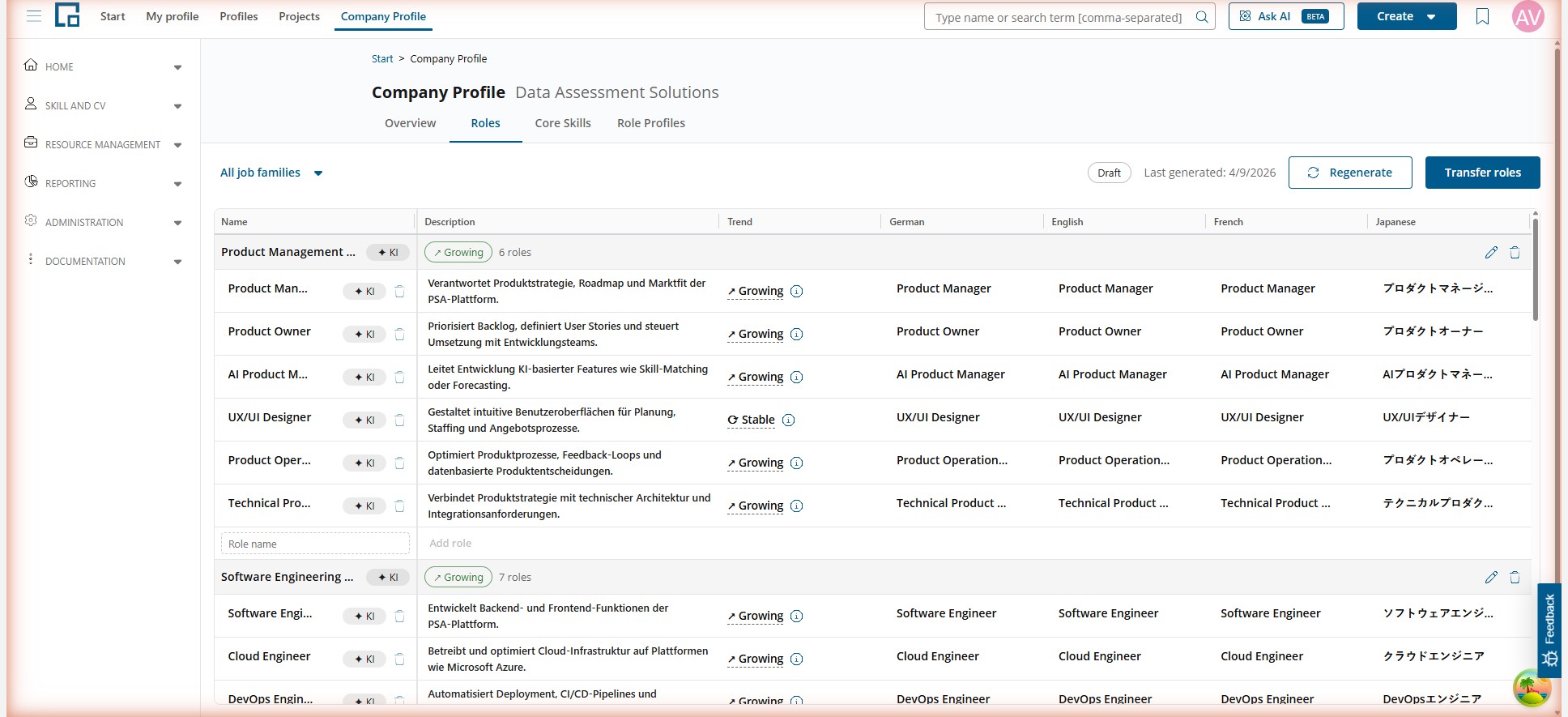
The header bar shows:
- Job Family filter: Filter by a specific job family using the dropdown on the left
- Status badge: Indicates Draft (not yet transferred) or Productive Catalog (transferred)
- Last action date: When roles were last generated or transferred
- Regenerate: Generate a new set of job families and roles using AI
- Transfer Roles: Open the transfer wizard to move roles to the productive catalog
Job Families
Job families group related roles together. For example, the job family "Product Management & Strategy" might contain roles such as Product Manager, Product Owner, and AI Product Manager.
Each job family row displays:
- Name: The job family name (click to edit)
- Trend indicator: The overall trend for this family (Growing, Stable, or Declining)
- Role count: The number of roles within the family
- Edit/Delete icons: Manage the job family
Adding a Job Family
Click the add button to create a new job family. Enter the name in up to five languages (German, English, French, Japanese, Spanish) and set a trend indicator.
Editing a Job Family
Click the edit icon on a job family row to open the edit dialog. You can modify:
- Names in all supported languages
- Trend indicator and reasoning
Deleting a Job Family
Click the delete icon to remove a job family. A confirmation dialog shows how many roles will be affected.
Roles
Roles are listed under their parent job family. Each role row shows:
| Column | Description |
|---|---|
| Name | The role name. Roles marked with an AI badge were generated by AI. |
| Description | What this role is responsible for. |
| Trend | An indicator showing whether demand for this role is growing, stable, or declining. Hover over the info icon to see the reasoning. |
| German / English / French / Japanese / Spanish | The role name in each supported language. |
Trend Indicators
Each role has a trend indicator that reflects market demand:
- Growing: Increasing demand for this role
- Stable: Consistent demand
- Declining: Decreasing demand
The trend reasoning explains why the AI assigned a particular trend. Hover over the info icon next to the trend to view it.
Adding a Role
Click the add button within a job family to create a new role. Enter the role name and description. The role is added under the selected job family.
Editing and Deleting Roles
- Click on any field in a role row to edit it inline.
- Click the delete icon to remove a role (with confirmation dialog).
Generating Roles with AI
To generate roles automatically:
- Ensure your company profile is complete (industry, description, focus areas, strategic context).
- Click Regenerate (or Generate if no roles exist).
- The AI creates job families and roles based on your company profile, including descriptions and trend indicators.
- A progress bar shows the generation status.
The strategic context from your company profile influences how job families are weighted. The more specific your strategic input, the more relevant the generated roles will be.
Transferring Roles to Production
The transfer process moves your staged roles and job families into the productive role catalog. Click Transfer Roles to start the wizard.
Matching Roles
The transfer wizard compares your staged roles against the existing productive catalog:
- Matched roles: Staged roles that match existing production roles (by name)
- Unmatched staged roles: New roles not yet in production
- Orphaned production roles: Production roles that have no matching staged role
Review Dialog
In the review dialog, you can:
- Confirm matched role pairs
- Decide how to handle unmatched staged roles (create as new or skip)
- Decide how to handle orphaned production roles (keep or remove)
Executing the Transfer
After reviewing, confirm the transfer. The system will:
- Update existing production roles with new data (descriptions, translations, job family assignments)
- Create new production roles for unmatched staged roles
- Handle orphaned roles as specified
Roles must be transferred before you can transfer role skill profiles. The role skill profiles tab will show a warning if roles are outdated.
Related Pages
- Company Profile Overview: Company information that drives role generation
- Core Skills: The skill catalog that roles are linked to
- Role Skill Profiles: Assign skills and levels to each role